> ## Documentation Index
> Fetch the complete documentation index at: https://help.voxdash.com/llms.txt
> Use this file to discover all available pages before exploring further.
# Managing Subscription Usage in VoxDash
The **Subscription Usage** section provides a complete overview of your current plan in VoxDash. From here, data providers can review plan details, monitor usage metrics, manage available features, view add‑ons, and upgrade their subscription when needed.
This section ensures transparency and helps you make informed decisions about scaling your plan as your data requirements grow.
## Accessing the Subscription Usage Page
1. **Open the Data Provider Panel**\
After signing in to VoxDash, navigate to the **Data Provider Panel** from the main dashboard sidebar.\
This area centralizes all administrative tools for your organization.
2. **Go to Subscription Usage**\
On the top of the page right next to your profile you can see your plan icon and by clicking on it you will be navigated to the **Subscription Usage** page.\
This page displays every aspect of your current plan in one place, so you can track limits, active features, and add‑ons.
## Viewing Subscription Details
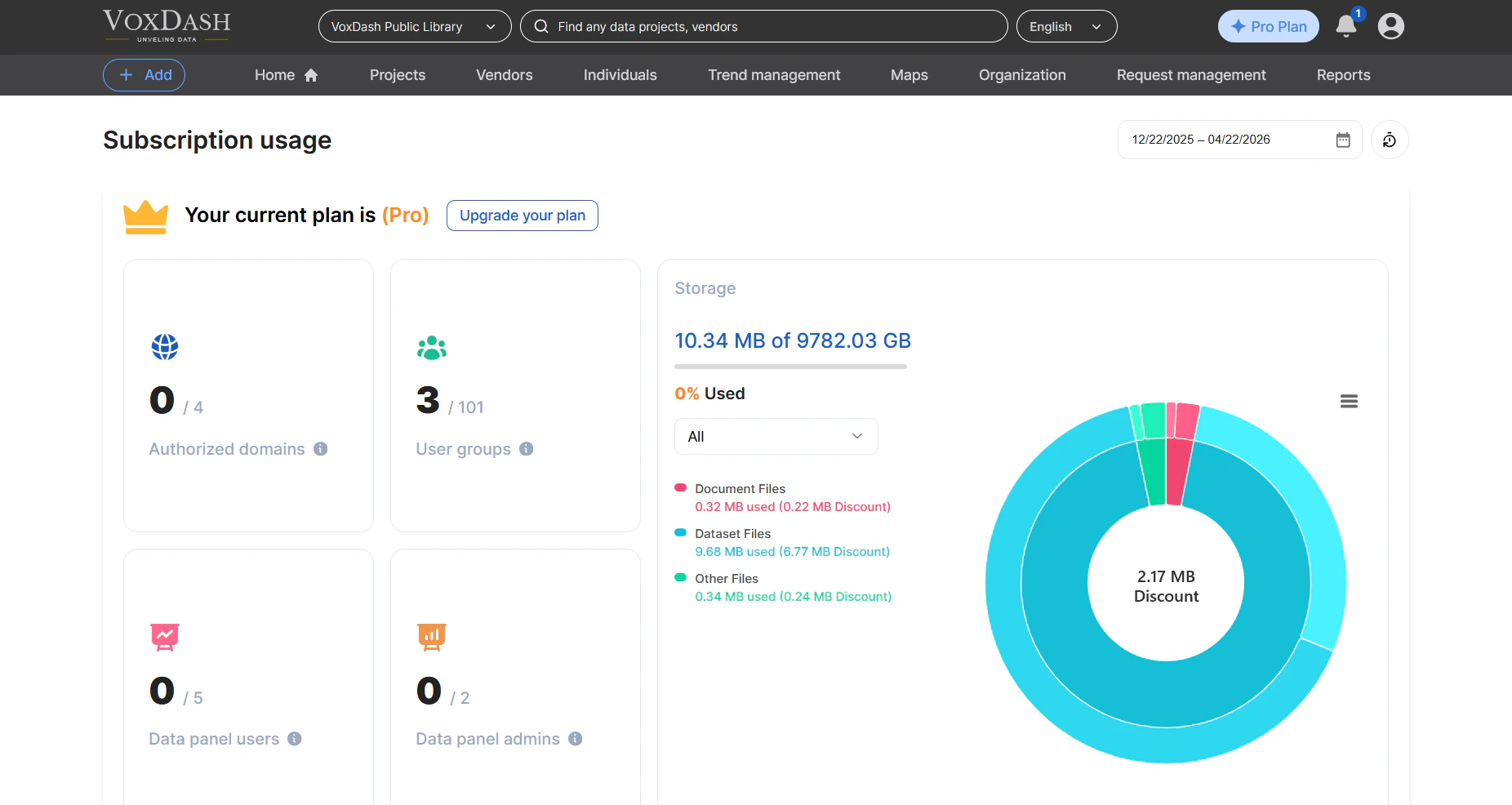
The top section of the page shows **key information** about your active plan, such as:
* **Plan Name** (e.g., Starter, Professional, Enterprise)
* **storage**
* **Authorized domains** (Maximum number of authorized domains with access to your data across all data projectsMaximum number of authorized domains with access to your data across all data projects)
* **User Groups** (Maximum number of user groups across all data projectsMaximum number of user groups across all data projects)
* **Data Panel Users** (Number of standard users with access to the data provider panelNumber of standard users with access to the data provider panel)
* **Data Panel Admins** (Number of admin or organizer users with access to the data provider panelNumber of admin or organizer users with access to the data provider panel)
 You can also view essential **usage metrics**, such as:
* Total number of **Survey questions**
* Number of **Survey sample size**
* Total number of **Survey trended waves**
* Number of **User access points**
**Note:** By hovering on each of them you can view **Add-on** button, and you can buy extra amount of each feature if you needed.
You can also view essential **usage metrics**, such as:
* Total number of **Survey questions**
* Number of **Survey sample size**
* Total number of **Survey trended waves**
* Number of **User access points**
**Note:** By hovering on each of them you can view **Add-on** button, and you can buy extra amount of each feature if you needed.
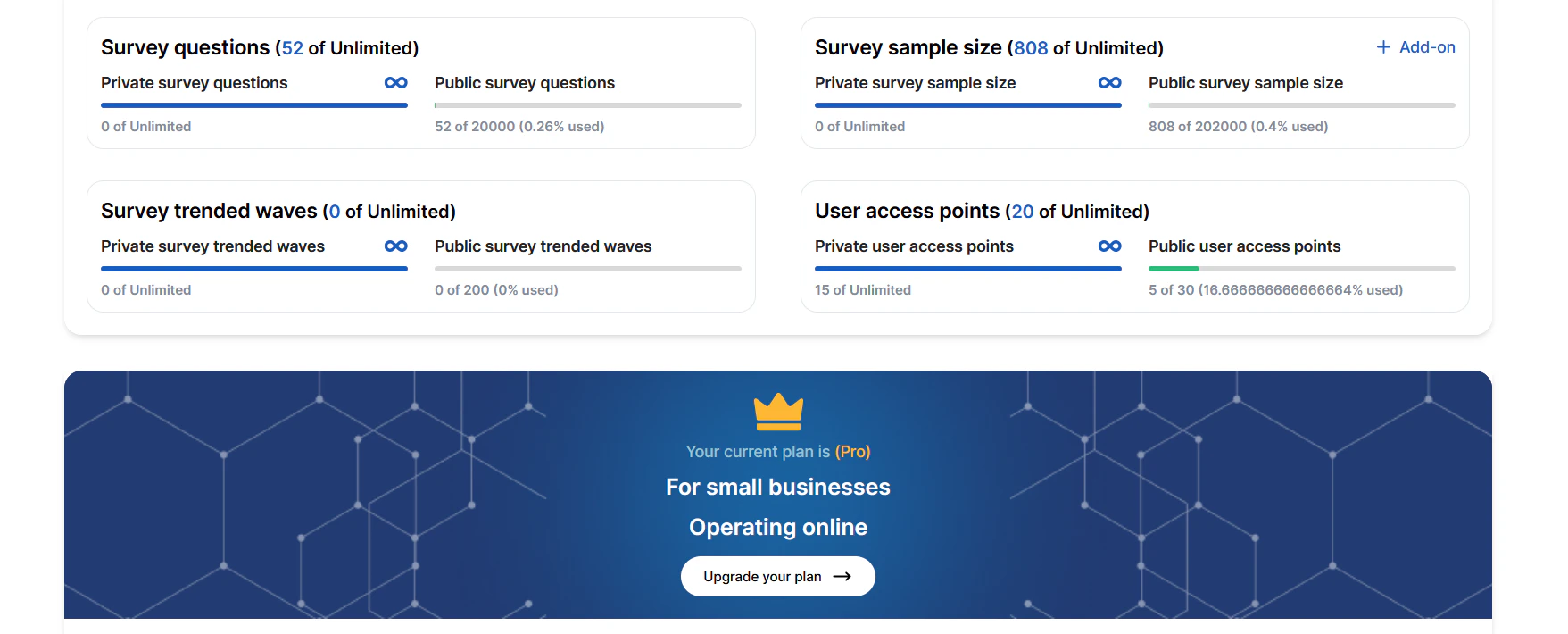 VoxDash automatically updates these metrics so that you can monitor your service consumption in real time.
**Tip:** Keep an eye on your usage percentage indicators. When you approach a limit, VoxDash displays a notification banner so you can take action before running out of capacity.
## Viewing Features and Add‑Ons
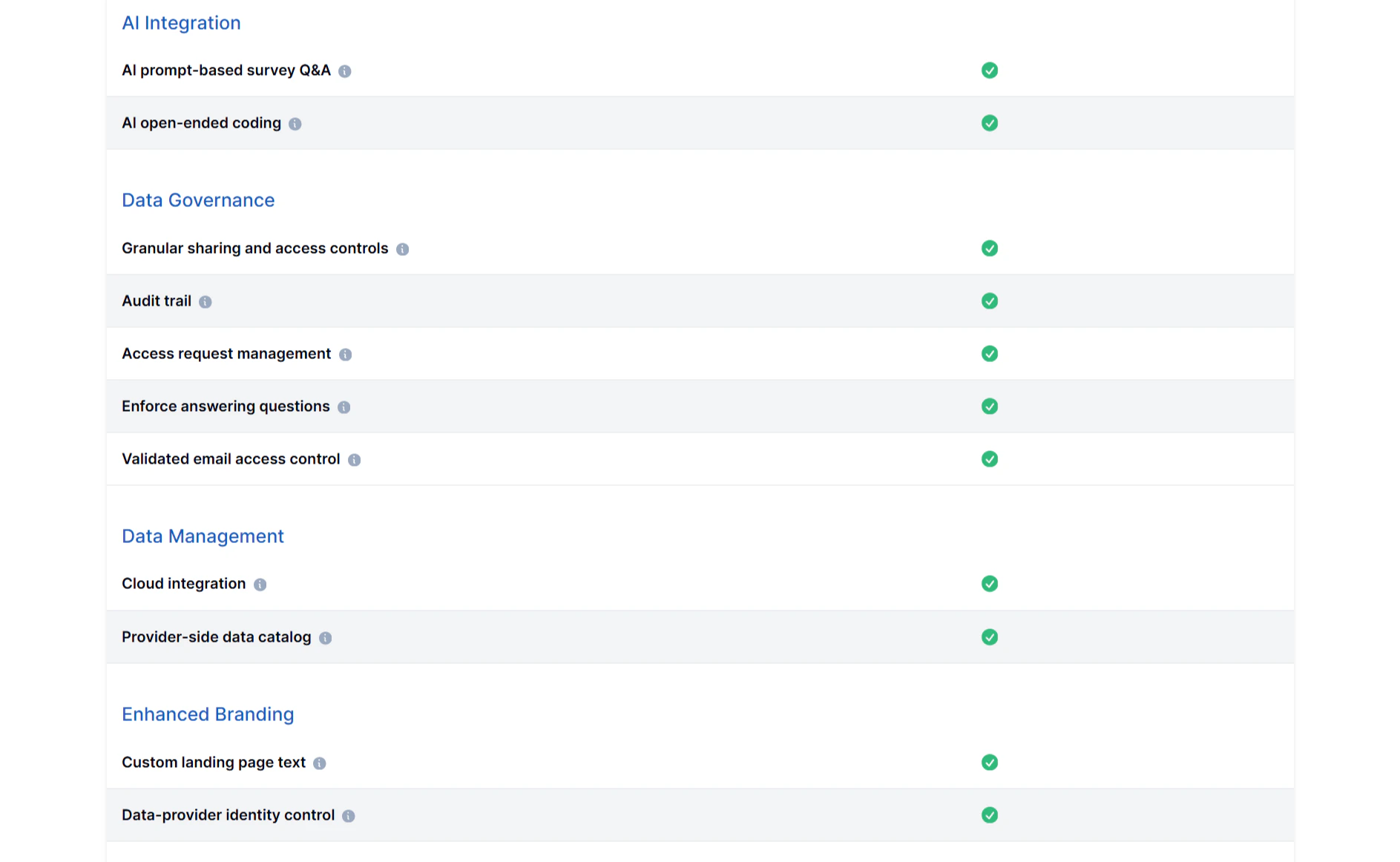
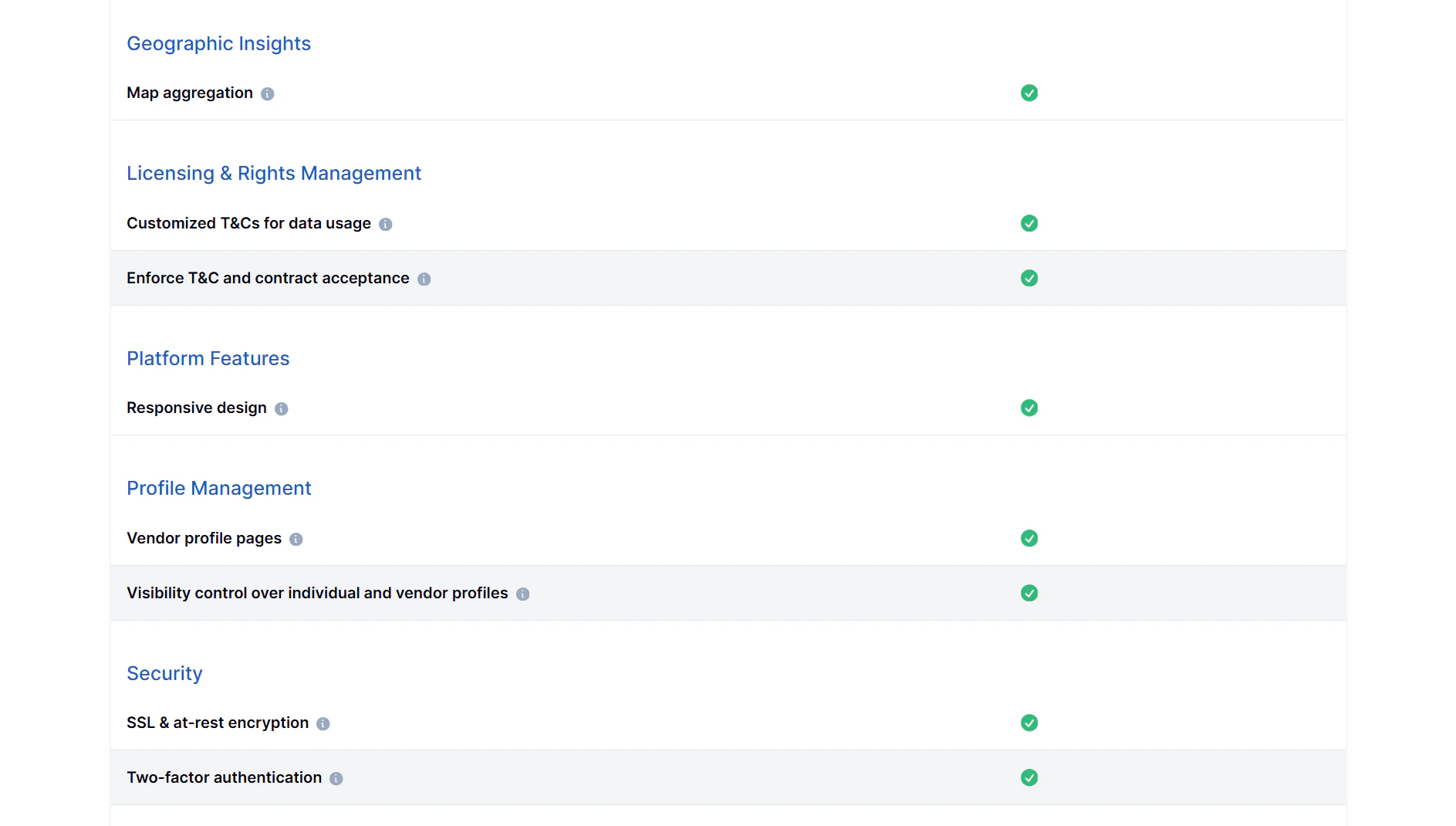
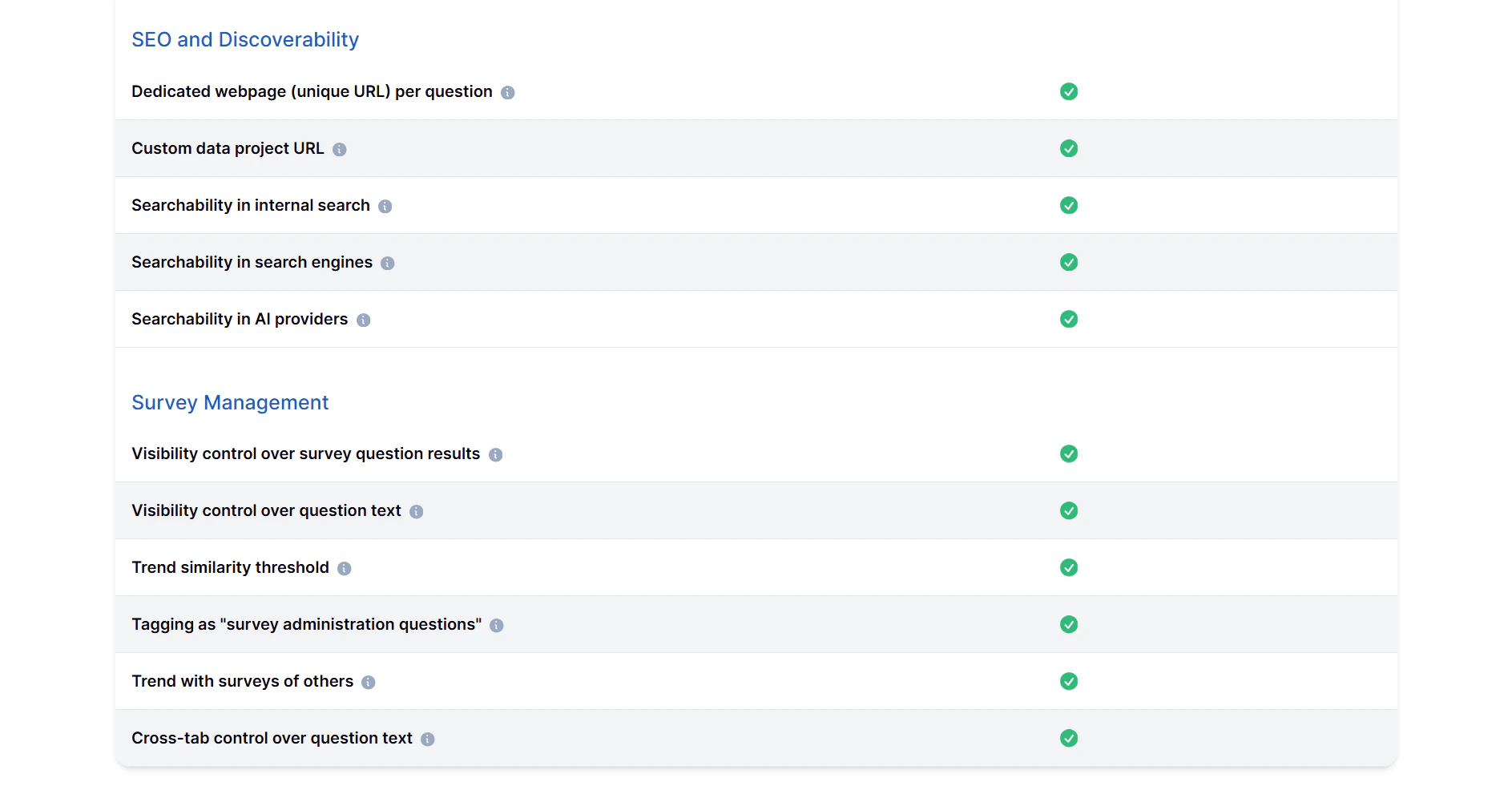
Beneath the usage summary, you’ll find a **Features and Add‑Ons** section.\
Here you can review all capabilities included in your plan and see any extra modules you’ve activated.
**Tip:** Use this section to explore potential feature upgrades — hovering over a locked feature shows a tooltip explaining which plan level unlocks it.
VoxDash automatically updates these metrics so that you can monitor your service consumption in real time.
**Tip:** Keep an eye on your usage percentage indicators. When you approach a limit, VoxDash displays a notification banner so you can take action before running out of capacity.
## Viewing Features and Add‑Ons
Beneath the usage summary, you’ll find a **Features and Add‑Ons** section.\
Here you can review all capabilities included in your plan and see any extra modules you’ve activated.
**Tip:** Use this section to explore potential feature upgrades — hovering over a locked feature shows a tooltip explaining which plan level unlocks it.
 ## Upgrading Your Plan
If you need additional capacity or access to advanced features, you can upgrade your plan directly from this page.
### To upgrade:
1. Click the **Upgrade Plan** button next to the Subscription Usage page.
2. Select your new preferred plan.
3. Confirm your payment method and click **Confirm Upgrade**.
Your new plan takes effect immediately upon confirmation, and feature availability updates automatically — there is no downtime.
## Best Practices
* **Check usage regularly** to prevent service interruption when limits are reached.
* **Upgrade before exceeding quotas** to avoid throttling or temporary restrictions.
* **Review add‑ons quarterly** to ensure you’re using all capabilities included in your subscription.
## Upgrading Your Plan
If you need additional capacity or access to advanced features, you can upgrade your plan directly from this page.
### To upgrade:
1. Click the **Upgrade Plan** button next to the Subscription Usage page.
2. Select your new preferred plan.
3. Confirm your payment method and click **Confirm Upgrade**.
Your new plan takes effect immediately upon confirmation, and feature availability updates automatically — there is no downtime.
## Best Practices
* **Check usage regularly** to prevent service interruption when limits are reached.
* **Upgrade before exceeding quotas** to avoid throttling or temporary restrictions.
* **Review add‑ons quarterly** to ensure you’re using all capabilities included in your subscription.