> ## Documentation Index
> Fetch the complete documentation index at: https://help.voxdash.com/llms.txt
> Use this file to discover all available pages before exploring further.
# Bulk File Upload
> The Bulk New Project Upload feature allows you to upload an entire folder of files at once, simplifying the data uploading process. Follow these steps to…
The **Bulk New Project Upload** feature allows you to upload an entire folder of files at once, simplifying the data uploading process. Follow these steps to efficiently add your project files:
## **1. Initiate the Upload**
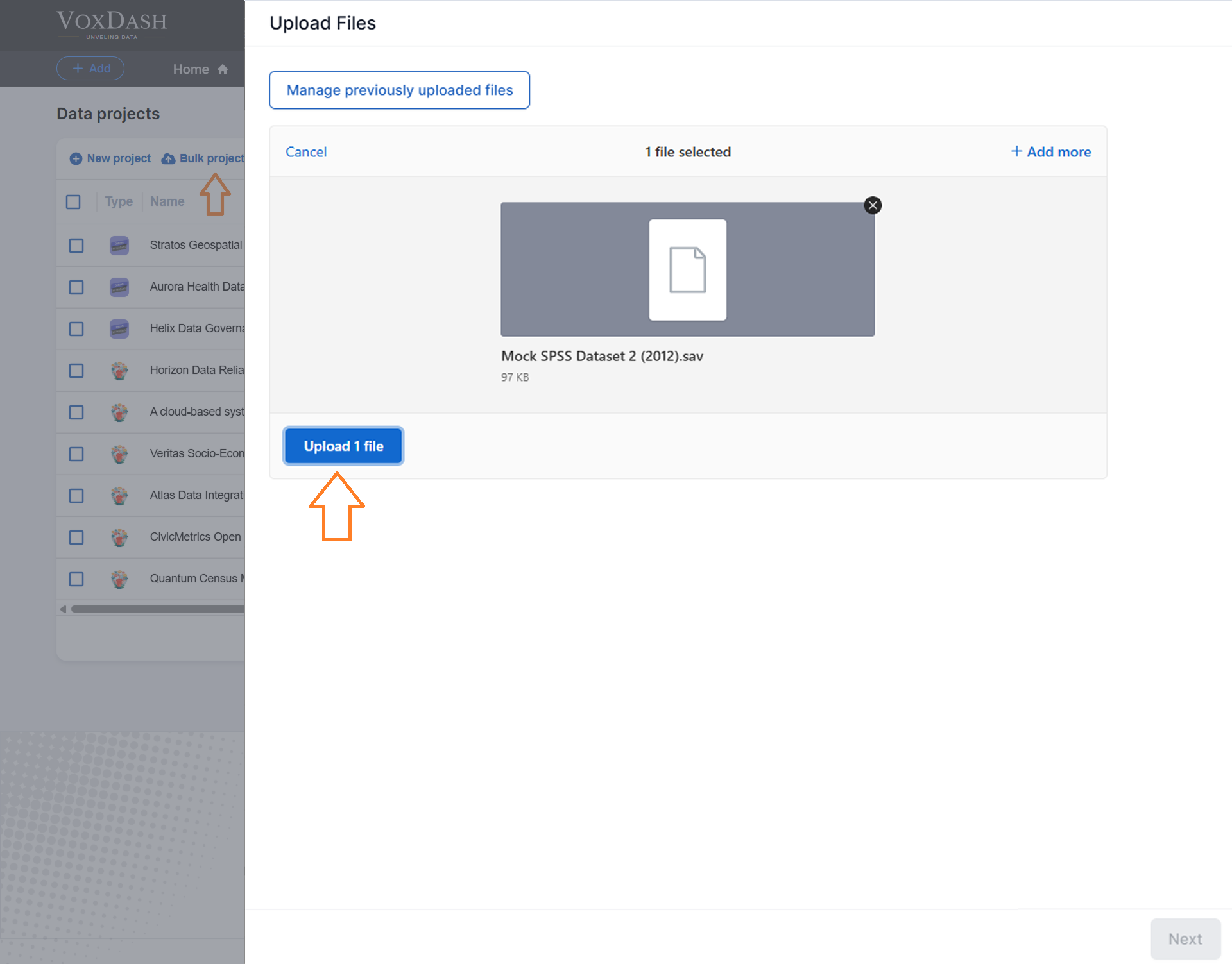
1. Navigate to **Data Provider > [Project](https://dataprovider.voxdash.com/projects) > Bulk Project Upload**.
2. Click the blue **Bulk New Project Upload** button located in the top-left corner to select and upload your entire folder.
 ## **2. Select Your File**
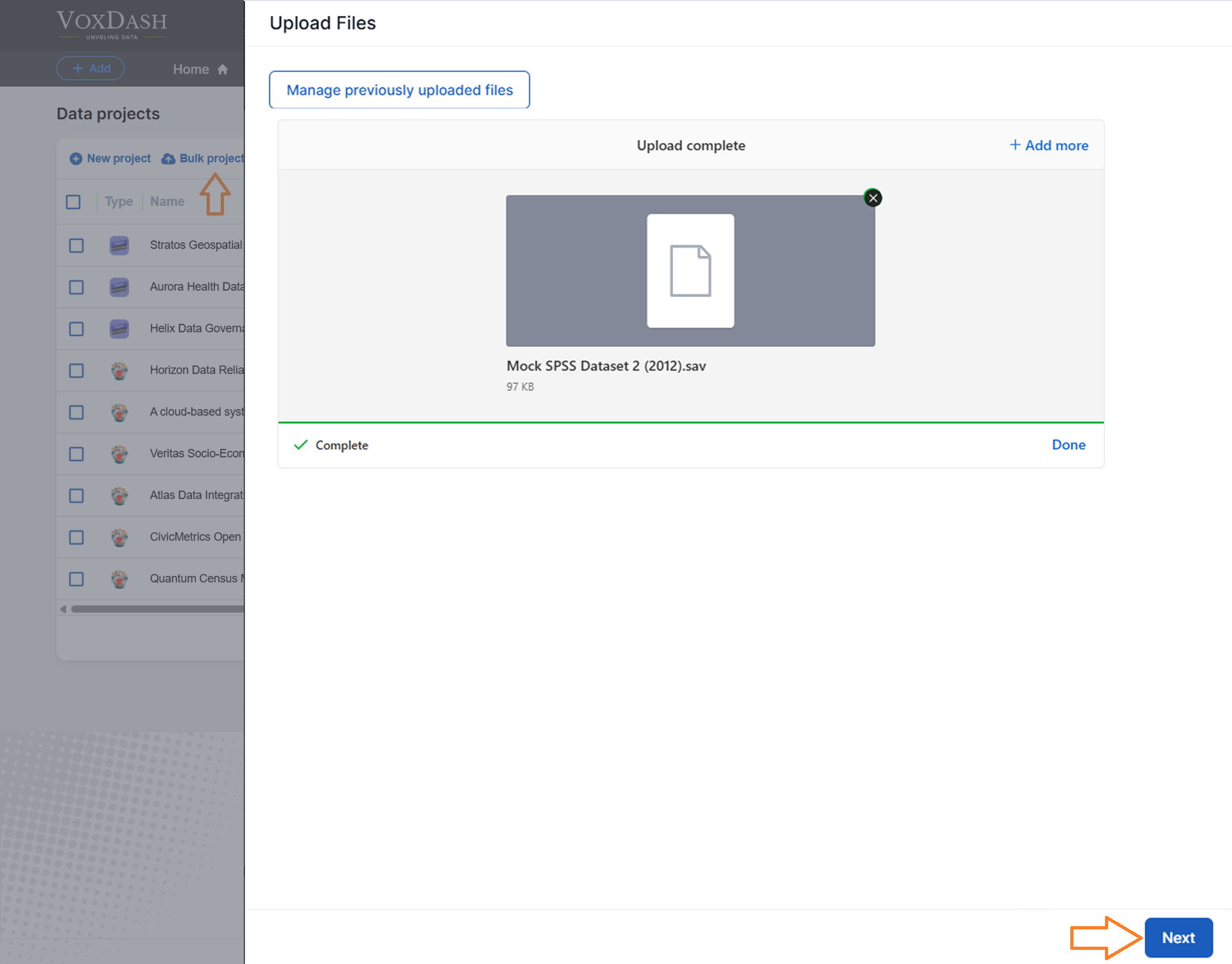
1. After the upload is complete, click the blue **Next** button in the bottom-right corner.
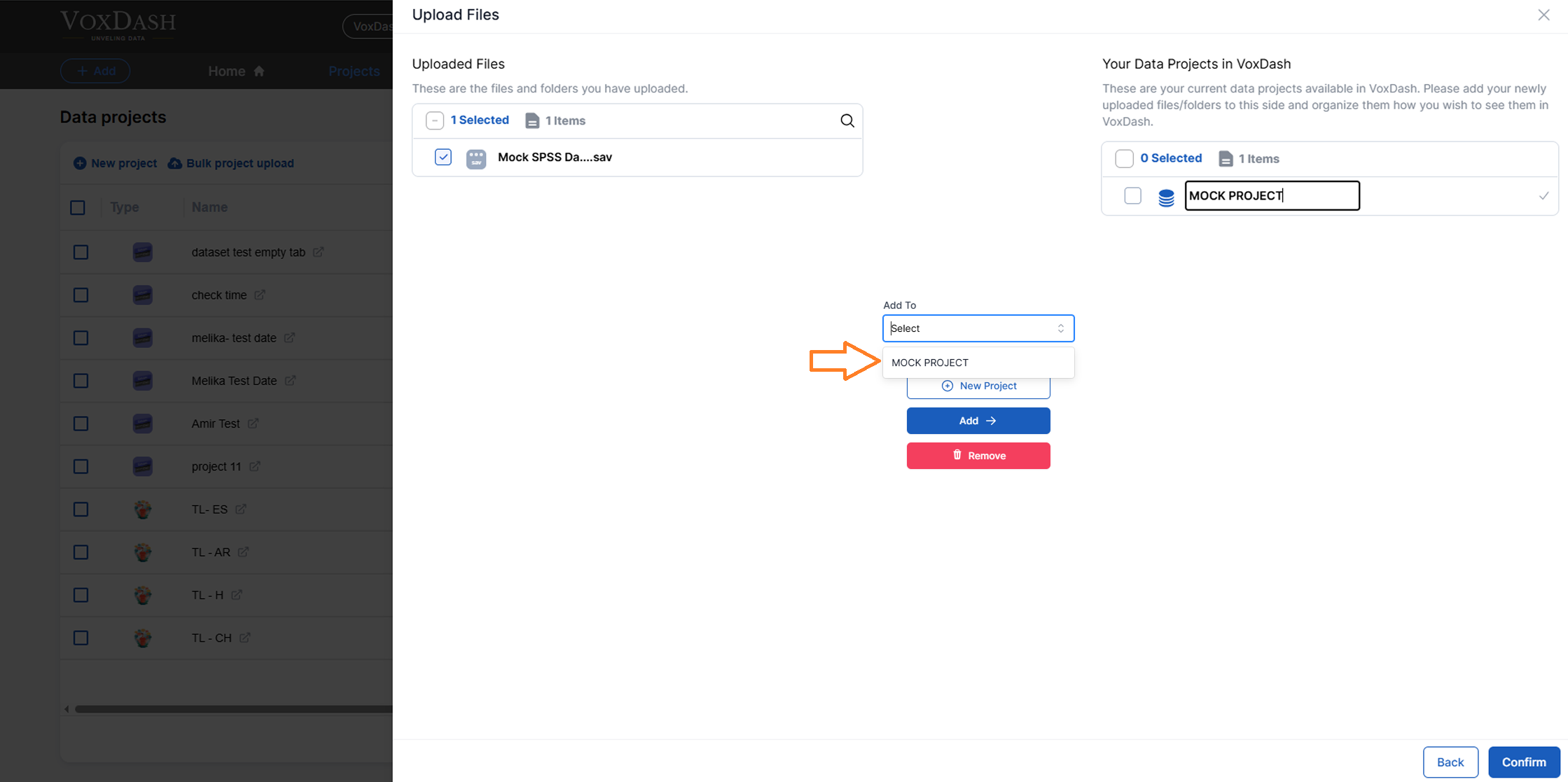
2. This will open the **Upload Files** page. Here, select the uploaded file(s) you want to add to your **Data Projects** in VoxDash.
## **2. Select Your File**
1. After the upload is complete, click the blue **Next** button in the bottom-right corner.
2. This will open the **Upload Files** page. Here, select the uploaded file(s) you want to add to your **Data Projects** in VoxDash.
 ## **3. Rename Your Folder (Optional)**
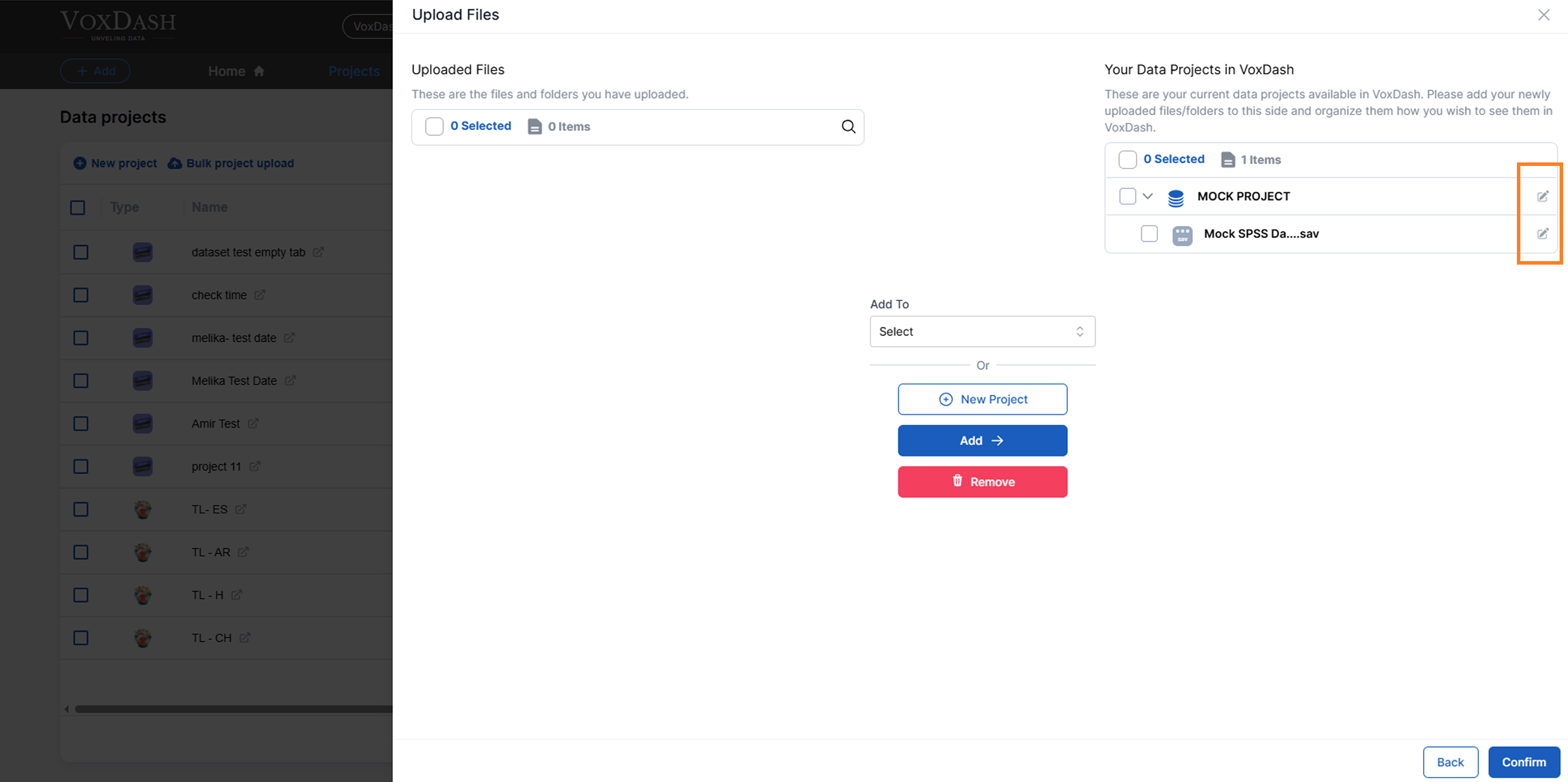
If needed, click the pencil icon next to the folder name to rename it for better organization and clarity.
## **3. Rename Your Folder (Optional)**
If needed, click the pencil icon next to the folder name to rename it for better organization and clarity.
 ## **4. Finalize the Upload**
Click the blue **Confirm** button in the bottom-right corner to finalize the upload and make the files visible in the **Data Project** list.
## **Tips for Efficient Uploads**
### **Uploading Files**
When uploading a single file, ensure you first create a folder for it. Once the folder is set, change the name and upload the files into it, then confirm the changes to complete the process.
## **4. Finalize the Upload**
Click the blue **Confirm** button in the bottom-right corner to finalize the upload and make the files visible in the **Data Project** list.
## **Tips for Efficient Uploads**
### **Uploading Files**
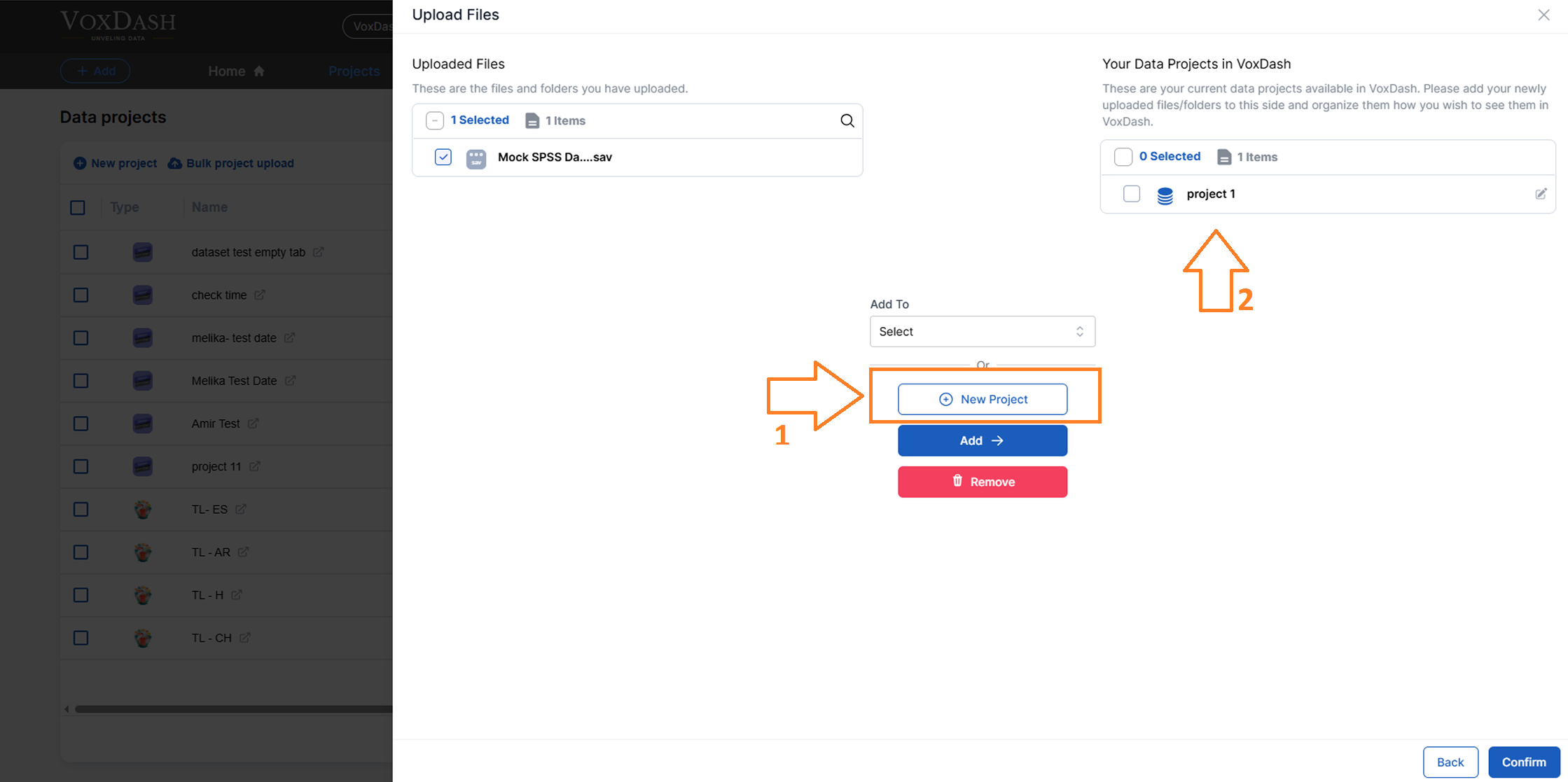
When uploading a single file, ensure you first create a folder for it. Once the folder is set, change the name and upload the files into it, then confirm the changes to complete the process.
 ### **Removing Extra Projects**
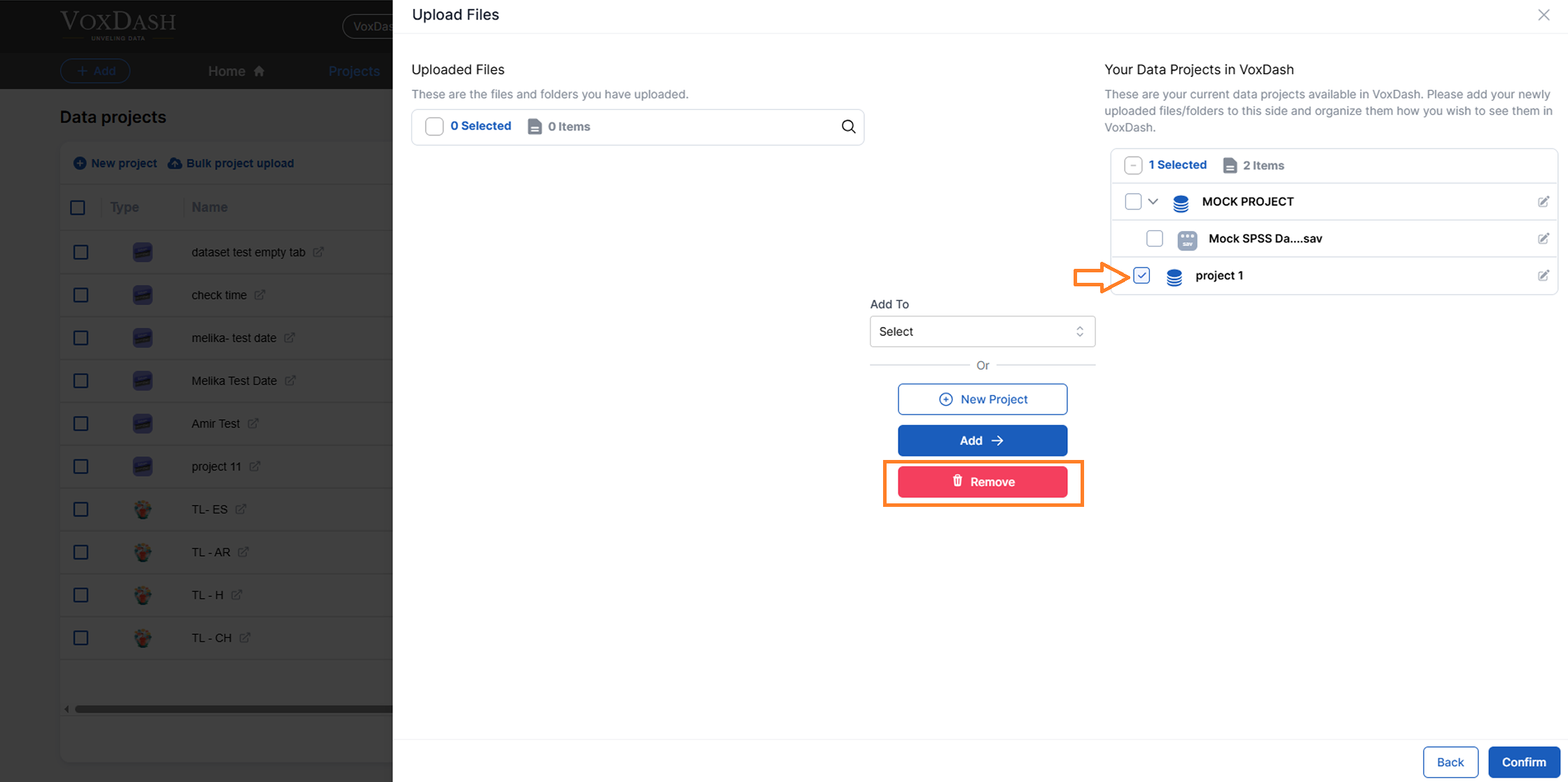
If you have created extra projects, select the unwanted project(s) and click the **Remove** button to exclude them from the upload.
### **Removing Extra Projects**
If you have created extra projects, select the unwanted project(s) and click the **Remove** button to exclude them from the upload.
 ## **Requirements**
To successfully use the "Bulk New Project Upload" feature, ensure the following:
* Your folder contains the appropriate Survey file(s) or other required data formats.
* File names and folder structures are organized for ease of use.
## **Summary of Steps**
1. Navigate to **Data Provider > [Project](https://dataprovider.voxdash.com/projects) > Bulk Project Upload**.
2. Click the blue **"Bulk New Project Upload"** button to upload your folder.
3. Click **Next** to proceed to the **Upload Files** page.
4. Select your file(s) and add them to your **Data Projects** in VoxDash.
5. Click **Confirm** to make the uploaded files visible in the project list.
This streamlined process ensures that your data is uploaded efficiently, accurately, and well-organized in VoxDash. By following these steps, you’ll save time and maintain better control over your data projects.
## **Requirements**
To successfully use the "Bulk New Project Upload" feature, ensure the following:
* Your folder contains the appropriate Survey file(s) or other required data formats.
* File names and folder structures are organized for ease of use.
## **Summary of Steps**
1. Navigate to **Data Provider > [Project](https://dataprovider.voxdash.com/projects) > Bulk Project Upload**.
2. Click the blue **"Bulk New Project Upload"** button to upload your folder.
3. Click **Next** to proceed to the **Upload Files** page.
4. Select your file(s) and add them to your **Data Projects** in VoxDash.
5. Click **Confirm** to make the uploaded files visible in the project list.
This streamlined process ensures that your data is uploaded efficiently, accurately, and well-organized in VoxDash. By following these steps, you’ll save time and maintain better control over your data projects.