> ## Documentation Index
> Fetch the complete documentation index at: https://help.voxdash.com/llms.txt
> Use this file to discover all available pages before exploring further.
# Data Project List
> The Data Project section provides a centralized and comprehensive list of all your data projects, offering essential details and intuitive navigation to…
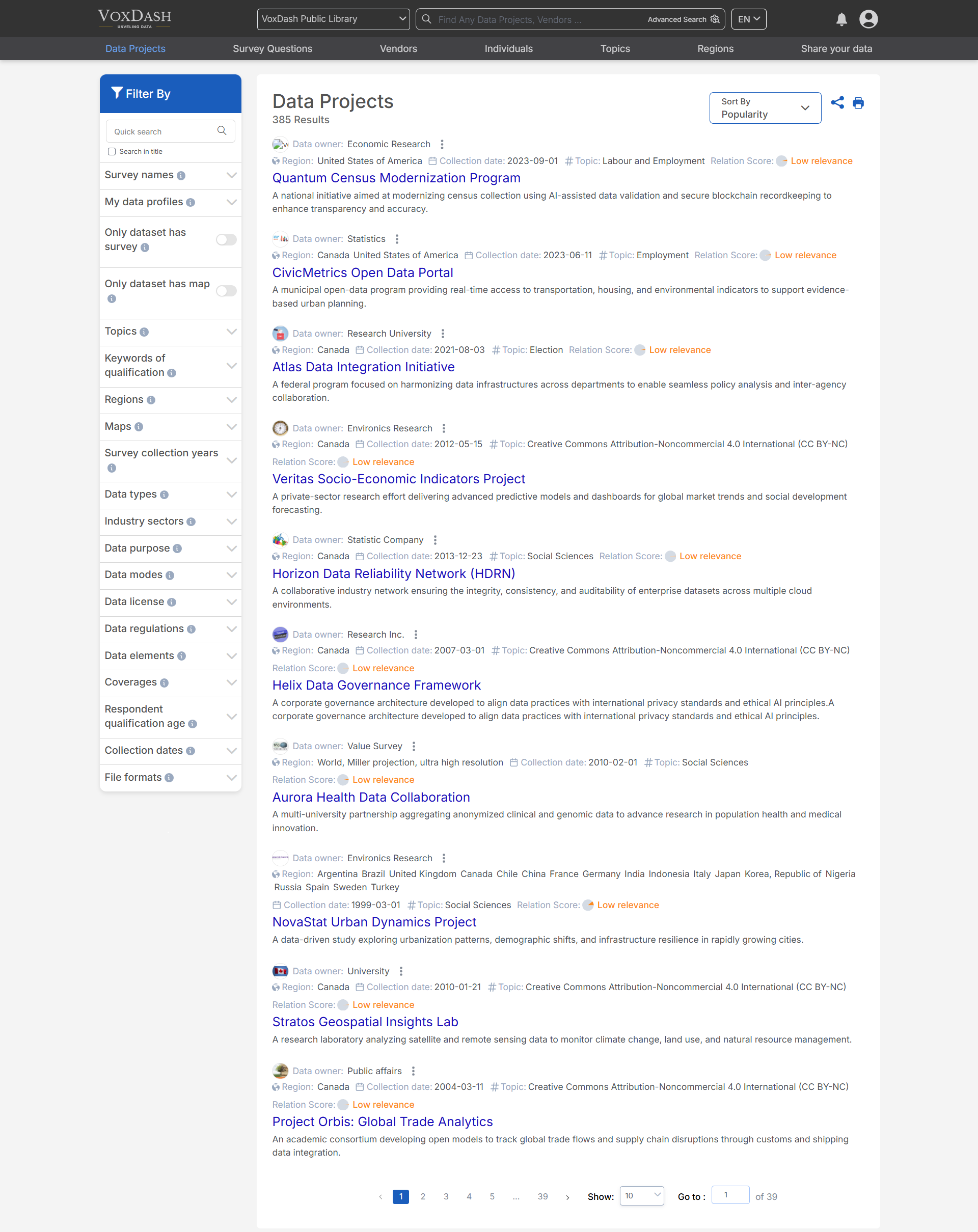
The [Data Project section](https://www.voxdash.com/datasets) provides a centralized and comprehensive list of all your data projects, offering essential details and intuitive navigation to streamline your workflow.\
Whether you’re analyzing datasets, tracking key analytics, or managing multiple projects, this page ensures quick and efficient access to your data. With powerful tools for sorting, filtering, and searching, you can seamlessly explore and manage your data solutions using VoxDash.
 ## **Sorting Options**
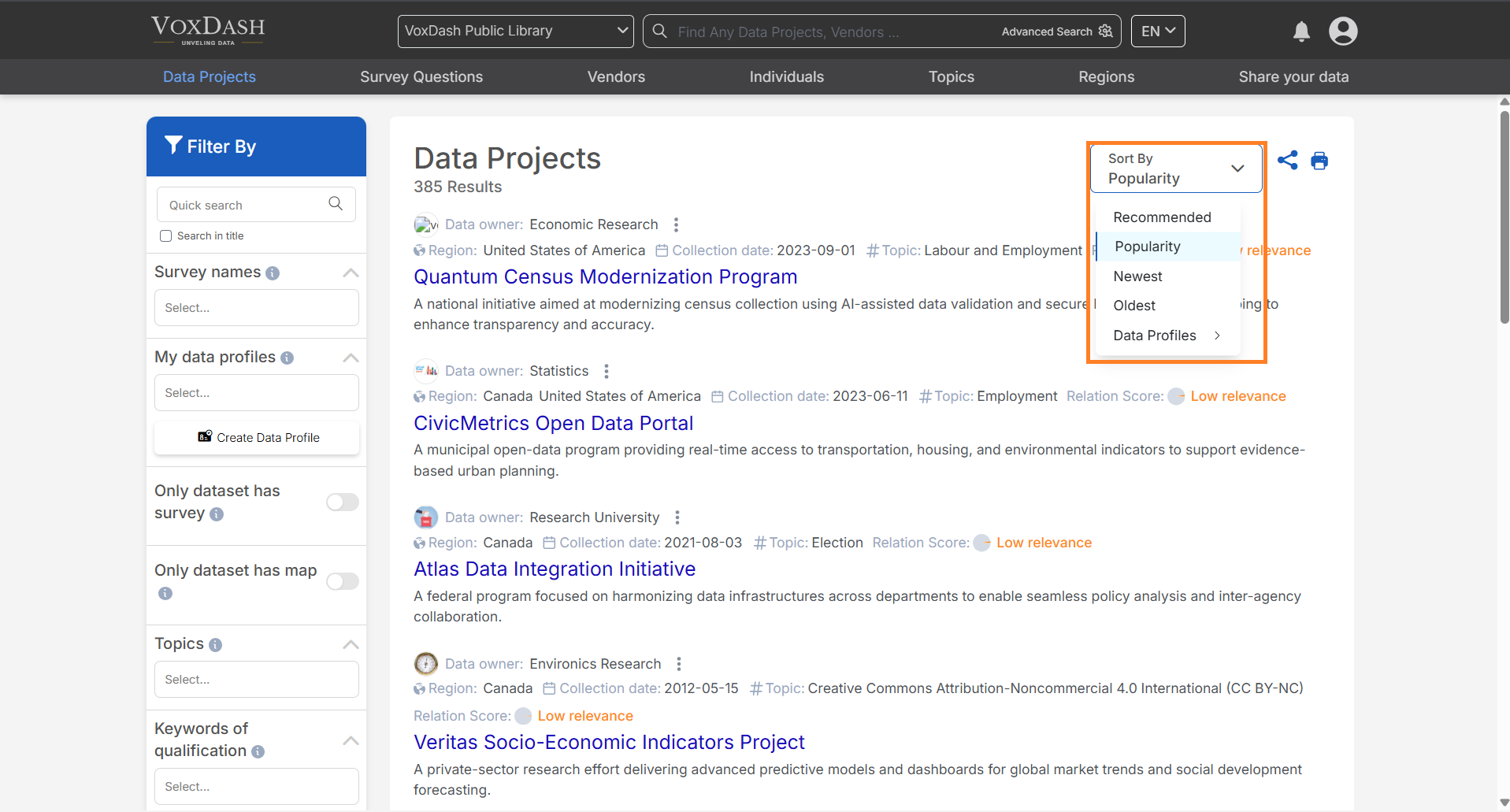
You can sort data projects in **four ways** to tailor the view to your needs:
* **Popularity**: Arrange projects based on their engagement or usage frequency.
* **Newest**: Display the most recently created projects at the top.
* **Oldest**: Show projects starting from the earliest created.
* **Recommended**: Highlight projects suggested for you based on relevance or criteria set by VoxDash.
## **Sorting Options**
You can sort data projects in **four ways** to tailor the view to your needs:
* **Popularity**: Arrange projects based on their engagement or usage frequency.
* **Newest**: Display the most recently created projects at the top.
* **Oldest**: Show projects starting from the earliest created.
* **Recommended**: Highlight projects suggested for you based on relevance or criteria set by VoxDash.
 ## **Filtering Capabilities**
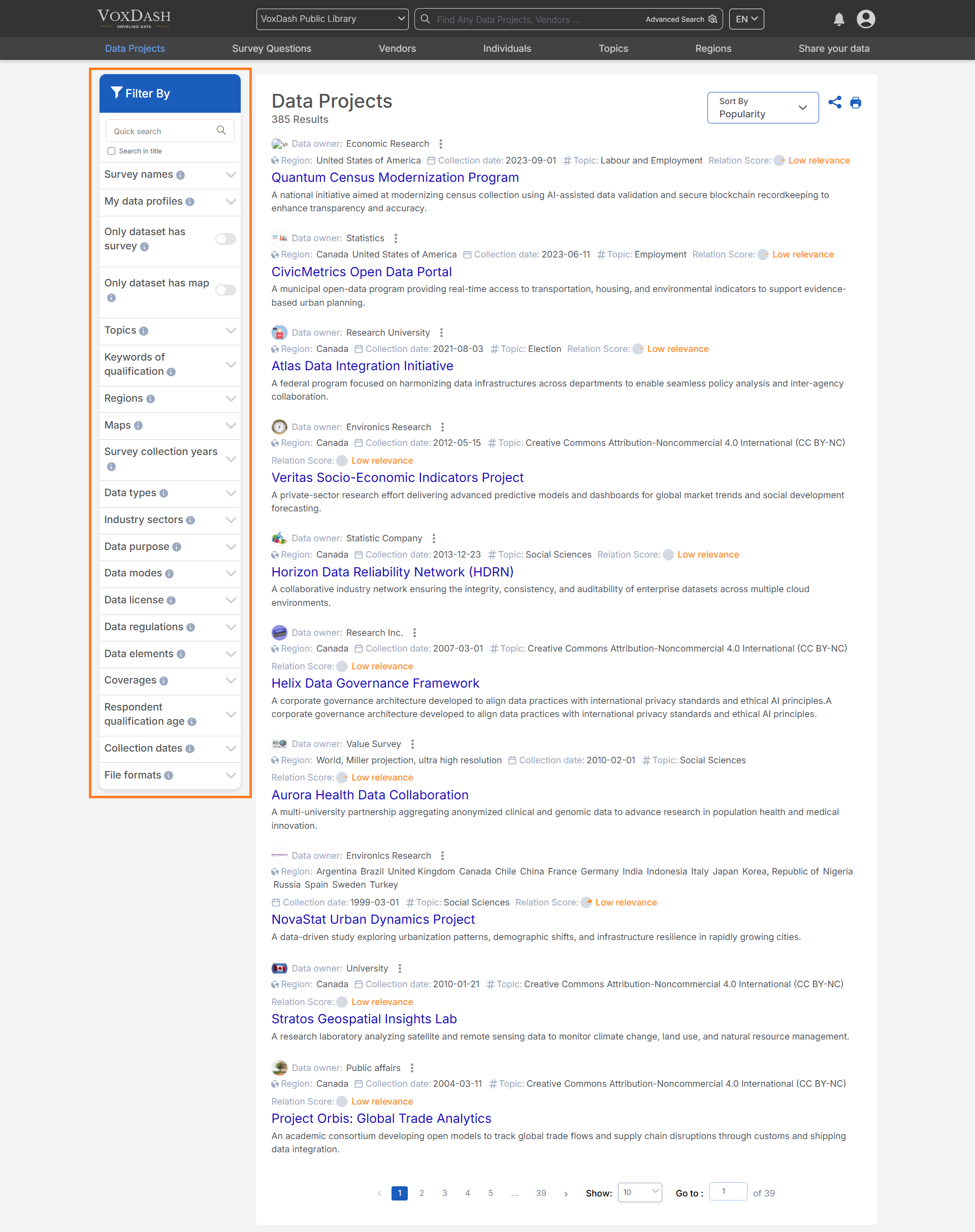
Use the **filter bar** on the left side of the page to refine the list of projects. Filters include:
* **Map-based filters**: Narrow down projects by geographical or regional criteria.
* **Vendor**: Select projects associated with specific vendors or providers.
* **Collection Date**: Filter projects based on the date data were gathered.
* **File Format**: Choose projects based on supported file types, such as CSV, JSON, or others.
### **Search Functionality**
Quickly locate specific projects by entering the project name in the **search bar** at the top of the page.
## **Filtering Capabilities**
Use the **filter bar** on the left side of the page to refine the list of projects. Filters include:
* **Map-based filters**: Narrow down projects by geographical or regional criteria.
* **Vendor**: Select projects associated with specific vendors or providers.
* **Collection Date**: Filter projects based on the date data were gathered.
* **File Format**: Choose projects based on supported file types, such as CSV, JSON, or others.
### **Search Functionality**
Quickly locate specific projects by entering the project name in the **search bar** at the top of the page.
 ## **How to Use the Data Project Page:**
1. Start by reviewing the full list of projects displayed on the main page.
2. Use the **search bar** or **filter options** to narrow your results.
3. Sort the list using the sorting dropdown menu at the top-right corner of the page.
4. Click on a project to view its details or to access further tools and analytics.
With these features, the Data Project Page equips you to efficiently navigate, explore, and manage your data in one intuitive interface.
## **How to Use the Data Project Page:**
1. Start by reviewing the full list of projects displayed on the main page.
2. Use the **search bar** or **filter options** to narrow your results.
3. Sort the list using the sorting dropdown menu at the top-right corner of the page.
4. Click on a project to view its details or to access further tools and analytics.
With these features, the Data Project Page equips you to efficiently navigate, explore, and manage your data in one intuitive interface.