> ## Documentation Index
> Fetch the complete documentation index at: https://help.voxdash.com/llms.txt
> Use this file to discover all available pages before exploring further.
# Create a Vendor for the Organization
> In VoxDash, users can connect a vendor to an organization. This allows for better collaboration, data management, and role assignment across surveys and…
In VoxDash, users can connect a vendor to an organization. This allows for better collaboration, data management, and role assignment across surveys and analytics workflows.
You can either:
* Create a new vendor specifically for your organization, or
* Link an existing vendor that has already been added to the platform.
Once connected, vendors will be visible to all relevant users in the Data Provider Panel.
## **Accessing Vendor Settings**
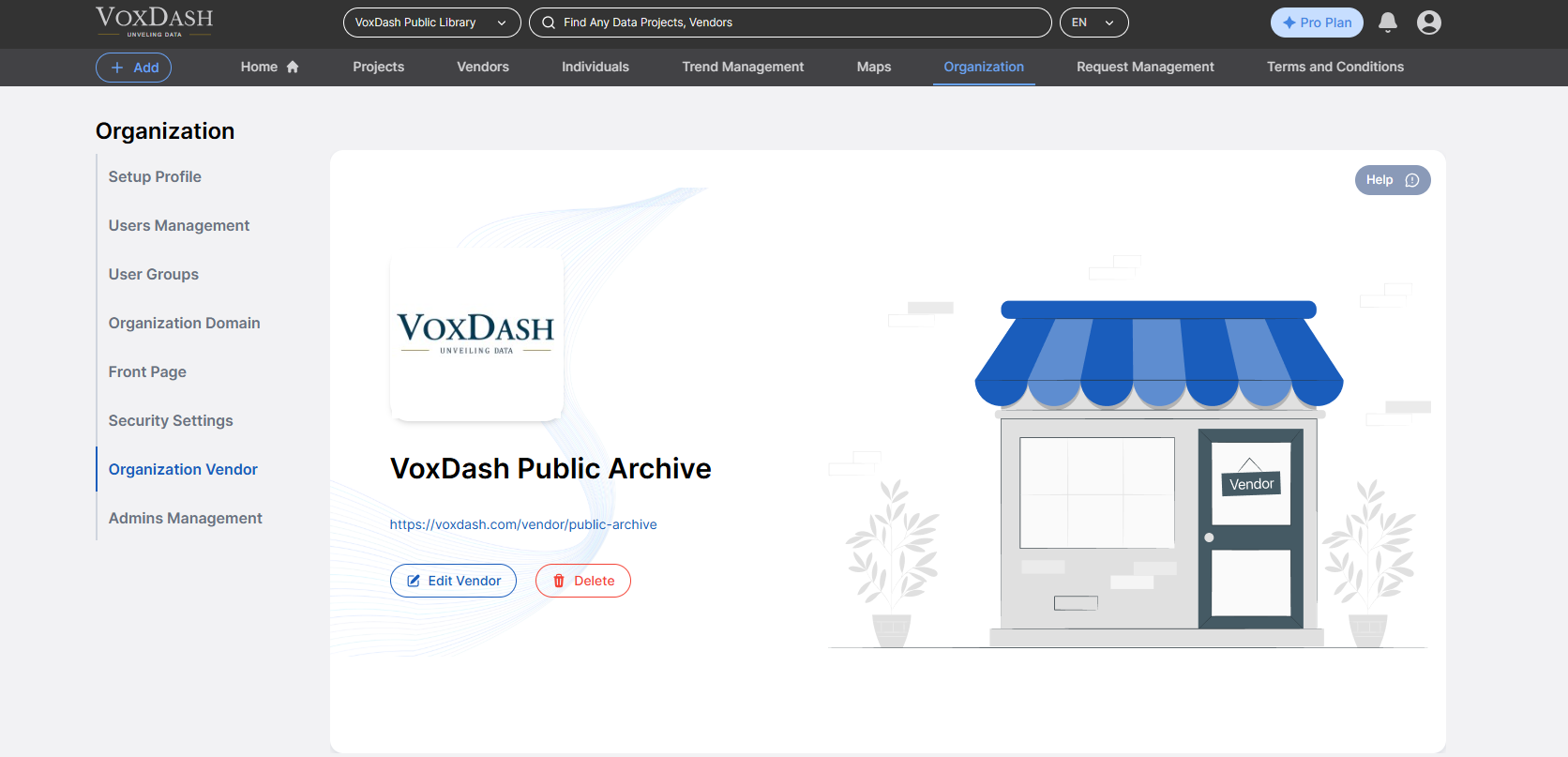
1. Open the **Data Provider Panel**.
2. Go to the **Organization Page** from the main dashboard.
3. Navigate to the **Organization Settings**.
 ## **How to Create or Link a Vendor**
Follow these steps to add or link a vendor to your organization:
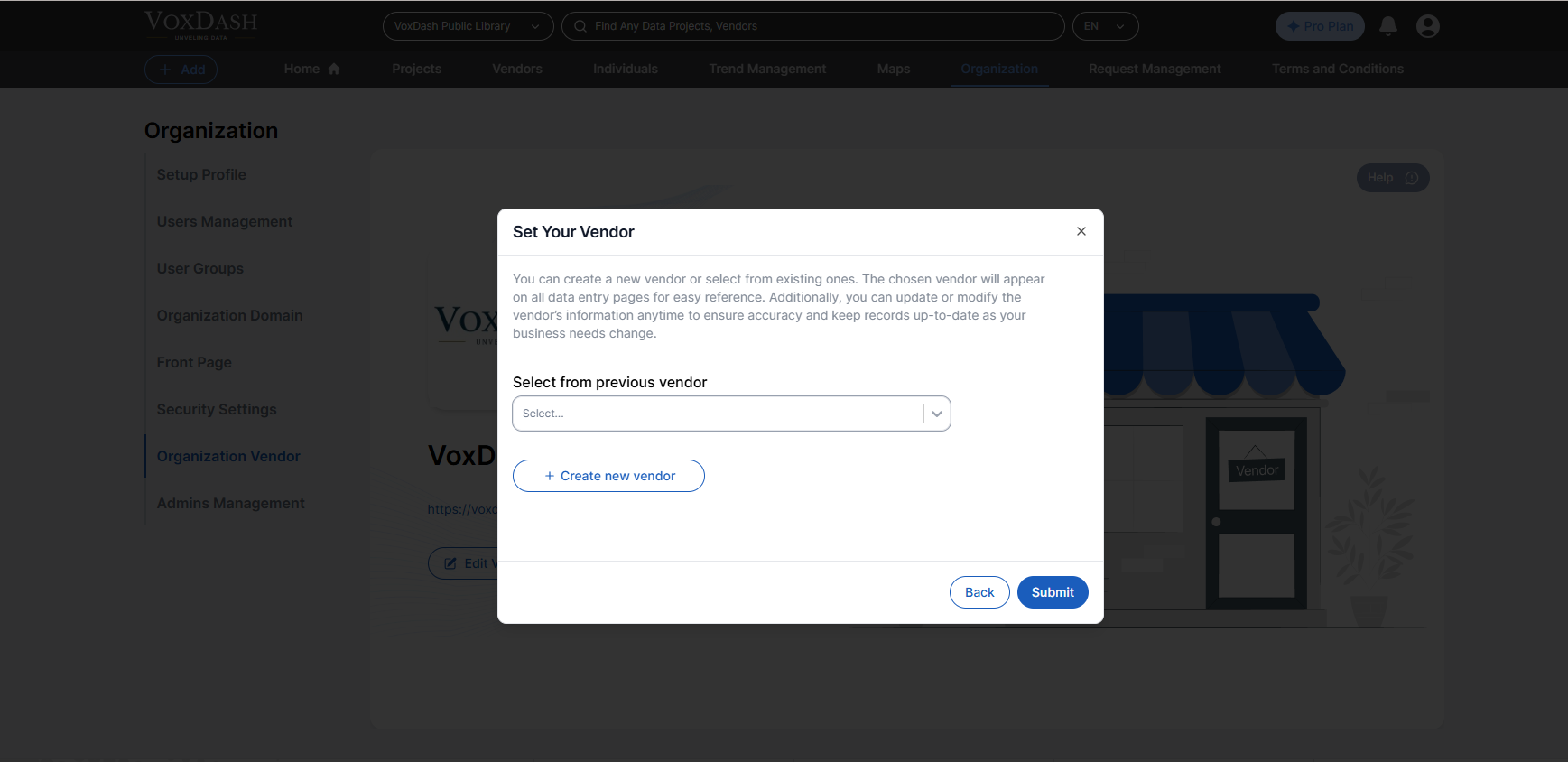
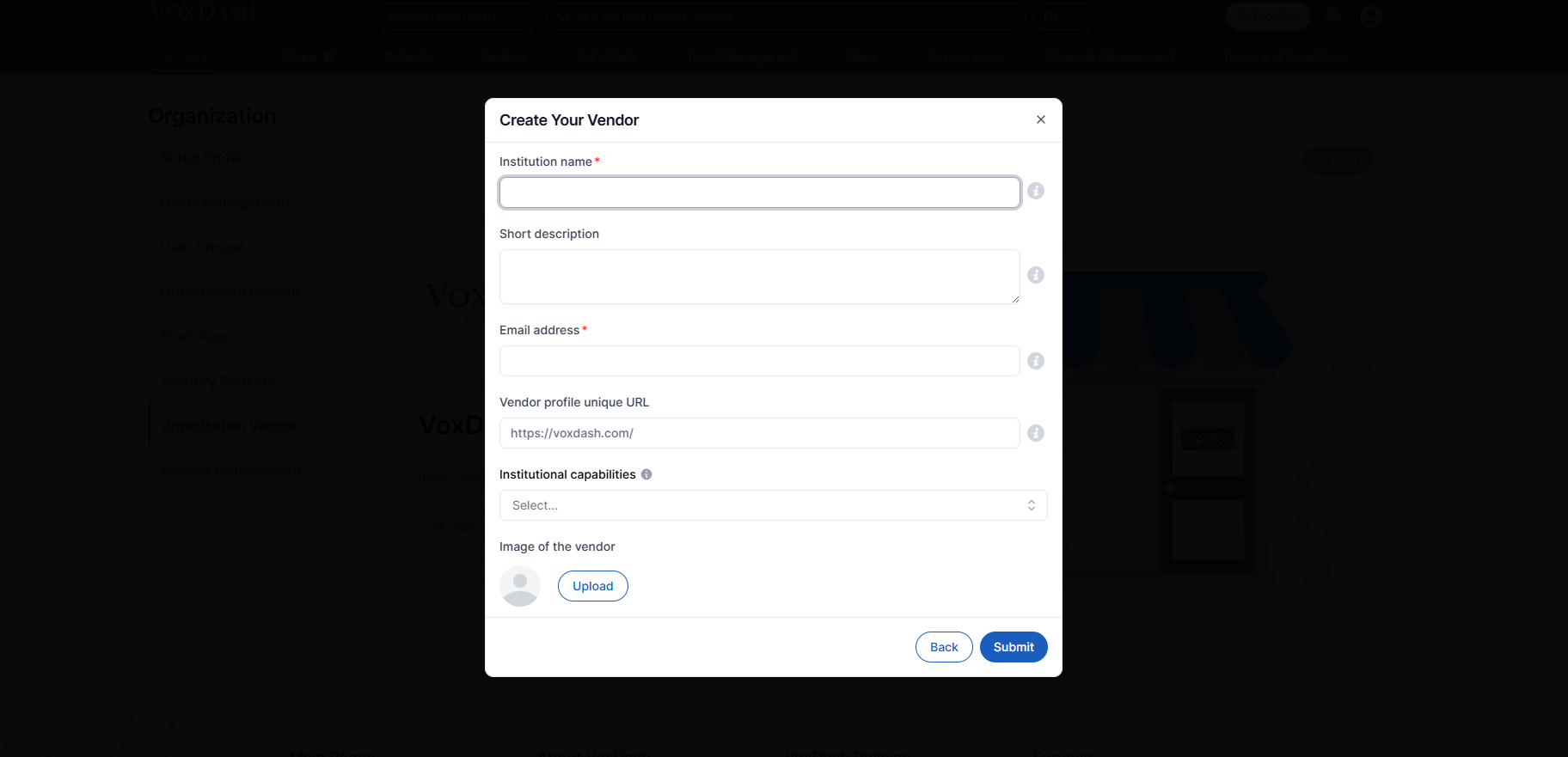
1. Click on the **"Add Vendor"** button.
2. Choose whether to:
* **Create a new vendor** by entering the required details (e.g., name, contact info…).
* **Select an existing vendor** from the dropdown list.
## **How to Create or Link a Vendor**
Follow these steps to add or link a vendor to your organization:
1. Click on the **"Add Vendor"** button.
2. Choose whether to:
* **Create a new vendor** by entering the required details (e.g., name, contact info…).
* **Select an existing vendor** from the dropdown list.
 3. Confirm and save your changes.
For detailed instructions on vendor creation and management, refer to the [Vendor Section](/Vendors-&-Individuals/Add-A-New-Vendor).
## **Why Connect a Vendor?**
* Assign survey and data collection tasks to external partners
* Organize data workflows by external collaborators
* Maintain transparency and accountability across vendors
* Easily control vendor access permissions and roles
3. Confirm and save your changes.
For detailed instructions on vendor creation and management, refer to the [Vendor Section](/Vendors-&-Individuals/Add-A-New-Vendor).
## **Why Connect a Vendor?**
* Assign survey and data collection tasks to external partners
* Organize data workflows by external collaborators
* Maintain transparency and accountability across vendors
* Easily control vendor access permissions and roles