> ## Documentation Index
> Fetch the complete documentation index at: https://help.voxdash.com/llms.txt
> Use this file to discover all available pages before exploring further.
# What is an Organization - Public User?
> In VoxDash, every user who signs up is automatically assigned to a private organization. This organization acts as the central workspace where all your data…
In VoxDash, every user who signs up is automatically assigned to a **private organization**. This organization acts as the central workspace where all your data, settings, and team management tools are located. This organization is private by default, meaning only the creator initially has access to it.
**Important Notes:**
* Any user can view and use data in the [VoxDash Public Archive](/Data-Projects/Voxdash-Public-Archive-Overview).
* Each organization in VoxDash has its own data, and owners can **switch** between the organizations through the header.
* Each organization can invite other organizations to join them via the data provider panel.
## **Key Features of an Organization in a Public Panel**
### Access to All Published Projects
Within the **Public Panel**, you can:
* View all uploaded [data projects](https://www.voxdash.com/datasets)
* Analyze data through each [question](https://www.voxdash.com)
* View all [vendors](/Vendors-&-Individuals/Vendor-Page-Overview) and [individuals](/Vendors-&-Individuals/Individual-Page-Overview) in VoxDash and learn more about their work.
**Note:** This panel serves as your main interface for viewing any analytics or e-commerce-related data you bring into VoxDash.
[Everything You Need to Know About Public Panel](/Data-Management-public)
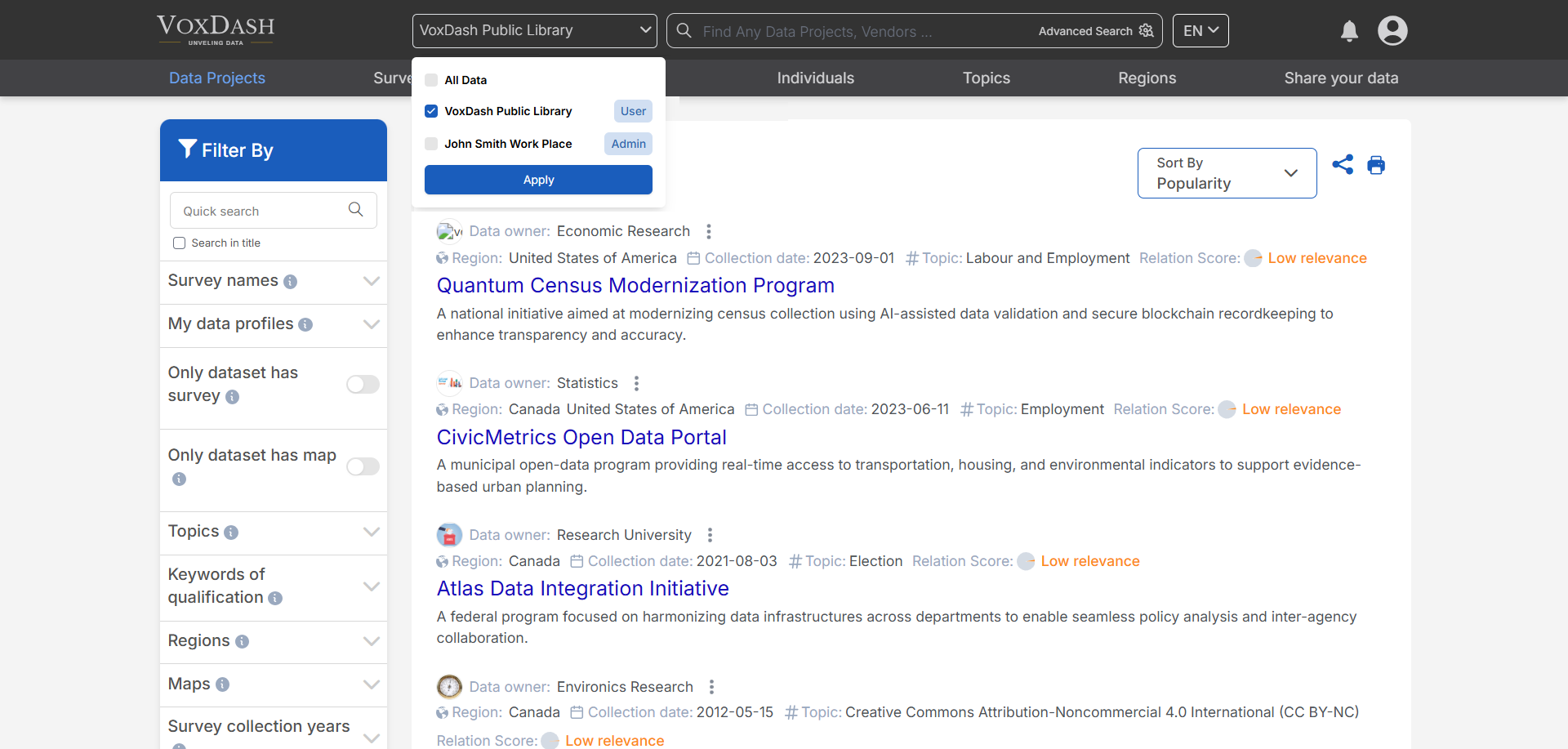 ## **How to Select or Add an Organization**
1. **Locate the Header Menu:** At the top of the website, you will see a dropdown or clickable menu labeled with the current organization name.
2. **Click to Expand the Menu:** Click the organization name to open the list of organizations available to your account.
3. **Choose an Organization:** Select the desired organization from the list. Once selected, VoxDash will load data and dashboards specific to that organization.
## **How to Select or Add an Organization**
1. **Locate the Header Menu:** At the top of the website, you will see a dropdown or clickable menu labeled with the current organization name.
2. **Click to Expand the Menu:** Click the organization name to open the list of organizations available to your account.
3. **Choose an Organization:** Select the desired organization from the list. Once selected, VoxDash will load data and dashboards specific to that organization.