> ## Documentation Index
> Fetch the complete documentation index at: https://help.voxdash.com/llms.txt
> Use this file to discover all available pages before exploring further.
# Create a Questionnaire
> On the Questionnaire Manager page, click the Create New Questionnaire button to begin building a new questionnaire. You can create a questionnaire in two…
On the **Questionnaire Manager** page, click the **Create New Questionnaire** button to begin building a new questionnaire.
You can create a questionnaire in two ways:\
• Uploading existing files\
• Creating one manually using the Questionnaire Builder
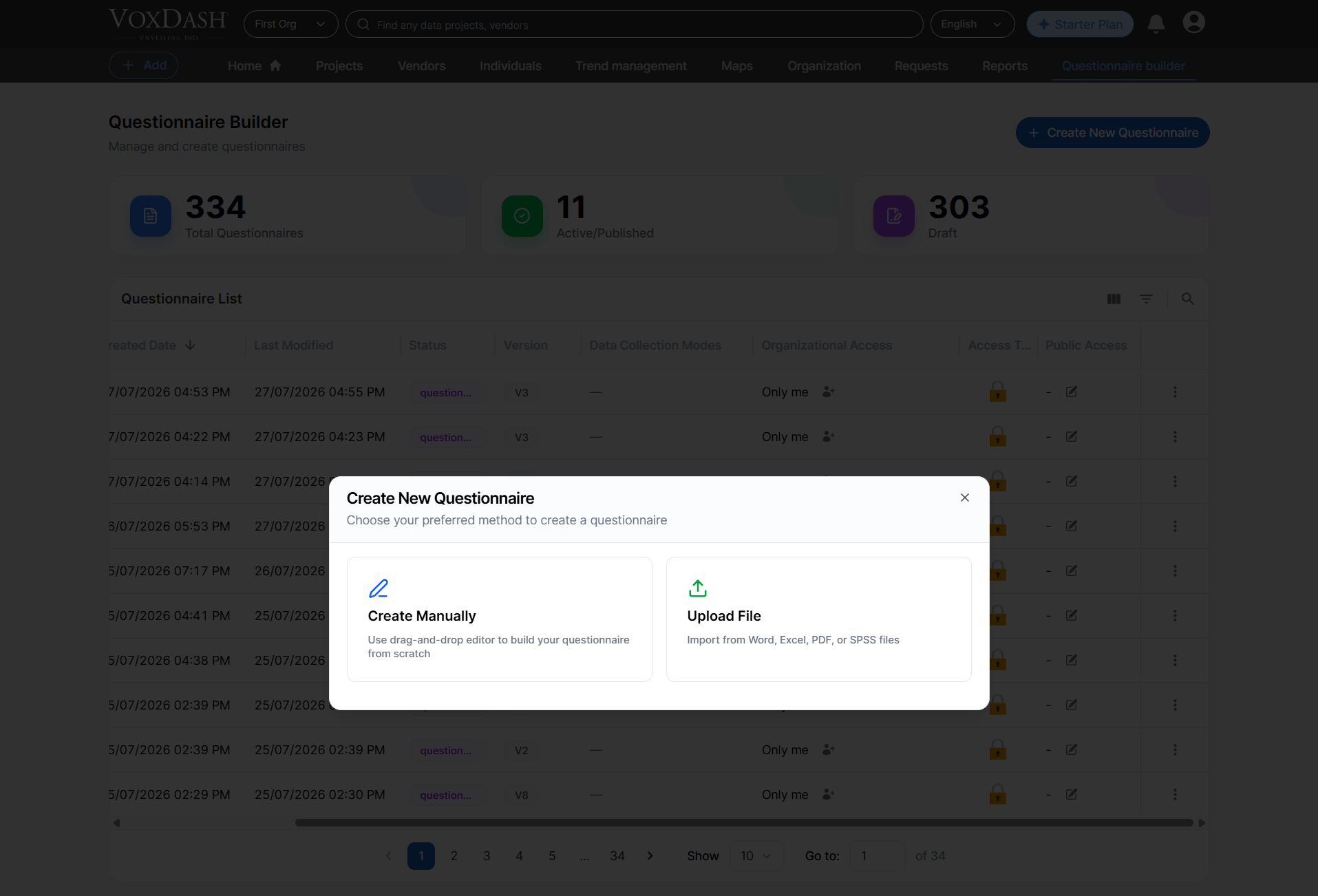 This section explains both creation methods in detail.
## **Creation Method**
The creation process starts with selecting how you want to build your questionnaire. You may either upload files (from your device or from the VoxDash Library) or create everything manually.
**Available Methods**
## **1. Upload File**
Upload files from your device or select existing files stored in your VoxDash Library. Multiple files can be uploaded or selected at once.
### **1.1 Upload From Device**
You may upload files directly from your computer.
**Supported formats:**\
• Word (.doc, .docx)\
• Excel (.xls, .xlsx)\
• PDF\
• SPSS (.sav)
This section explains both creation methods in detail.
## **Creation Method**
The creation process starts with selecting how you want to build your questionnaire. You may either upload files (from your device or from the VoxDash Library) or create everything manually.
**Available Methods**
## **1. Upload File**
Upload files from your device or select existing files stored in your VoxDash Library. Multiple files can be uploaded or selected at once.
### **1.1 Upload From Device**
You may upload files directly from your computer.
**Supported formats:**\
• Word (.doc, .docx)\
• Excel (.xls, .xlsx)\
• PDF\
• SPSS (.sav)
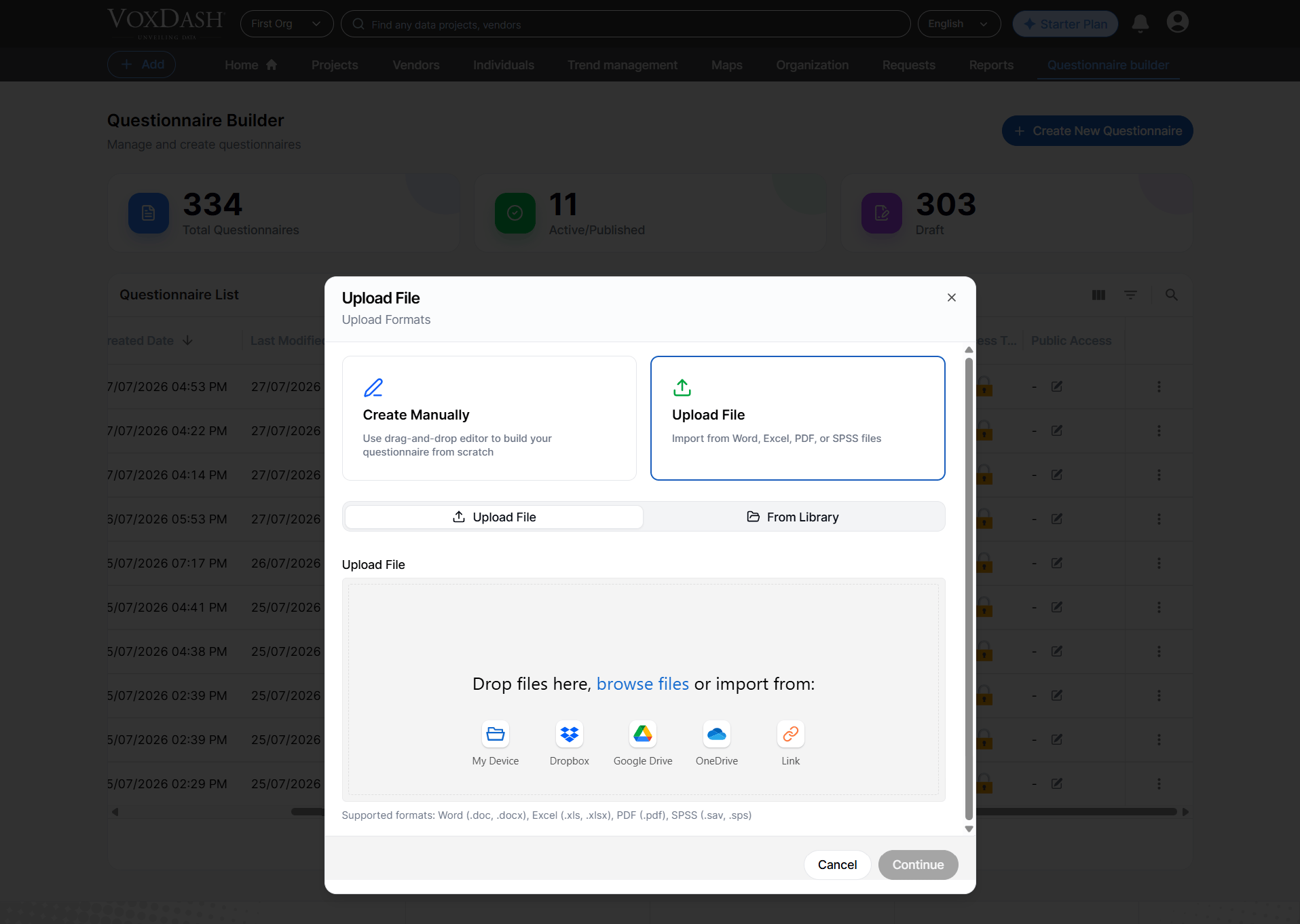 Once uploaded, all files are automatically sent to an **import session**, where the system analyzes and prepares the content before your questionnaire is created.
### **1.2 Upload From VoxDash Library**
If you previously uploaded files to your VoxDash file manager, you can select them again from the library.
**Supported formats:**
• Word\
• Excel\
• PDF\
• SPSS
Once uploaded, all files are automatically sent to an **import session**, where the system analyzes and prepares the content before your questionnaire is created.
### **1.2 Upload From VoxDash Library**
If you previously uploaded files to your VoxDash file manager, you can select them again from the library.
**Supported formats:**
• Word\
• Excel\
• PDF\
• SPSS
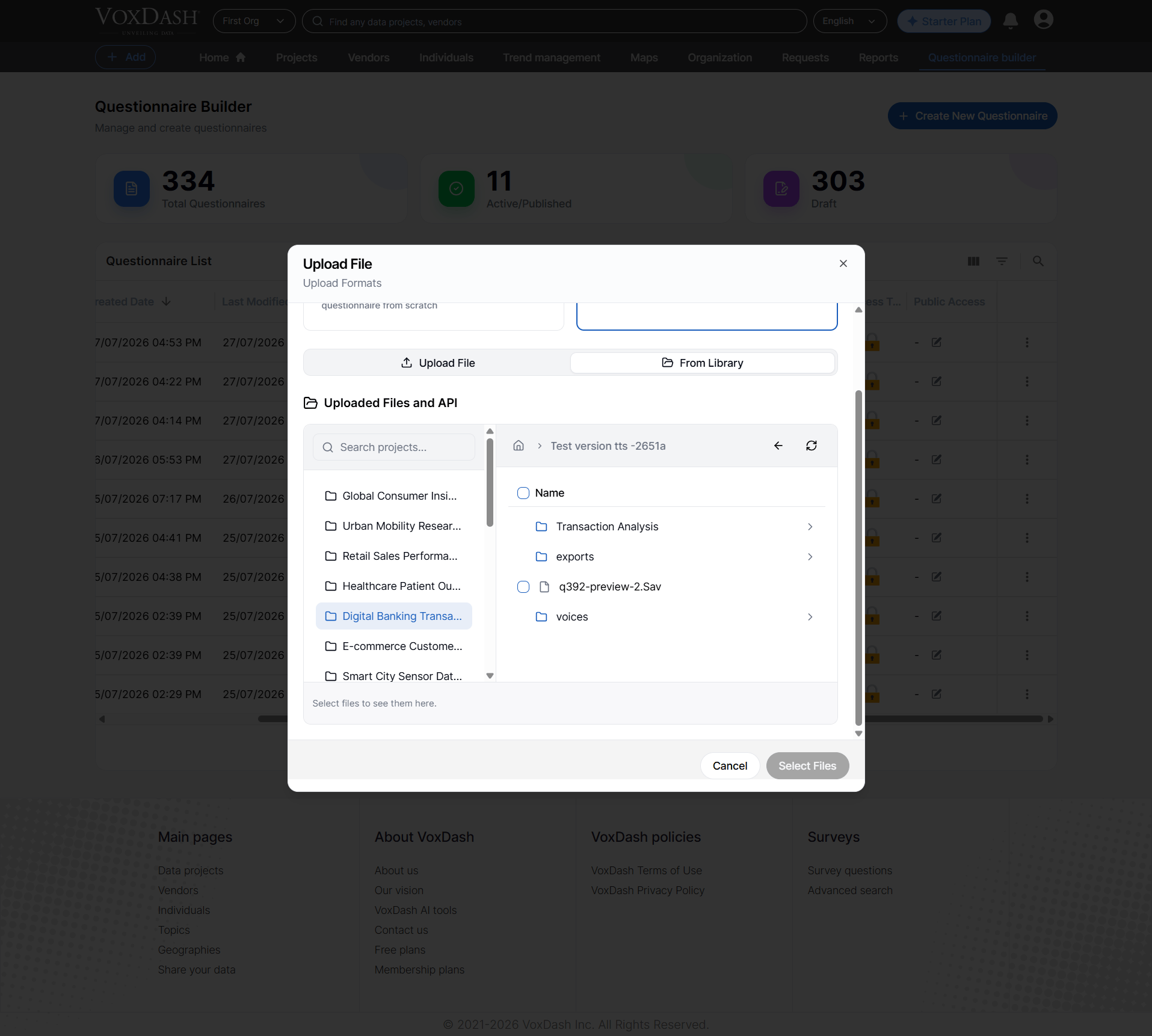 File selection follows the same rules and validation procedures as direct device uploads.
### **1.3 Choosing the Processing Method**
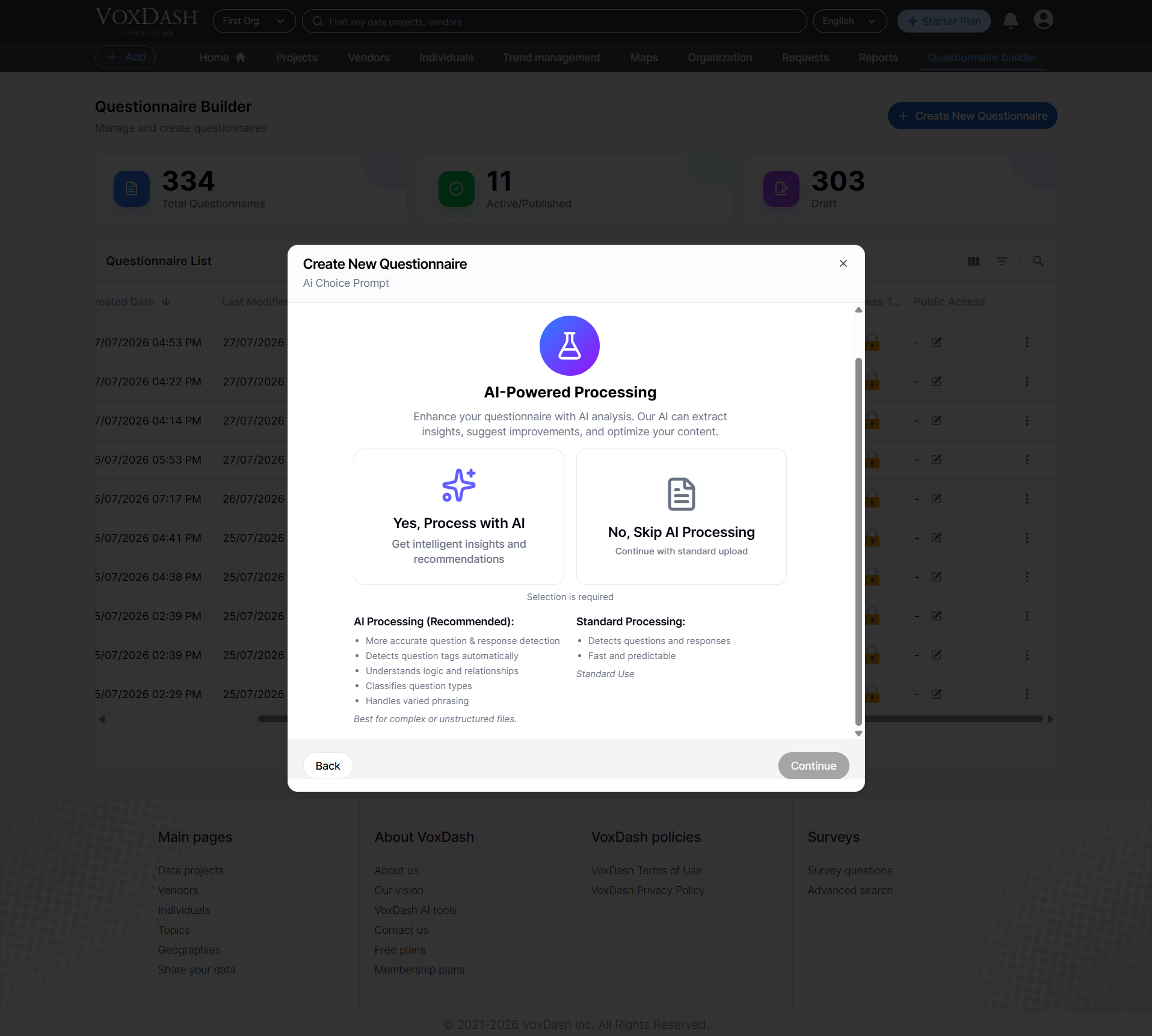
After selecting your files, choose how the system should process the content.
#### **1.3.1 AI Processing (Recommended)**
This method uses AI and consumes system tokens. The AI scans your files and automatically structures your questionnaire with higher accuracy.
**AI advantages:**
• More accurate detection of questions and response options\
• Automatic identification of question tags (e.g., screener, single‑select, open‑ended)\
• Understanding of logic and relationships across questions\
• Automatic classification of question types\
• Ability to interpret varied phrasing and formatting
**During import, AI processes and reports:**
• Total questions detected\
• Questions identified as screeners\
• Questions containing logic\
• Questions associated with quotas
This method is ideal for complex or large datasets.
#### **1.3.2 Standard Processing**
This method requires no tokens. It quickly processes the file and takes you directly to the editor panel.
**Standard Processing features:**\
• Basic question and response detection\
• Fast, predictable workflow\
• Ideal for simple or well‑formatted questionnaires
File selection follows the same rules and validation procedures as direct device uploads.
### **1.3 Choosing the Processing Method**
After selecting your files, choose how the system should process the content.
#### **1.3.1 AI Processing (Recommended)**
This method uses AI and consumes system tokens. The AI scans your files and automatically structures your questionnaire with higher accuracy.
**AI advantages:**
• More accurate detection of questions and response options\
• Automatic identification of question tags (e.g., screener, single‑select, open‑ended)\
• Understanding of logic and relationships across questions\
• Automatic classification of question types\
• Ability to interpret varied phrasing and formatting
**During import, AI processes and reports:**
• Total questions detected\
• Questions identified as screeners\
• Questions containing logic\
• Questions associated with quotas
This method is ideal for complex or large datasets.
#### **1.3.2 Standard Processing**
This method requires no tokens. It quickly processes the file and takes you directly to the editor panel.
**Standard Processing features:**\
• Basic question and response detection\
• Fast, predictable workflow\
• Ideal for simple or well‑formatted questionnaires
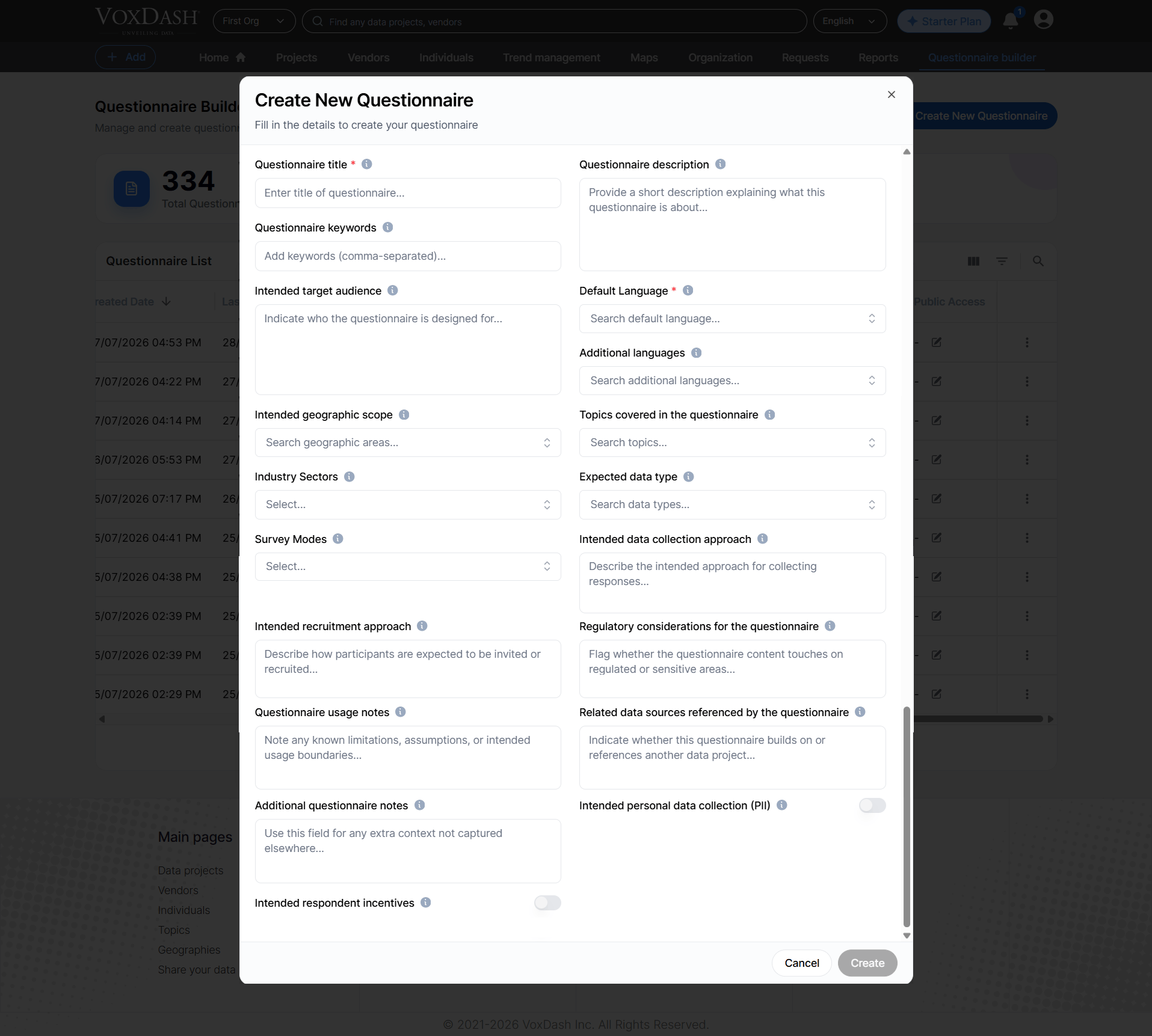
 ## **2. Create Manually**
You can create a questionnaire from scratch using the built‑in SurveyJS editor.
Before entering the editor, you must provide key information such as:\
• Questionnaire name\
• Target group\
• Category or project details\
• Language and default settings
Once this information is submitted, the system creates an empty questionnaire and opens the editor, where you can add questions, logic, branching, and other settings.
## **2. Create Manually**
You can create a questionnaire from scratch using the built‑in SurveyJS editor.
Before entering the editor, you must provide key information such as:\
• Questionnaire name\
• Target group\
• Category or project details\
• Language and default settings
Once this information is submitted, the system creates an empty questionnaire and opens the editor, where you can add questions, logic, branching, and other settings.
 ## **Step-by-Step Guide**
### **A. Uploading From Your Device**
1. Click **Create New Questionnaire** and choose **Upload File**.
2. Select one or multiple files (Word, Excel, PDF, SPSS).
3. Wait while the system processes questions, responses, logic, and metadata.
4. Once processing is complete, you are automatically redirected to the **Editor Panel** to review and edit the structure.
5. Your questionnaire project is now created and appears in:\
• The **Questionnaire List**\
• The **Data Projects List**
### **B. Uploading From the VoxDash Library**
1. Click **Create New Questionnaire** and choose **Upload From Library**.
2. Select one or more files from your previously uploaded library files.
3. The system processes your selected files following the same steps as device uploads.
4. You are redirected to the **Editor Panel** to finalize your questionnaire.
### **C. Creating Manually**
1. Click **Create Manually**.
2. Provide the required information (e.g., questionnaire name, target group, language).
3. After submitting, the system creates a blank questionnaire.
4. You are redirected to the **Editor Panel**, where you can:\
• Add questions\
• Define logic and branching\
• Organize pages and sections\
• Adjust display settings
This method offers full control over content and structure.
## **Step-by-Step Guide**
### **A. Uploading From Your Device**
1. Click **Create New Questionnaire** and choose **Upload File**.
2. Select one or multiple files (Word, Excel, PDF, SPSS).
3. Wait while the system processes questions, responses, logic, and metadata.
4. Once processing is complete, you are automatically redirected to the **Editor Panel** to review and edit the structure.
5. Your questionnaire project is now created and appears in:\
• The **Questionnaire List**\
• The **Data Projects List**
### **B. Uploading From the VoxDash Library**
1. Click **Create New Questionnaire** and choose **Upload From Library**.
2. Select one or more files from your previously uploaded library files.
3. The system processes your selected files following the same steps as device uploads.
4. You are redirected to the **Editor Panel** to finalize your questionnaire.
### **C. Creating Manually**
1. Click **Create Manually**.
2. Provide the required information (e.g., questionnaire name, target group, language).
3. After submitting, the system creates a blank questionnaire.
4. You are redirected to the **Editor Panel**, where you can:\
• Add questions\
• Define logic and branching\
• Organize pages and sections\
• Adjust display settings
This method offers full control over content and structure.