> ## Documentation Index
> Fetch the complete documentation index at: https://help.voxdash.com/llms.txt
> Use this file to discover all available pages before exploring further.
# Available Question Types
After you create a questionnaire—either by building it manually or by uploading an existing file—you will be automatically redirected to the **Editor Panel**.
The **Editor Panel** is the primary workspace where you build, organize, and customize your questionnaire. Here, you can add new questions, edit existing ones, arrange their order, and configure how respondents interact with your survey.
Whether you're creating surveys for **customer feedback**, **market research**, **eCommerce analytics**, or **data collection**, the Editor Panel provides all the tools you need to design professional and interactive questionnaires.
## Accessing the Question Library
On the left side of the Editor Panel, you will find the **Question Library**. This panel contains all available question types that you can add to your questionnaire.
Each question type is designed for a specific purpose, allowing you to collect different kinds of information—from simple text responses to complex tabular data and file uploads.
### To add a question:
1. Locate the desired question type in the Question Library.
2. Click or drag the question into your questionnaire.
3. Configure its properties, such as the title, answer choices, validation rules, and other settings.
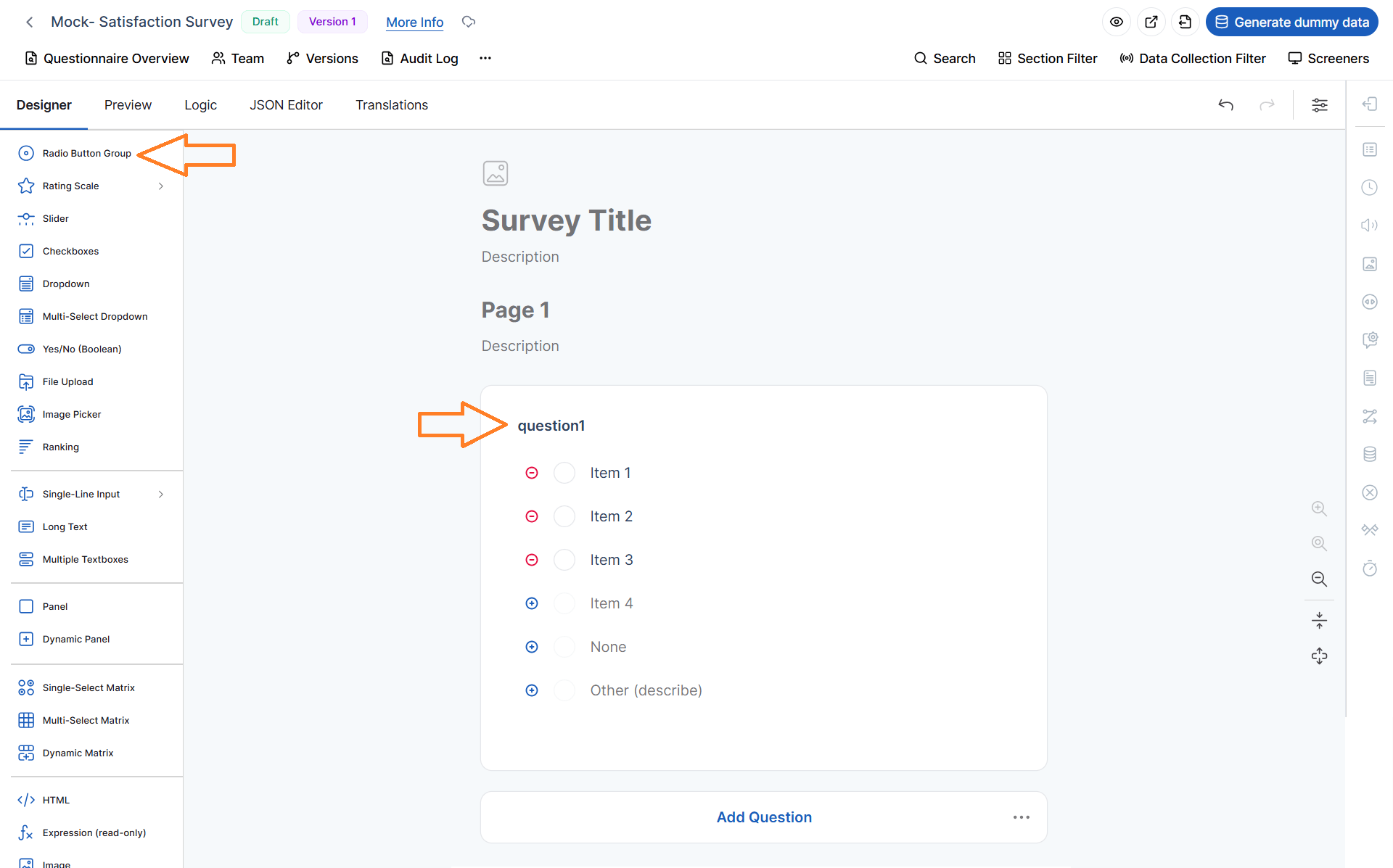 If you cannot find the question type you're looking for, use the **Search** icon at the top of the Question Library to quickly locate it.
## Available Question Types
Below is an overview of each available question type and the scenarios in which it is most useful.
### Radio Button
Allows respondents to select **only one option** from a predefined list.
**Best used for:**
* Single-choice questions
* Mutually exclusive options
* Product or service selection
**Example:**
> Which payment method do you prefer?
>
> * Credit Card
> * PayPal
> * Bank Transfer
### Rating Scale (Labels, Stars, Smiles)
Allows respondents to rate an item using labels, stars, smiley faces, or similar visual scales.
**Best used for:**
* Customer satisfaction
* Product reviews
* Service quality evaluations
* User experience measurements
**Example:**
> How satisfied are you with your purchase?
>
> ★★★★★
### Slider
Lets respondents choose a value by moving a slider along a continuous range.
**Best used for:**
* Satisfaction scores
* Percentage values
* Preference levels
* Numerical ratings
**Example:**
> How likely are you to recommend our store?
>
> 0 — Not Likely | 100 — Extremely Likely
### Checkboxes
Allows respondents to select **multiple answers** from a list.
**Best used for:**
* Multiple product selections
* Feature usage
* Interests
* Categories
**Example:**
> Which features do you regularly use?
>
> * Order Tracking
> * Wish List
> * Product Reviews
> * Coupons
### Dropdown
Displays a list of options in a compact dropdown menu while allowing only **one selection**.
**Best used for:**
* Long option lists
* Country selection
* Categories
* Product types
**Example:**
> Select your country.
### Multi-select Dropdown
Works like a standard dropdown but allows respondents to select **multiple options**.
**Best used for:**
* Selecting multiple brands
* Choosing multiple interests
* Product categories
This question type helps save screen space while supporting multiple selections.
### Yes / No (Boolean)
Provides a simple binary choice.
**Best used for:**
* Confirmations
* Eligibility questions
* Consent
* Agreement
**Example:**
> Have you purchased from us before?
### File Upload
Allows respondents to upload files directly within the questionnaire.
Supported uploads may include:
* Images
* PDF documents
* Receipts
* Invoices
* Supporting documentation
**Common use cases:**
* Proof of purchase
* Identity verification
* Supporting documents
### Image Picker
Displays images as answer choices instead of plain text.
**Best used for:**
* Product selection
* Visual preference surveys
* Brand recognition
* Design feedback
Respondents simply click the image that best represents their choice.
### Ranking
Allows respondents to arrange items in order of preference or importance.
**Best used for:**
* Product prioritization
* Feature ranking
* Customer preference analysis
* Market research
**Example:**
> Rank the following features from most important to least important.
### Single-line Input
Collects a short text response.
**Best used for:**
* Name
* Email address
* Order number
* Company name
* Short answers
This field accepts only a single line of text.
### Long Text
Provides a large text area for detailed responses.
**Best used for:**
* Customer feedback
* Comments
* Suggestions
* Product reviews
* Support requests
This question type encourages respondents to provide more comprehensive answers.
### Multiple Textboxes
Displays several related text fields within one question.
**Best used for collecting:**
* Contact information
* Address details
* Multiple product names
* Employee information
Each textbox captures a separate value while keeping related information grouped together.
### Panel
Groups multiple questions into a single section.
Panels improve the organization of long questionnaires by separating related questions into logical sections.
**Examples:**
* Personal Information
* Shipping Details
* Payment Information
* Product Feedback
Panels also improve readability and navigation for respondents.
### Dynamic Panel
A Dynamic Panel allows respondents to repeat the same group of questions multiple times.
**Best used when respondents need to enter:**
* Multiple purchased products
* Family members
* Employees
* Addresses
* Previous orders
Respondents can add or remove entries as needed.
### Single-select Matrix
Displays questions in a table where each row allows **one selection**.
**Best used for:**
* Rating multiple products
* Evaluating several services
* Comparing features
This format makes large sets of similar questions easier to answer.
### Multi-select Matrix
Similar to the Single-select Matrix, but respondents can choose **multiple options per row**.
**Best used for:**
* Feature availability
* Capability assessments
* Product comparisons
* Multi-category evaluations
### Dynamic Matrix
Allows respondents to build their own table by adding rows during the survey.
Each row typically contains multiple columns for structured information.
**Best used for:**
* Purchased products
* Expense reports
* Inventory lists
* Order details
Dynamic Matrices are especially useful when the number of entries is unknown beforehand.
### HTML
Adds custom HTML content to your questionnaire.
This question type is commonly used to display:
* Instructions
* Formatted text
* Embedded videos
* External content
* Custom layouts
* Informational messages
Unlike standard questions, HTML elements do not collect responses.
### Expressions (Read-only)
Displays values that are automatically calculated based on other responses in the questionnaire.
Respondents cannot edit these values.
**Common uses include:**
* Calculated totals
* Scores
* Pricing
* Discounts
* Dynamic summaries
Expression fields automatically update whenever related answers change.
### Image
Displays a static image anywhere within the questionnaire.
Images can be used to:
* Provide instructions
* Display product photos
* Show diagrams
* Add branding
* Improve visual presentation
Unlike the Image Picker, this element is informational and does not collect responses.
### Signature
Captures a respondent's digital signature.
**Common use cases include:**
* Agreements
* Consent forms
* Contracts
* Delivery confirmations
* Customer approvals
The signature is saved as part of the respondent's submission.
## Designing Effective Questionnaires
By combining different question types, you can create questionnaires that are both user-friendly and highly effective at collecting meaningful data. Choosing the appropriate question type improves the respondent experience, increases completion rates, and ensures that the information collected is well-structured and ready for analysis.
Whether you are gathering **customer insights**, conducting **market research**, collecting **eCommerce feedback**, or supporting **operational analytics**, the available question types provide the flexibility to build questionnaires that meet a wide variety of business and reporting needs.
If you cannot find the question type you're looking for, use the **Search** icon at the top of the Question Library to quickly locate it.
## Available Question Types
Below is an overview of each available question type and the scenarios in which it is most useful.
### Radio Button
Allows respondents to select **only one option** from a predefined list.
**Best used for:**
* Single-choice questions
* Mutually exclusive options
* Product or service selection
**Example:**
> Which payment method do you prefer?
>
> * Credit Card
> * PayPal
> * Bank Transfer
### Rating Scale (Labels, Stars, Smiles)
Allows respondents to rate an item using labels, stars, smiley faces, or similar visual scales.
**Best used for:**
* Customer satisfaction
* Product reviews
* Service quality evaluations
* User experience measurements
**Example:**
> How satisfied are you with your purchase?
>
> ★★★★★
### Slider
Lets respondents choose a value by moving a slider along a continuous range.
**Best used for:**
* Satisfaction scores
* Percentage values
* Preference levels
* Numerical ratings
**Example:**
> How likely are you to recommend our store?
>
> 0 — Not Likely | 100 — Extremely Likely
### Checkboxes
Allows respondents to select **multiple answers** from a list.
**Best used for:**
* Multiple product selections
* Feature usage
* Interests
* Categories
**Example:**
> Which features do you regularly use?
>
> * Order Tracking
> * Wish List
> * Product Reviews
> * Coupons
### Dropdown
Displays a list of options in a compact dropdown menu while allowing only **one selection**.
**Best used for:**
* Long option lists
* Country selection
* Categories
* Product types
**Example:**
> Select your country.
### Multi-select Dropdown
Works like a standard dropdown but allows respondents to select **multiple options**.
**Best used for:**
* Selecting multiple brands
* Choosing multiple interests
* Product categories
This question type helps save screen space while supporting multiple selections.
### Yes / No (Boolean)
Provides a simple binary choice.
**Best used for:**
* Confirmations
* Eligibility questions
* Consent
* Agreement
**Example:**
> Have you purchased from us before?
### File Upload
Allows respondents to upload files directly within the questionnaire.
Supported uploads may include:
* Images
* PDF documents
* Receipts
* Invoices
* Supporting documentation
**Common use cases:**
* Proof of purchase
* Identity verification
* Supporting documents
### Image Picker
Displays images as answer choices instead of plain text.
**Best used for:**
* Product selection
* Visual preference surveys
* Brand recognition
* Design feedback
Respondents simply click the image that best represents their choice.
### Ranking
Allows respondents to arrange items in order of preference or importance.
**Best used for:**
* Product prioritization
* Feature ranking
* Customer preference analysis
* Market research
**Example:**
> Rank the following features from most important to least important.
### Single-line Input
Collects a short text response.
**Best used for:**
* Name
* Email address
* Order number
* Company name
* Short answers
This field accepts only a single line of text.
### Long Text
Provides a large text area for detailed responses.
**Best used for:**
* Customer feedback
* Comments
* Suggestions
* Product reviews
* Support requests
This question type encourages respondents to provide more comprehensive answers.
### Multiple Textboxes
Displays several related text fields within one question.
**Best used for collecting:**
* Contact information
* Address details
* Multiple product names
* Employee information
Each textbox captures a separate value while keeping related information grouped together.
### Panel
Groups multiple questions into a single section.
Panels improve the organization of long questionnaires by separating related questions into logical sections.
**Examples:**
* Personal Information
* Shipping Details
* Payment Information
* Product Feedback
Panels also improve readability and navigation for respondents.
### Dynamic Panel
A Dynamic Panel allows respondents to repeat the same group of questions multiple times.
**Best used when respondents need to enter:**
* Multiple purchased products
* Family members
* Employees
* Addresses
* Previous orders
Respondents can add or remove entries as needed.
### Single-select Matrix
Displays questions in a table where each row allows **one selection**.
**Best used for:**
* Rating multiple products
* Evaluating several services
* Comparing features
This format makes large sets of similar questions easier to answer.
### Multi-select Matrix
Similar to the Single-select Matrix, but respondents can choose **multiple options per row**.
**Best used for:**
* Feature availability
* Capability assessments
* Product comparisons
* Multi-category evaluations
### Dynamic Matrix
Allows respondents to build their own table by adding rows during the survey.
Each row typically contains multiple columns for structured information.
**Best used for:**
* Purchased products
* Expense reports
* Inventory lists
* Order details
Dynamic Matrices are especially useful when the number of entries is unknown beforehand.
### HTML
Adds custom HTML content to your questionnaire.
This question type is commonly used to display:
* Instructions
* Formatted text
* Embedded videos
* External content
* Custom layouts
* Informational messages
Unlike standard questions, HTML elements do not collect responses.
### Expressions (Read-only)
Displays values that are automatically calculated based on other responses in the questionnaire.
Respondents cannot edit these values.
**Common uses include:**
* Calculated totals
* Scores
* Pricing
* Discounts
* Dynamic summaries
Expression fields automatically update whenever related answers change.
### Image
Displays a static image anywhere within the questionnaire.
Images can be used to:
* Provide instructions
* Display product photos
* Show diagrams
* Add branding
* Improve visual presentation
Unlike the Image Picker, this element is informational and does not collect responses.
### Signature
Captures a respondent's digital signature.
**Common use cases include:**
* Agreements
* Consent forms
* Contracts
* Delivery confirmations
* Customer approvals
The signature is saved as part of the respondent's submission.
## Designing Effective Questionnaires
By combining different question types, you can create questionnaires that are both user-friendly and highly effective at collecting meaningful data. Choosing the appropriate question type improves the respondent experience, increases completion rates, and ensures that the information collected is well-structured and ready for analysis.
Whether you are gathering **customer insights**, conducting **market research**, collecting **eCommerce feedback**, or supporting **operational analytics**, the available question types provide the flexibility to build questionnaires that meet a wide variety of business and reporting needs.