> ## Documentation Index
> Fetch the complete documentation index at: https://help.voxdash.com/llms.txt
> Use this file to discover all available pages before exploring further.
# Viewing Survey Administration Questions
> Survey Administration Questions are questions that the data provider has marked as incomplete, irrelevant, or unsuitable for analysis. These questions are…
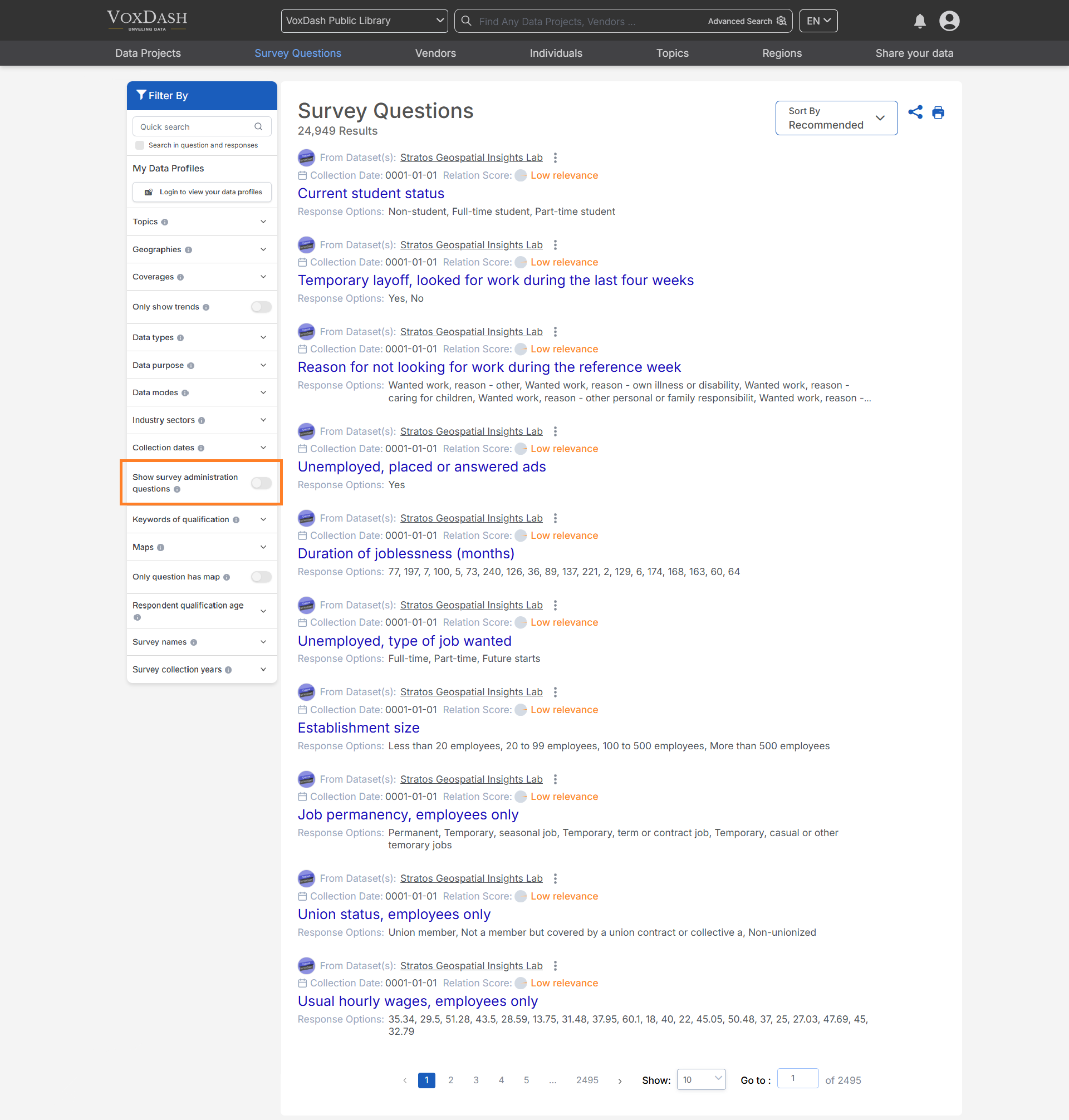
**Survey Administration Questions** are questions that the data provider has marked as incomplete, irrelevant, or unsuitable for analysis. These questions are hidden by default to keep your data project focused on meaningful insights, but you can reveal them at any time to review the complete list of survey questions.
## How to View Survey Administration Questions
1. Go to the [Survey Questions Section](https://www.voxdash.com/) of your data project.
2. Use the **Filter** option and select **Show Administration Questions**.
3. The list will now display all survey questions, including those hidden by default.
 ## Adding Survey Administration Question Variables
You can include survey administration questions in your data project before uploading it to **VoxDash** by preparing your Survey file as follows:
1. Open your **Survey** data project.
2. Identify variables that you want to exclude from analysis but still keep in the data project (for example, internal notes or incomplete responses).
3. Add the prefix **Hide\_** to the variable names for those fields.
**Example:** `Hide_TestVariable`, `Hide_InternalNotes`.
Learn more about preparing your SPSS [here](/Survey-&-Data-Entry/Working-with-SPSS-Files)
## Adding Survey Administration Question Variables
You can include survey administration questions in your data project before uploading it to **VoxDash** by preparing your Survey file as follows:
1. Open your **Survey** data project.
2. Identify variables that you want to exclude from analysis but still keep in the data project (for example, internal notes or incomplete responses).
3. Add the prefix **Hide\_** to the variable names for those fields.
**Example:** `Hide_TestVariable`, `Hide_InternalNotes`.
Learn more about preparing your SPSS [here](/Survey-&-Data-Entry/Working-with-SPSS-Files)
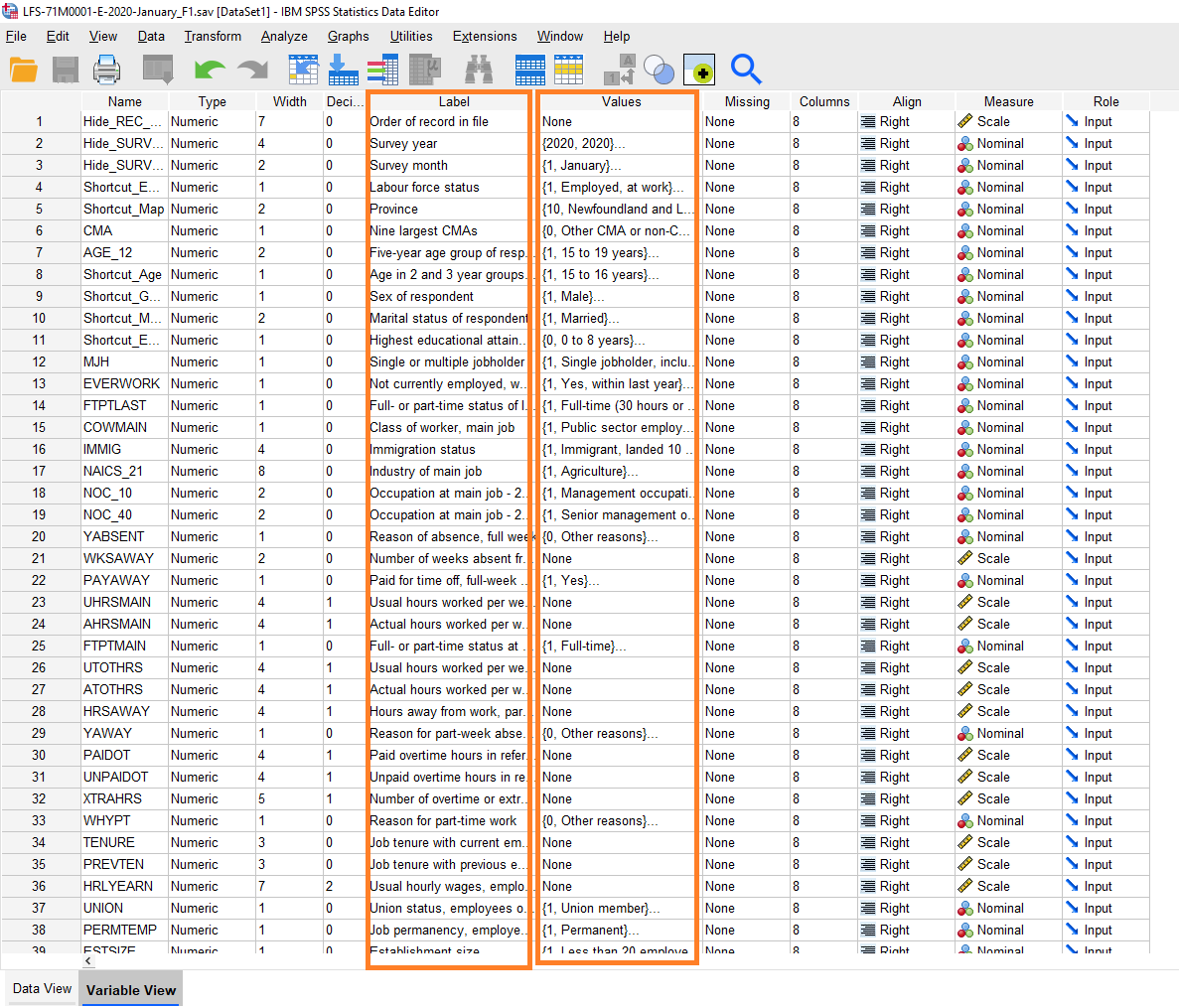 4. You can perform this step directly in SPSS or add the administration questions later in the [Survey Data Entry](/Survey-&-Data-Entry/Survey-Data-Entry-Guide) **Wizard 2** during data preparation.
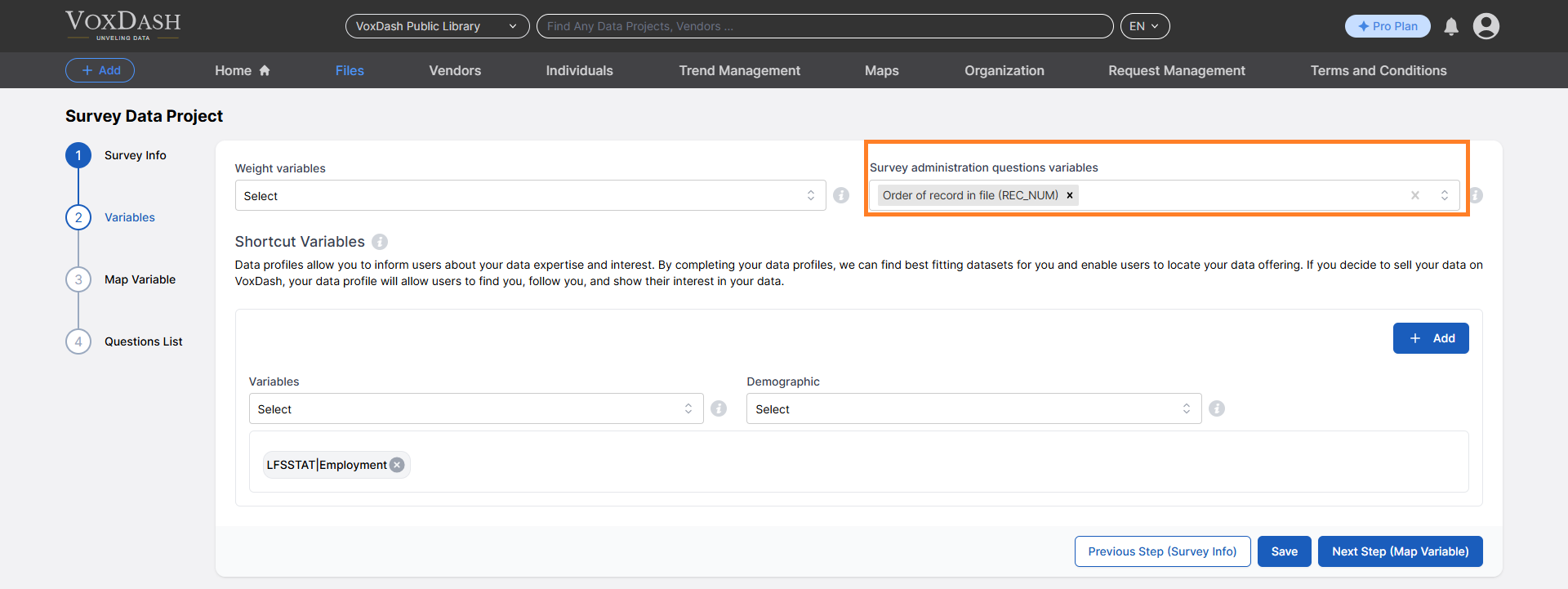 These “hidden” variables remain in your data project but **will not appear** in VoxDash visualizations. You can still access them later if needed for reference or data quality review.
### Notes
* Administration questions are intended primarily for internal tracking and should generally not be used in reports or dashboards.
* Revealing hidden questions can be useful for audit trails, quality control, or when refining survey design.
* You can learn more about preparing your Survey file before uploading it into VoxDash, [Click here](/Survey-&-Data-Entry/Working-with-SPSS-Files).
These “hidden” variables remain in your data project but **will not appear** in VoxDash visualizations. You can still access them later if needed for reference or data quality review.
### Notes
* Administration questions are intended primarily for internal tracking and should generally not be used in reports or dashboards.
* Revealing hidden questions can be useful for audit trails, quality control, or when refining survey design.
* You can learn more about preparing your Survey file before uploading it into VoxDash, [Click here](/Survey-&-Data-Entry/Working-with-SPSS-Files).