> ## Documentation Index
> Fetch the complete documentation index at: https://help.voxdash.com/llms.txt
> Use this file to discover all available pages before exploring further.
# Contract Settings
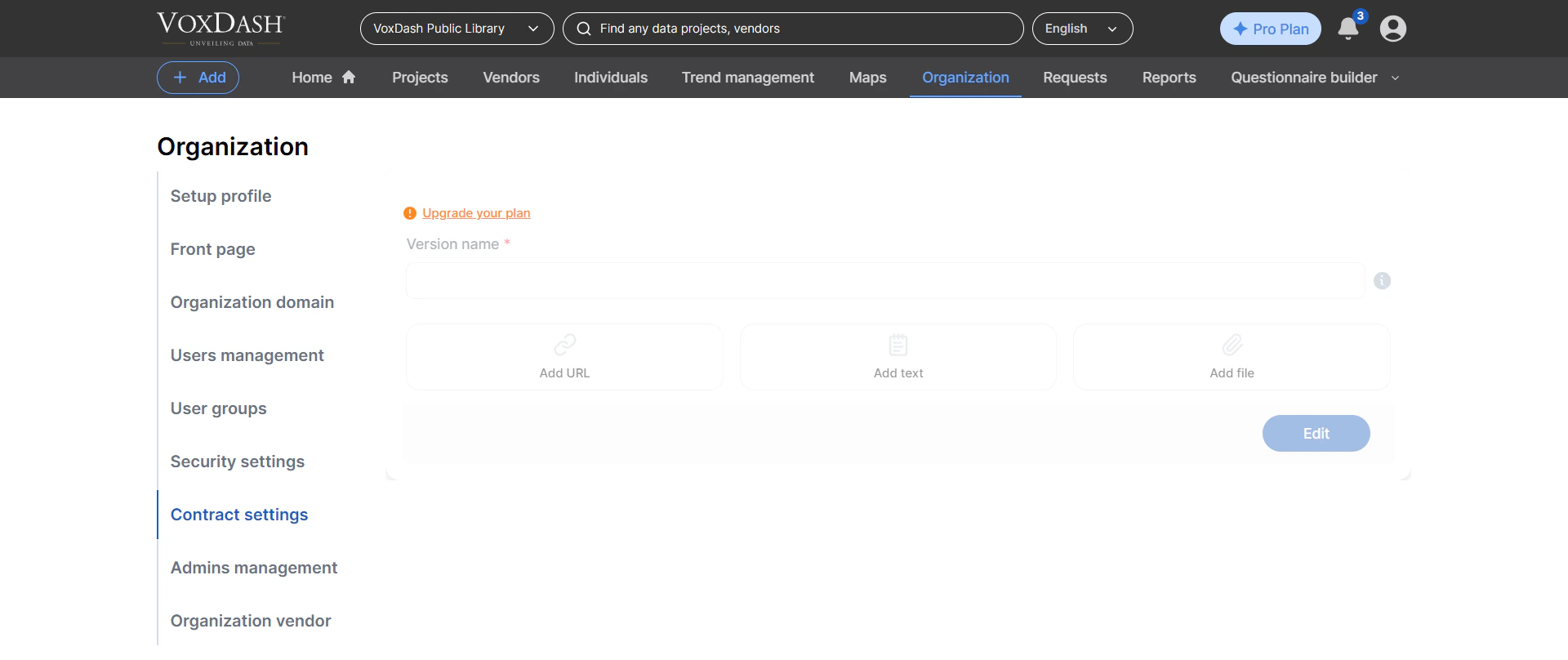
In **VoxDash**, data providers can attach contracts to their data projects to define the terms and conditions under which their data is shared and used. These contracts play an important role in establishing trust, ensuring compliance, and clearly communicating expectations between data providers and data consumers.
Contracts are automatically generated by the system, but users with higher-tier accounts have the flexibility to customize key elements. This allows organizations to align contracts with their internal policies, legal requirements, and branding.
## Key Features of Contract Customization
When customizing contract settings, you can configure the following components:
### 1. Version Name
Assign a version name to your contract (for example, *v1.0*, *2026 Standard Terms*, or *Enterprise Agreement A*).
This helps you:
* Track changes over time
* Maintain version history
* Ensure users are agreeing to the correct version of the contract
It is recommended to update the version name whenever significant changes are made.
### 2. Custom Text Sections
You can add custom text blocks to include specific terms, conditions, or explanations. Examples include:
* Data usage restrictions
* Licensing terms
* Privacy and compliance statements
* Service-level expectations
**Best practices:**
* Use clear and concise language
* Avoid ambiguous wording
* Structure content with headings or bullet points for readability
### 3. External URLs
You can include links to external resources such as:
* Full legal agreements
* Privacy policies
* Terms of service
* Documentation or knowledge base articles
This is useful when:
* The contract references longer documents
* You want to keep the contract concise while providing additional details
Make sure all URLs are valid and accessible to end users.
### 4. File Attachments
Instead of adding free-form notes, you can upload files to be included as part of the contract.
**Supported use cases include:**
* Full legal agreements in PDF format
* Supporting documentation or appendices
* Compliance certificates
* Custom policy documents
Attached files will be bundled or referenced in the generated contract, depending on the system configuration.
**Best practices:**
* Use clear, descriptive file names (e.g., Data\_Usage\_Policy\_v2.pdf)
* Ensure files are up to date and approved
* Avoid uploading duplicate or outdated documents
## How Contract Generation Works
Once you configure the contract settings:
* VoxDash automatically compiles all inputs into a standardized contract file
* The system ensures consistent formatting across all projects
* The generated contract is attached to your data project and presented to users when required
This automation reduces manual work and ensures that all contracts follow a uniform structure.
## Accessing Contract Settings
To customize your contract:
1. Go to the **Data Provider Panel**
2. Navigate to **Organization Settings**
3. Select **Contract Settings**
4. Edit the fields according to your requirements
5. Save your changes
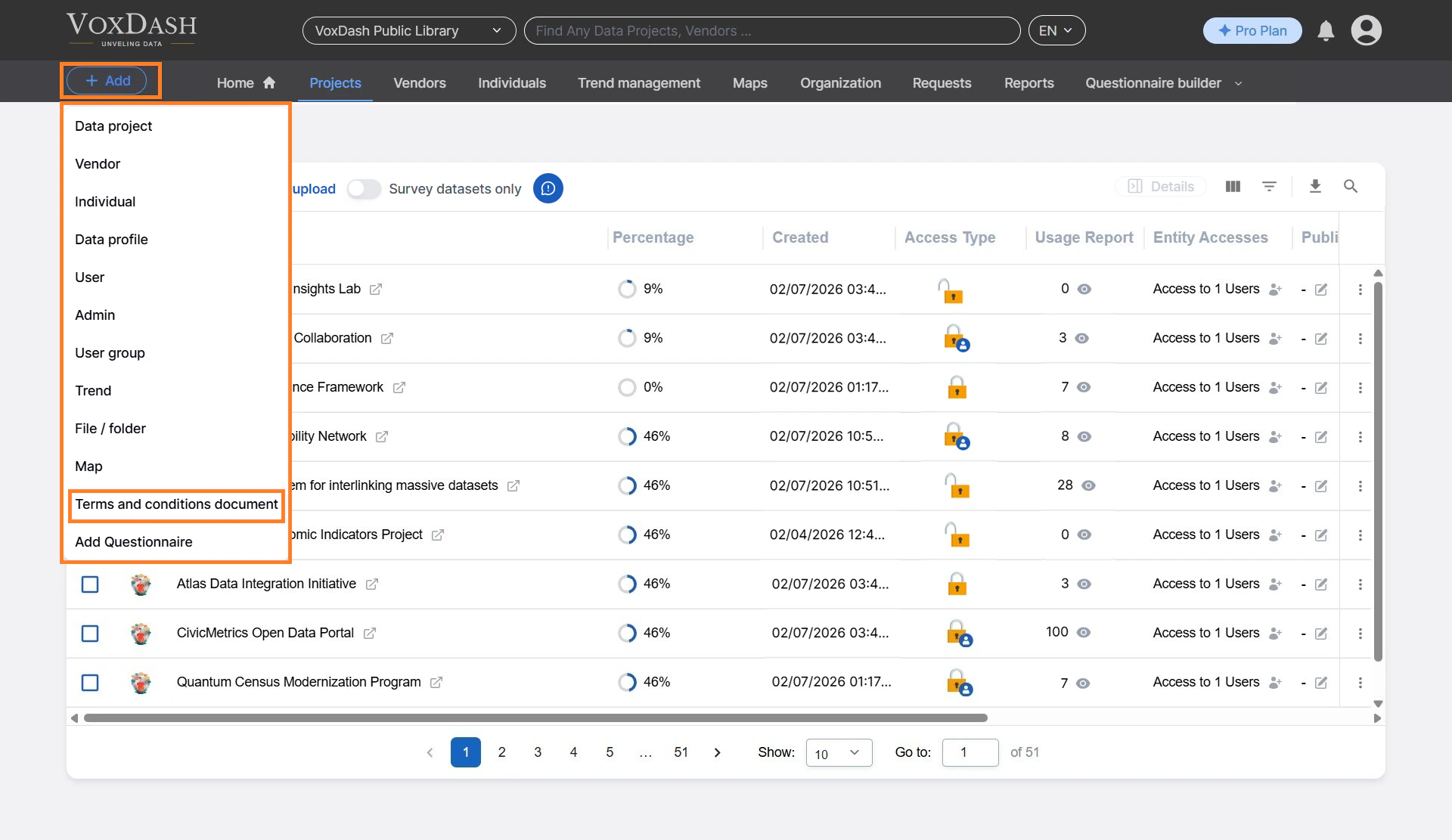
 6. Your new contract document will be saved in terms and contract page. You can access the terms and contract page from the **add** button in the header.
 After saving, any newly generated contracts will include the updated information.
## Important Notes
* Changes to contract settings may not apply retroactively to already accepted contracts
* Always review your contract content for legal accuracy before publishing
* Consider coordinating with your legal team when making significant updates
* Test your contract by generating a sample file to verify formatting and content
## Tips for Effective Contracts
* Keep language simple and easy to understand
* Clearly define user responsibilities and limitations
* Avoid overly long paragraphs—break content into sections
* Regularly review and update contracts to reflect policy or regulatory changes
After saving, any newly generated contracts will include the updated information.
## Important Notes
* Changes to contract settings may not apply retroactively to already accepted contracts
* Always review your contract content for legal accuracy before publishing
* Consider coordinating with your legal team when making significant updates
* Test your contract by generating a sample file to verify formatting and content
## Tips for Effective Contracts
* Keep language simple and easy to understand
* Clearly define user responsibilities and limitations
* Avoid overly long paragraphs—break content into sections
* Regularly review and update contracts to reflect policy or regulatory changes