> ## Documentation Index
> Fetch the complete documentation index at: https://help.voxdash.com/llms.txt
> Use this file to discover all available pages before exploring further.
# Setup Terms and Conditions
In this guide, you will learn how to add Terms and Conditions (T\&C) in three different ways using our SaaS application and how to manage them. The methods include:
1. Add from the Terms and Conditions section in the Data Project
2. Add from the Data Entry Wizard 10, Terms and Conditions for Data Projects
3. Add and manage from the Terms and Conditions Page
## 1. Adding T\&C from the Terms and Conditions Section in the Data Project
To add or manage Terms and Conditions directly within the [Projects](https://dataprovider.voxdash.com/projects):
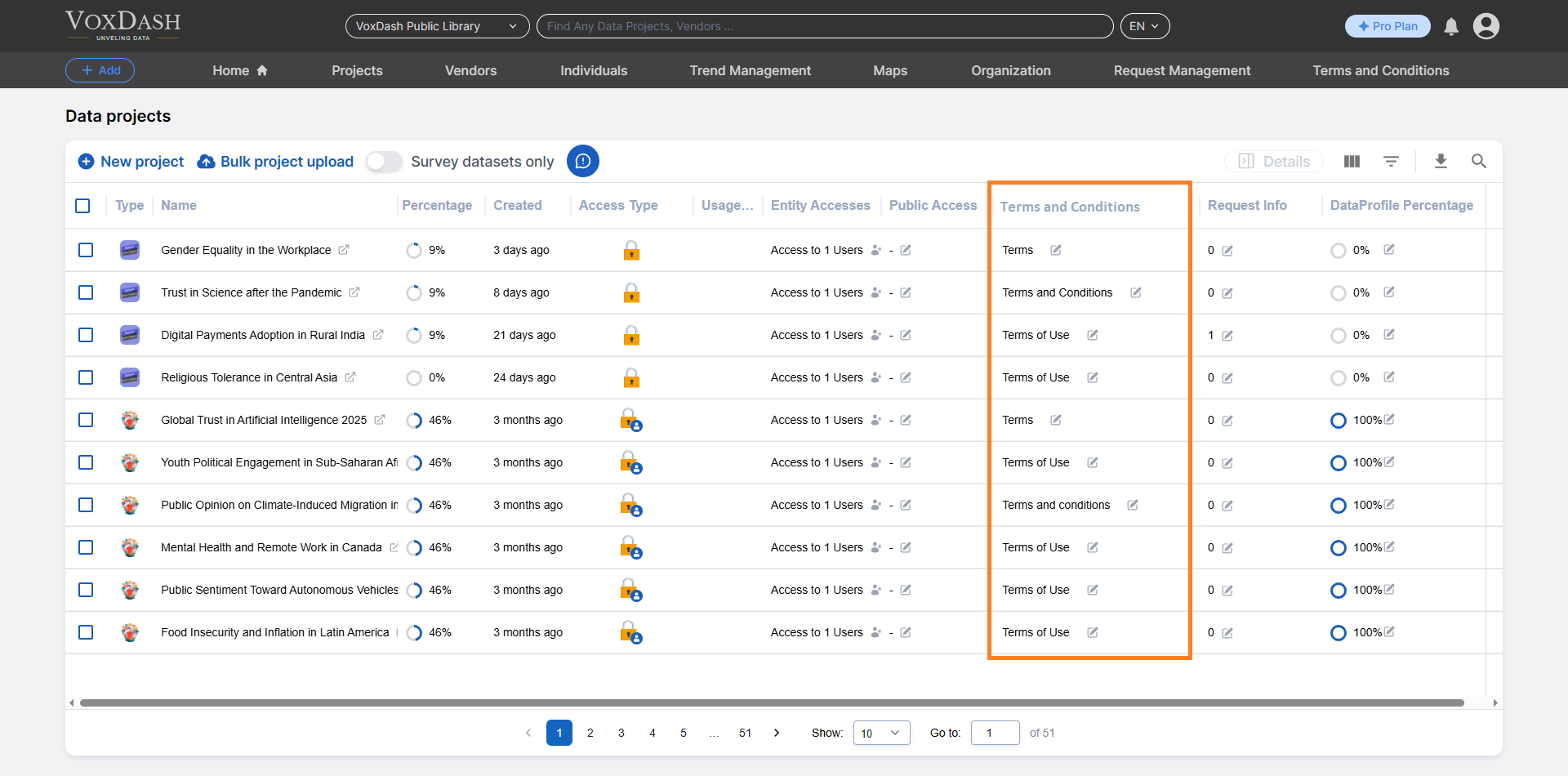 ### **Locating the T\&C Section**
* Navigate to the **Project** page.
* Locate the Terms and Conditions (T\&C) section from the Data Project table.
* Click the **arrow icon** next to the T\&C entry to open the editing menu.
### **Locating the T\&C Section**
* Navigate to the **Project** page.
* Locate the Terms and Conditions (T\&C) section from the Data Project table.
* Click the **arrow icon** next to the T\&C entry to open the editing menu.
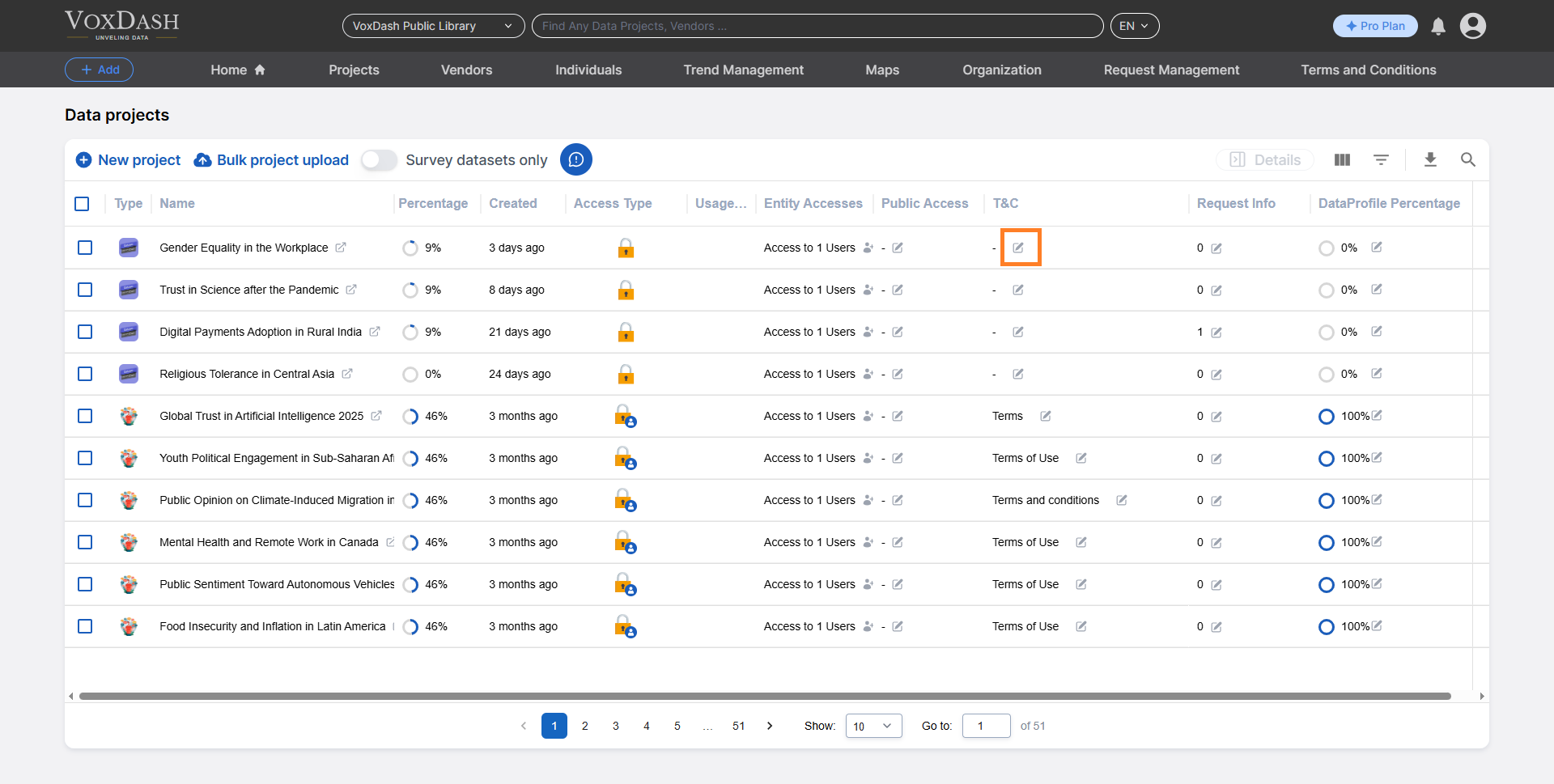 You can either add new terms and conditions or select from the previously added ones.
### **Add New T\&C:**
* Click the blue **Add new terms and conditions** button to open a new page.
You can either add new terms and conditions or select from the previously added ones.
### **Add New T\&C:**
* Click the blue **Add new terms and conditions** button to open a new page.
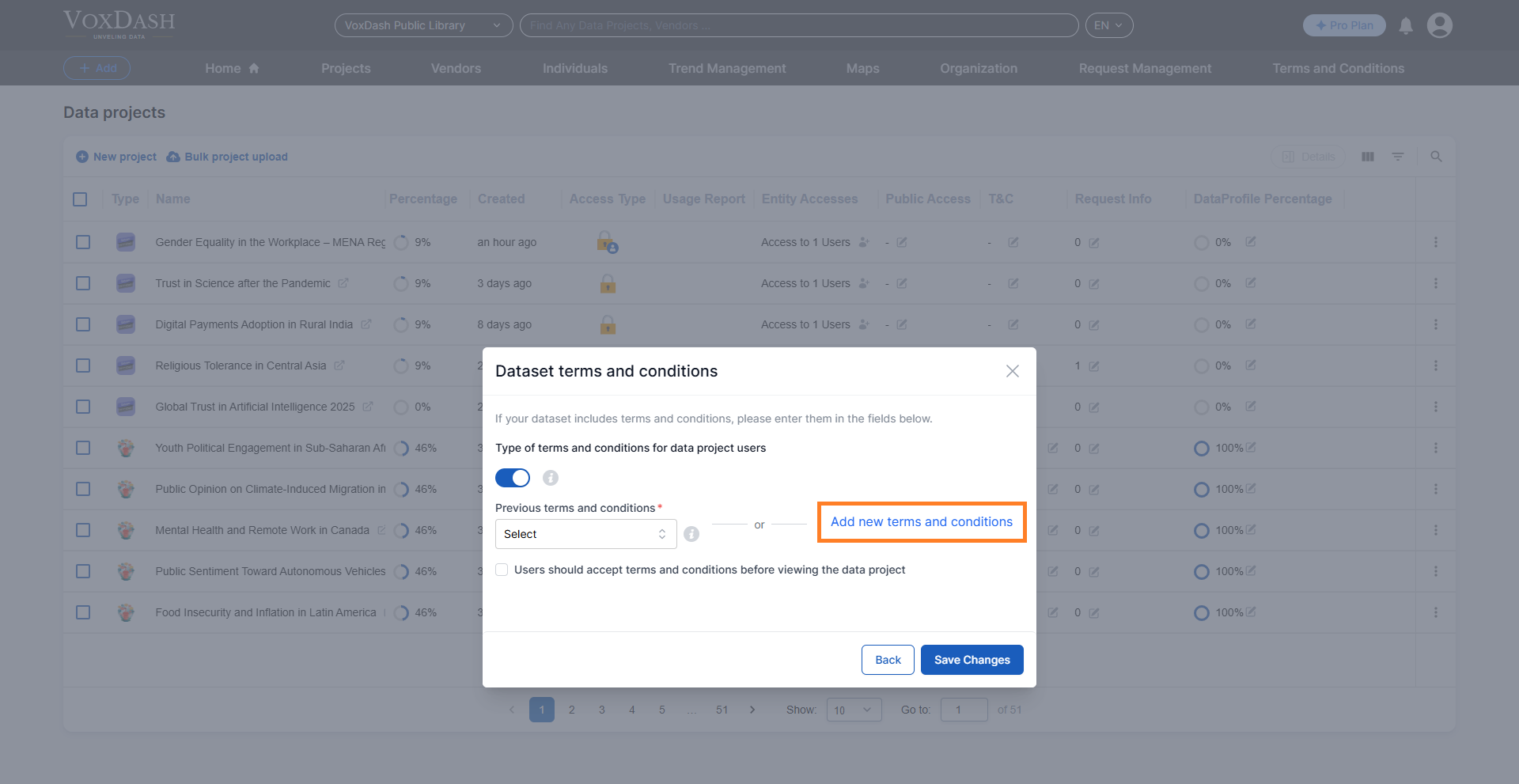 1. **Complete the Form:**
* **Add a Title:** Provide a descriptive title for the T\&C.
* **Add a Version Name:** Specify a version to track changes.
* **Add a URL:** Enter the URL linking to the T\&C (ensure it’s from the hosting site).
* **Upload Documents (Optional):** Attach any relevant documents.
2. **Save Changes:**
* Once all fields are completed, click the blue button at the bottom-right corner to save the T\&C.
By following these steps, you can effectively add or update the Terms and Conditions for your project, ensuring compliance and accuracy.
1. **Complete the Form:**
* **Add a Title:** Provide a descriptive title for the T\&C.
* **Add a Version Name:** Specify a version to track changes.
* **Add a URL:** Enter the URL linking to the T\&C (ensure it’s from the hosting site).
* **Upload Documents (Optional):** Attach any relevant documents.
2. **Save Changes:**
* Once all fields are completed, click the blue button at the bottom-right corner to save the T\&C.
By following these steps, you can effectively add or update the Terms and Conditions for your project, ensuring compliance and accuracy.
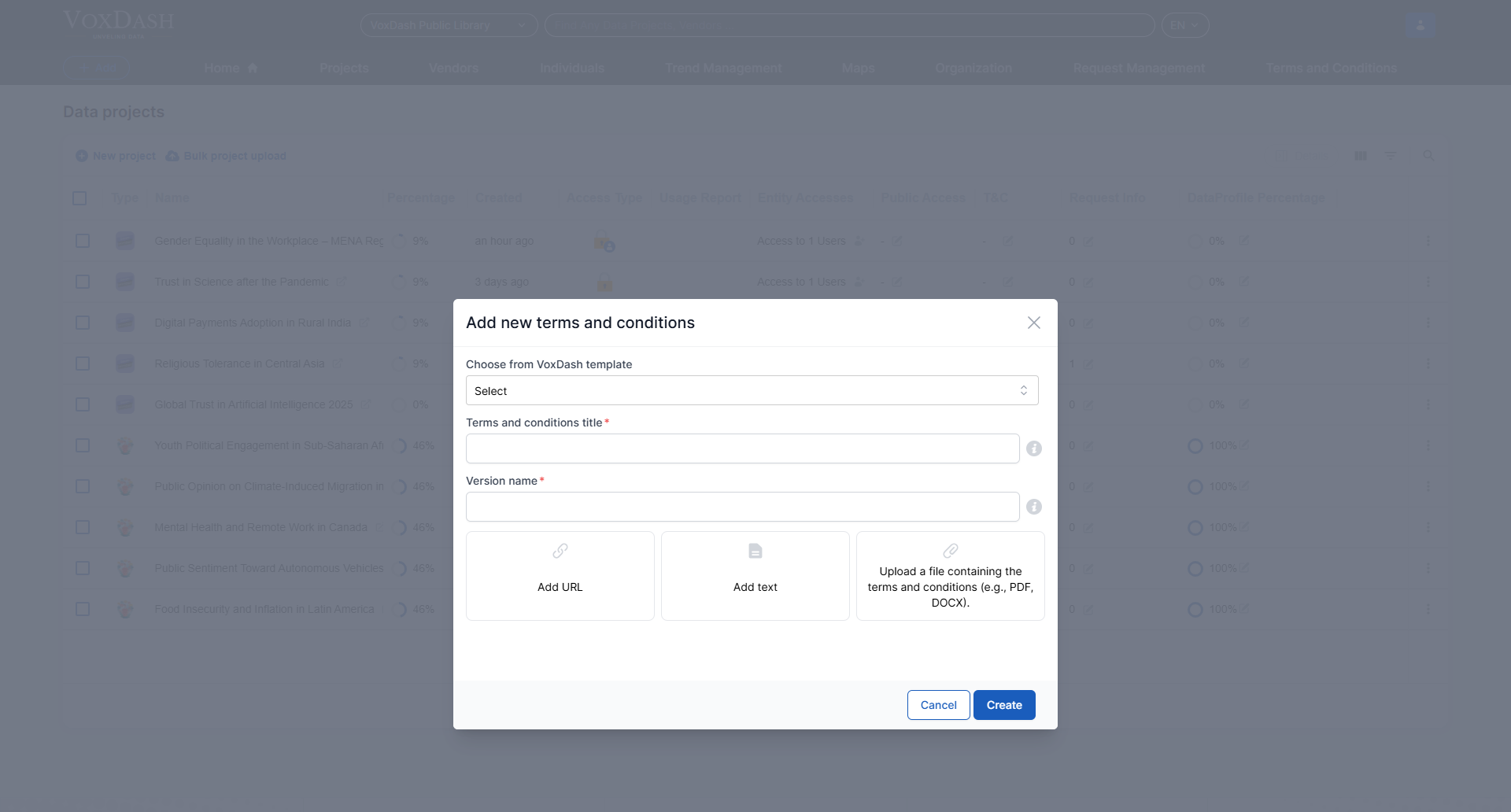 ## **2. Adding T\&C from Data Entry Wizard 10**
The tenth wizard in the general data entry process allows you to add Terms and Conditions.
### **Steps to Follow**
The process is identical to the one described in the Terms and Conditions Section in the **Data Project**. Use Wizard 10 to access and add a T\&C like the previous **Method 1** or use the previously added conditions.
## **2. Adding T\&C from Data Entry Wizard 10**
The tenth wizard in the general data entry process allows you to add Terms and Conditions.
### **Steps to Follow**
The process is identical to the one described in the Terms and Conditions Section in the **Data Project**. Use Wizard 10 to access and add a T\&C like the previous **Method 1** or use the previously added conditions.
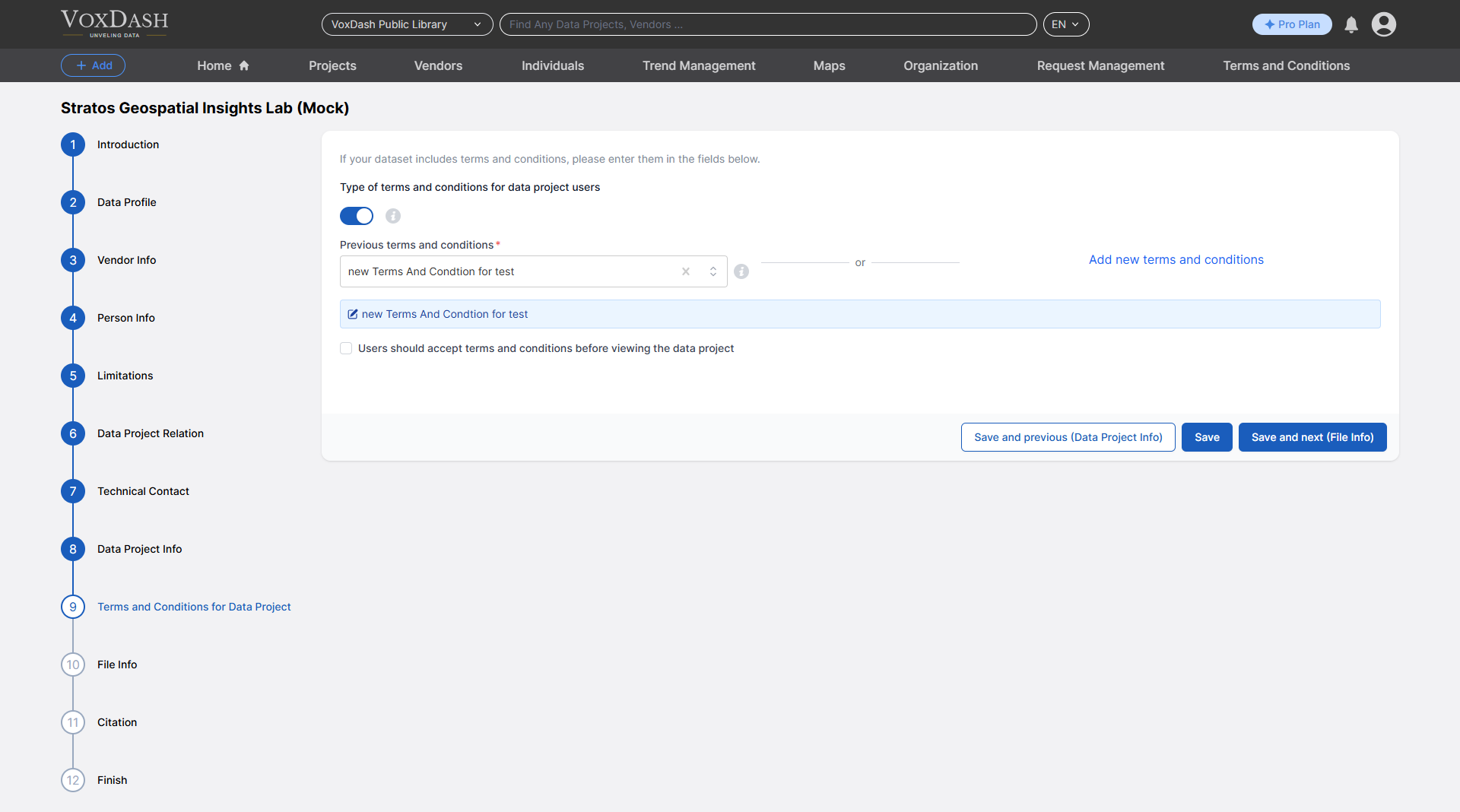 By completing these steps, you can seamlessly integrate T\&C into your data entry workflow.
## **3. Add and Manage from the Terms and Conditions Page**
You can also directly add or manage Terms and Conditions through the dedicated [Terms and Conditions Page](https://dataprovider.voxdash.com/termsAndConditions)
In this page, you can :
* View existing Terms and Conditions in different versions.
* Add a new version by following steps similar to those for creating a new T\&C file.
### **Accessing the Page**
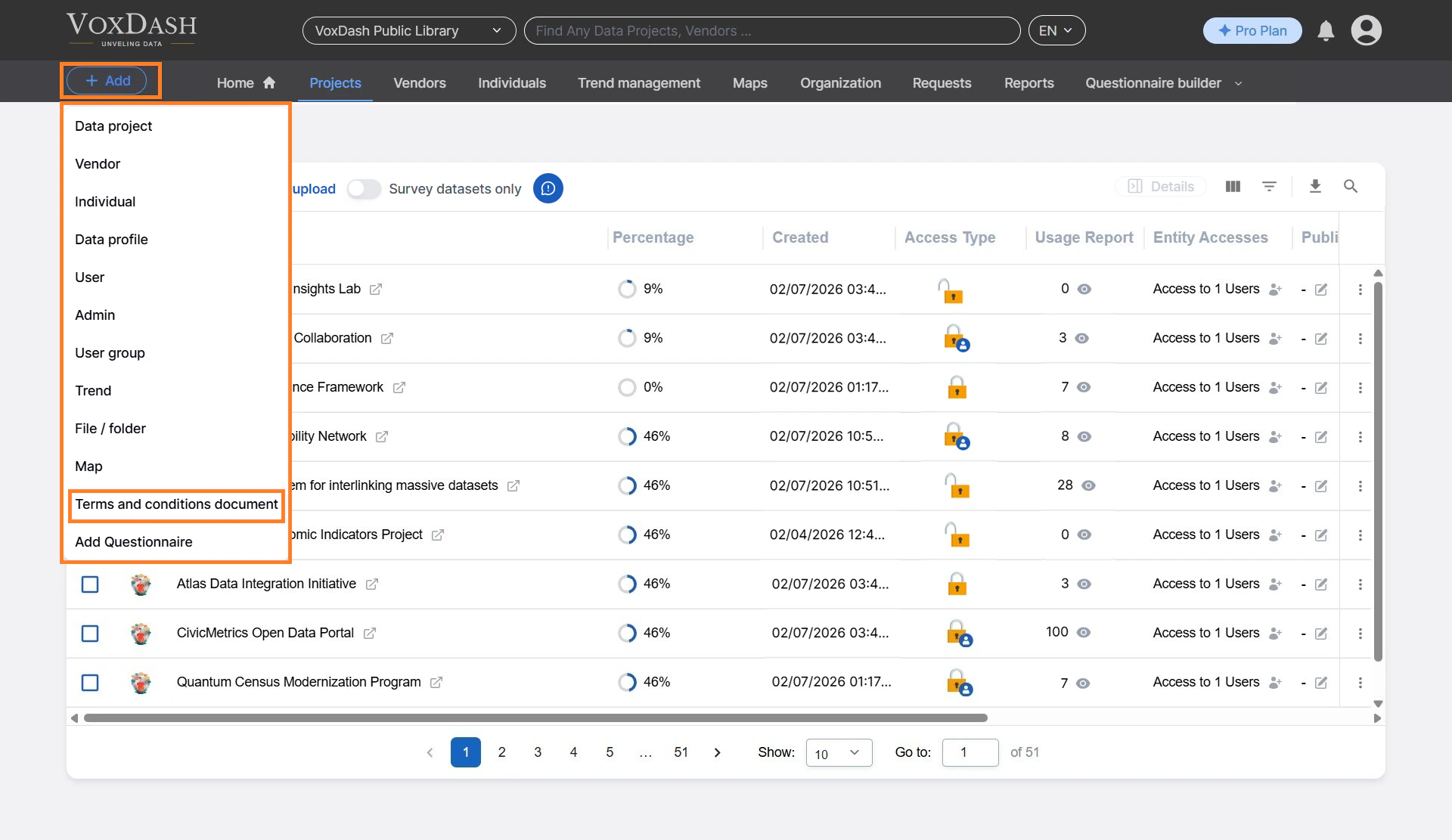
1. From the **Add** button in the header choose **Terms and conditions documents**.
2. Search for existing T\&C by name.
3. Click on a file to view its details.
By completing these steps, you can seamlessly integrate T\&C into your data entry workflow.
## **3. Add and Manage from the Terms and Conditions Page**
You can also directly add or manage Terms and Conditions through the dedicated [Terms and Conditions Page](https://dataprovider.voxdash.com/termsAndConditions)
In this page, you can :
* View existing Terms and Conditions in different versions.
* Add a new version by following steps similar to those for creating a new T\&C file.
### **Accessing the Page**
1. From the **Add** button in the header choose **Terms and conditions documents**.
2. Search for existing T\&C by name.
3. Click on a file to view its details.
 ### **Adding or Editing T\&C**
1. **View or Edit Existing T\&C:**
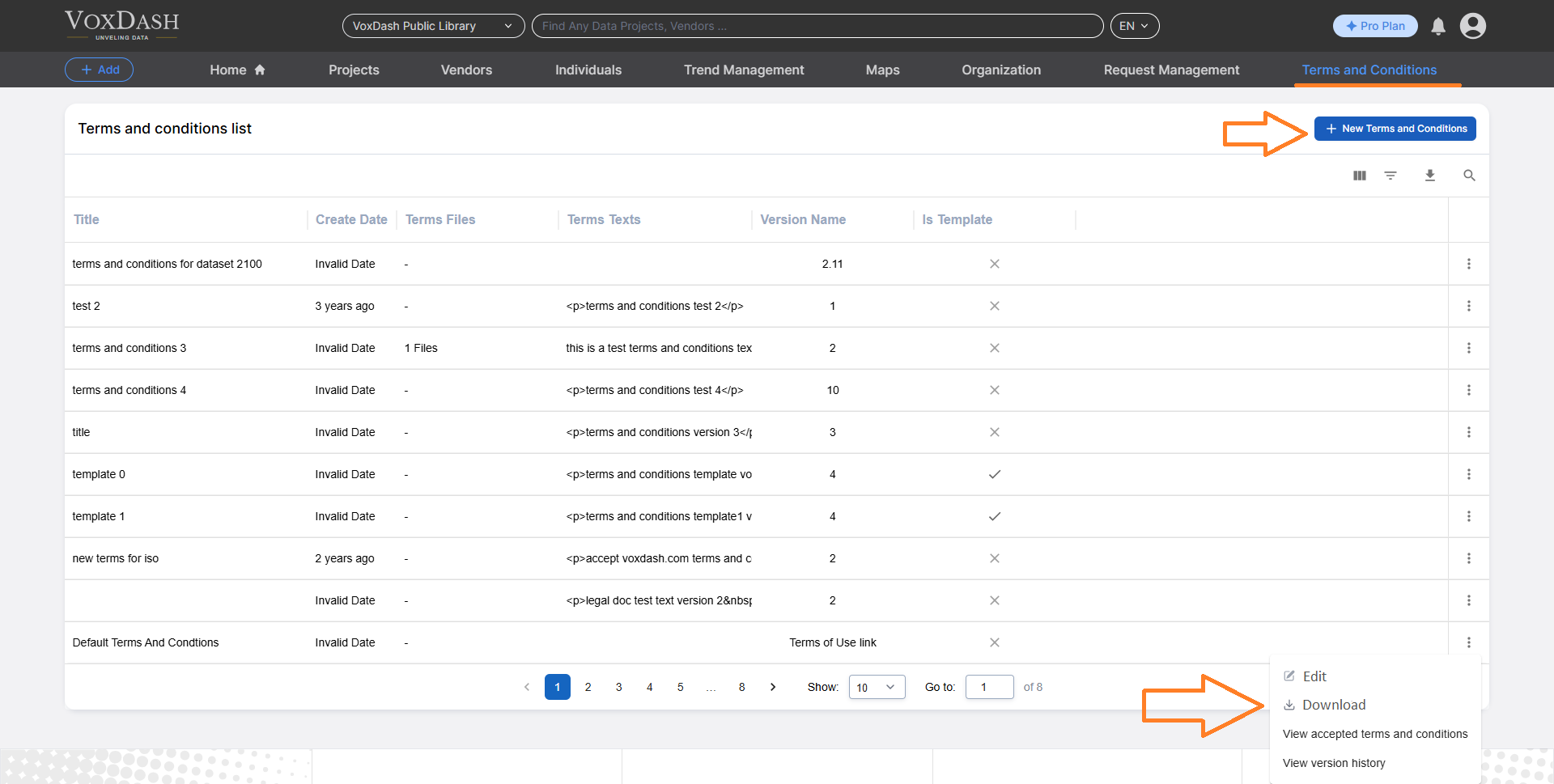
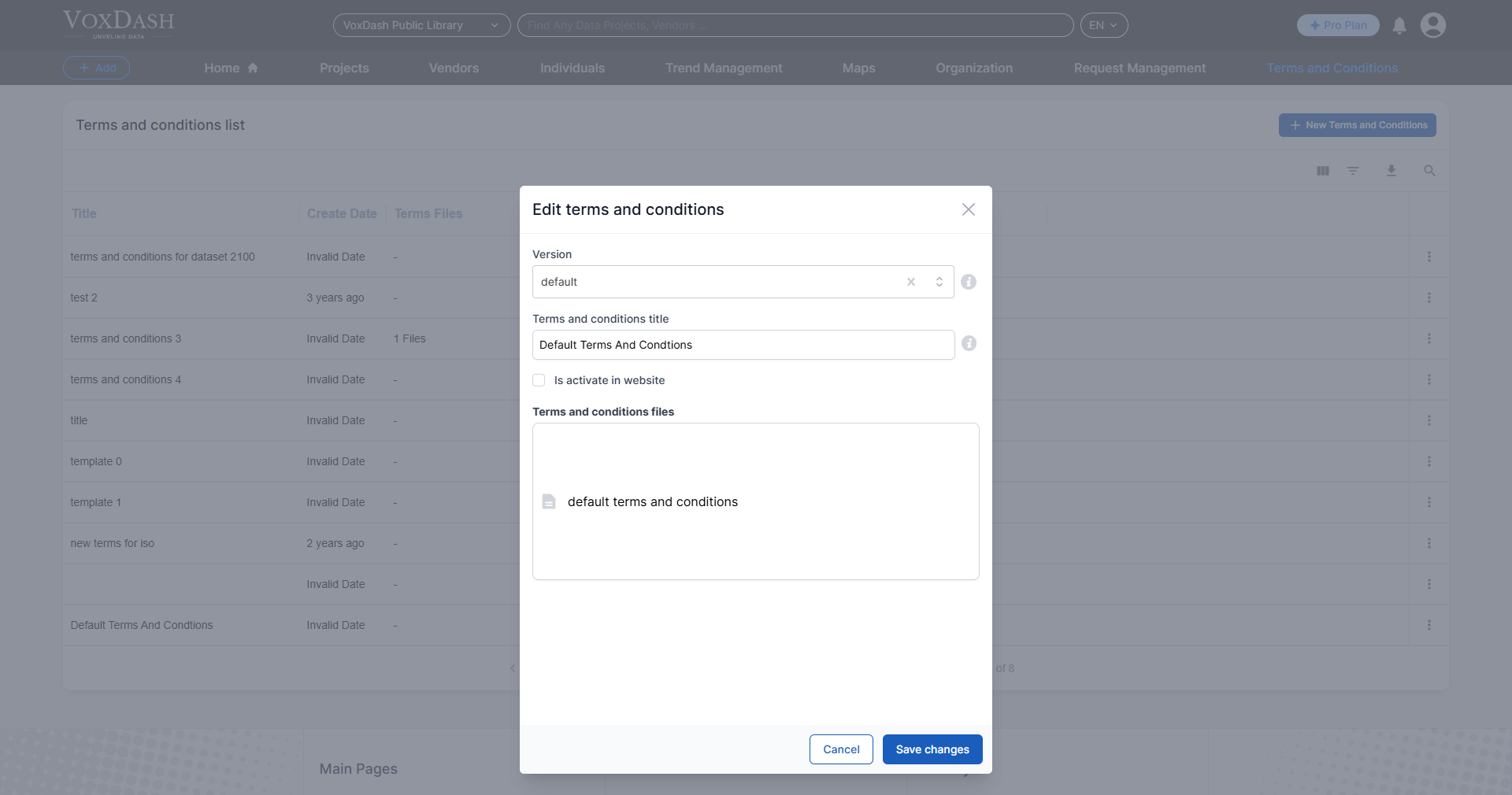
Click the **Edit** button to view different versions or modify the current version.
2. **Add a New Version:**
Follow the same steps outlined in the **first method** to create a new version.
### **Adding or Editing T\&C**
1. **View or Edit Existing T\&C:**
Click the **Edit** button to view different versions or modify the current version.
2. **Add a New Version:**
Follow the same steps outlined in the **first method** to create a new version.
 **Note:** If you have uploaded sensitive data and users must accept the terms, enable the checkbox so users must accept the terms before viewing or using your data.
By using the tools available on this page, you can efficiently manage multiple versions of Terms and Conditions, ensuring they stay up-to-date and meet your project’s requirements.
## Terms and Conditions History
Since legal requirements and business policies may change over time, each project can have multiple versions of its Terms & Conditions.
The **Terms & Conditions History** section allows you to review all previous and current versions of a project’s Terms & Conditions.
Learn more [here](/Terms-&-Legal/Terms-and-Contract-History).
**Note:** If you have uploaded sensitive data and users must accept the terms, enable the checkbox so users must accept the terms before viewing or using your data.
By using the tools available on this page, you can efficiently manage multiple versions of Terms and Conditions, ensuring they stay up-to-date and meet your project’s requirements.
## Terms and Conditions History
Since legal requirements and business policies may change over time, each project can have multiple versions of its Terms & Conditions.
The **Terms & Conditions History** section allows you to review all previous and current versions of a project’s Terms & Conditions.
Learn more [here](/Terms-&-Legal/Terms-and-Contract-History).