> ## Documentation Index
> Fetch the complete documentation index at: https://help.voxdash.com/llms.txt
> Use this file to discover all available pages before exploring further.
# Viewing Accepted Contracts
In VoxDash, data providers can attach **Contracts** to their data projects. Unlike Terms & Conditions, which are usually text‑based agreements, a **Contract is a formal document**—often a PDF—that outlines legal, commercial, or usage terms for accessing a dataset.
Users may be required to review and accept this contract before they can download, view, or interact with the data. VoxDash logs every acceptance event, allowing data providers to maintain a complete compliance and audit trail.
This section explains how contracts work, how acceptance types function, and how to view all users who have accepted a contract for each project.
## Adding a Contract to a Data Project
Data providers can attach a contract during dataset setup or later through the File Manager.
### You can add a contract in two ways:
1. **During Dataset Creation**\
While adding a new dataset in the Data Provider Panel, you can upload a contract document (usually a PDF) in the “Contract” section of the form.
2. **Through the File Manager Table**\
If T\&C were not added initially, you can attach them later from the **File Manager** in the Data Provider Panel.
## How Contract Acceptance Works
After a contract is added, data providers decide whether users must **explicitly accept** it before accessing the data or whether acceptance can be **implicit** depending on the project’s visibility settings.
### 1. Explicit Acceptance
Users must open the contract document, review its content, and actively confirm acceptance.\
This is recommended when:
* The data access has financial/legal constraints
* The provider requires a signed or acknowledged agreement
* More sensitive datasets are involved
Users cannot access the dataset until they accept the contract.
### 2. Implicit Acceptance
If a project is made **public**, VoxDash does not require users to manually agree to the contract. Instead:
* The system logs access as an *implicit acceptance*
* Users can view data immediately
* No acceptance form is displayed
Implicit acceptance is suitable for open-access or low‑risk datasets.
## Viewing Accepted Contracts (Audit Log)
VoxDash provides a dedicated **Accepted Contracts** page where admins can review all users who accepted a contract—explicitly or implicitly.
### To view accepted contracts:
1. Open the **Data Provider Panel**.
2. Navigate to **File Manager**.
3. Find the dataset you want to inspect.
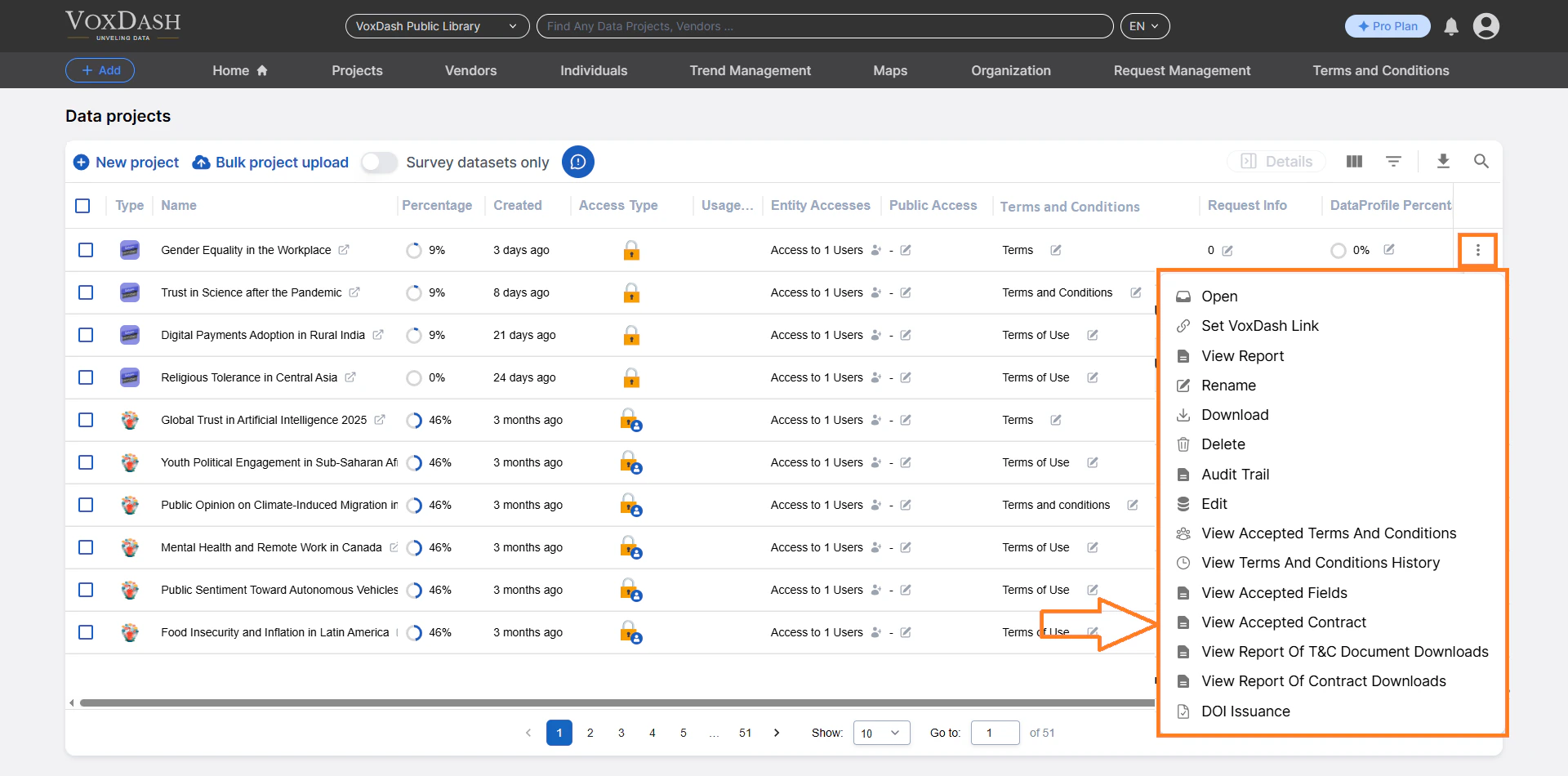
4. Click the **menu icon** (⋮) next to the project.
5. Select **View Accepted Contract**.
You will be taken to a detailed Acceptance Table for that project.
 ## Information Displayed in the Accepted Contract Table
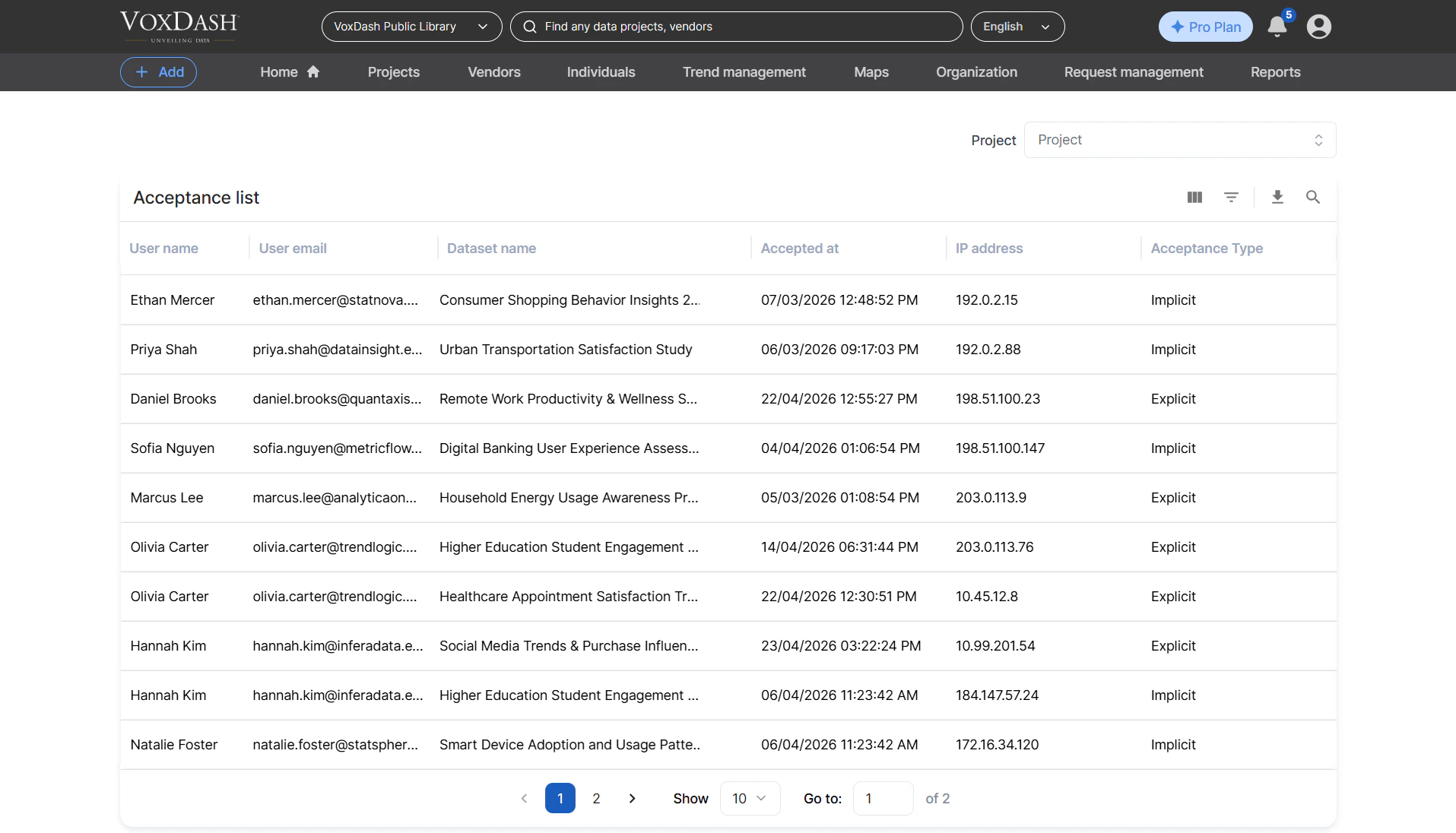
Each row in the table represents one user acceptance record. The system displays:
* **Contract Name**\
The title of the contract document attached to the project.
* **Version ID**\
Each time you upload a new contract version, its Version ID changes. VoxDash associates each user acceptance with the correct version.
* **Accepted Email**\
The email address of the user who accepted the contract.
* **Accepted Date**\
The timestamp when the acceptance occurred.
* **Acceptance Type**
* *Explicit:* User manually accepted the contract
* *Implicit:* System auto‑logged acceptance for public projects
This information is essential for auditing, compliance, and understanding who agreed to which contract version.
## Information Displayed in the Accepted Contract Table
Each row in the table represents one user acceptance record. The system displays:
* **Contract Name**\
The title of the contract document attached to the project.
* **Version ID**\
Each time you upload a new contract version, its Version ID changes. VoxDash associates each user acceptance with the correct version.
* **Accepted Email**\
The email address of the user who accepted the contract.
* **Accepted Date**\
The timestamp when the acceptance occurred.
* **Acceptance Type**
* *Explicit:* User manually accepted the contract
* *Implicit:* System auto‑logged acceptance for public projects
This information is essential for auditing, compliance, and understanding who agreed to which contract version.
 ## Searching Across Projects
At the top of the Accepted Contract page, a **search bar** allows you to switch between data projects without navigating back to the File Manager.
* Type part of the project name
* Select it from the results
* View its contract acceptance records instantly
This makes it easy to perform quick compliance checks across multiple datasets. Learn more about [Contract Setting](/Terms-&-Legal/Contract-setting)
## Searching Across Projects
At the top of the Accepted Contract page, a **search bar** allows you to switch between data projects without navigating back to the File Manager.
* Type part of the project name
* Select it from the results
* View its contract acceptance records instantly
This makes it easy to perform quick compliance checks across multiple datasets. Learn more about [Contract Setting](/Terms-&-Legal/Contract-setting)