> ## Documentation Index
> Fetch the complete documentation index at: https://help.voxdash.com/llms.txt
> Use this file to discover all available pages before exploring further.
# Viewing the Downloaded Contracts Report
VoxDash keeps a detailed log of every time a **Contract file** is downloaded by users.\
Unlike simple acceptance tracking, this report provides insight into when and from where users accessed the **Organization Contract document**, enabling full transparency and compliance auditing for data sharing and licensing.
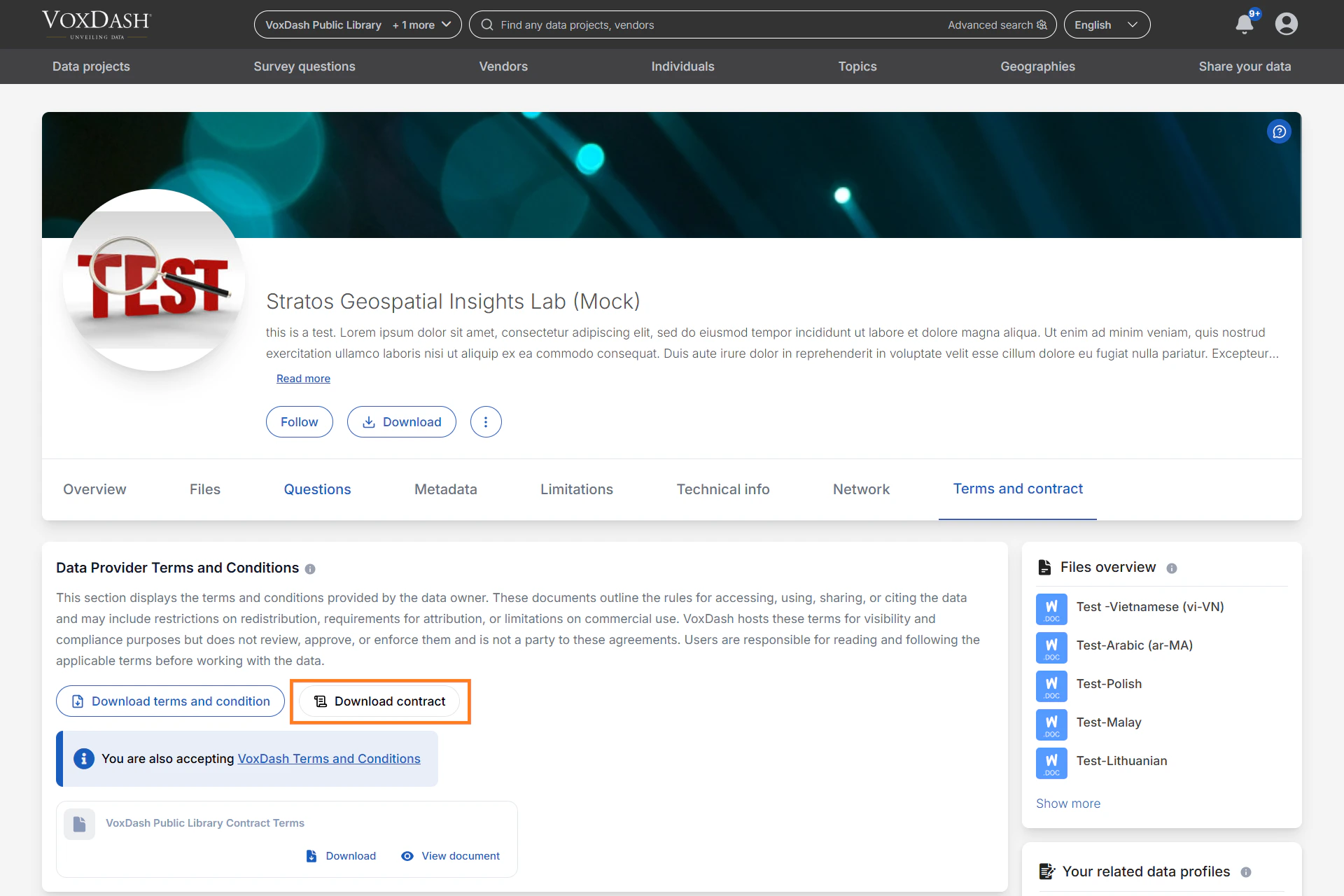 Admins can use the **Downloaded Contracts Report** to monitor document access across all projects, track contract version usage, and verify compliance events.
## What the Downloaded Contracts Report Displays
Each download generates a log entry with essential details for auditing and compliance review.\
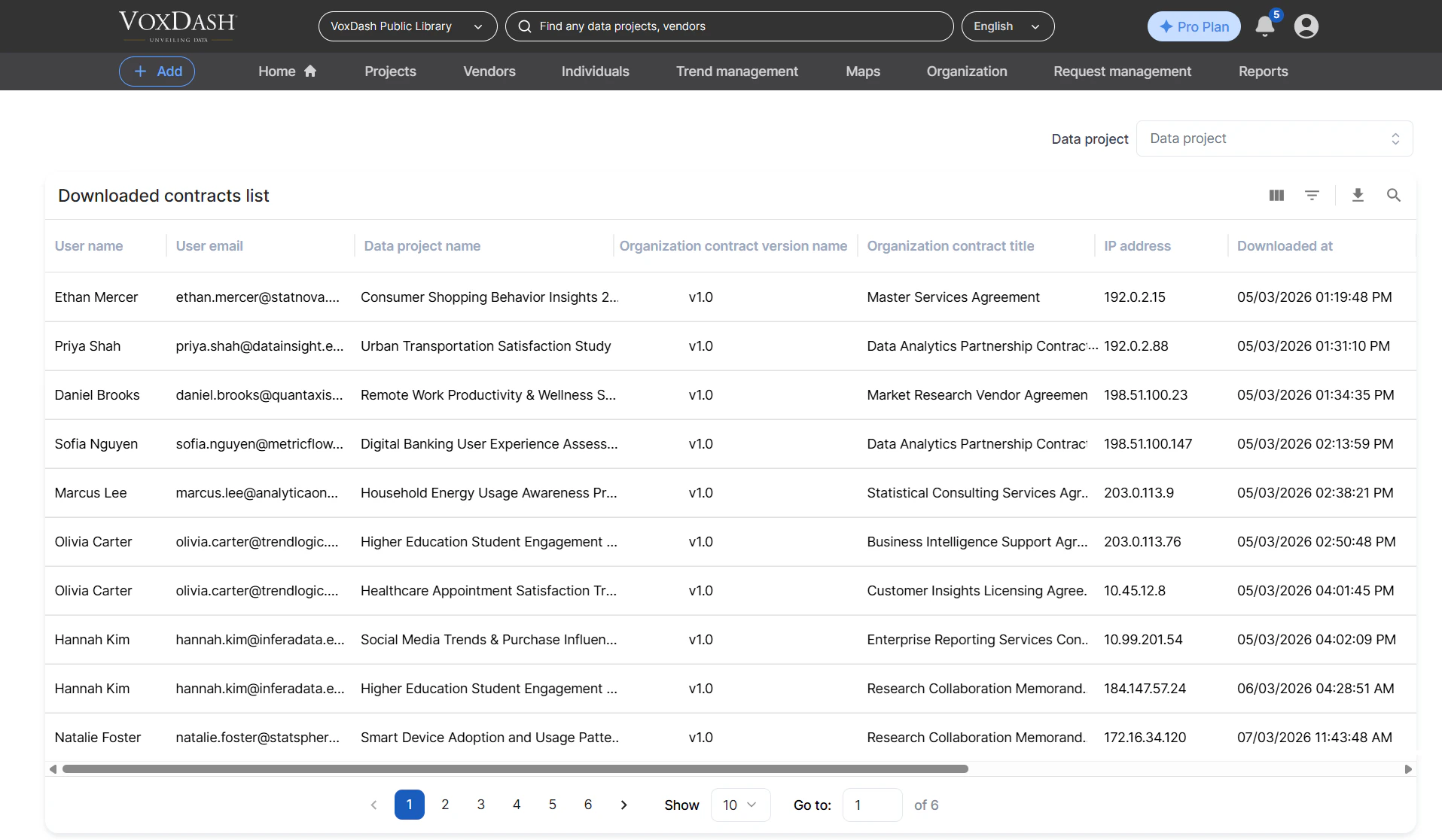
The table on this page shows:
* **User Name**\
The full name of the user who downloaded the contract document.
* **User Email**\
The registered email address of that user, allowing easy identification.
* **Data Project Name**\
The name of the dataset the contract belongs to.
* **Organization Contract Version Name**\
The version identifier for the specific contract document. Each upload or update generates a unique version, making it easy to review which version was downloaded.
* **Organization Contract Title**\
The document’s title, helping admins quickly distinguish between multiple contract types attached to various data projects.
* **IP Address**\
The device IP address from which the contract was downloaded — useful for detecting unusual access patterns or verifying geographic compliance.
* **Downloaded At**\
The exact date and time of the download event, providing a reliable timeline for reporting and audits.
Admins can use the **Downloaded Contracts Report** to monitor document access across all projects, track contract version usage, and verify compliance events.
## What the Downloaded Contracts Report Displays
Each download generates a log entry with essential details for auditing and compliance review.\
The table on this page shows:
* **User Name**\
The full name of the user who downloaded the contract document.
* **User Email**\
The registered email address of that user, allowing easy identification.
* **Data Project Name**\
The name of the dataset the contract belongs to.
* **Organization Contract Version Name**\
The version identifier for the specific contract document. Each upload or update generates a unique version, making it easy to review which version was downloaded.
* **Organization Contract Title**\
The document’s title, helping admins quickly distinguish between multiple contract types attached to various data projects.
* **IP Address**\
The device IP address from which the contract was downloaded — useful for detecting unusual access patterns or verifying geographic compliance.
* **Downloaded At**\
The exact date and time of the download event, providing a reliable timeline for reporting and audits.
 ## Accessing the Downloaded Contracts Report
To view or export the download logs:
1. Go to the **Data Provider Panel**.
2. Open **File Manager**.
3. Locate the project containing the contract.
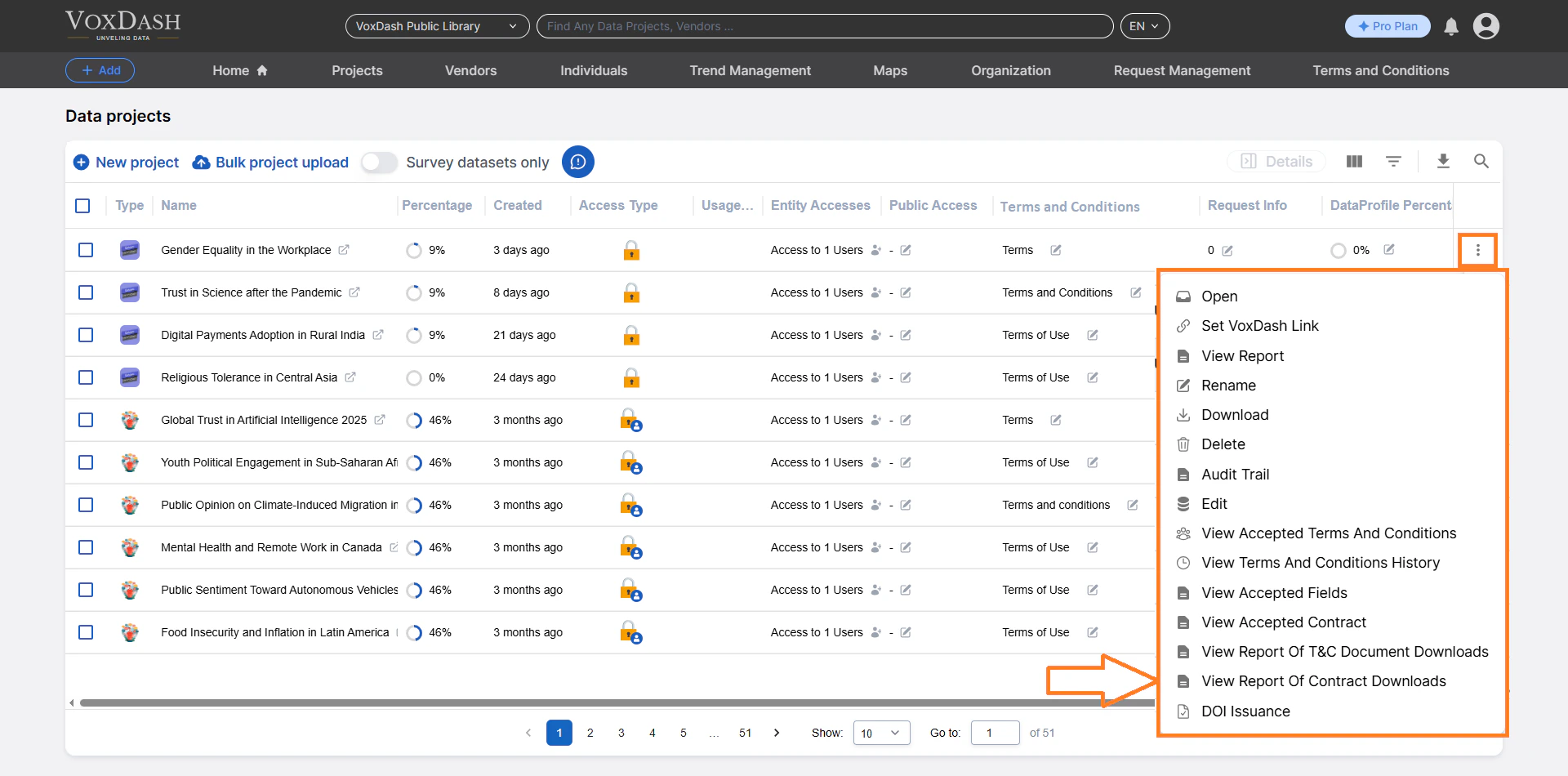
4. Click the **menu icon** (⋮) next to the project entry.
5. Select **View Downloaded Contracts**.
## Accessing the Downloaded Contracts Report
To view or export the download logs:
1. Go to the **Data Provider Panel**.
2. Open **File Manager**.
3. Locate the project containing the contract.
4. Click the **menu icon** (⋮) next to the project entry.
5. Select **View Downloaded Contracts**.
 You will be redirected to a report table showing all recorded download events for that project’s contract files.
## Navigating Between Projects
A **search bar** at the top of the download report page allows you to quickly view reports for other data projects without returning to the main File Manager.
Simply enter the project name or relevant keyword, and VoxDash will display its corresponding download log.
## Why This Report Matters
Tracking contract downloads provides legal and operational visibility into user activity.\
It allows providers to:
* Confirm who accessed contractual documents
* Verify document version control
* Maintain clear records for audits or compliance requests
This is particularly valuable for organizations managing multi‑tier data projects, licensing agreements, or privacy‑restricted datasets. Learn more about [Contract Setting](/Terms-&-Legal/Contract-setting)
You will be redirected to a report table showing all recorded download events for that project’s contract files.
## Navigating Between Projects
A **search bar** at the top of the download report page allows you to quickly view reports for other data projects without returning to the main File Manager.
Simply enter the project name or relevant keyword, and VoxDash will display its corresponding download log.
## Why This Report Matters
Tracking contract downloads provides legal and operational visibility into user activity.\
It allows providers to:
* Confirm who accessed contractual documents
* Verify document version control
* Maintain clear records for audits or compliance requests
This is particularly valuable for organizations managing multi‑tier data projects, licensing agreements, or privacy‑restricted datasets. Learn more about [Contract Setting](/Terms-&-Legal/Contract-setting)