> ## Documentation Index
> Fetch the complete documentation index at: https://help.voxdash.com/llms.txt
> Use this file to discover all available pages before exploring further.
# Viewing the Downloaded Terms & Conditions Report
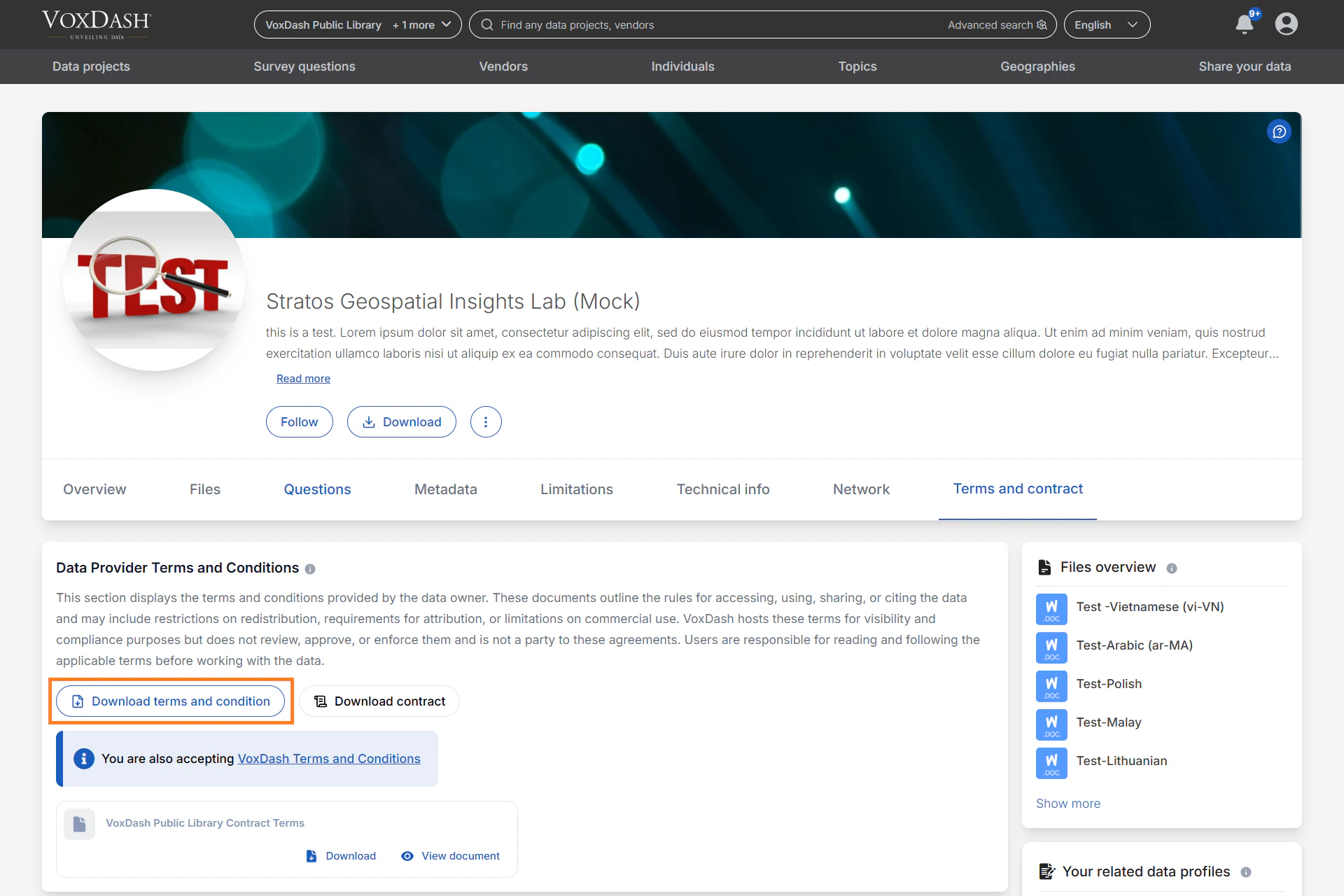
In addition to tracking which users *accepted* Terms & Conditions (T\&C), VoxDash also keeps a record of users who **download** a T\&C document.\
This is especially useful when your terms include important legal details, require offline review, or when compliance processes demand proof that a user accessed the document—even before acceptance.
 ## What the Downloaded T\&C Report Shows
Each time a user downloads a T\&C document attached to a data project, VoxDash logs the event. Admins can view these events in a dedicated report page.
The report includes:
* **User Name**\
The full name of the user who downloaded the document.
* **User Email**\
The email address associated with the user’s account.
* **Data Project Name**\
The specific project for which the T\&C document was downloaded.
* **Terms Version Name**\
Indicates which version of the T\&C was downloaded—useful if terms have been updated over time.
* **Terms Title**\
The displayed title of the T\&C document.
* **IP Address**\
The user’s IP address at the time of download, helping support security and compliance tracking.
* **Downloaded At**\
The exact timestamp when the user downloaded the terms.
## What the Downloaded T\&C Report Shows
Each time a user downloads a T\&C document attached to a data project, VoxDash logs the event. Admins can view these events in a dedicated report page.
The report includes:
* **User Name**\
The full name of the user who downloaded the document.
* **User Email**\
The email address associated with the user’s account.
* **Data Project Name**\
The specific project for which the T\&C document was downloaded.
* **Terms Version Name**\
Indicates which version of the T\&C was downloaded—useful if terms have been updated over time.
* **Terms Title**\
The displayed title of the T\&C document.
* **IP Address**\
The user’s IP address at the time of download, helping support security and compliance tracking.
* **Downloaded At**\
The exact timestamp when the user downloaded the terms.
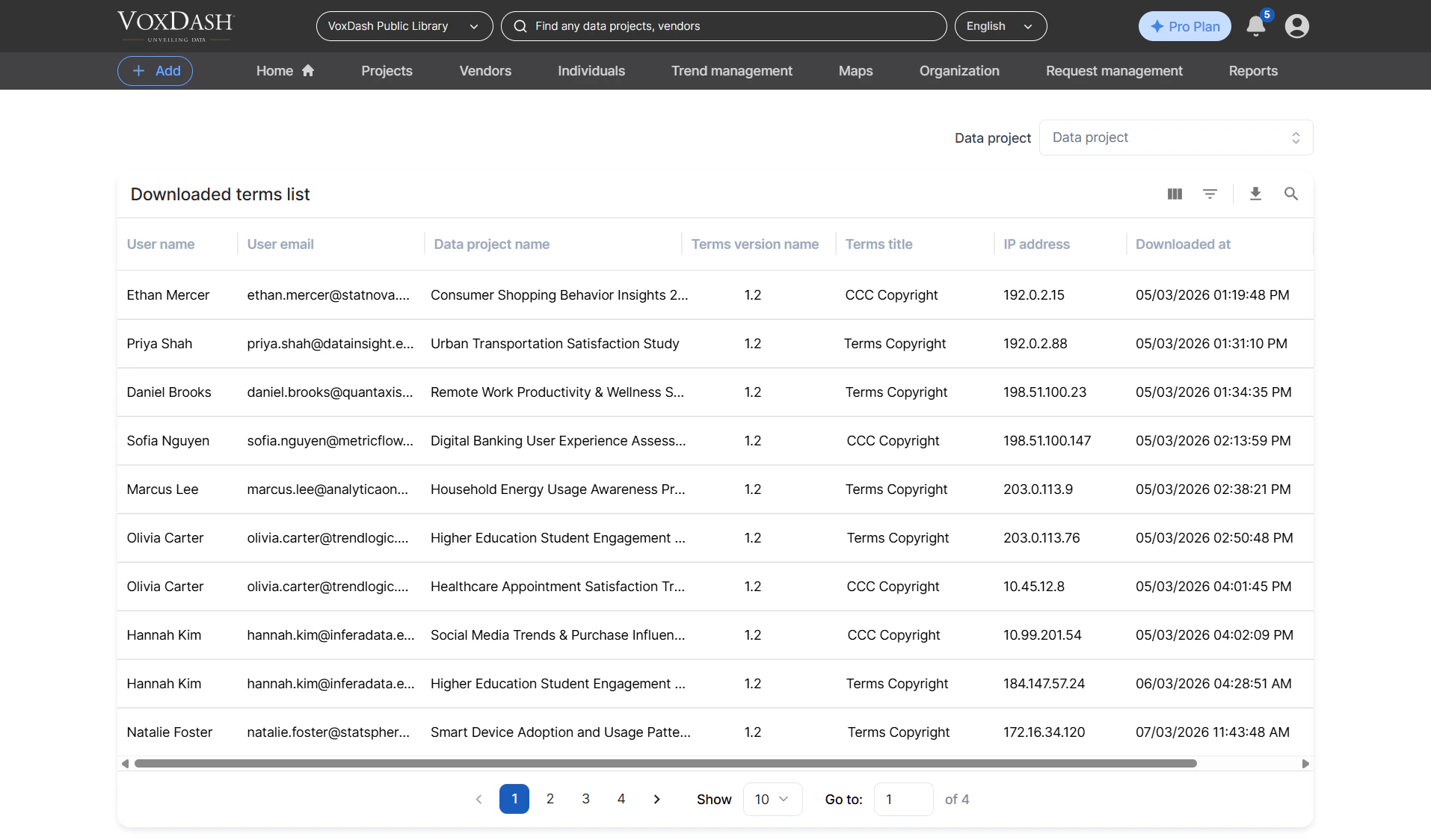 This provides a complete audit trail for document access, especially important for regulated or sensitive datasets.
## How to Access the Downloaded T\&C Report
To view download logs:
1. Open the **Data Provider Panel**.
2. Navigate to **File Manager**.
3. Find the dataset with the T\&C you want to track.
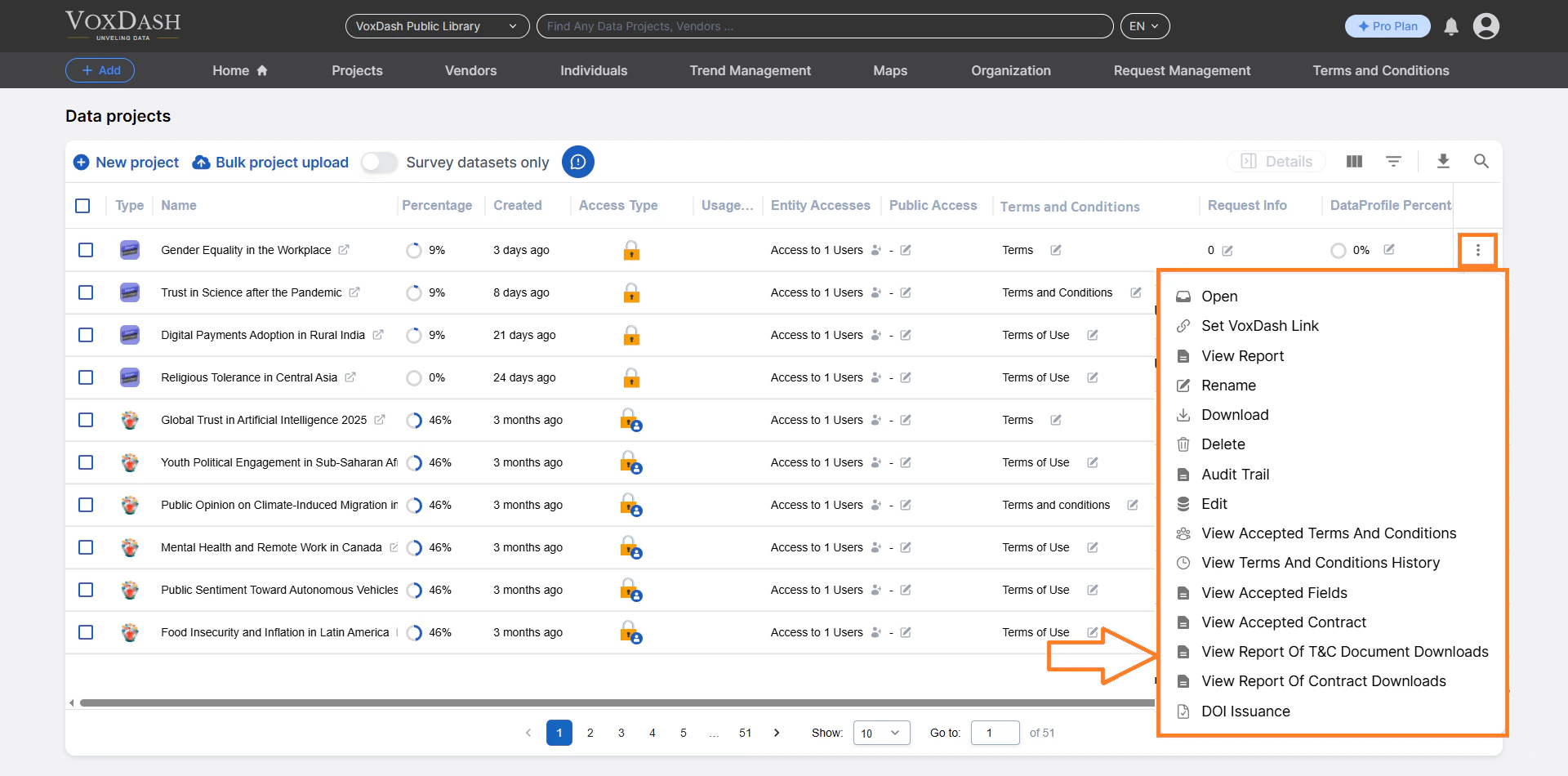
4. Click the **menu icon** (⋮) next to the project.
5. Select **View Downloaded Terms & Conditions**.
You will be taken to the Download Report page, where records are listed in a sortable table.
This provides a complete audit trail for document access, especially important for regulated or sensitive datasets.
## How to Access the Downloaded T\&C Report
To view download logs:
1. Open the **Data Provider Panel**.
2. Navigate to **File Manager**.
3. Find the dataset with the T\&C you want to track.
4. Click the **menu icon** (⋮) next to the project.
5. Select **View Downloaded Terms & Conditions**.
You will be taken to the Download Report page, where records are listed in a sortable table.
 ## Using the Search and Navigation Tools
The top of the Download Report page includes a **project search bar**.
You can:
* Type a project name or keyword
* Quickly switch to another dataset’s download report
* Avoid returning to the main File Manager
This makes it fast and efficient to review download activity across multiple projects.
## Using the Search and Navigation Tools
The top of the Download Report page includes a **project search bar**.
You can:
* Type a project name or keyword
* Quickly switch to another dataset’s download report
* Avoid returning to the main File Manager
This makes it fast and efficient to review download activity across multiple projects.