> ## Documentation Index
> Fetch the complete documentation index at: https://help.voxdash.com/llms.txt
> Use this file to discover all available pages before exploring further.
# Creating an Account and Logging In to VoxDash
Getting started with VoxDash is quick and simple. Follow the steps below to create your account and access the platform.
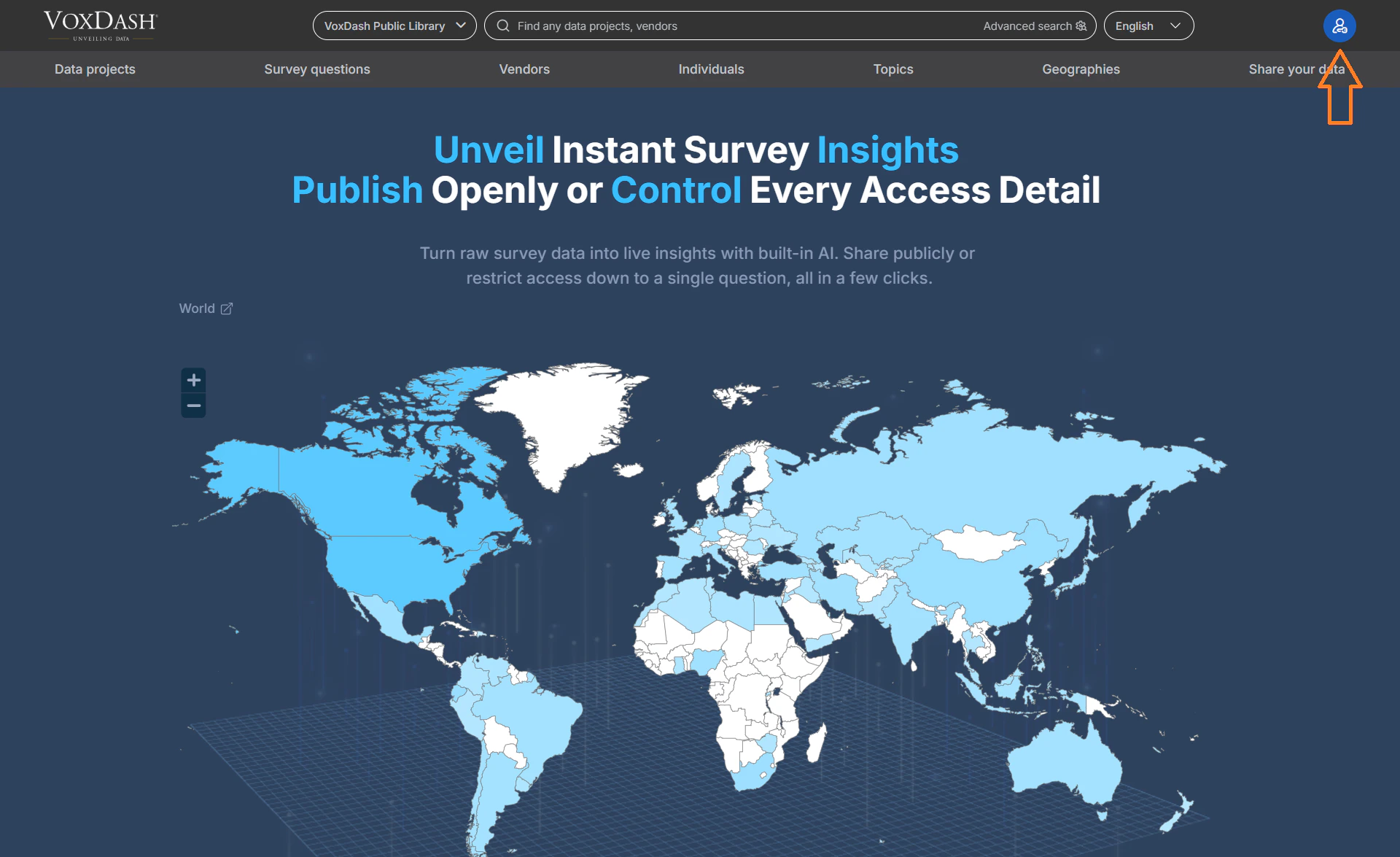
## Step 1: Open the VoxDash Landing Page
Navigate to the VoxDash using your web browser. On the top-right corner of the page, locate the **Profile** icon.
Click the **Profile** icon to continue to the **Login / Sign Up** page.
 ## Step 2: Create a New Account
If you are a new user, select the option to create an account.
You will be asked to provide the following information:
* **Email Address** – Enter a valid and active email address. This email will be used for login, notifications, and account recovery.
## Step 2: Create a New Account
If you are a new user, select the option to create an account.
You will be asked to provide the following information:
* **Email Address** – Enter a valid and active email address. This email will be used for login, notifications, and account recovery.
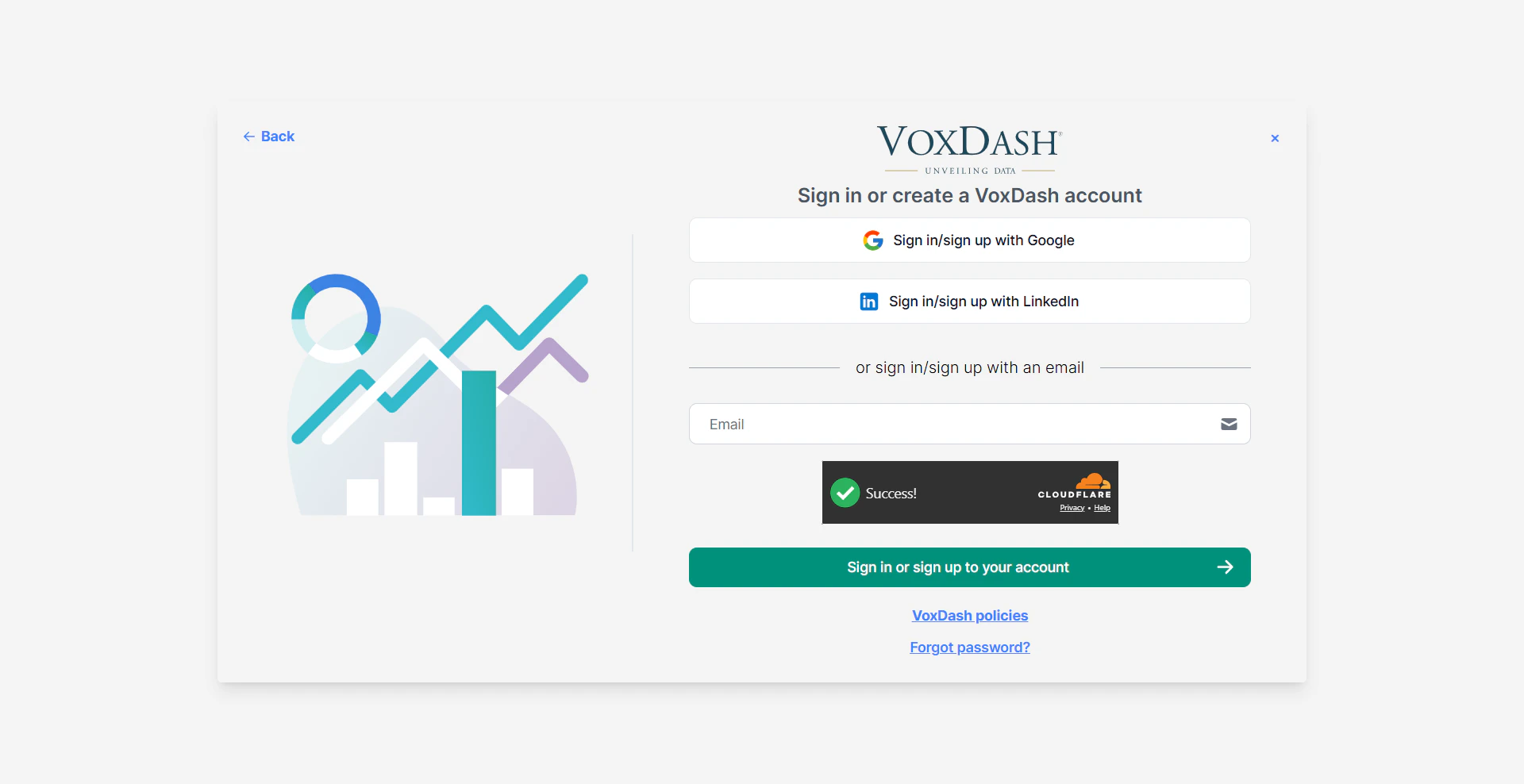 * **Password** – Create a strong password that includes a combination of uppercase letters, lowercase letters, numbers, and special characters.
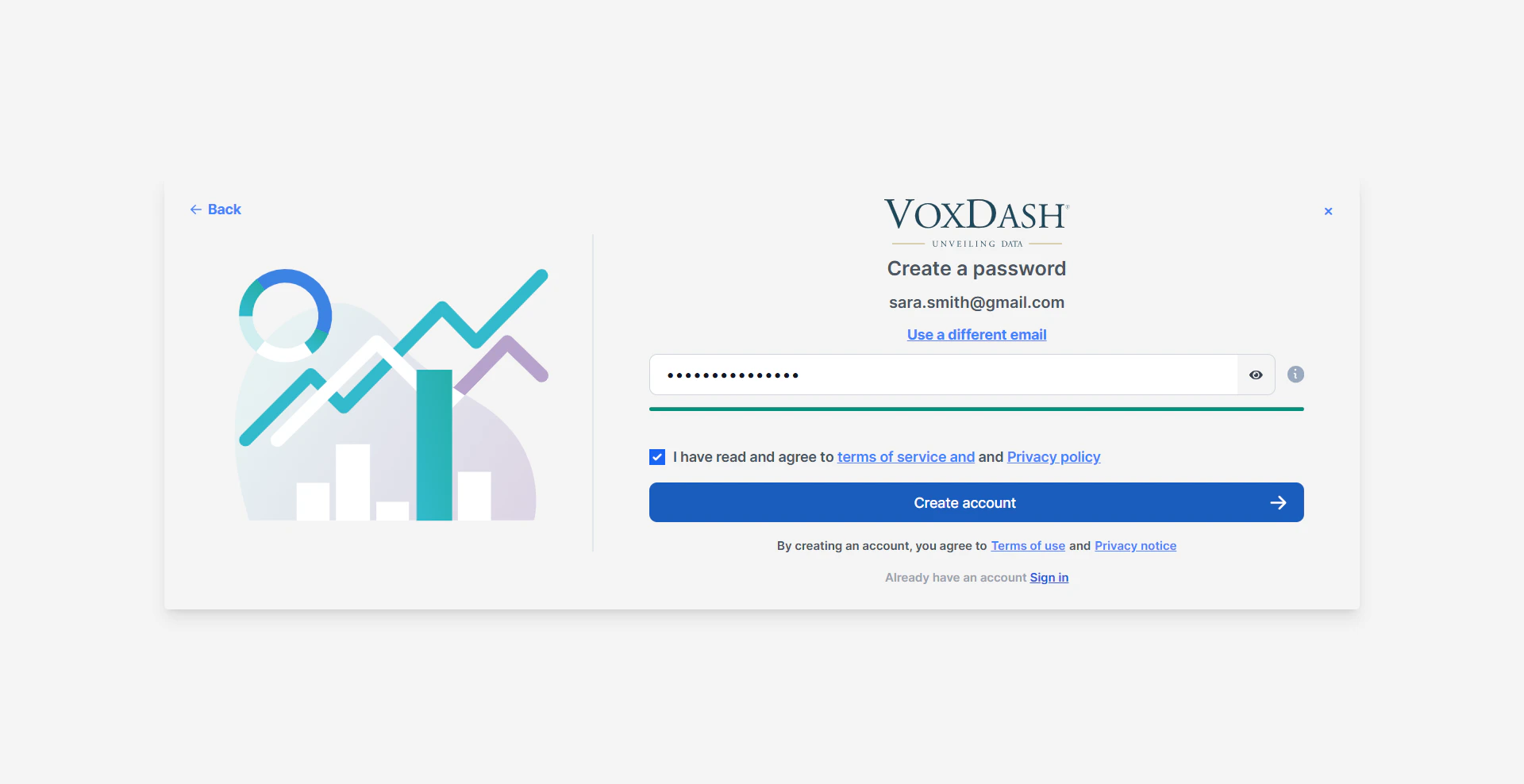 * **First Name** – Enter your first name.
* **Last Name** – Enter your last name.
* **Unique Account URL** – Choose a custom and unique URL for your workspace or account page. This helps personalize your VoxDash environment and makes it easier to access.
* **First Name** – Enter your first name.
* **Last Name** – Enter your last name.
* **Unique Account URL** – Choose a custom and unique URL for your workspace or account page. This helps personalize your VoxDash environment and makes it easier to access.
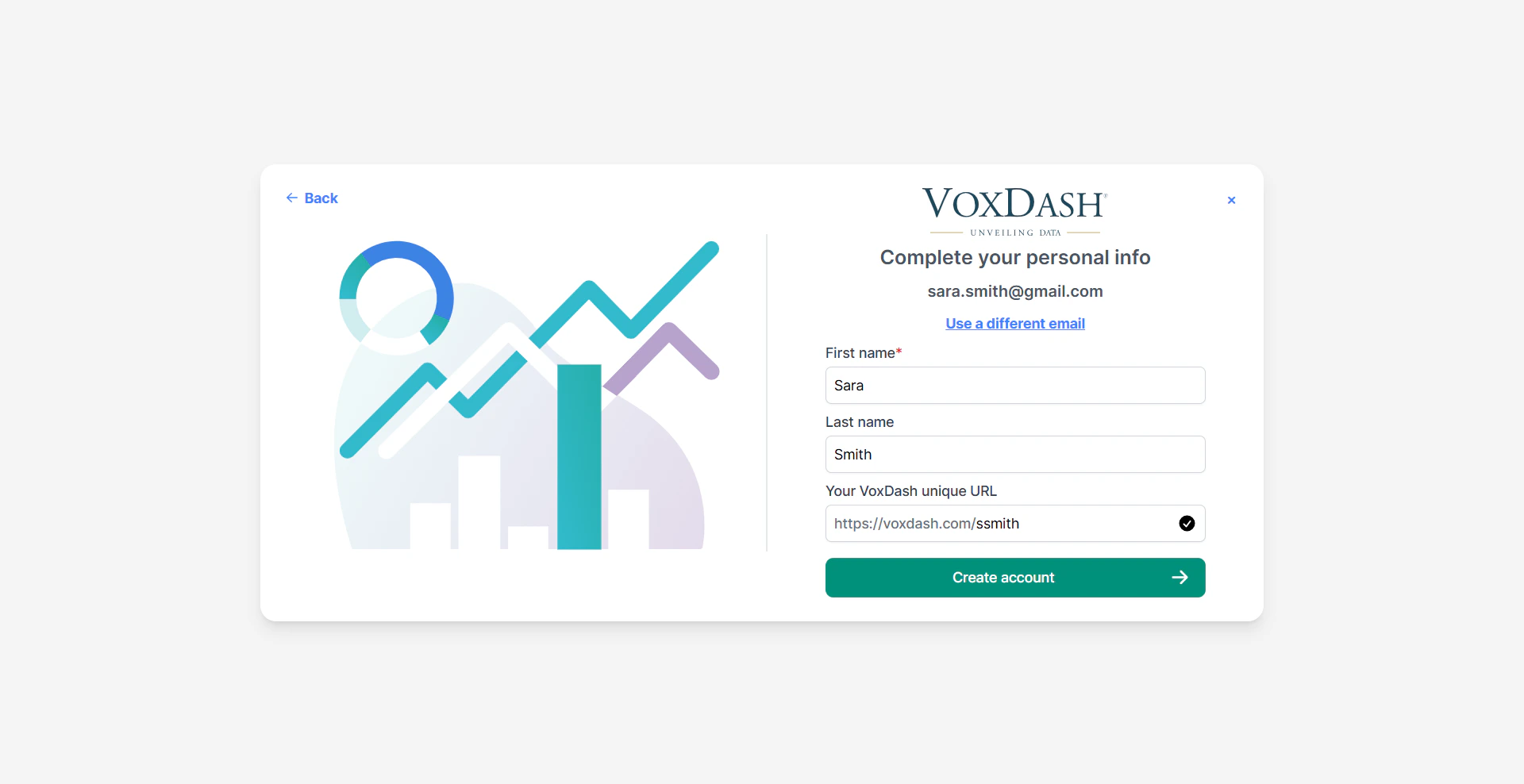 ## Step 3: Review Your Information
Before submitting, review all entered details to ensure they are accurate.
Make sure:
* Your email address is spelled correctly.
* Your password meets the security requirements.
* Your custom URL is available and easy to remember.
* Your name is entered correctly.
## Step 4: Complete Registration
Click the **Create Account** or **Sign Up** button to finish the registration process.
Once completed, your VoxDash account will be successfully created.
## Step 5: Log In to Your Account
After registration, return to the login page and sign in using:
* Your registered email address
* Your password
Click **Login** to access your VoxDash dashboard.
## Tips
* Use a business email address for better team collaboration.
* Store your password securely using a password manager.
* Choose a professional account URL, especially for company use.
* If login issues occur, use the **Forgot Password** option to reset your password.
To change information and add details to your account read [Account Preference Document](/User-Central/Account-Preference)
## Step 3: Review Your Information
Before submitting, review all entered details to ensure they are accurate.
Make sure:
* Your email address is spelled correctly.
* Your password meets the security requirements.
* Your custom URL is available and easy to remember.
* Your name is entered correctly.
## Step 4: Complete Registration
Click the **Create Account** or **Sign Up** button to finish the registration process.
Once completed, your VoxDash account will be successfully created.
## Step 5: Log In to Your Account
After registration, return to the login page and sign in using:
* Your registered email address
* Your password
Click **Login** to access your VoxDash dashboard.
## Tips
* Use a business email address for better team collaboration.
* Store your password securely using a password manager.
* Choose a professional account URL, especially for company use.
* If login issues occur, use the **Forgot Password** option to reset your password.
To change information and add details to your account read [Account Preference Document](/User-Central/Account-Preference)