> ## Documentation Index
> Fetch the complete documentation index at: https://help.voxdash.com/llms.txt
> Use this file to discover all available pages before exploring further.
# Notifications Setting
> Notifications inform users about events, changes, and actions across the platform. Any meaningful state change, system event, or user-facing action generates…
Notifications inform users about events, changes, and actions across the platform. Any meaningful state change, system event, or user-facing action generates a notification, subject to notification rules and user preferences.
Notifications are designed to support:
* Awareness (what changed)
* Accountability (who triggered it)
* Traceability (when and where it happened)
* Actionability (what the user should do next, if anything)
## **Notification Delivery and Visibility**
### **In-app notifications**
* All notifications are surfaced through the bell icon in the main header.
* The bell icon displays an unread count badge.
* Clicking the bell opens a notification list, ordered by most recent first.
* Each notification item includes:
* Notification title
* Short description
* Timestamp
* Related object reference (project, file, task, subscription, etc.)
* Read / unread state
Clicking a notification navigates the user to the relevant page or opens a contextual view with full details.
### **External notifications**
Depending on user preferences and notification type, notifications may also be delivered via:
* Email
* SMS
External delivery mirrors in-app content but may be summarized for clarity and deliverability.
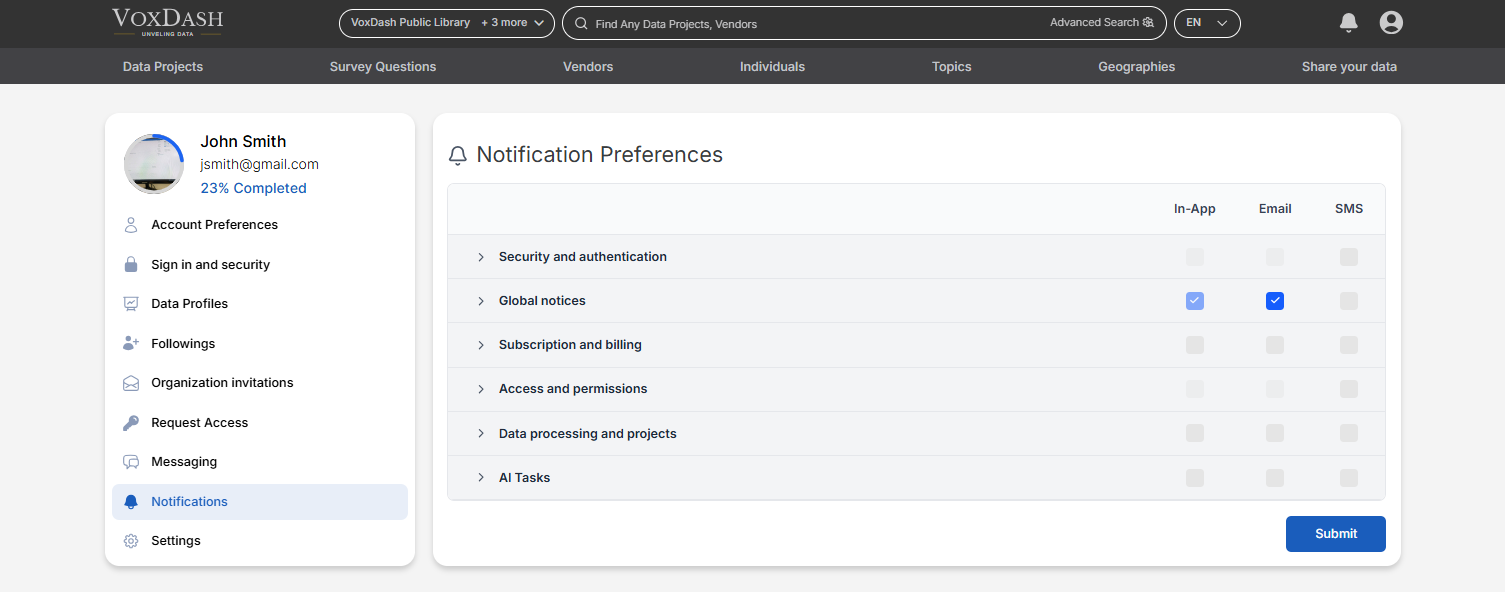 ## **Notification Management**
Users can manage notification preferences from **Profile** → **Notifications**.
Configurable options include:
* Enable or disable notification categories
* Choose delivery channels per category:
* In-app
* Email
* SMS
* Set frequency rules where applicable (immediate vs digest, if supported)
### **Mandatory notifications**
Some notifications are mandatory and cannot be disabled or redirected. These are enforced to ensure platform integrity, security, and legal or operational compliance.
Examples:
* Global notices (in-app only)
* Critical security alerts
* Account integrity events
**Note:** Mandatory notifications are clearly labeled in settings and cannot be modified by the user.
## **Types of Notifications**
### **1. Security and Authentication**
Triggered by events related to account access and security posture.
Examples:
* Login from a new device or location
* Password change
* Two-factor authentication events
* Failed login attempts
* Session termination due to security rules
**Note:** These notifications are often mandatory and prioritized.
### **2. Global Notices**
Platform-wide announcements and system-level messages.
Examples:
* Scheduled maintenance
* Platform outages or degradations
* Policy or terms updates
* System-wide feature changes
Global notices are delivered in-app only and cannot be disabled.
### **3. Subscription and Billing**
Related to plans, payments, and billing status.
Examples:
* Subscription upgrades or downgrades
* Payment success or failure
* Invoice generation
* Trial start or expiration
* Usage threshold warnings (if applicable)
* These notifications help prevent service disruption and billing disputes.
### **4. Access and Permissions**
Triggered by changes in user access or authorization.
Examples:
* Access granted or revoked to a project, dataset, or file
* Role changes within an organization
* Approval or rejection of access requests
* Invitation to an organization or workspace
Notifications in this category are typically actionable.
### **5. Data Processing and Projects**
Related to data lifecycle events and project-level activity.
Examples:
* Project creation or deletion
* File upload, replacement, or removal
* Data processing started, completed, or failed
* Validation results available
* Metadata or schema changes
These notifications support operational awareness and auditability.
### **6. AI Tasks**
Specific to AI-driven workflows and background tasks.
Examples:
* AI task started
* AI task completed successfully
* AI task failed or requires review
* Output ready for inspection or download
* Credit or usage-related AI events
* AI task notifications often include links to results or logs.
## **Summary**
The Notifications system keeps users informed about critical activity, changes, and system events across the platform. By combining in-app visibility with configurable external delivery, it ensures timely awareness while preserving user control where appropriate. Mandatory notifications remain enforced to protect security, integrity, and platform operations.
## **Notification Management**
Users can manage notification preferences from **Profile** → **Notifications**.
Configurable options include:
* Enable or disable notification categories
* Choose delivery channels per category:
* In-app
* Email
* SMS
* Set frequency rules where applicable (immediate vs digest, if supported)
### **Mandatory notifications**
Some notifications are mandatory and cannot be disabled or redirected. These are enforced to ensure platform integrity, security, and legal or operational compliance.
Examples:
* Global notices (in-app only)
* Critical security alerts
* Account integrity events
**Note:** Mandatory notifications are clearly labeled in settings and cannot be modified by the user.
## **Types of Notifications**
### **1. Security and Authentication**
Triggered by events related to account access and security posture.
Examples:
* Login from a new device or location
* Password change
* Two-factor authentication events
* Failed login attempts
* Session termination due to security rules
**Note:** These notifications are often mandatory and prioritized.
### **2. Global Notices**
Platform-wide announcements and system-level messages.
Examples:
* Scheduled maintenance
* Platform outages or degradations
* Policy or terms updates
* System-wide feature changes
Global notices are delivered in-app only and cannot be disabled.
### **3. Subscription and Billing**
Related to plans, payments, and billing status.
Examples:
* Subscription upgrades or downgrades
* Payment success or failure
* Invoice generation
* Trial start or expiration
* Usage threshold warnings (if applicable)
* These notifications help prevent service disruption and billing disputes.
### **4. Access and Permissions**
Triggered by changes in user access or authorization.
Examples:
* Access granted or revoked to a project, dataset, or file
* Role changes within an organization
* Approval or rejection of access requests
* Invitation to an organization or workspace
Notifications in this category are typically actionable.
### **5. Data Processing and Projects**
Related to data lifecycle events and project-level activity.
Examples:
* Project creation or deletion
* File upload, replacement, or removal
* Data processing started, completed, or failed
* Validation results available
* Metadata or schema changes
These notifications support operational awareness and auditability.
### **6. AI Tasks**
Specific to AI-driven workflows and background tasks.
Examples:
* AI task started
* AI task completed successfully
* AI task failed or requires review
* Output ready for inspection or download
* Credit or usage-related AI events
* AI task notifications often include links to results or logs.
## **Summary**
The Notifications system keeps users informed about critical activity, changes, and system events across the platform. By combining in-app visibility with configurable external delivery, it ensures timely awareness while preserving user control where appropriate. Mandatory notifications remain enforced to protect security, integrity, and platform operations.