> ## Documentation Index
> Fetch the complete documentation index at: https://help.voxdash.com/llms.txt
> Use this file to discover all available pages before exploring further.
# Add A New Individual
> An individual is a person involved in various roles related to data collection and research. This can include acting as an author of a dataset, contributing…
## What is an individual, and how to add one?
An **individual** is a person involved in various roles related to data collection and research. This can include acting as an author of a dataset, contributing to the development or analysis of the data, or conducting research. Individuals may also be responsible for data management, data cleaning, or interpreting results. In many cases, they play a key role in ensuring the quality and accuracy of the data, as well as maintaining ethical standards in research and data usage. Their contributions can span across academic, professional, and scientific fields.
## **How to Add an Individual**
There are two ways to add an individual:
1. Directly from the [Individual Section](https://dataprovider.voxdash.com/individuals).
2. Add a new individual during the **data entry** process and complete the information later (Wizard 4 in the general data entry process).
### **1- Directly from the individual section**
The [Individual Section](https://dataprovider.voxdash.com/individuals) is the third section in the heading. To add a new individual:
* Click the blue **New Person** button located in the top-right corner.
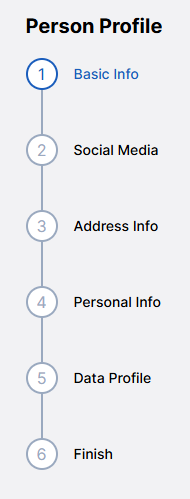
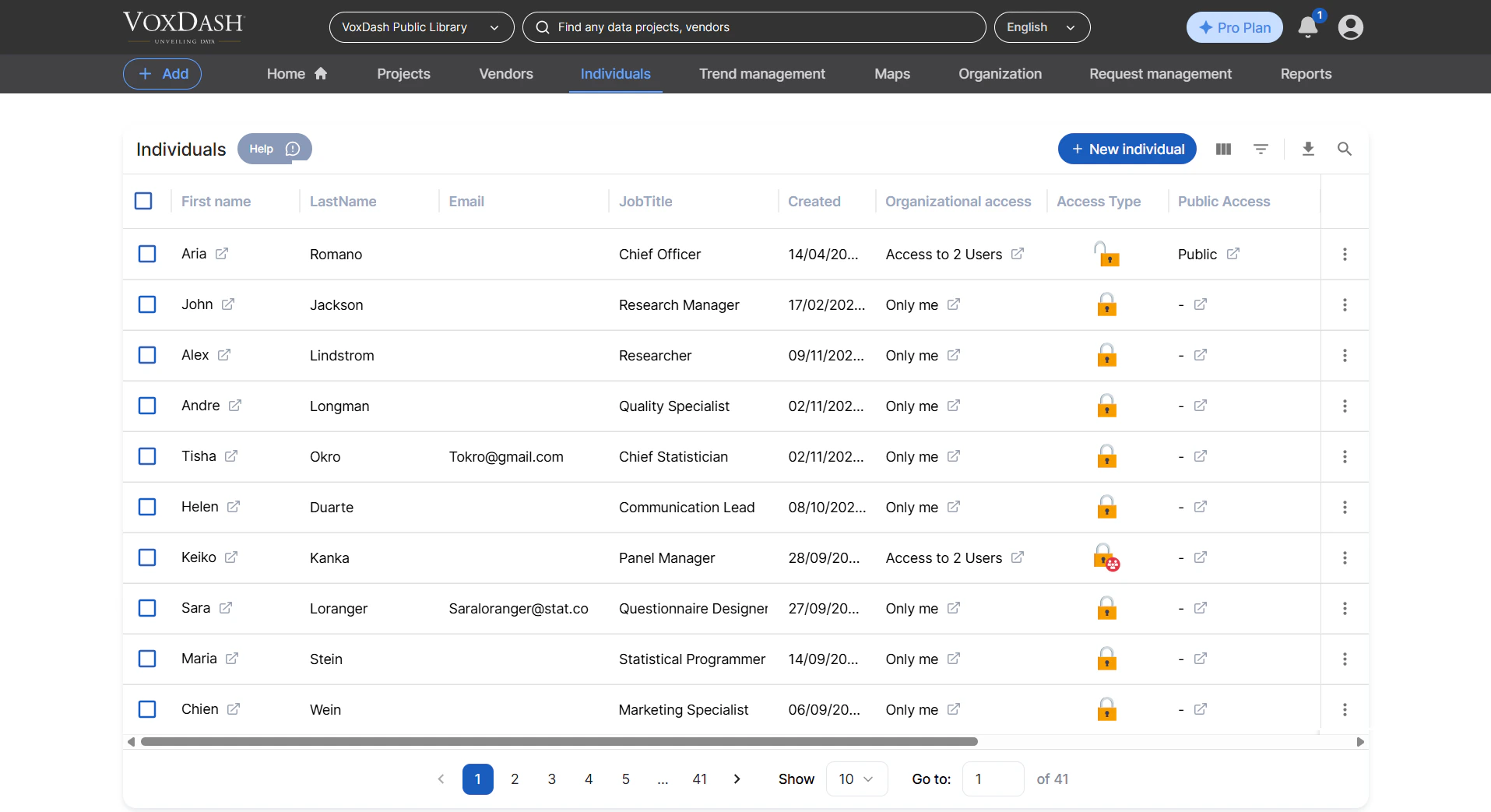 Once you click the button, a new page will appear where you can complete the individual’s profile. The **Individual Profile** consists of 5 wizards. Each wizard allows you to input specific details, such as:
* The person’s name and salutation.
* Their associated institution.
* Social media links.
* Contact details (e.g., email, phone number).
* Address and any other relevant information.
Once you click the button, a new page will appear where you can complete the individual’s profile. The **Individual Profile** consists of 5 wizards. Each wizard allows you to input specific details, such as:
* The person’s name and salutation.
* Their associated institution.
* Social media links.
* Contact details (e.g., email, phone number).
* Address and any other relevant information.
 Learn more about other fields [here](/Data-Entry-Fields/Person-Entry-Fields)
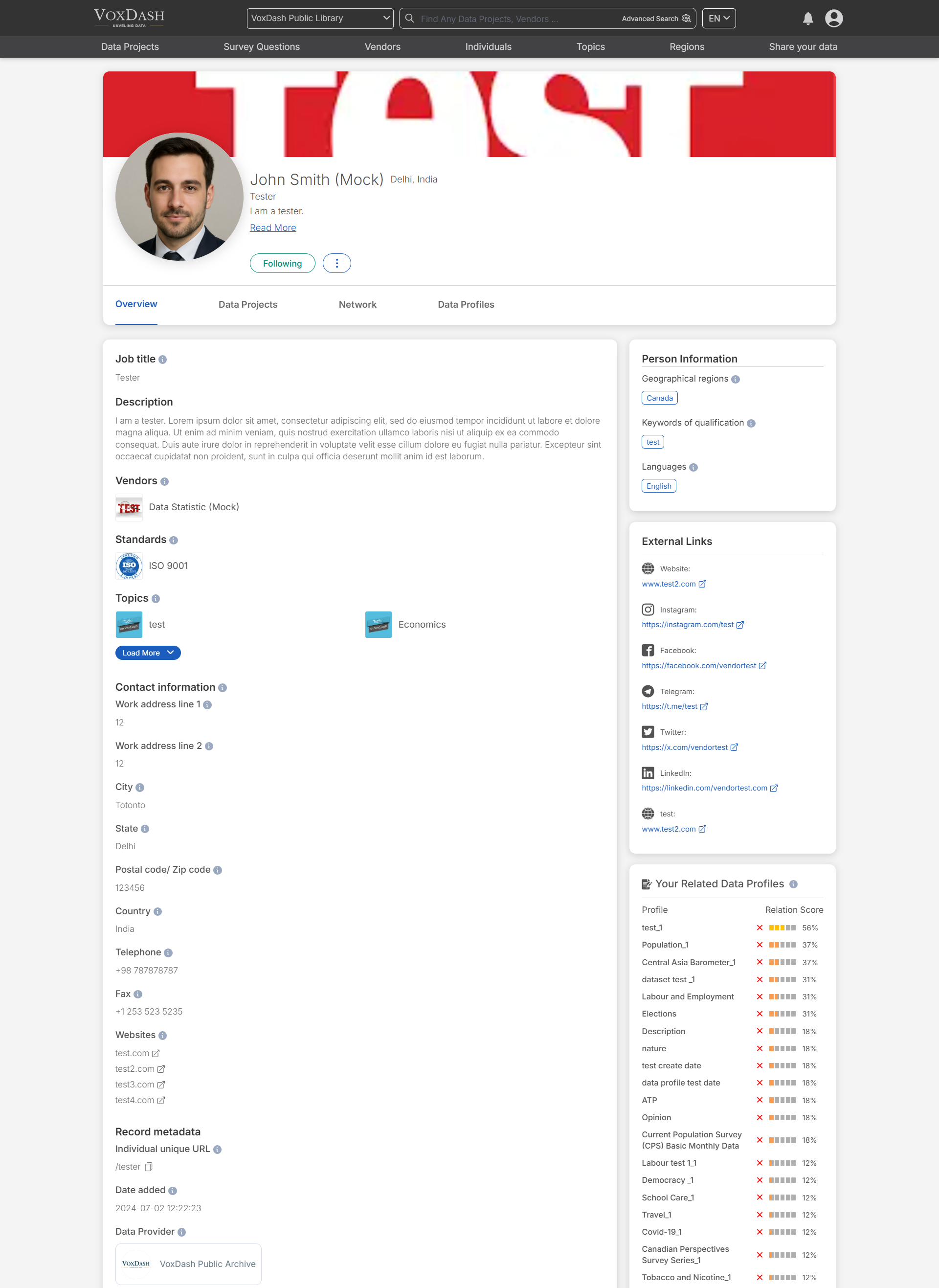
All the details entered in the first wizard, including the person's name and biography, will be displayed on the **Overview** page in VoxDash.
Learn more about other fields [here](/Data-Entry-Fields/Person-Entry-Fields)
All the details entered in the first wizard, including the person's name and biography, will be displayed on the **Overview** page in VoxDash.
 ### **2- Add a new individual during the data entry process**
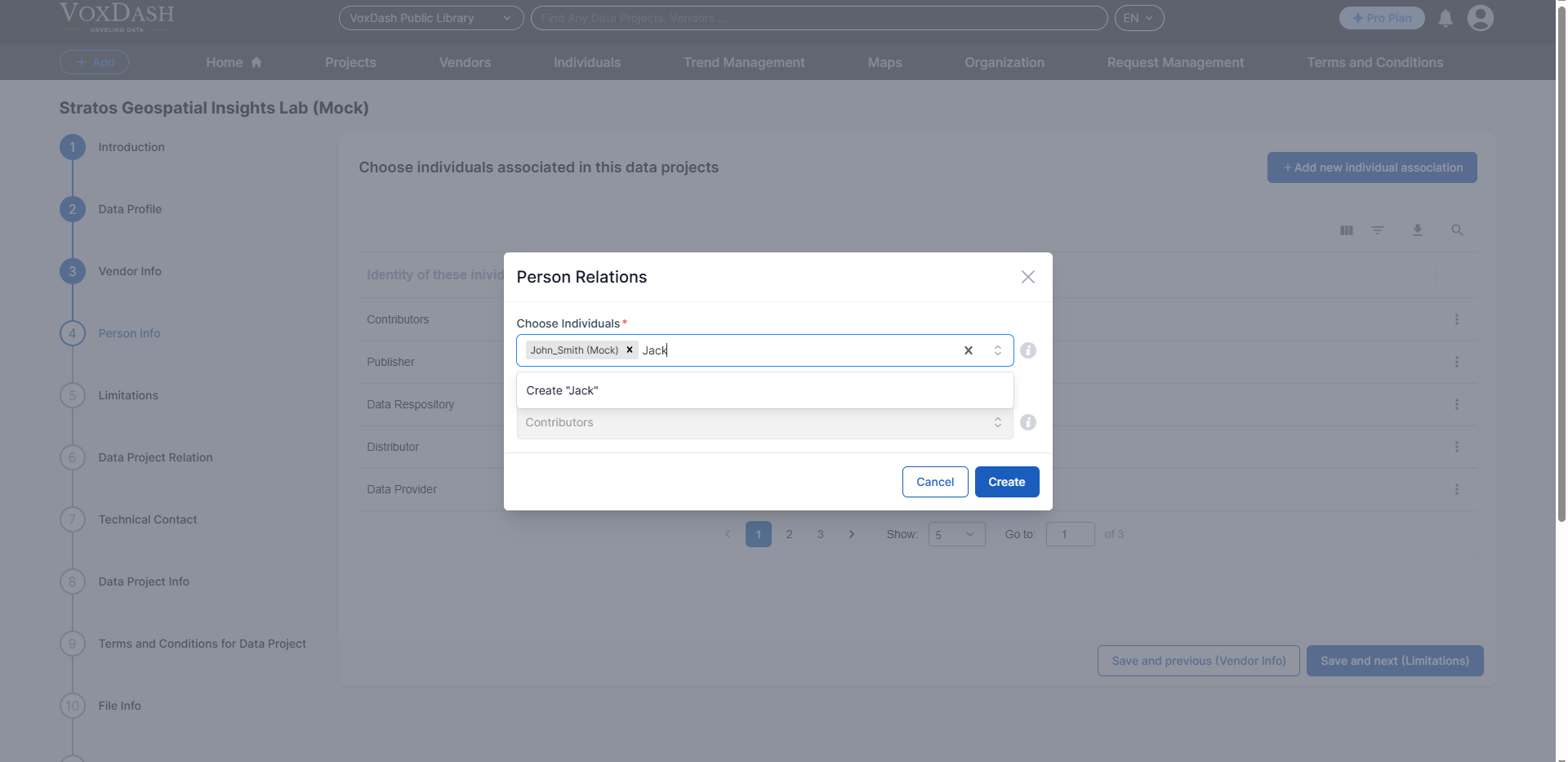
The **Person Info** section is located in the fourth wizard of the general data entry process. On this page, you can:
* Add a new individual by clicking the blue **New Person** button in the top-right corner, or
* Select an individual role from the identification section and edit the existing details as needed.
### **2- Add a new individual during the data entry process**
The **Person Info** section is located in the fourth wizard of the general data entry process. On this page, you can:
* Add a new individual by clicking the blue **New Person** button in the top-right corner, or
* Select an individual role from the identification section and edit the existing details as needed.
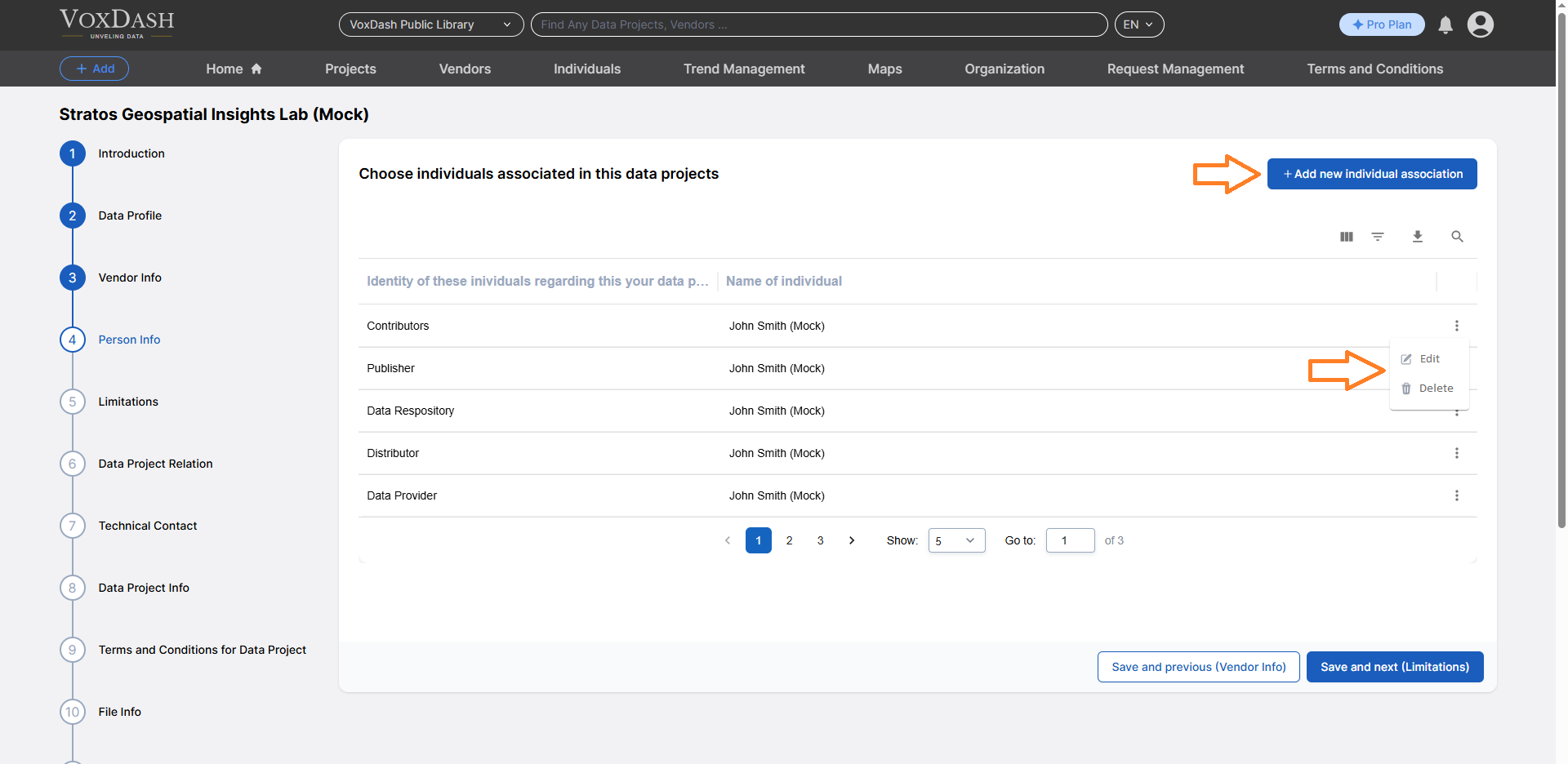 When you click either button, a page will appear where you can enter the name of the individual. From there, you can either:
* Select an existing individual from the list
* Add a new individual.
When you click either button, a page will appear where you can enter the name of the individual. From there, you can either:
* Select an existing individual from the list
* Add a new individual.
 ### **Final Steps**
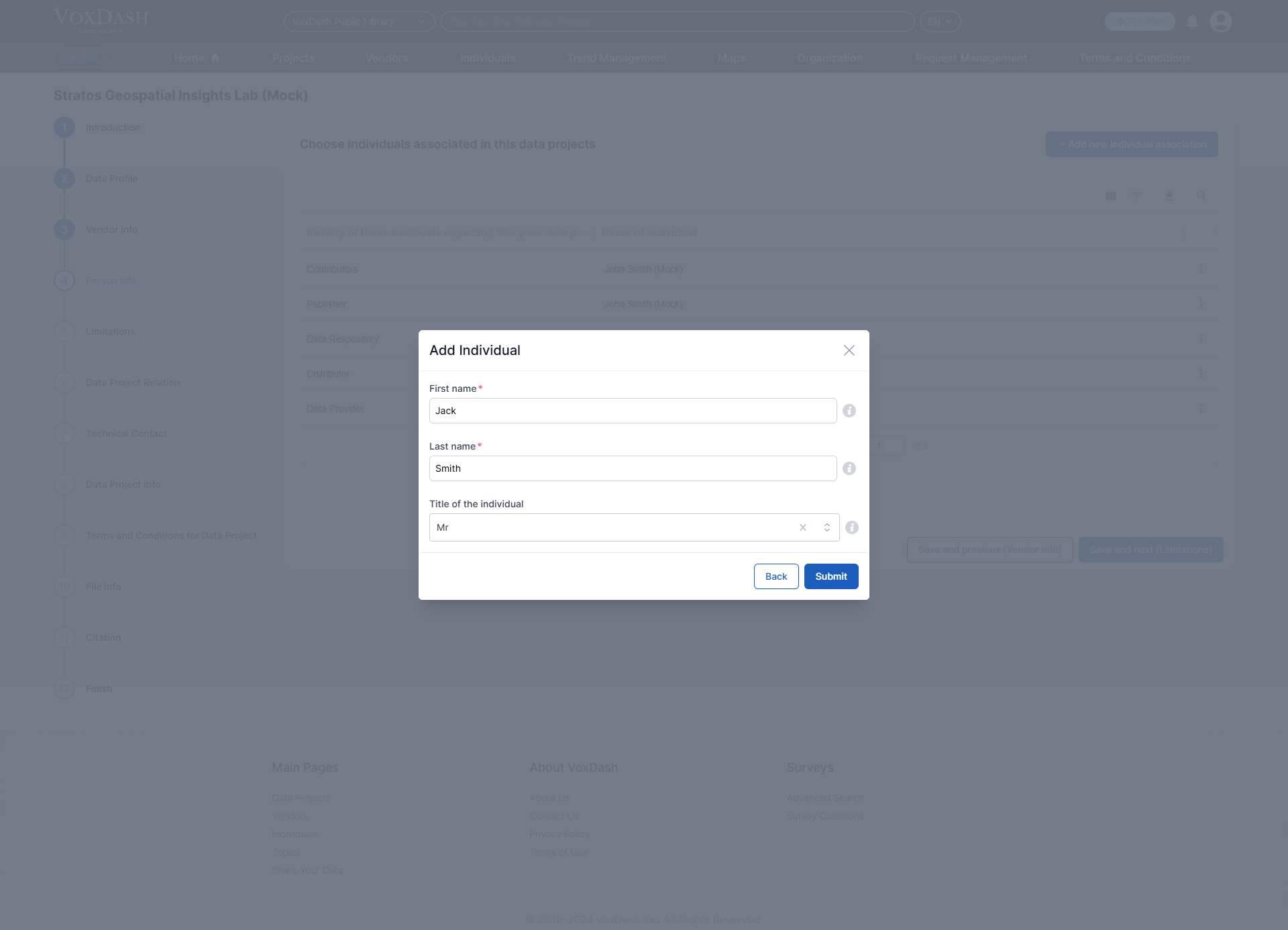
After clicking the **Create** button:
1. Enter the person's **name** and **salutation**.
2. Submit the details.
**Note:** You will need to return to the [Individual Section](https://dataprovider.voxdash.com/individuals) later to complete additional information, such as social media, contact details, and institutional affiliations.
### **Final Steps**
After clicking the **Create** button:
1. Enter the person's **name** and **salutation**.
2. Submit the details.
**Note:** You will need to return to the [Individual Section](https://dataprovider.voxdash.com/individuals) later to complete additional information, such as social media, contact details, and institutional affiliations.
 ## **Finding an Individual**
* Use the **First Name** or **Last Name** filter to find a specific individual.
* Enter the person’s name (or part of it) in the respective filter field, and the system will narrow down the list accordingly.
You have two options to access a person's profile:
1. **Search for the Name in VoxDash**: Use the search feature in VoxDash to locate the individual by entering their name.
2. **Click on the person’s name in the Data Project**: Navigate to the data project and click directly on the person's name to view their detailed profile.
Both methods will provide access to the individual's profile, including key details and relevant information associated with them.
## **Finding an Individual**
* Use the **First Name** or **Last Name** filter to find a specific individual.
* Enter the person’s name (or part of it) in the respective filter field, and the system will narrow down the list accordingly.
You have two options to access a person's profile:
1. **Search for the Name in VoxDash**: Use the search feature in VoxDash to locate the individual by entering their name.
2. **Click on the person’s name in the Data Project**: Navigate to the data project and click directly on the person's name to view their detailed profile.
Both methods will provide access to the individual's profile, including key details and relevant information associated with them.