

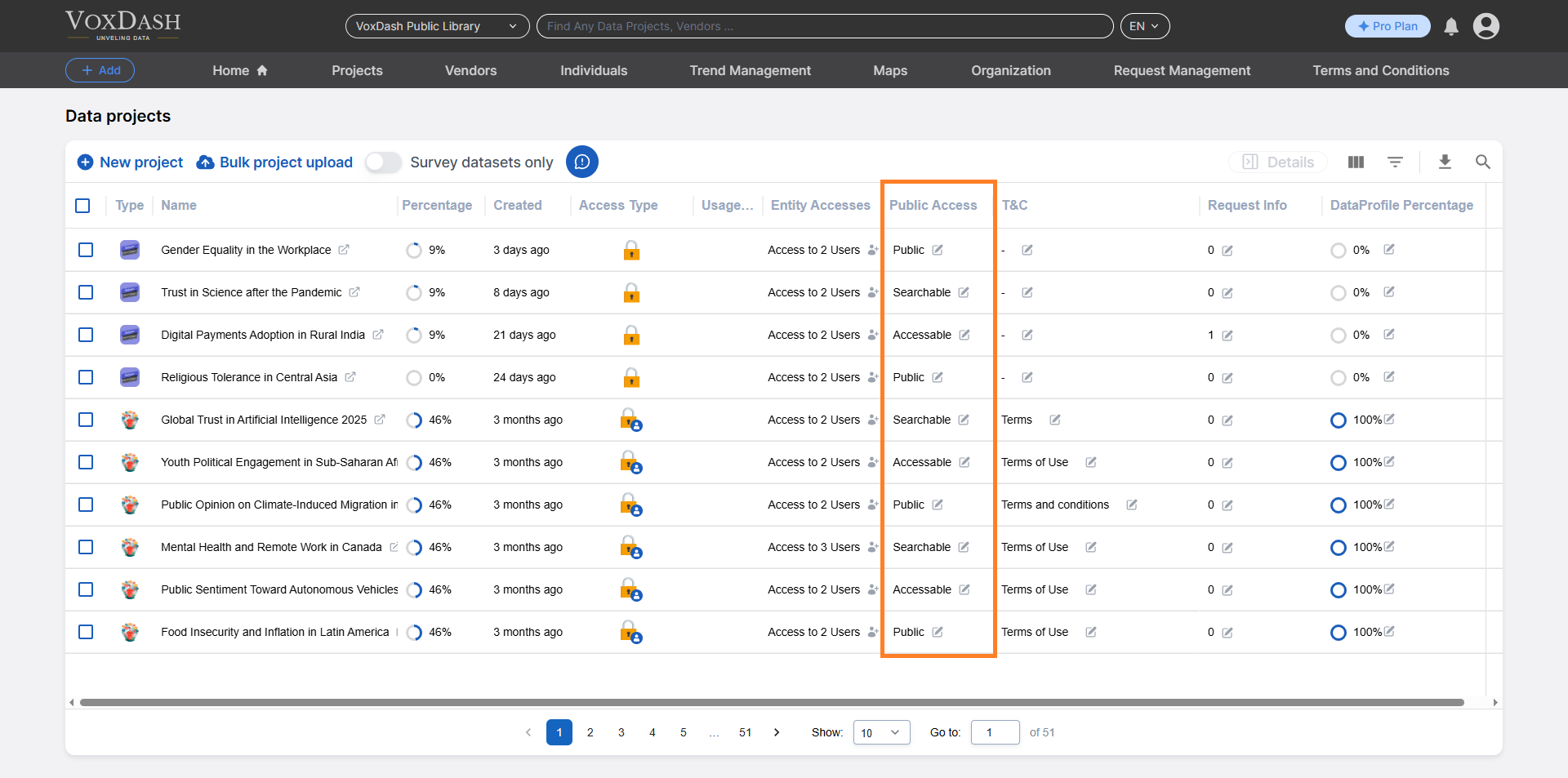
Steps to Enable or Edit Public Access:
1.Locate the Public Access ColumnGo to the Data Project page and find the Public Access column (it is the ninth column from the left). 2.Open the Editing Menu.
Click on the arrow icon next to the Public Access entry. This will open the editing menu, where you can adjust the access settings. 3.Select Public Access Options
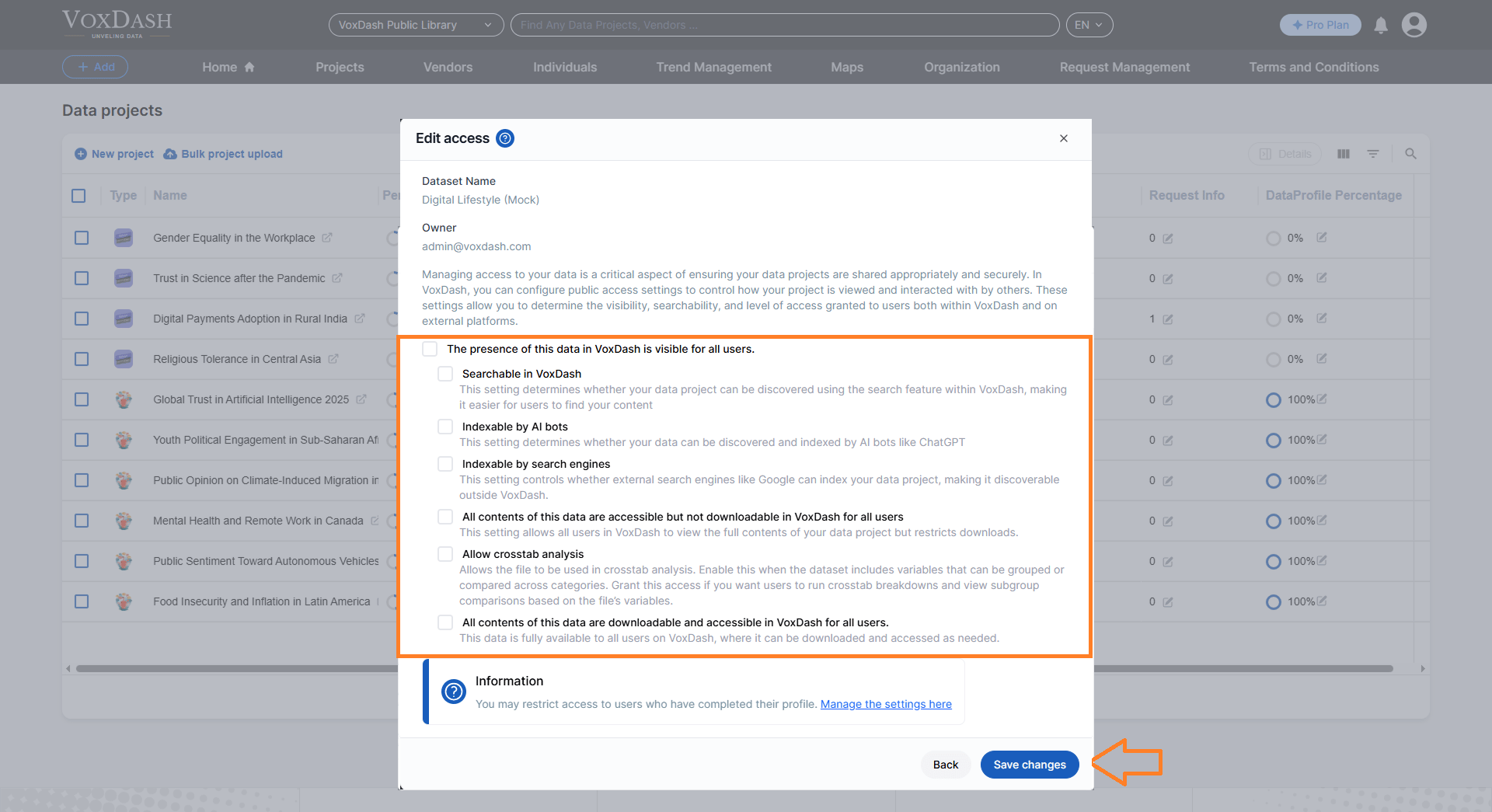
In the editing menu, tick the checkboxes corresponding to the desired public access options for your project. These options determine the level and type of access granted to the public. 4.Save Your Changes
Once you’ve selected the appropriate options, click the Save Changes button located in the bottom-right corner (the blue button) to apply your settings.
Public Access Levels
The public access levels you configure affect how your data is shared and interacted with on VoxDash. These levels apply to all visitors, not specific users. The options include:- Public or Private: Determines whether the presence of the data in VoxDash is visible to all users.
- Searchable in VoxDash: Controls whether the data can be found using the VoxDash search feature.
- Indexable in Search Engines: Allows or restricts external search engines (like Google) from indexing the data.
- Content Access: Specifies whether all data content is viewable but not downloadable by all users in VoxDash. This option is only available if your file type is supported by VoxDash for this feature.
- Downloadable Content: Determines if the data is both viewable and downloadable by all users in VoxDash.
- Indexable in AI: Allows or restricts AI bots (like ChatGPT) from indexing the data.
- Allow Crosstab Analysis: Allows the file to be used in crosstab analysis. Enable this when the dataset includes variables that can be grouped or compared across categories. Grant this access if you want users to run crosstab breakdowns and view subgroup comparisons based on the file’s variables.