Key Features of an Organization in the Data Provider Panel
Data Management
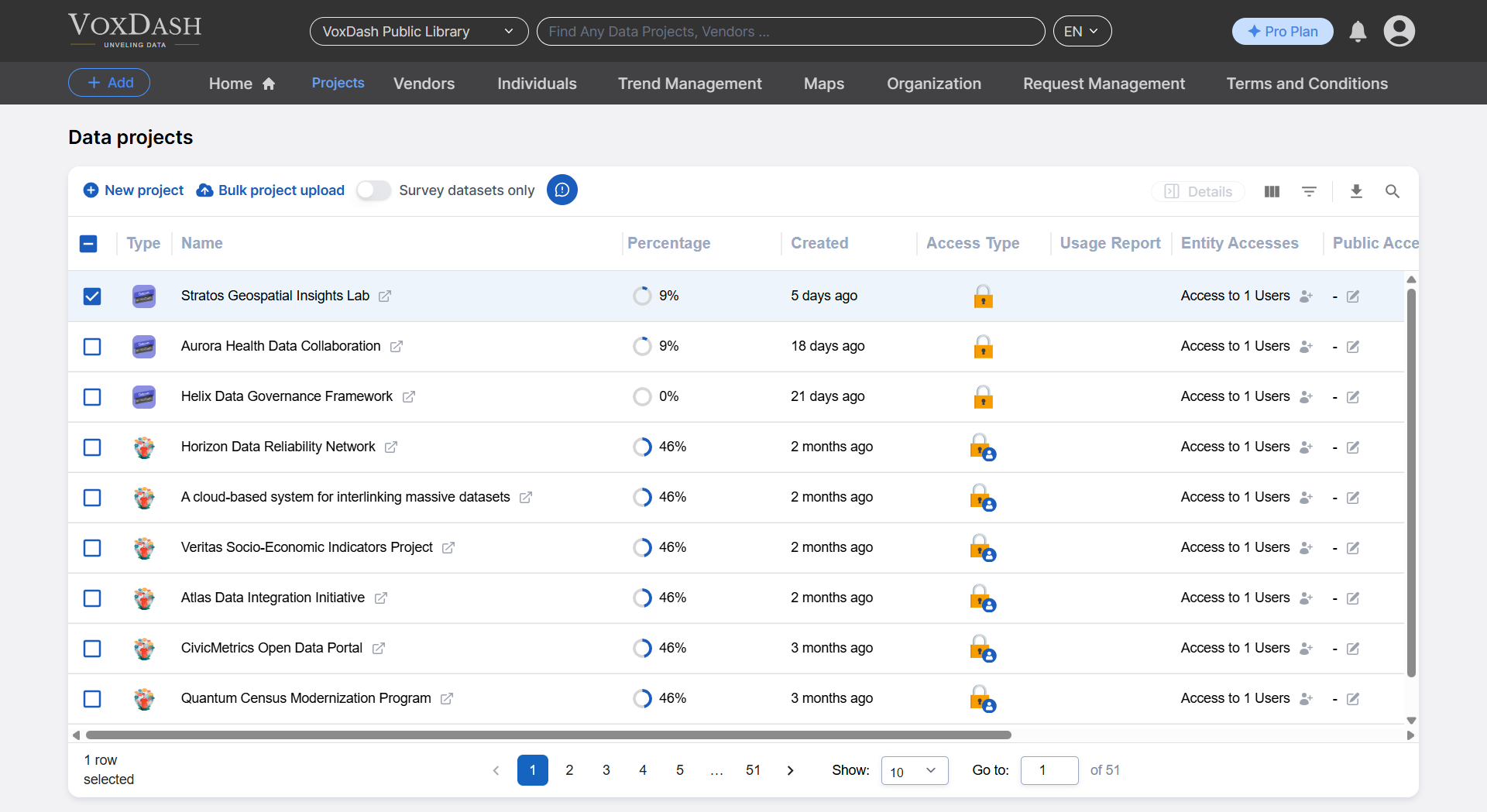
Within the Data Provider Panel, you can:- View all uploaded Data Projects
- Edit or update existing data entries
- Delete data that is no longer needed
- Track upload history and status
- Add related vendor or individual
- Create trends from the uploaded data
- Create and manage geographical Maps
User & Team Management
In the Organization Settings Tab, you can perform several administrative tasks, including:- Set up your organization profile: Define the organization name, logo, and description.
- Manage users: Invite new users by email, assign roles, or remove users.
- Create user groups: Organize users into logical teams or departments for easier permission control.
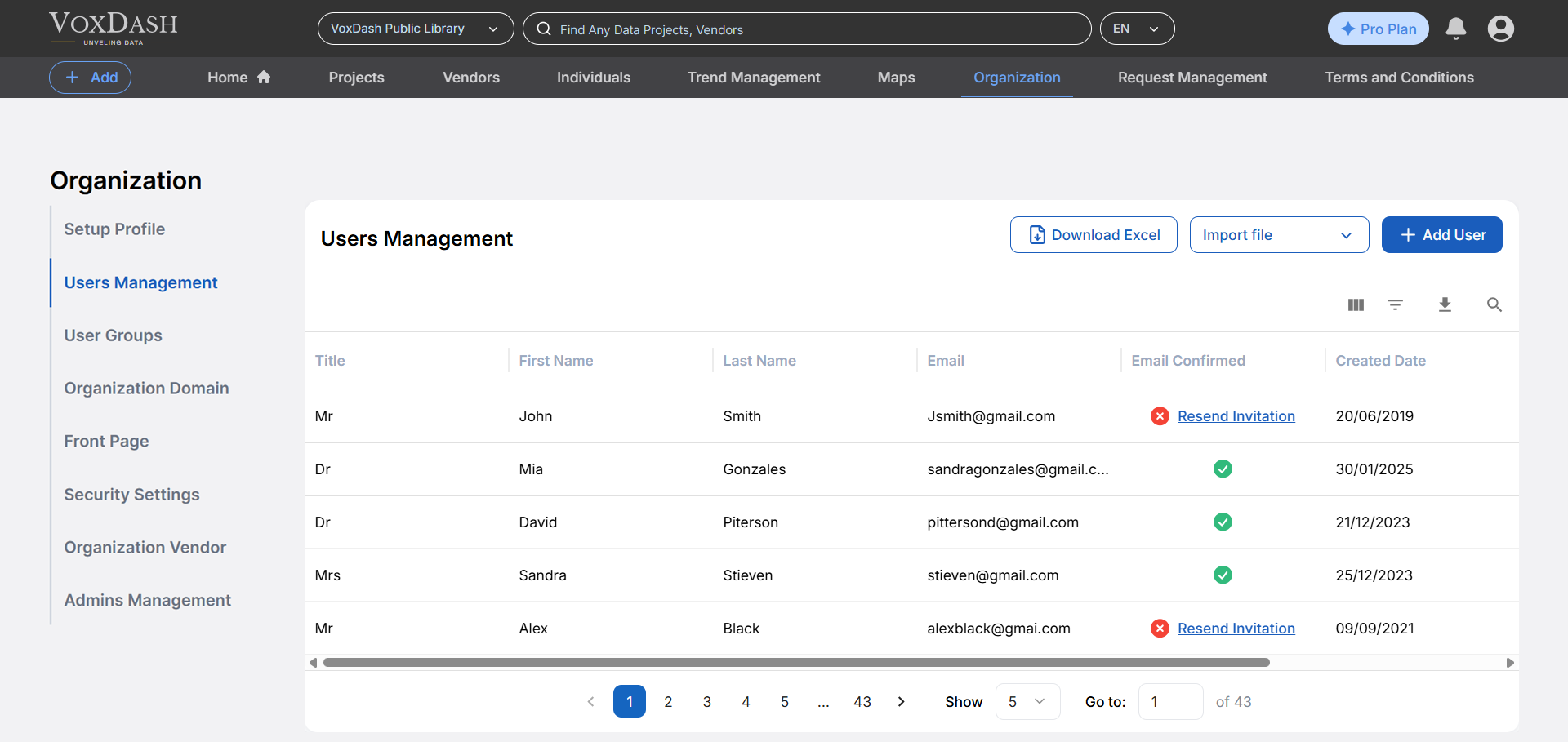
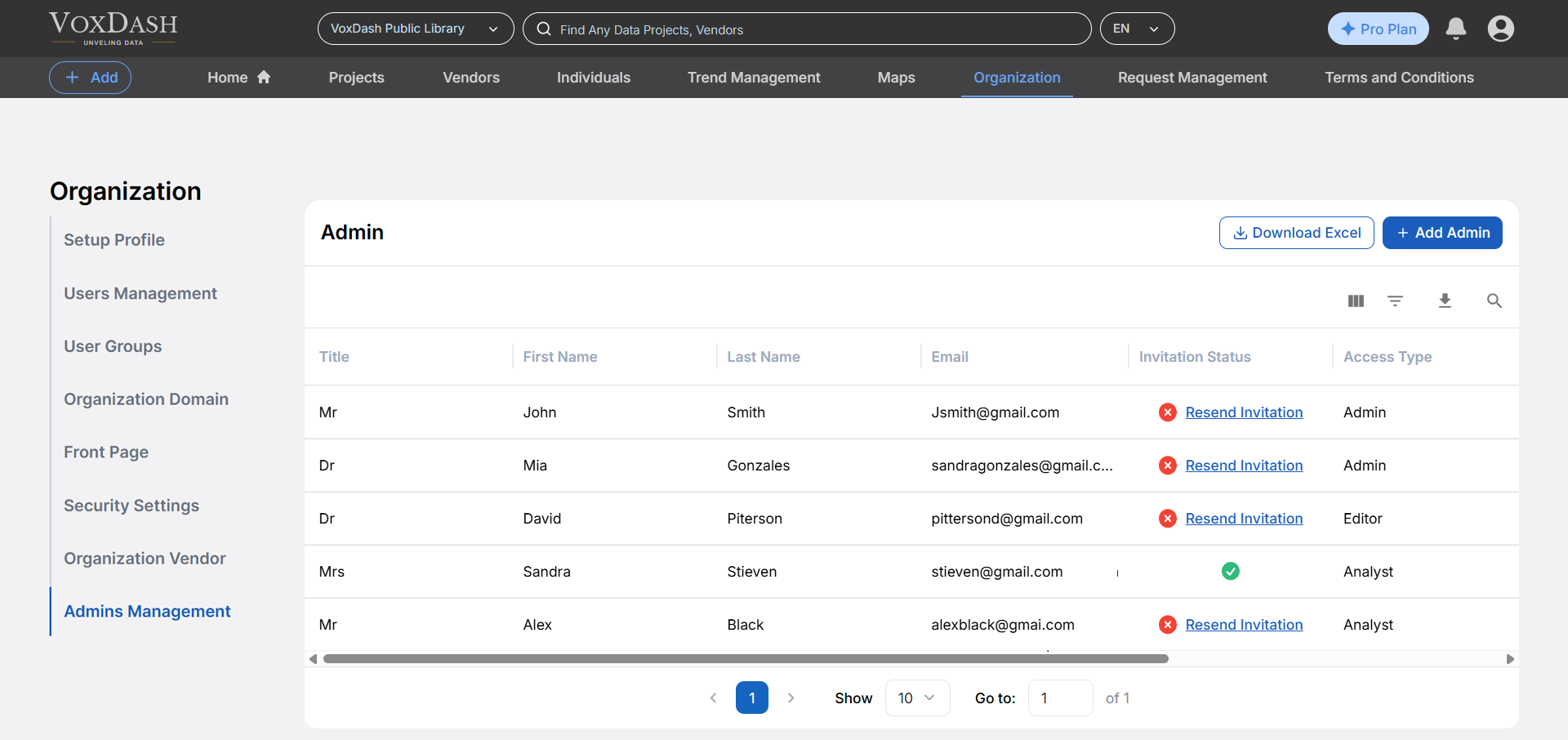
- Assign admins: Grant administrative privileges to trusted members who can help manage the organization.
- The Admin Management page allows organizations to assign employees to different administrative roles within their VoxDash account.
- User Access: Each user can be a member of one or more organizations. Access to an organization depends on your user permissions, which are typically granted by an admin.
- Roles and Permissions: A user may have different roles in different organizations (e.g., Admin in Organization A, Analyst in Organization B). These roles define what actions you can perform, such as viewing reports, managing data sources, or editing configurations.
Homepage Customization
You can personalize the landing experience for users in your organization by editing the homepage setup. This includes configuring widgets, charts, or reports that appear by default when users log in.Security Settings
Security is a core part of organizational management. You can:- Set password policies
- Enable two-factor authentication (2FA)
- Control session timeouts
- Manage access levels and data sharing permissions
Organization Settings
In VoxDash, users can connect a vendor to an organization. This allows for better collaboration, data management, and role assignment across surveys and analytics workflows.Setup Profile
When users sign up for VoxDash, a personal profile page is automatically created. This profile serves as a central place to manage personal details, showcase professional background, and contribute to the platform’s collaborative data environment.How to Select or Add an Organization
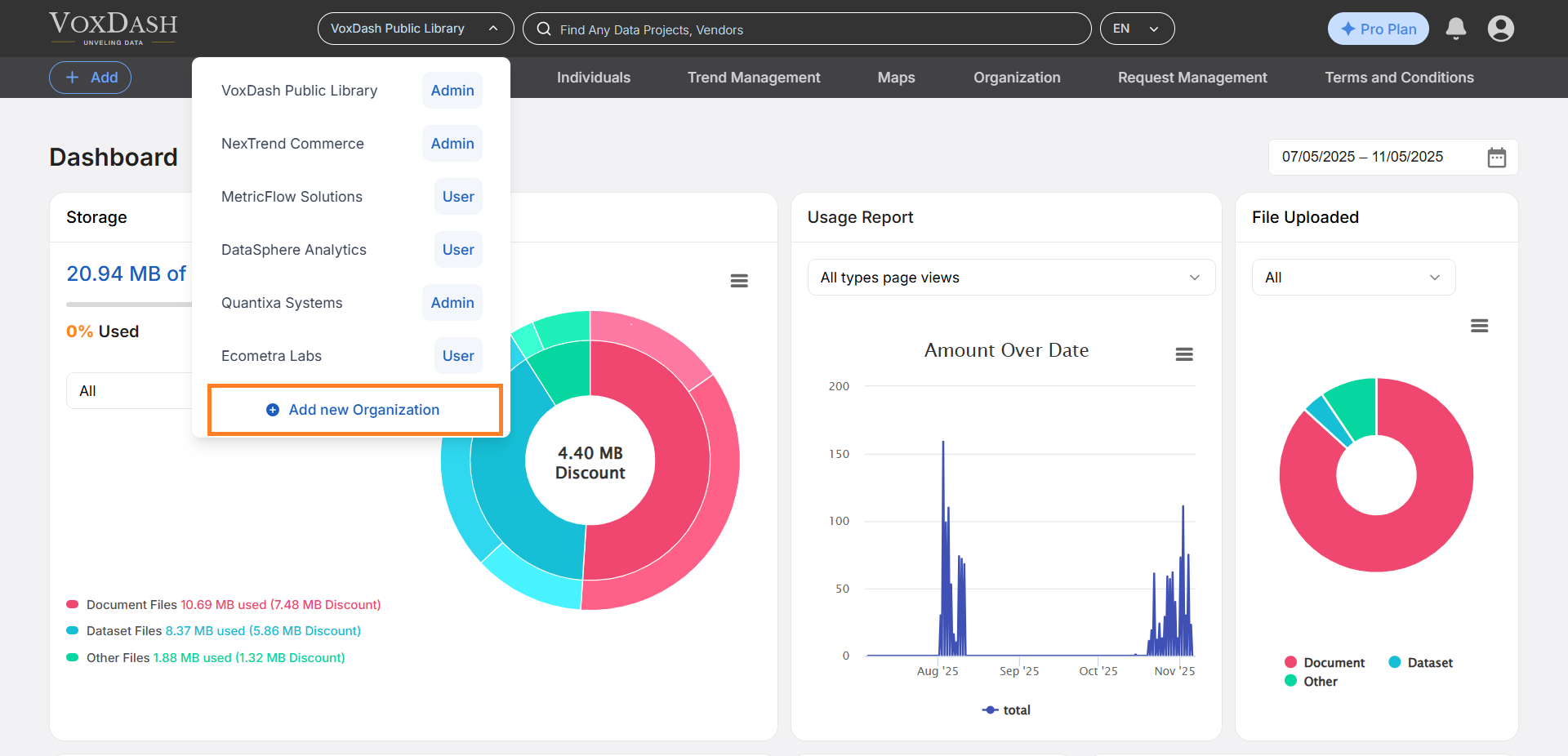
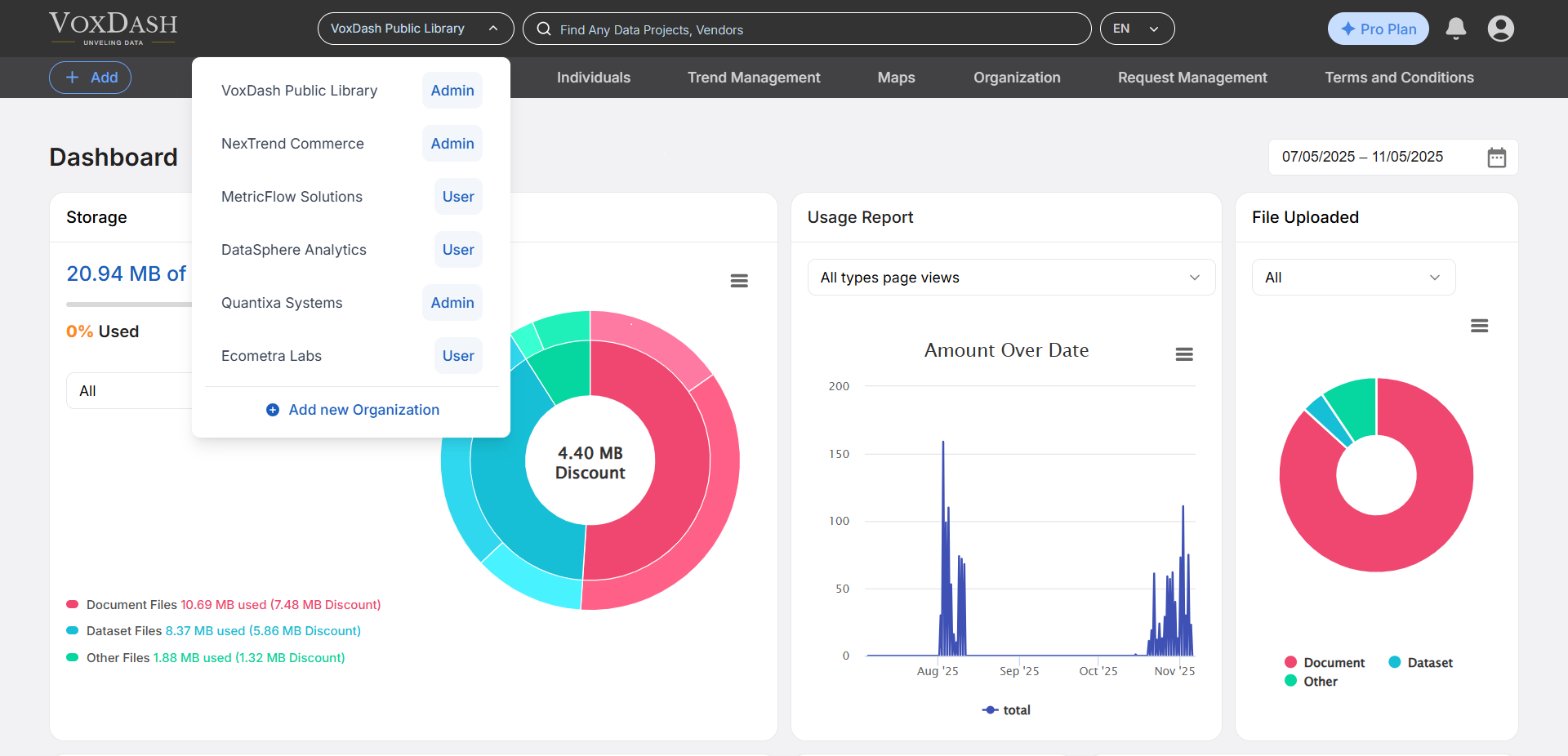
- Locate the Header Menu: At the top of the website, you will see a dropdown or clickable menu labeled with the current organization name.
- Click to Expand the Menu: Click the organization name to open the list of organizations available to your account.
- Choose an Organization: Select the desired organization from the list. Once selected, VoxDash will load data and dashboards specific to that organization.
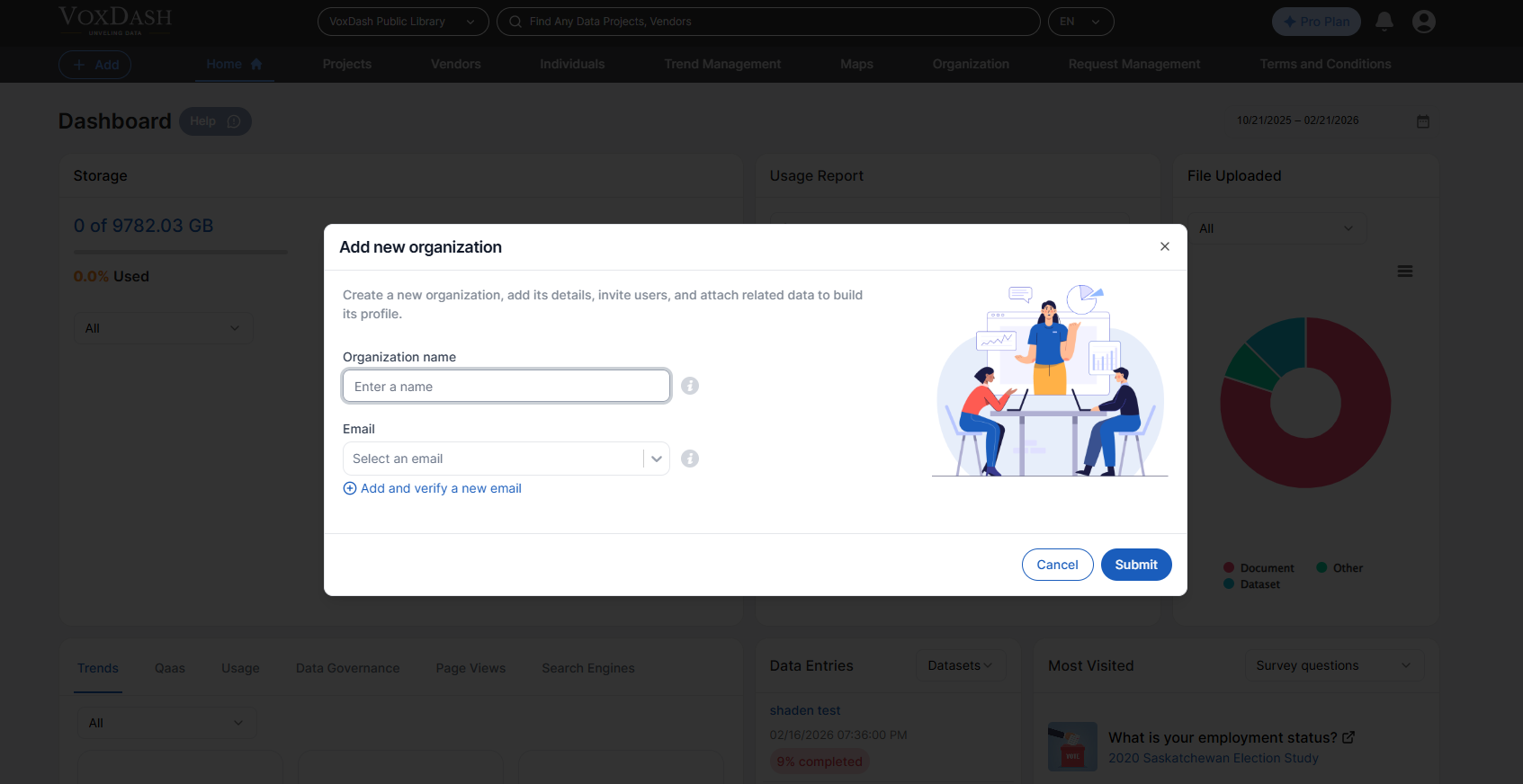
- Add New Organization: Click on the Add new organization to create another organization based on your needs. You can use your main email or other verified emails.
Adding a New Organization
Users with the appropriate permissions can add a new organization to the system. This is useful when:- Your team manages analytics for multiple businesses or clients.
- You want to separate environments or departments into distinct data spaces.
- You want to separate your users
How to Add a New Organization?
-
- At the top of the website, you will see a dropdown or clickable menu labeled with the current organization name.
-
- Click on the Add new organization to create another organization based on your needs.
-
- Add proper name for your organization and add an email to it.