

How Organization Invitations Work
When an organization adds your email:- You receive an email notification stating that the organization has invited you.
-
The email contains information about:
- The organization name
- Your assigned role (User or Admin)
- A link to accept the invitation
Roles in Organization Invitations
When inviting a user, the organization assigns one of the following roles:User
- Can access shared datasets and permitted projects
- Cannot manage other users
- Cannot modify organization-level settings
Admin
- Can manage users and roles
- Can approve or reject data access requests
- Can configure organization settings
- Has broader visibility across organization assets
Invitations Triggered by Data Access Approval
In some cases, when a data access request is approved, the organization may also grant the requester membership within the organization. This typically happens when:- The data is restricted to organization members only
- Ongoing collaboration is required
- Access requires internal-level visibility
- The user receives an organization invitation email
- Accepting the invitation grants access according to the assigned role
- The user becomes visible in the organization’s user list
Managing Organization Invitations
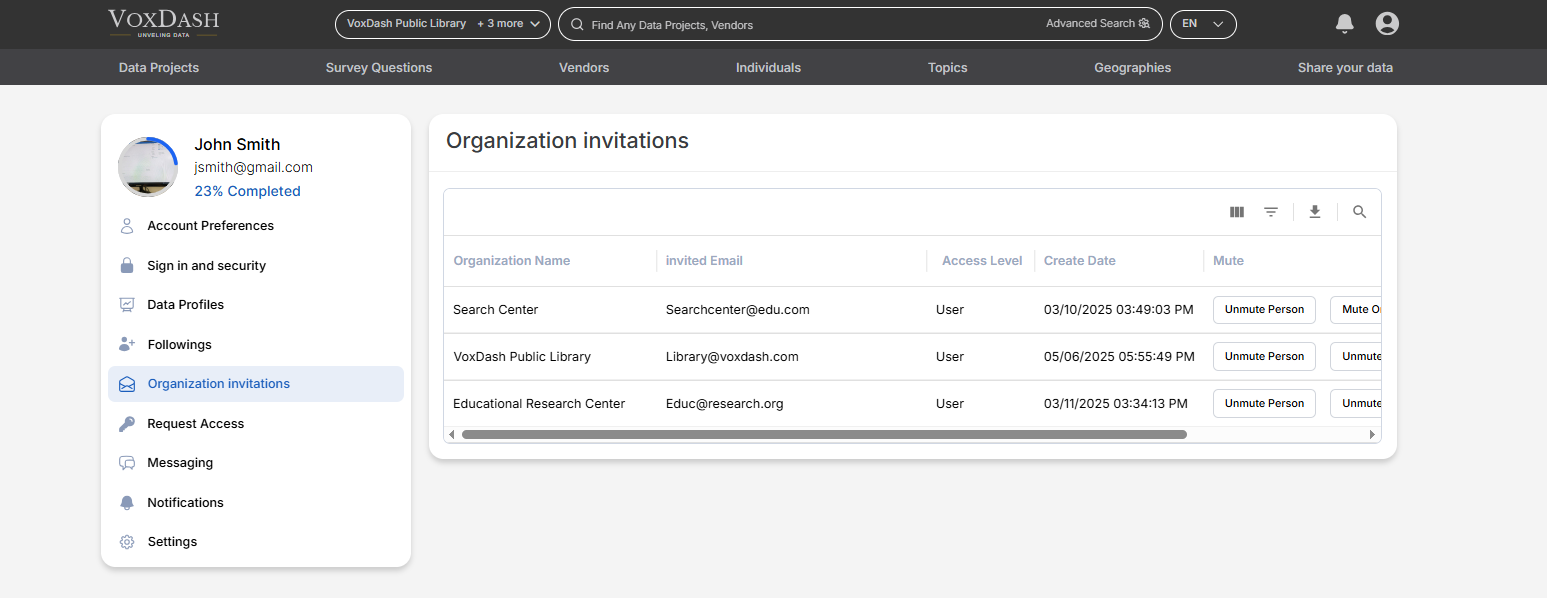
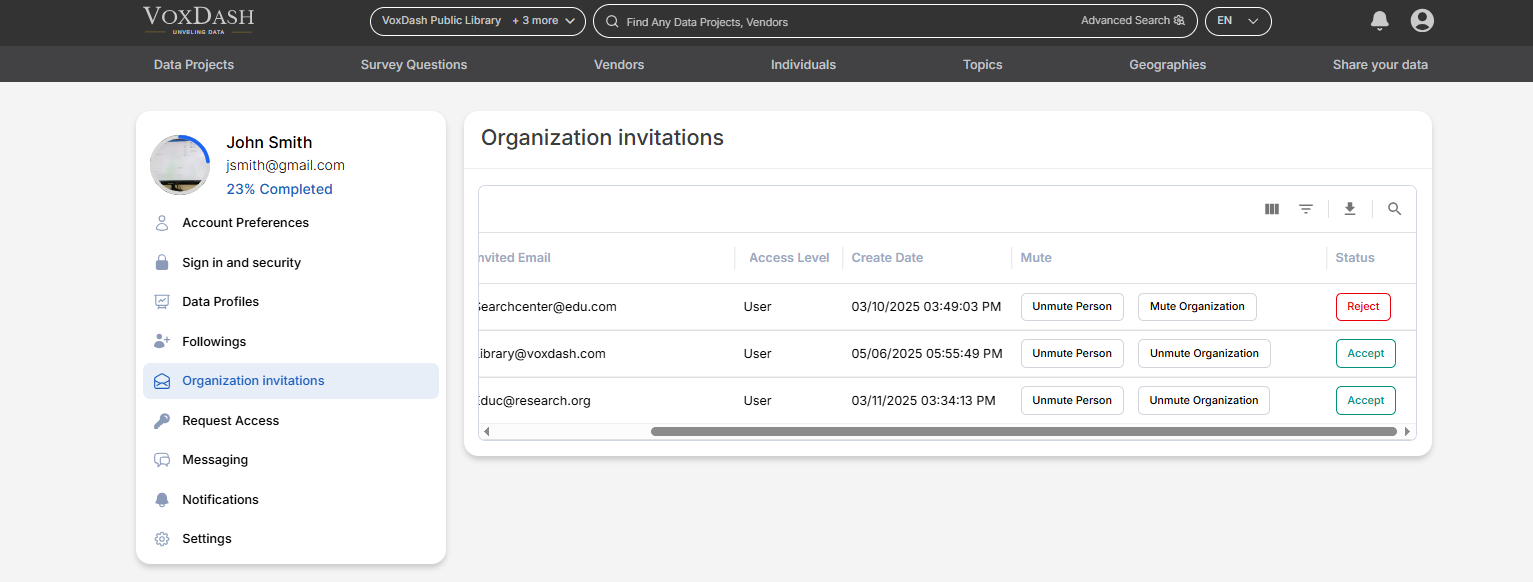
Users can manage invitations directly from their account settings. Go to: My Account → Organization Invitations In this section, users can:- View all pending invitations
- See past accepted or declined invitations
- Review assigned roles
- Accept or decline invitations
- Mute invitation notifications
Muting Organization Invitations
If you no longer wish to receive invitation notifications from a specific organization:- Navigate to My Account → Organization Invitations
- Locate the organization
- Select the Mute option
- Your existing memberships
- Your current access permissions
- Previously accepted invitations
Best Practices
For Organizations:- Verify email addresses before sending invitations
- Assign the lowest necessary role
- Periodically review active members
- Only accept invitations from trusted organizations
- Review assigned roles carefully
- Keep notification settings updated