

1. Features at the Top of the Table
These actions apply to the entire table and help users manage projects efficiently.1.1 Create New Projects and Upload Files
Using the buttons at the top of the table, users can:- Create a new project and upload files later
- Upload a complete survey project in one step.

1.2 Survey Datasets Only
Using this feature, filters all the projects and only show the ones with survey datasets.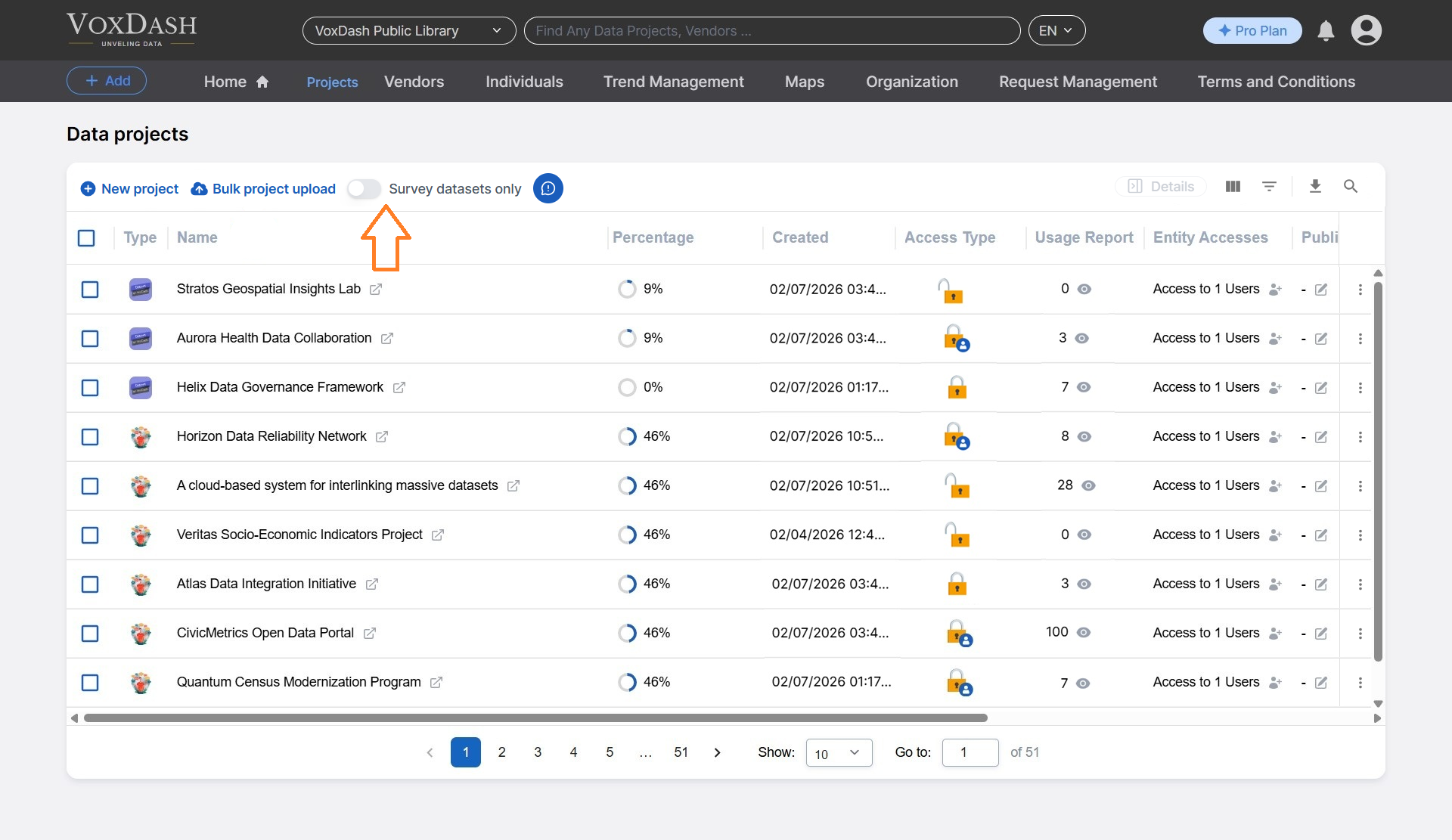
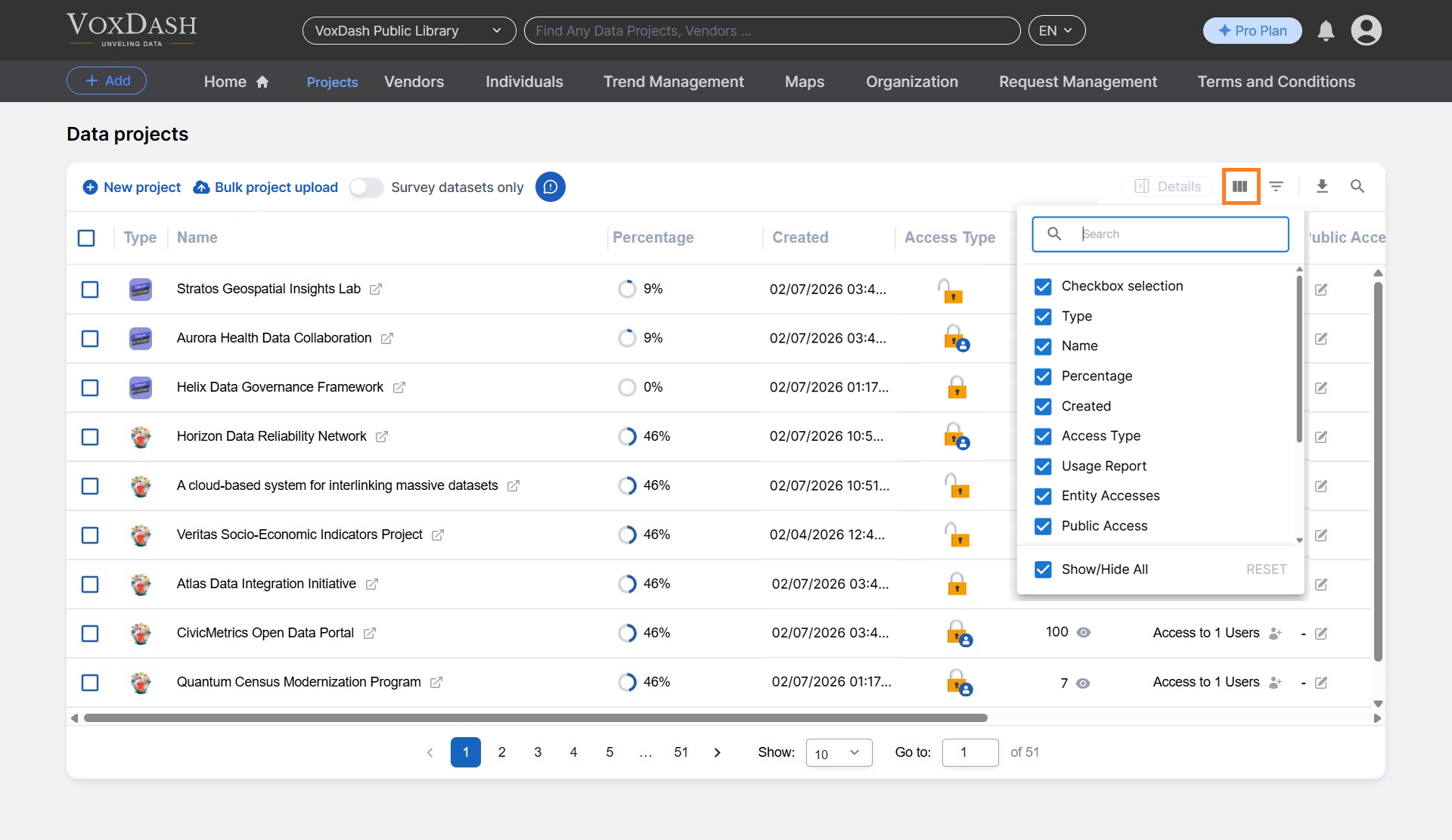
1.3 Change Column Order
This feature allows users to:- Reorder table columns based on preference
- Show or hide specific columns to customize the table view
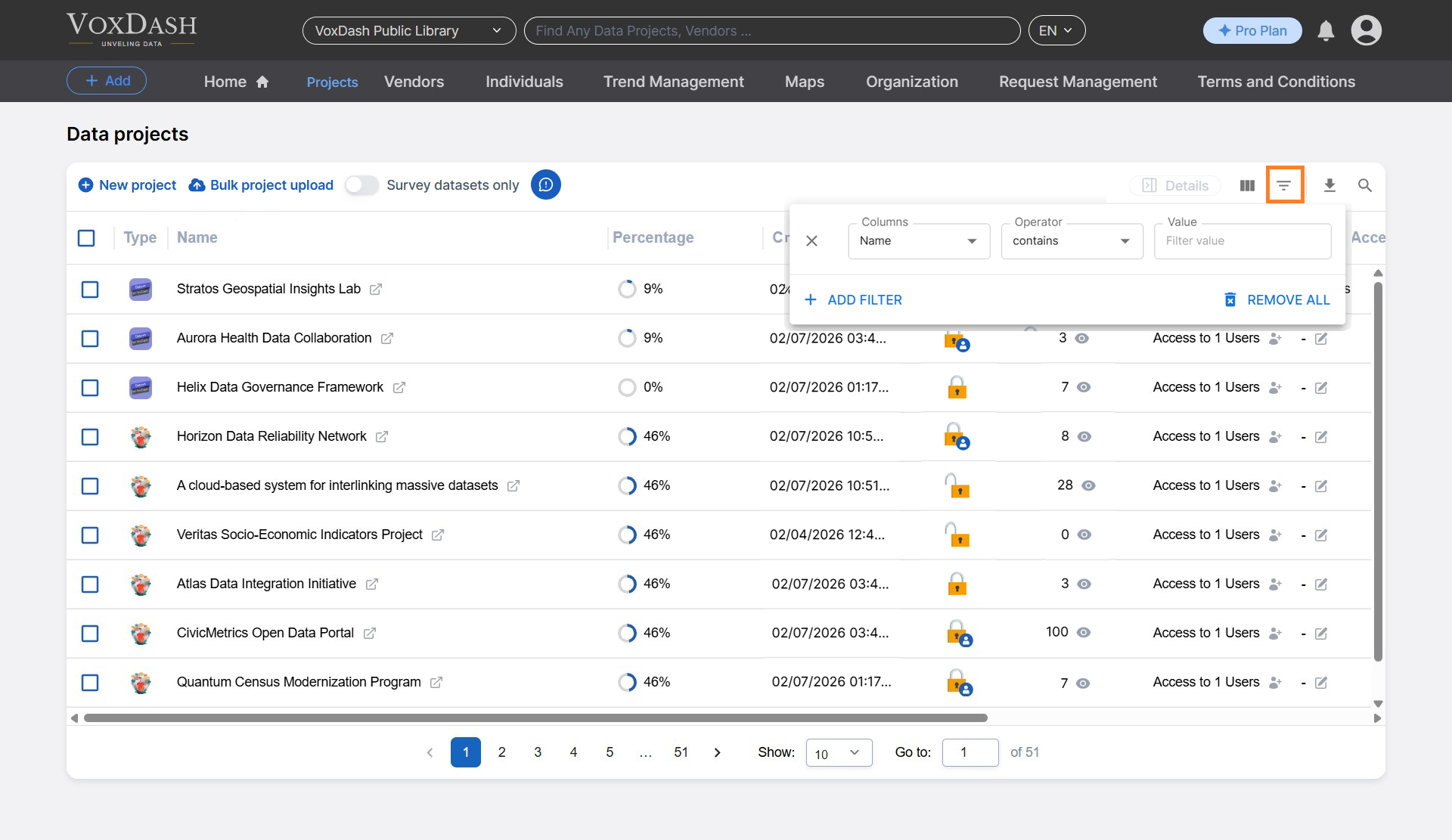
1.4 Filter Projects
The filter option enables users to:- Narrow down the list of projects based on specific criteria (e.g., project name)
- Quickly locate relevant projects in large datasets
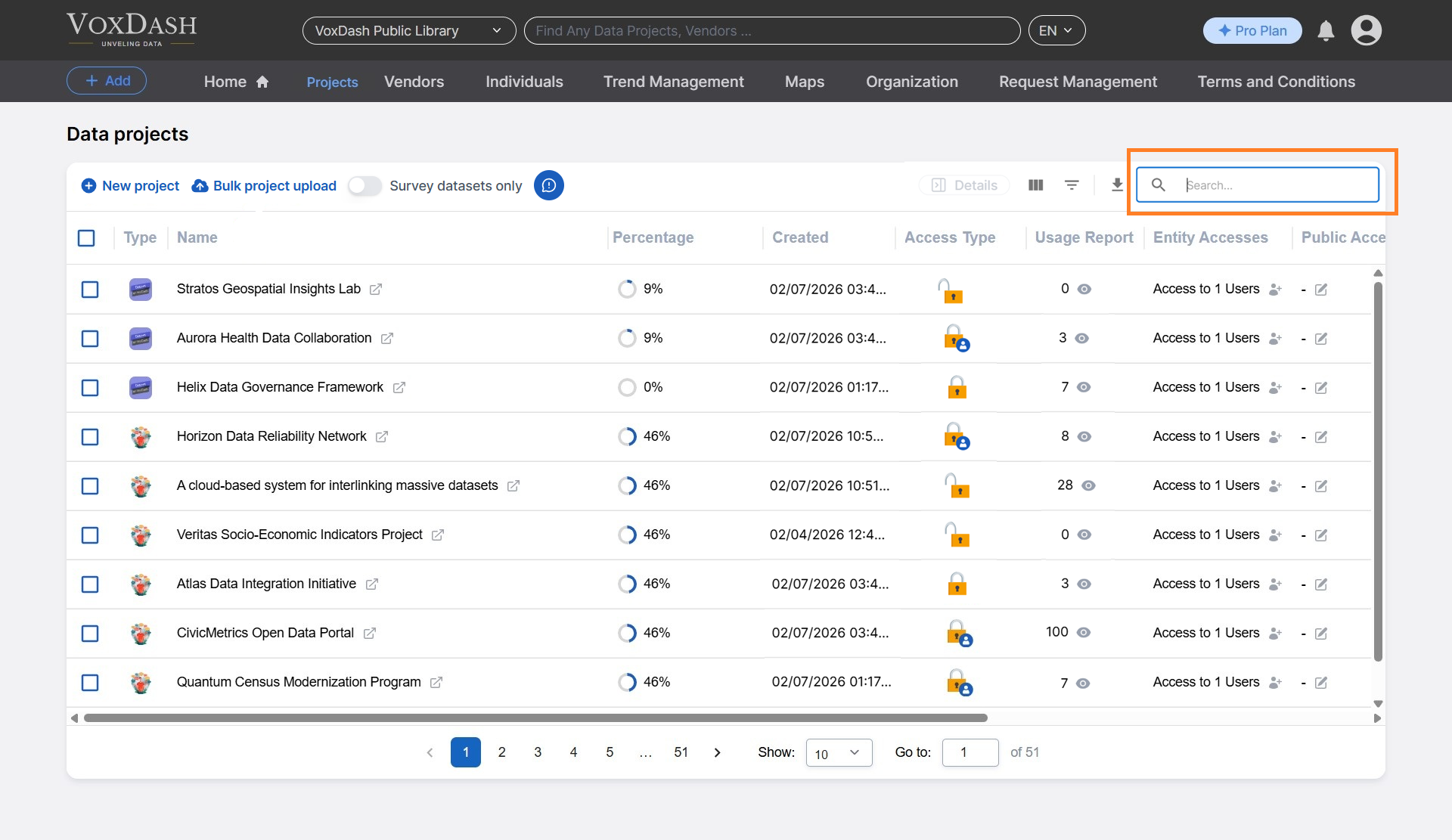
1.5 Search
The search bar allows users to:- Instantly find projects by typing all or part of a project name
- Reduce time spent scrolling through long project lists
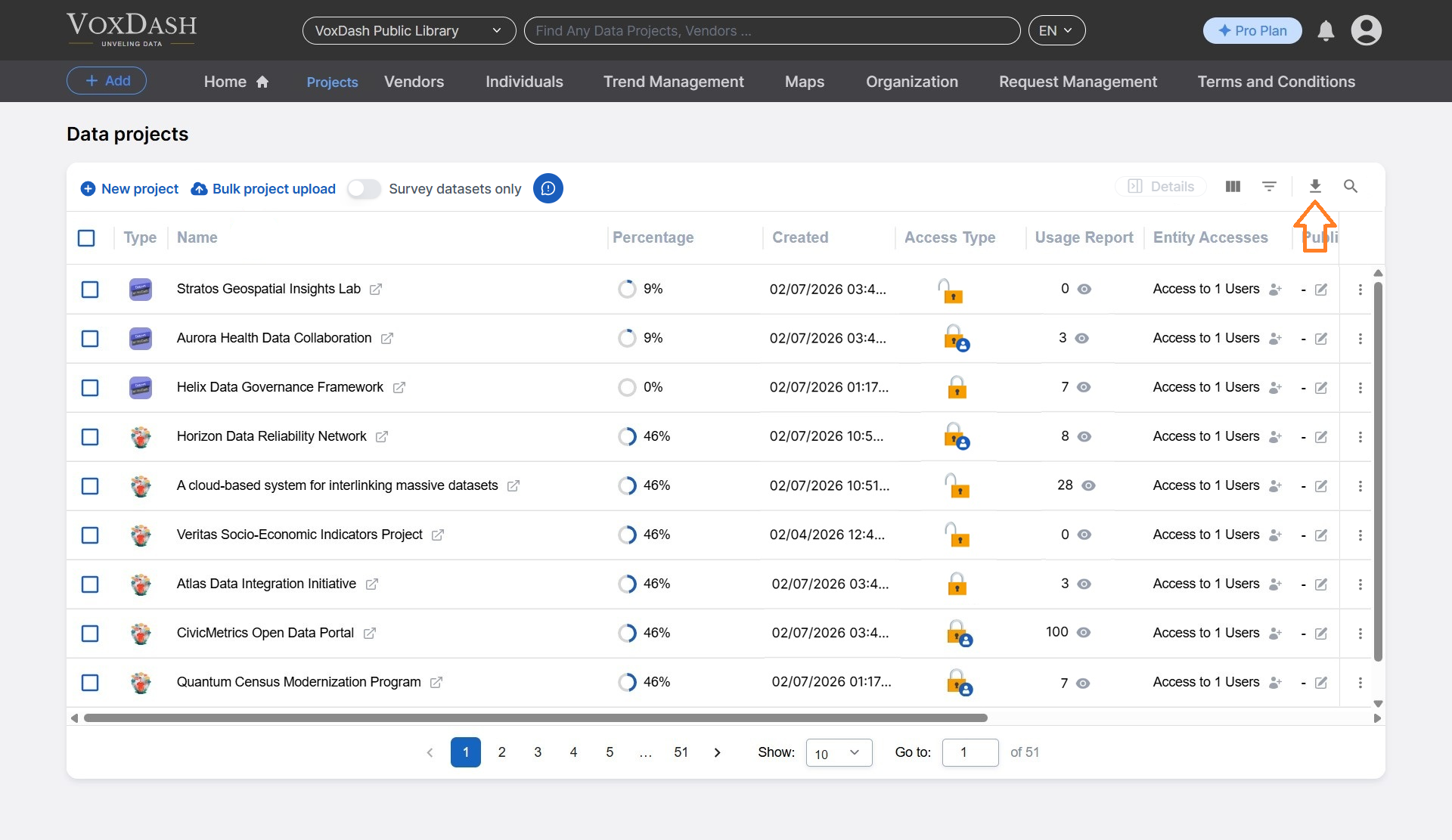
1.6 Export
With one click, users can:- Export project information along with relevant metadata
- Download project details for reporting, auditing, or offline analysis
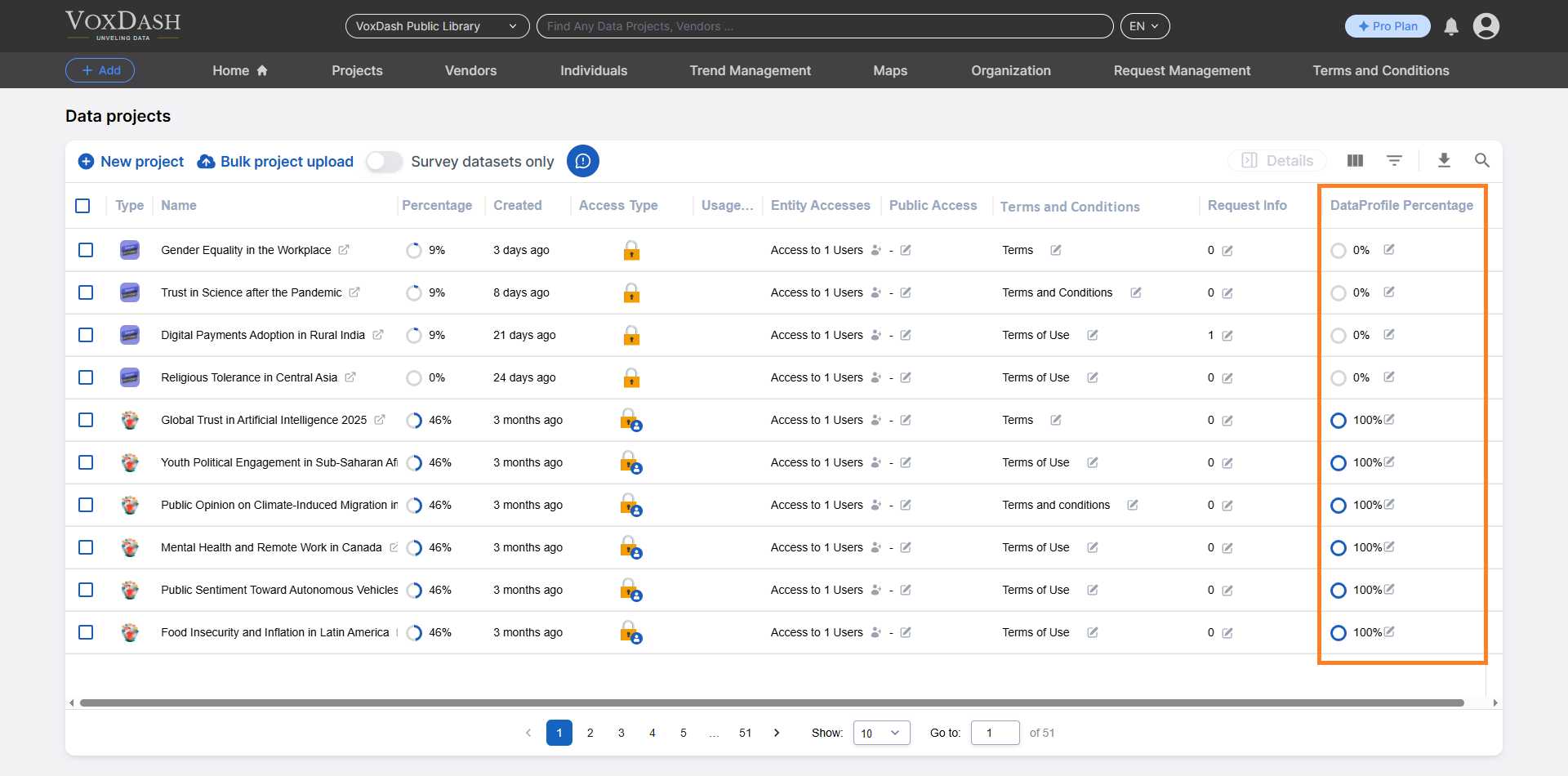
2. Table Columns and Their Features
Each column in the File Manager Table provides specific information and controls for individual projects.2.1 Type
Displays a cover image or file type icon for each project, helping users quickly identify the nature of the data.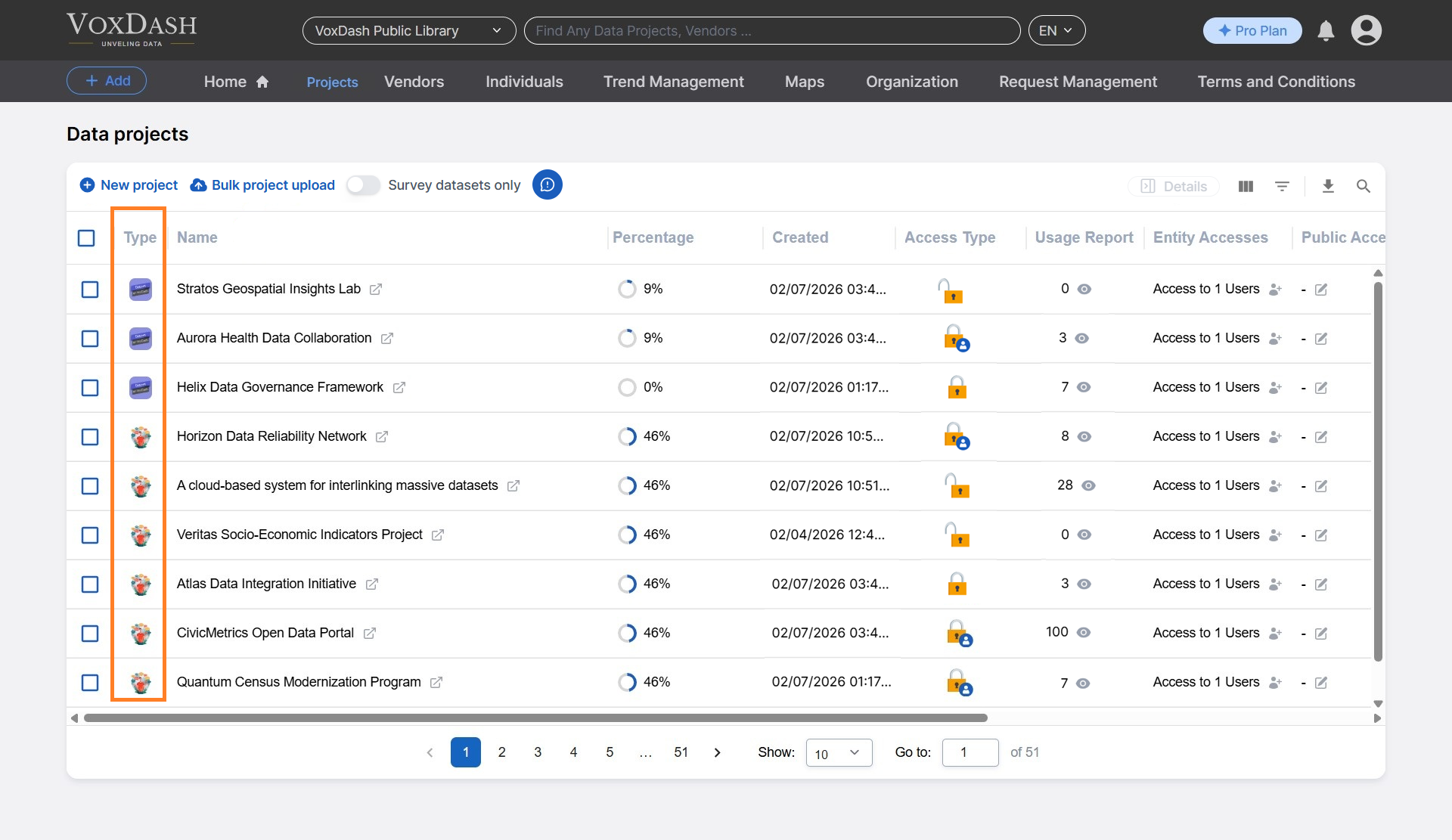
2.2 Name
Shows the project name, as defined during creation. You can change the name later, if needed.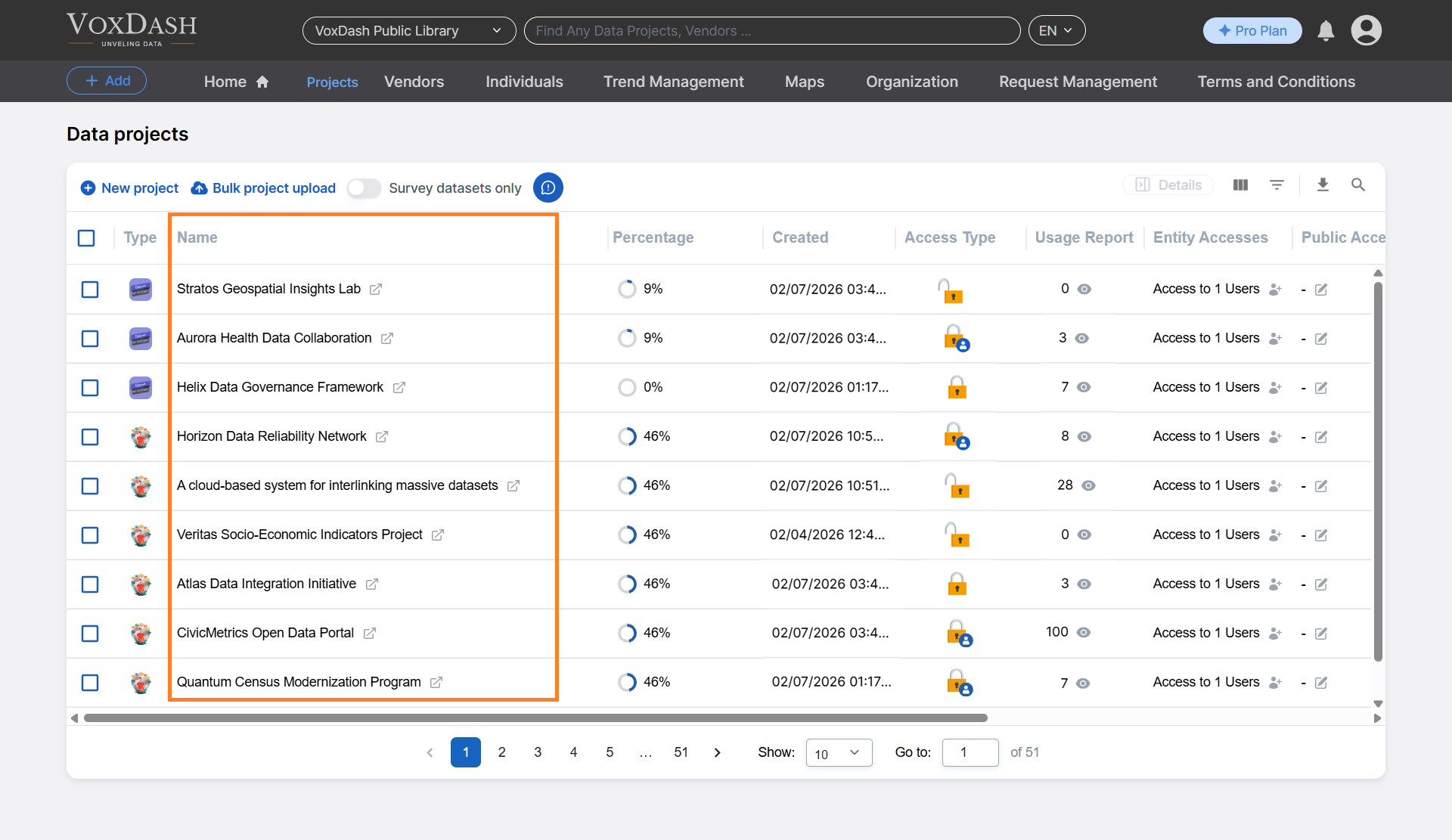
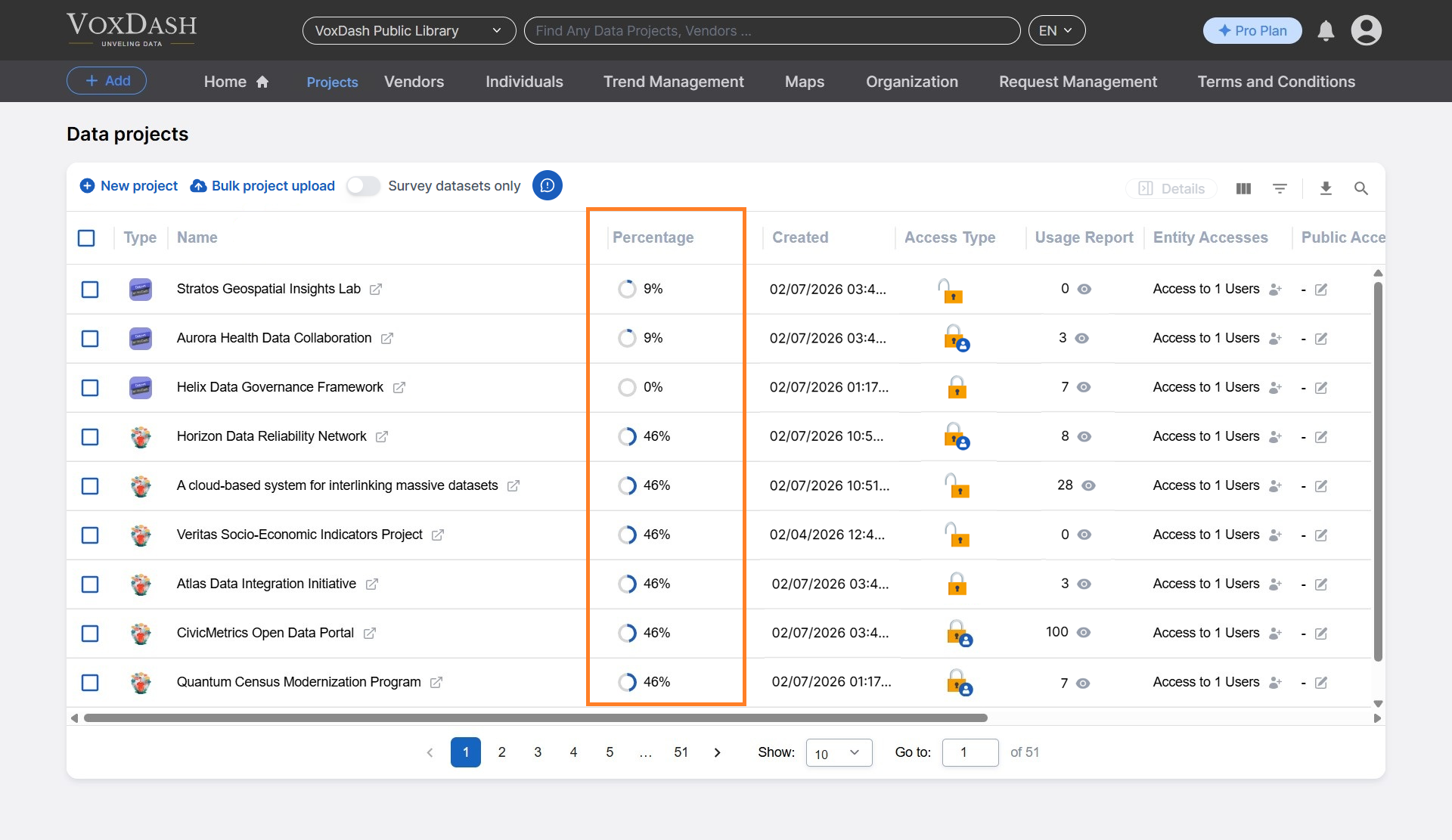
2.3 Percentage
Indicates the data entry completion percentage, allowing users to:- Track progress immediately
- Identify projects that are still in progress or completed
2.4 Created
Displays the date and time when the project was created and added to VoxDash. This helps with version tracking and project history review.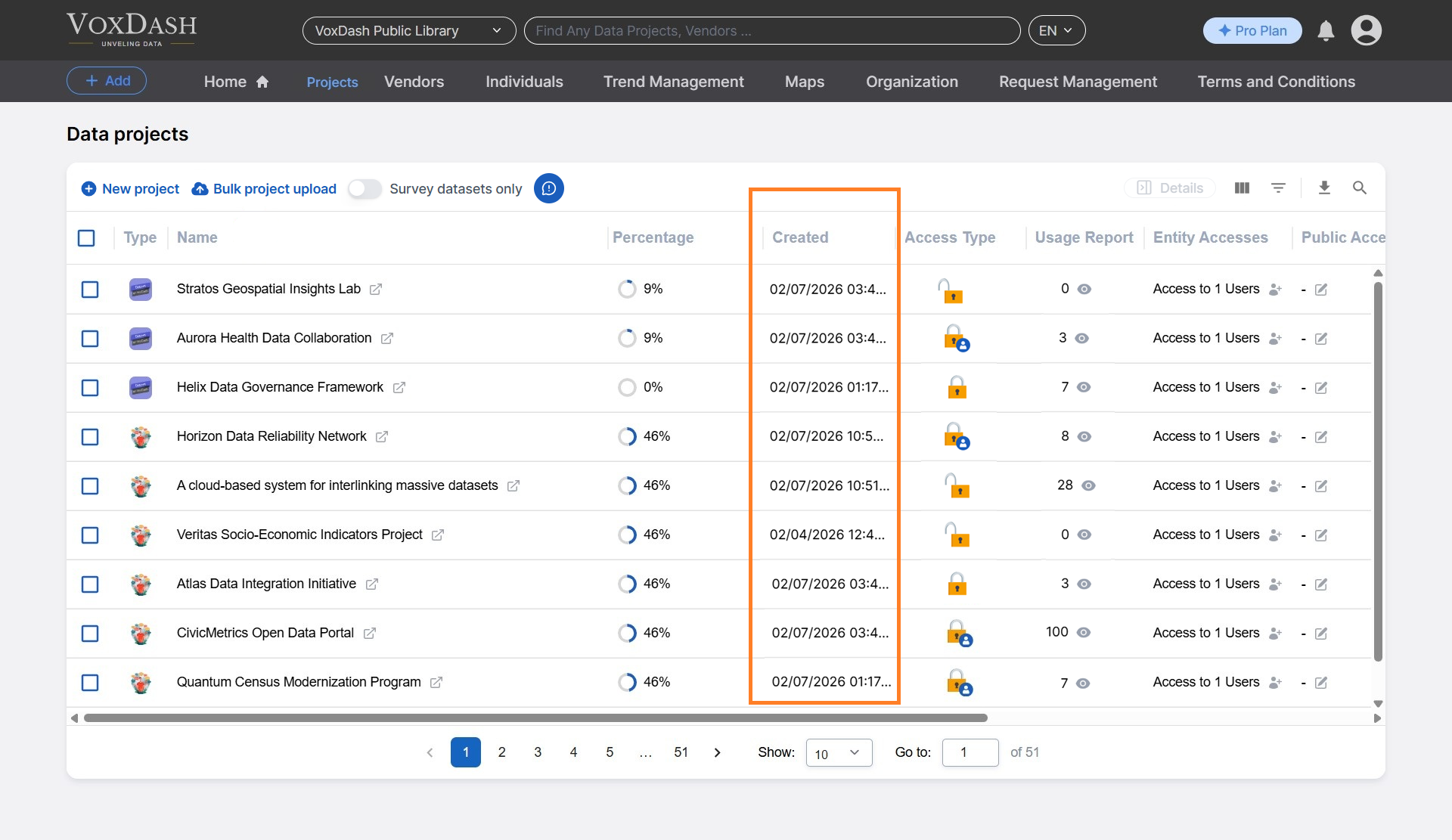
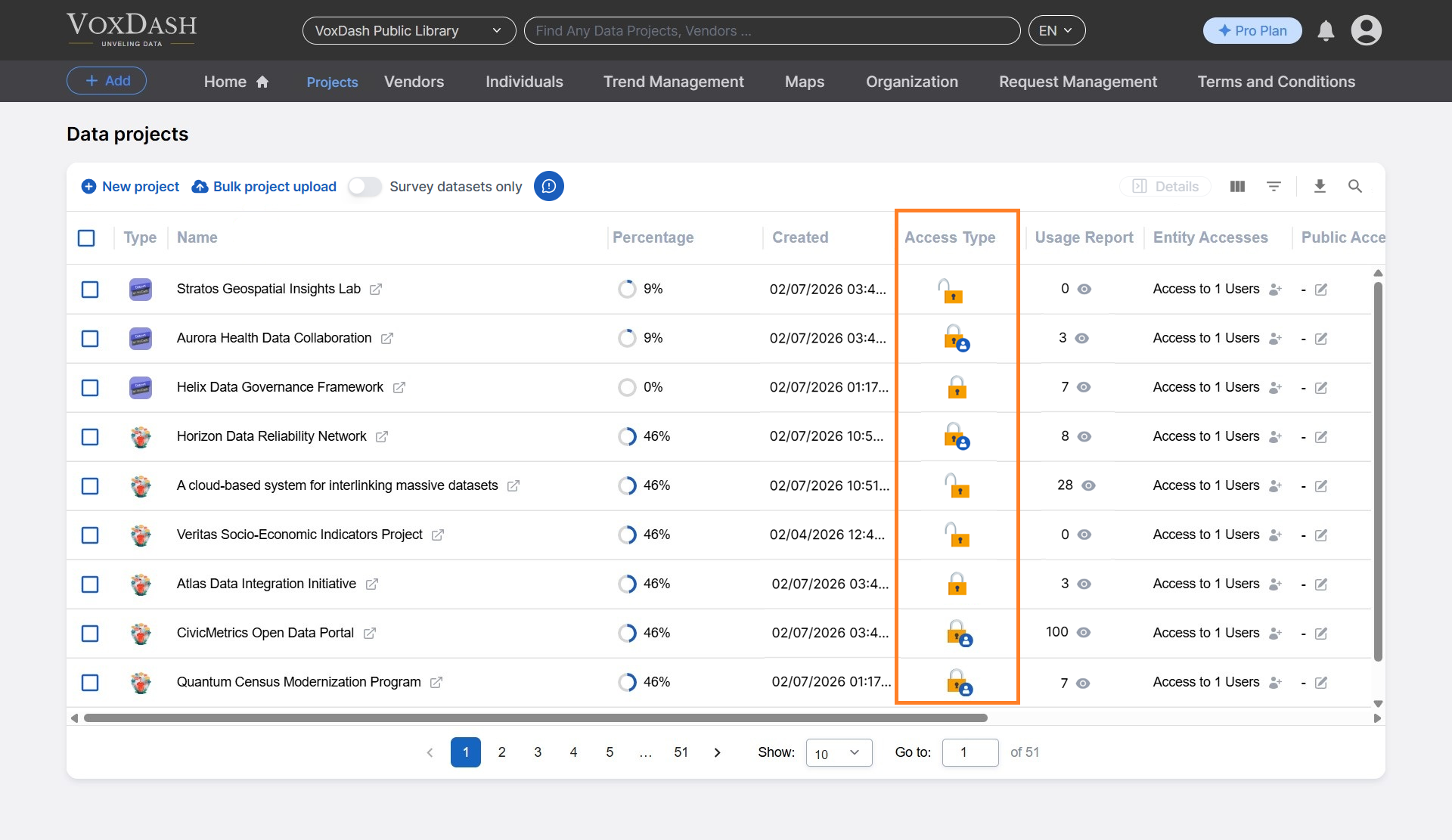
2.5 Access Type
Shows which users have been granted access to the project:- Access may be assigned by username or user ID
- Only authorized users can view the dataset This column provides visibility into project-level access control.
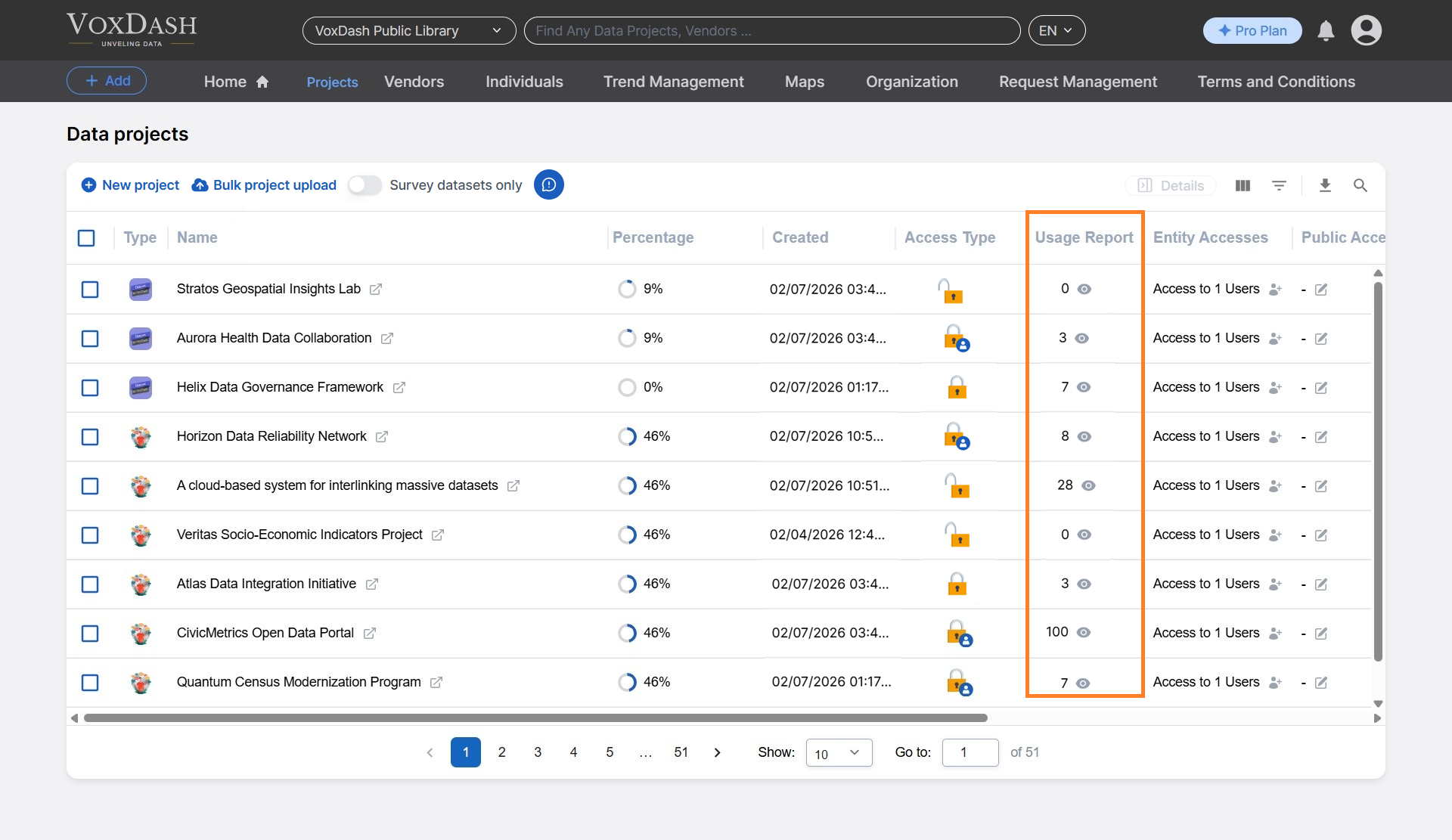
2.6 Usage Report
Displays the number of visits or interactions with the data project. This helps data providers:- Monitor engagement
- Understand how often the data is being accessed
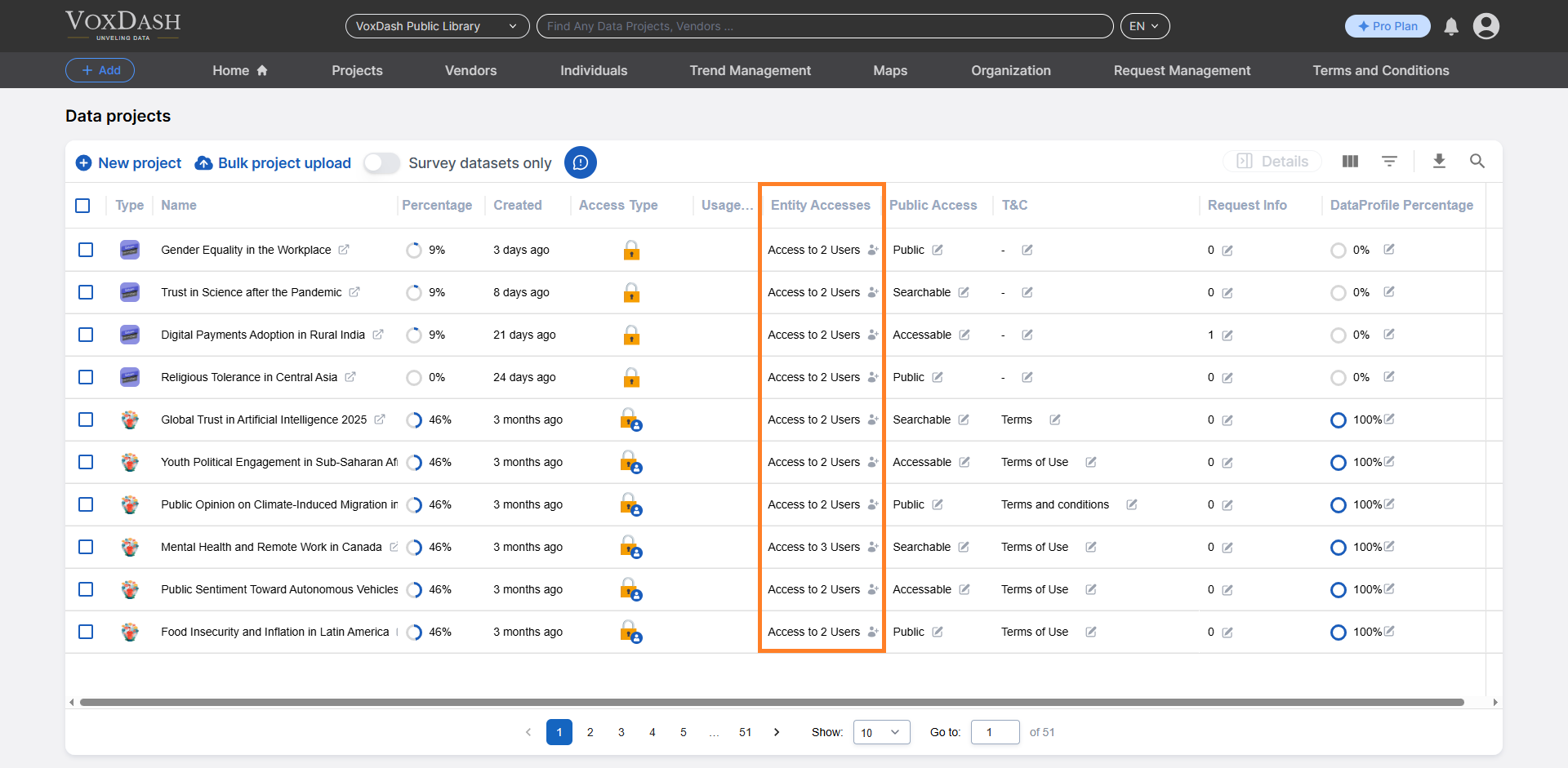
2.7 Entity Access
Entity Access allows users to manage who can view or modify a project. With this feature, users can:- Assign specific roles (e.g., viewer, editor)
- Apply data restrictions
- Set expiration dates for access
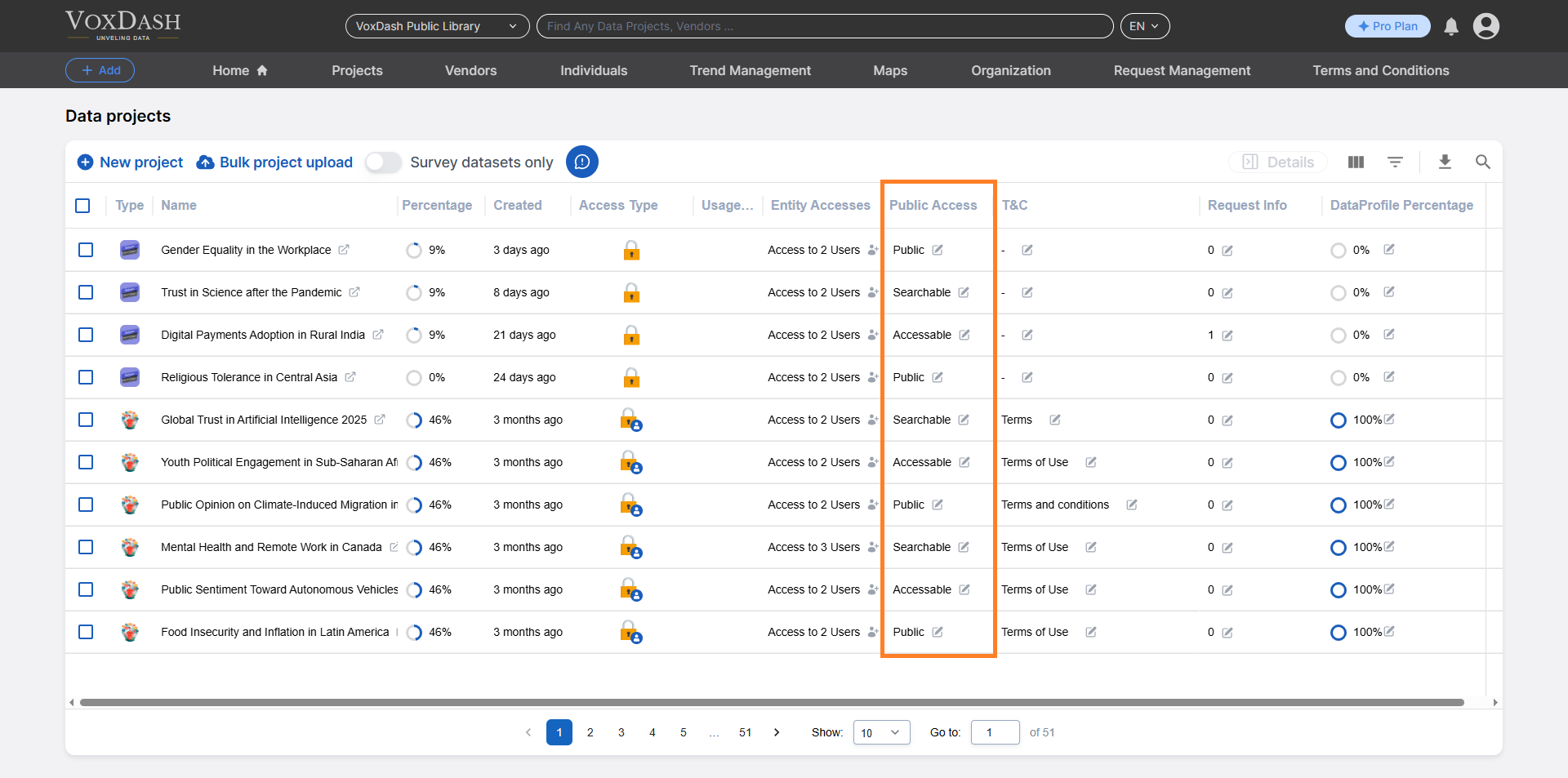
2.8 Public Access
This column manages public sharing settings, allowing users to:- Enable or disable public access
- Control how the project is shared externally
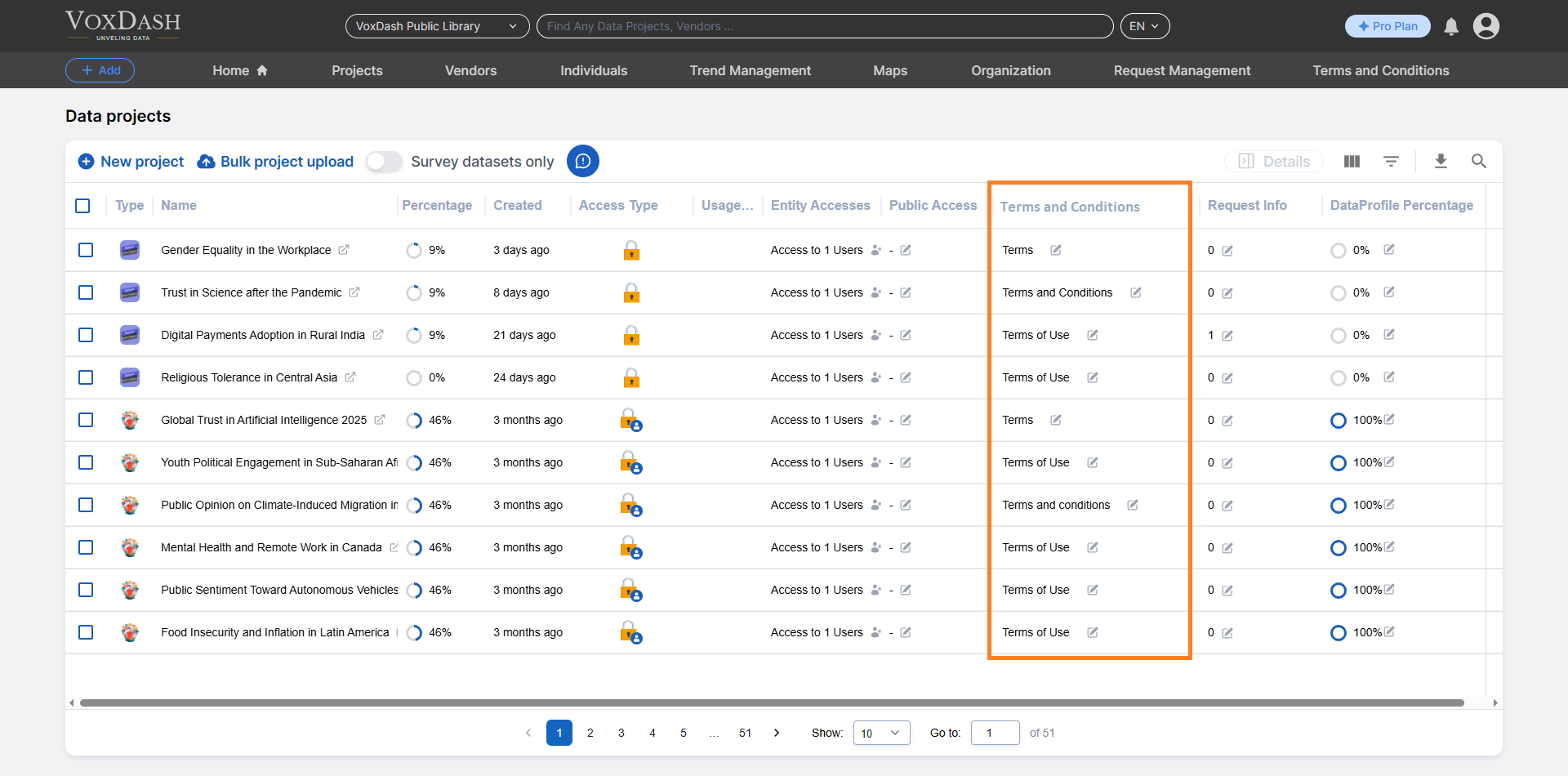
2.9 T&C (Terms and Conditions)
Users can:- Add, edit, or manage Terms and Conditions directly from the table
- Ensure users agree to usage rules before accessing the data
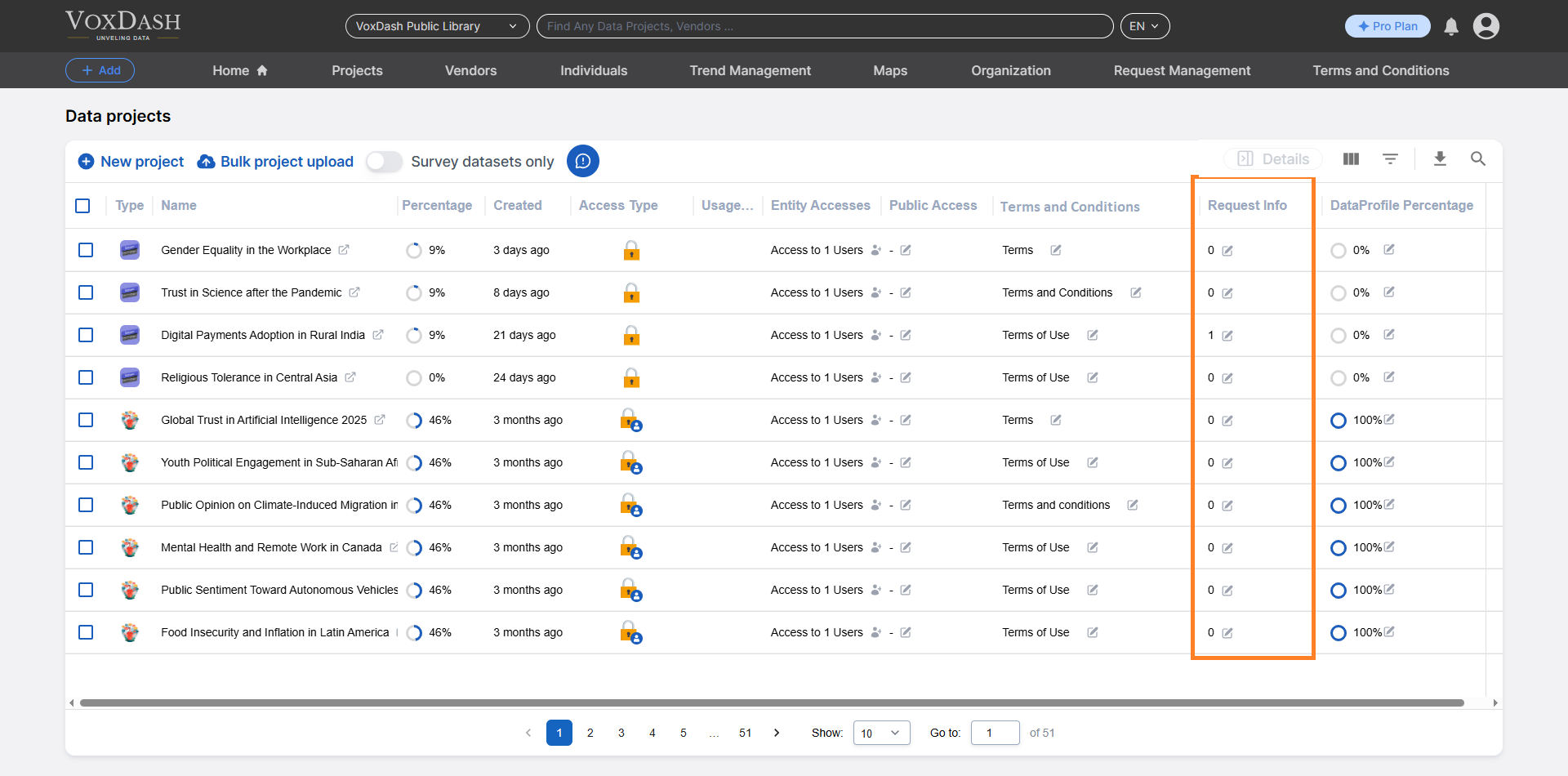
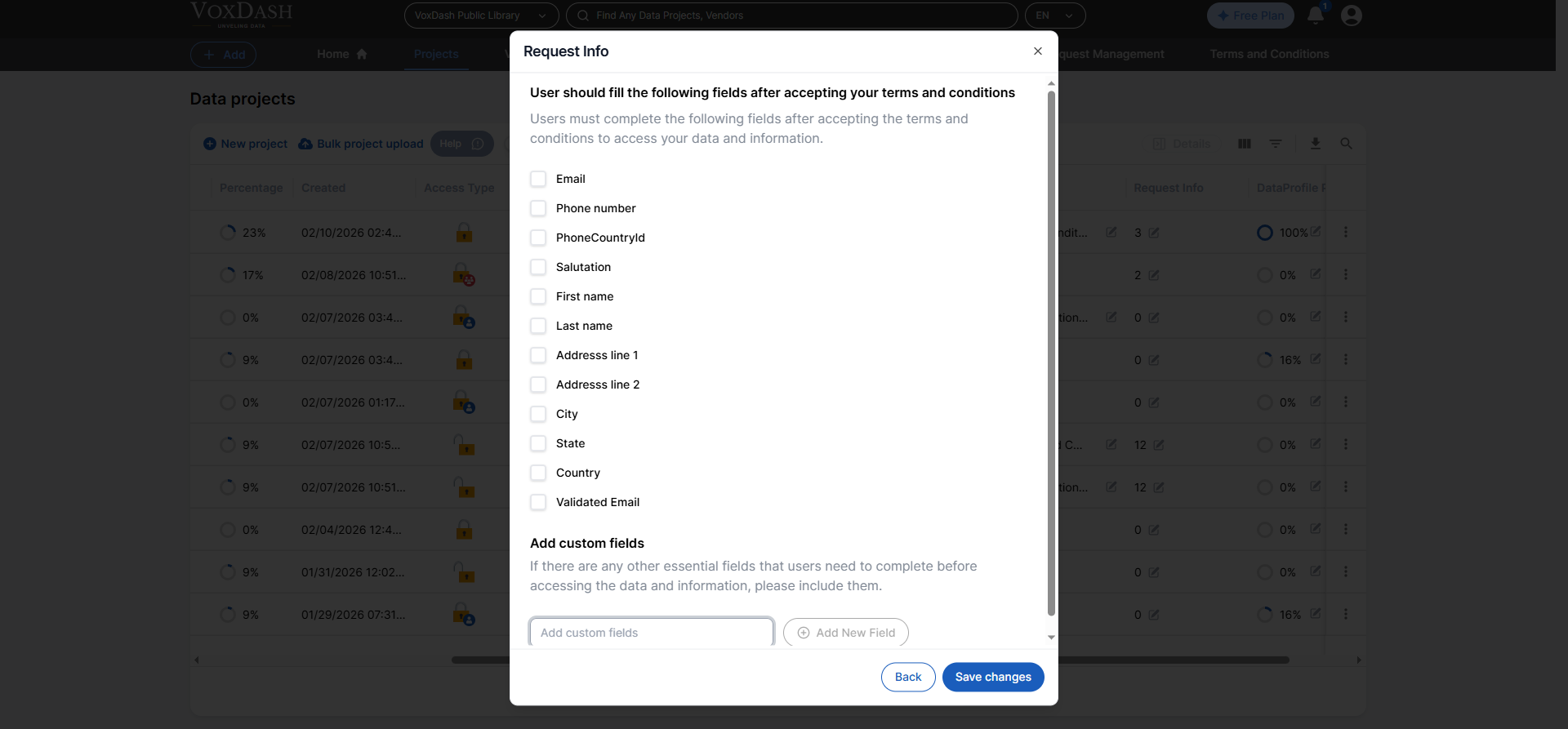
2.10 Request Info
Data providers can define required fields that users must complete before accessing the dataset. For example, you may request:- Organization name
- Purpose of use
- Contact information
2.11 Data Profile Percentage
Displays how much of the Data Profile section has been completed. The Data Profile typically includes:- Metadata
- Project description
- Data categories
- Methodology details
3. Burger Menu Features (Project Actions)
Each project row includes a Burger Menu (⋮) containing additional actions.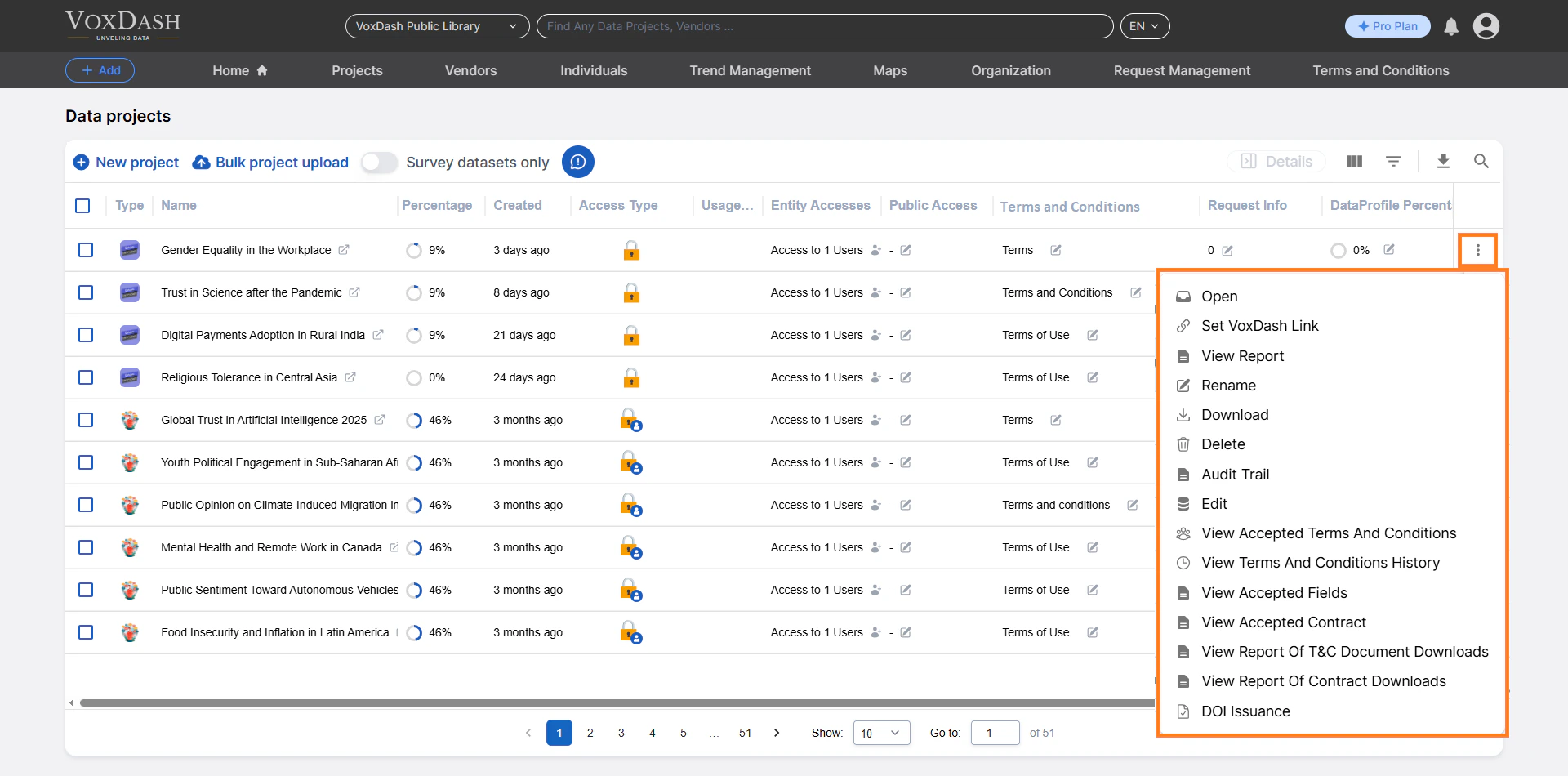
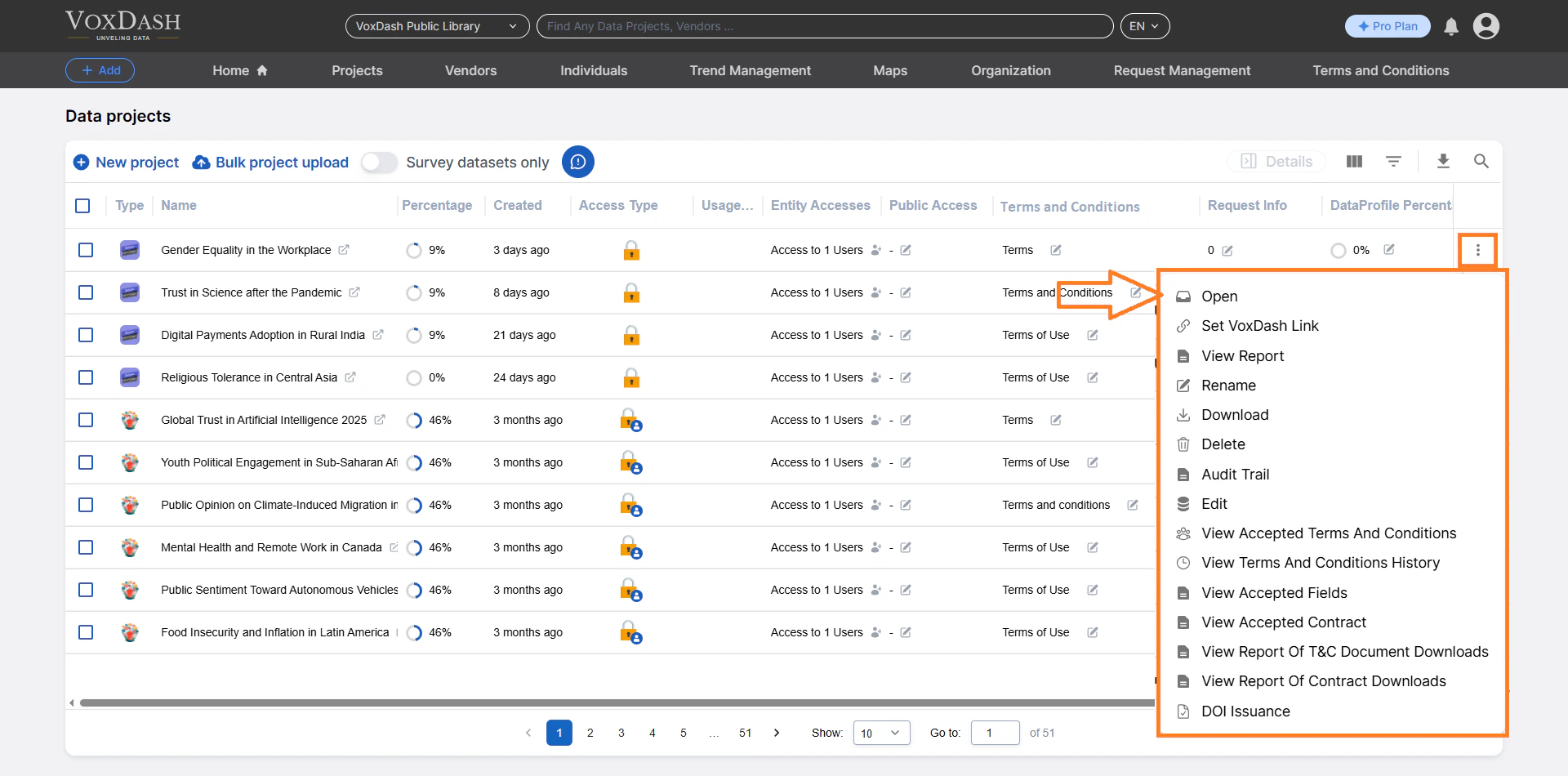
3.1 Open
Click Open to navigate to the project’s file section. From there, you can:- View project details
- Perform data entry
- Review uploaded files
- Manage dataset components
- Add Placeholder or Sample File
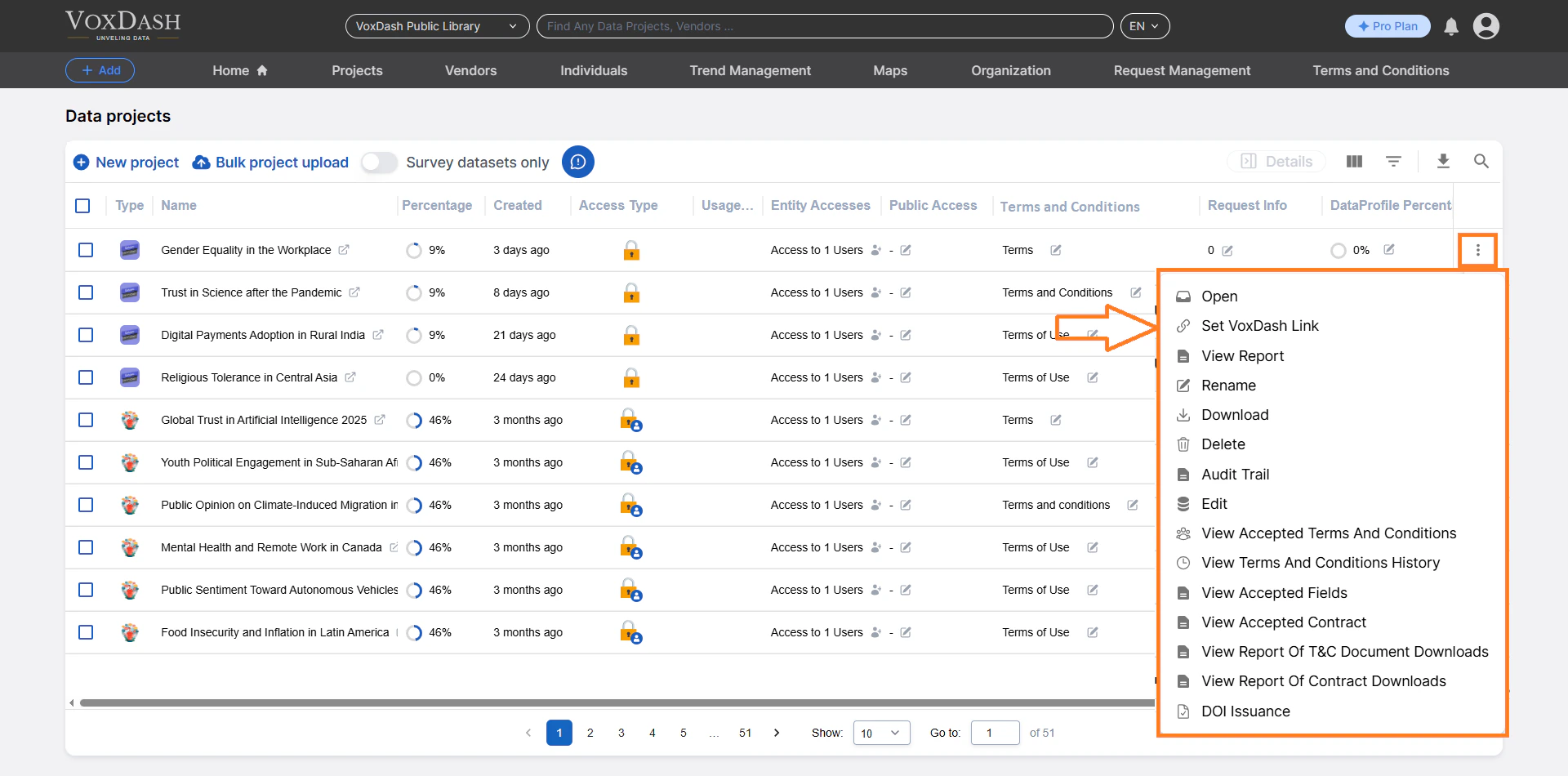
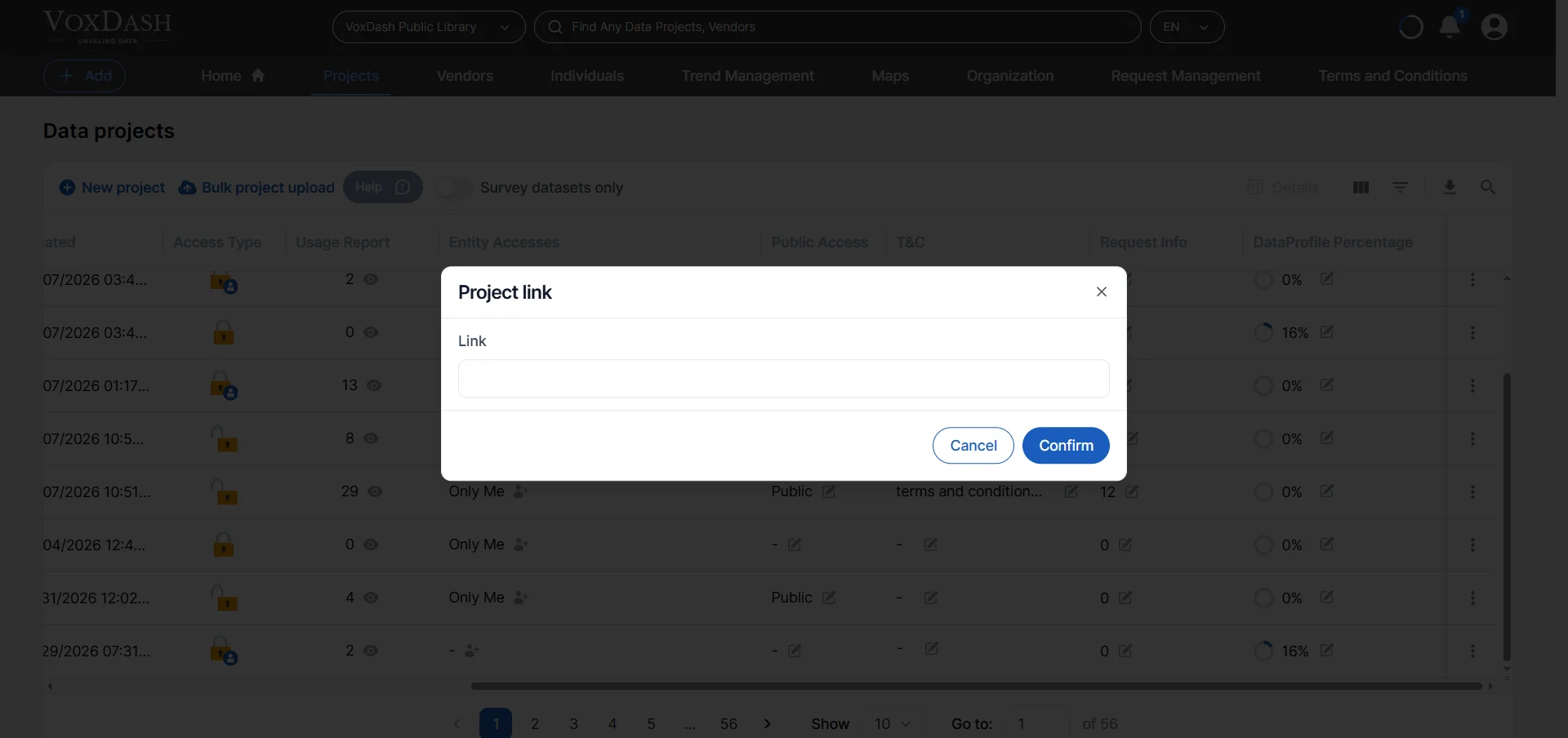
3.2 Set VoxDash Link
Generate a unique, platform-specific link for your project. This allows you to:- Quickly access the project
- Share direct links internally
- Improve workflow efficiency
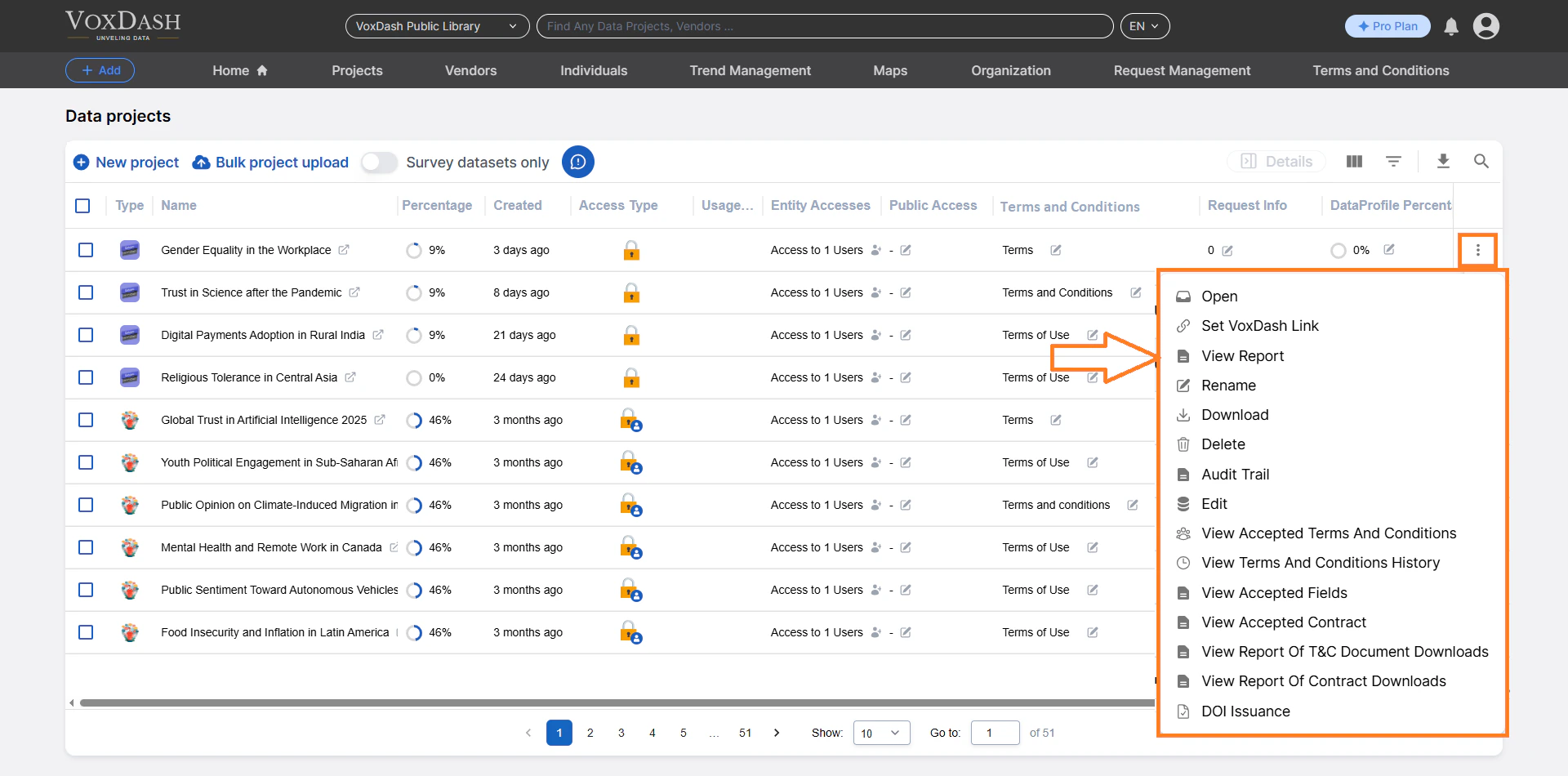
3.3 View Report
Access detailed reports related to the project, including:- Usage statistics -Data insights -Performance metrics
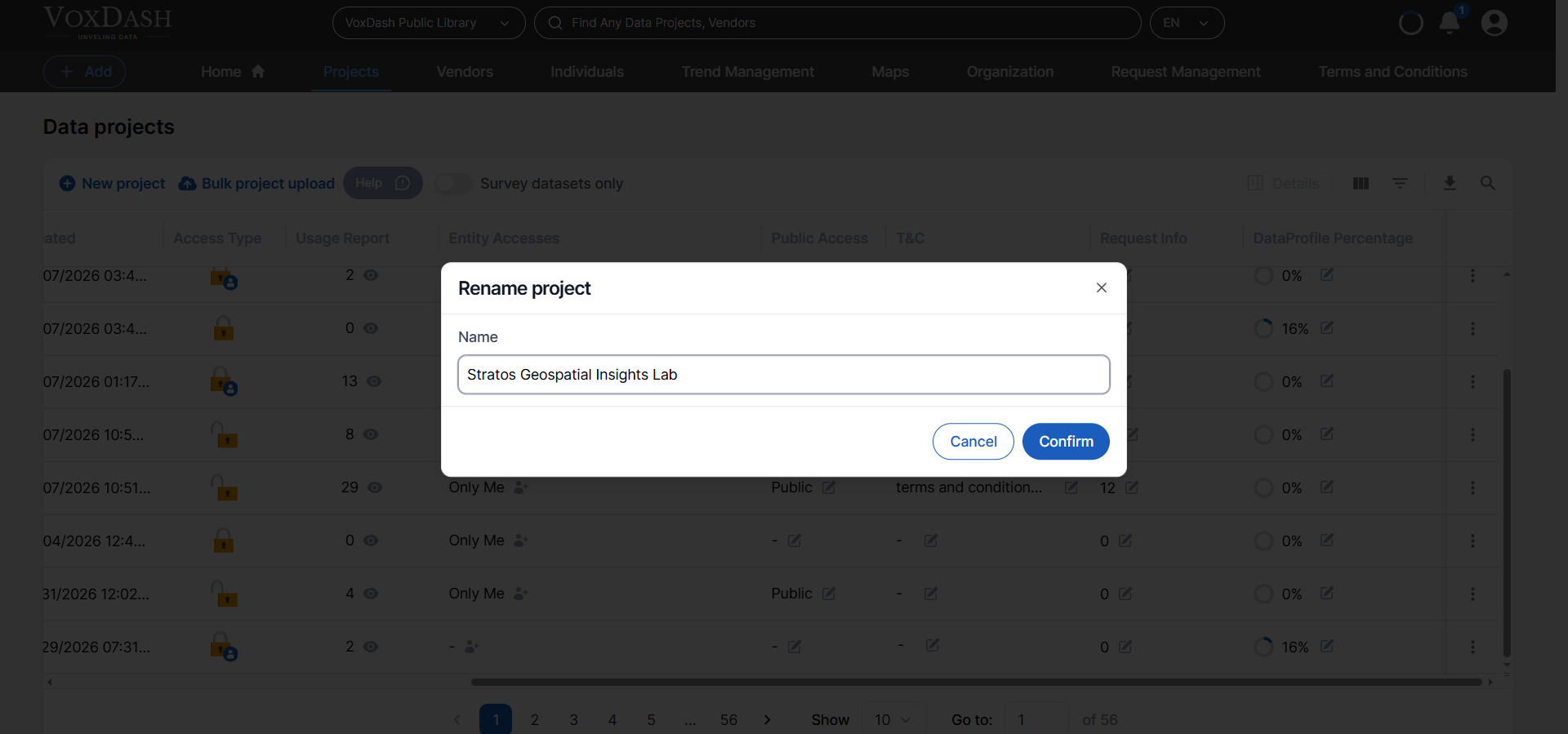
3.4 Rename
Rename the project directly from the table without entering the data entry section. This allows for quick corrections or updates to project titles.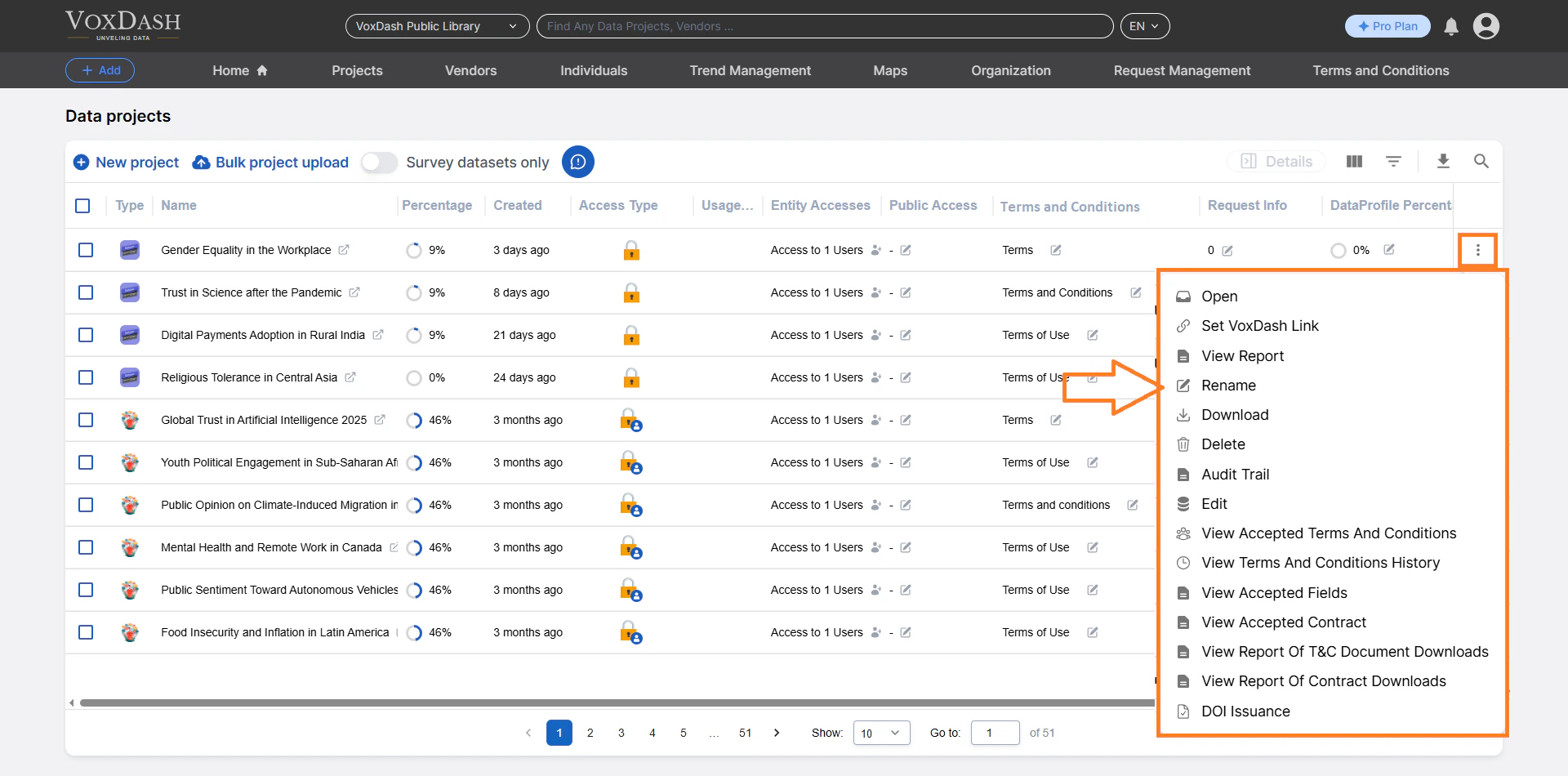
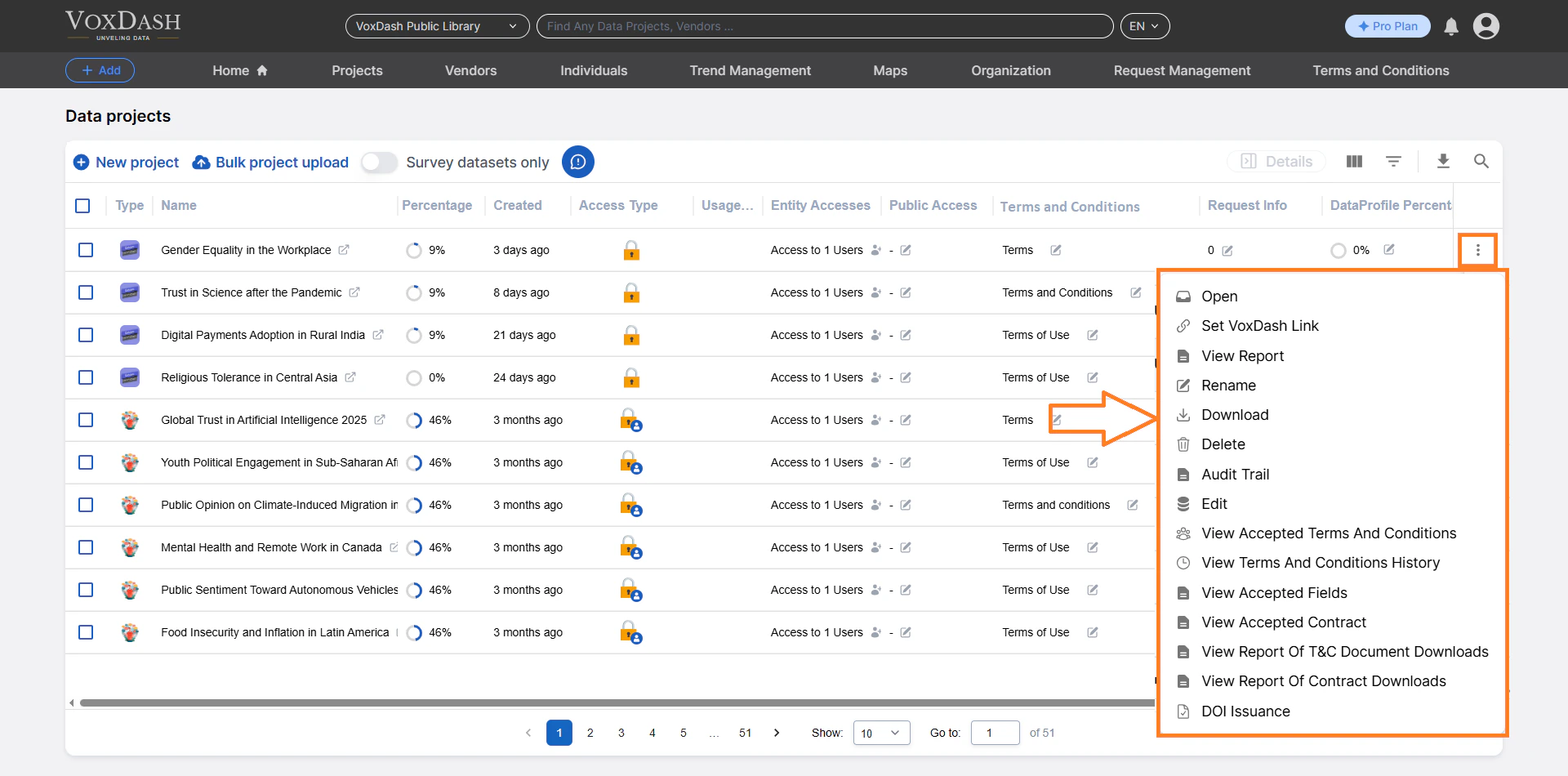
3.5 Download
Download the full project file, including associated datasets. This is useful for:- Backup purposes
- Offline analysis
- External reporting
3.6 Delete
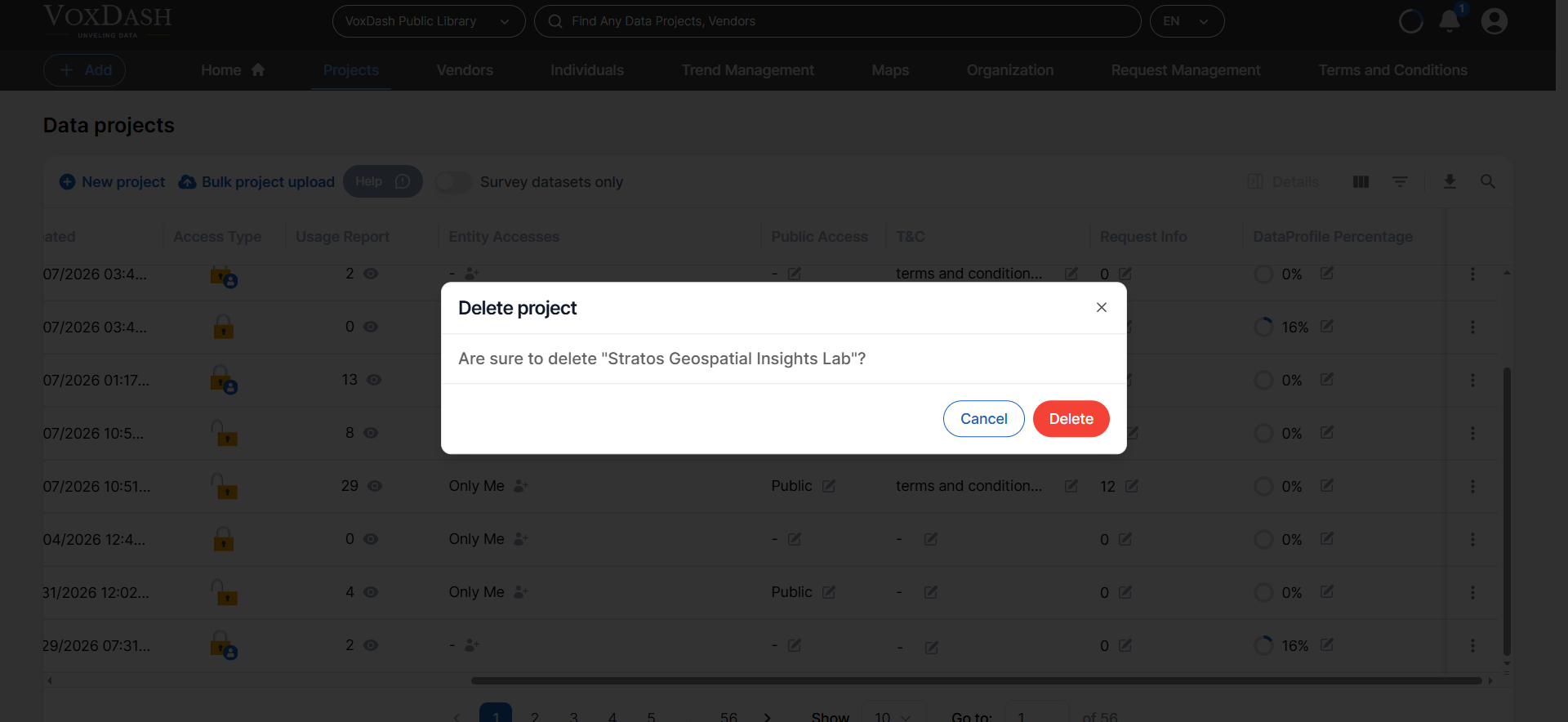
Permanently remove a project from the system. Important: Deleting a project cannot be undone. Ensure you have downloaded or backed up any necessary files before proceeding.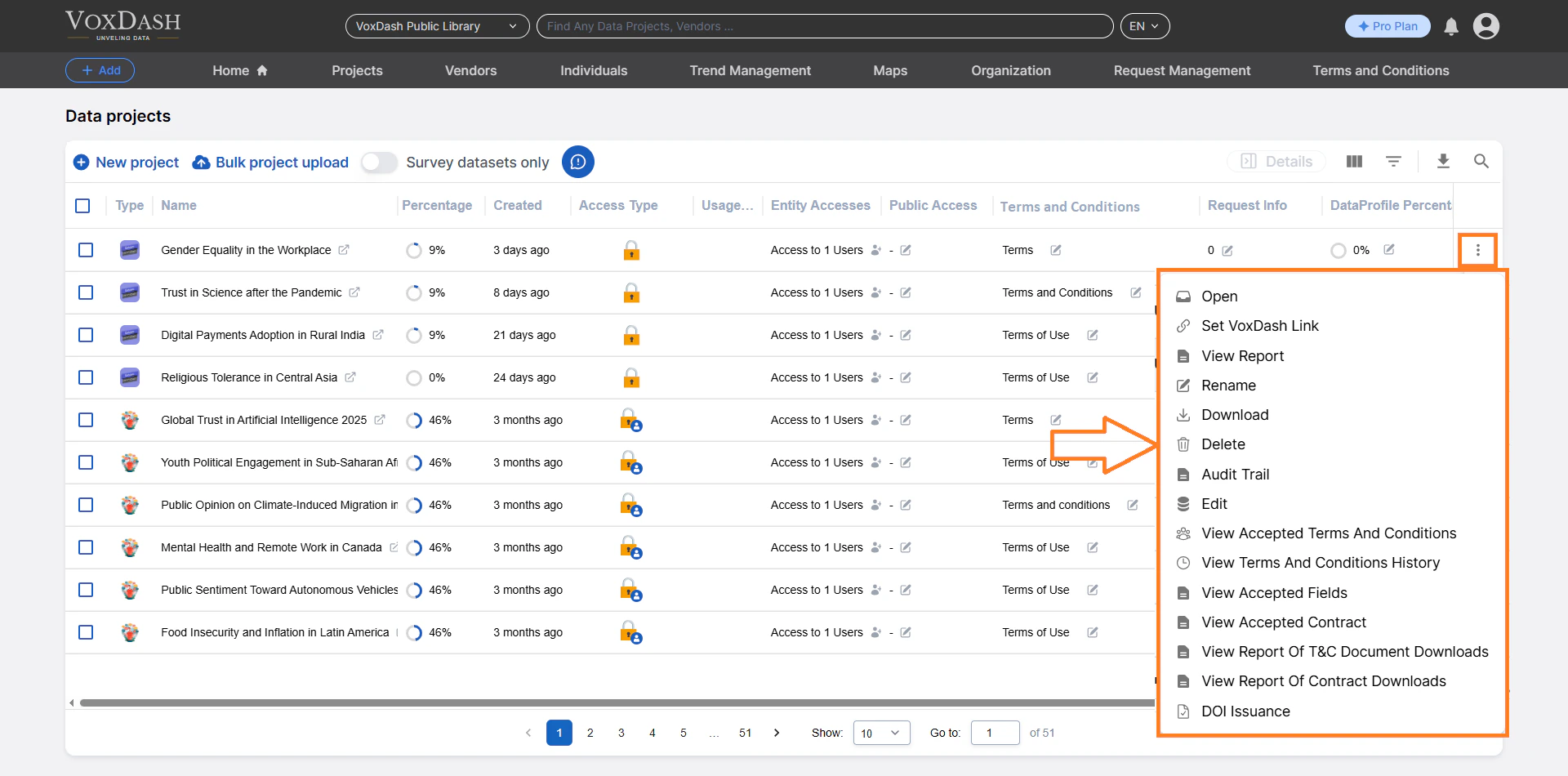
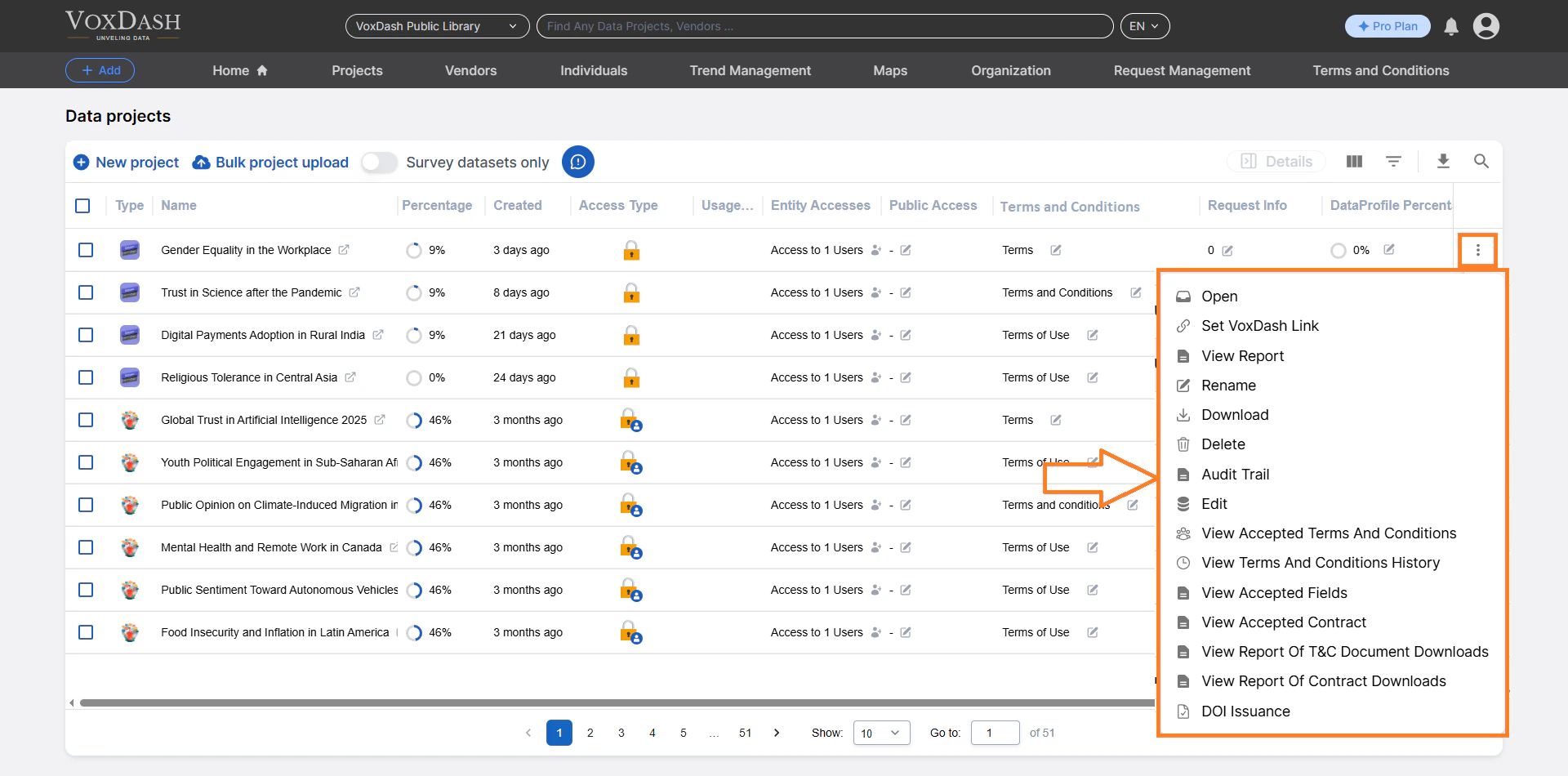
3.7 Audit Trail
View a detailed log of all project activities, including:- User actions
- Edits
- Access changes
- Timestamped modifications
3.8 Edit
Modify project data directly from this option. You can:- Update entries
- Correct errors
- Adjust project settings
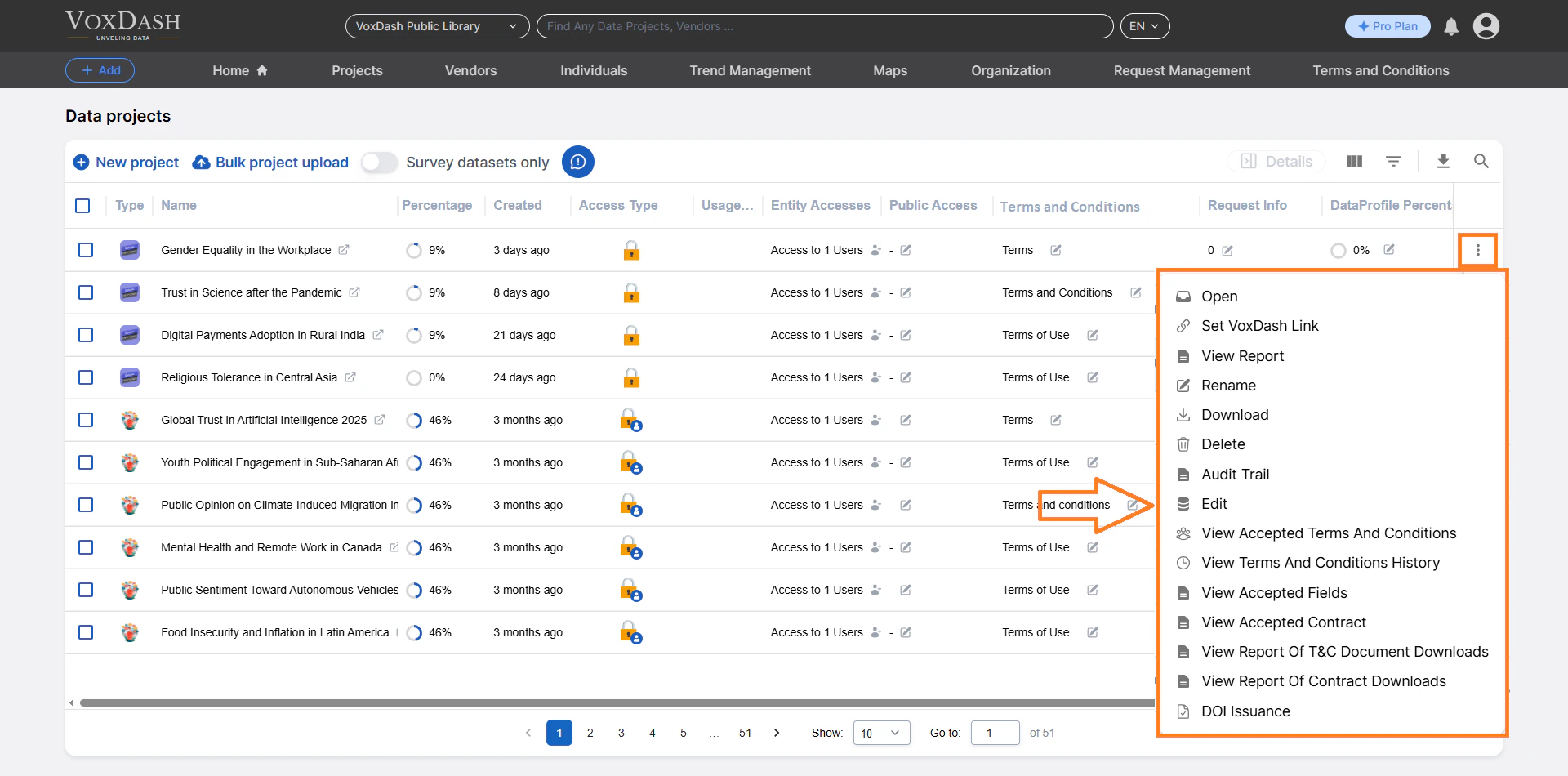
3.9 View Accepted T&C
If you set terms and conditions for a public dataset, users must accept them before viewing the data. Clicking here takes you to a table showing which users have accepted the terms and conditions.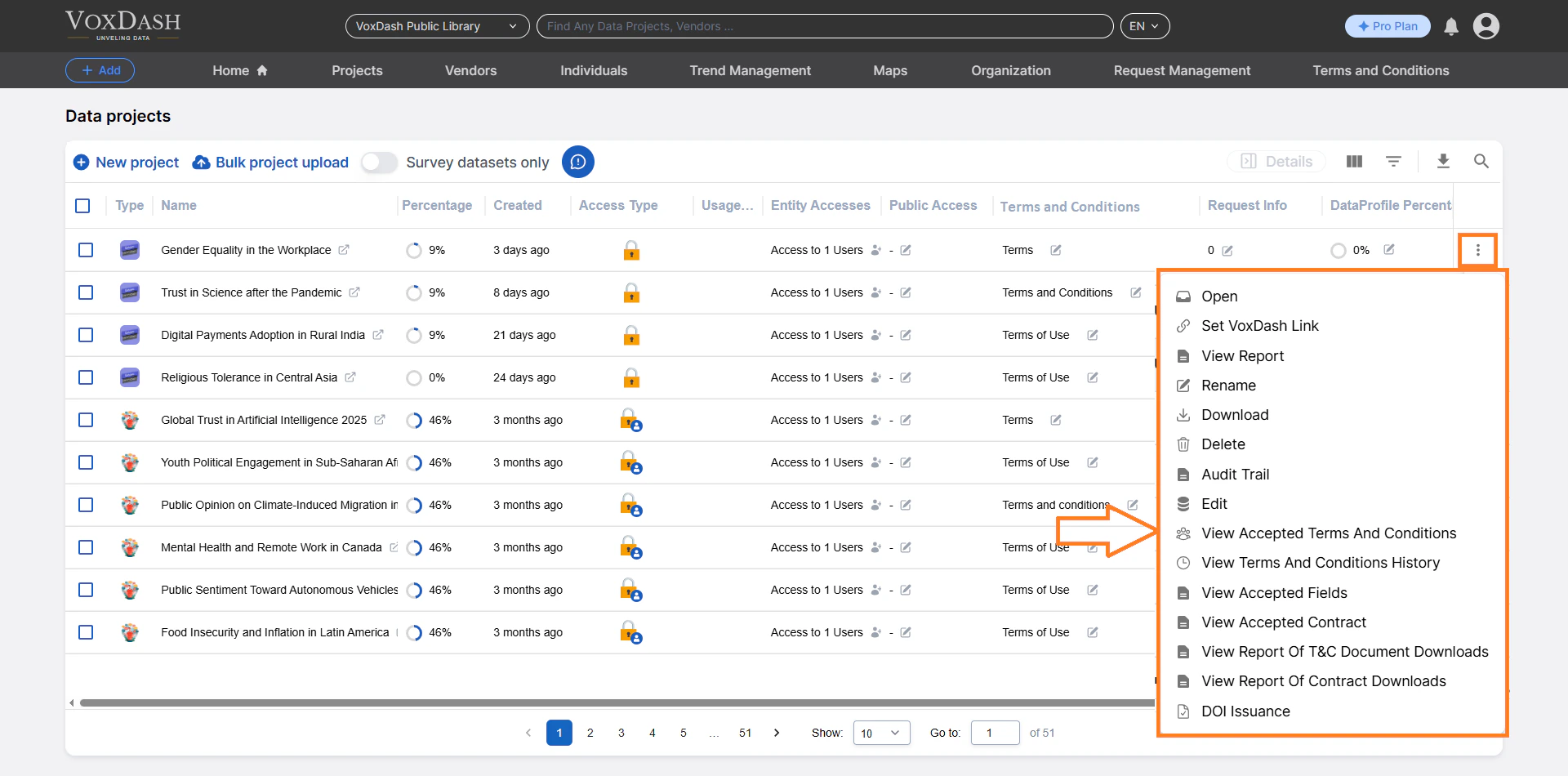
3.10 View T&C History
The T&C History section allows you to review all previous and current versions of a project’s Terms & Conditions. Learn more about T&C History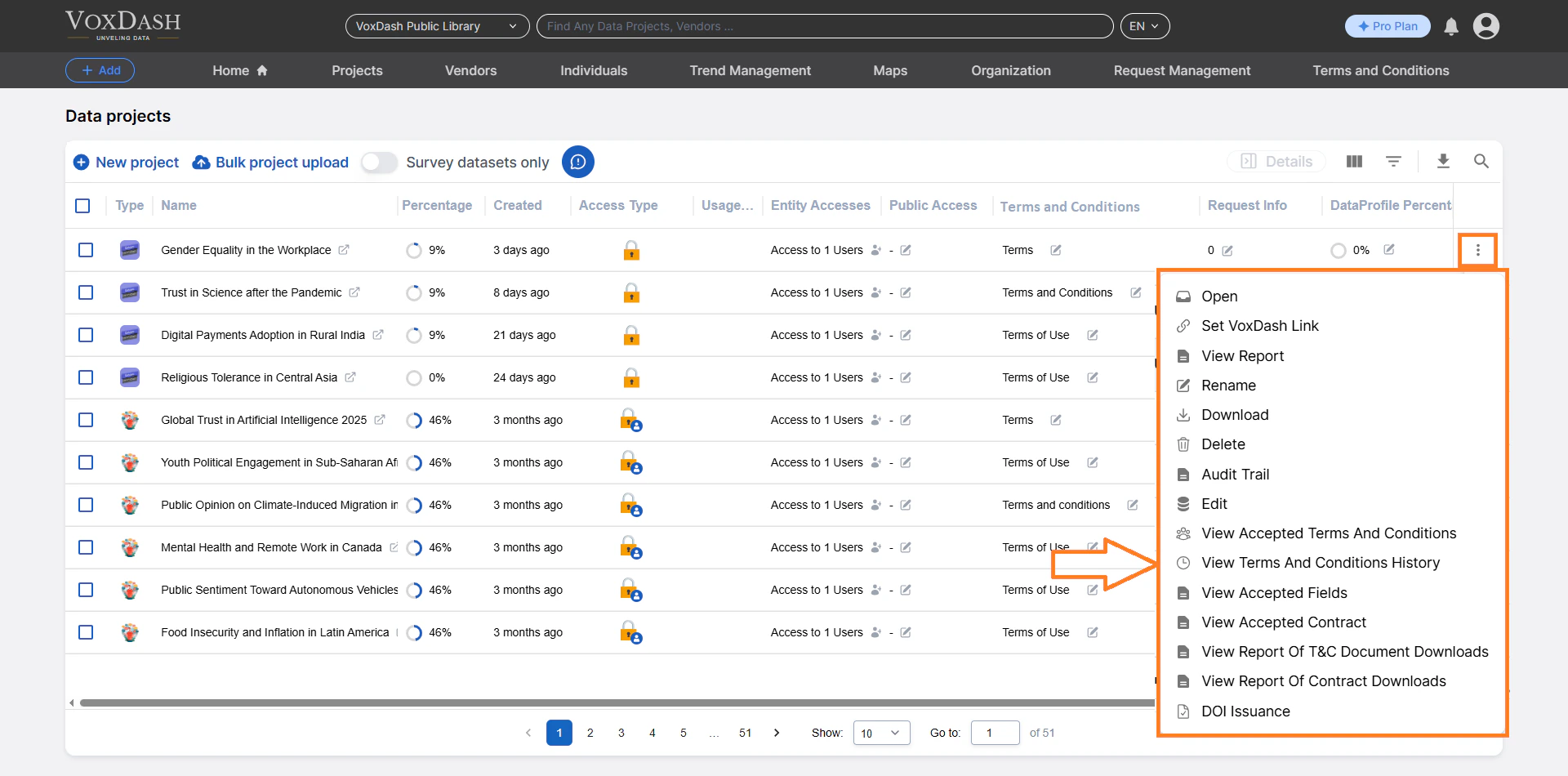
3.11 View Accepted Fields
The Accepted Fields feature in VoxDash allows data providers to establish mandatory information that users must submit before gaining access to specific datasets. This ensures transparency, helps manage data distribution, and provides valuable insights into who is accessing your data and why. Learn more about Accepted Fields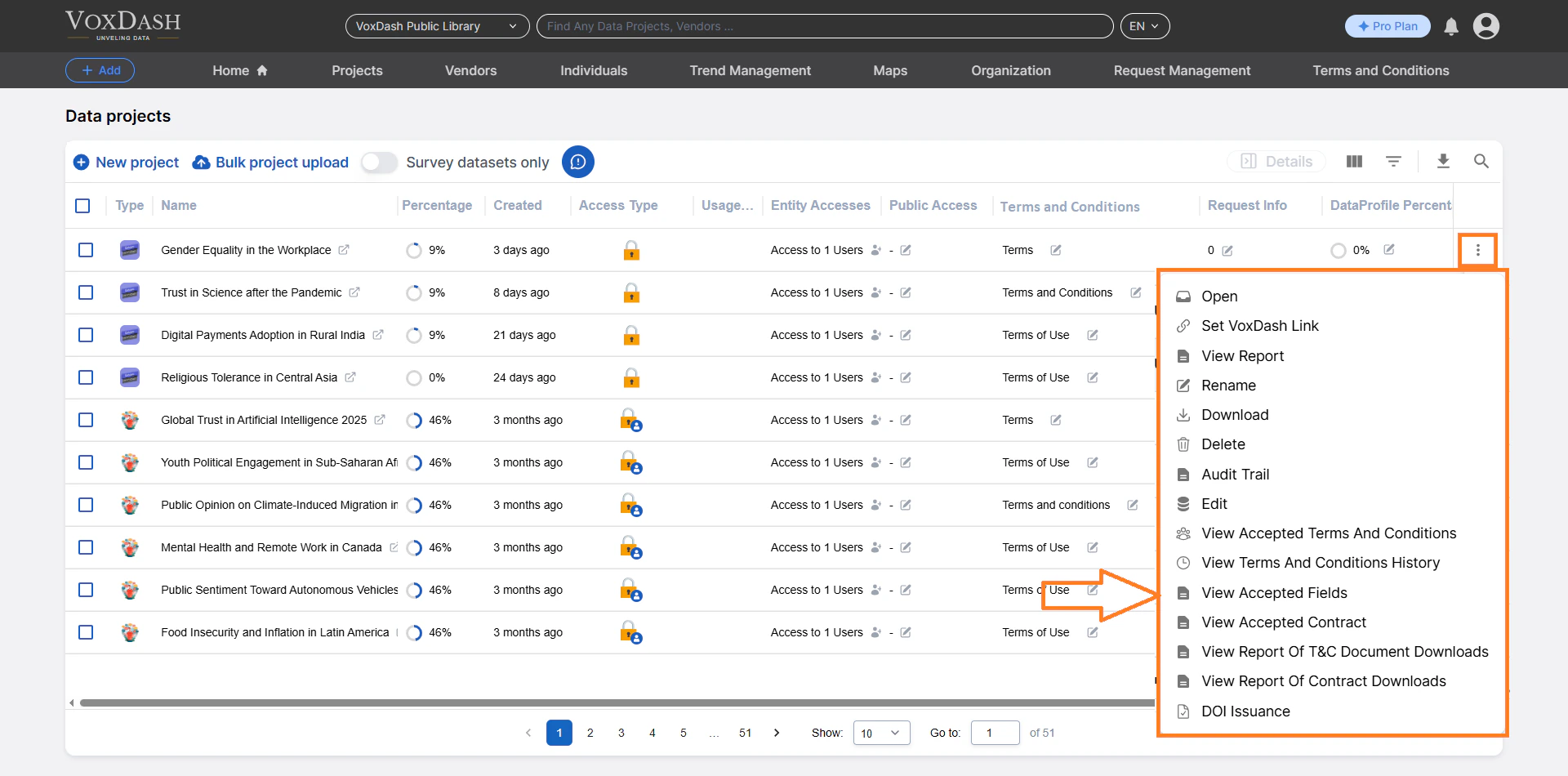
3.12 View Accepted Contract
This section explains how contracts work, how acceptance types function, and how to view all users who have accepted a contract for each project. Learn more about Accepted Contract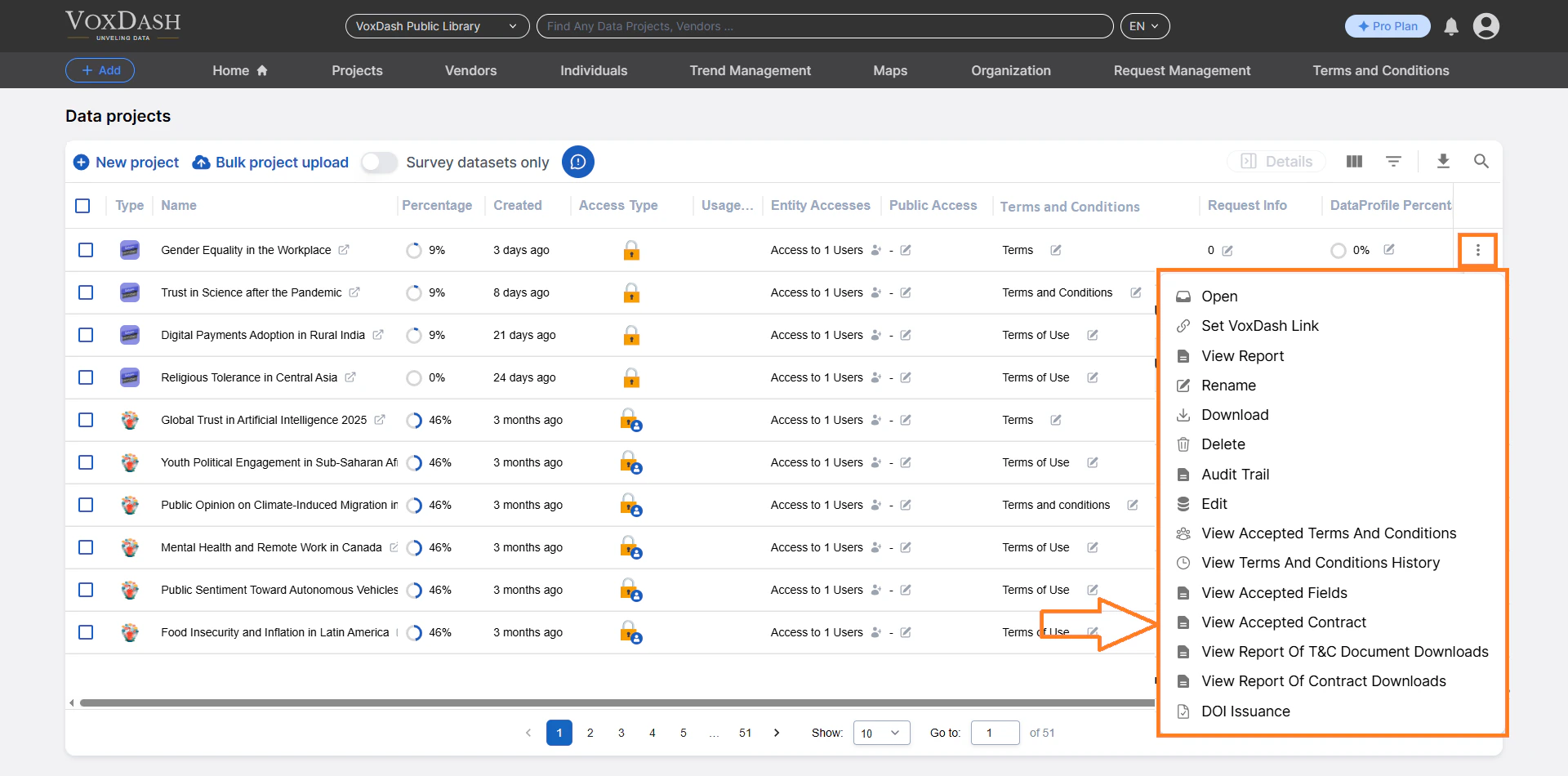
3.13 View Report of T&C Document Downloads
In addition to tracking which users accepted Terms & Conditions (T&C), VoxDash also keeps a record of users who download a T&C document. Learn more about Report of T&C Document Downloads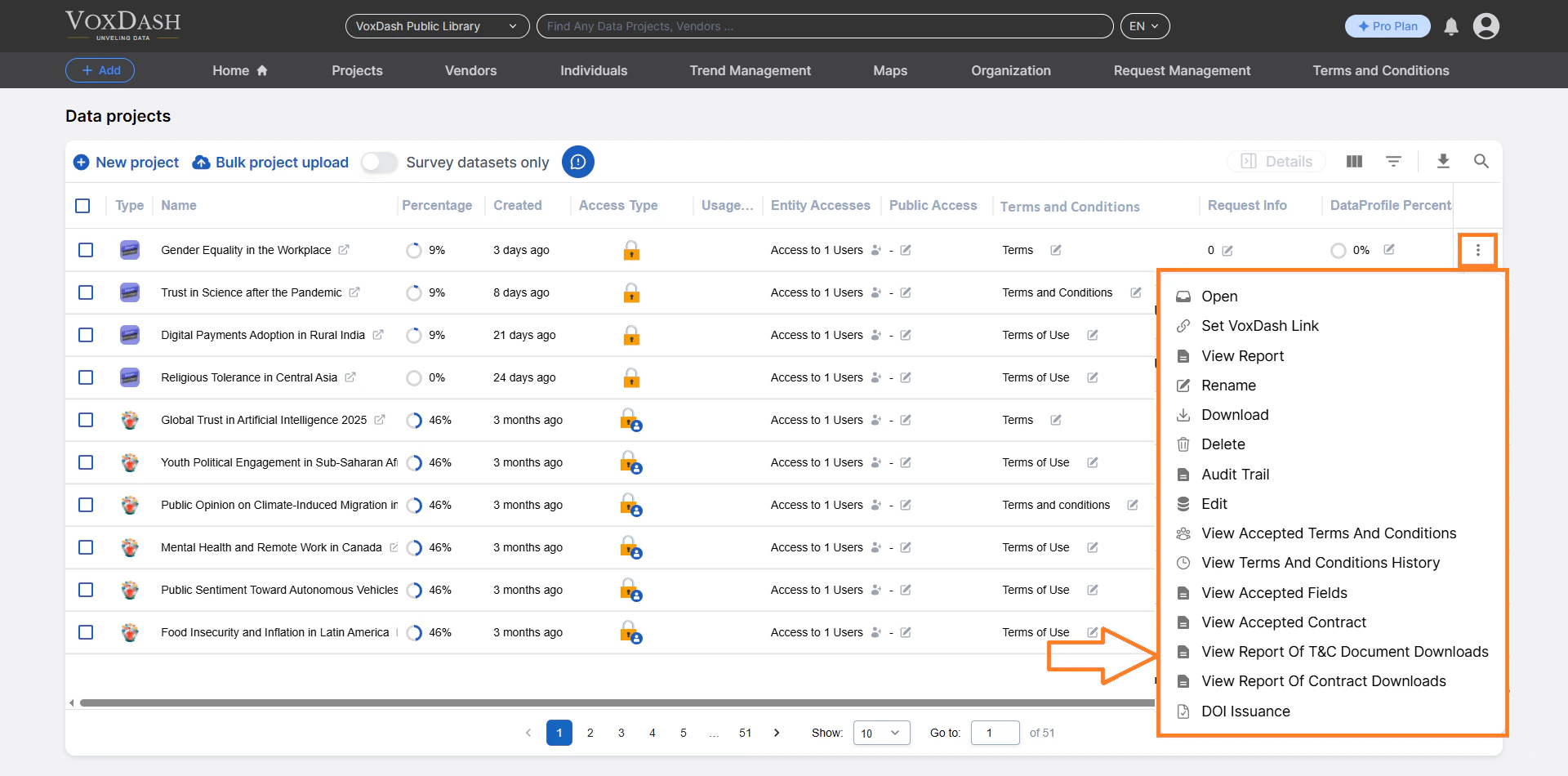
3.14 View Report of Contract Downloads
VoxDash keeps a detailed log of every time a Contract file is downloaded by users. Learn more about Report of Contract Downloads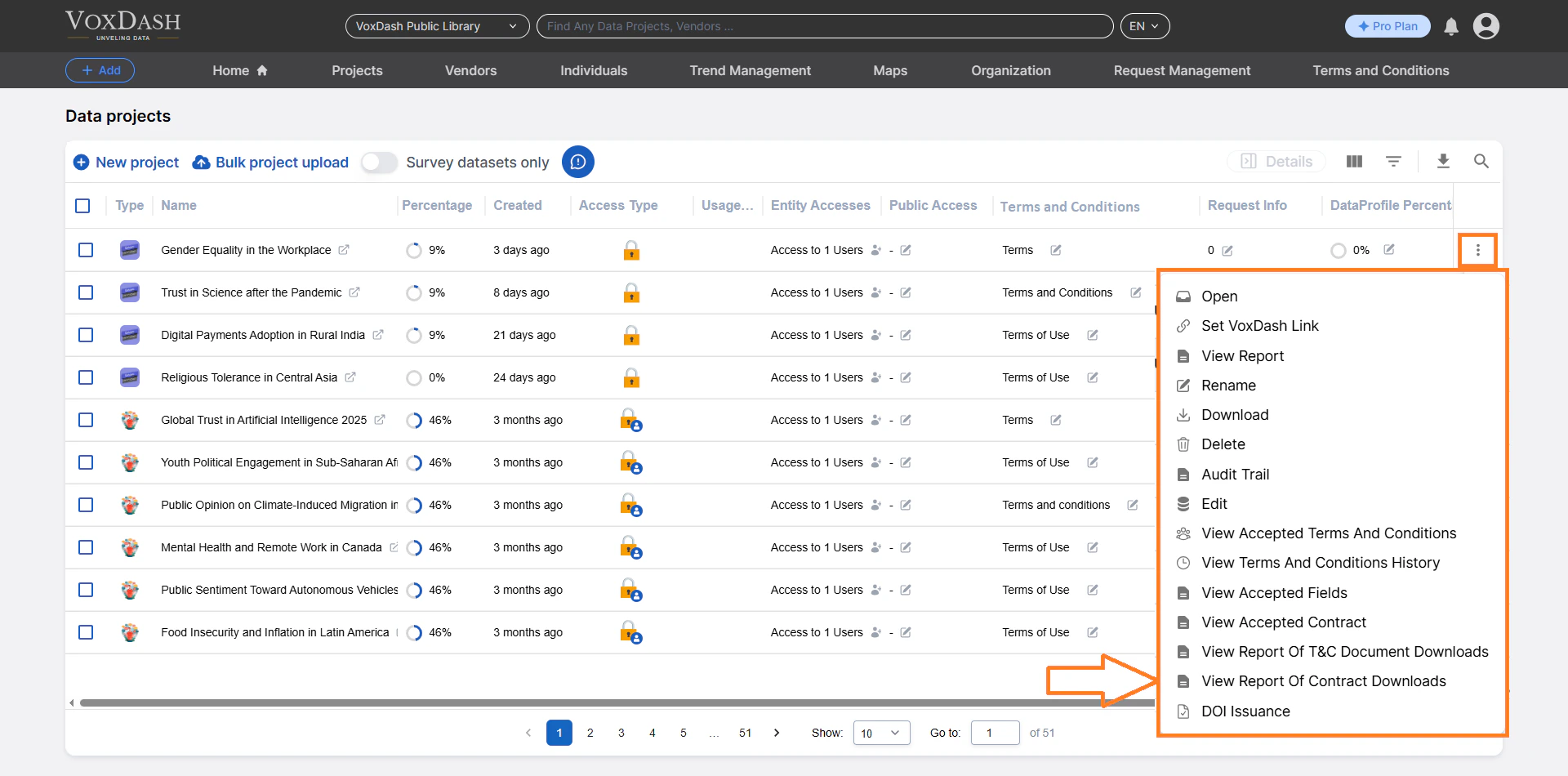
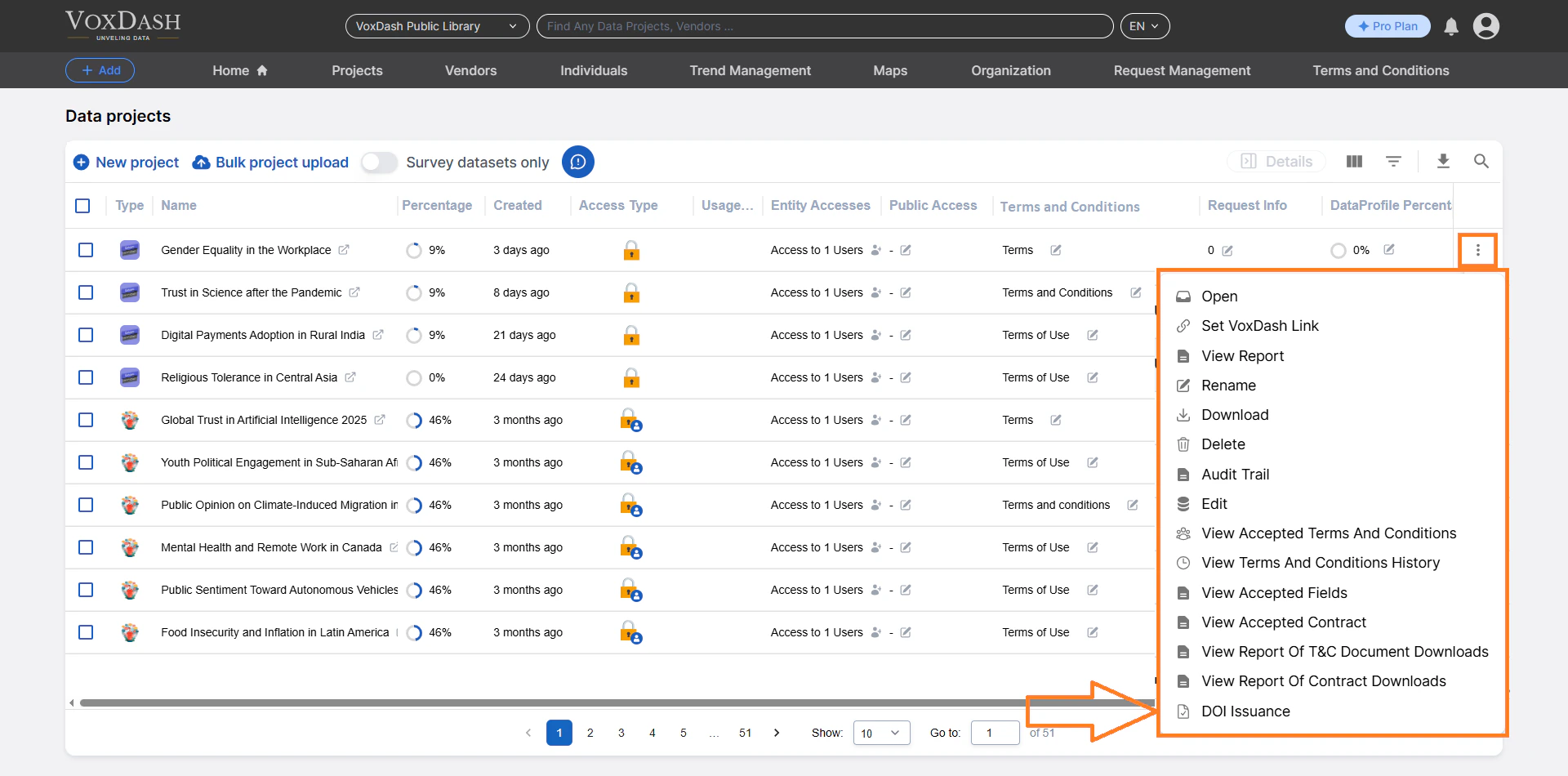
3.15 DOI Issuance
Issue a Digital Object Identifier (DOI) for your dataset. A DOI:- Provides a permanent, citable reference
- Enhances data credibility
- Supports academic and professional publication standards This feature is especially valuable for research and public data publishing.
Summary
The File Manager Table acts as the command center for managing analytics and survey-based projects within your SaaS platform. It provides: Complete project lifecycle management- Advanced access control
- Real-time progress tracking
- Reporting and analytics tools
- Secure data sharing capabilities