Adding a New Administrator
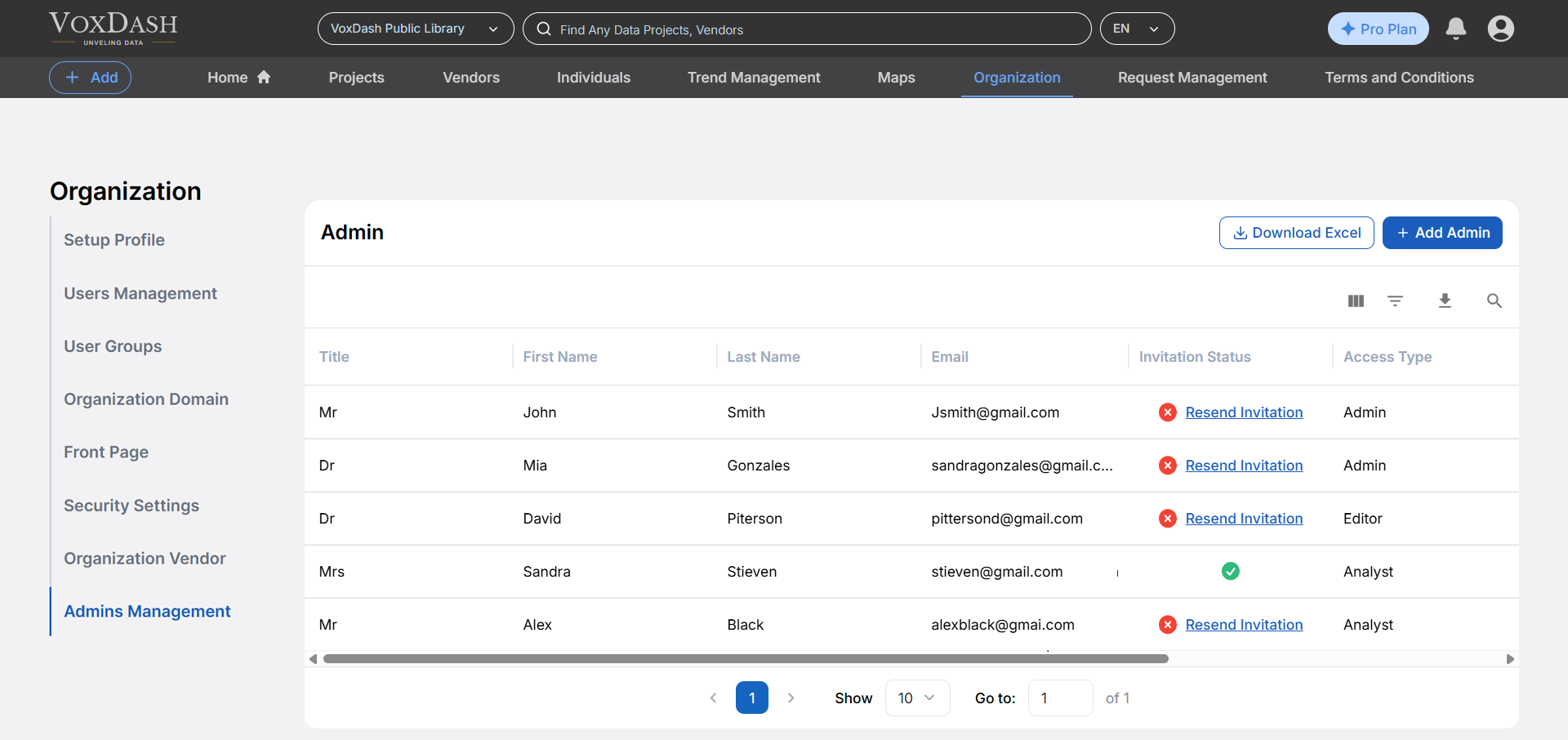
Note: Before adding a new admin, choose the organization from the header first, then follow these steps to add a new administrator or team member with specific access permissions. 1. Click the Add Admin button located at the top-right corner of the page. 2. In the pop-up form, enter the required user details such as name and email address. Select an Access Level from the available roles:- Administrator: Has full control over the organization’s data, user management (including other administrators and data users), and all system settings.
- Editor: Can create, edit, and manage project-related data but cannot modify users or system-wide configurations.
- Analyst: Has view-only access to reports and dashboards. Cannot edit or manage data, users, or projects.
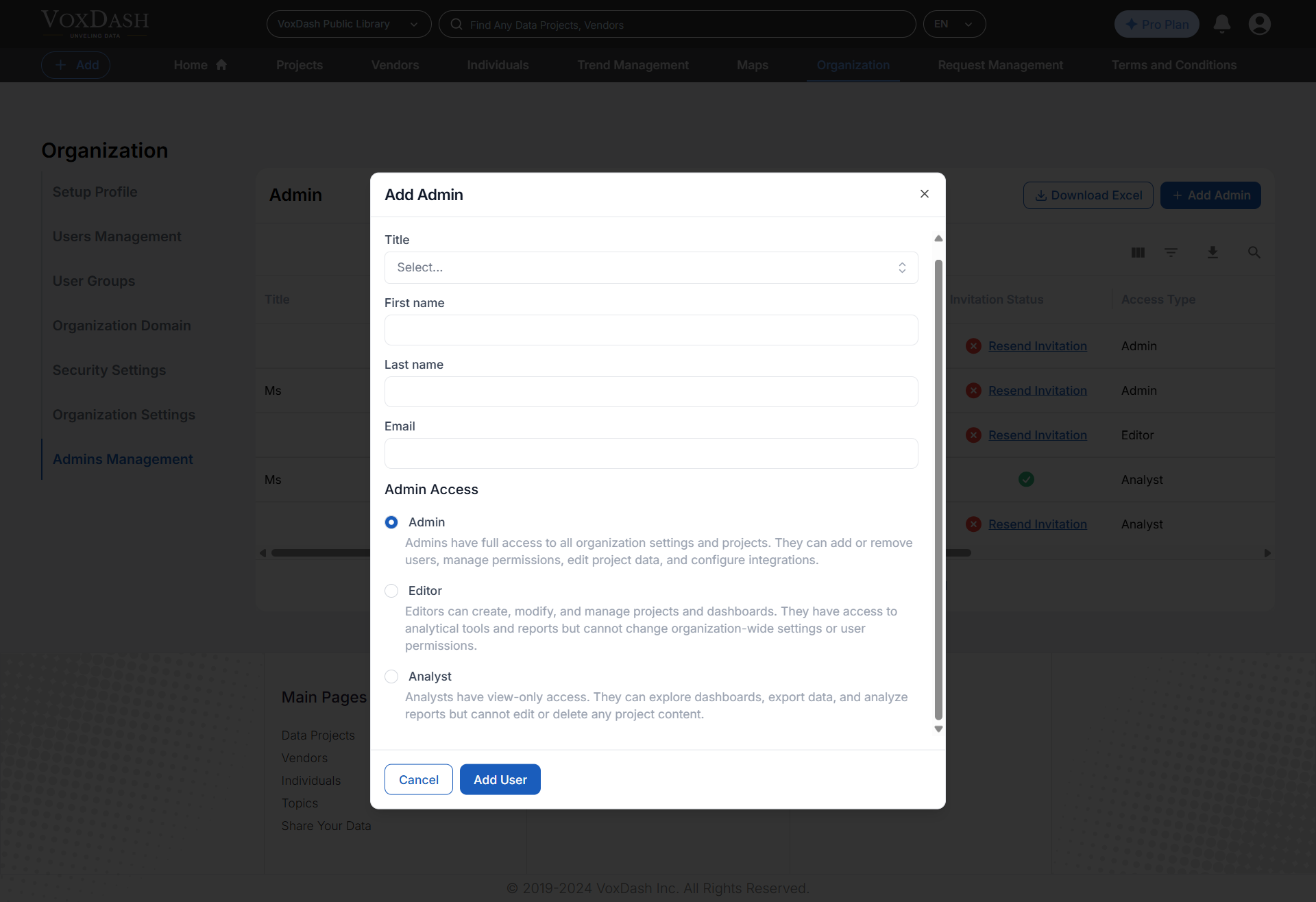
- Every user can have an admin role in different organizations.
- Only users with Administrator access can add or modify other users.
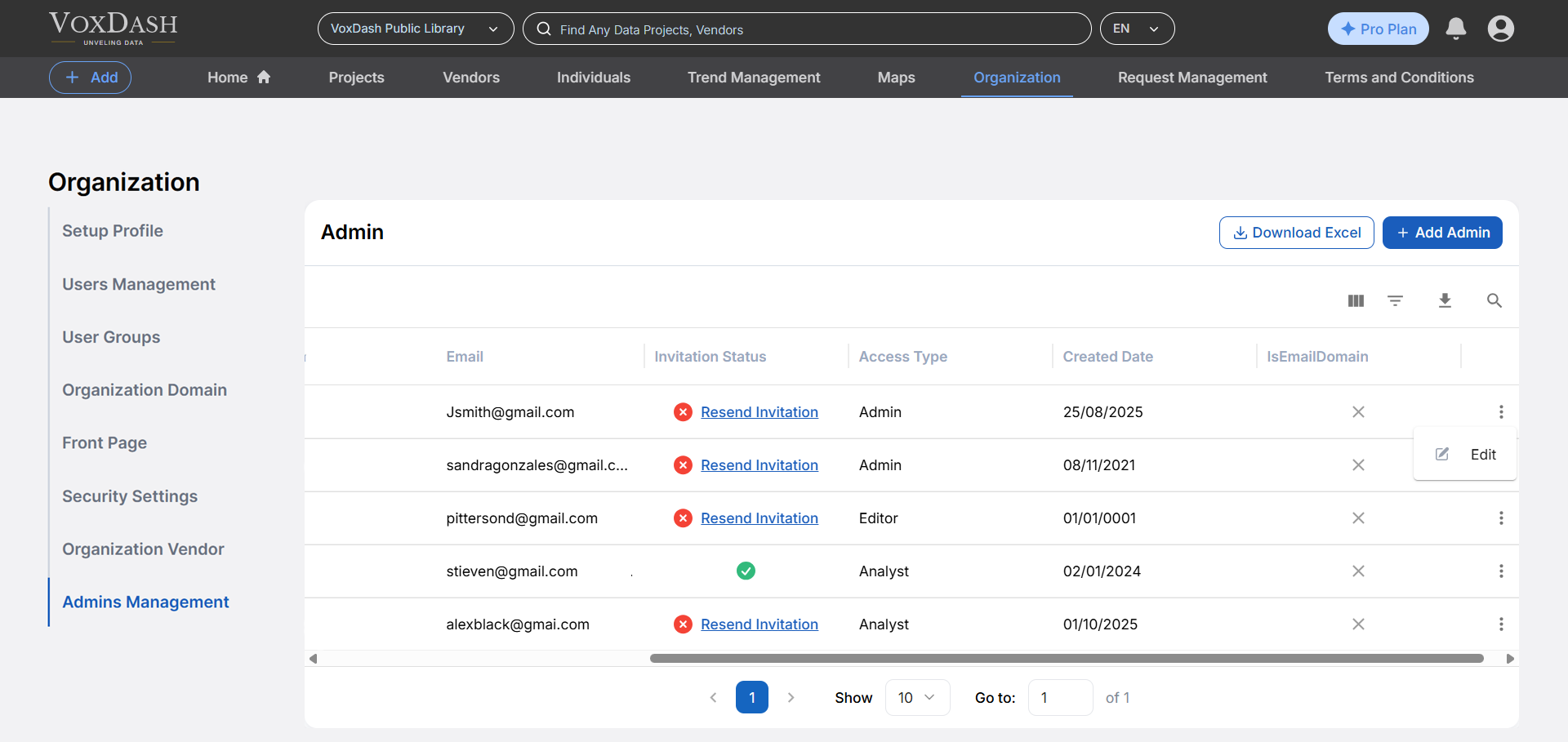
- After adding users, you can view or edit their access from the Admin Management table, by clicking on More (⋮) next to their name and select Edit.
- If the organization Deletes an admin, the admin will lose the access to the data. The data still remains in the organization.
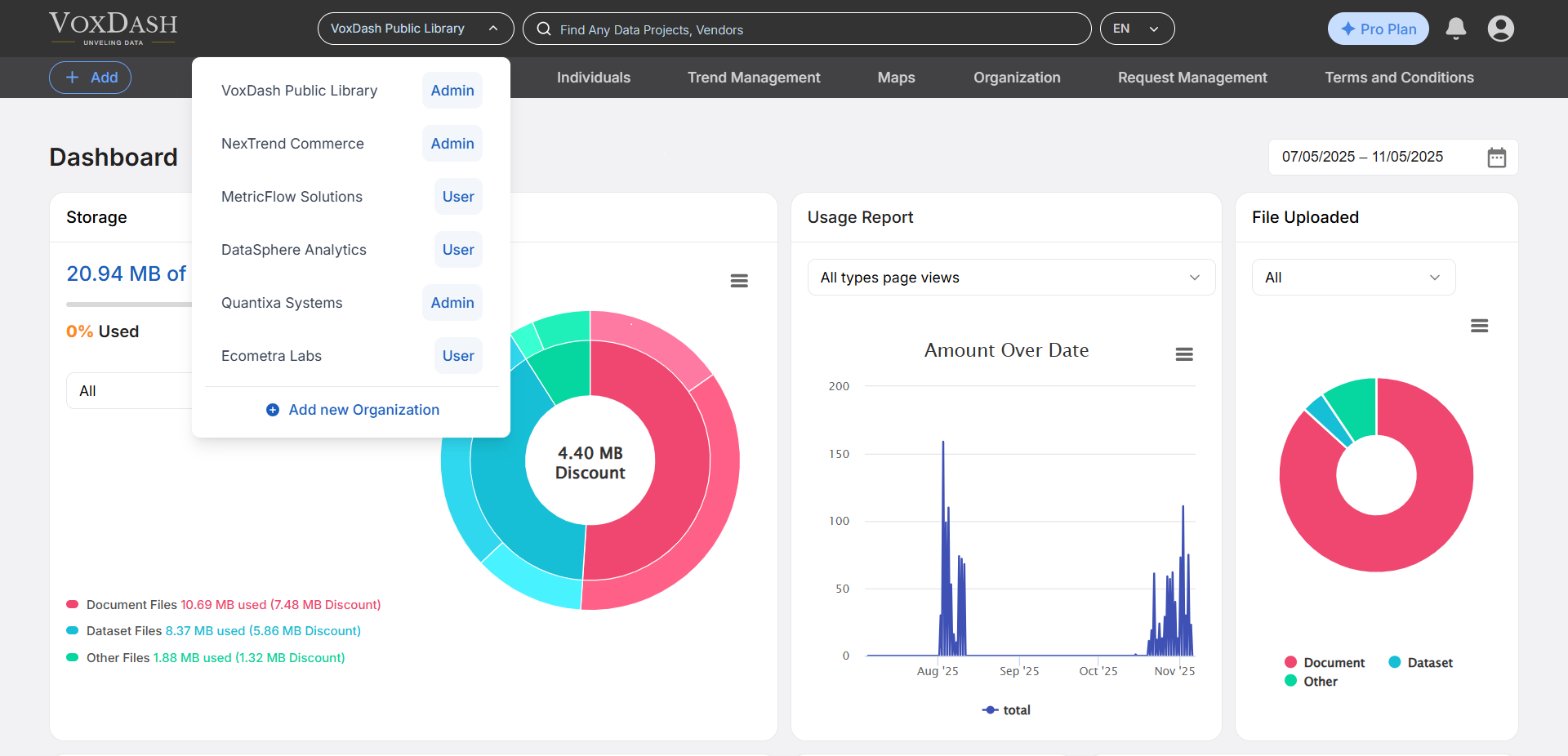
How can a user switch between different organizations?
- Locate the Header Menu: At the top of the website, you will see a dropdown or clickable menu labeled with the current organization name.
- Click to Expand the Menu: Click the organization name to open the list of organizations available to your account.
- Choose an Organization: Select the desired organization from the list. Once selected, VoxDash will load data and dashboards specific to that organization.