

- Projects
- Questions / surveys
- Vendors or suppliers
- Reports
- Any dataset limited by the provider’s permissions
Step 1: Submit an Access Request
1. Navigate to the page containing the data you want to access. 2. Click Request Access. A request form will appear.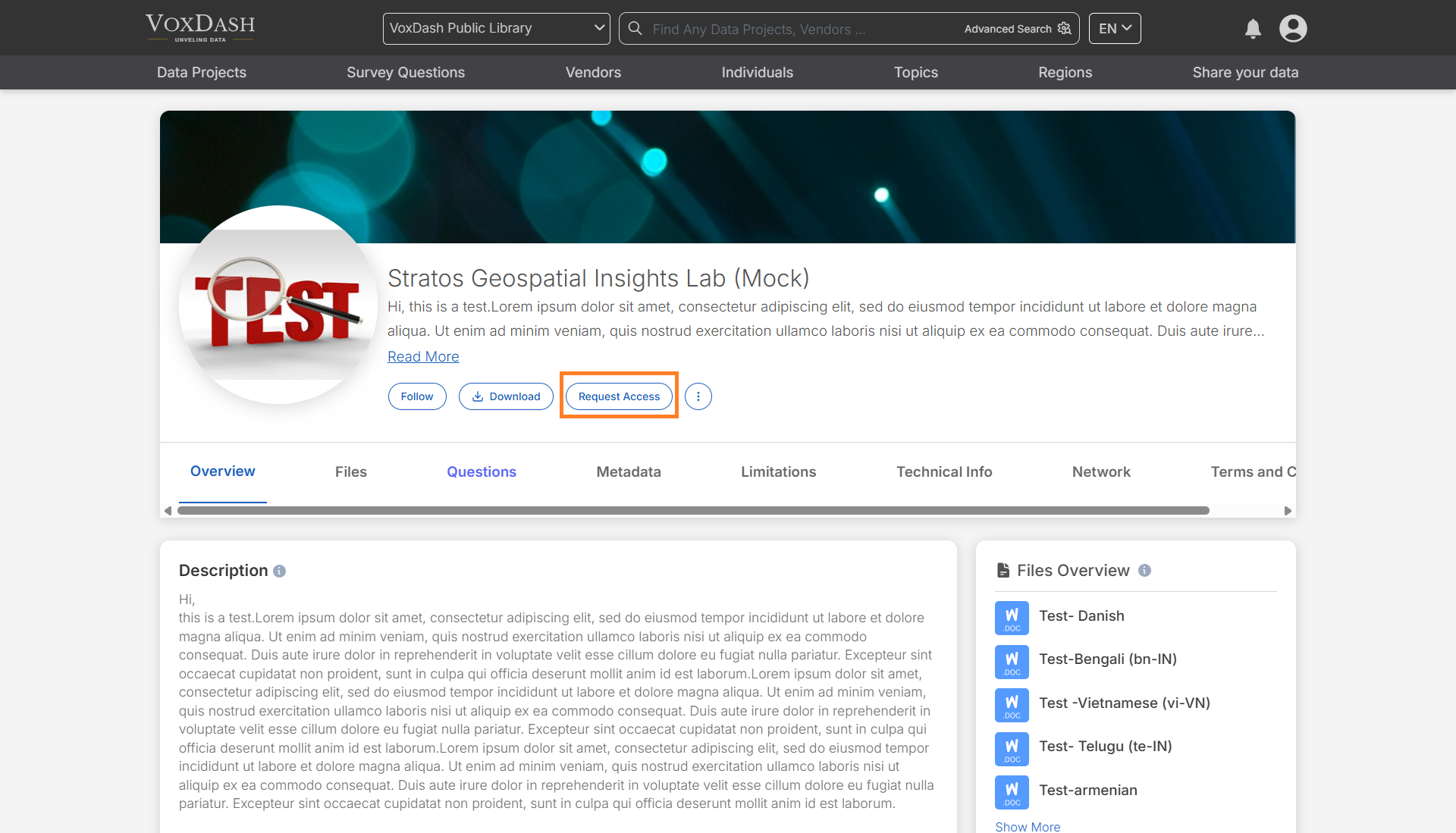
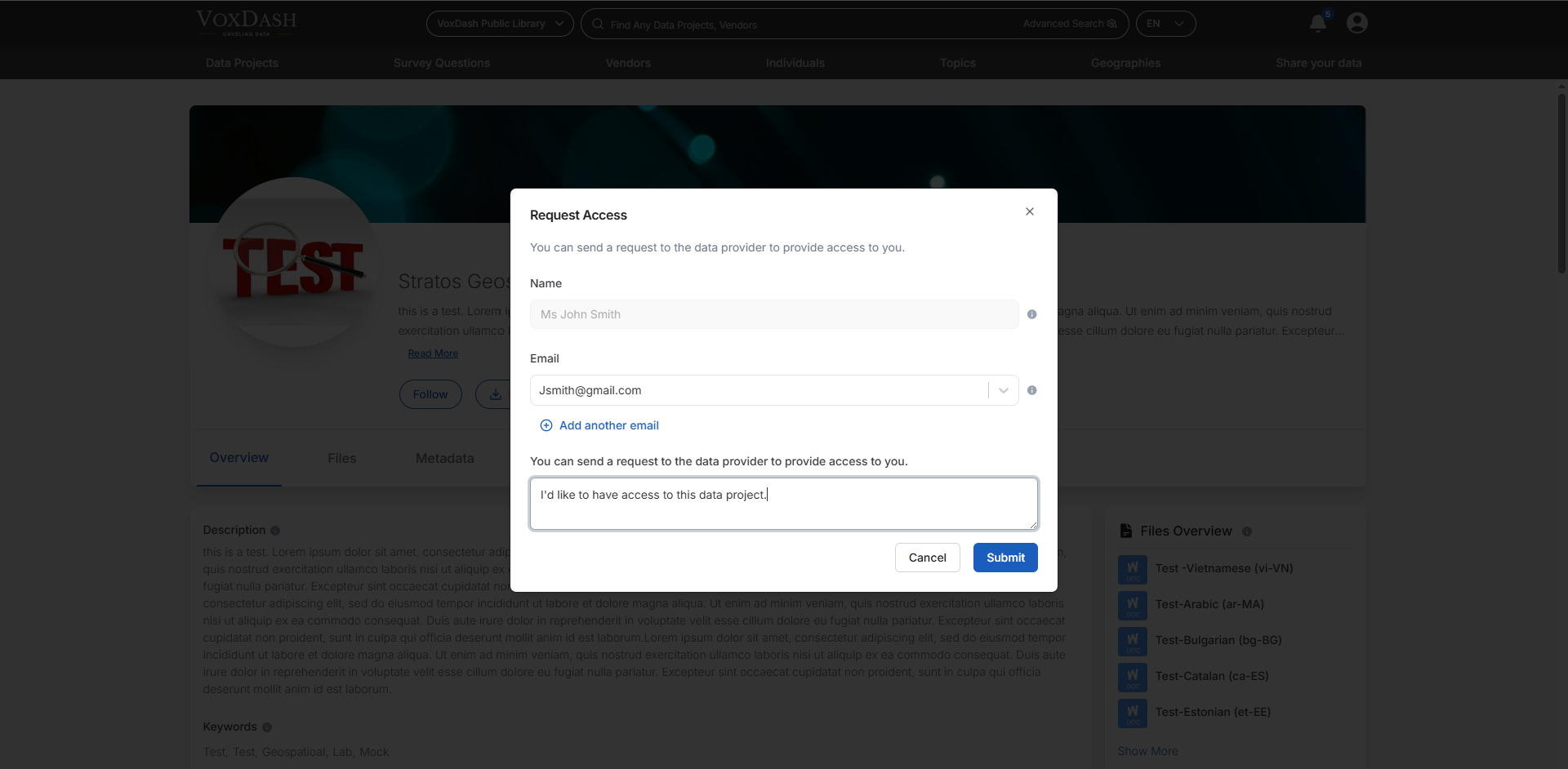
Provide Contact Information
Enter the details the provider will use to evaluate your request:- Your name
- Your email address
- Additional email addresses (optional)
Explain Your Request
Write a short explanation describing:- How you plan to use the data
- The business purpose (analysis, partnership, research, etc.)
- Any relevant project or company context
Step 2: Track Requests in User Central
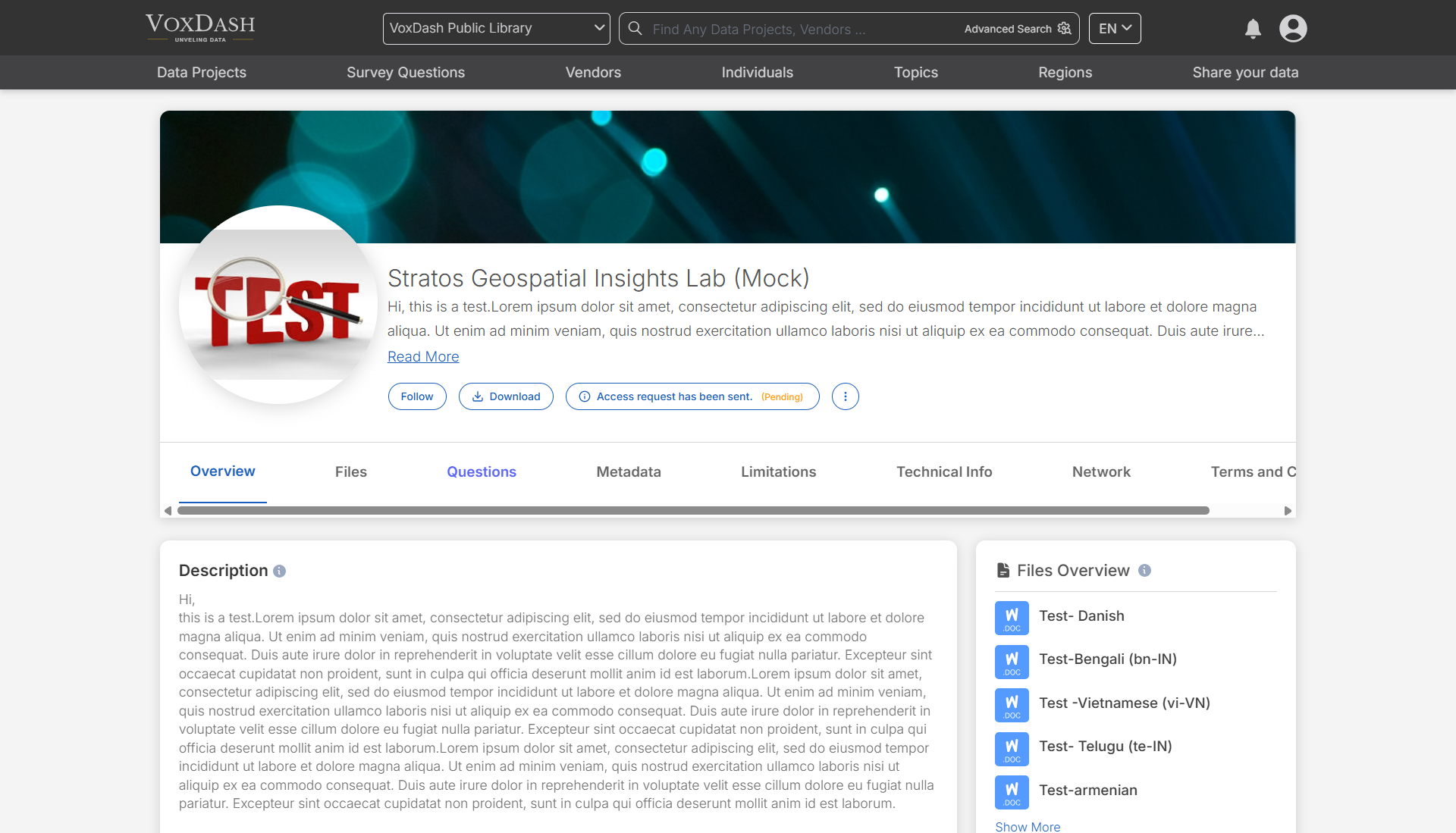
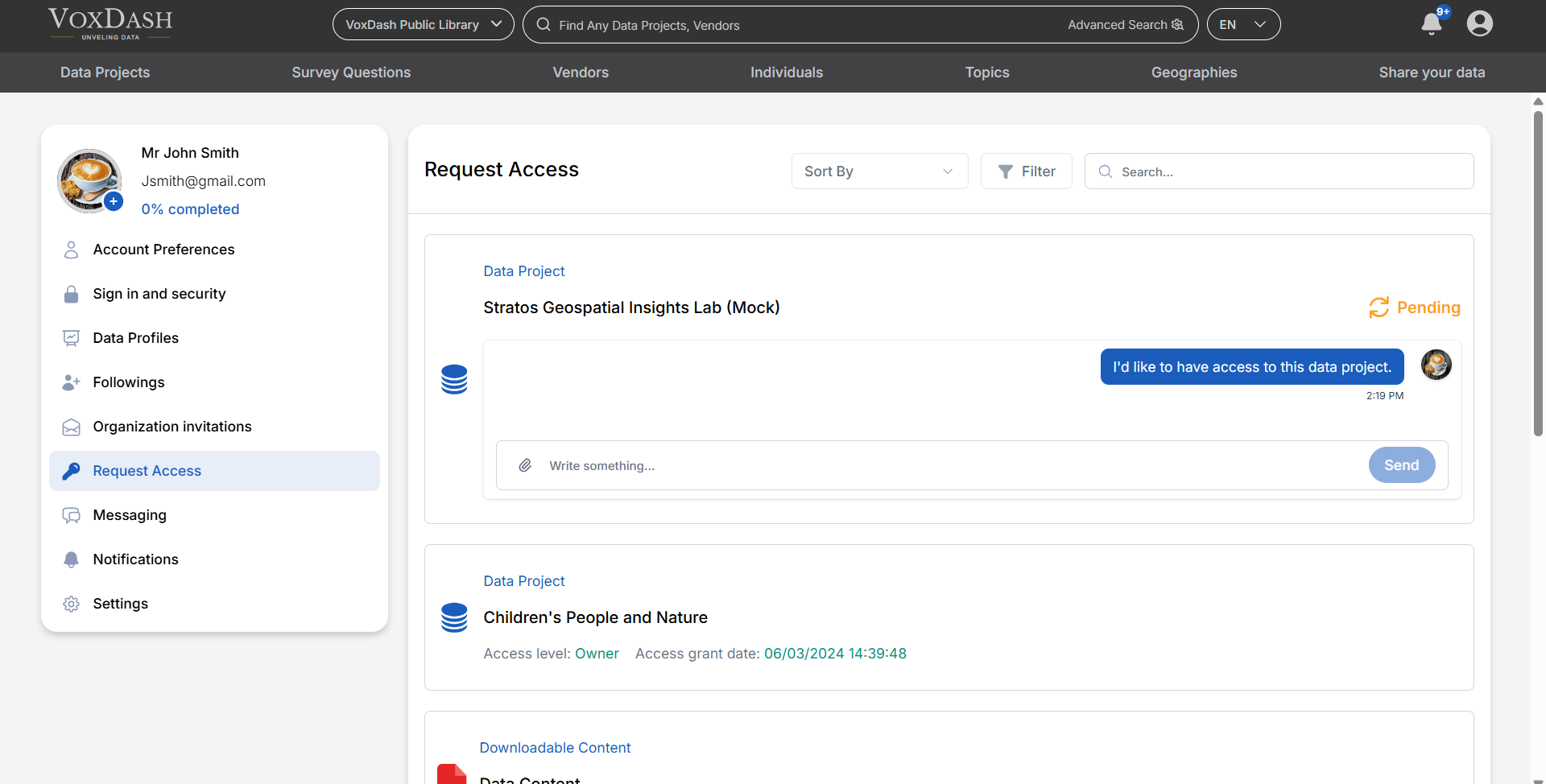
You can manage all your access requests in User Central → Access. This page contains a table listing every dataset you have requested. For each request you can see:- Current status (Pending, Approved, Rejected)
- Dataset name
- Access level granted
- Request date
Step 3: Communicate with the Provider
Each request includes a built-in chat. Use it to:- Clarify your use case
- Answer provider questions
- Request additional permissions
- Share context or documents
Step 4 — After Approval
Once approved:- You will receive a notification email
- The dataset becomes available in the platform
- New analytics and download options appear automatically
Messages Tab (Direct Contact)
You can also contact providers directly from Messages. Use this when:- You have general questions before requesting access
- You need help understanding a dataset
- You want to discuss partnership or collaboration
Best Practices for Approval
To improve approval chances:- Be specific about your use case
- Mention business relevance
- Keep requests professional and concise
- Communicate through the chat if clarification is requested