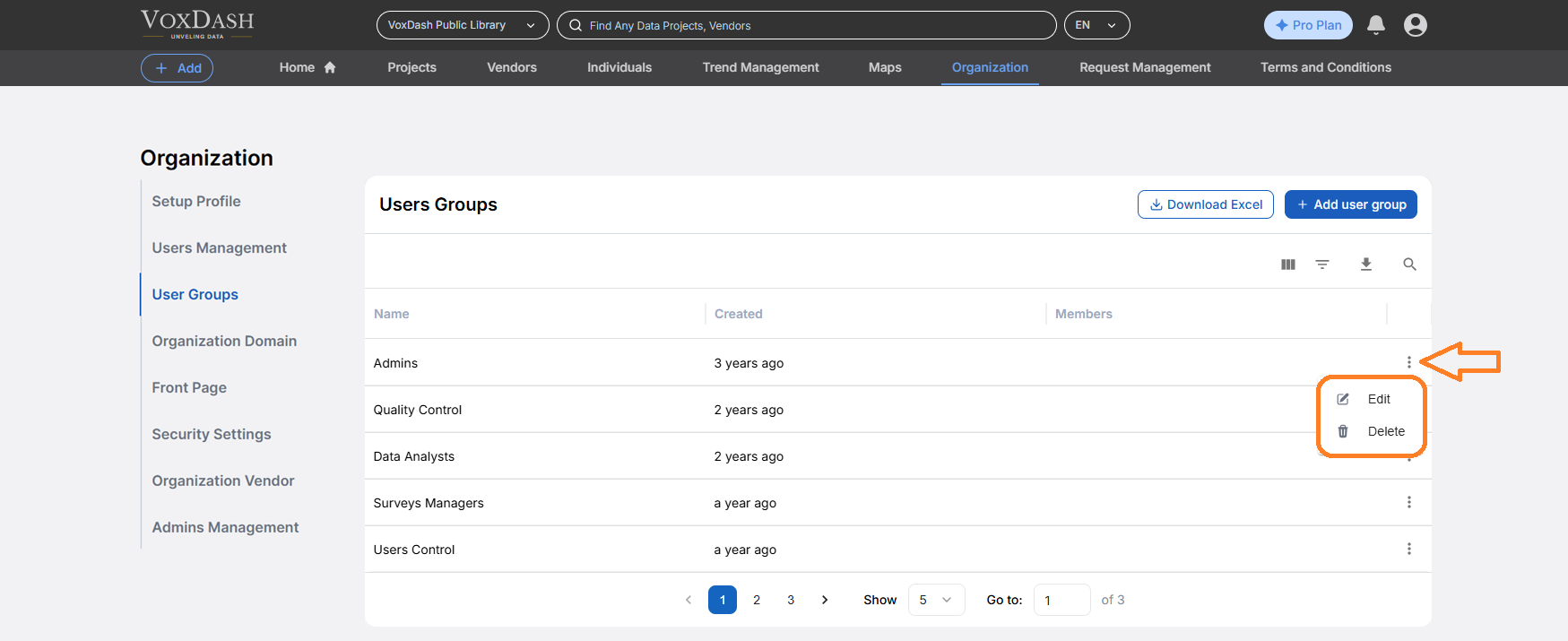
How to Create a User Group
Note: Before adding a new user group, choose the organization from header first, then follow these steps to add a new user group to your organization:- Navigate to the User Group section on the organization page.
- Click on the Add User Group button.
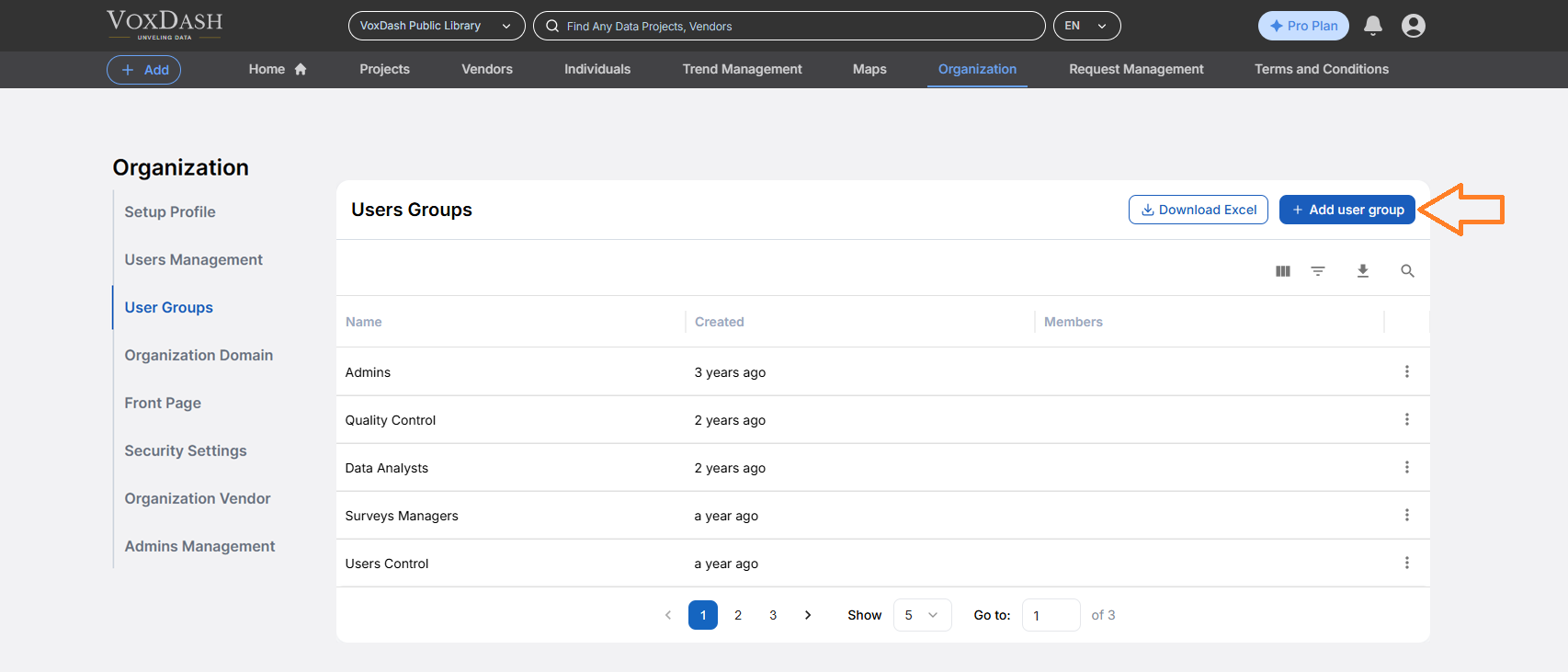
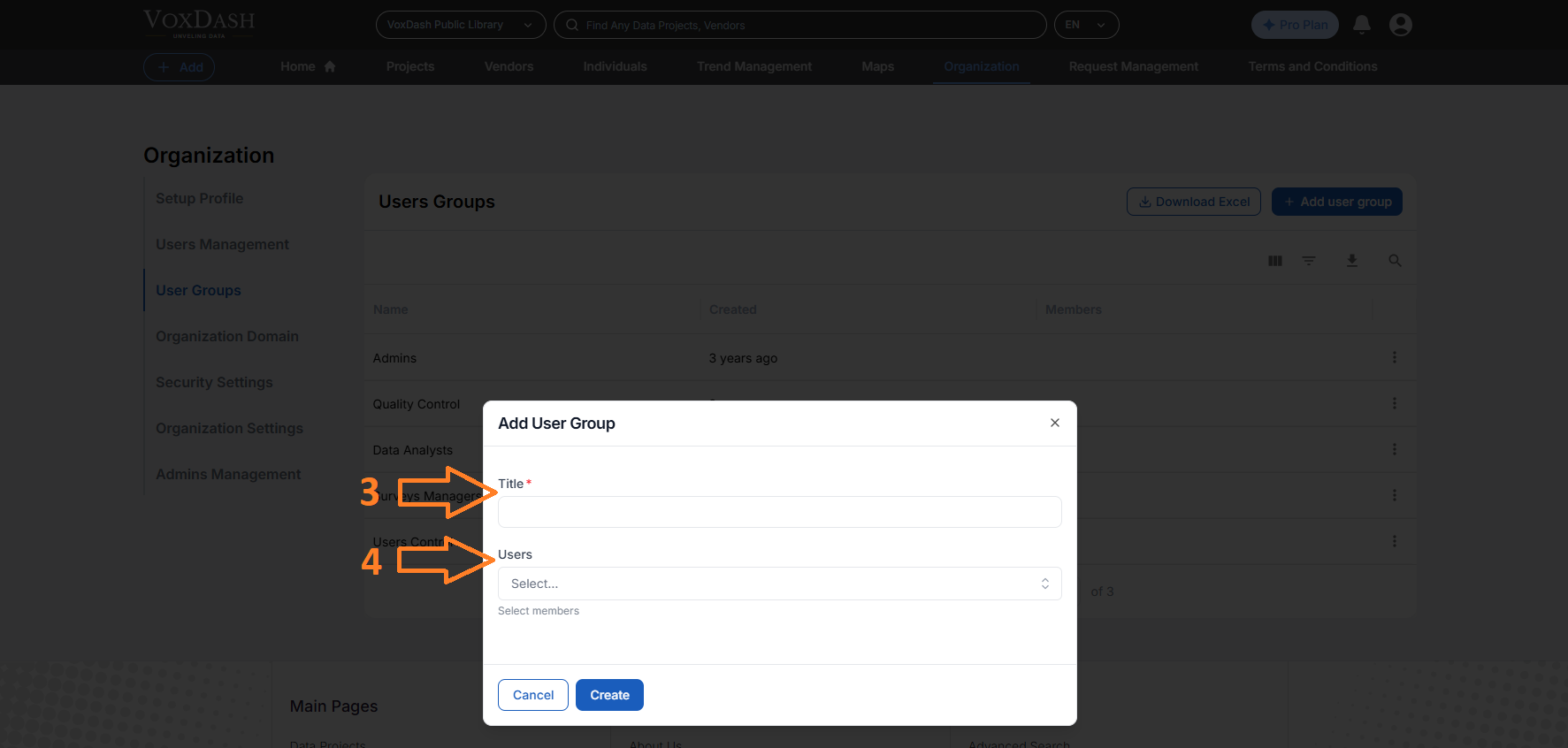
- Enter a name for the group. For example:
- Add users to the group by selecting them from the user list.
Steps to Enable or Edit User Groups Access:
Once created, you can assign the User Group to a project or set access levels for that group, making it easier to manage permissions across your organization. Follow these steps to give access to your user groups:1. Locate the Entity Access Column
- Navigate to the Data Project page in your application.
- Look for the Entity Access column, which is the eighth column from the left.
2. Open the Editing Menu
- Click on the arrow icon next to the relevant entry in the Entity Access column.
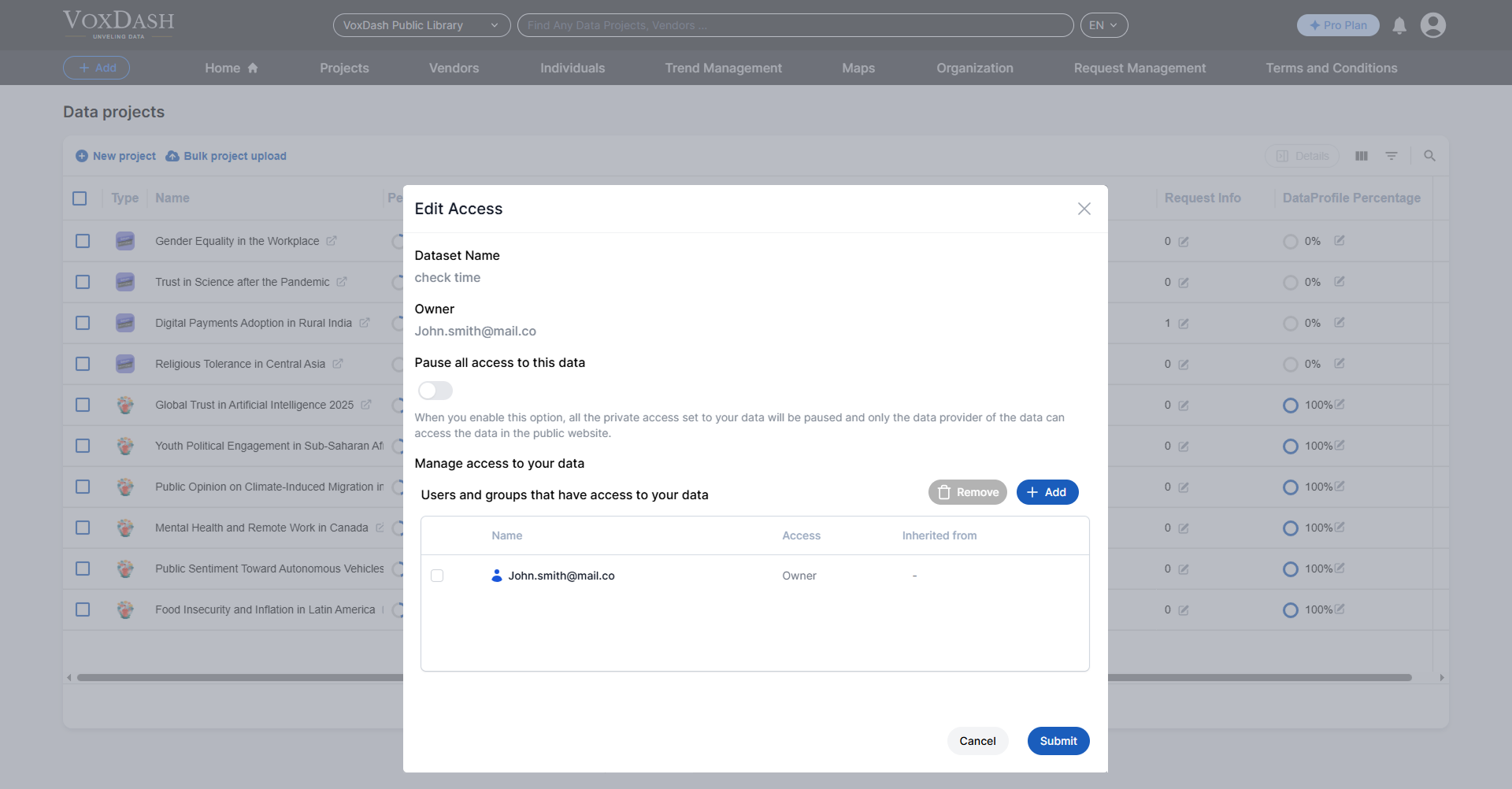
- A menu will appear, allowing you to adjust access settings.
3. Add New Access Permissions
- In the editing menu, locate and click the blue Add button in the bottom-left corner of the menu.
4. Configure Access Details
- Select User Groups: Choose the groups you want to grant access to.
- Assign Roles: Assign a role to the selected group (e.g., Viewer, Editor, Admin) based on the required access level.
- Set Data Restrictions: Optionally, limit user access to specific datasets or functions within the project.
- Define Expiration Date: If necessary, set an expiration date for access permissions to ensure temporary access.
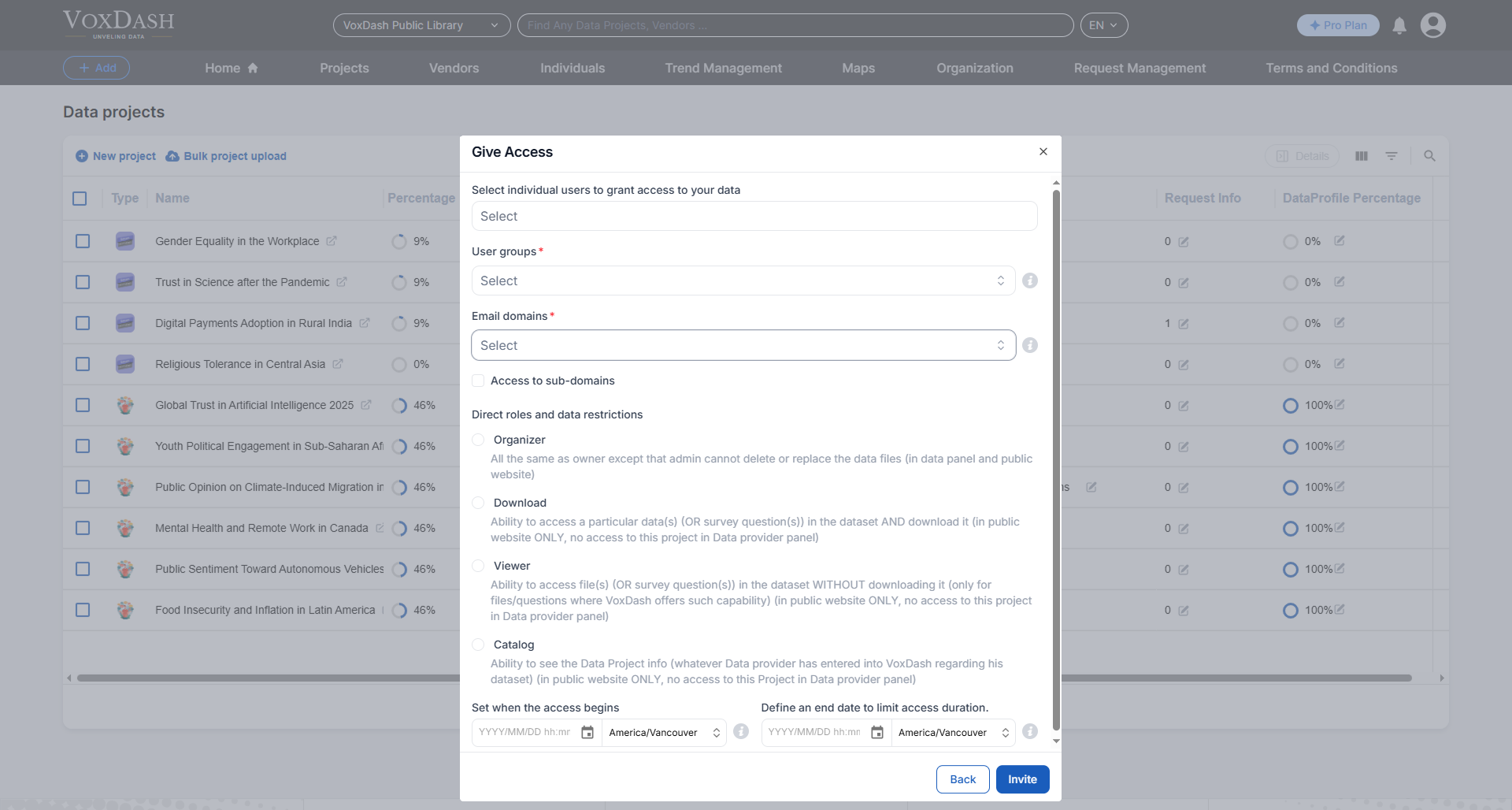
5. Save Changes
Click the Invite button to send a notification to the selected users. Finally, click the Submit button to save your changes and update the access list.Tip:
You can edit a group at any time to add or remove users, or to change its name and permissions.