Before You Change a Data to Private
A dataset, vendor or individual may not be fully removable from the public platform if any of the following conditions apply:- The data has been referenced or used in other published datasets and has been assigned a DOI (Digital Object Identifier).
- The data has received more than 10 public views or downloads.
- The data has been publicly available for more than 7 days.
What Happens If These Conditions Apply?
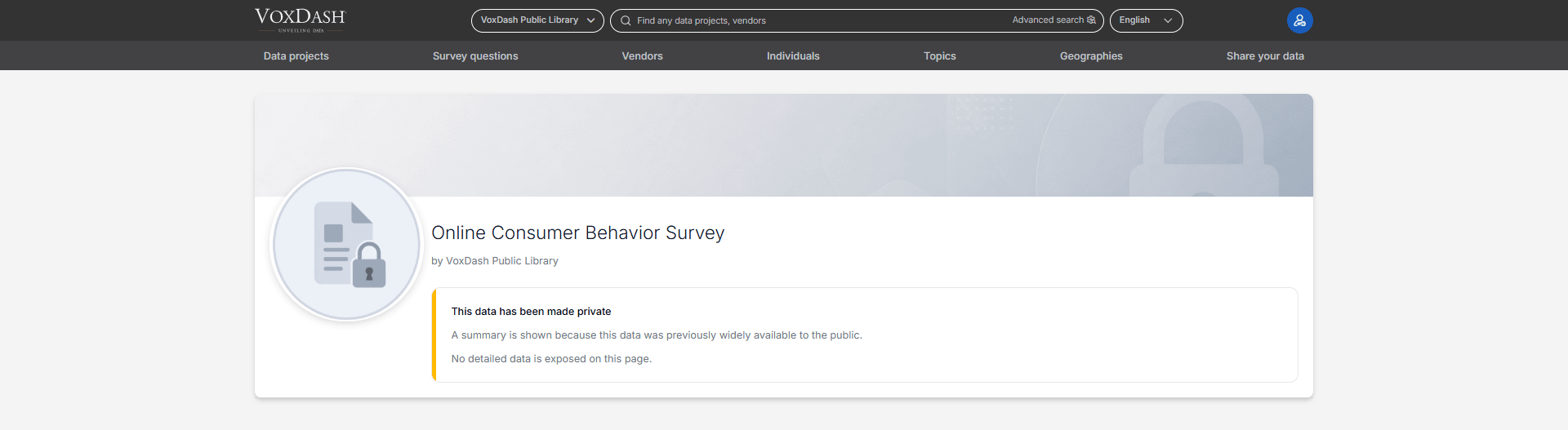
If your data meets one or more of the conditions above:- The data itself will remain accessible on the public platform.
- Only essential public metadata and required reference information will continue to be displayed.
- Sensitive or restricted content that is not required for public referencing will no longer be publicly visible.
- Existing DOI references and external citations will remain valid to prevent broken links or missing references in published work.
Important Notes
- Changing a dataset from public to private does not remove existing citations or DOI records.
- Public metadata may include information such as the dataset title, description, publication date, author name, and DOI reference.
- If your dataset does not meet any of the conditions listed above, it can usually be converted back to private immediately.
How to Change a Dataset to Private
1.Locate the Public Access Column- For Dataset: Go to the Projects page and find the Public Access column (it is the ninth column from the left).
- For Vendor: Go to the Vendors page and find the Public Access column (it is the ninth column from the left).
- For Individual: Go to the Individuals page and find the Public Access column (it is the ninth column from the left).
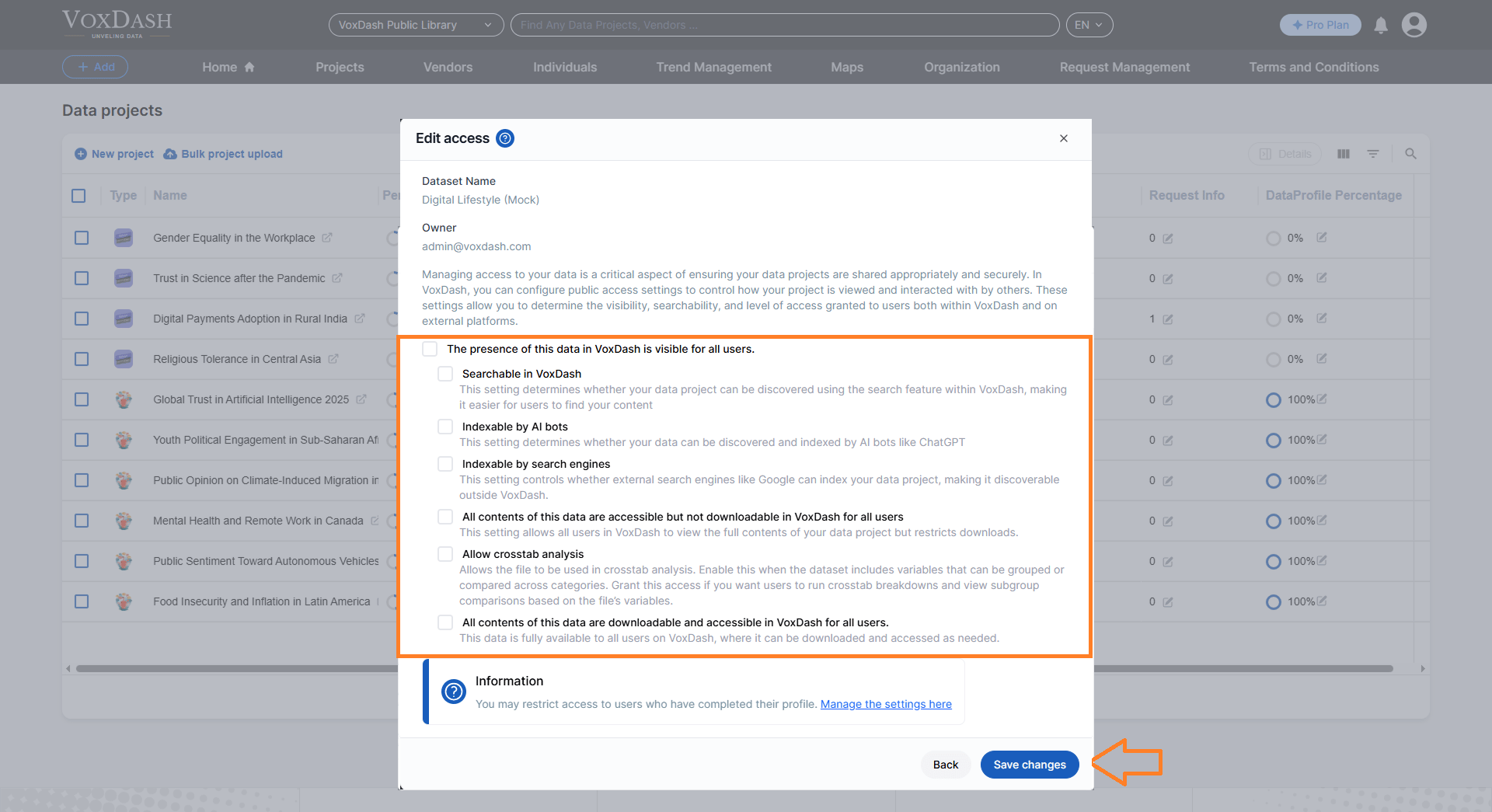
Click on the arrow icon next to the Public Access entry. This will open the editing menu, where you can adjust the access settings. 3.Select Public Access Options
In the editing menu, change the dataset status from Public to Private. These options determine the level and type of access granted to the public. 4.Save Your Changes
Once you’ve selected the appropriate options, click the Save Changes button located in the bottom-right corner (the blue button) to apply your settings.