

Overview
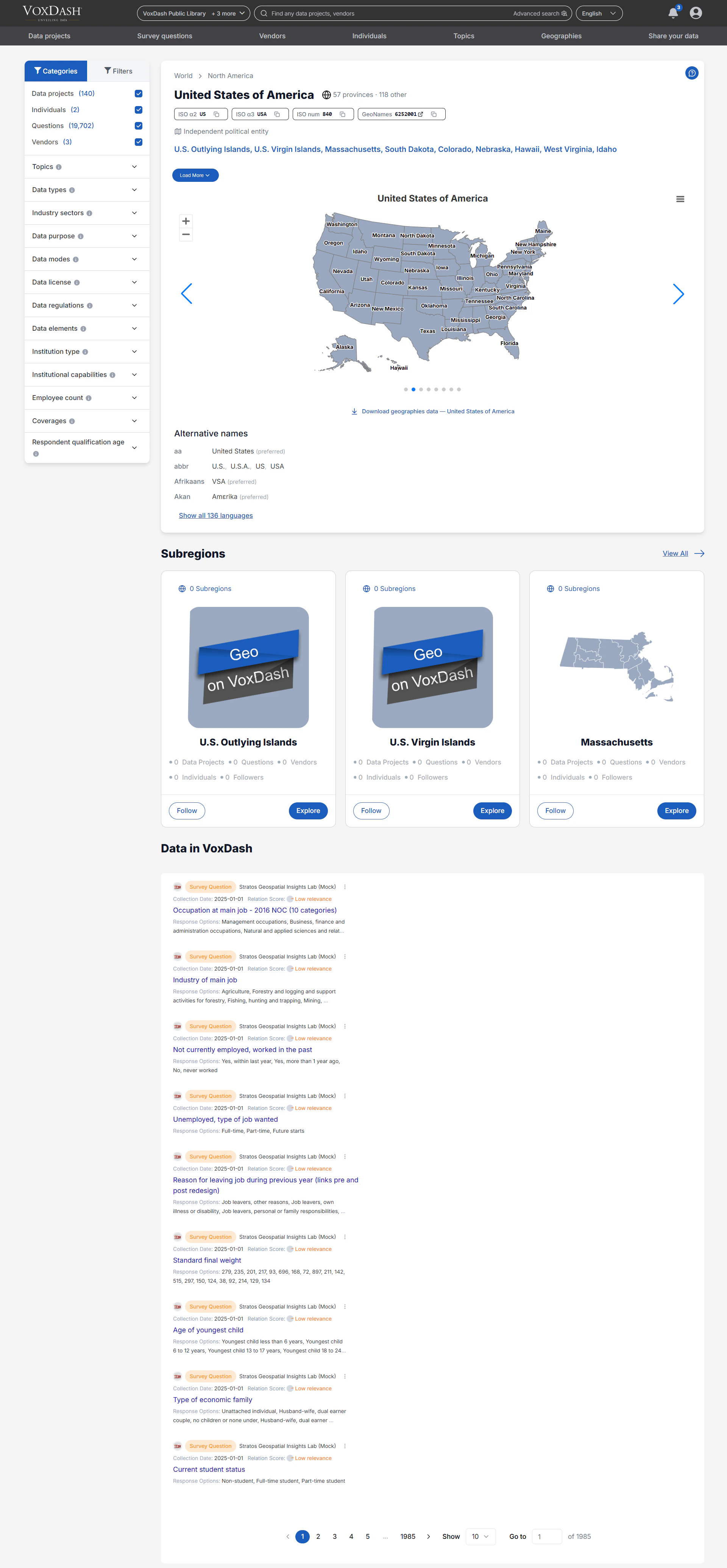
The Geo Page is designed to help users explore and analyze geography-related information in a structured and intuitive way. Each geographic entity acts as a hub that connects datasets, institutions, individuals, surveys, and other related records. Using the Geo Page, users can:- Explore geographic relationships and hierarchies
- Access location-based datasets and analytics
- Navigate between parent and sub-regions
- Discover related projects, vendors, and individuals
- Filter datasets using advanced geographic criteria
- Analyze regional trends and coverage
Main Geo Information
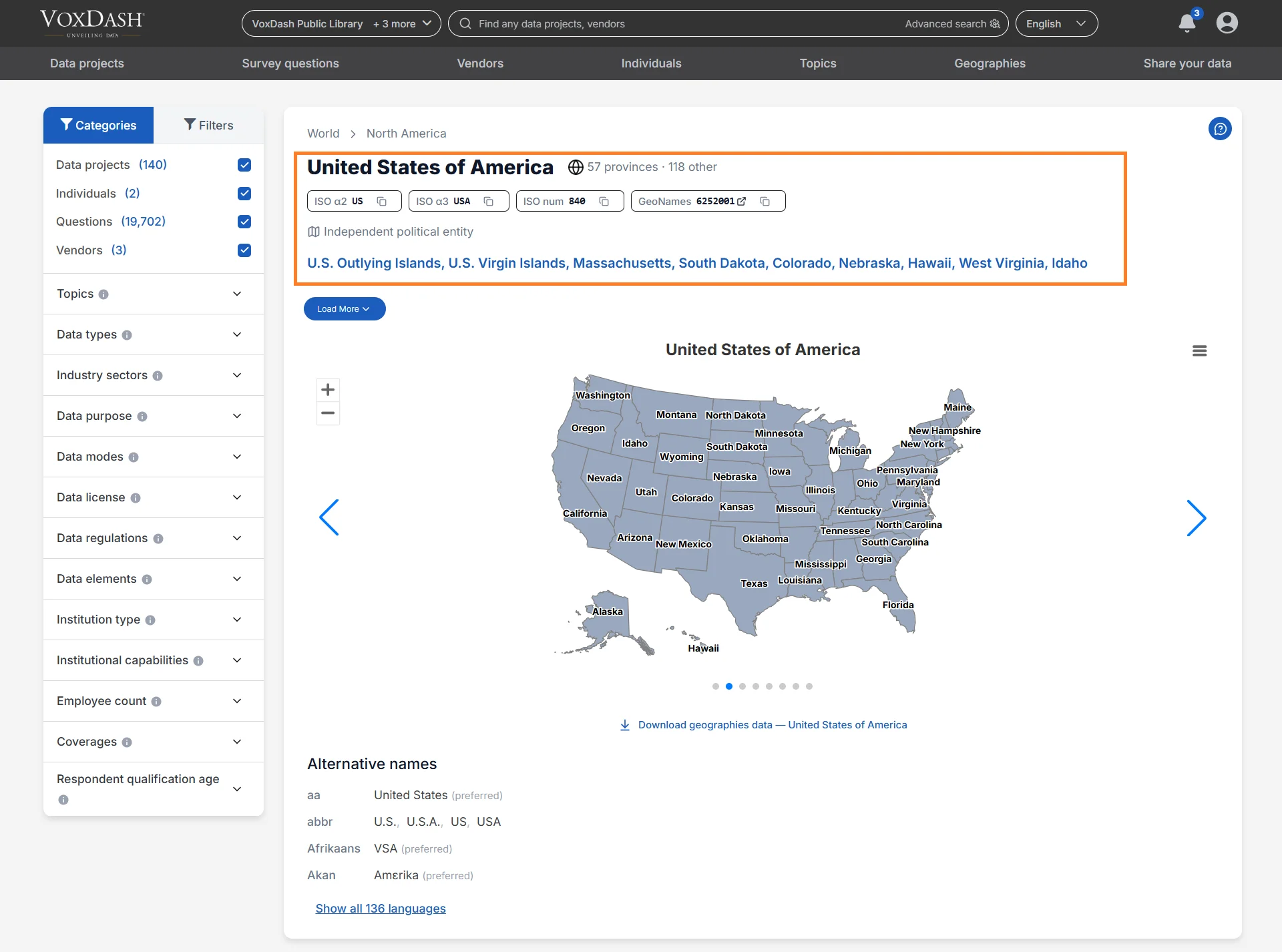
At the top of the Geo Page, users can view essential information about the selected geographic area. This section provides high-level context and key metadata that help identify and classify the Geo. The information may include:- Geographic description or summary (if available)
- Official geographic name
- Alternative names
- Geographic identifiers and standards (ISO Codes)
- Metadata associated with the region
Geographic Identifiers
The following identifiers appear on the page:ISO α2
A two-letter country code defined by the ISO 3166 international standard. Example:- US = United States
ISO α3
A three-letter country code defined by the ISO 3166 standard. Example:- USA = United States
ISO num
The numeric ISO code assigned to the geographic entity.GeoNames
A reference identifier linked to the GeoNames geographic database, which helps standardize geographic records across systems.Parent Regions
If the selected Geo belongs to a larger geographic hierarchy, its parent regions are displayed in this section. Parent regions help users:- Understand the geographic hierarchy
- Navigate to broader geographic areas
- Explore aggregated regional data
- Compare data between geographic levels
- City → State/Province
- State/Province → Country
- Country → Continent
Alternative Names
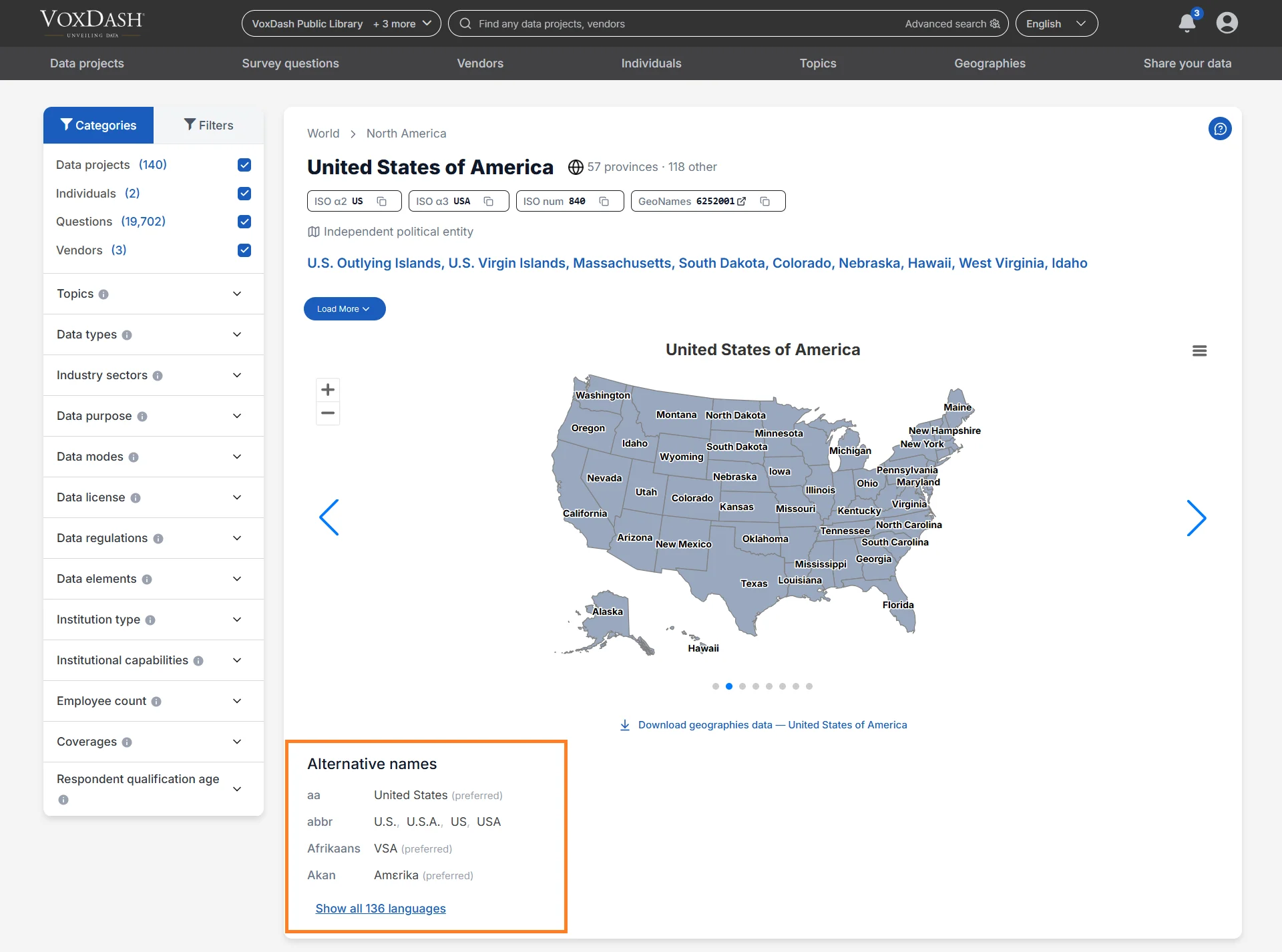
The Alternative Names section displays different names, spellings, translations, or localized versions of the geographic entity. This means:“According to a specific source, this is the canonical or commonly used form of the geographic name in a particular language or context.”Alternative names are useful when:
- Searching for regions in different languages
- Matching datasets from multiple sources
- Understanding historical or regional naming conventions
Sub Regions
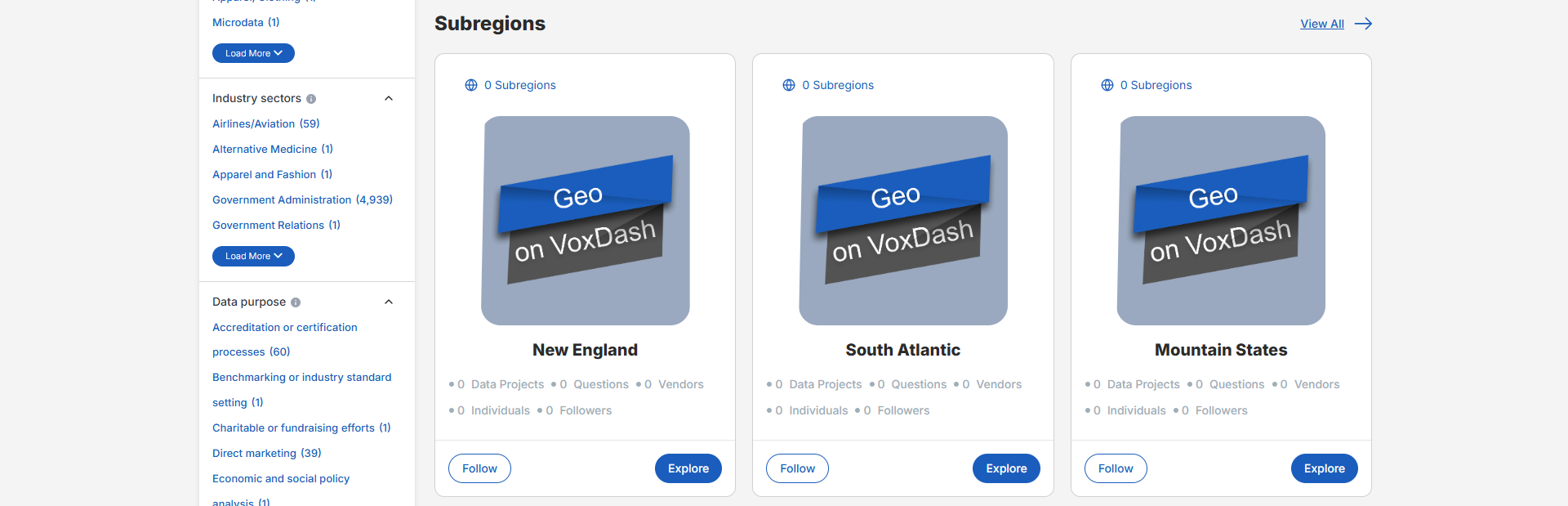
The Sub Regions section lists all geographic entities that exist within the selected Geo. Depending on the selected region, sub-regions may include:- States
- Provinces
- Territories
- Counties
- Cities
- Districts
- Municipalities
- Custom geographic regions
- Viewing all states within a country
- Exploring cities within a province
- Comparing districts within a metropolitan area
Connected Data Projects
This section displays all Data Projects associated with the selected geographic area. Users can:- View project names and summaries
- Open project detail pages
- Identify projects linked to the selected region
- Explore geography-based datasets and research initiatives
Connected Data Profiles
The Geo Page also displays all Data Profiles linked to the selected geographic entity. These profiles represent structured records where the Geo was assigned during data entry or dataset configuration. Data Profiles help users:- Access location-specific records
- Explore regional datasets
- Review geography-linked metadata
- Analyze trends associated with a particular location
Vendors and Individuals
The Geo Page includes related vendors, institutions, organizations, and individuals associated with the selected geographic area. Users can:- Identify organizations operating within the region
- View individuals connected to local projects or datasets
- Explore institutional relationships
- Navigate to vendor or individual profile pages
Categories and Filters
The Geo Page includes an advanced filtering system that allows users to refine geographic results and datasets. Using the filter sidebar, users can choose to display:- Data Projects
- Individuals
- Vendors
- Questions
- Surveys
- Maps
- Related datasets
Geo Categories
The following categories can be used to filter Geo-related results.Topics
Browse survey data and datasets organized by topic or subject area. This helps users quickly locate insights related to specific themes. Examples:- Healthcare
- Education
- Consumer behavior
- Technology adoption
Data Type
Filter datasets based on the type of information they contain. Examples:- Survey responses
- Administrative records
- Metadata
- Qualitative interviews
- Statistical data
Industry Sector
Filter datasets by the industries they relate to. Examples:- Healthcare
- Finance
- Retail
- Technology
- Manufacturing
Data Purpose
Indicates the intended or permitted use of the dataset. Examples:- Research
- Business intelligence
- Policy analysis
- Advocacy
- AI training
Data Mode
Filter datasets by the collection methodology used to gather the data. Examples:- Online surveys
- Telephone interviews
- Face-to-face interviews
- Mixed-mode collection
Data License
Displays the legal terms governing dataset usage. Licenses may:- Allow unrestricted use
- Require attribution
- Restrict commercial use
- Limit redistribution or modification
Data Regulations
Indicates which legal or regulatory frameworks apply to the dataset. Examples:- GDPR
- HIPAA
- CCPA
Data Elements
Shows the types of information included in the dataset. Examples:- Personal identifiers
- Financial information
- Health data
- Public-use data
Institution Type
Specifies the category or classification of an institution. Examples:- Government
- Academic
- Nonprofit
- Private sector
Employee Count
Filter institutions based on the number of employees reported. This helps users identify organizations by size.Coverage
Filter datasets based on:- Geographic coverage
- Demographic coverage
- Topical coverage
Respondent Qualification Age
Displays the age range used to qualify survey participants. If unspecified, no age-based restrictions were applied during participant selection.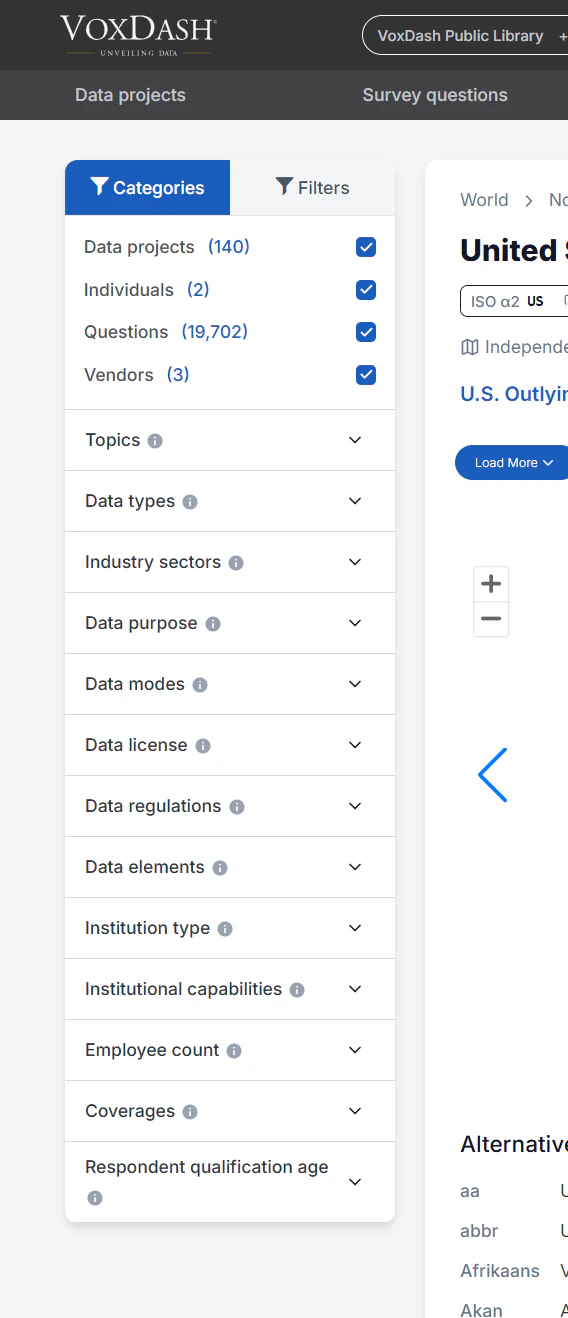
Geo Filters
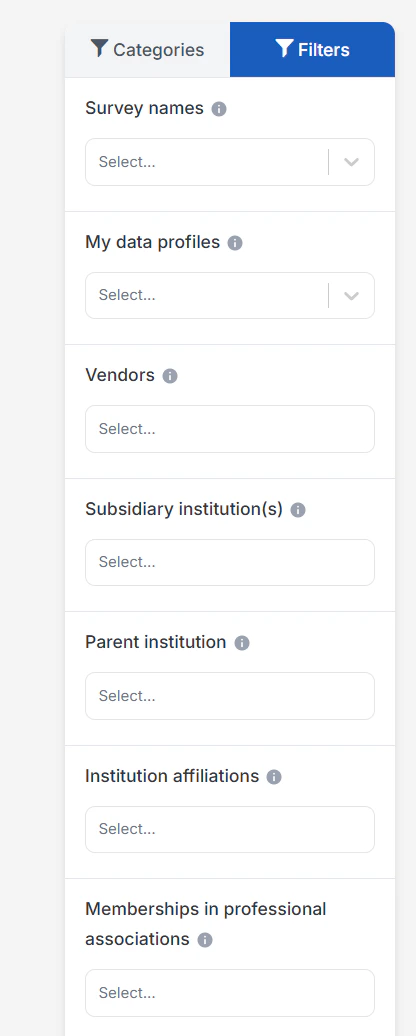
The Geo Page supports a wide range of filters to improve dataset discovery and geographic analysis. Available filters include:- Survey names: Filter geos by the survey project they belong to. This is useful if you want to focus only on specific surveys or compare across known datasets.
- My Data Profiles: Limit results to data profiles created or owned by your account.
- Vendors: Search and explore registered vendors, including their capabilities, industry sectors, and geographic coverage.
- Subsidiary institution(s): Filter geos based on their subsidiary institutions. This is useful for finding organizations that operate under a larger parent company but manage their own projects or services.
- Parent institution: Filter geos by their parent institution. This helps identify vendors that are part of a larger organization, which may indicate additional resources or broader networks.
- Institutional affiliations: Filter geos by institutional affiliations, such as partnerships, collaborations, or professional networks. This is helpful for finding vendors connected to reputable institutions or industry groups.
- Memberships in professional associations: Filter institutions based on their memberships in professional associations (e.g., AAPOR, ESOMAR)
- Only datasets with surveys: Show survey questions that the data provider marked as survey administration questions. Survey administration questions are those the provider considered incomplete, irrelevant, or not suitable for analysis. They are hidden by default, but you can reveal them here to see the full set of questions included in the dataset.
- Only datasets with maps: Filter to datasets that include any form of geographic mapping.
- Show survey administration questions: Show survey questions that the data provider marked as survey administration questions. Survey administration questions are those the provider considered incomplete, irrelevant, or not suitable for analysis. They are hidden by default, but you can reveal them here to see the full set of questions included in the dataset.
- Only show trends: Show only datasets that include trendable data across waves or time.
- Only questions with maps: Filter to questions that include a mapped geographic component.
- Only data with maps of the selected region: When enabled only show results that have maps belonging to the selected geographic region.
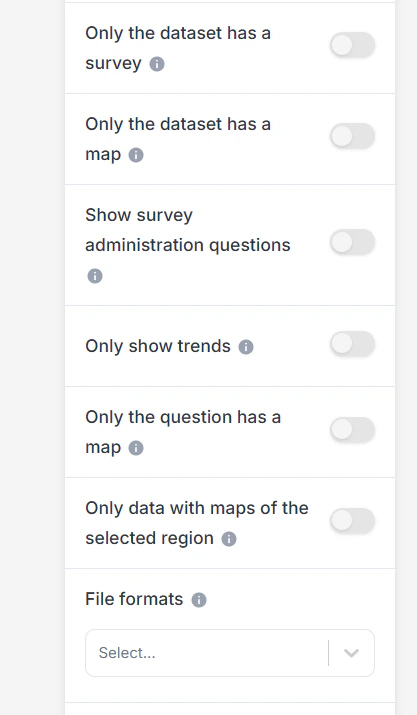
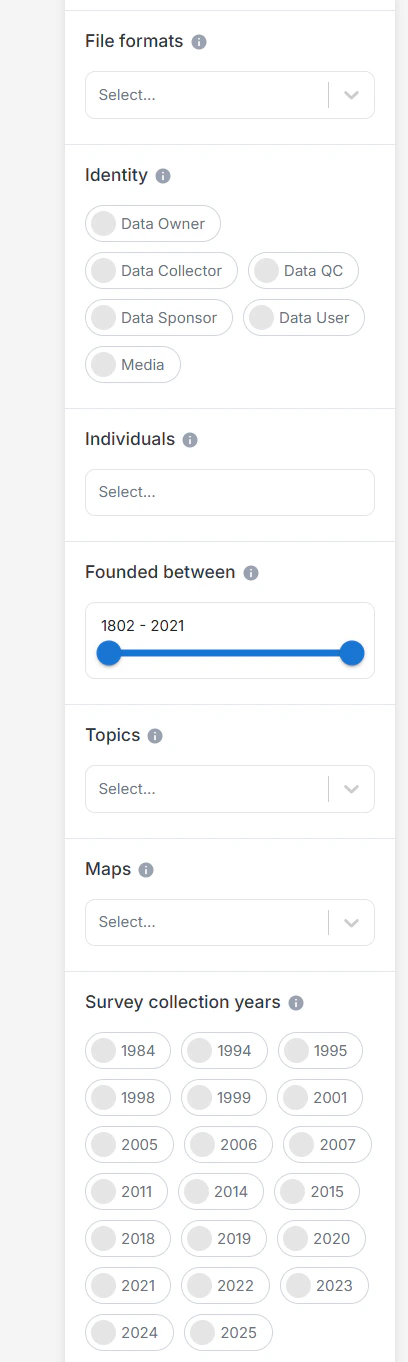
- File formats: Filter datasets by available file formats (e.g., SPSS, Excel, CSV)
- Identity: Filter vendors by their organizational identity, such as academic, nonprofit, private company, or governmental body. This allows you to narrow results to the type of institution that best suits your needs
- Individuals: Filter vendors by the key individuals associated with them. This is useful if you are searching for organizations connected to specific experts or well-known professionals.
- Founded between: Narrow results to institutions founded within a specific time range.
- Topics: Browse survey data organized by topics to make it easier to find insights related to specific themes or subject areas.
- Maps: View and explore interactive maps displaying survey data, geographic trends, or vendor activities across different geographies
- Survey collection years: Use this filter to select surveys conducted within a specific time range. It is helpful for analyzing results from a particular period or for tracking changes over time.
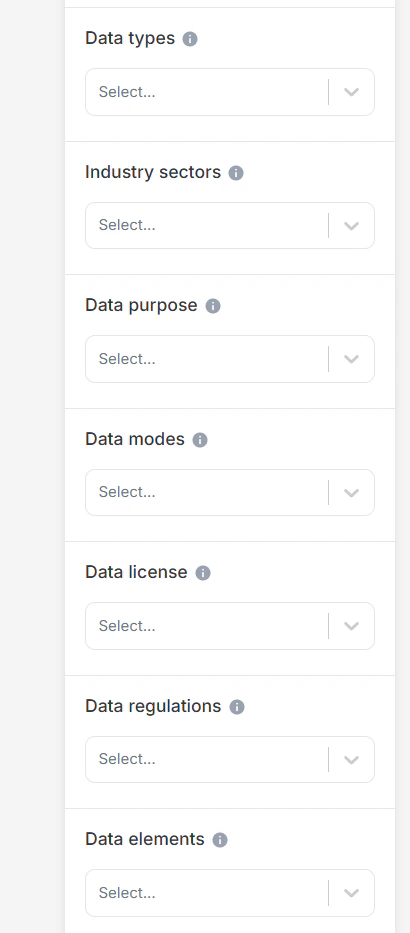
- Data types: Select the type of data contained in the dataset, such as survey responses, administrative records, qualitative transcripts, or metadata. This is useful for narrowing down the kind of information you need.
- Industry sectors: Filter datasets by the industries they relate to (for example, health, education, finance, or technology). This lets you focus on results relevant to a specific sector.
- Data purpose: Describes the original or permitted uses of the dataset, such as research, business intelligence, advocacy, or AI training. Understanding the stated purpose helps assess whether the data is suitable and legally appropriate for your intended use.
- Data modes: Filter datasets by the method used to collect responses (for example, online panel, telephone interviews, face-to-face, or mixed modes). This helps you compare results based on the way data was gathered.
- Data license: Indicates the legal terms for using, sharing, or modifying this dataset. Some licenses allow unrestricted reuse, while others limit commercial use, require attribution, or prohibit changes. Always review the license before using the data.
- Data regulations: Indicates which privacy laws or regulatory frameworks govern this dataset, such as GDPR, HIPAA, or CCPA. These rules may affect how you can access, use, share, or analyze the data, especially for sensitive or personal information.
- Data elements: Shows the types of information contained in the dataset, such as personal identifiers, health data, financial records, or public-use content. Knowing which elements are included helps assess privacy risks, legal restrictions, and potential for analysis.
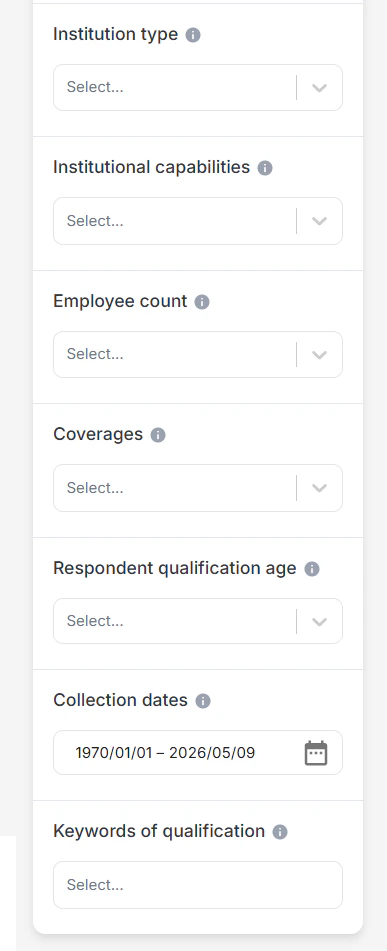
- Institution type: Specifies the type or category of the institution.
- Institutional capabilities: Filter vendors based on their institutional capabilities, such as survey research, data analysis, or policy evaluation. This helps match vendors to the skills and services you require.
- Employee count: Filter institutions by their reported number of employees.
- Coverage: Select datasets based on geographic, demographic, or topical coverage.
- Respondent qualification age: The age range used to qualify respondents for this survey. If unspecified, no age-based restriction is applied to participant eligibility.
- Collection dates: Select datasets based on the date(s) when the data was originally collected.
- Qualification keywords: Search using keywords related to the respondent qualification criteria.
Navigation and Geographic Discovery
By consolidating geographic relationships and linked data into a single interface, the Geo Page enables:- Faster geographic exploration
- Improved regional comparison
- Easier discovery of connected datasets
- Efficient navigation between related geographic entities
- Better understanding of geographic data relationships