

- Open the questionnaire in the Editor Panel.
- Select the desired question.
- Open the Tags section in the question properties panel.
- Select one or more tags that apply to the question.
- Save your changes.
Basic Tags
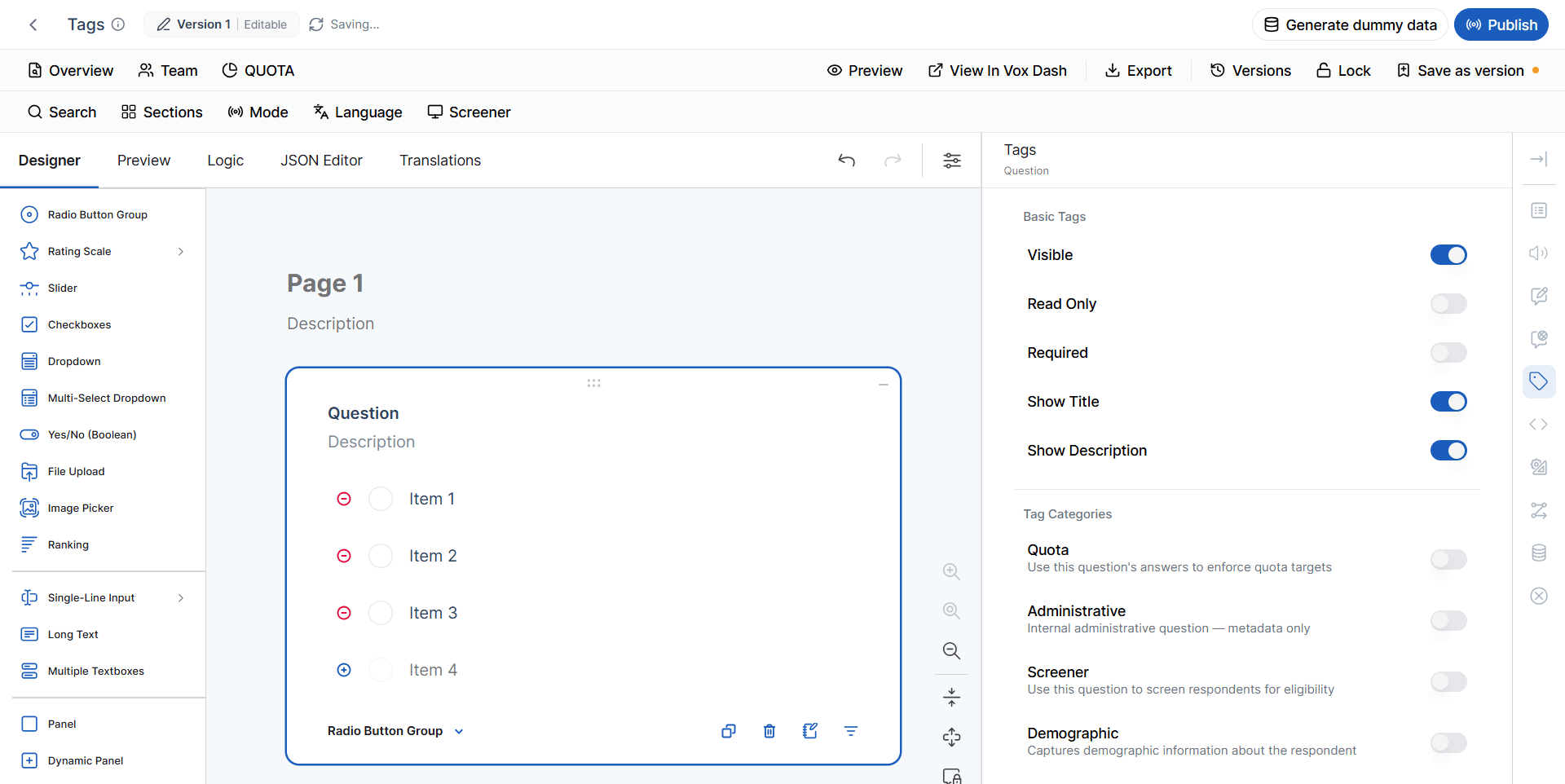
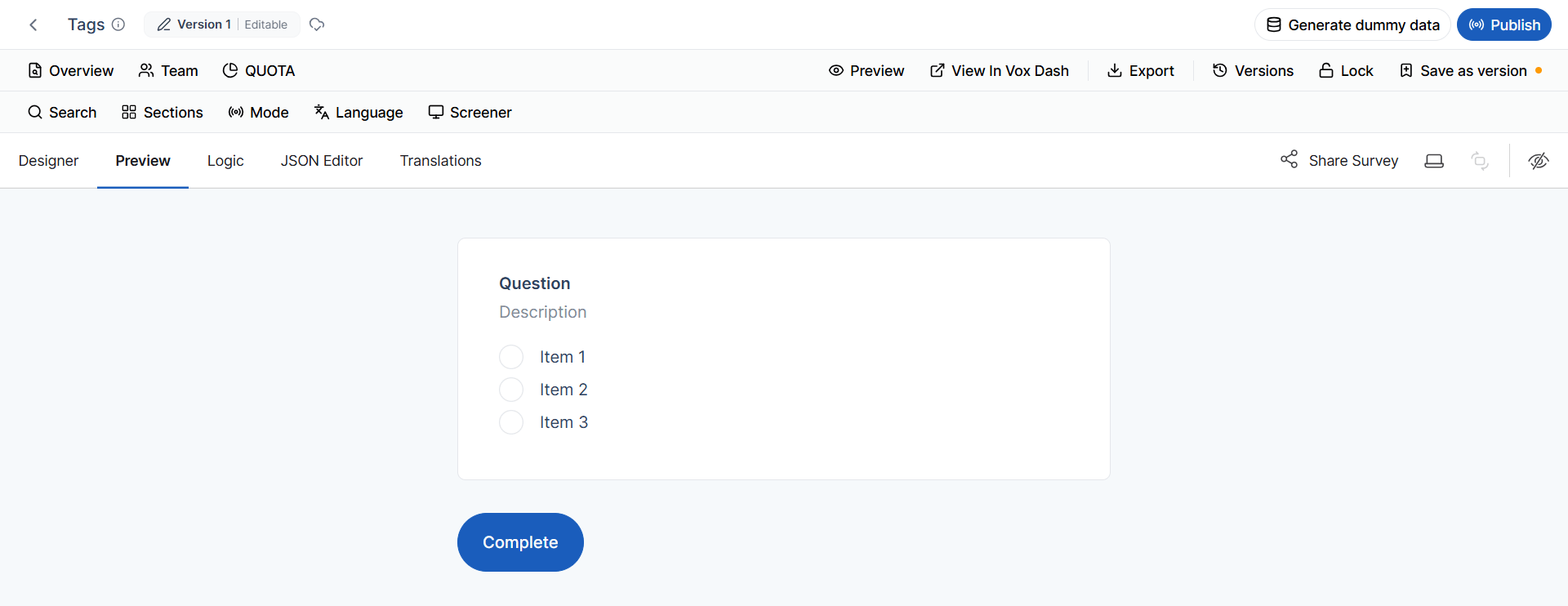
The following tags control the behavior and purpose of a question.Visible
Controls whether the question is displayed to respondents.- Enabled: The question is visible (subject to any display logic).
- Disabled: The question is hidden from respondents.
Read Only
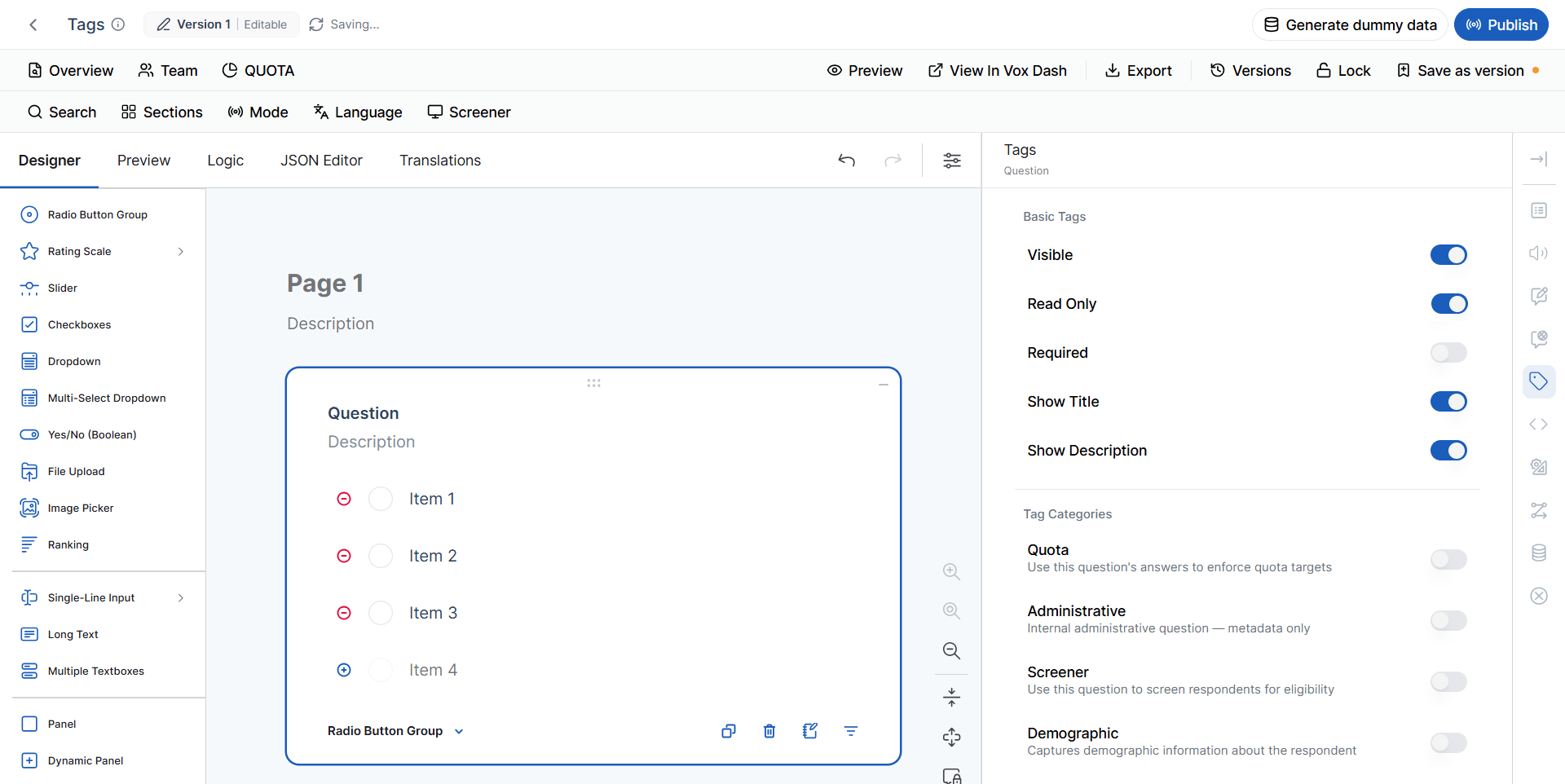
Makes the question visible but prevents respondents from changing its value. Read-only questions are commonly used for:- Displaying calculated values
- Showing imported information
- Displaying system-generated data
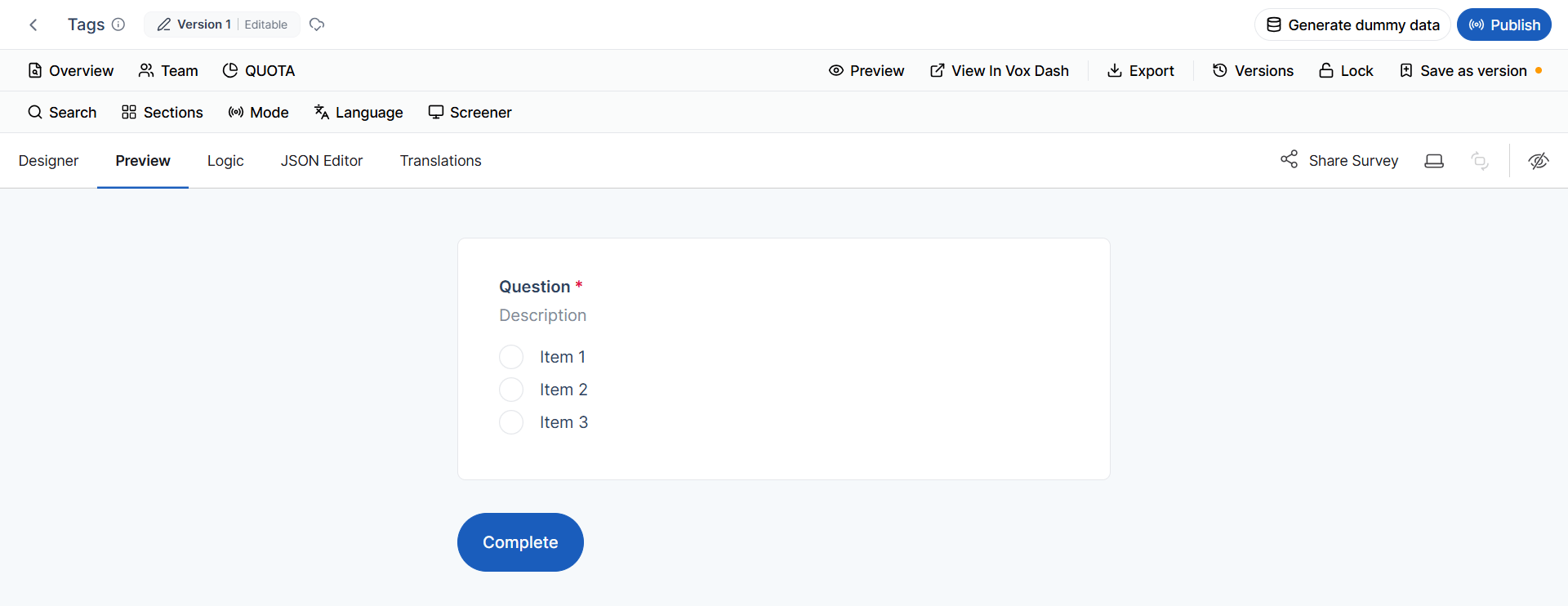
Required
Marks the question as mandatory. Respondents must provide a valid answer before they can continue or submit the questionnaire. Use this tag only for questions that must always be answered.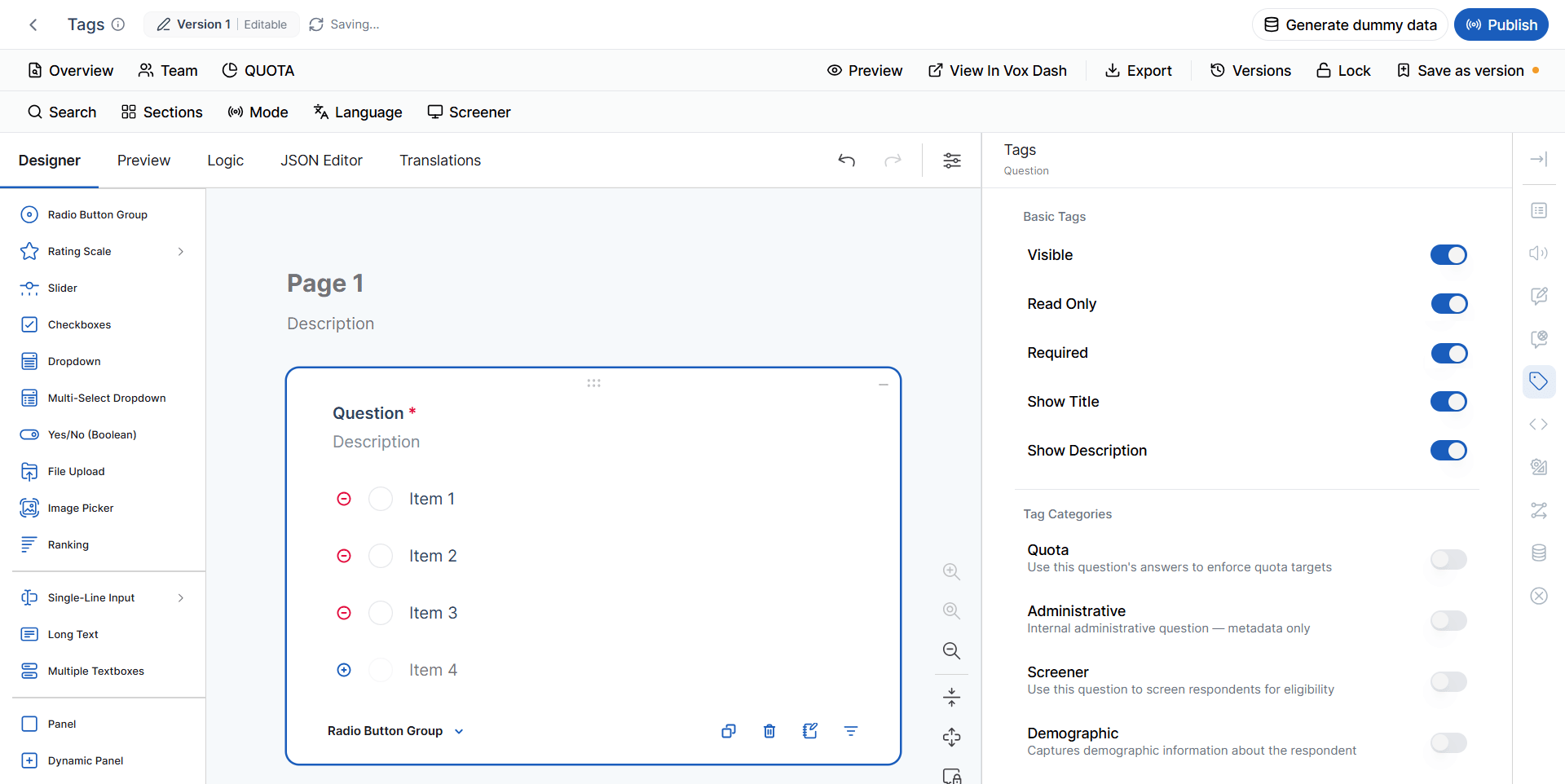
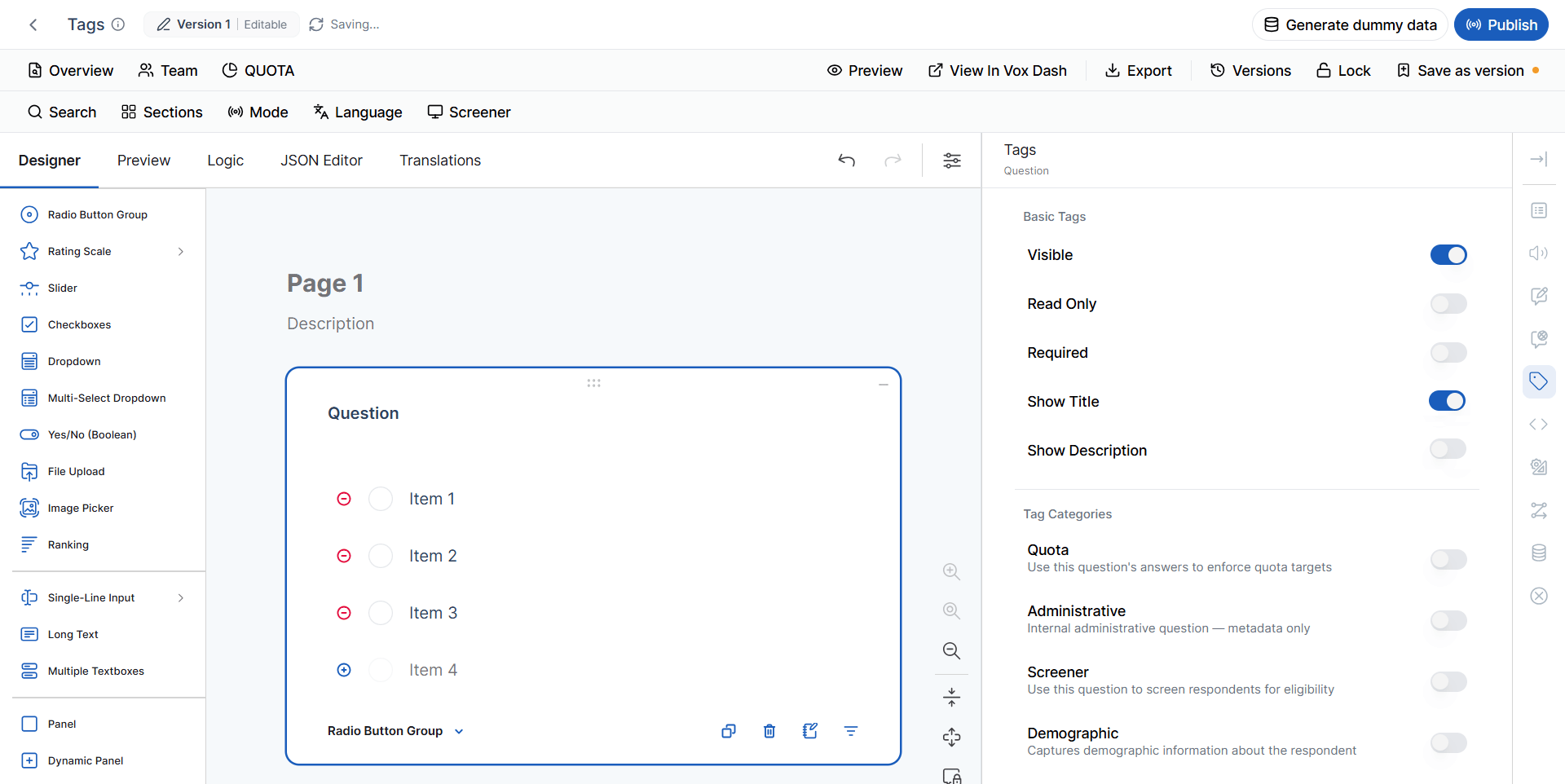
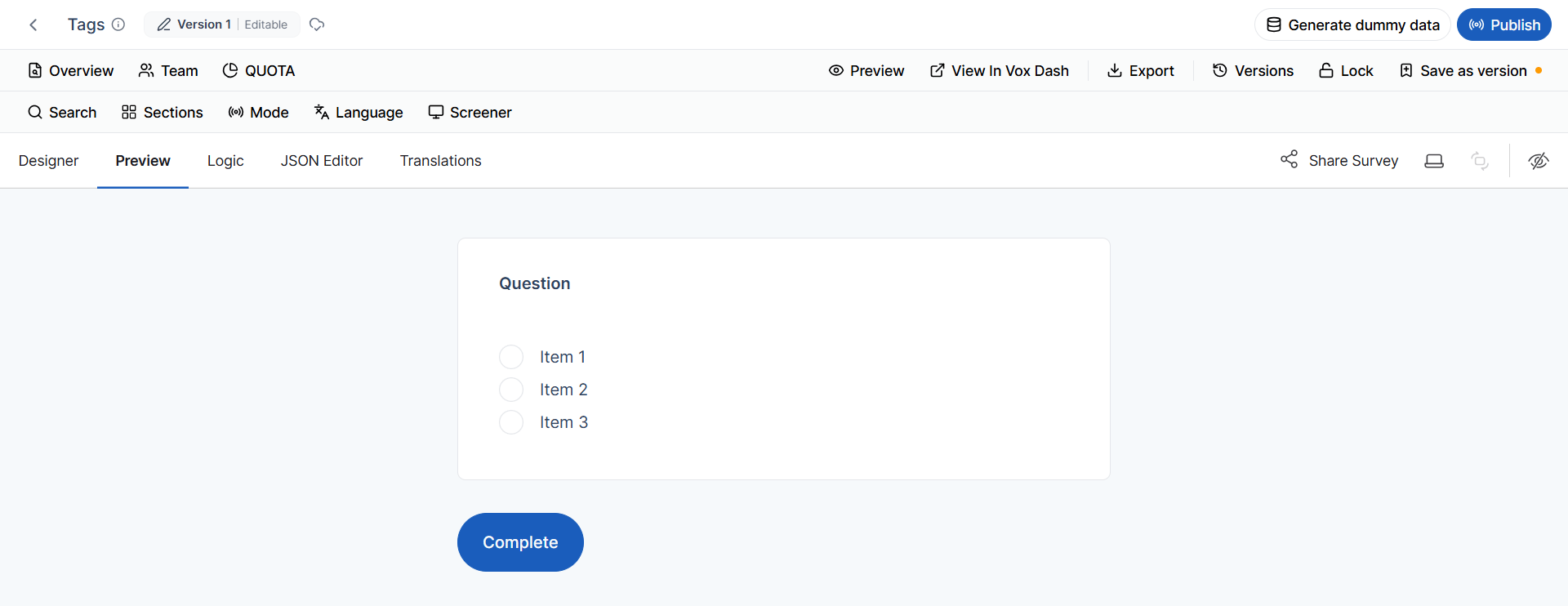
Show Title
Controls whether the question title is displayed. Disabling the title may be useful when:- Using images as the primary content
- Displaying custom HTML
- Building highly customized layouts
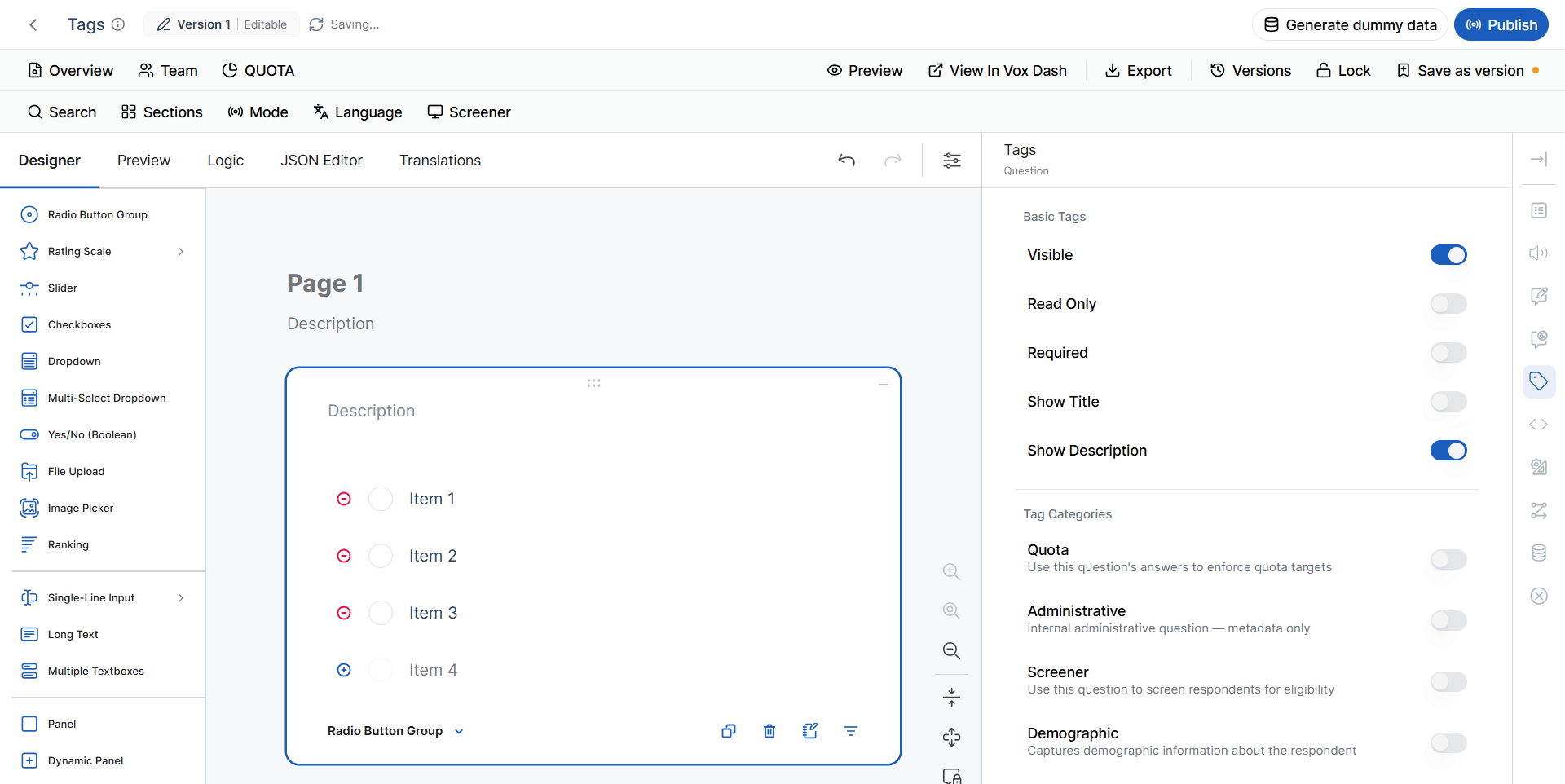
Show Description
Displays the question description or help text beneath the question title. Descriptions are commonly used to:- Provide instructions
- Explain terminology
- Clarify expected responses
- Offer additional guidance
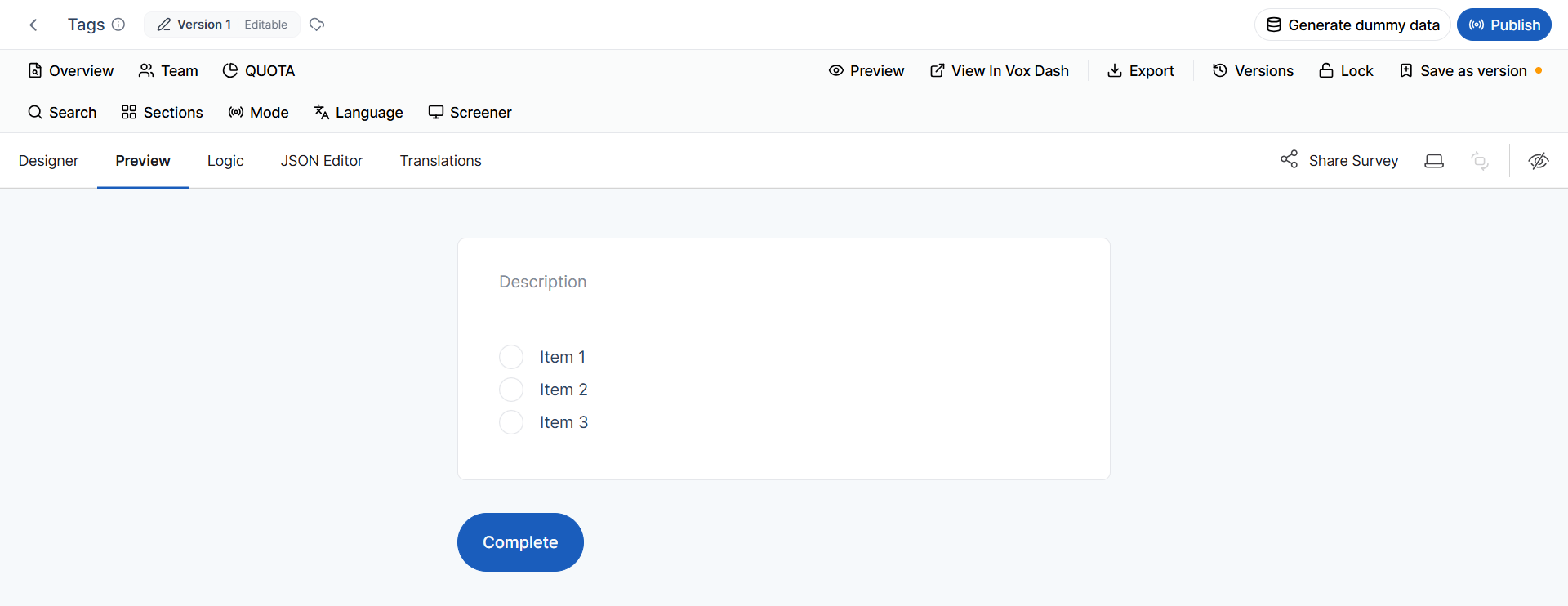
Survey Classification Tags
These tags identify the role of a question within the questionnaire.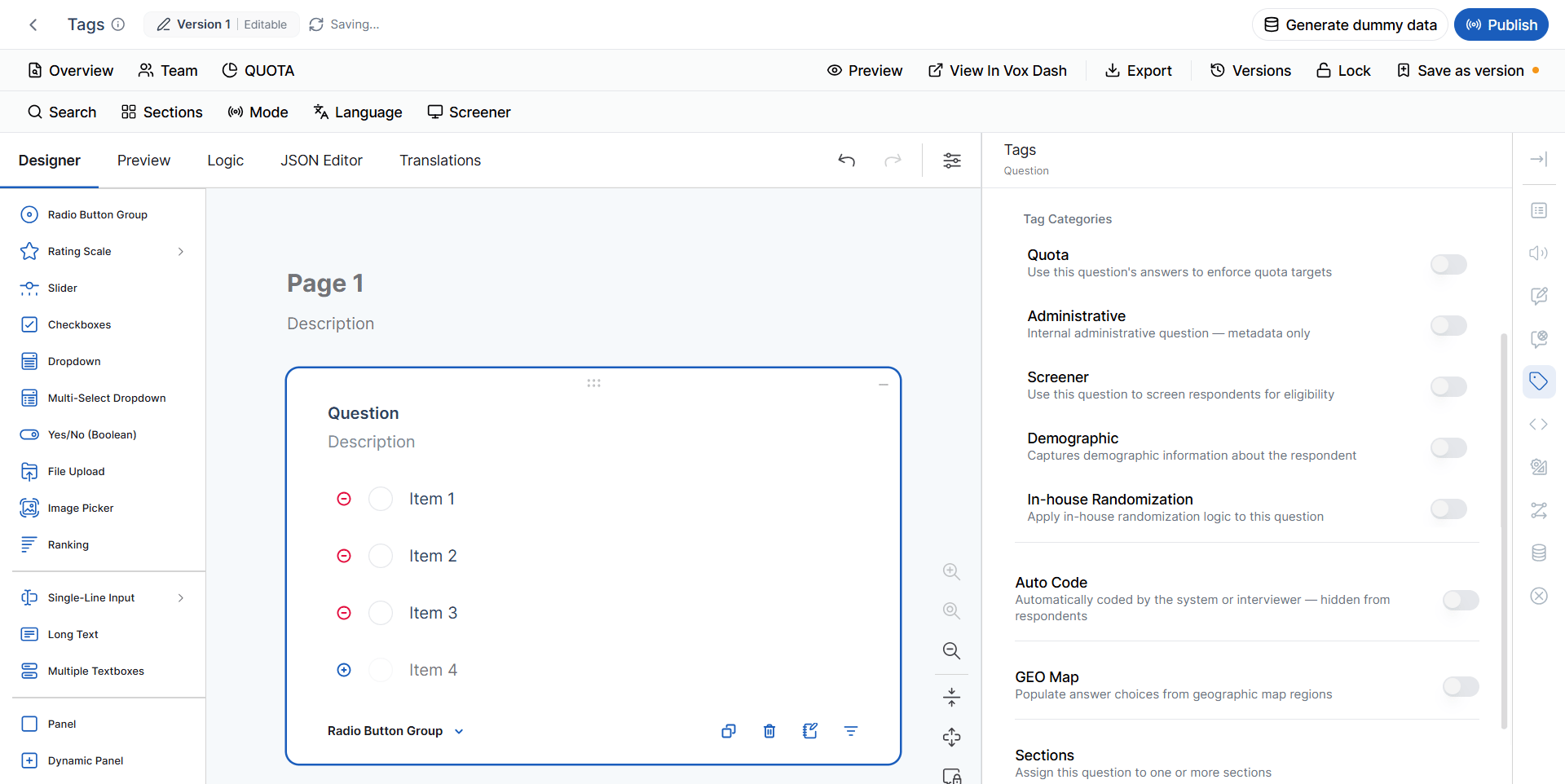
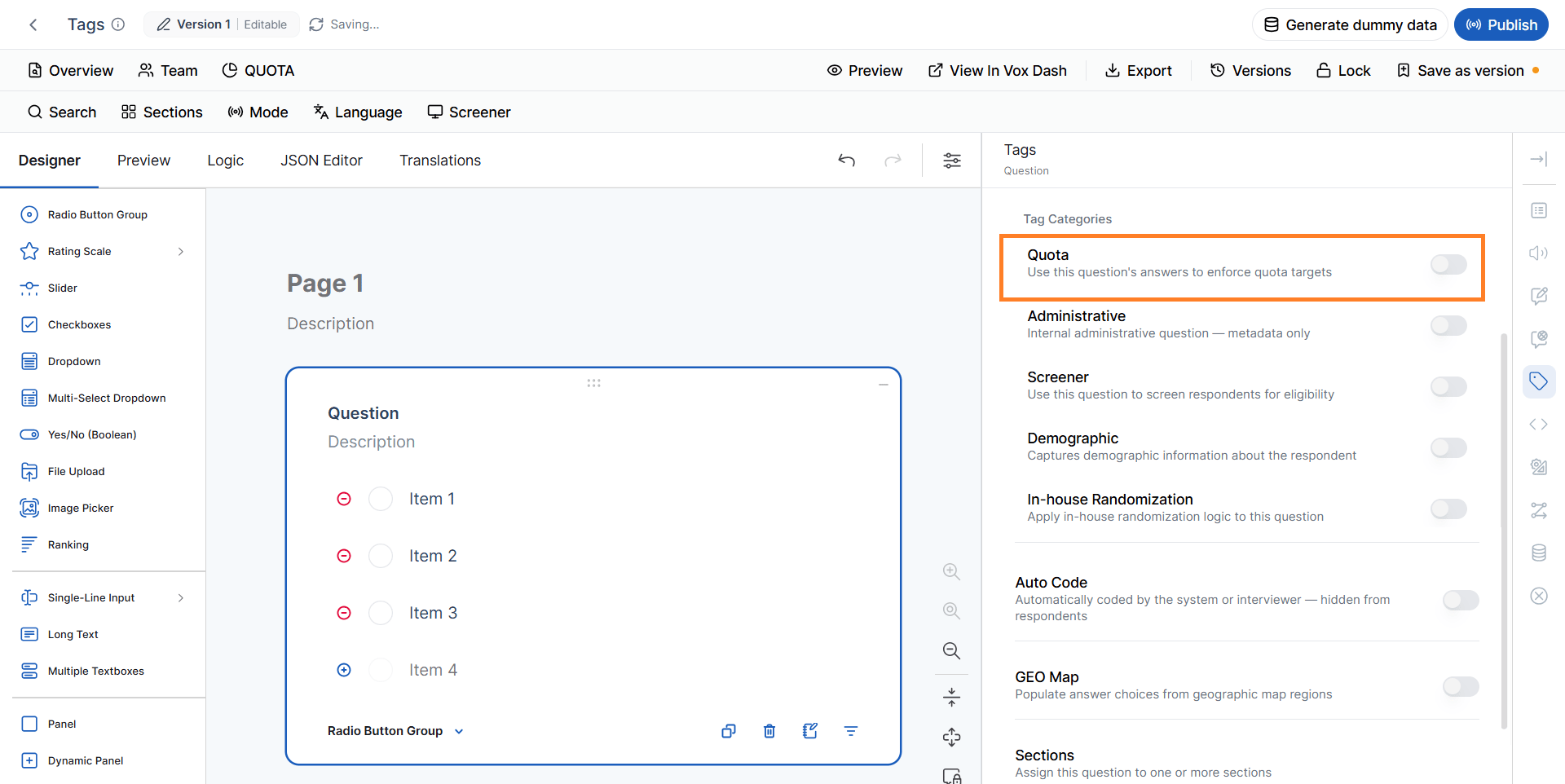
Quota
Marks the question as a Quota Question. Quota questions are used to monitor and enforce respondent quotas during data collection. Examples include:- Age group
- Gender
- Region
- Customer segment
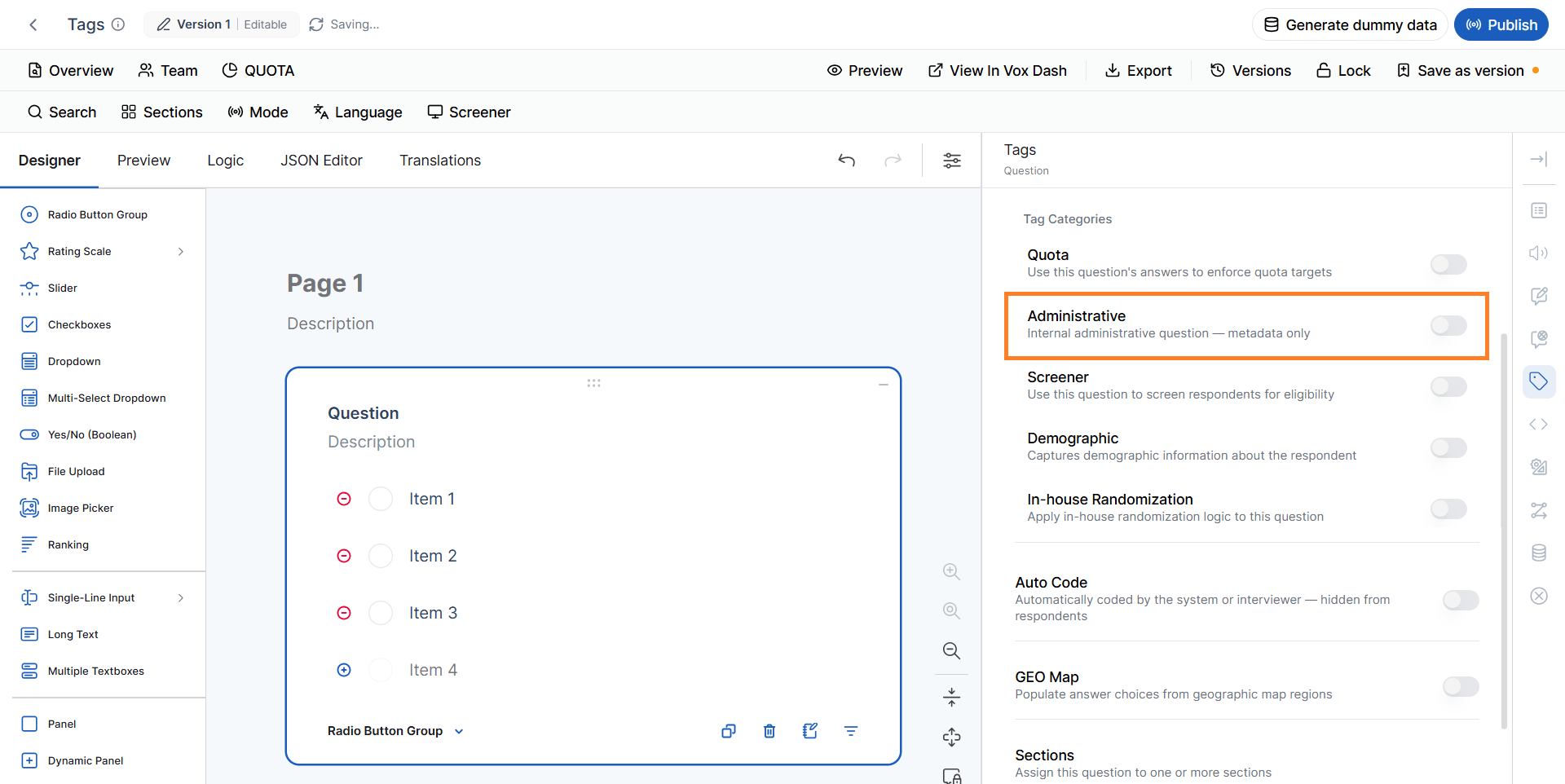
Administrative
Marks the question as an Administrative Question. Administrative questions are intended for internal use and typically collect metadata rather than respondent information. Examples include:- Project identifiers
- Interview IDs
- Internal notes
- Processing flags
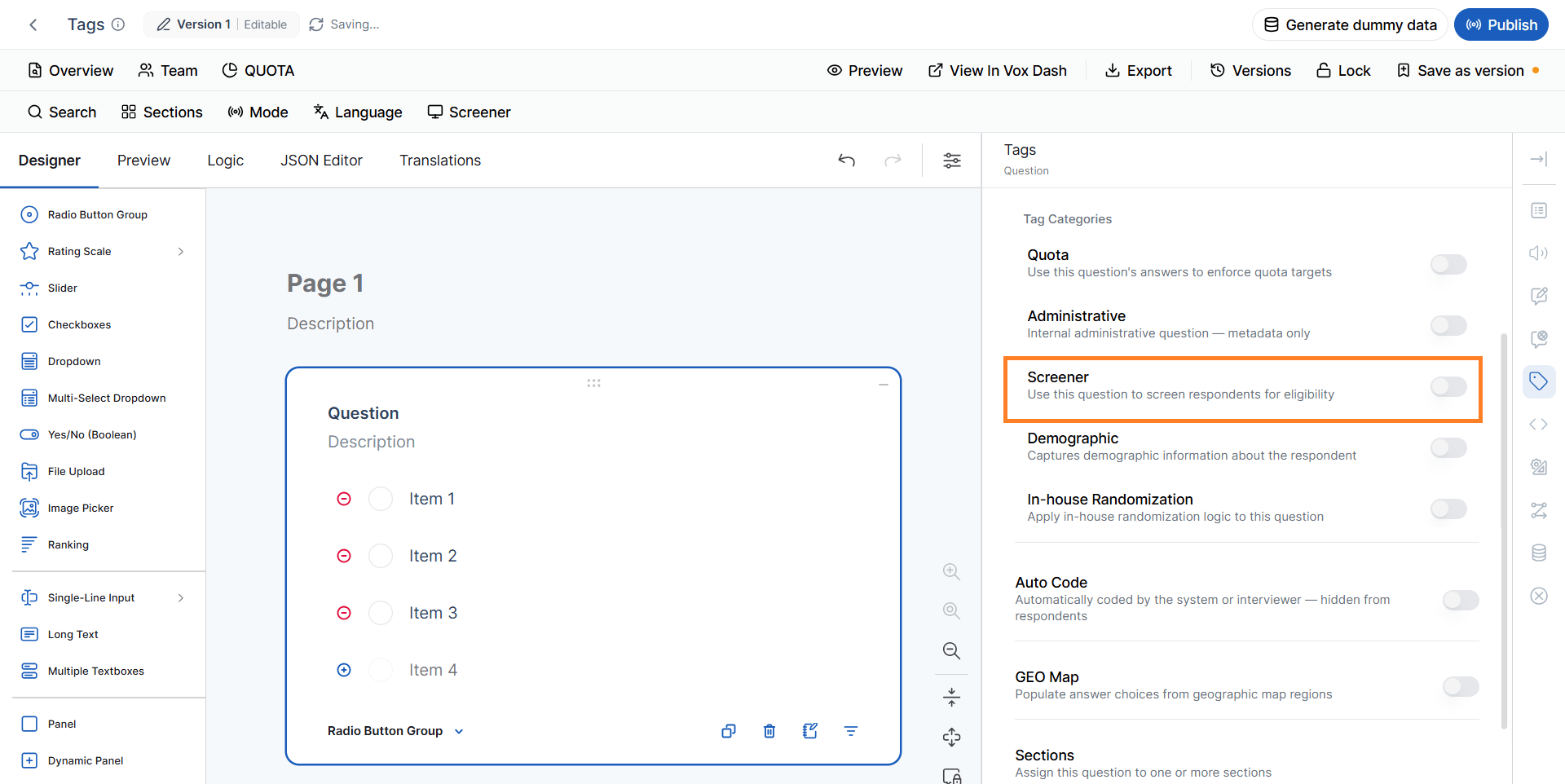
Screener
Identifies the question as a Screening Question. Screening questions determine whether a respondent is eligible to participate in the survey. Common screening criteria include:- Age
- Location
- Purchase history
- Employment status
- Industry
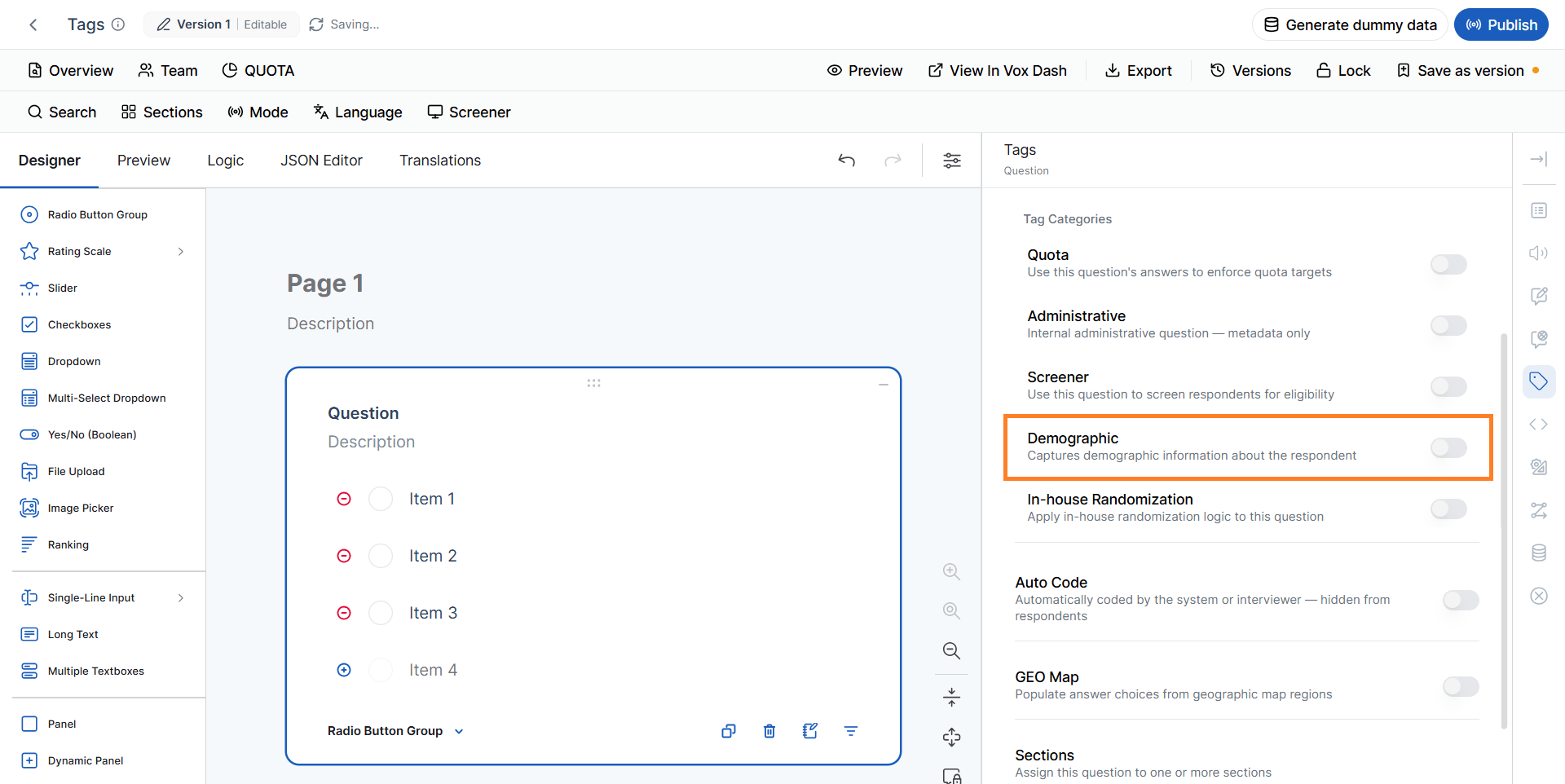
Demographic
Marks the question as collecting Demographic Information. Typical demographic questions include:- Age
- Gender
- Education
- Income
- Marital status
- Occupation
- Household size
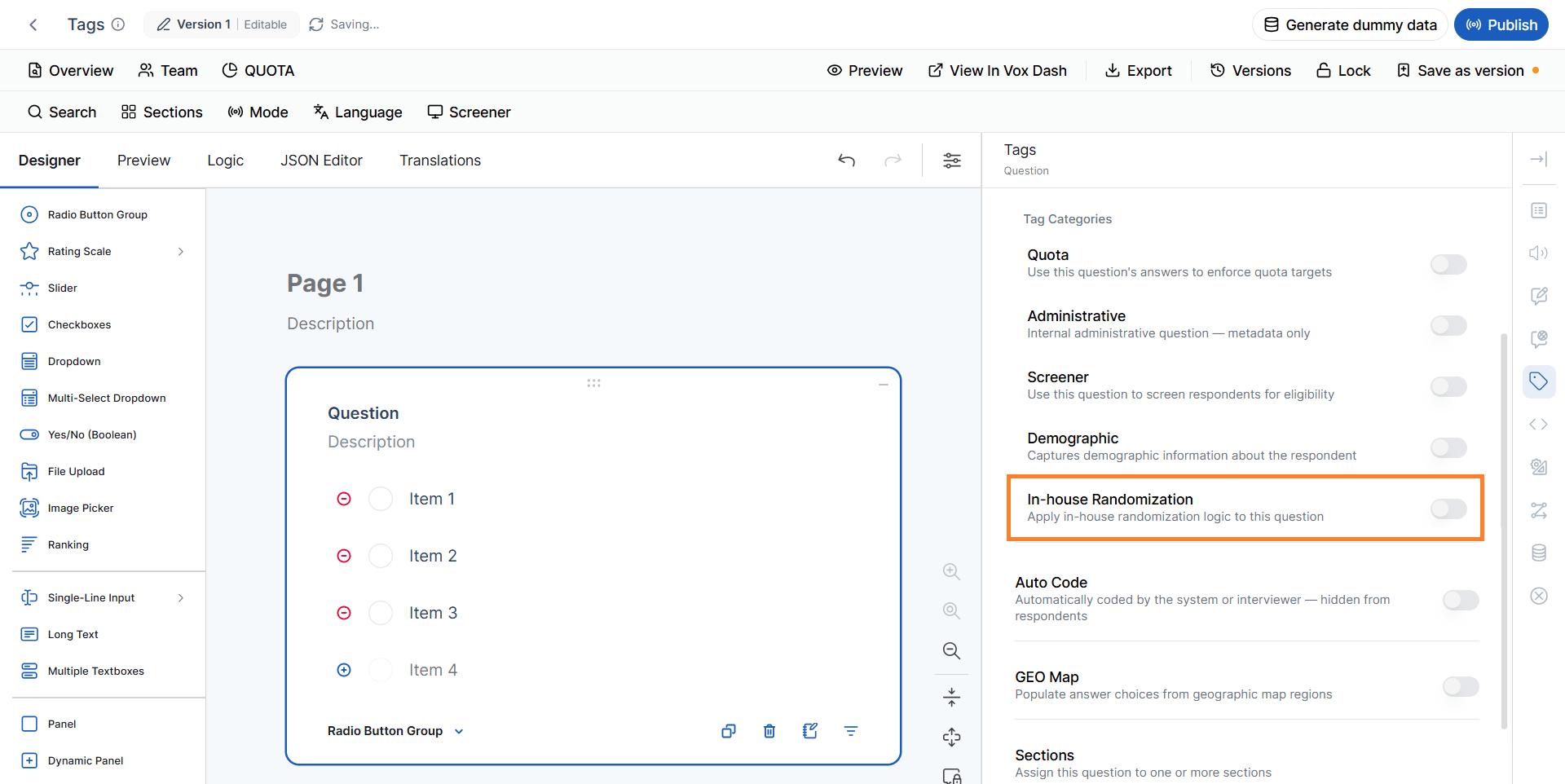
In-house Randomization
Identifies questions that participate in the platform’s internal randomization process. Randomization can be used to:- Reduce order bias
- Randomize answer choices
- Rotate questions
- Support experimental survey designs
Auto Code Tags
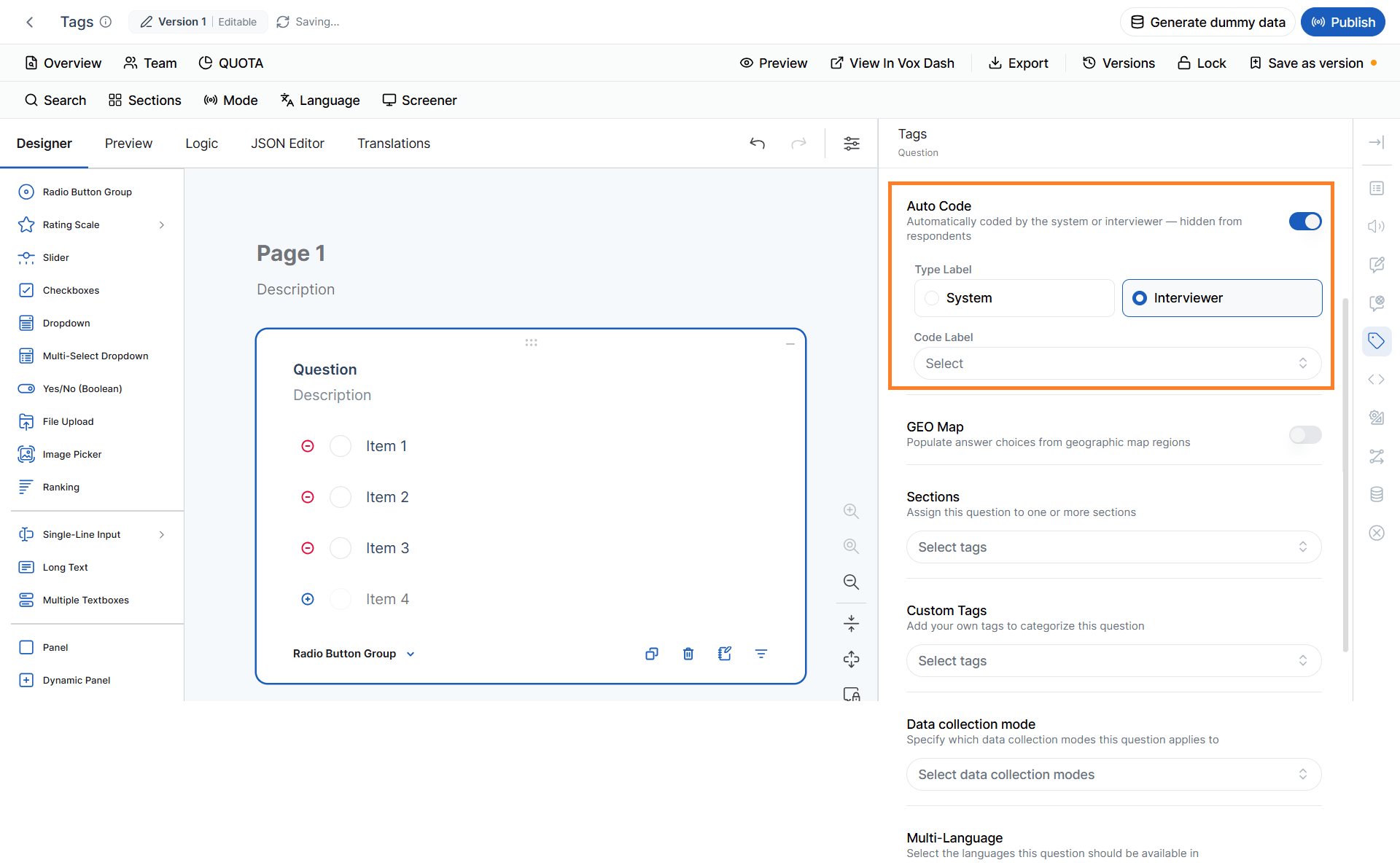
Marks the question as being automatically populated rather than answered directly by respondents. Auto-coded questions are commonly hidden from respondents and are used to capture system-generated values or interviewer-generated information.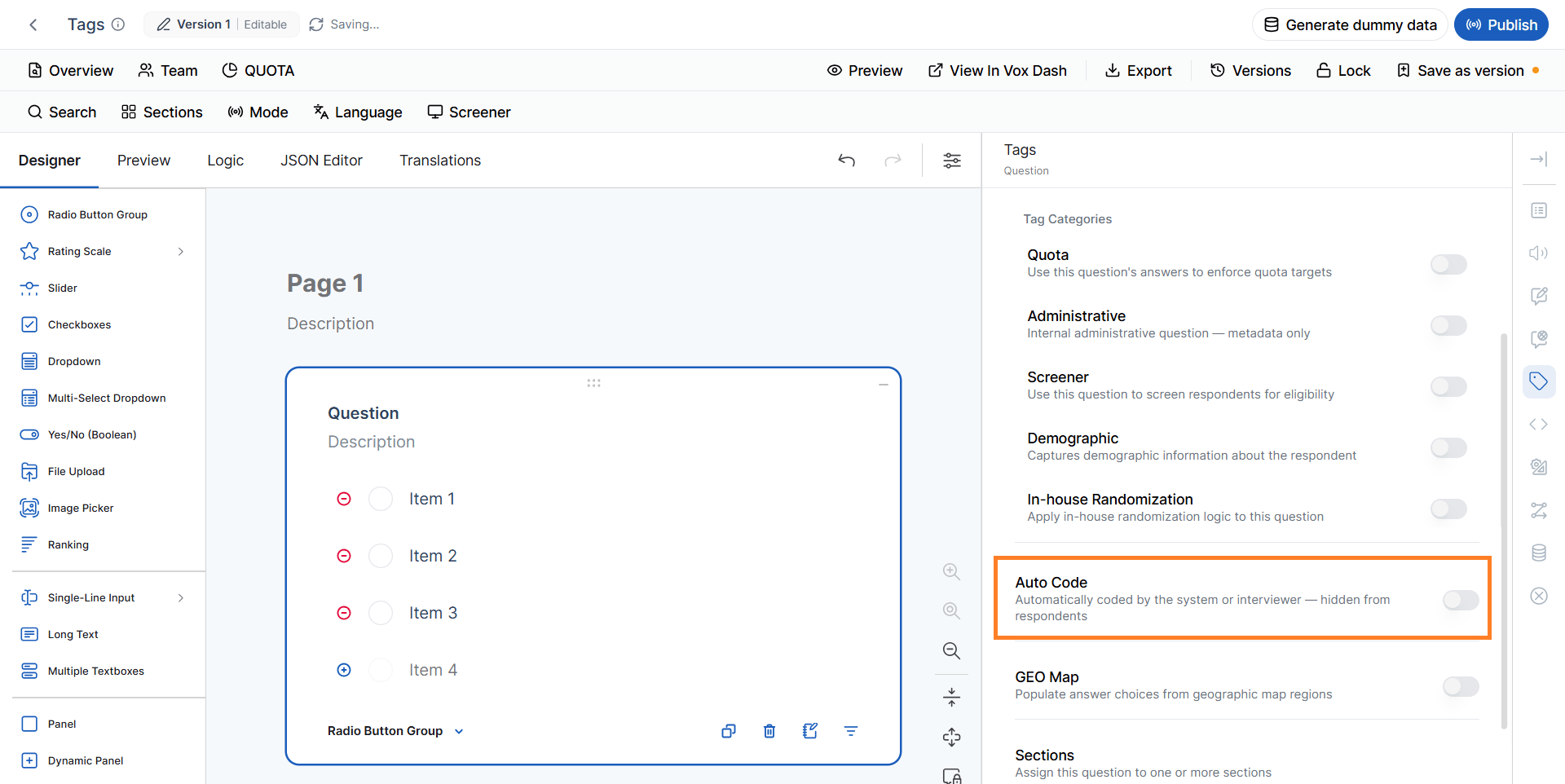
- The system
- An interviewer
Interviewer Auto Code
Used for values entered or assigned by the interviewer during data collection. These questions are typically not visible to respondents and the visible tag is automatically off when auto code tag is selected. Examples include:- Interview observations
- Interview outcome
- Validation notes
- Fieldwork metadata
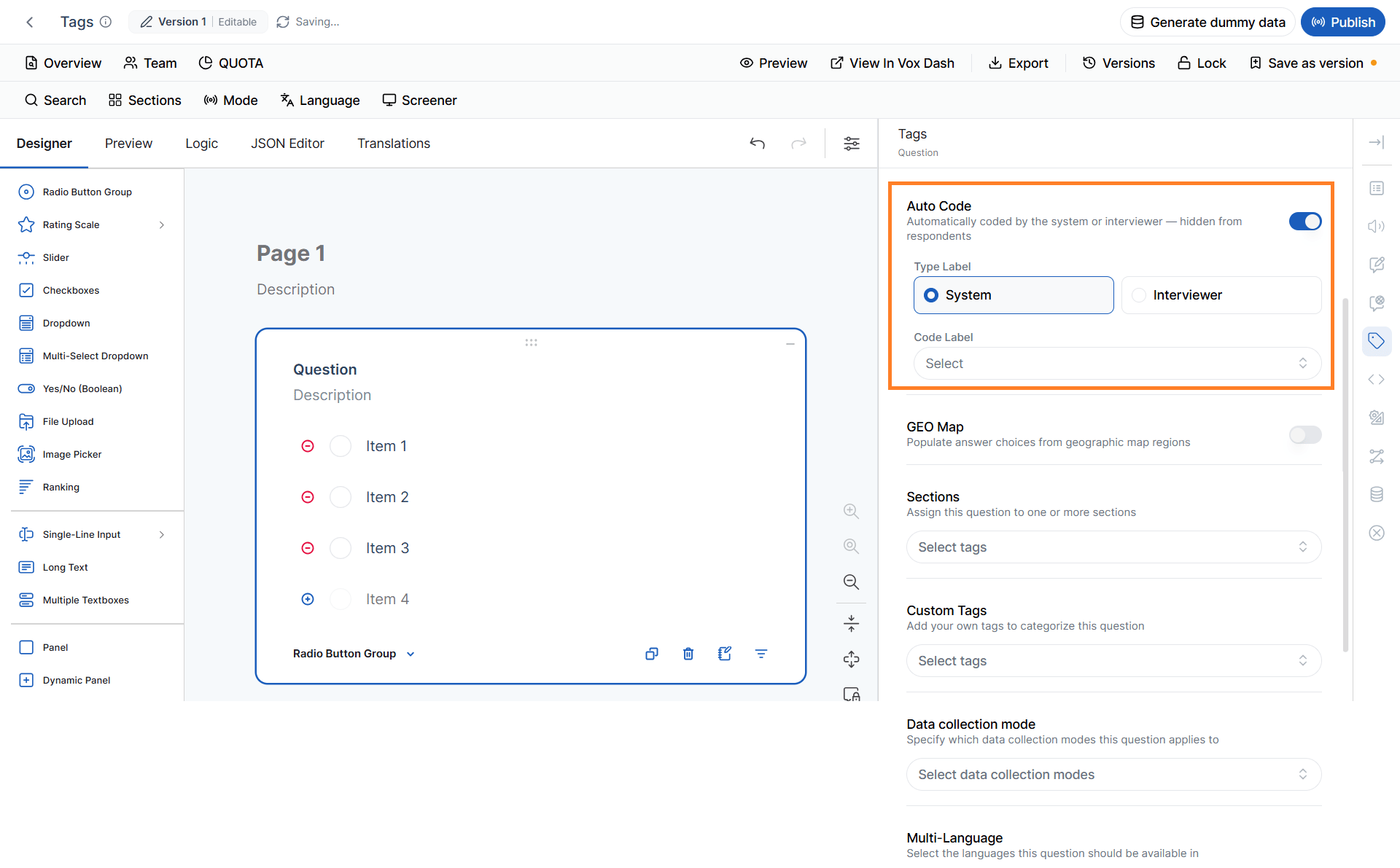
System Auto Code
Used for values generated automatically by the system. Examples include:- Response ID
- Timestamp
- Device information
- Session identifiers
- Internal processing values
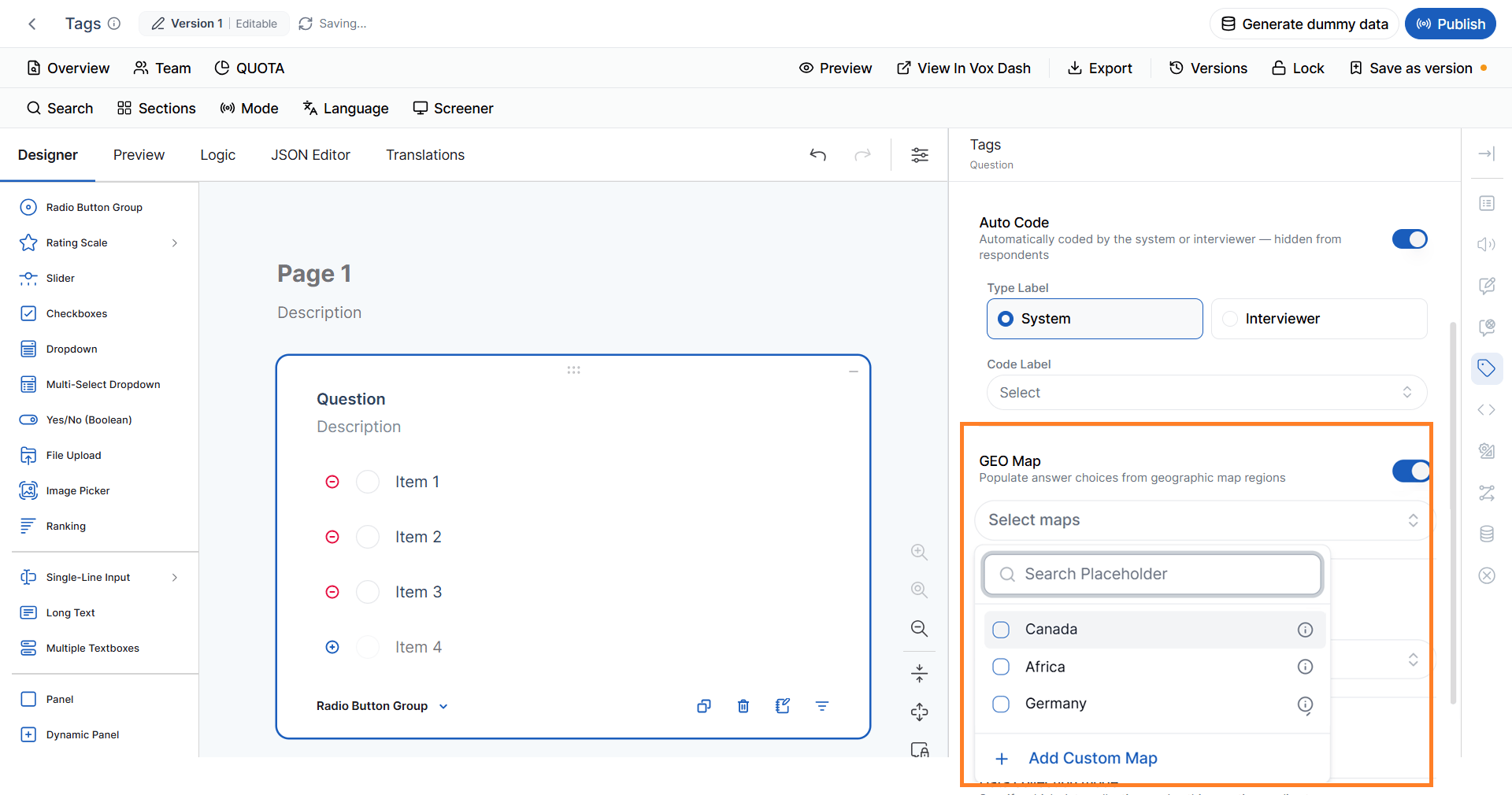
Geo Map Tag
The Geo Map tag identifies questions associated with geographic or mapping data. Use this tag for questions related to:- Countries
- States or provinces
- Cities
- Regions
- Geographic boundaries
- Map selections
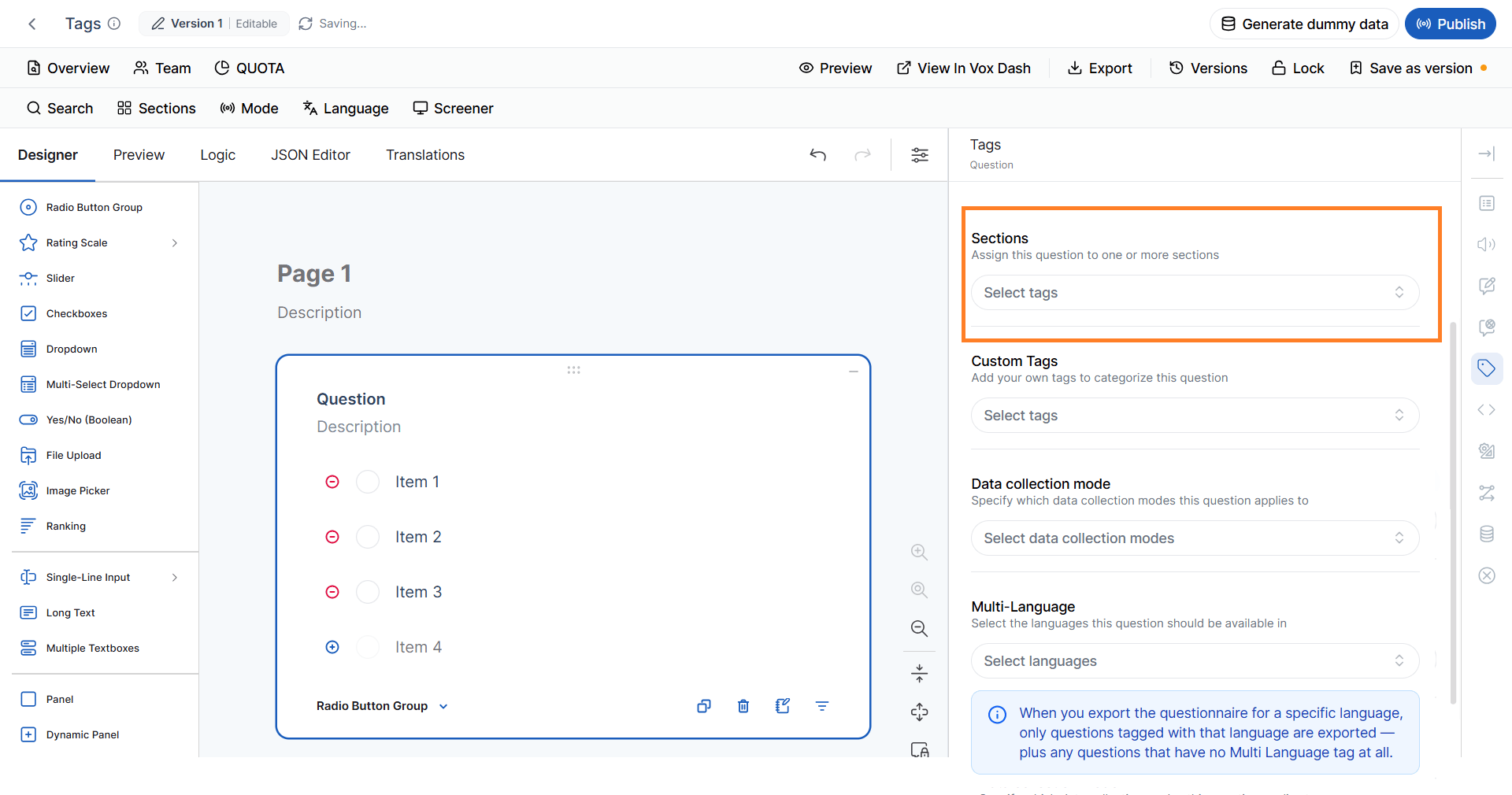
Section Tag
Section Tags allow you to group related questions into logical sections. They improve questionnaire organization and make large surveys easier to manage. Common section examples include:- Introduction
- Screening
- Product Usage
- Customer Satisfaction
- Demographics
- Closing Questions
Custom Tags
Custom Tags allow your organization to create its own classification system. Unlike predefined tags, custom tags can be tailored to your specific business processes or reporting needs. Examples include:- Priority
- Client Review
- Legal Approval
- Pilot Survey
- Internal Testing
- Brand Tracking
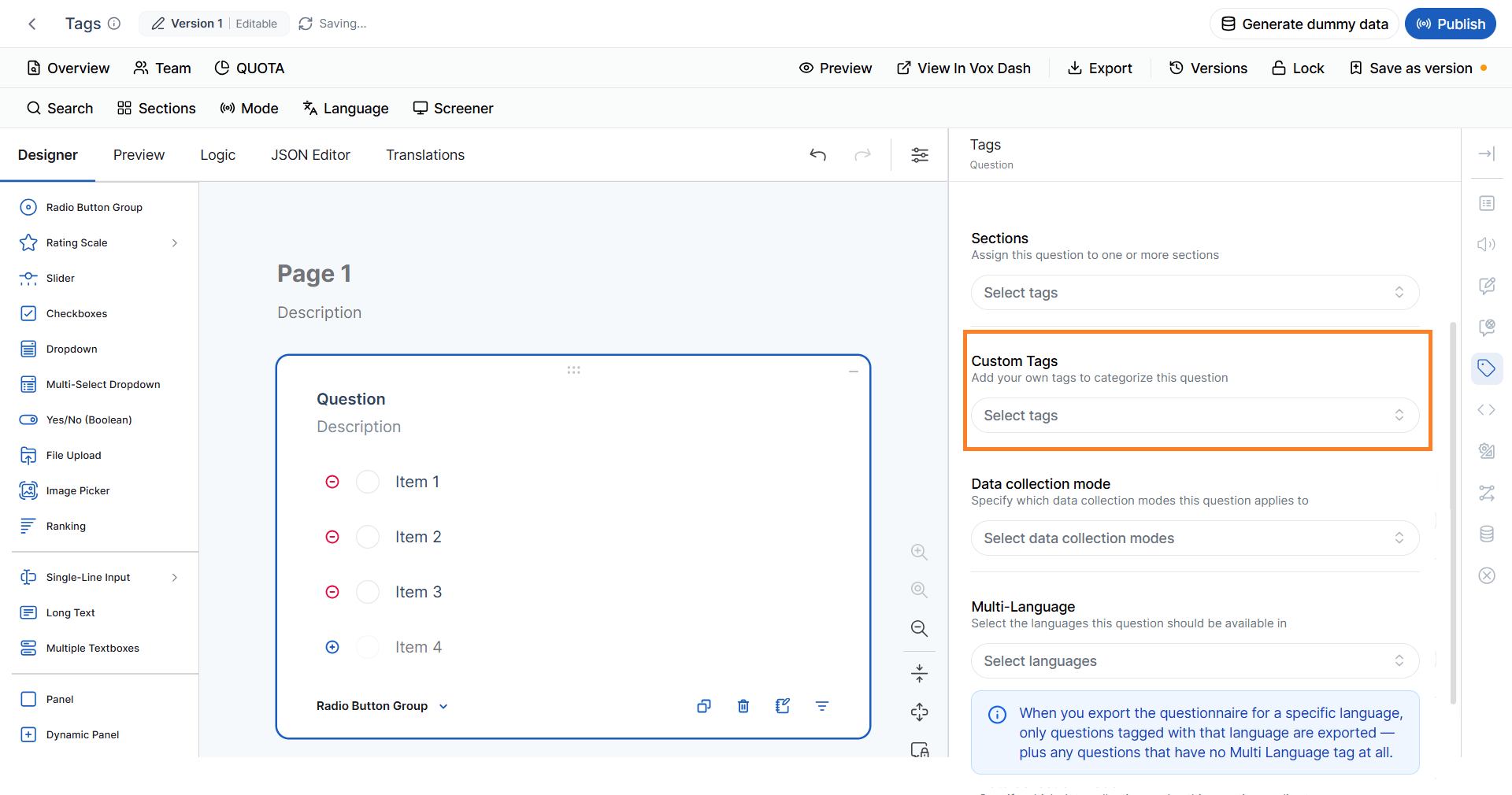
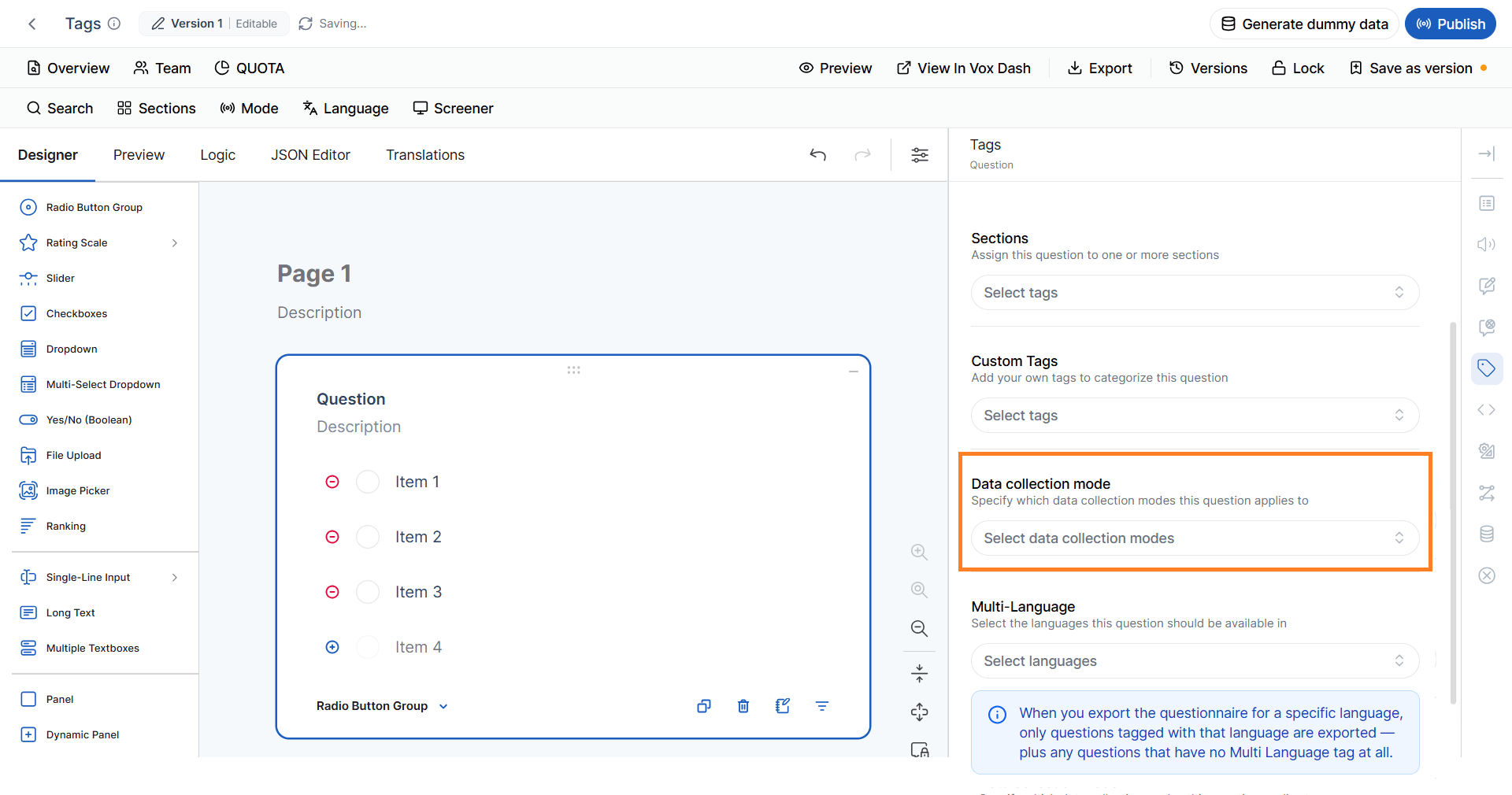
Data Collection Mode
The Data Collection Mode tag specifies which data collection methods a question supports. Depending on your organization’s configuration, questions may be used in different collection modes such as:- Web surveys
- Mobile surveys
- CATI (Computer-Assisted Telephone Interviewing)
- CAPI (Computer-Assisted Personal Interviewing)
- CAWI (Computer-Assisted Web Interviewing)
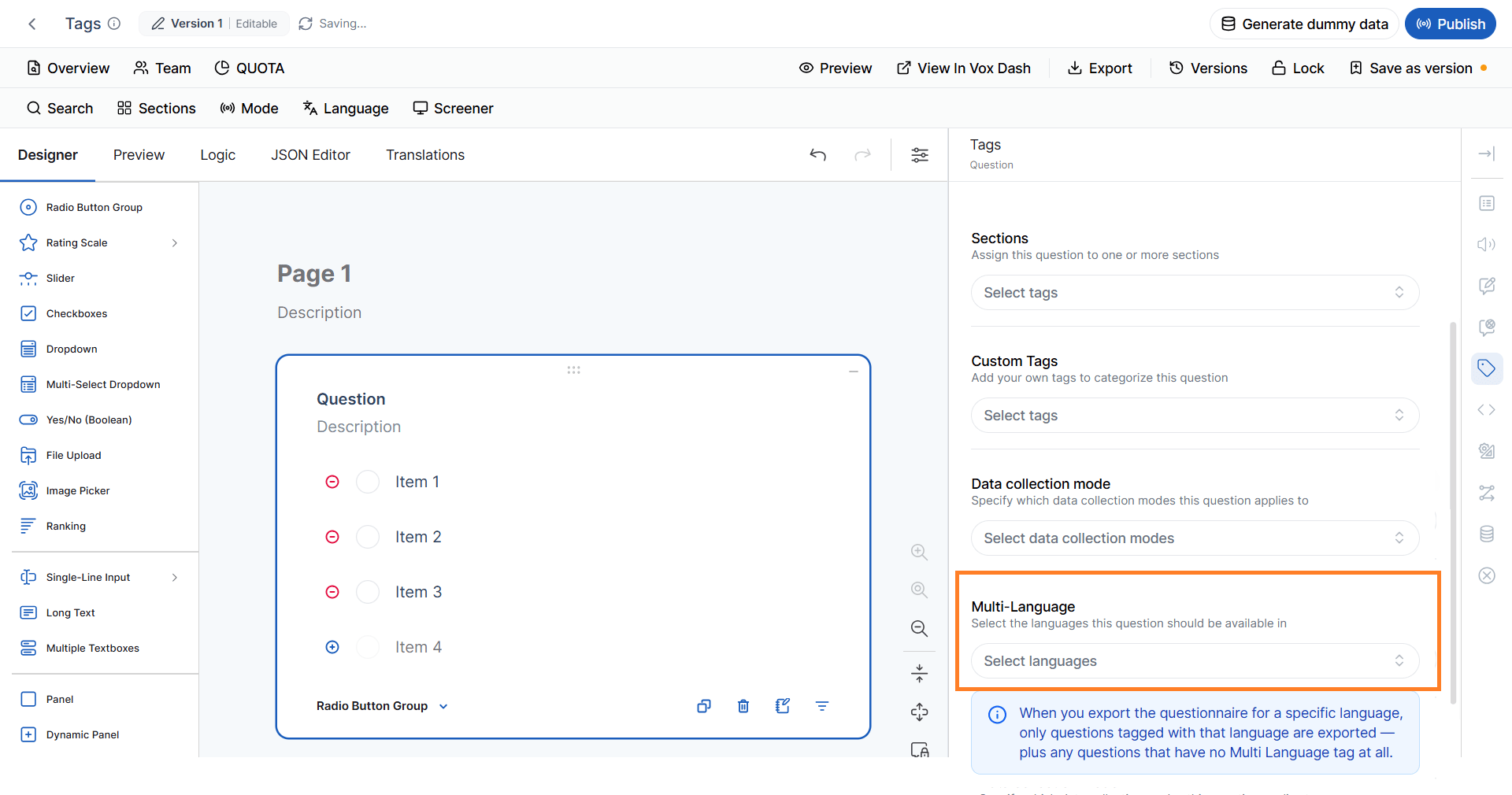
Multi-Language Tag
The Multi-Language tag controls the languages in which a question is available. Select one or more languages to indicate where the question should appear. This feature is particularly useful when maintaining multilingual questionnaires that contain language-specific questions.Note: When exporting a questionnaire for a specific language, VoxDash exports:This behavior allows you to maintain a single multilingual questionnaire while generating language-specific versions for fieldwork or translation.Questions tagged only with other languages are excluded from the export.
- All questions tagged with the selected language.
- Any questions that do not have a Multi-Language tag assigned.
Tag Availability by Question Type
Not every tag is available for every question type. The tags available for a question depend on what the question does, what kind of data it collects, and whether the tag has a meaningful function for that question type. When you select a question in the Editor Panel, VoxDash displays the tags that are supported for that question. You do not need to manually determine which tags are compatible. Some tags are intentionally available on almost every question, while others are limited because they require specific functionality.Administrative
The Administrative tag is available for all question types. Administrative questions are used for internal or operational information rather than standard respondent-facing survey content. For example, an administrative value might store:- Interview information
- Project information
- Internal identifiers
- Processing information
- Fieldwork information
Note: Administrative is kept available everywhere unless a specific technical issue prevents it from functioning correctly.
Screener
The Screener tag can be applied to any question type. A screener question is a question whose answer can be used to determine whether a respondent is eligible for a survey or a particular part of it. For example:Which of the following best describes your employment status?A respondent’s answer could determine whether they continue to the next section. Because screening can technically be associated with many different types of questions, the Screener tag is available across question types.
Screener without Logic
Adding the Screener tag does not automatically create screening logic. For example, you might tag this question as a Screener:Have you purchased a laptop in the last 12 months?But if no skip, termination, or other logic has been configured based on the answer, the question does not actually screen respondents. In this situation, VoxDash does not block the export or dummy-data generation. Instead, it provides a warning indicating that some screener questions do not have logic defined. This allows users to continue while making them aware of a potential configuration issue.
Demographic
The Demographic tag is available across question types. The tag identifies a question as being related to demographic information. Typical examples include:- Age
- Gender
- Education
- Occupation
- Income
- Household size
- Location
- Number
- Dropdown
- Radio Button Group
- Text
Quota
The Quota tag is more restricted because a question must provide an answer that can meaningfully be used for quota management. A quota allows you to set a target or limit for specific response categories. For example:What is your age group?A quota can then be created for each age-group option.
- 18–24
- 25–34
- 35–44
- 45+
Quota and Image Picker
Image Picker questions can also be used for quotas. When images are uploaded as selectable options, the images appear as options when creating a quota. A quota can then be configured for each image option. For example:Which product design do you prefer?with three image options:
- Product A
- Product B
- Product C
- Image Picker (Single)
- Image Picker (Multi)
Quota and Text Input Types
The availability of Quota for text-based questions requires additional consideration. Atext question is not a single behavior. It supports 13 different HTML5 input types, and those input types do not necessarily behave the same way.
For example, a text question may use an input type such as:
- Text
- Number
- Date
- URL
- Color
- and other HTML5 input types
Important: For Text questions, the question type alone is not enough to determine tag compatibility. The specific inputType must also be considered.
Single-Line Input
Single-line input questions support different input configurations and should therefore be considered individually. For example:- Text
- Number
- Date
- Color
- Other HTML5 input types
Tip: If a tag is unavailable for a particular Text input, check the selected inputType before changing the question type.
Long Text
Long Text questions are designed for open-ended responses. For example:Please describe your experience with our product.Because the response is free-form text, it does not normally provide predefined response categories that can be used for quota management. Therefore, Quota is not available for Long Text. However, other tags such as Administrative, Screener, Demographic, Section, Custom, Mixed Mode, and Multi-Language can still be used where appropriate.
Auto Code
The Auto Code tag identifies questions whose values are populated automatically by the system or interviewer rather than directly by the respondent. However, Auto Code is not available for every question type. In the current configuration, Auto Code is disabled for:- HTML
- Image
- File Upload
- Dynamic Panel
- Response IDs
- Interview outcomes
- Timestamps
- Internal processing values
- Interviewer-entered metadata
Geo Map
The Geo Map tag identifies questions that are associated with geographic information. Unlike some other tags, Geo Map does not require a specific map to be selected in order for the tag to be applied. This means that a question can be Geo-tagged even when the map configuration is added later.Open-Ended Questions and Geo Map
Open-ended questions can also be assigned the Geo Map tag. For example:Which city do you currently live in?The respondent could enter the city as text, while the question itself is still classified as geographic data. This provides more flexibility when working with geographic information that is not collected through predefined geographic options.
Important: Being tagged as Geo Map does not necessarily mean that the question already has a specific map configured. The tag identifies the question as being associated with geographic data.
In-House Randomization
The In-house Randomization tag identifies questions that participate in the platform’s internal randomization functionality. Depending on the question type and configuration, randomization can be used to:- Randomize answer options
- Rotate questions
- Reduce order bias
- Support experimental designs
- Reduce position effects
Multi-Language
The Multi-Language tag identifies questions associated with specific languages. It is particularly useful when a single questionnaire contains content for multiple language versions. For example, a questionnaire might contain:- English questions
- Persian questions
- German questions
How Multi-Language affects exports
The Multi-Language tag has a direct effect on language-specific questionnaire exports. When exporting a questionnaire for a selected language, VoxDash includes:- Questions tagged with the selected language.
- Questions that have no Multi-Language tag.
- Q1 — No language tag
- Q2 — English
- Q3 — French
- Q4 — German
- Q1 → Included
- Q2 → Included
- Q3 → Excluded
- Q4 → Excluded
Important: The Multi-Language tag is therefore more than a classification label. It actively determines which questions are included in a language-specific export.
Panel and Dynamic Panel
Panels are container elements that can contain other questions. For example: Customer Information Panel- Name
- Age
- Gender
- Survey JSON
- Data Map exports
- Question card UI
- Tag filters
Example: Instead of tagging ten questions individually as Administrative, you can apply the tag to their parent Panel and have the tag cascade to all child questions.
Why Are Some Tags Unavailable?
The main reason is that a tag only makes sense when its behavior can be supported by the selected question type. For example:- Quota requires data that can be used to create quota categories.
- Auto Code requires a question that can accept an automatically generated or assigned value.
- Geo Map requires a question that can represent geographic information.
- Randomization requires a question where randomization can be meaningfully applied.
- Multi-Language controls language-specific questionnaire behavior.
- Screener and Demographic are intentionally broad and can therefore be applied to almost any question.
What You Should Expect in the Editor
When you select a question in the Editor Panel, you should not expect to see the same list of tags for every question. Instead:- Select a question.
- Open Tags.
- Review the tags available for that specific question.
- Select the tags that match the question’s purpose.
- Configure any additional settings required by the selected tag.
- Save the questionnaire.
Tip: For Text questions in particular, check the specific Input Type before assuming that all Text questions support the same tags. The 13 HTML5 input types can have different behavior.
Best Practices
When using question tags:- Apply Quota, Screener, and Demographic tags consistently to improve reporting and respondent management.
- Use Administrative and Auto Code tags for questions that should not be answered directly by respondents.
- Organize large questionnaires with Section and Custom Tags to simplify navigation and maintenance.
- Tag geographic questions with Geo Map when they are intended for map-based analysis.
- Review Multi-Language tags before exporting questionnaires to ensure only the intended questions are included in each language version.
- Keep your tagging strategy consistent across projects to improve searchability, reporting, and long-term questionnaire maintenance.