

Note: Before translating a questionnaire, ensure that multiple languages have been added to the questionnaire’s metadata.
Accessing the Translation Tab
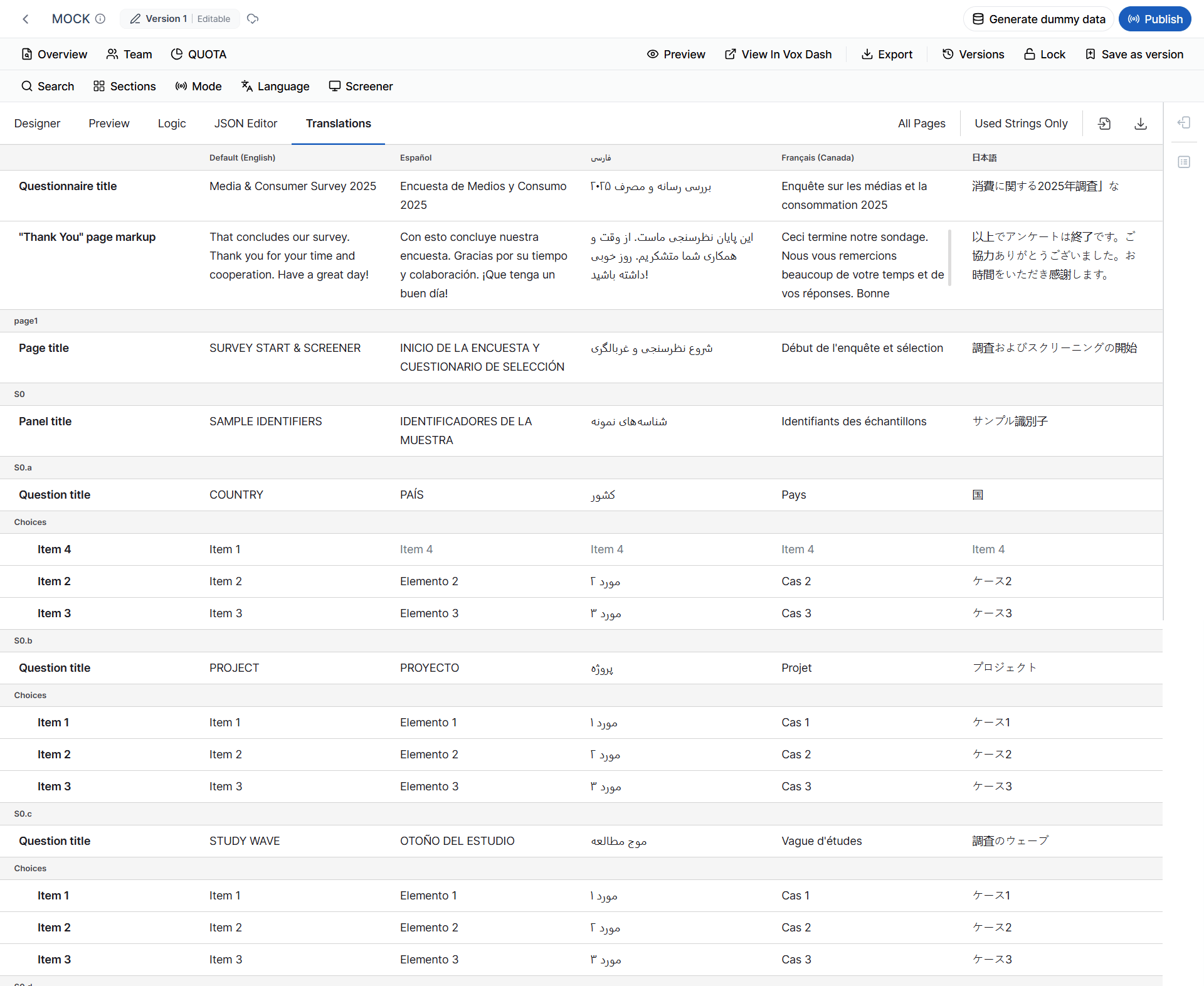
To manage questionnaire translations:- Open your questionnaire in the Editor Panel.
- Select the Translation tab.
Viewing Available Languages
The Translation tab lists every language configured for the questionnaire. For each language, you can:- View translated content.
- Edit existing translations.
- Translate new questions.
- Review untranslated items.
Translating Questions Manually
You can manually translate each questionnaire element into the selected language. Common translatable content includes:- Questionnaire title
- Questionnaire description
- Page titles
- Question titles
- Question descriptions
- Answer choices
- Validation messages
- Button labels (where applicable)
- Other translatable text elements
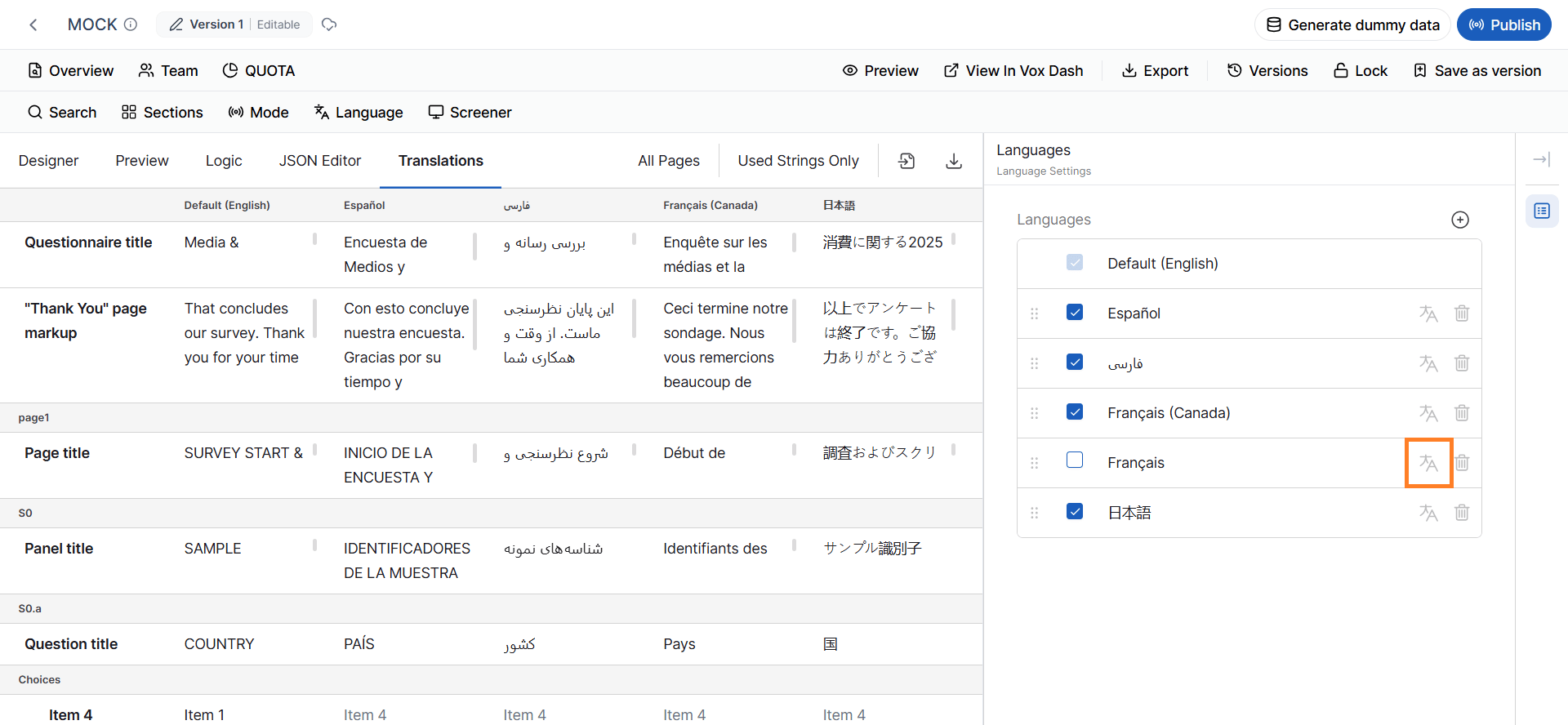
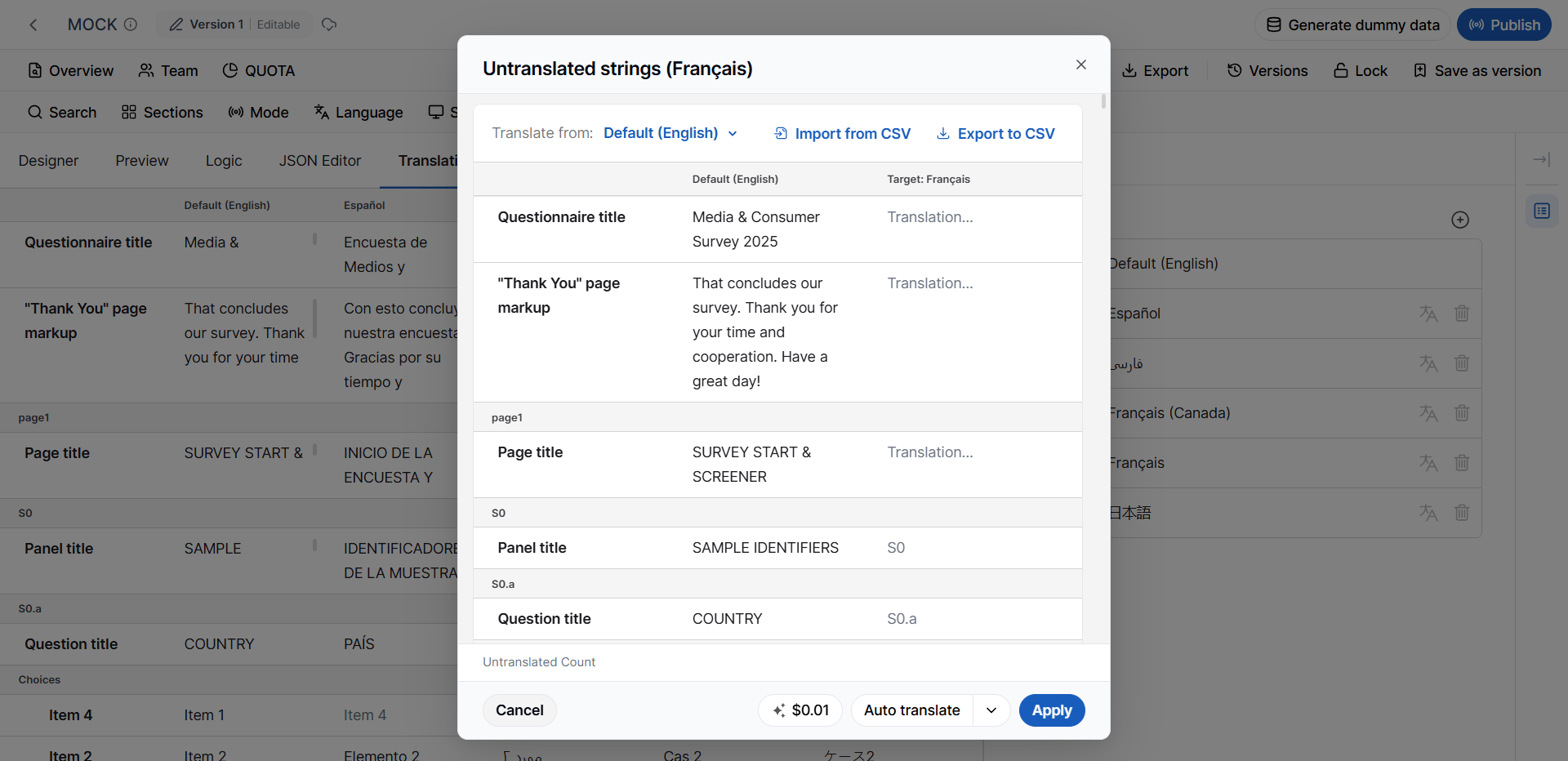
AI Translation
To speed up the translation process, VoxDash provides an AI Translation feature. Instead of translating each question individually, you can automatically translate the entire questionnaire into the selected language. The AI translation feature can translate:- Questionnaire titles
- Question titles
- Descriptions
- Answer options
- Other supported text elements
Tip: AI translation significantly reduces translation time, but manual review is recommended for industry-specific terms, product names, and technical content.
Adding a New Language
If the required language is not already available, you can add it directly from the Translation tab. To add a new language:- Click Add Language.
- Select the desired language.
- Save your changes.
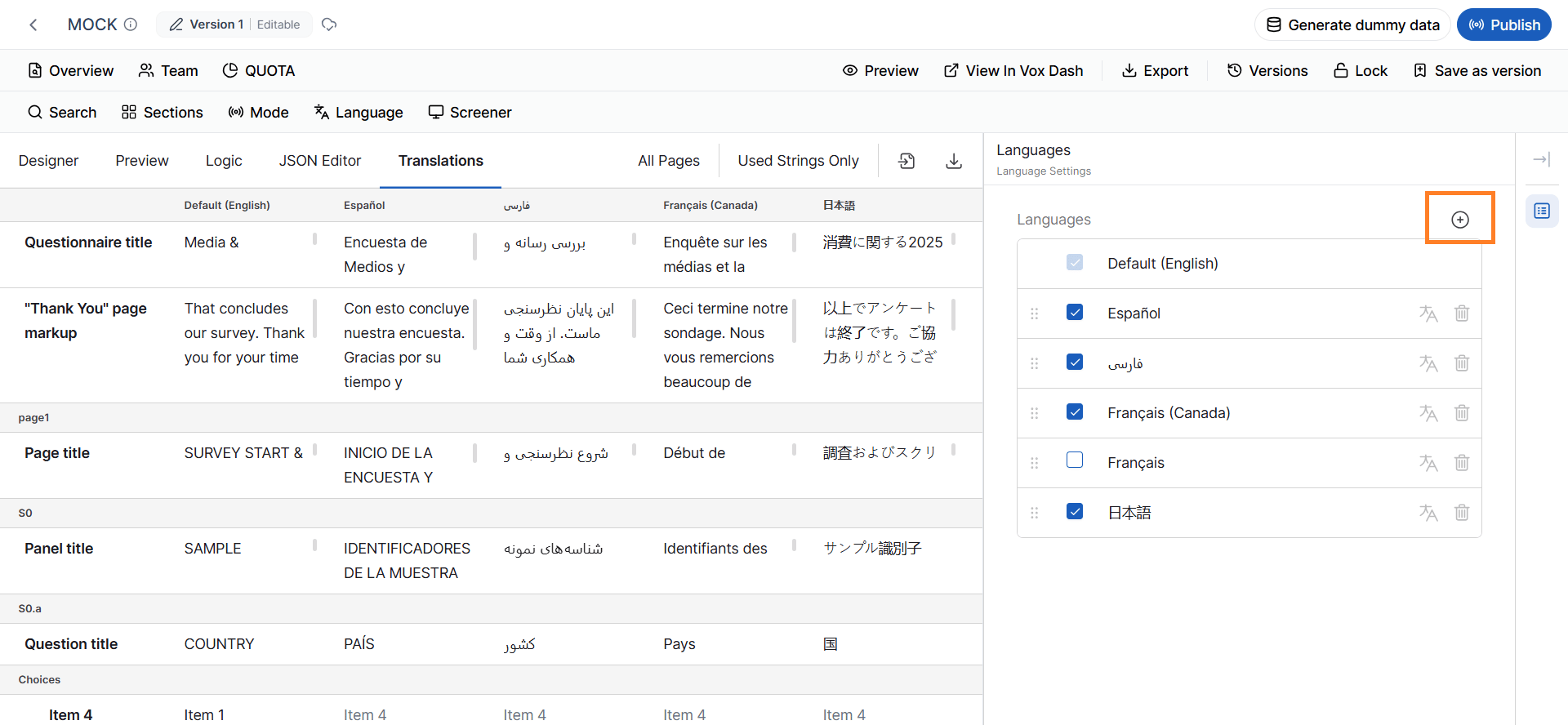
Important: Adding a language to the questionnaire does not automatically make every question available in that language.To include questions in the new language, you must assign the appropriate Multi-Language tag to each question that should appear in that language. Questions without the corresponding language tag will not be included when exporting or displaying that language-specific version of the questionnaire.
Importing and Exporting Translations
The Translation tab supports importing and exporting translations using CSV files.Export Translations
You can export the questionnaire translations as a CSV file. Exporting translations is useful for:- Sending translations to professional translators.
- Reviewing translations offline.
- Maintaining translation backups.
- Editing translations in spreadsheet software.
- Reusing translations across projects.
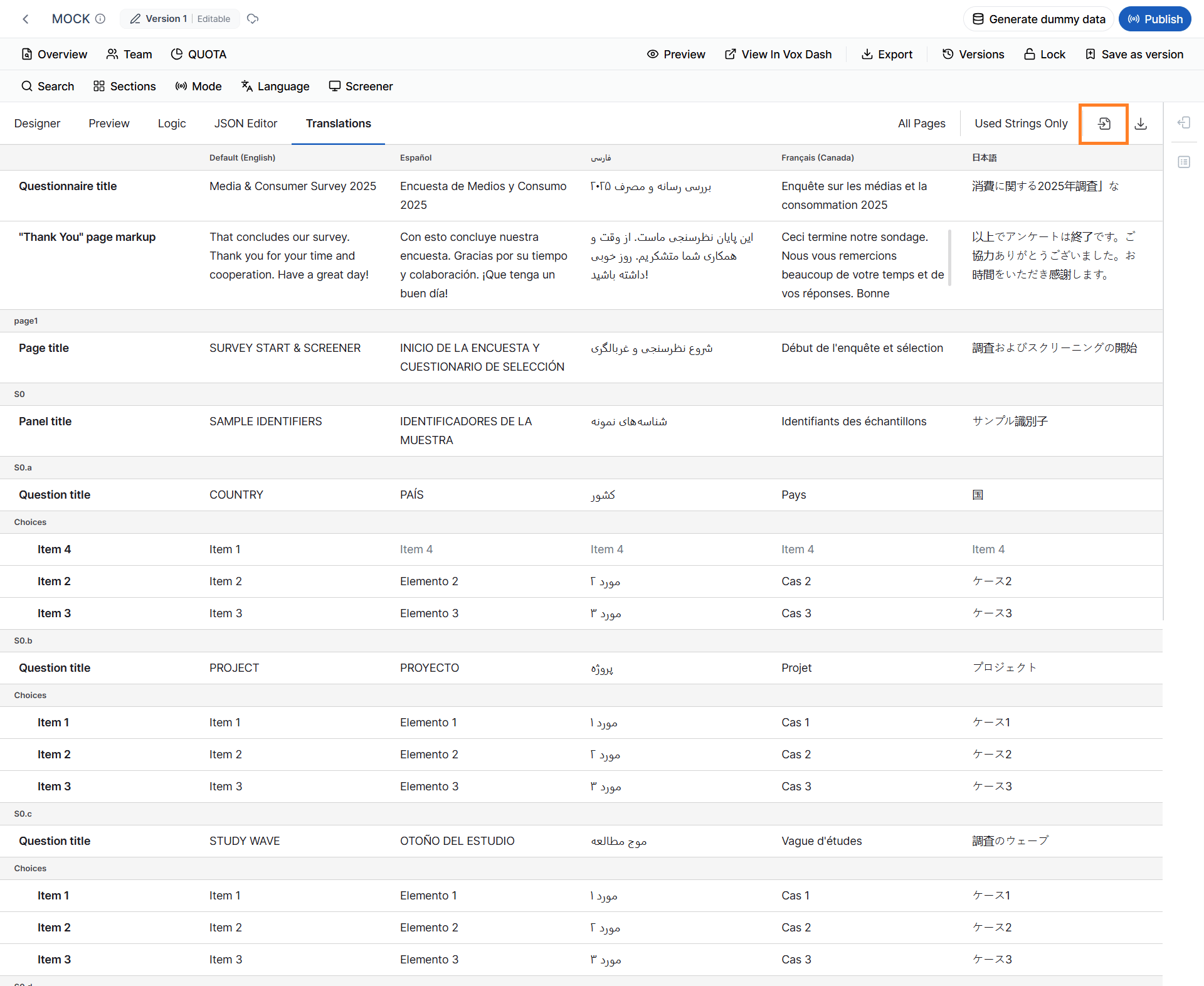
Import Translations
After translations have been completed or updated, you can import the CSV file back into VoxDash. Importing allows you to quickly apply translated content without manually editing each question. This workflow is especially useful for large questionnaires or when working with external translation teams.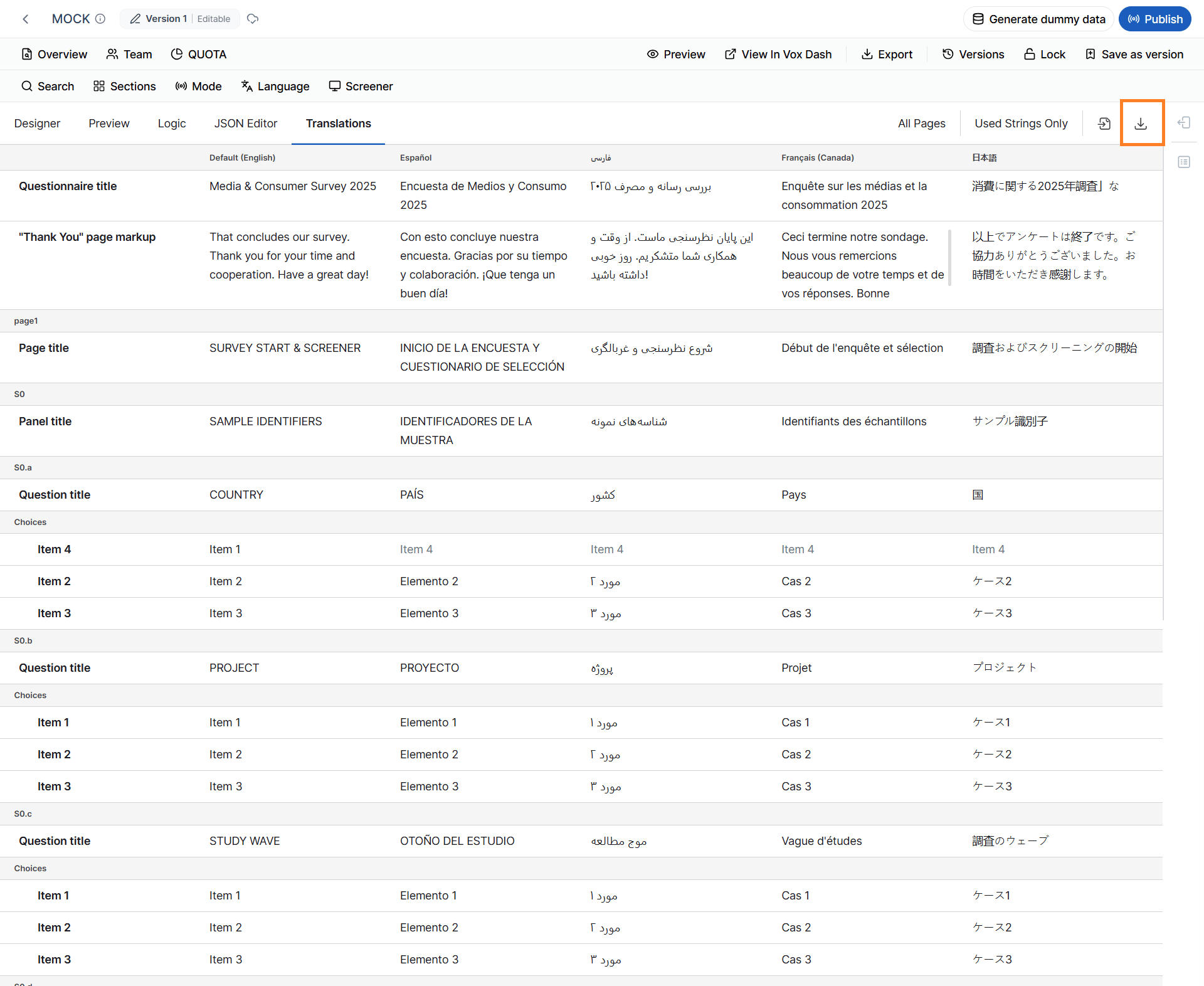
Translation Workflow
A typical multilingual workflow consists of the following steps:- Create the questionnaire.
- Add the required languages to the questionnaire.
- Assign Multi-Language tags to the relevant questions.
- Open the Translation tab.
- Translate the questionnaire manually or use AI Translation.
- Review and edit translated content as needed.
- Export or import translations using CSV files if collaborating with external translators.
- Preview the questionnaire in each language to verify translations before publishing.
Best Practices
To ensure high-quality multilingual questionnaires:- Add all required languages before beginning the translation process.
- Apply Multi-Language tags consistently to questions intended for each language.
- Use AI Translation to accelerate the initial translation, then review the results manually.
- Verify that product names, brand names, and technical terminology are translated correctly.
- Export translations to CSV when collaborating with professional translators.
- Preview the questionnaire in every supported language to ensure formatting, layout, and translations display correctly.
- Revalidate questionnaire logic after translating to ensure that translated content does not affect question flow or usability.