

- An entire questionnaire
- A single question
Note: Text-to-Speech generation consumes TTS credits. Before generating audio, VoxDash estimates the number of characters to be processed and displays the estimated generation cost. Once the voice is generated successfully, the corresponding credits are deducted from your account.
Generating Speech
To generate audio for your questionnaire:- Open your questionnaire in the Questionnaire Builder.
-
Select either:
- The entire questionnaire, or
- An individual question.
- Open the Text-to-Speech (TTS) panel.
- Configure the voice generation settings.
- Review the estimated character count and generation cost.
- Click Generate Voice.
Voice Generation Settings
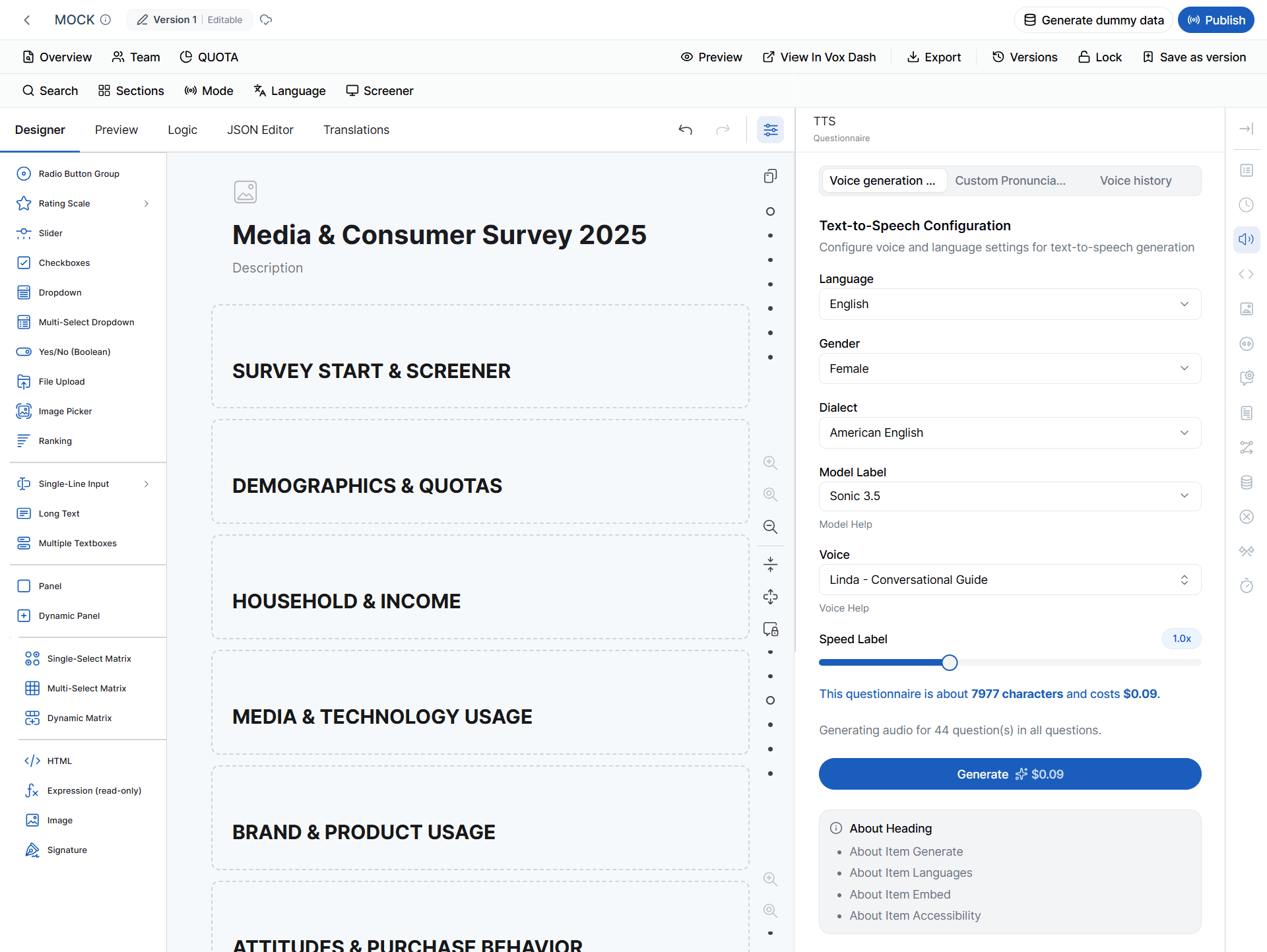
Before generating speech, you can customize how the synthesized voice will sound. The Voice Generation Settings panel allows you to configure the language, voice characteristics, and speech speed to best match your audience. The available settings include:Language
Select the language in which the text will be spoken. Only voices compatible with the selected language will be available for selection.Gender
Choose the preferred voice gender. Available options depend on the selected language and voice model. Typical options include:- Male
- Female
Dialect
Select the regional accent or dialect for the chosen language. For example, English may include dialects such as:- American English
- British English
- Australian English
Model
Select the speech synthesis model used to generate the audio. Different models may provide varying levels of naturalness, pronunciation accuracy, or speaking style depending on your subscription and available TTS providers.Voice
Choose a specific voice from the available voices supported by the selected language, gender, dialect, and model. Each voice has its own characteristics, tone, and speaking style.Speech Speed
Adjust how quickly the generated voice speaks. You can increase the speed for shorter listening times or reduce it to improve clarity and comprehension. Previewing different speeds is recommended before generating the final audio.Generation Cost
Before audio generation begins, VoxDash automatically analyzes the selected questionnaire or question and displays:- Estimated character count
- Estimated generation cost
- Credits that will be consumed
Important: Credits are deducted only after the voice has been successfully generated.
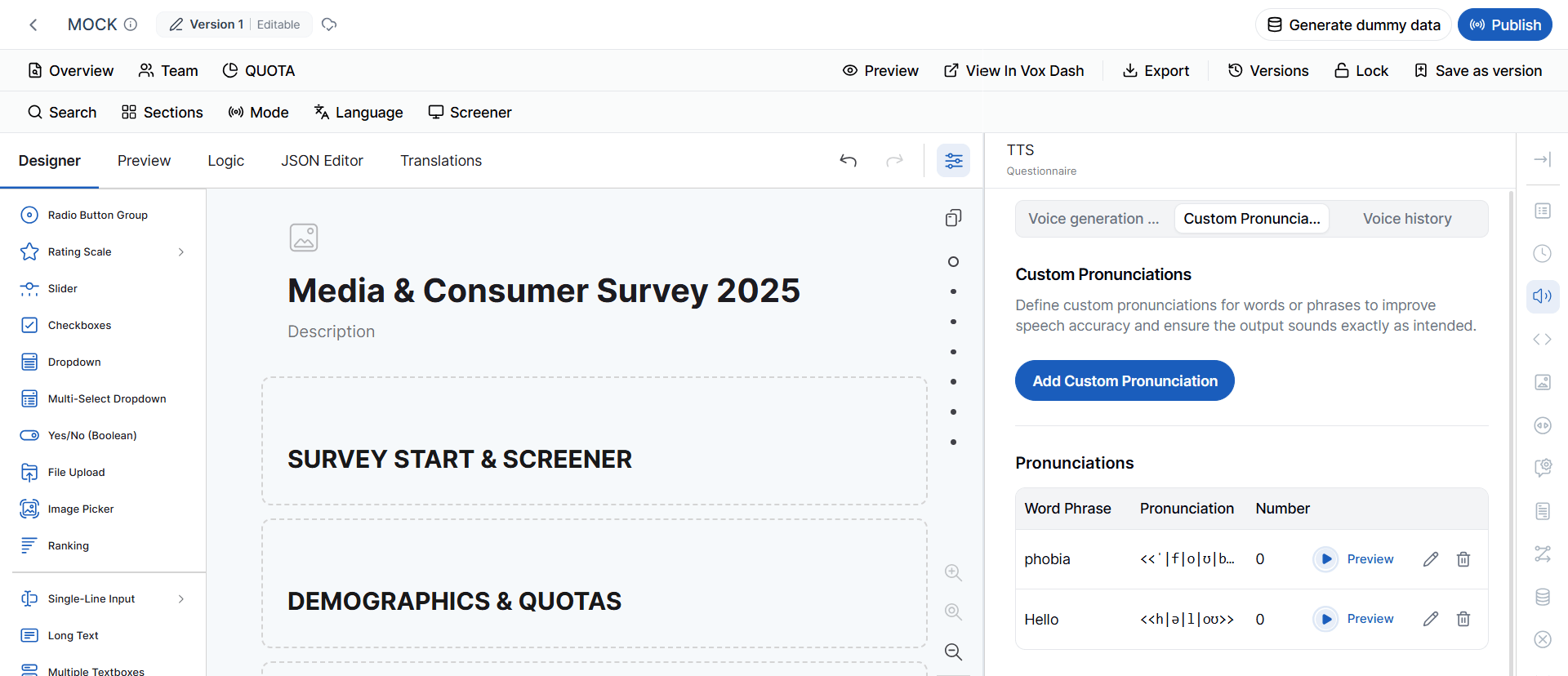
Custom Pronunciations
The Custom Pronunciations feature allows you to define how specific words or phrases should be pronounced during speech generation. This is especially useful for:- Brand names
- Product names
- Technical terminology
- Acronyms
- Company names
- Foreign words
- Industry-specific vocabulary
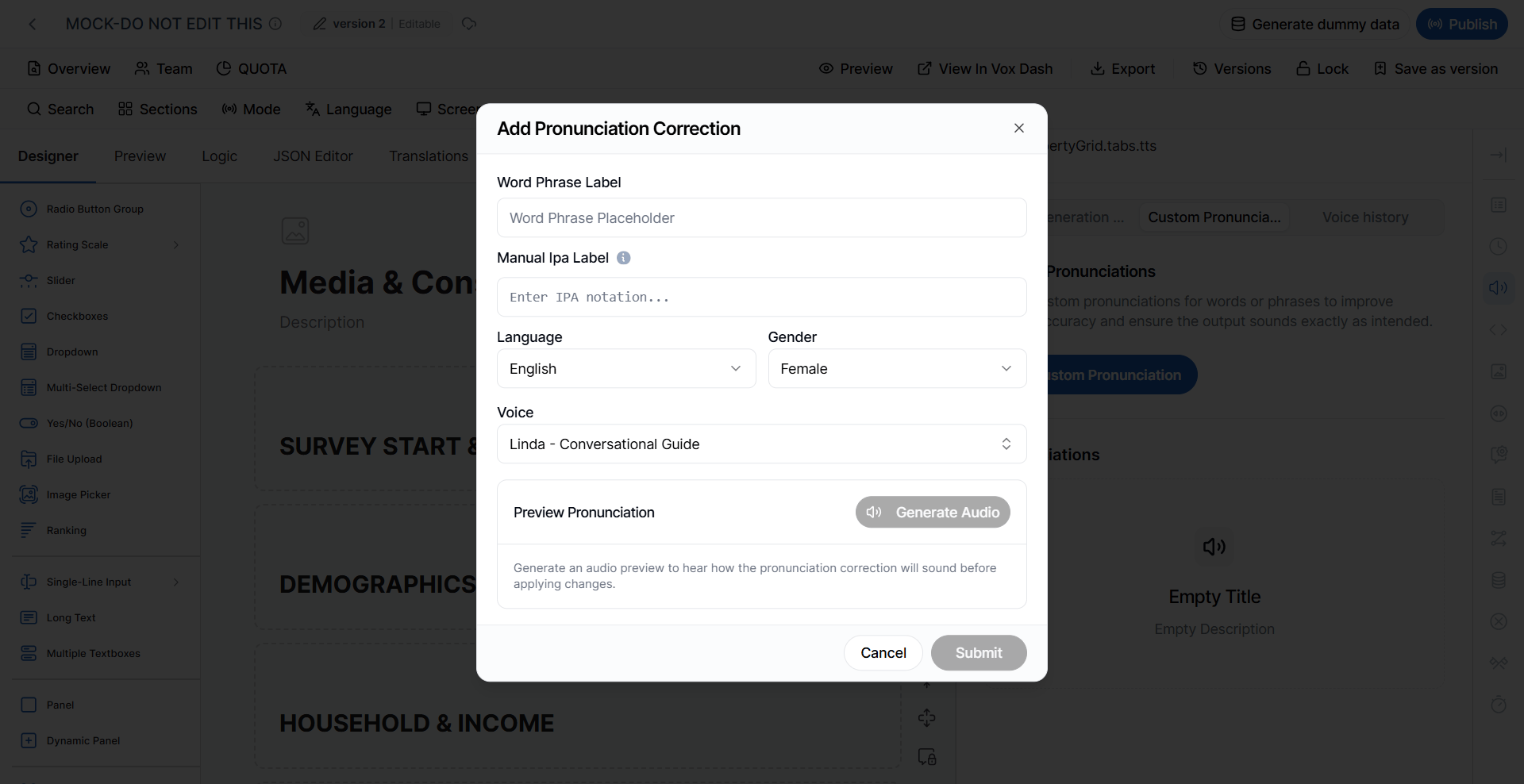
Adding a Pronunciation Correction
To create a custom pronunciation:- Open the Custom Pronunciations section.
- Select Add Pronunciation.
- Complete the required fields.
Word or Phrase
Enter the word or phrase whose pronunciation you want to customize. Example:Manual IPA
Enter the pronunciation using the International Phonetic Alphabet (IPA). The IPA tells the speech engine exactly how the word should be pronounced. Required format|) and enclosed within << >>.
Tip: If you do not know the IPA notation, you can generate it using the online IPA Translator: https://www.internationalphoneticalphabet.org/ipa-translators/
Language
Select the language for which the pronunciation rule should apply. Pronunciations are language-specific and may differ between languages.Voice
Optionally select a specific voice if the pronunciation should only apply to that voice. If supported, leaving this field unassigned may allow the pronunciation to be used across multiple compatible voices.Gender
Select the voice gender associated with the pronunciation rule, if applicable. Typical options include:- Female
- Male
Previewing the Pronunciation
Before saving your pronunciation correction, you can generate an audio preview. The preview allows you to:- Verify the pronunciation
- Listen for accuracy
- Make adjustments if necessary
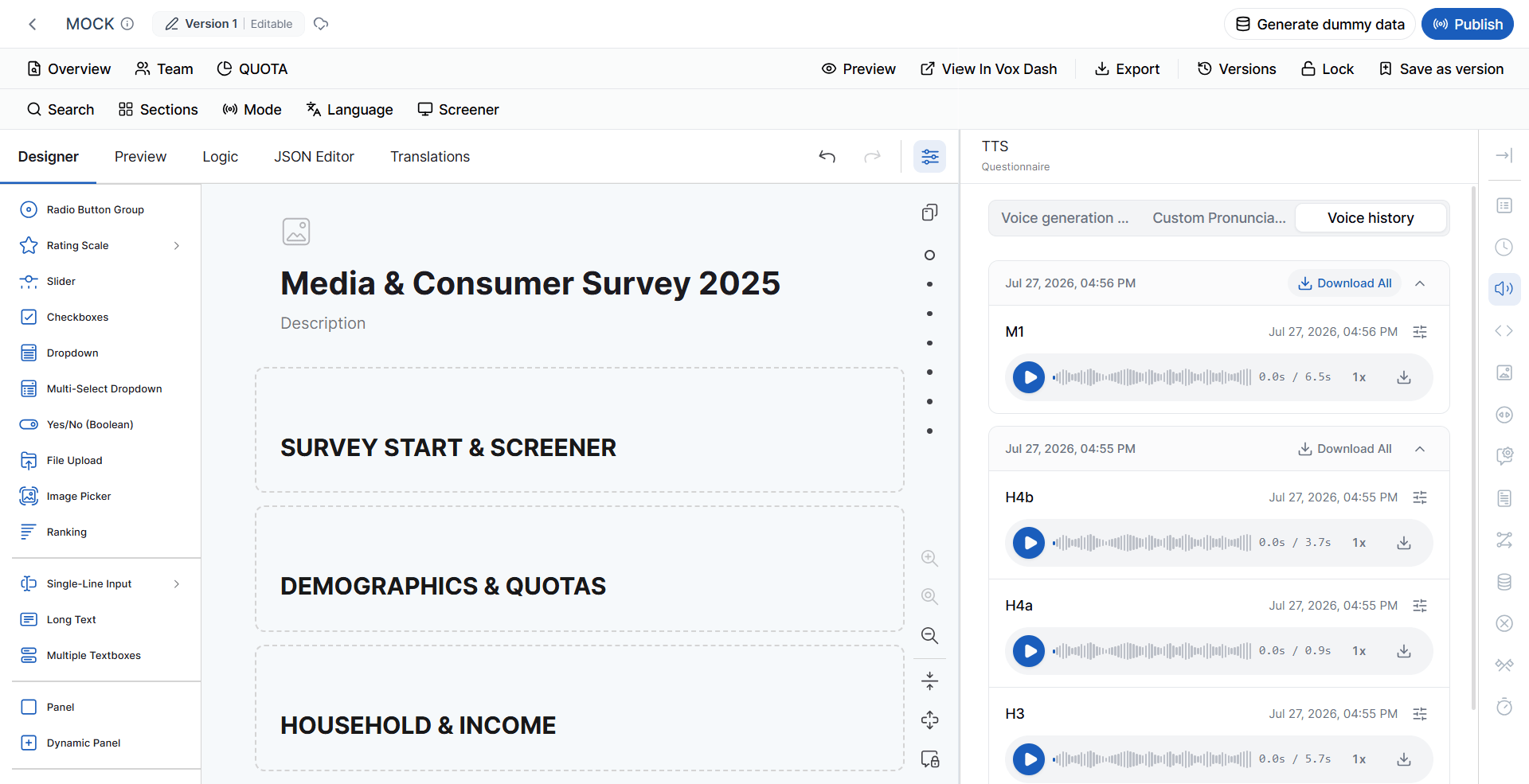
Voice History
The Voice History tab stores every audio file generated through the Text-to-Speech feature. This provides a centralized location for managing previously generated speech without needing to regenerate the same audio. For each generated voice, you can view details such as:- Questionnaire or question name
- Generation date and time
- Selected language
- Voice
- Model
- Generation status
- Character count
- Credits consumed (if applicable)
Best Practices
To achieve the highest-quality speech output:- Select the appropriate language and regional dialect before generating audio.
- Preview different voices to find the most suitable tone for your audience.
- Adjust the speech speed to balance clarity and listening time.
- Create custom pronunciations for product names, brand names, abbreviations, and technical terms.
- Review the estimated generation cost before generating audio to ensure sufficient TTS credits are available.
- Use the Voice History to reuse existing audio instead of generating duplicate recordings, helping reduce unnecessary credit usage.