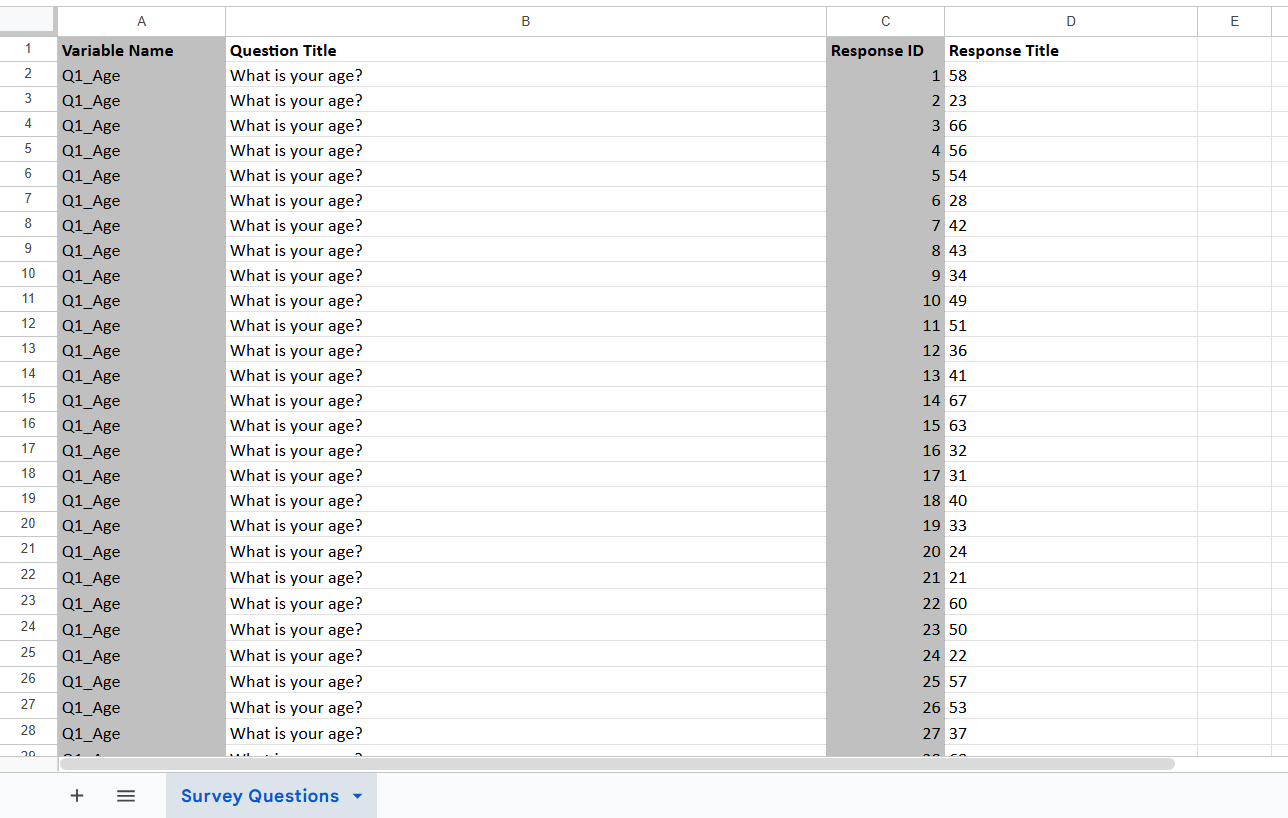
Sample file
survey_questions_sample.xlsx — download, edit, and re-upload.
Export
1
Open the Questions tab
Open the survey and select the Questions tab.
2
Export
Click Export to Excel. A file named like
survey_questions_<name>_<id>_<date>.xlsx downloads.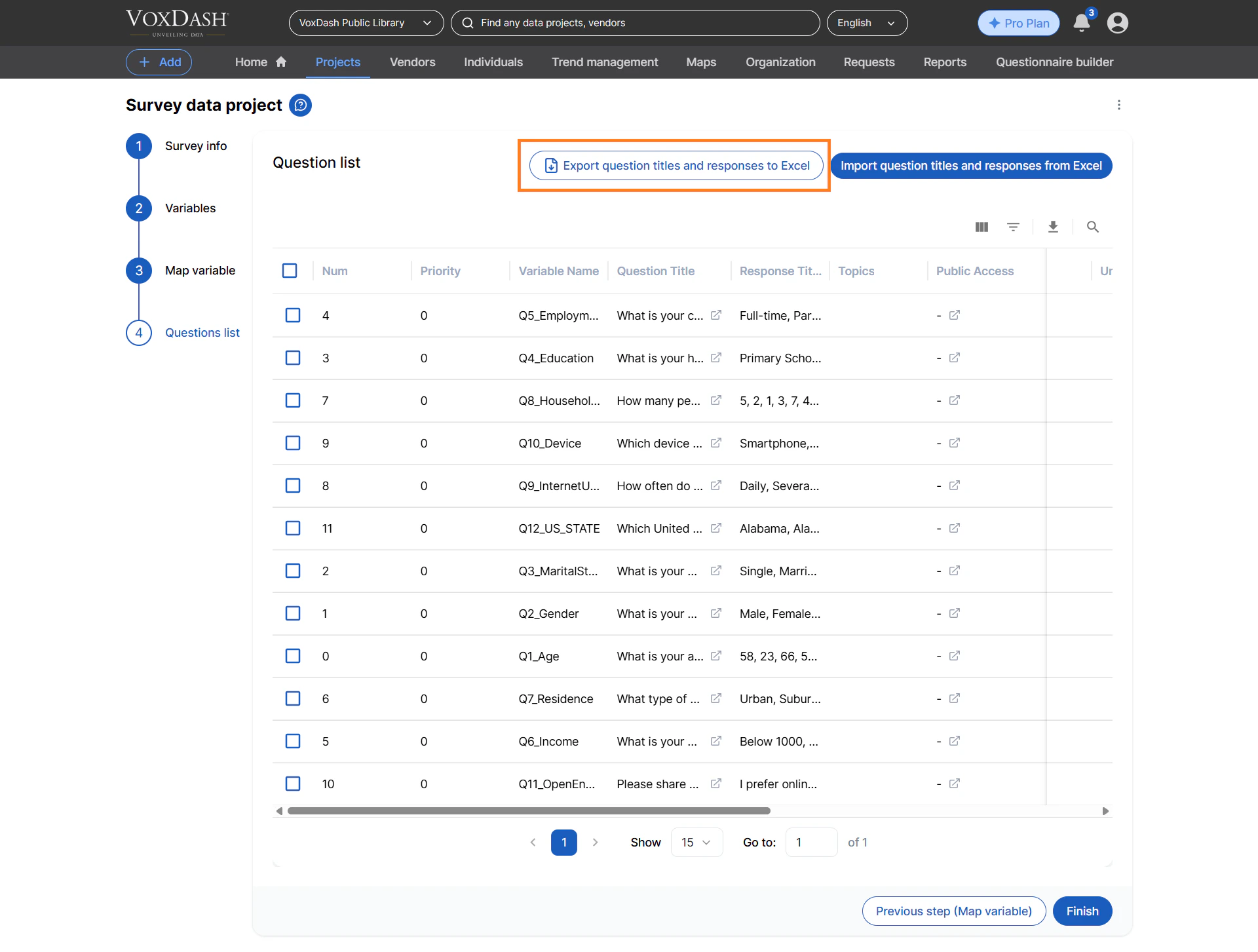
Import
1
Start from an export
Edit the exported file (or the sample). Change the Question Title and
Response Title cells only.
2
Keep the identifiers
Do not change Variable Name or Response ID — they tell VoxDash which
question and answer to update.
3
Upload
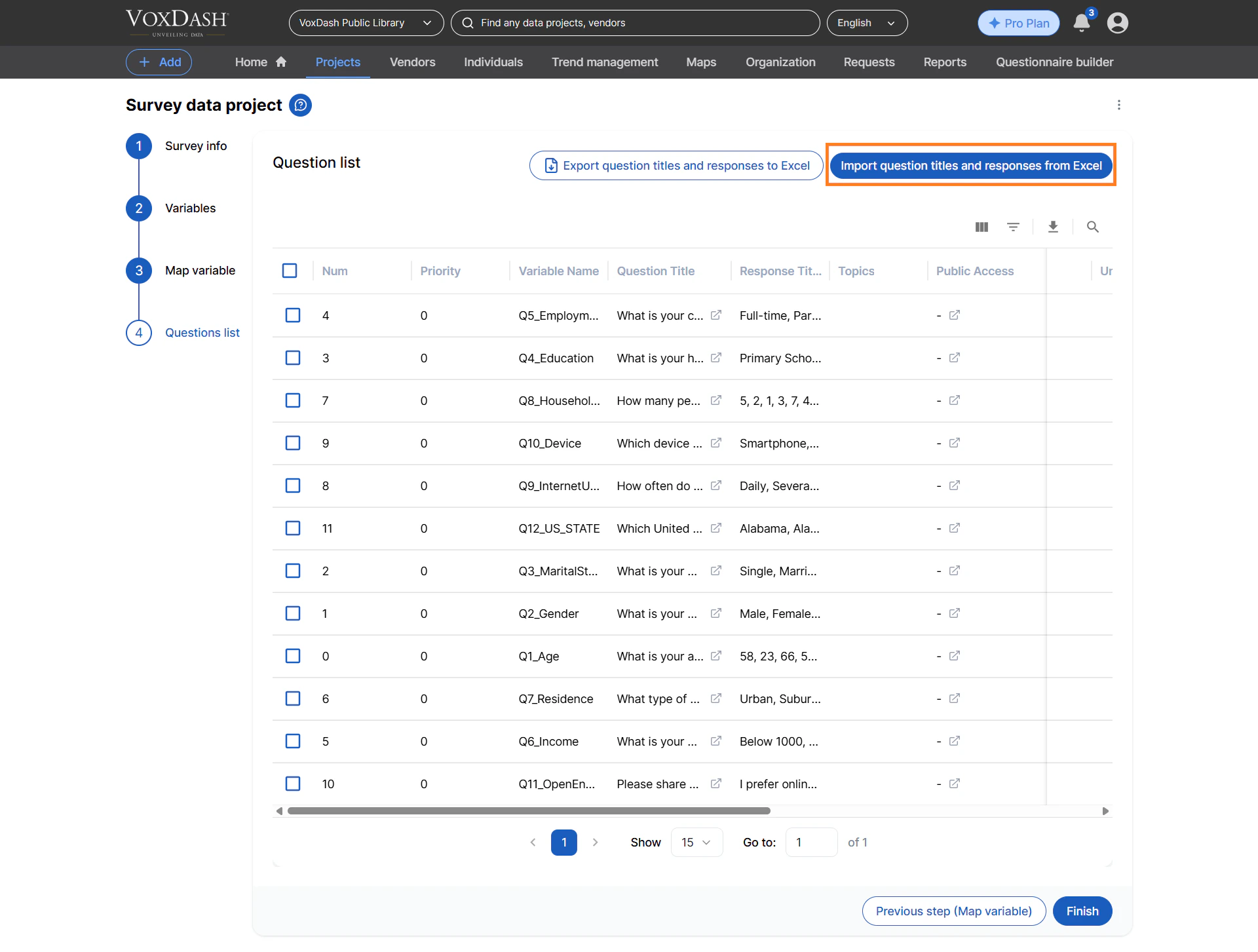
On the Questions tab, click Import from Excel and choose your file. A
summary shows how many questions and responses were updated.
Columns