

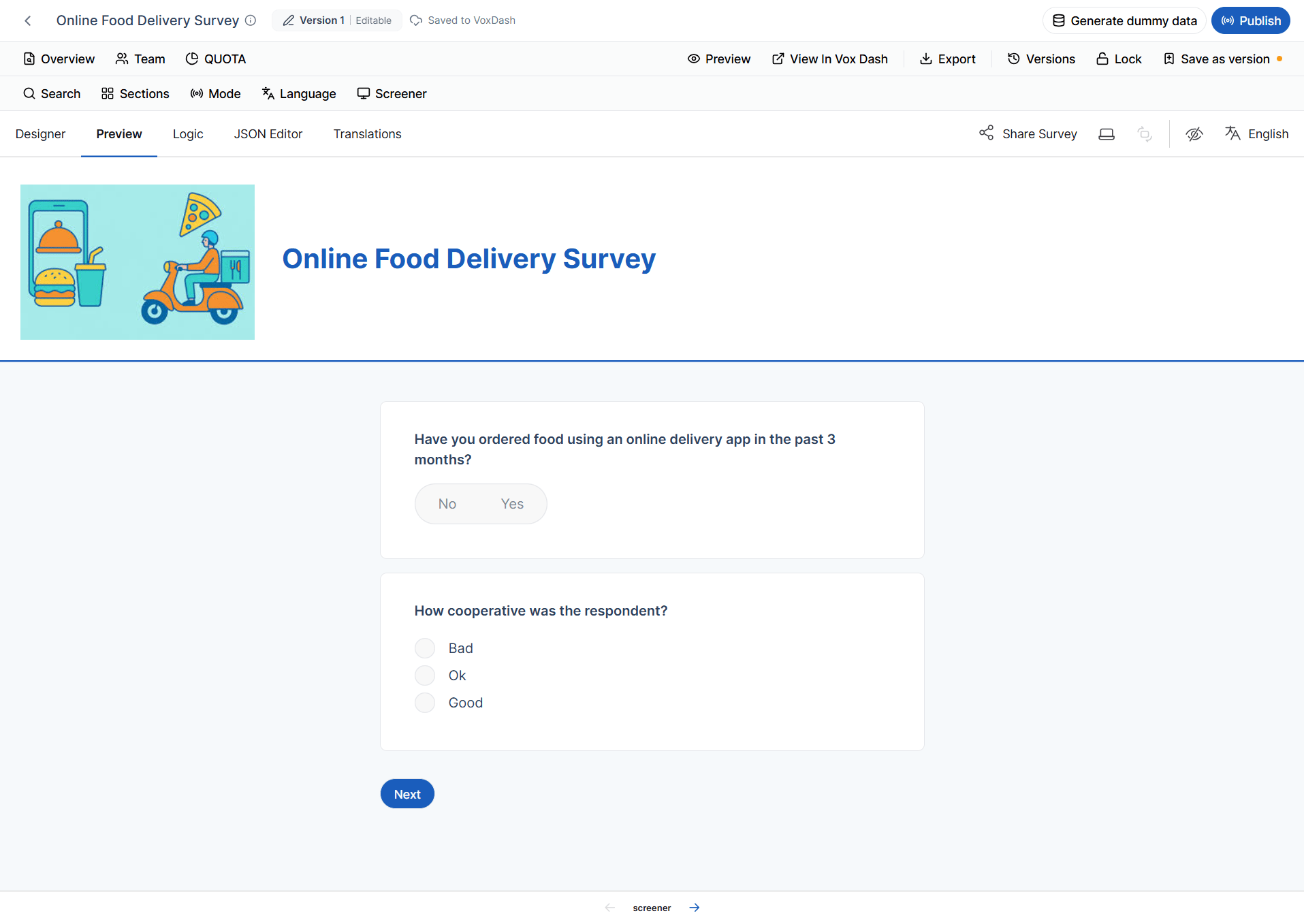
Accessing the Preview Tab
To preview your questionnaire:- Open the questionnaire in the Editor Panel.
- Click the Preview tab located at the top of the page.
- Interact with the questionnaire just as a respondent would.
What You Can Test
The Preview tab allows you to validate both the questionnaire’s appearance and its functionality before publishing.Verify Question Order
Review the order of your questions to ensure they appear in the intended sequence. Confirm that:- Questions are displayed in the correct order.
- Pages are organized properly.
- Section breaks appear where expected.
- Randomized questions behave as intended (if enabled).
Test Survey Logic
The Preview tab is the best place to verify that questionnaire logic works correctly. You can test features such as:- Display Logic
- Skip Logic
- Branching Logic
- Conditional Visibility
- Required Questions
- Validation Rules
- Triggers
- Custom Variables
- Calculated Fields
Review Question Appearance
Verify that each question is displayed correctly. Check items such as:- Question titles
- Descriptions
- Help text
- Images
- HTML content
- Input fields
- Answer choices
- Layout and spacing
Test Navigation
Review the questionnaire’s navigation experience. Verify:- Previous and Next buttons
- Progress bar
- Table of Contents (TOC)
- Auto-advance behavior
- Start page
- Review before submit
- Thank You page
Verify Multilingual Content
If your questionnaire supports multiple languages, switch between available languages and verify that:- Questions are translated correctly.
- Labels and button text appear in the selected language.
- Language-specific questions are displayed as expected.
Validate Data Entry
Test different types of responses to ensure input behaves correctly. For example:- Enter valid and invalid values.
- Leave required questions unanswered.
- Upload files.
- Select multiple answers.
- Complete matrix questions.
- Add rows to dynamic panels or dynamic matrices.
Why Use Preview?
Using the Preview tab before publishing helps you identify potential issues early and improves the overall quality of your questionnaire. Previewing allows you to:- Confirm that questionnaire logic behaves correctly.
- Verify the respondent experience.
- Detect missing or incorrect question settings.
- Review page layouts and navigation.
- Test validation rules.
- Ensure multilingual content is displayed correctly.
- Reduce errors before fieldwork begins.
Best Practices
Before publishing your questionnaire:- Preview the questionnaire from start to finish.
- Test every possible logic path and branching scenario.
- Verify that questions appear in the correct order.
- Check required questions and validation messages.
- Review the questionnaire in each supported language.
- Test navigation, page flow, and the Thank You page.
- Confirm that images, HTML content, and other media display correctly.
- Repeat testing after making significant changes to questionnaire logic or structure.