

Accessing the Logic Tab
To open the Logic tab:- Open your questionnaire in the Editor Panel.
- Click the Logic tab located at the top of the page.
Viewing Questionnaire Logic
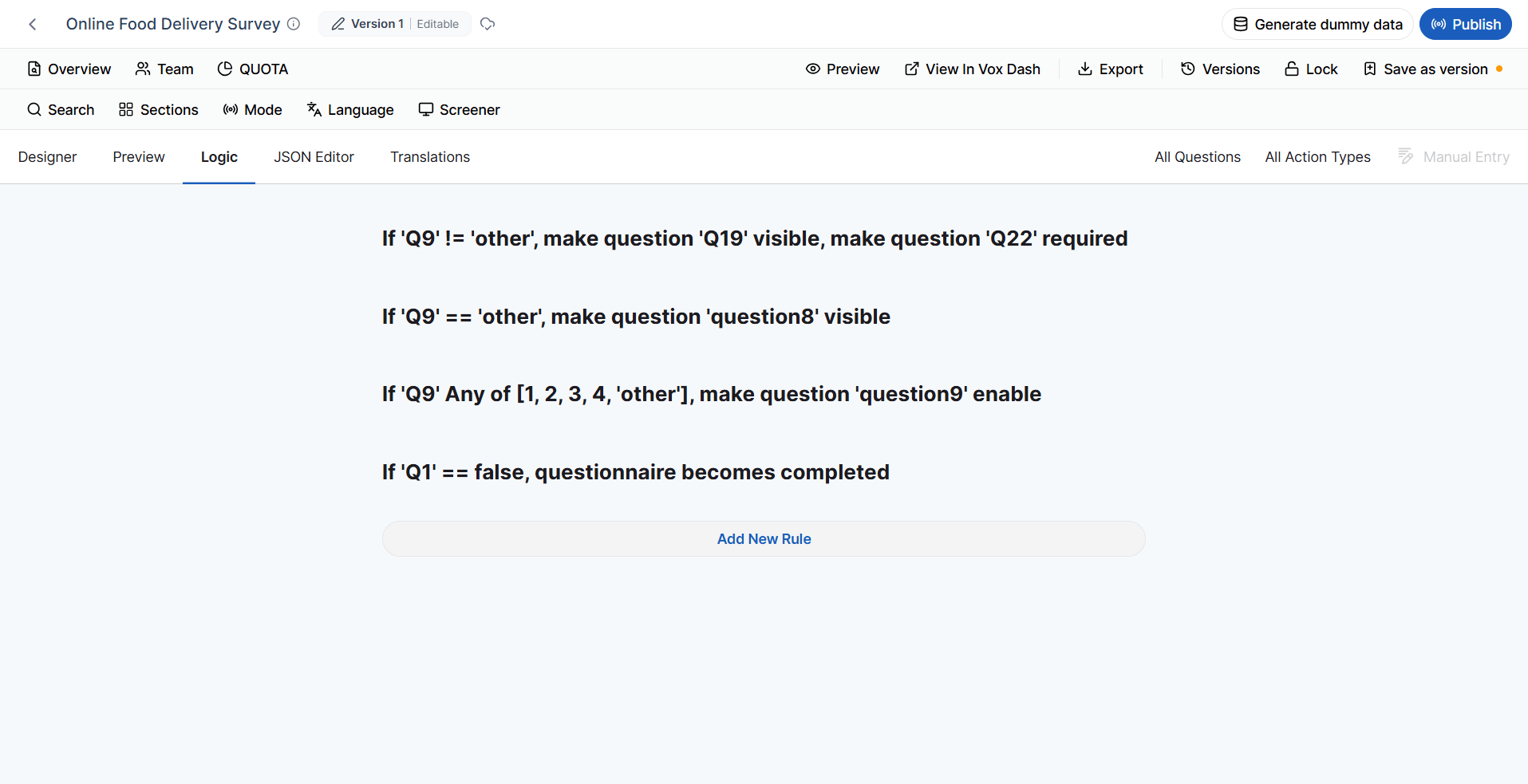
The Logic tab provides a consolidated list of all logic rules applied throughout the questionnaire. Depending on your questionnaire configuration, this may include:- Display (Visibility) Conditions
- Skip Logic
- Enable/Disable Conditions
- Required Conditions
- Custom Variables
- Calculated Expressions
- Triggers
Managing Conditions
If you have added conditions to questions or questionnaire elements, they will appear in the Logic tab. From this page, you can:- View existing conditions
- Edit condition rules
- Delete conditions
- Create new conditions
Managing Triggers
Triggers are also displayed in the Logic tab. Triggers automatically perform actions when specified conditions are met. Depending on your questionnaire design, triggers may be used to:- Set question values
- Complete the questionnaire
- Skip respondents to another page
- Display messages
- Execute other automated questionnaire actions
Adding New Logic
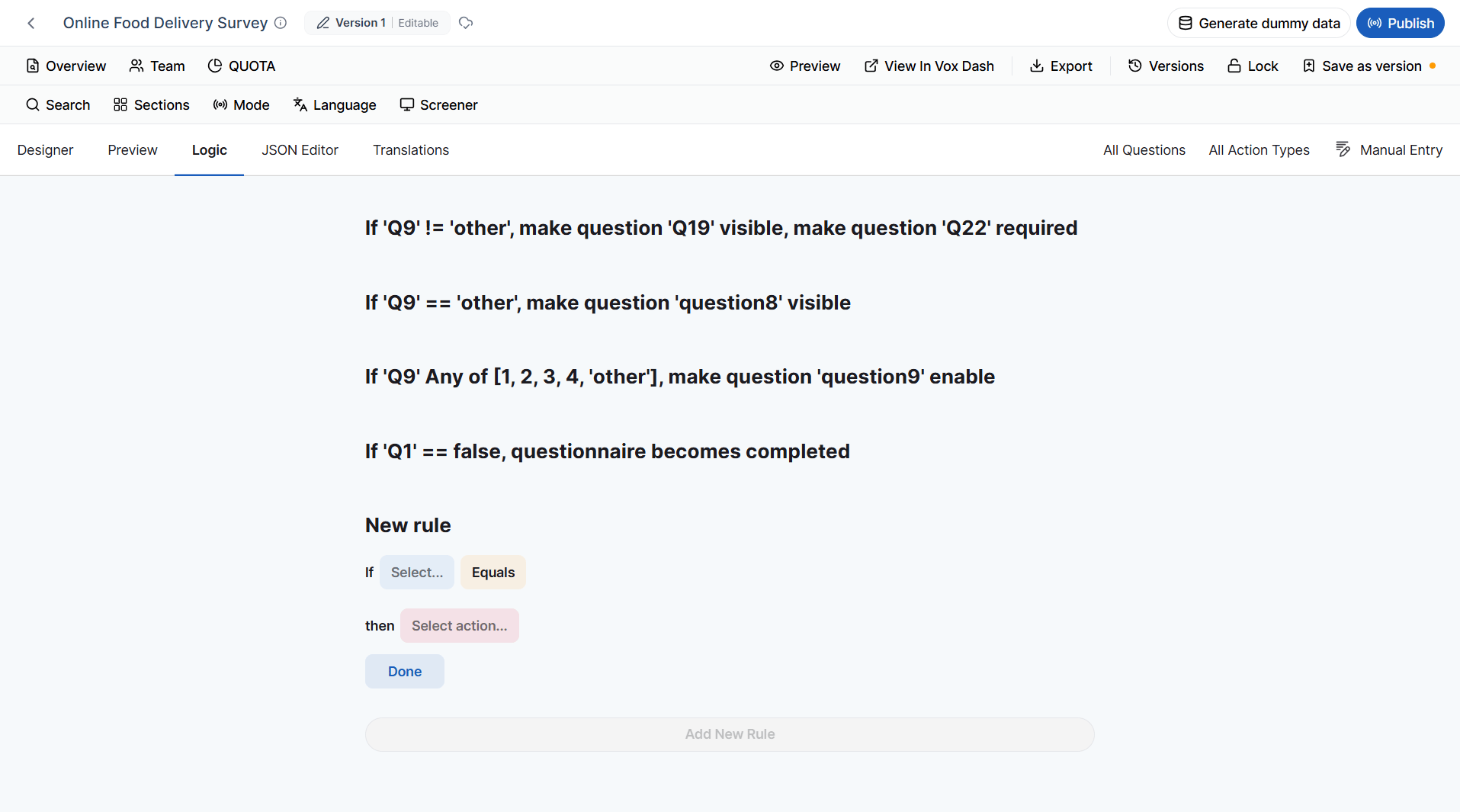
The Logic tab is not only for reviewing existing logic—it also allows you to create new logic rules. From this page, you can add:- New conditions
- New triggers
Editing Existing Logic
As your questionnaire evolves, you may need to update existing logic. The Logic tab allows you to quickly locate a rule and modify it without navigating through multiple questionnaire pages. Common updates include:- Changing condition criteria
- Updating referenced questions
- Modifying trigger actions
- Adjusting routing behavior
- Removing obsolete logic
Why Use the Logic Tab?
Managing logic from a single location offers several advantages, especially for large or complex questionnaires. The Logic tab helps you:- Understand how questions are connected.
- Quickly locate existing conditions and triggers.
- Reduce duplicate or conflicting logic.
- Simplify troubleshooting and maintenance.
- Improve questionnaire quality before publishing.
Best Practices
When working with questionnaire logic:- Review the Logic tab regularly as your questionnaire grows.
- Use descriptive names for variables and triggers whenever possible.
- Remove unused or outdated conditions to keep the questionnaire easy to maintain.
- Test all logic rules in the Preview tab after making changes.
- Verify that conditions and triggers do not conflict with one another before publishing the questionnaire.