

Before You Begin
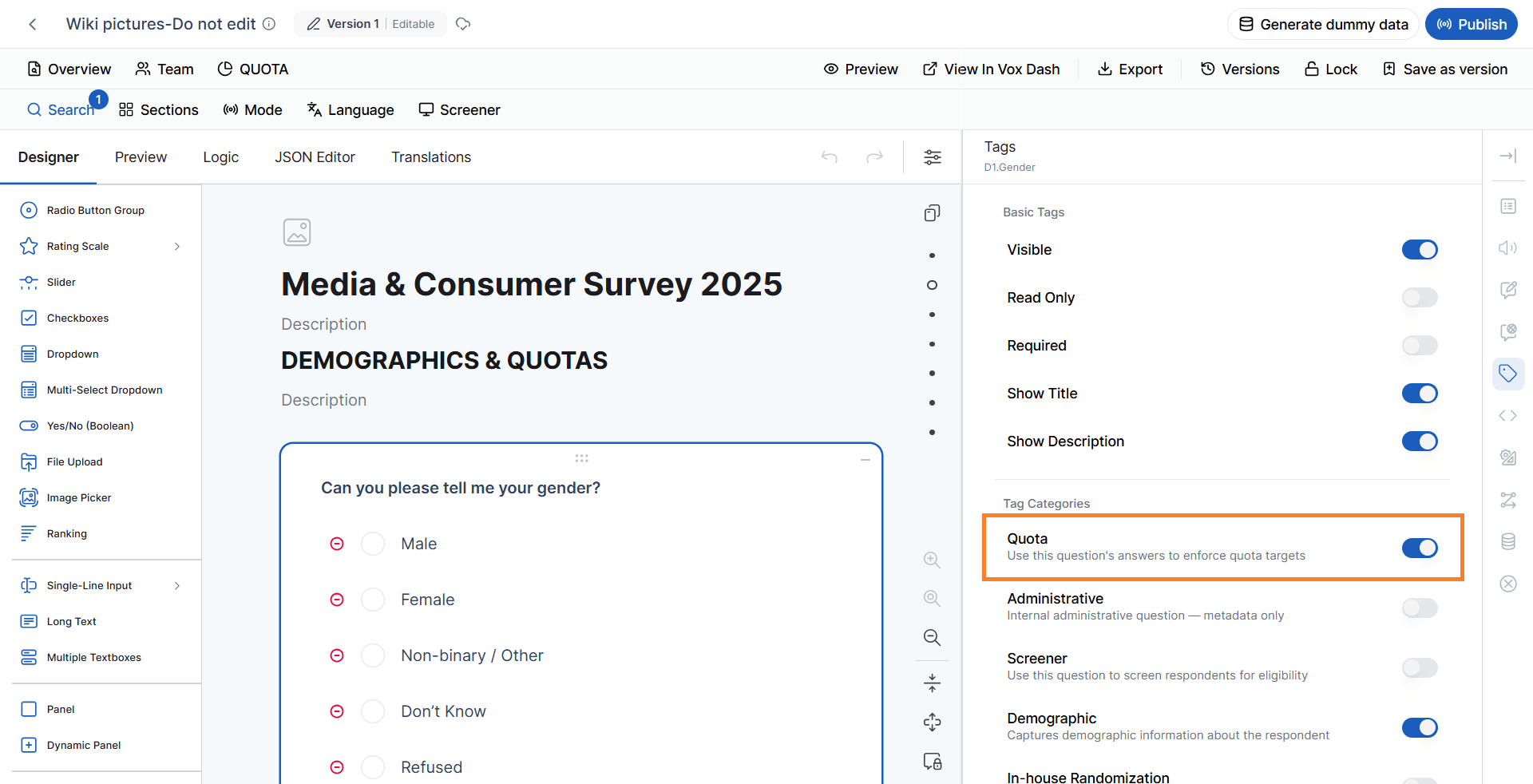
Questions must first be marked as Quota questions before they can be used in quota management. To do this:- Open the questionnaire in the Editor Panel.
- Select the desired question.
- In the Tags section, enable the Quota tag.
- Save your changes.
Accessing Quota Management
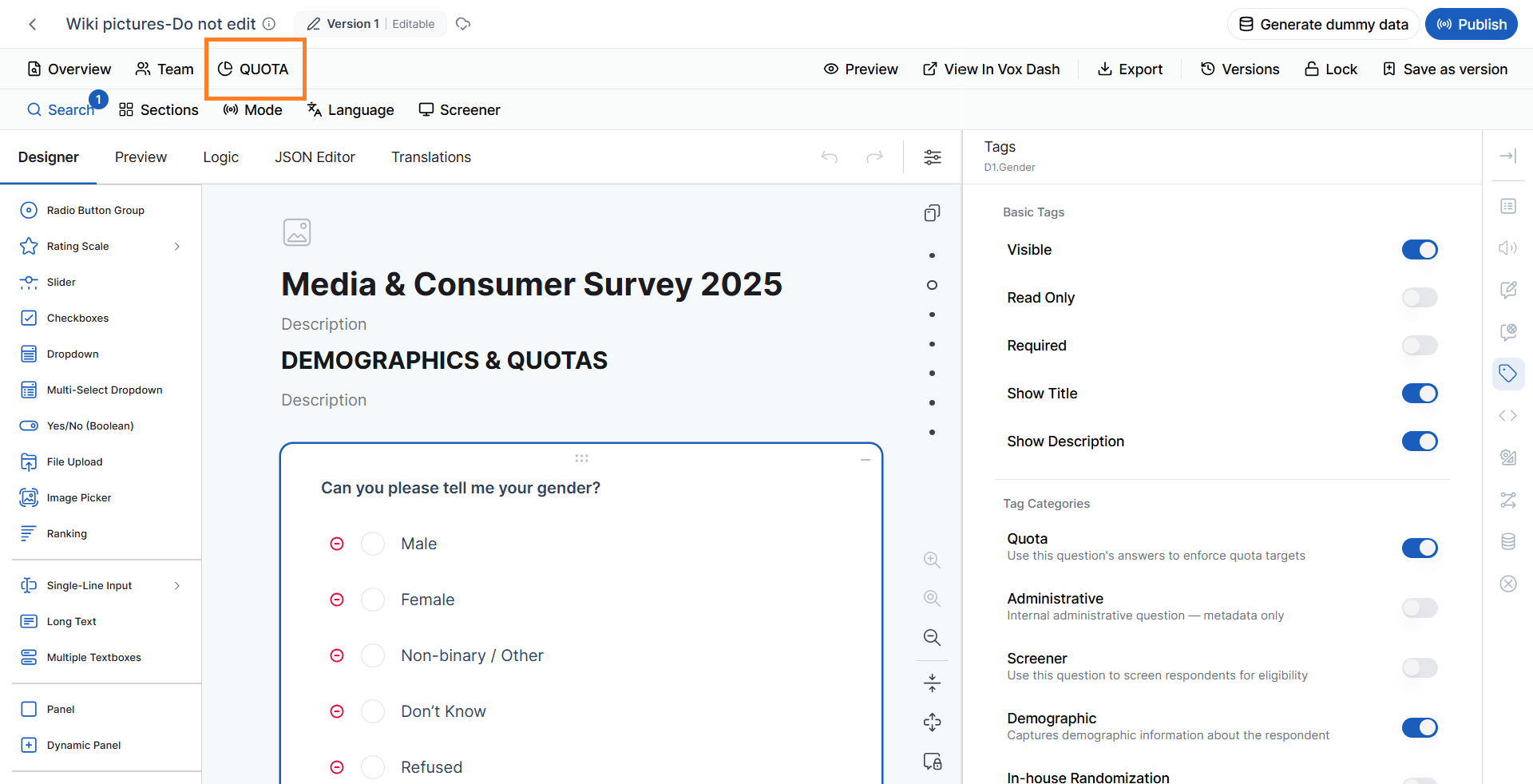
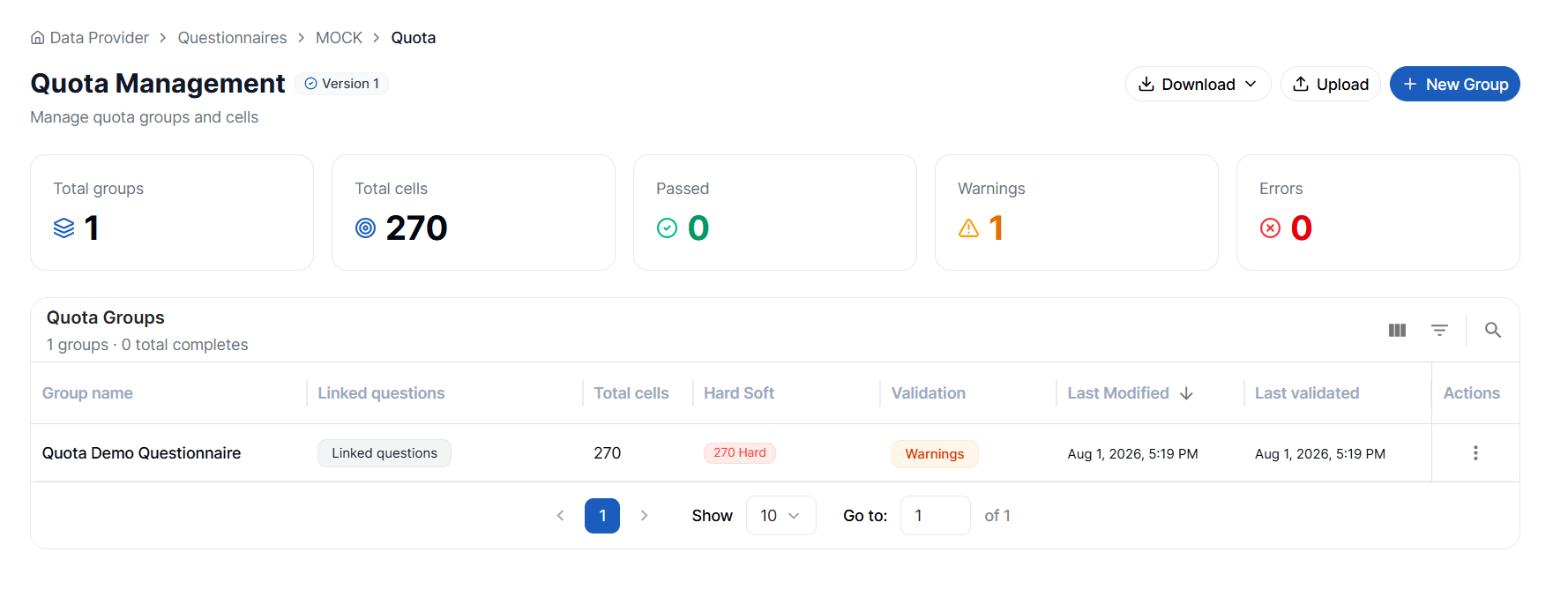
After tagging the appropriate questions, click the Quota icon located at the top of the Questionnaire Builder. This opens the Quota Management page, where you can:- Create new quota groups
- Edit existing quota groups
- Validate quota configurations
- Import or export quota definitions
- Monitor quota settings for the questionnaire
Creating a Quota Group
There are two ways to create a quota group:- Create Manually
- Import from a File
Importing a Quota Group
If you already have a quota definition, you can import it directly into VoxDash. Supported import formats include:- JSON
- Excel
- Click Upload Quota Group.
- Select the quota definition file.
-
Upload either:
- A JSON quota file
- An Excel quota file
- Review the imported configuration.
- Save the quota group.
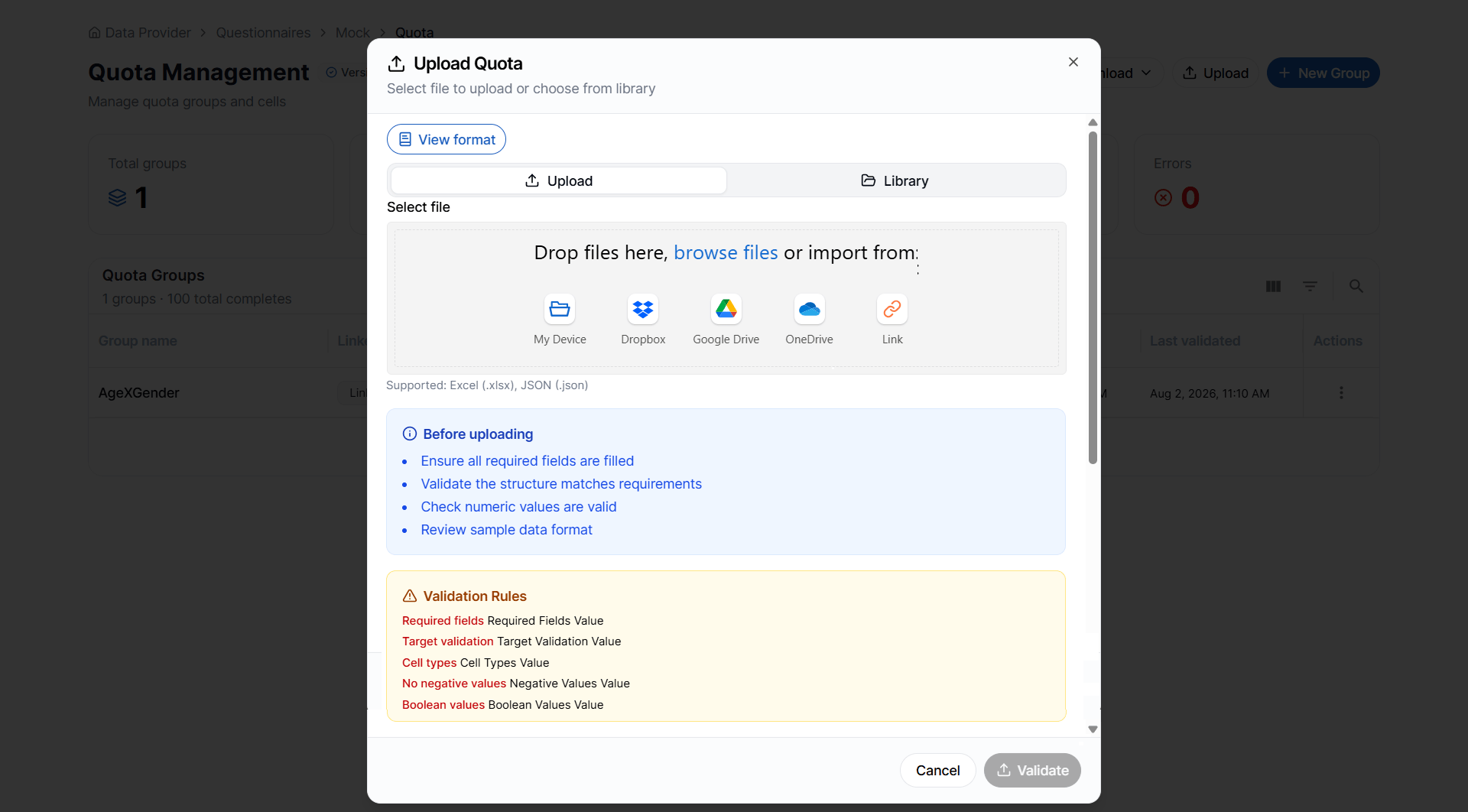
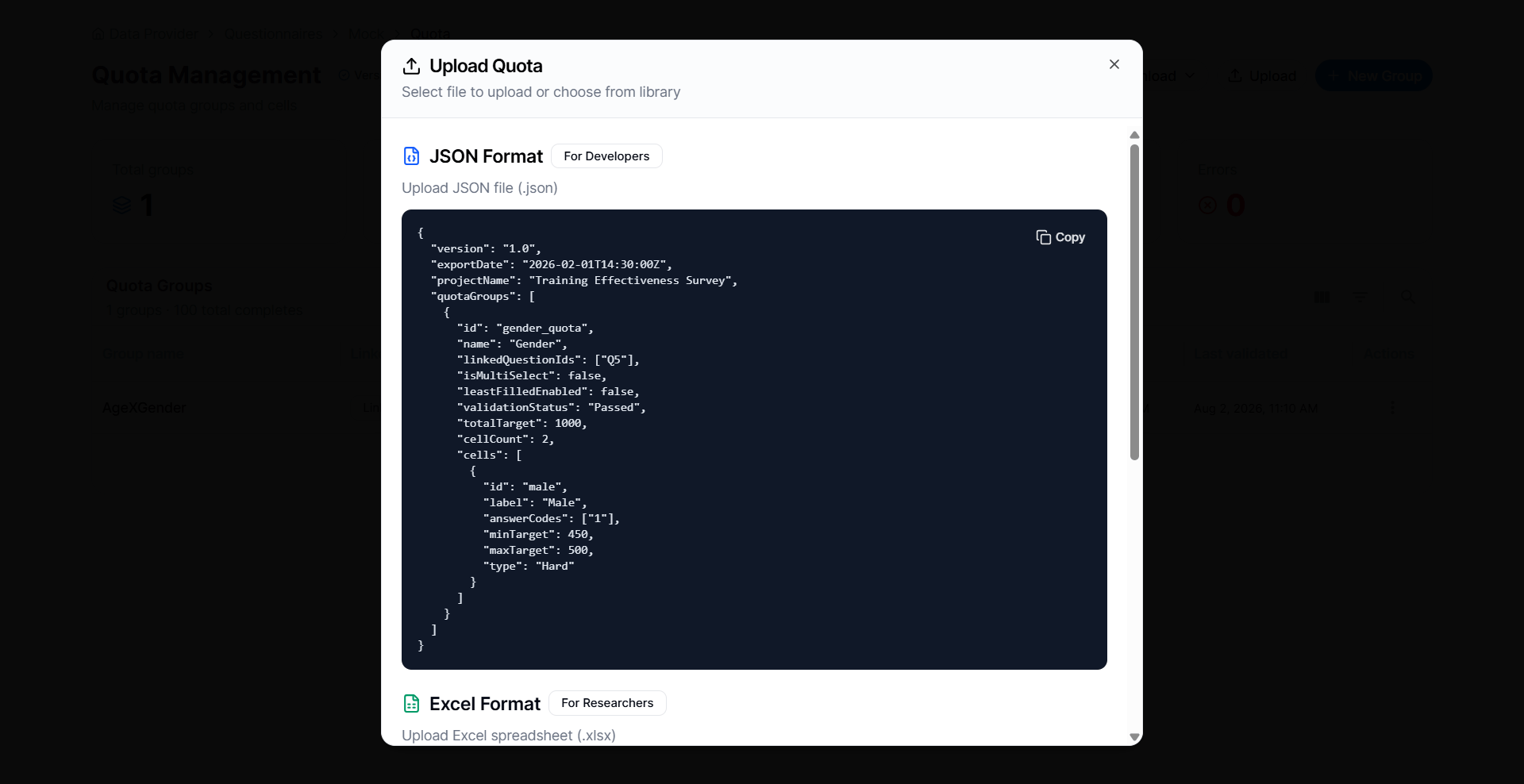
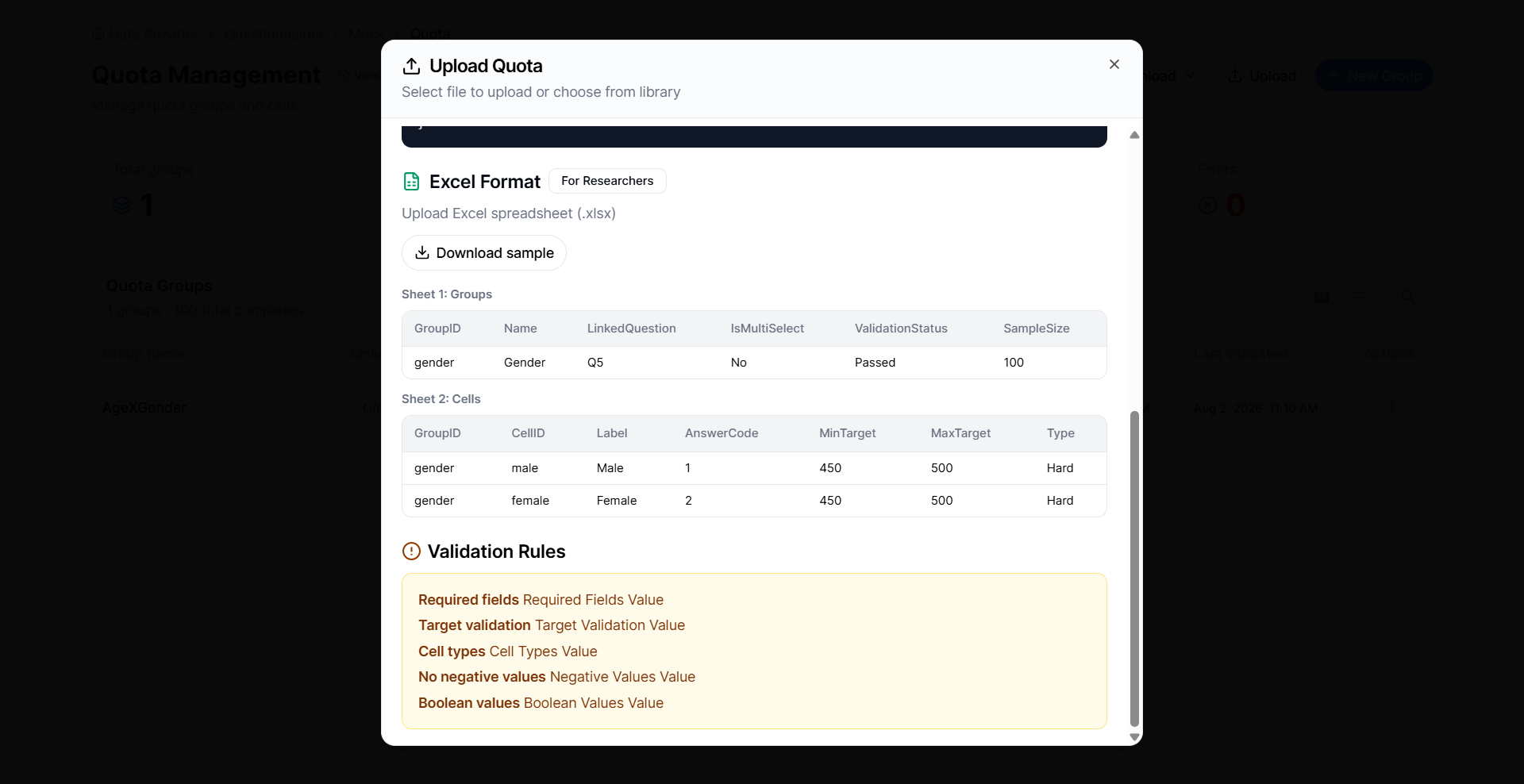
Tip: Sample JSON and Excel templates are available to help you prepare quota files in the correct format.
Creating a Quota Group Manually
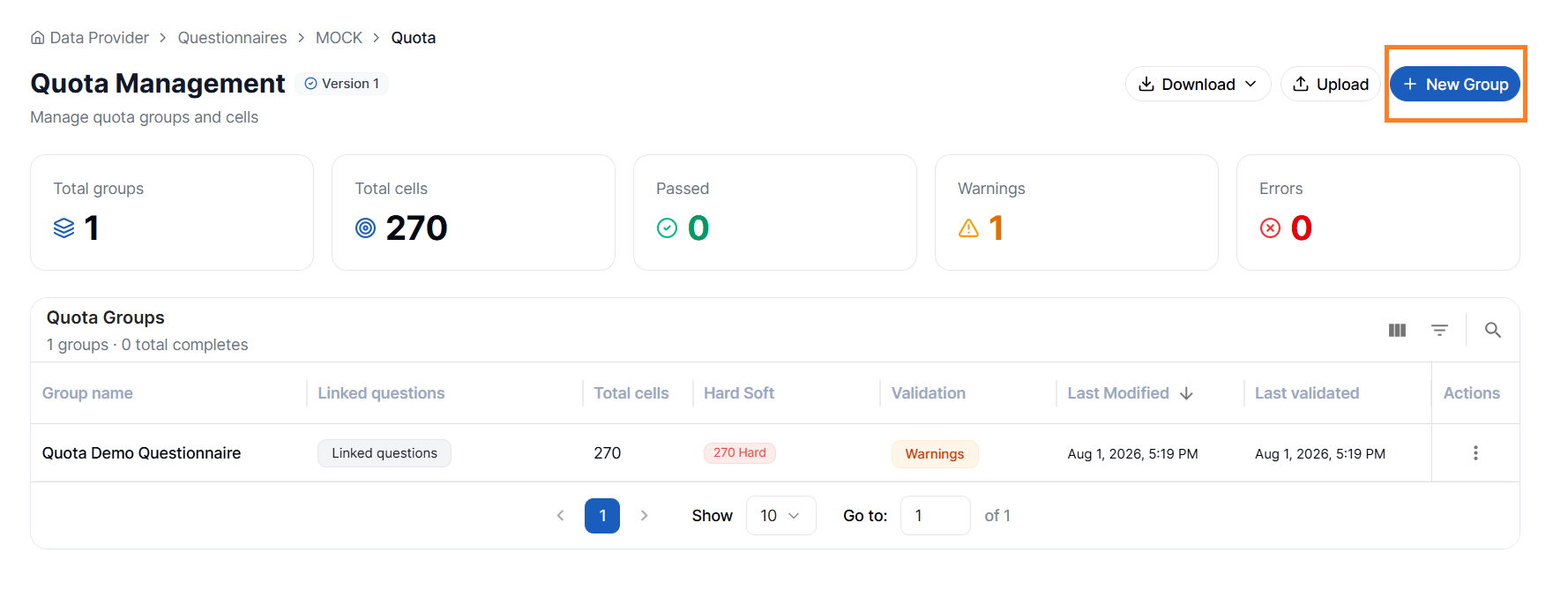
To create a quota group from scratch:- Click New Quota Group.
-
Enter the following information:
- Group Title
- Description
- Total Target Sample Size
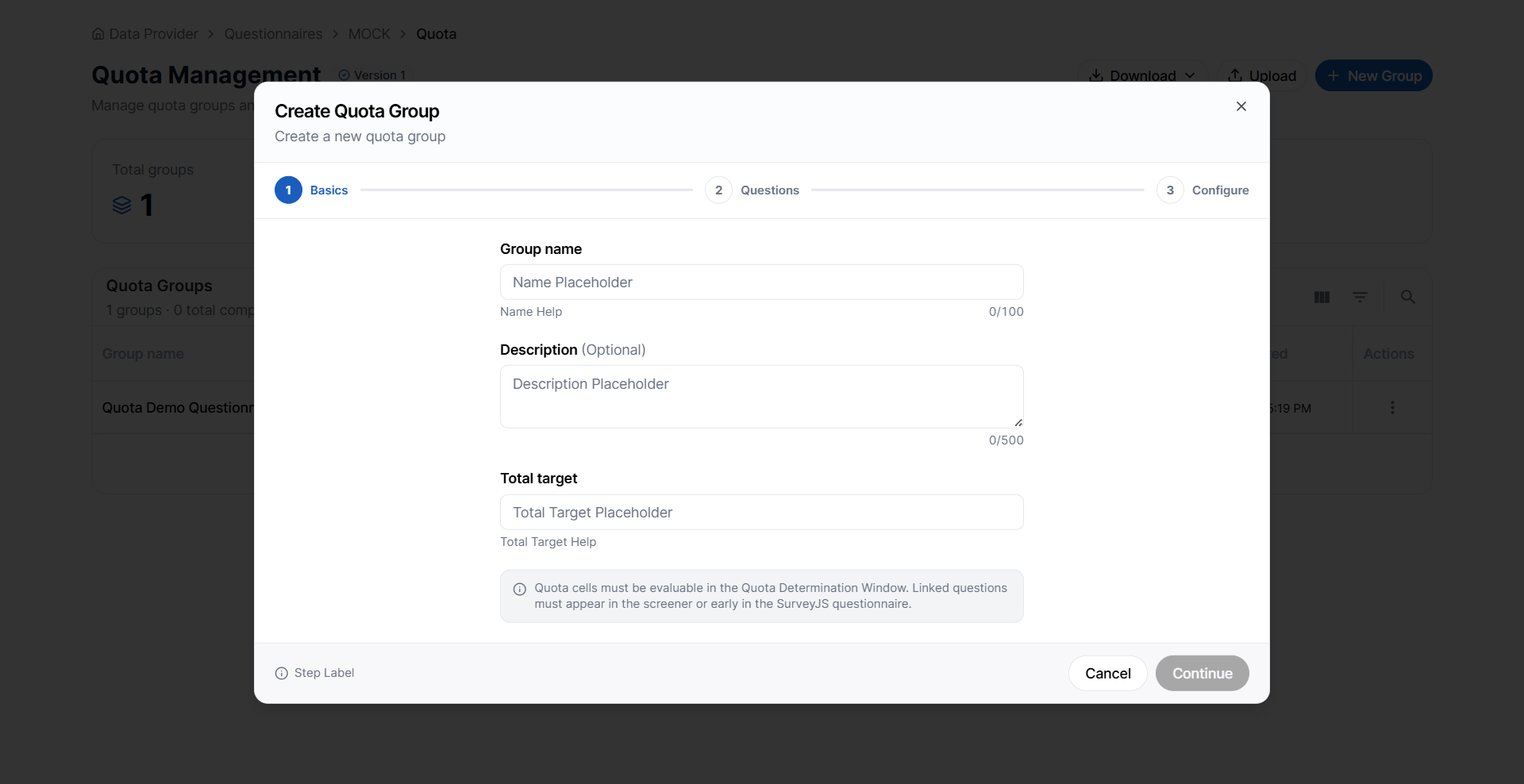
Steps to Creating a Quota Group Manually
Linking Quota Questions
Next, select the questionnaire question or questions that will define the quota structure. You can link one or multiple quota questions. Examples include:- Gender
- Age Group
- Region
- Customer Segment
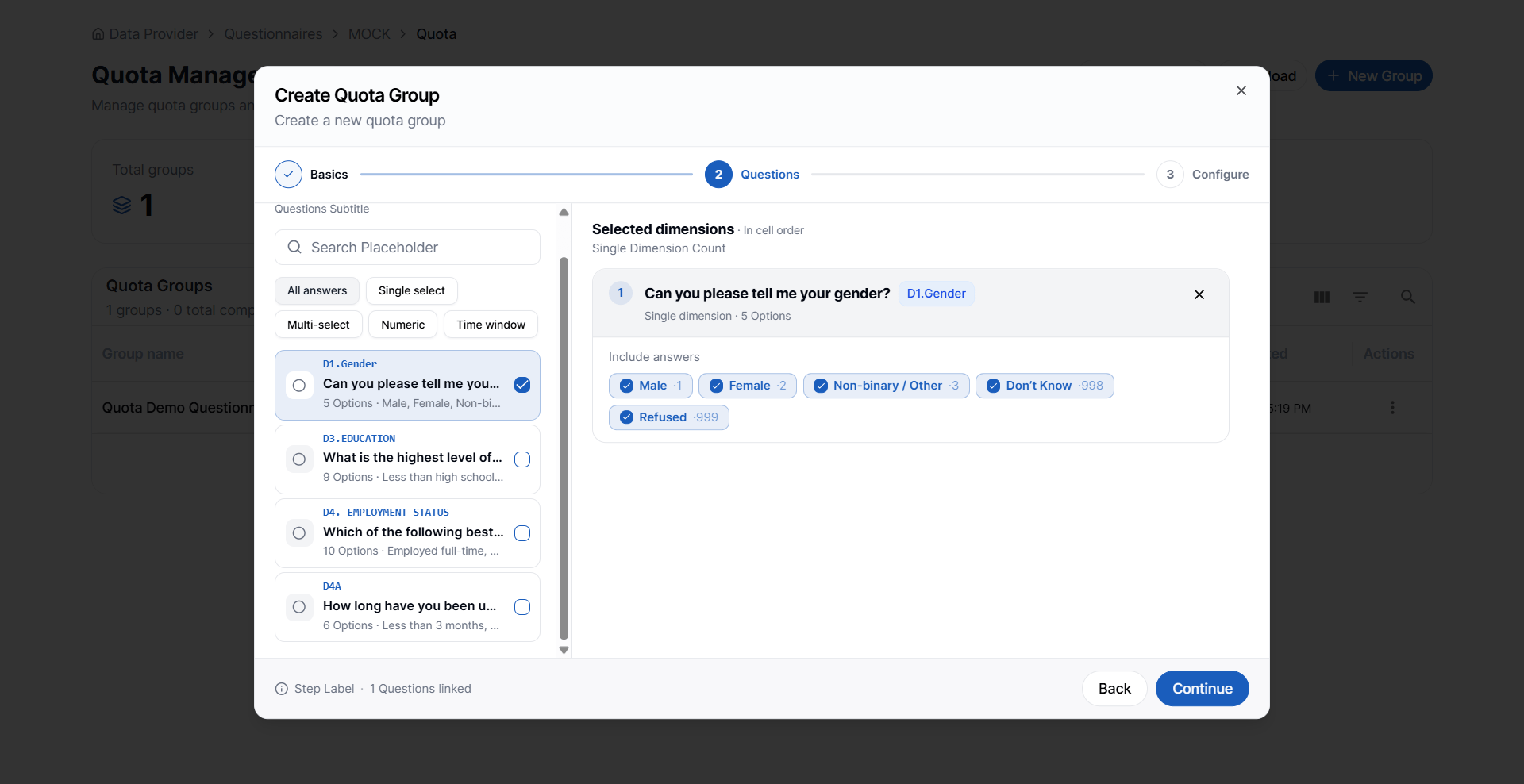
Auto Generate Quota Cells
Instead of manually creating every quota cell, you can use the Auto Generate feature. Auto Generation automatically creates all possible quota cells using the selected questions and their answer options. For example: Gender- Male
- Female
- 18–24
- 25–34
- 35–44
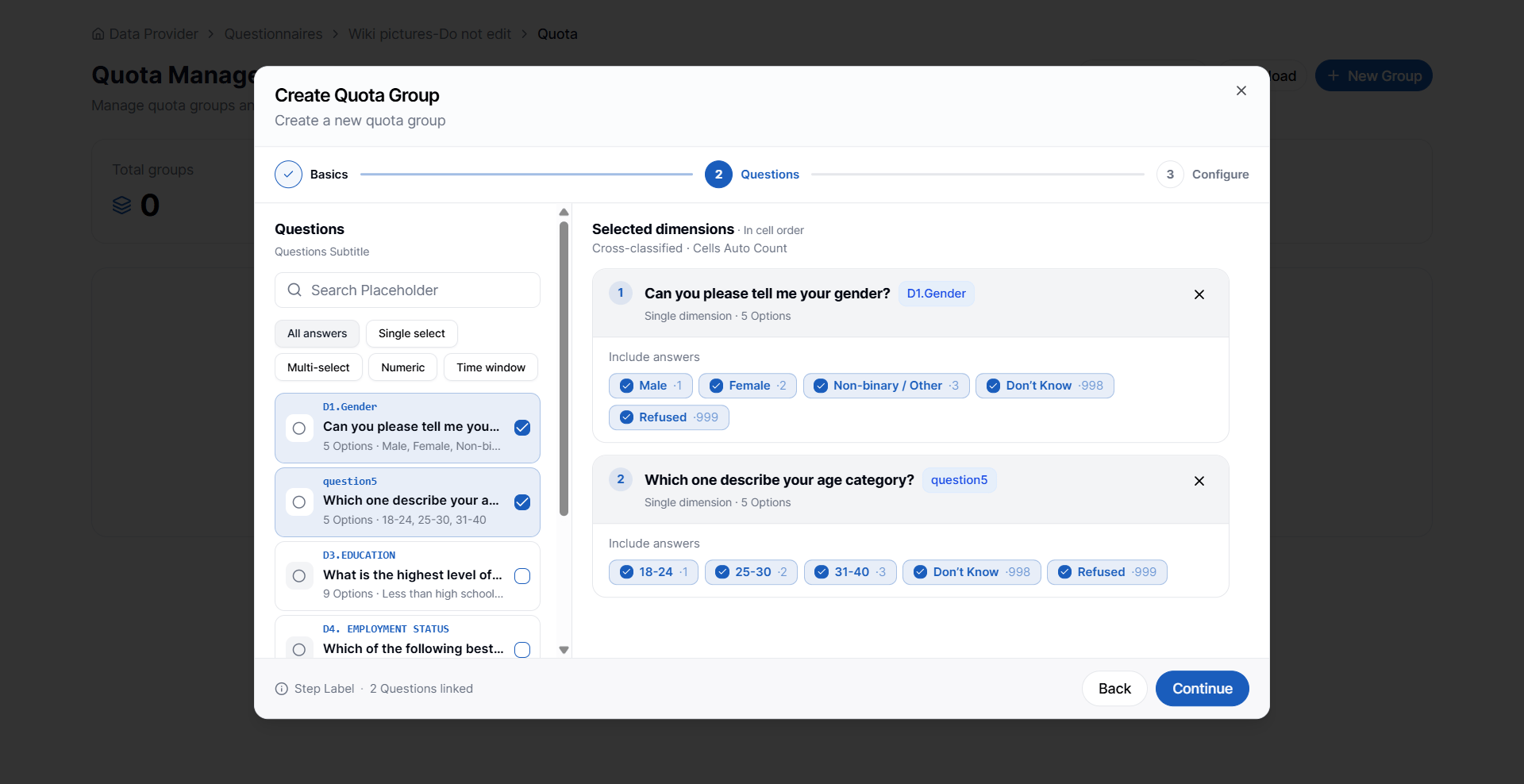
- Male / 18–24
- Male / 25–34
- Male / 35–44
- Female / 18–24
- Female / 25–34
- Female / 35–44
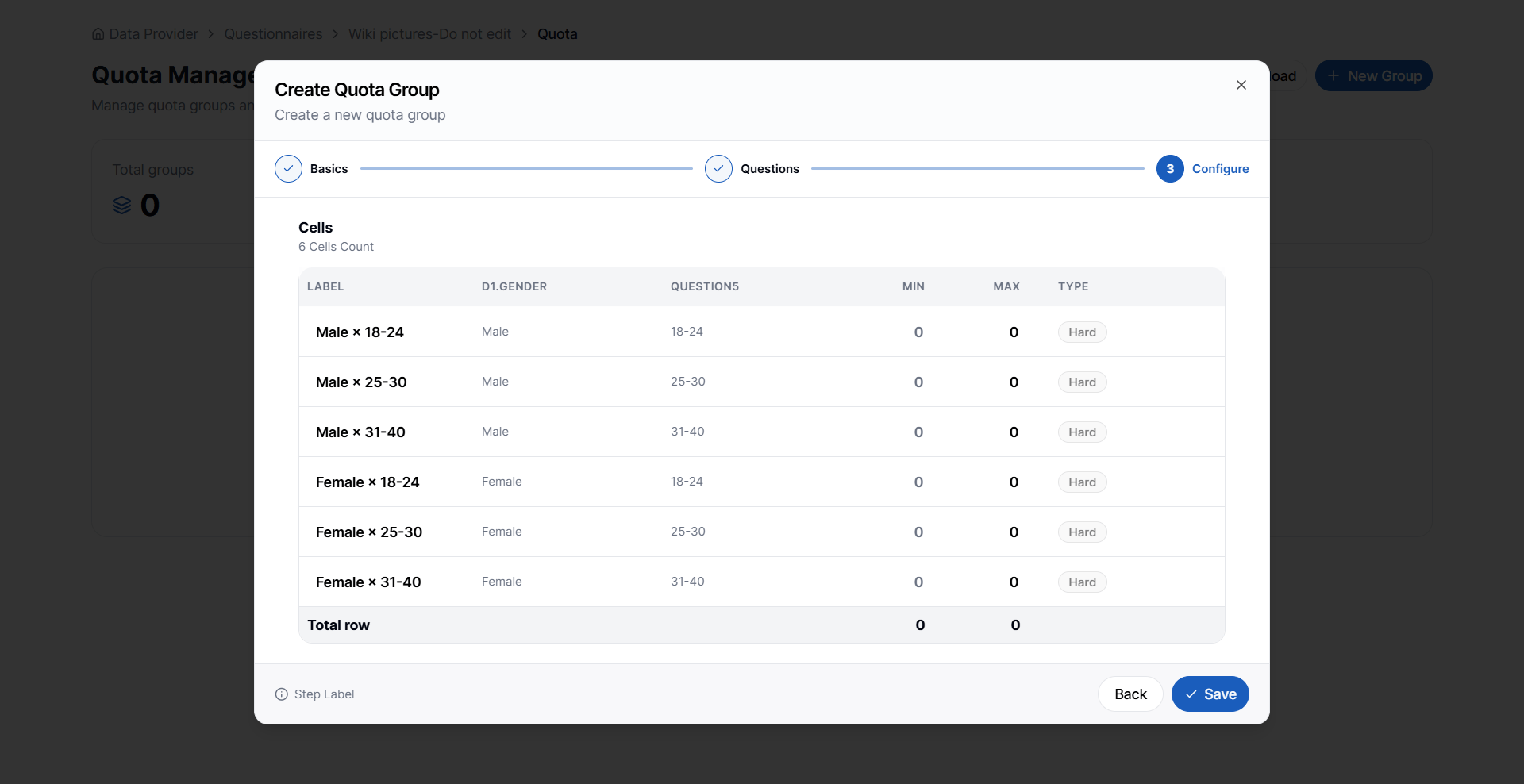
Setting Cell Targets
After the quota cells have been created, specify the minimum and maximum targets for each cell. For every quota cell, define:- Minimum Target
- Maximum Target
Important: The combined maximum targets across all quota cells should not exceed the group’s total target sample size.
Hard and Soft Quotas
Each quota cell can be configured as either a Hard Quota or a Soft Quota.Hard Quota
A Hard Quota enforces a strict limit. Once the maximum target for the quota cell has been reached, respondents who qualify for that cell are no longer allowed to continue with the survey and are typically screened out. Use Hard Quotas when exact sample sizes must be maintained.Soft Quota
A Soft Quota allows respondents to continue even after the target has been reached. The current version of VoxDash allows unlimited spillover beyond the defined target. Soft Quotas are useful when approximate targets are sufficient and additional completes are acceptable.Spillover
Spillover refers to completed interviews collected beyond the target of a Soft Quota cell. Since Soft Quotas do not enforce a strict limit, additional respondents can continue to complete the survey after the quota target has been achieved.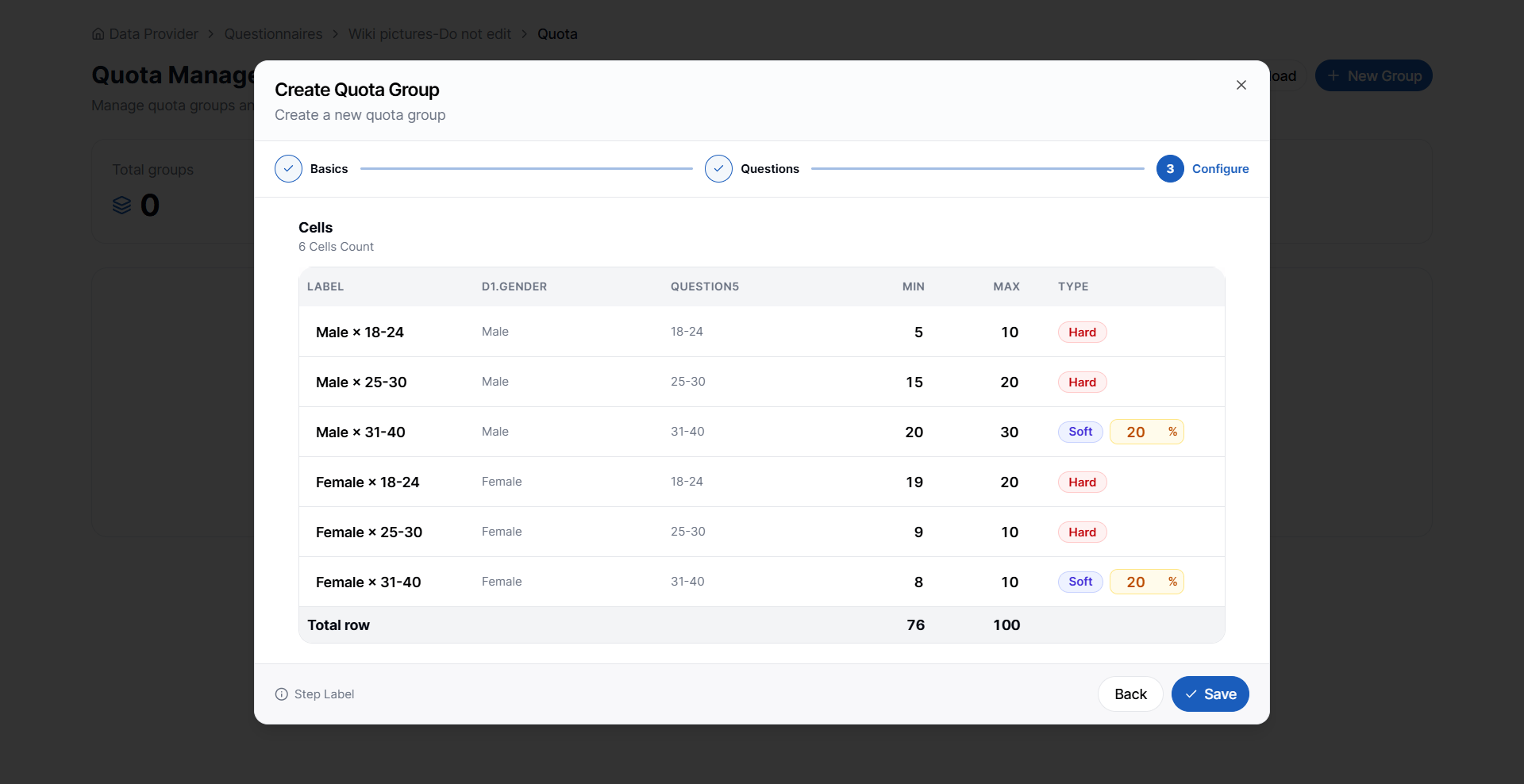
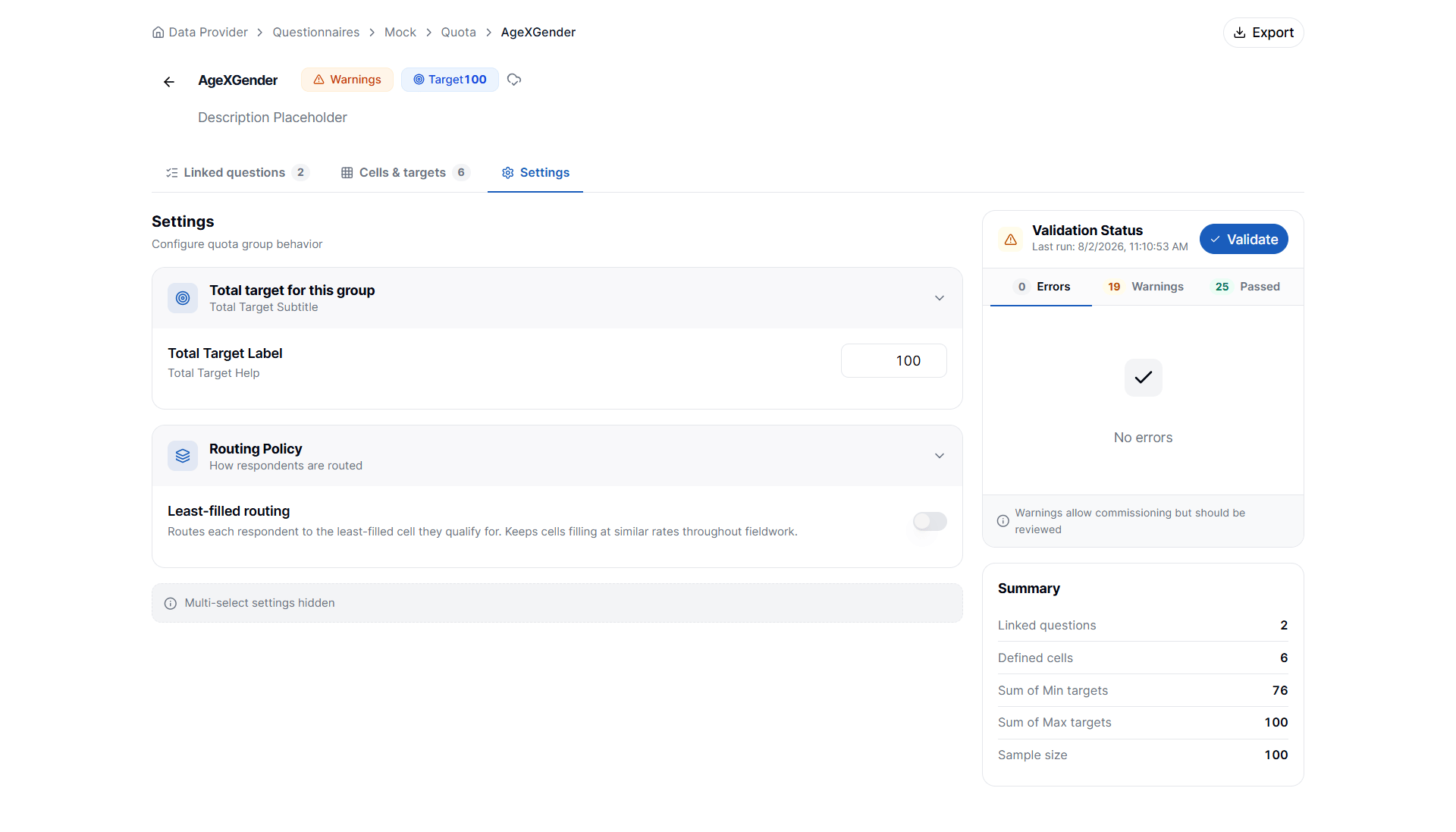
Routing Policy
If required, configure a Routing Policy for the quota group. Routing policies determine how eligible respondents are assigned to available quota cells.Least-filled Routing
The Least-filled Routing policy automatically routes each respondent to the quota cell with the lowest completion percentage among the cells they qualify for. This helps:- Balance sample collection
- Prevent one cell from filling too quickly
- Improve fieldwork efficiency
- Maintain even distribution across quota cells
Editing a Quota Group
After creating the quota group, VoxDash opens the Quota Group Settings page. Here you can review and modify every aspect of the quota configuration.Viewing Quota Cells
Quota cells can be displayed in multiple layouts depending on your preference. Available views include:Matrix View
Displays quota cells in a matrix format, making it easy to review combinations of multiple quota variables.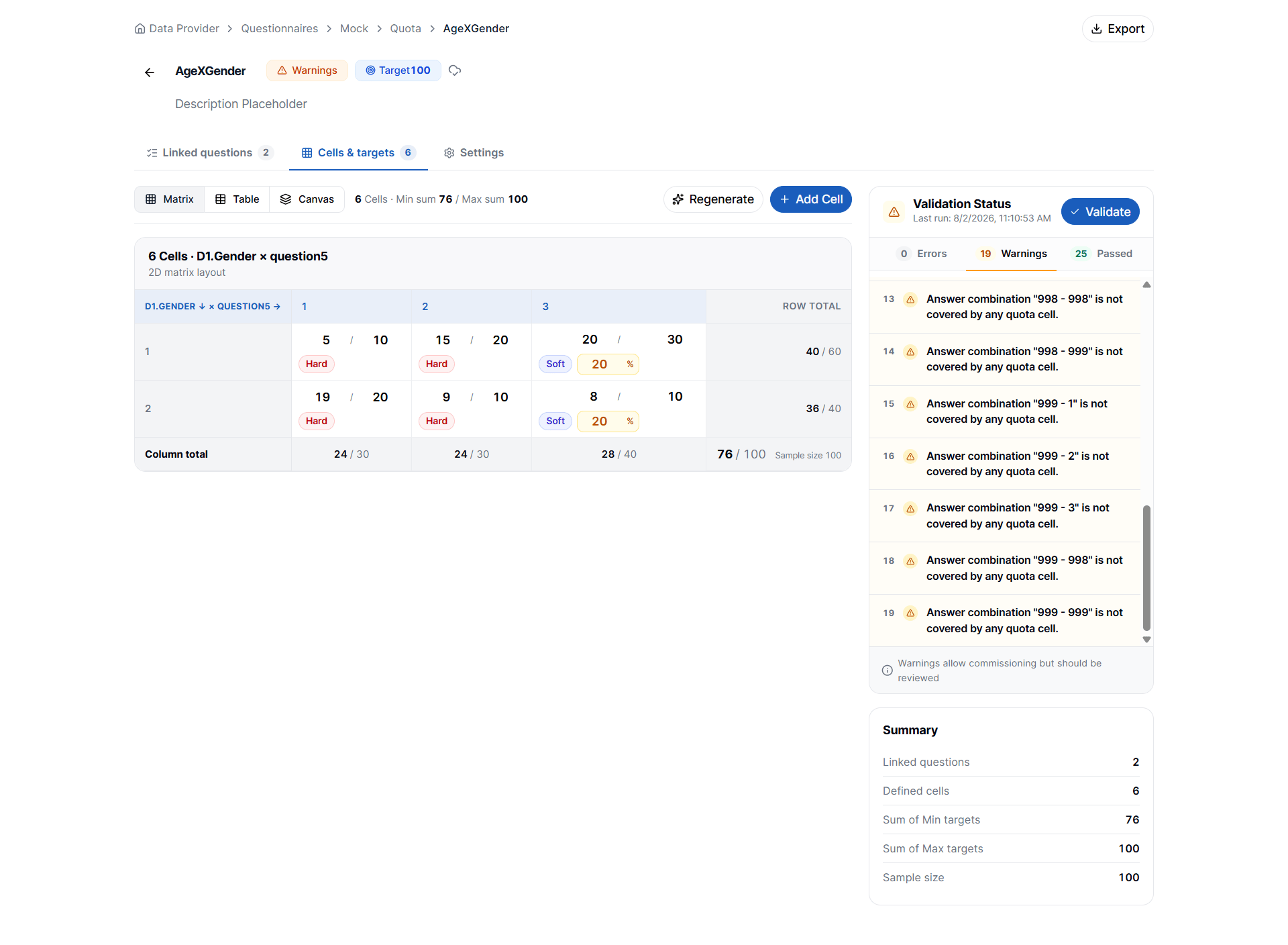
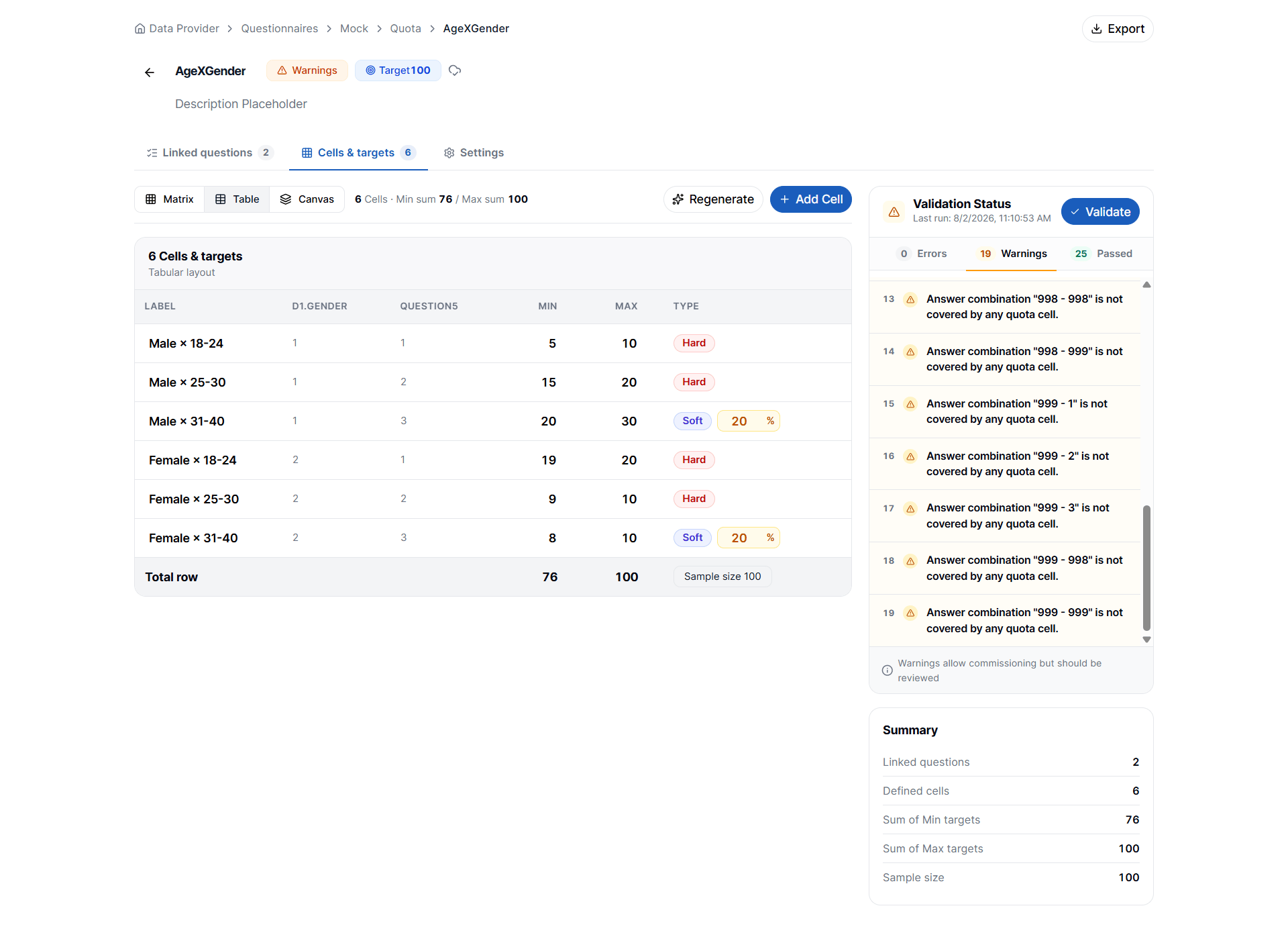
Table View
Displays all quota cells in a tabular list. Each row includes information such as:- Cell definition
- Minimum target
- Maximum target
- Quota type
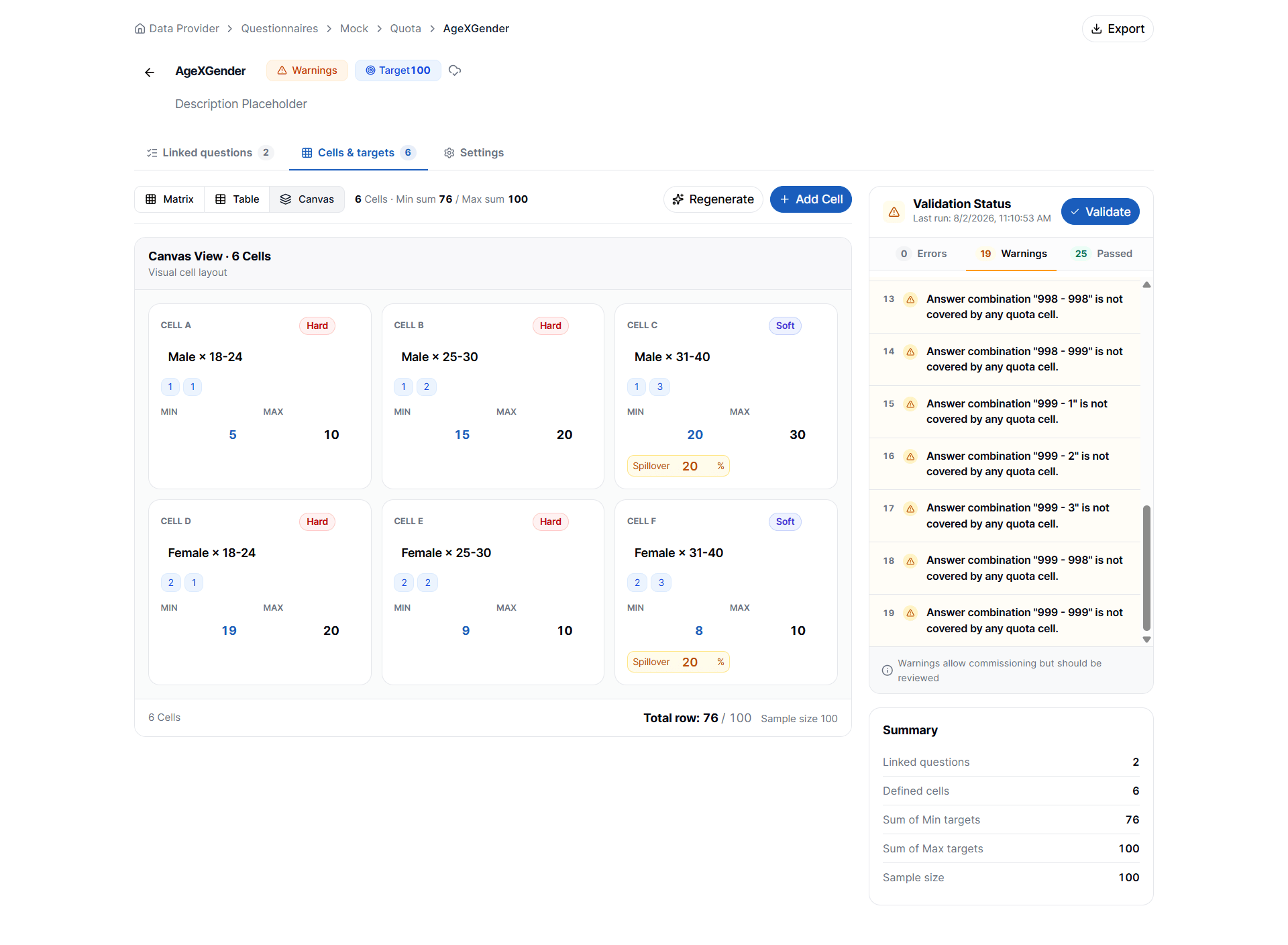
Canvas View
Displays quota cells visually, allowing you to better understand the overall quota structure. Regardless of the selected view, you can review:- Minimum target
- Maximum target
- Total target
- Cell type (Hard or Soft)
Managing Linked Questions
The Linked Questions section displays all questionnaire questions associated with the quota group. From this section you can:- View linked questions
- Add additional quota questions
- Remove linked questions
Important: Changing the linked questions changes the quota structure. If you add or remove linked questions, VoxDash recreates the quota cells based on the new question combinations. Existing quota cells, along with their configured minimum and maximum targets, are removed and replaced with a newly generated structure.
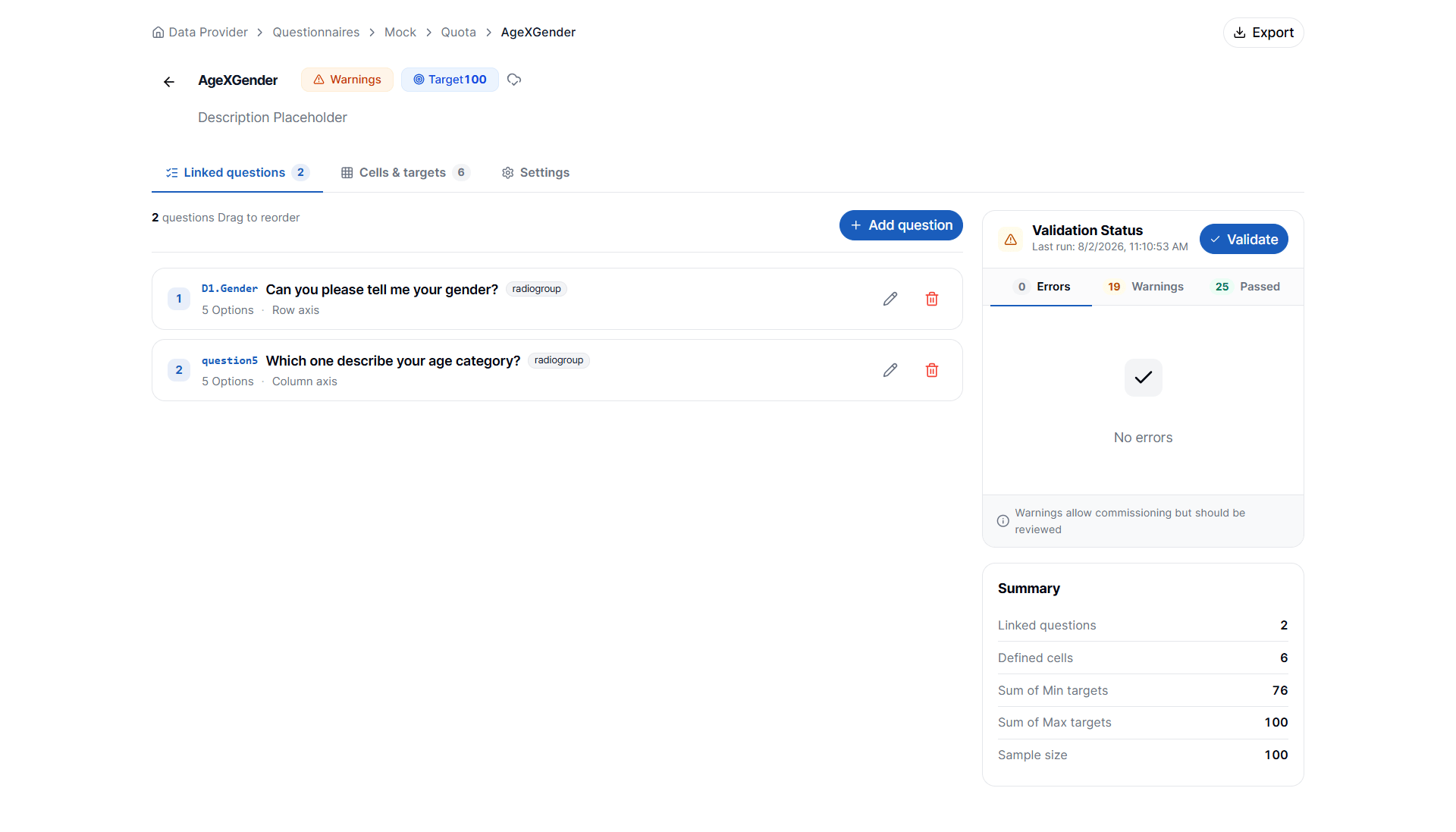
Quota Summary
The Summary section provides an overview of the current quota configuration. It displays:- Linked Questions
- Defined Quota Cells
- Sum of Minimum Targets
- Sum of Maximum Targets
- Total Sample Size
Validating a Quota Group
Before saving your quota group, it is recommended to run validation. Validation checks the quota configuration for:- Missing settings
- Invalid targets
- Inconsistent quota definitions
- Warnings
- Configuration errors
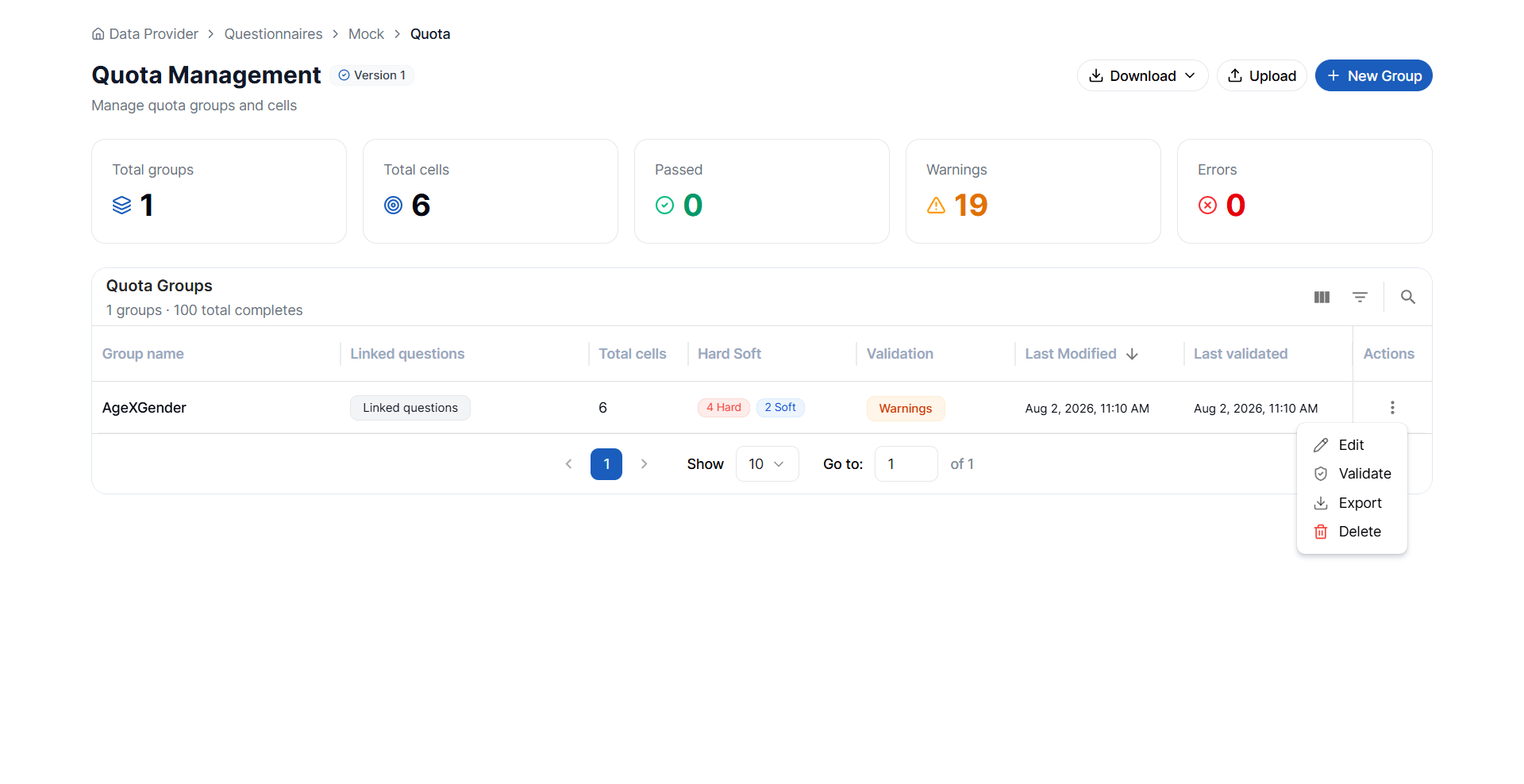
Managing Multiple Quota Groups
After completing one quota group, return to the Quota Management page to create or manage additional quota groups for the questionnaire. The Quota Group List provides an overview of all existing quota groups. For each group, the following information is displayed:- Group Name
- Linked Questions
- Total Cells
- Hard/Soft Quota Configuration
- Validation Status
- Last Modified
- Last Validated
Available Actions
Each quota group includes an Actions menu that provides the following options:Edit
Open the quota group and modify its configuration.Validate
Run the validation process to identify errors or warnings before deployment.Export
Export the quota group for backup, sharing, or reuse. Supported export formats include:- JSON
- Microsoft Excel
Delete
Permanently remove the quota group from the questionnaire.Note: Deleting a quota group removes all associated quota cells and configuration. This action cannot be undone.
Best Practices
To ensure effective quota management:- Tag all quota questions before creating quota groups.
- Use descriptive group names to distinguish multiple quota configurations.
- Use Auto Generate to quickly create quota cells for multi-variable quotas.
- Verify that the total of all maximum targets does not exceed the group’s target sample size.
- Choose Hard Quotas when strict sample limits are required and Soft Quotas when controlled overages are acceptable.
- Run Validation after every significant change to identify configuration issues before fieldwork begins.
- Export quota groups regularly as a backup or for reuse across similar projects.