

Understanding Maps in VoxDash
If your survey includes a map variable (a question that refers to a geographic region), you can use the Map Wizard to attach a map to your data project. Learn more about Survey Data Entry.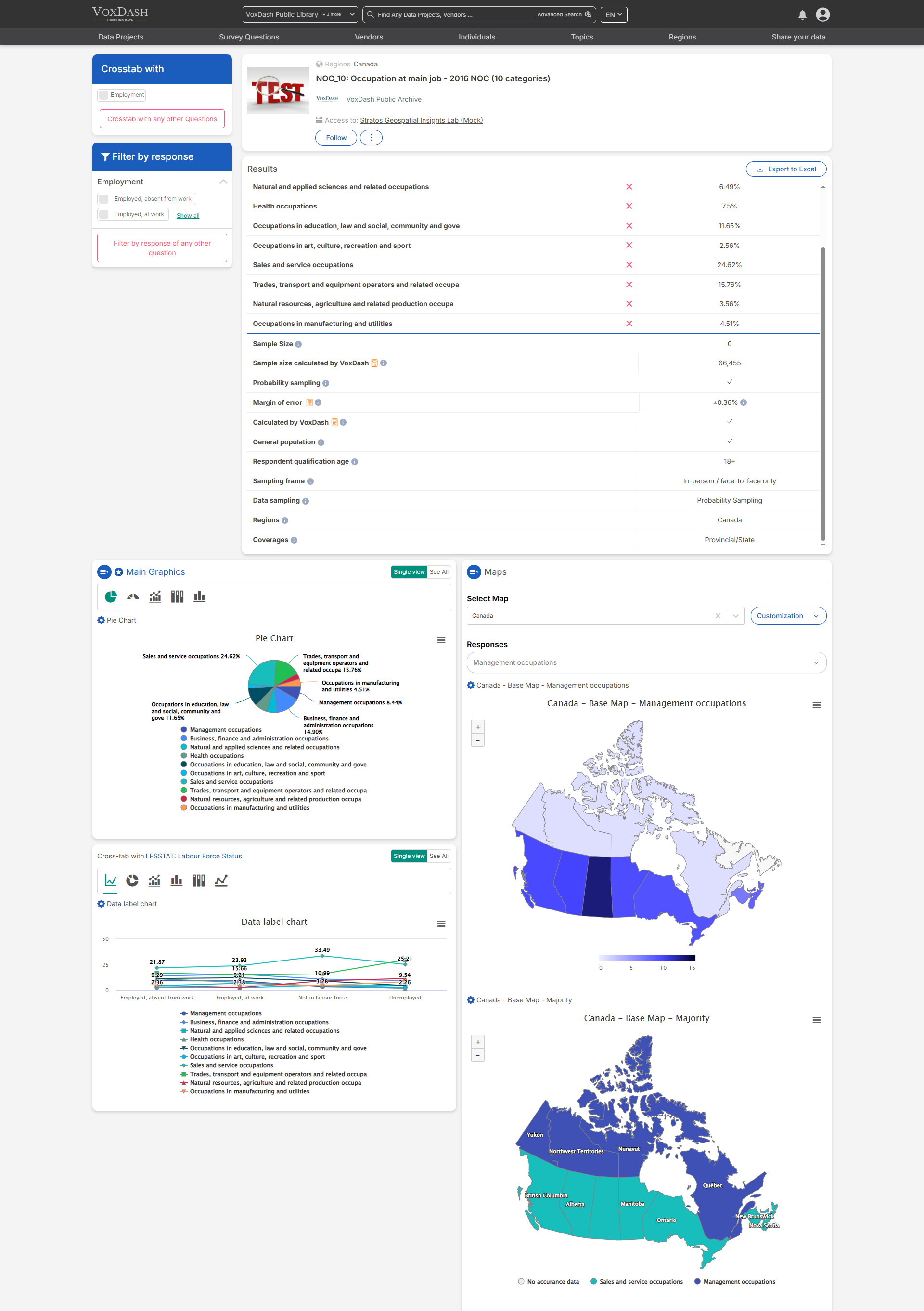
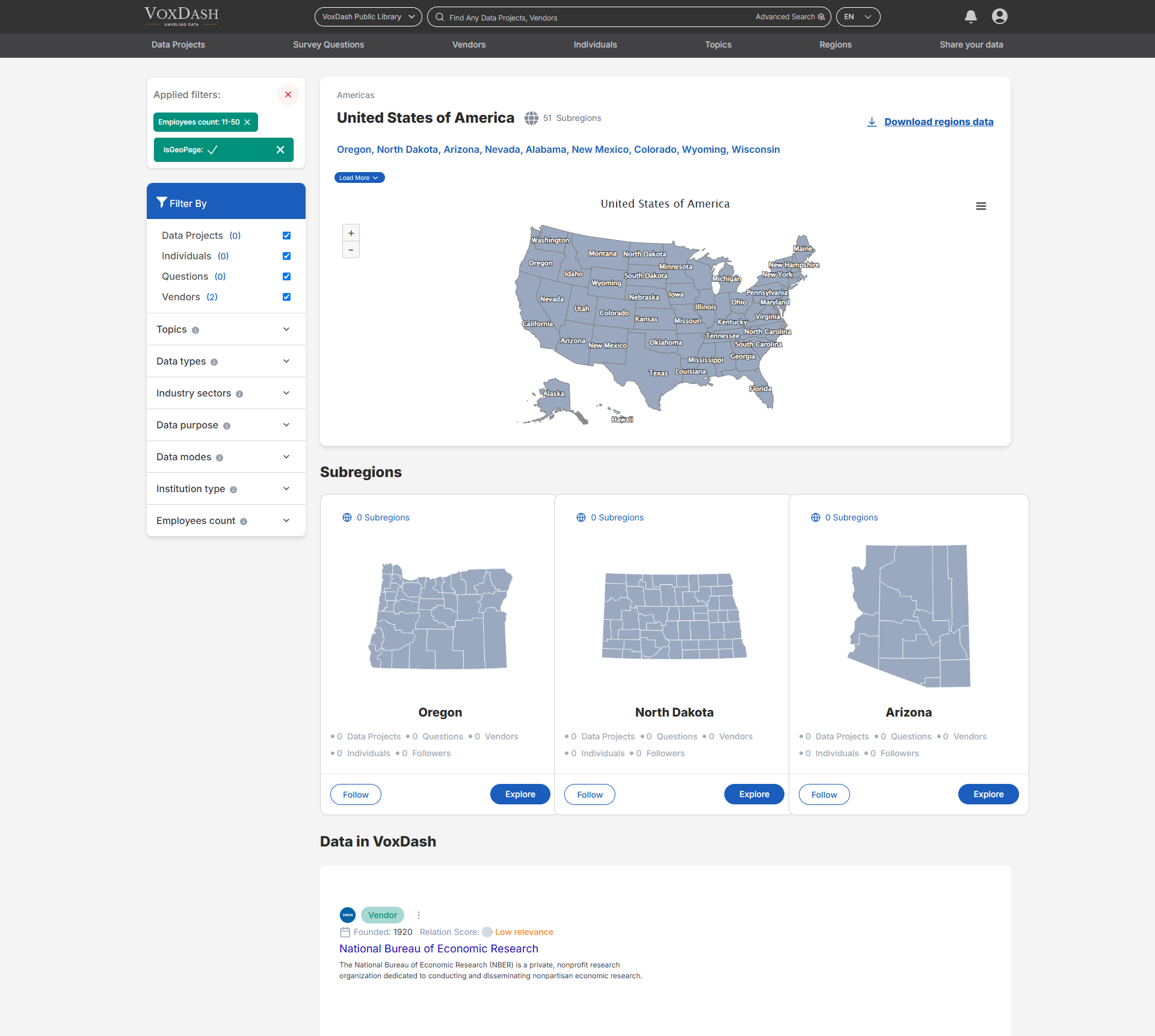
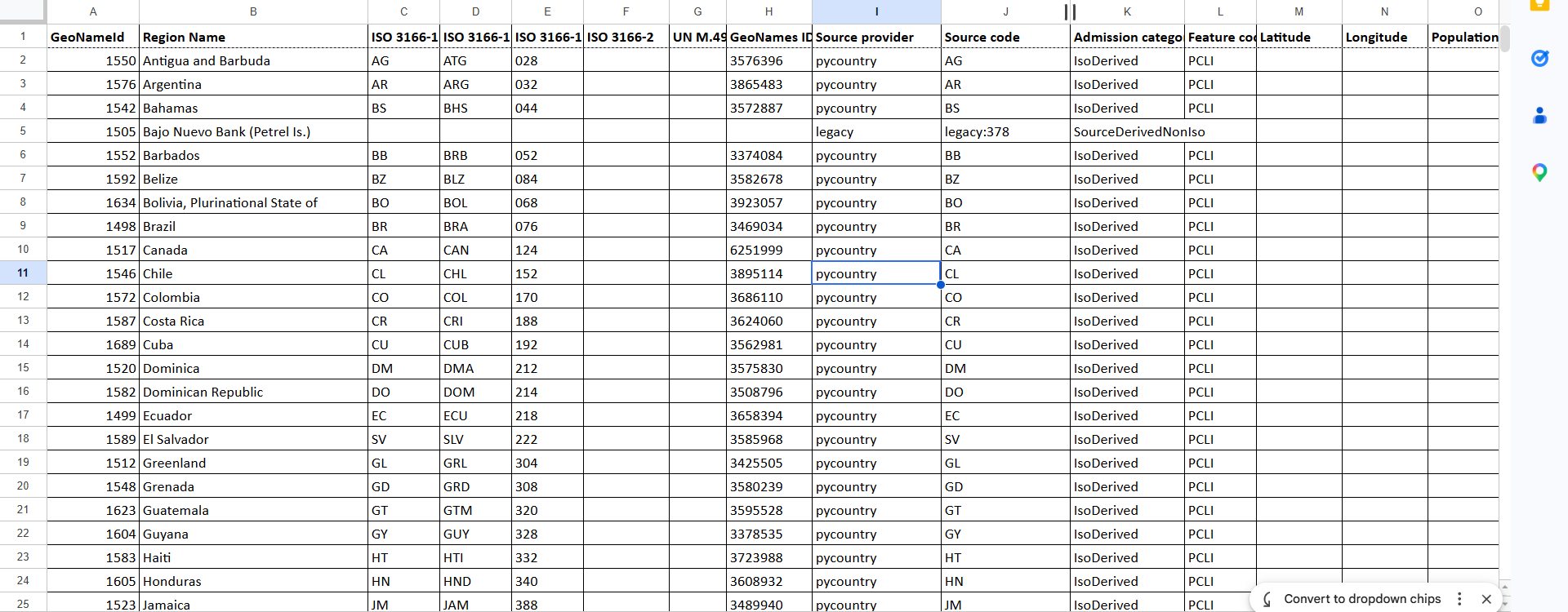
- The map geography doesn’t exist in VoxDash.
- The map geography exists in VoxDash but it doesn’t contain your desired sub-regions(e.g., districts or provinces).
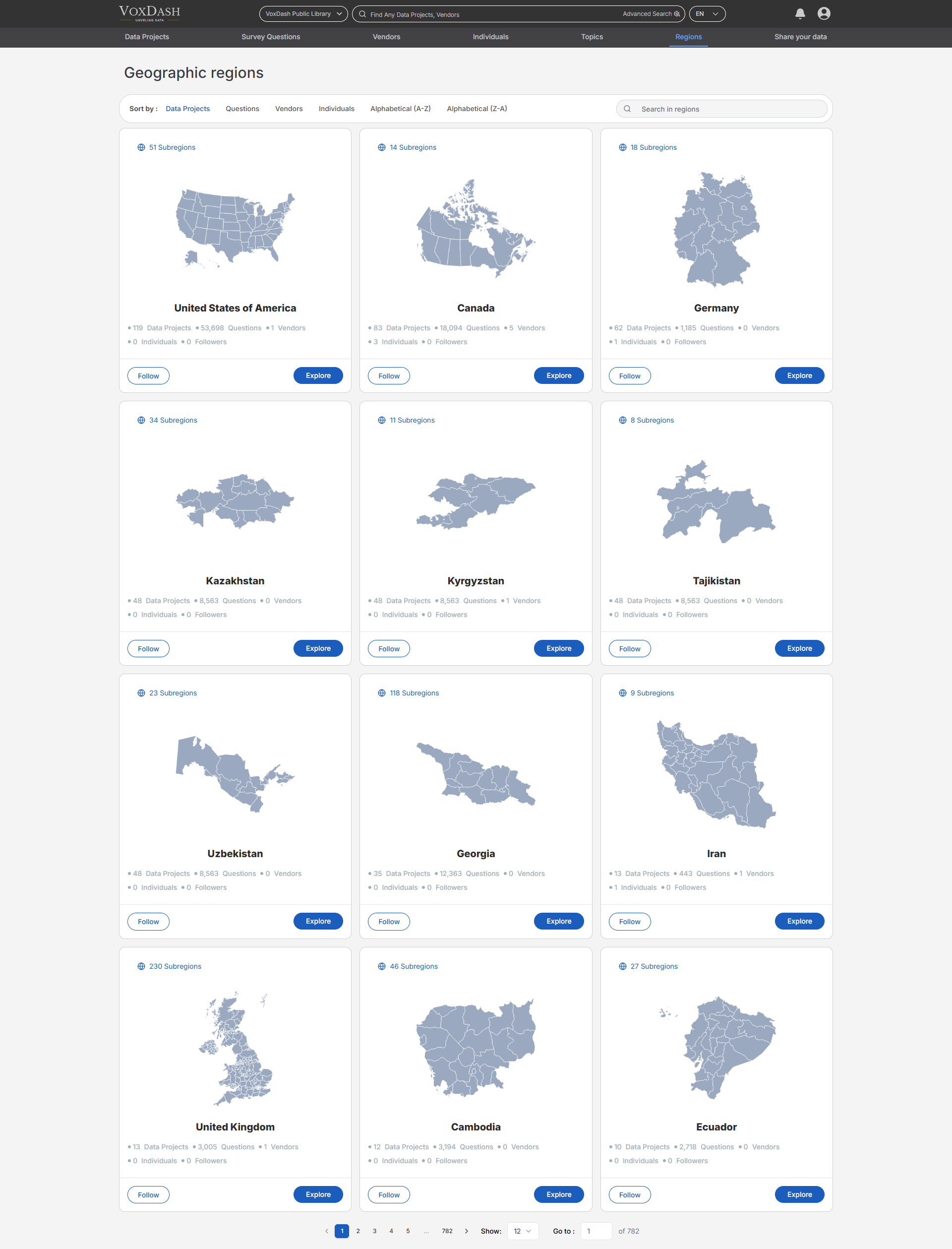
Search for a Country Map
Use the search bar to find maps by country name, then download the map and use it in Survey for analysis.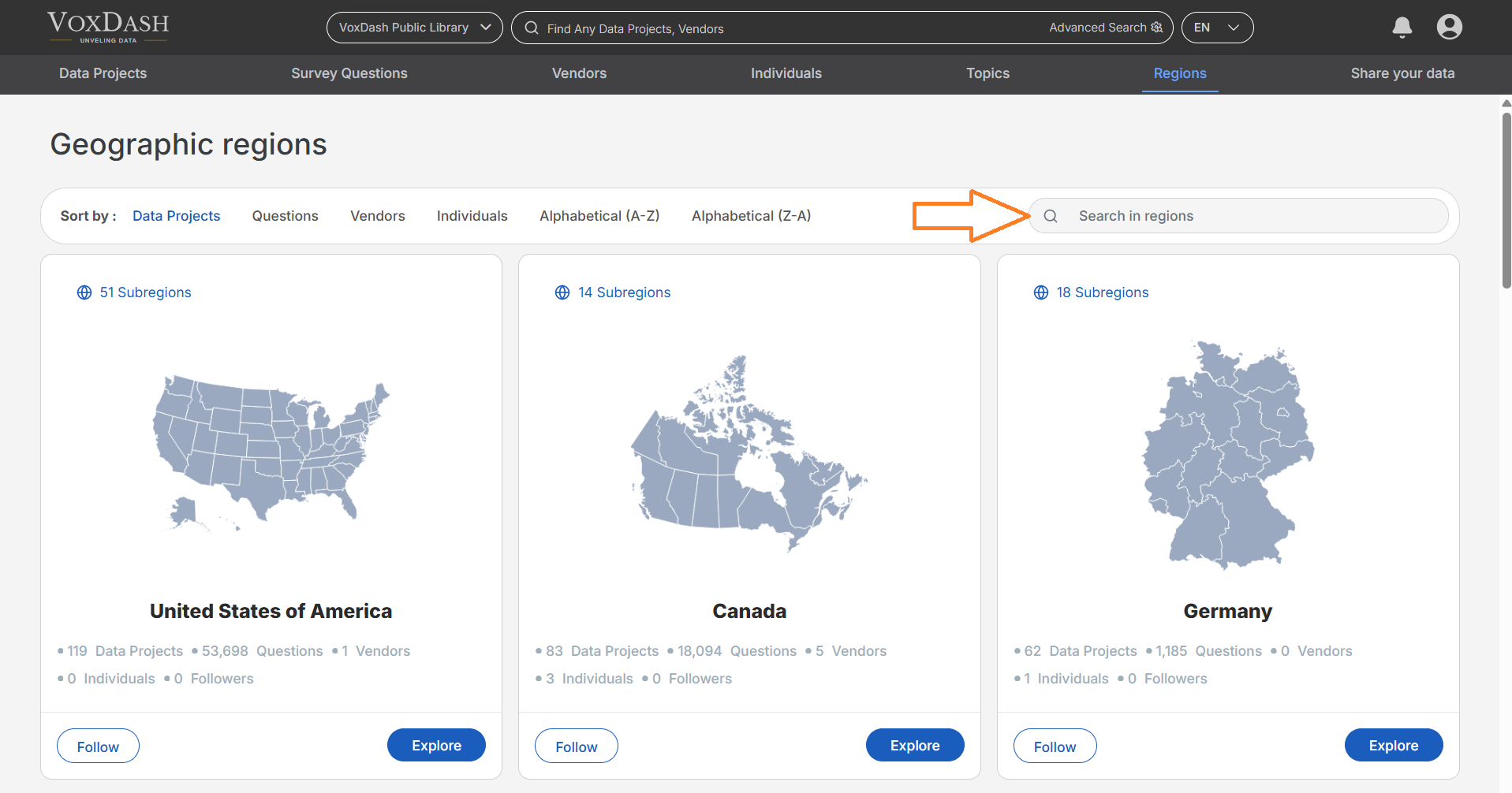
Steps to add a new map
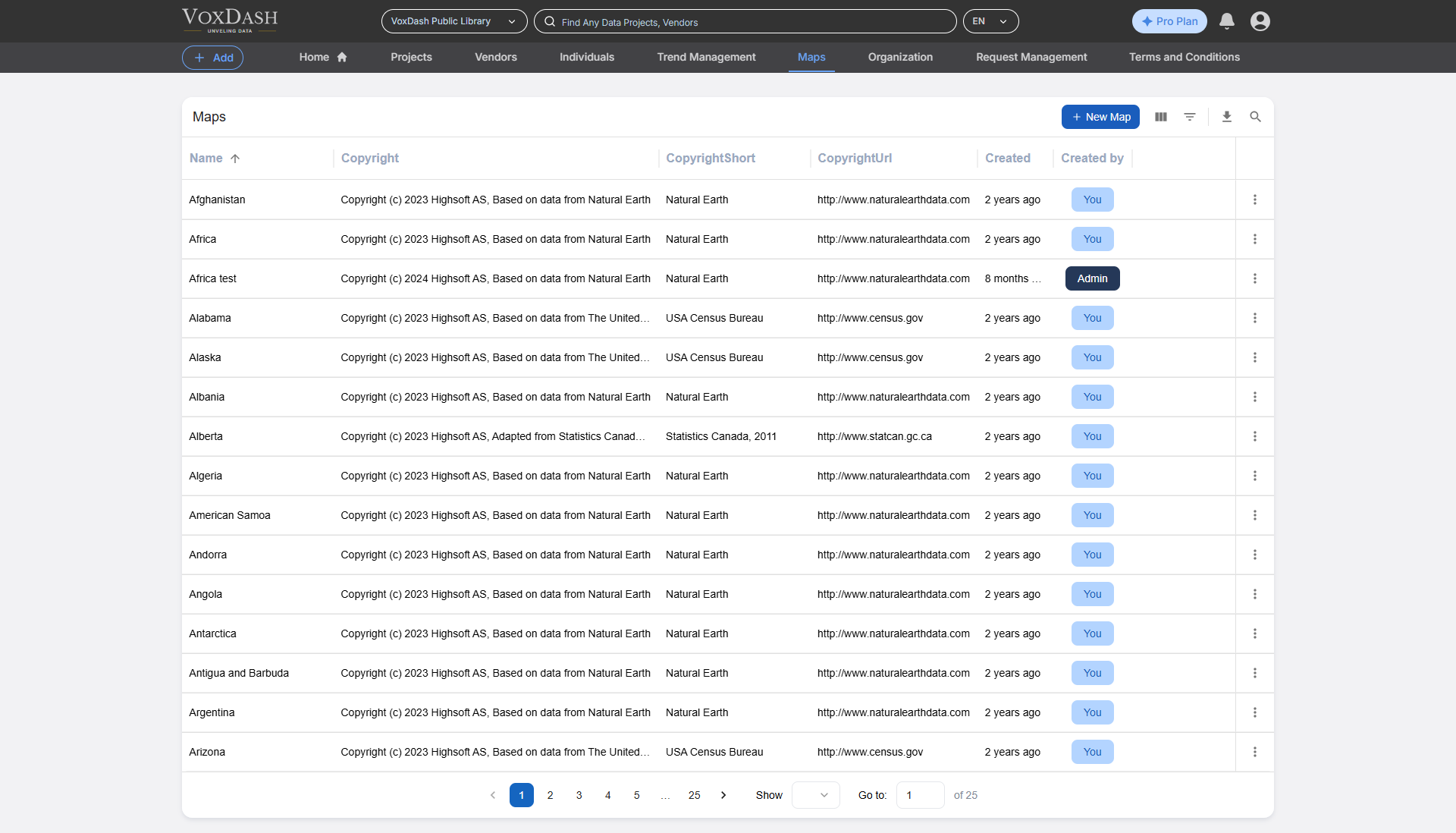
1. Navigate to the Maps Page
Go to the Maps page by clicking on the following link: Maps Page.2. Add a New Map
On the Maps page, locate and click the Add Map button in the top-right corner.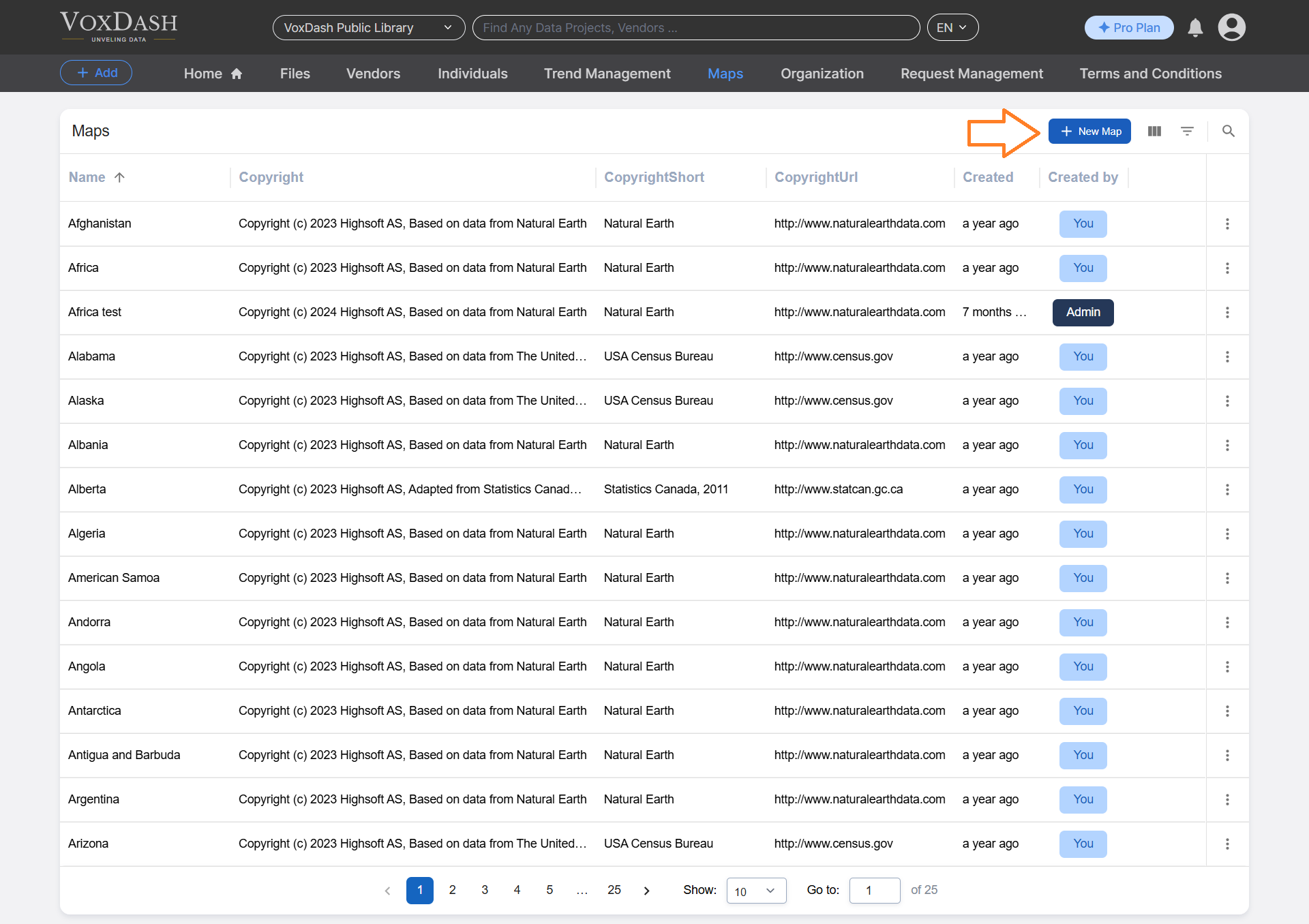
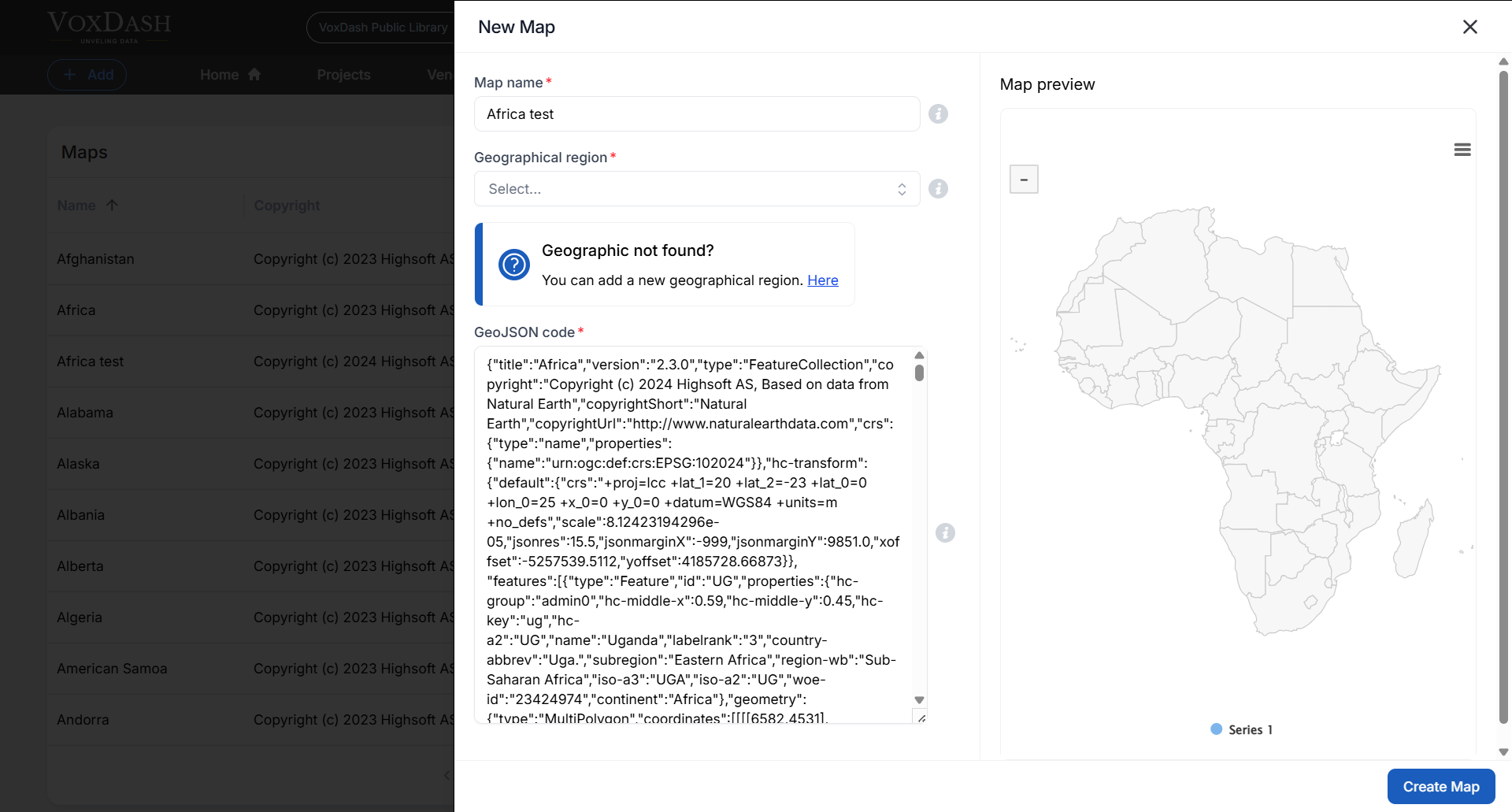
3. Provide a Name for the Map
Enter a descriptive name for your map that reflects its purpose, content, or the region it represents. This helps users identify the map easily. Example: ✅ “Kenya – Counties” (good) ❌ “Map 1” (unclear) Note: Descriptive names make it easier for users to identify and select the correct map later.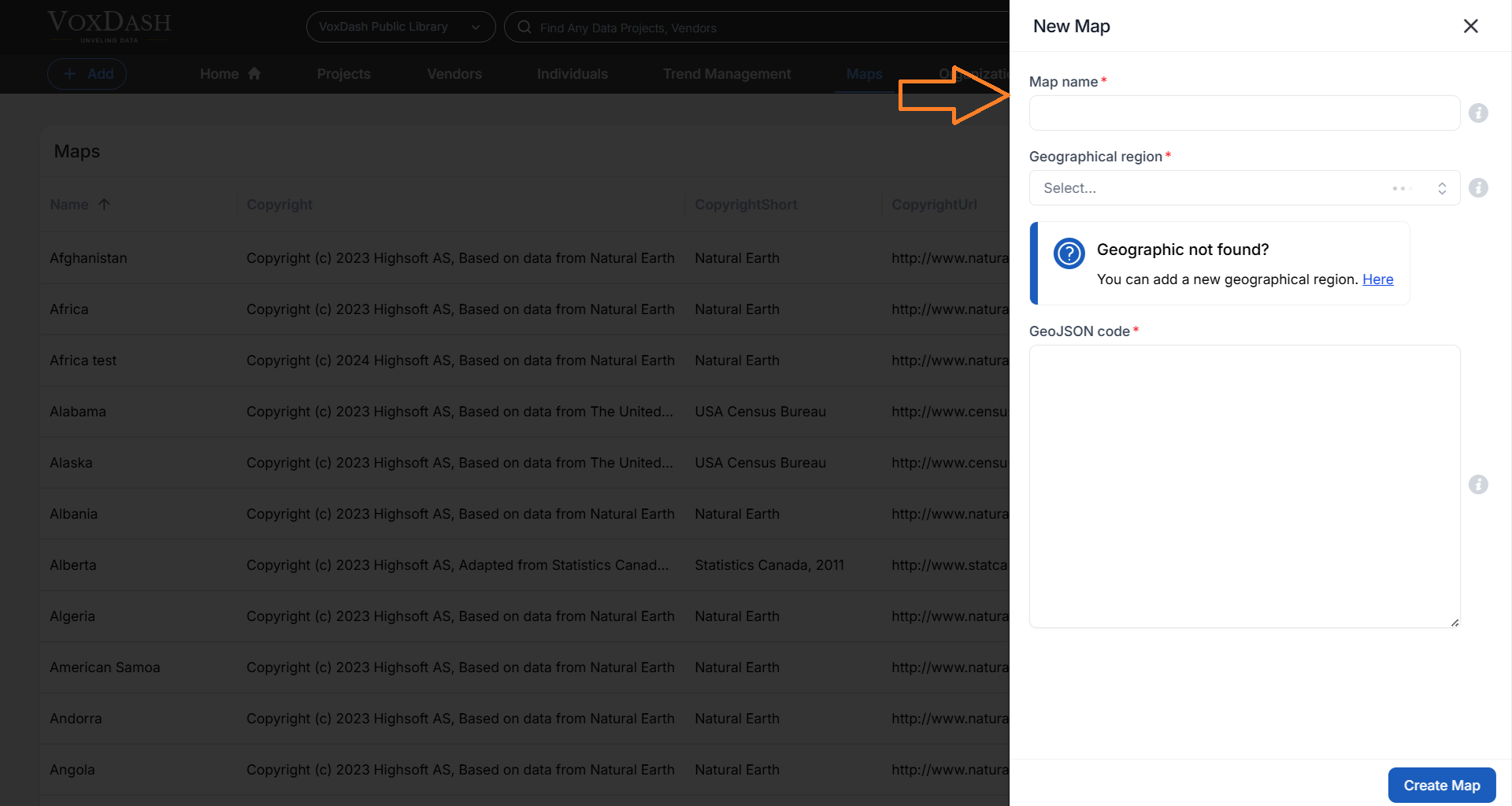
4. Choose the Relevant Region
Select the appropriate region for your map from the dropdown list or search bar. This step ensures that the map is properly categorized and displayed with the correct geographical context.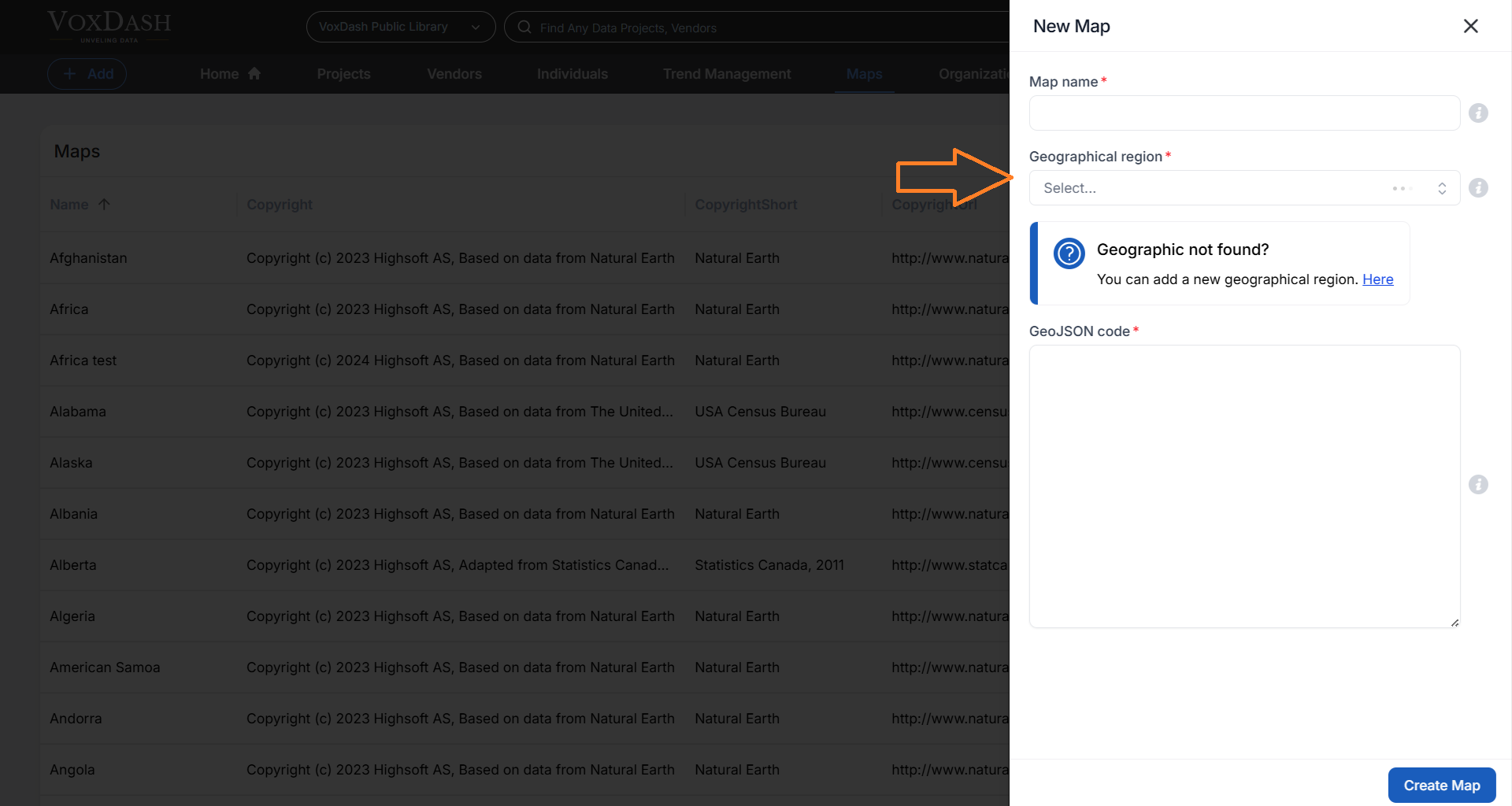
5. Add the GeoJSON Code
A GeoJSON file is a format for encoding geographical data structures using JavaScript Object Notation (JSON). It is commonly used for representing geographic features, such as points, lines, and polygons, along with their associated attributes. You can type the GeoJSON code for the geographic data you wish to include on the map. Make sure the code is formatted correctly to ensure proper display or use this website to paste the GeoJSON code.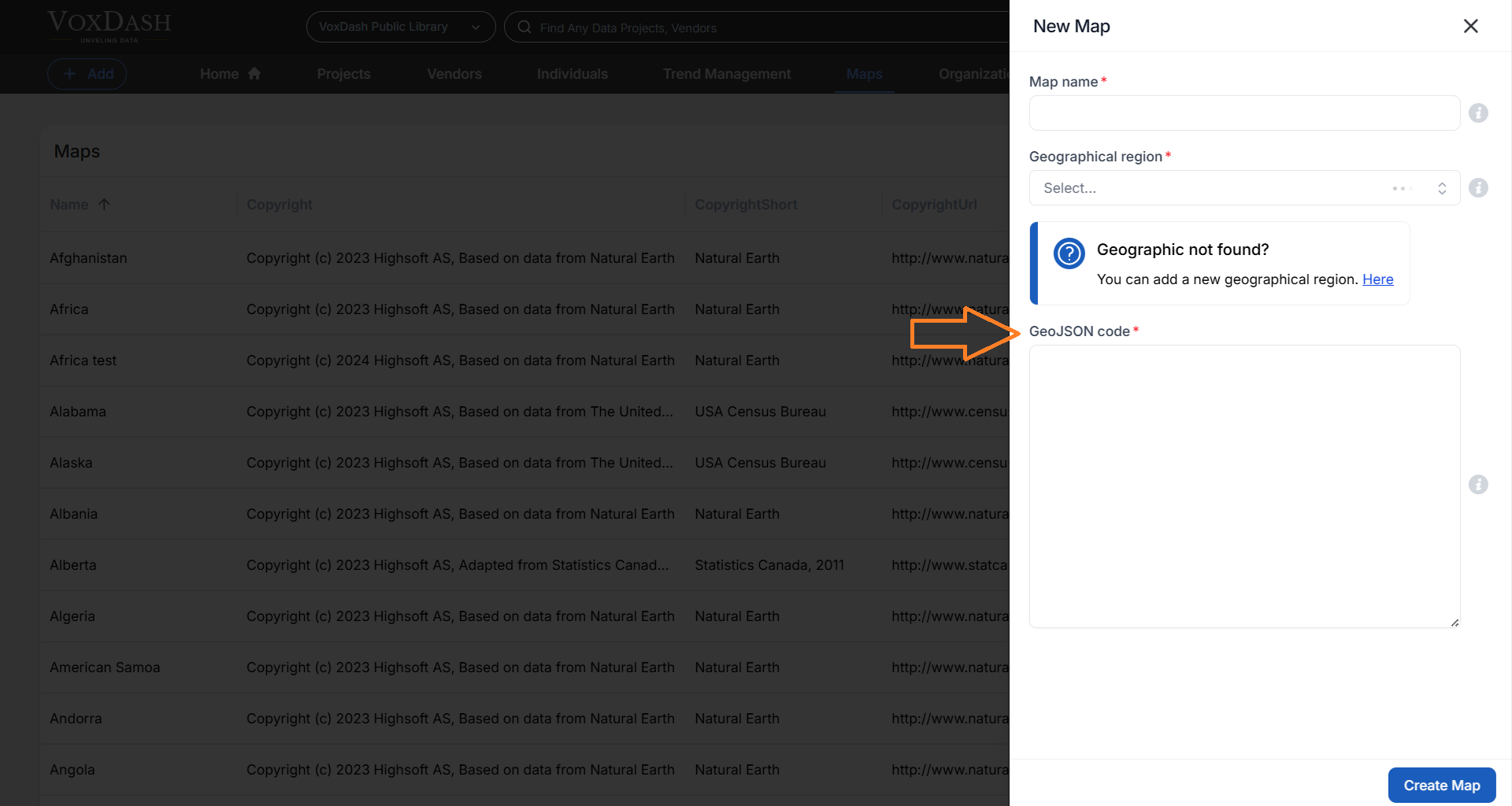
6. Handle Unrecognized Geographies
If the geography you want to use does not appear in the region list, click the Add New Region option to define a new region. Define the New Region Provide a clear and accurate name for the new region. The name should properly reflect the geographical area it represents to avoid confusion.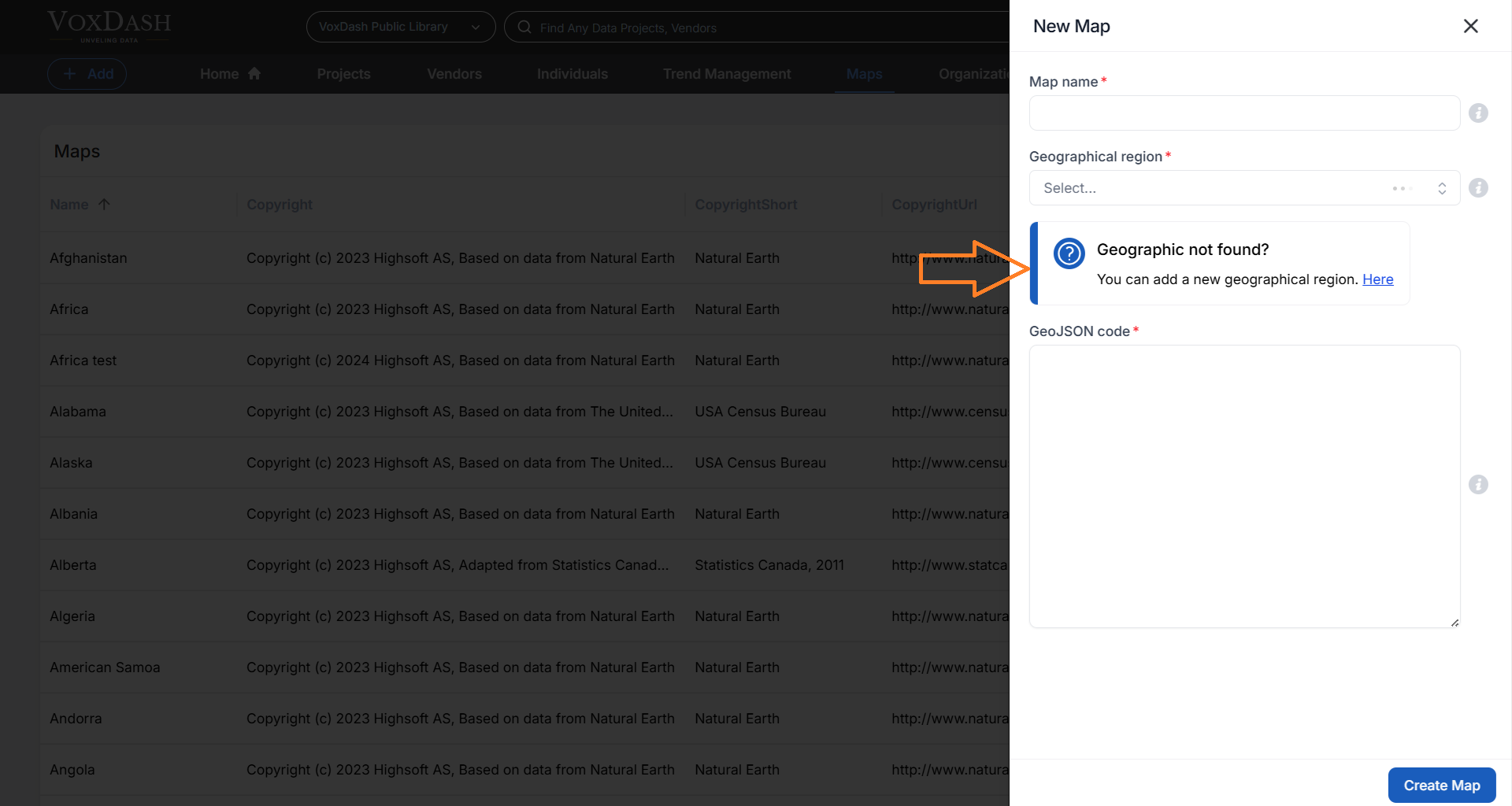
- Continent (e.g, Africa)
- Country (e.g., Kenya)
- Province or State (e.g., Nairobi County)
- District or Sub-region (e.g., Westlands District)
- Aggregate data upward (e.g., from district to province).
- Filter reports and dashboards by geographic level.
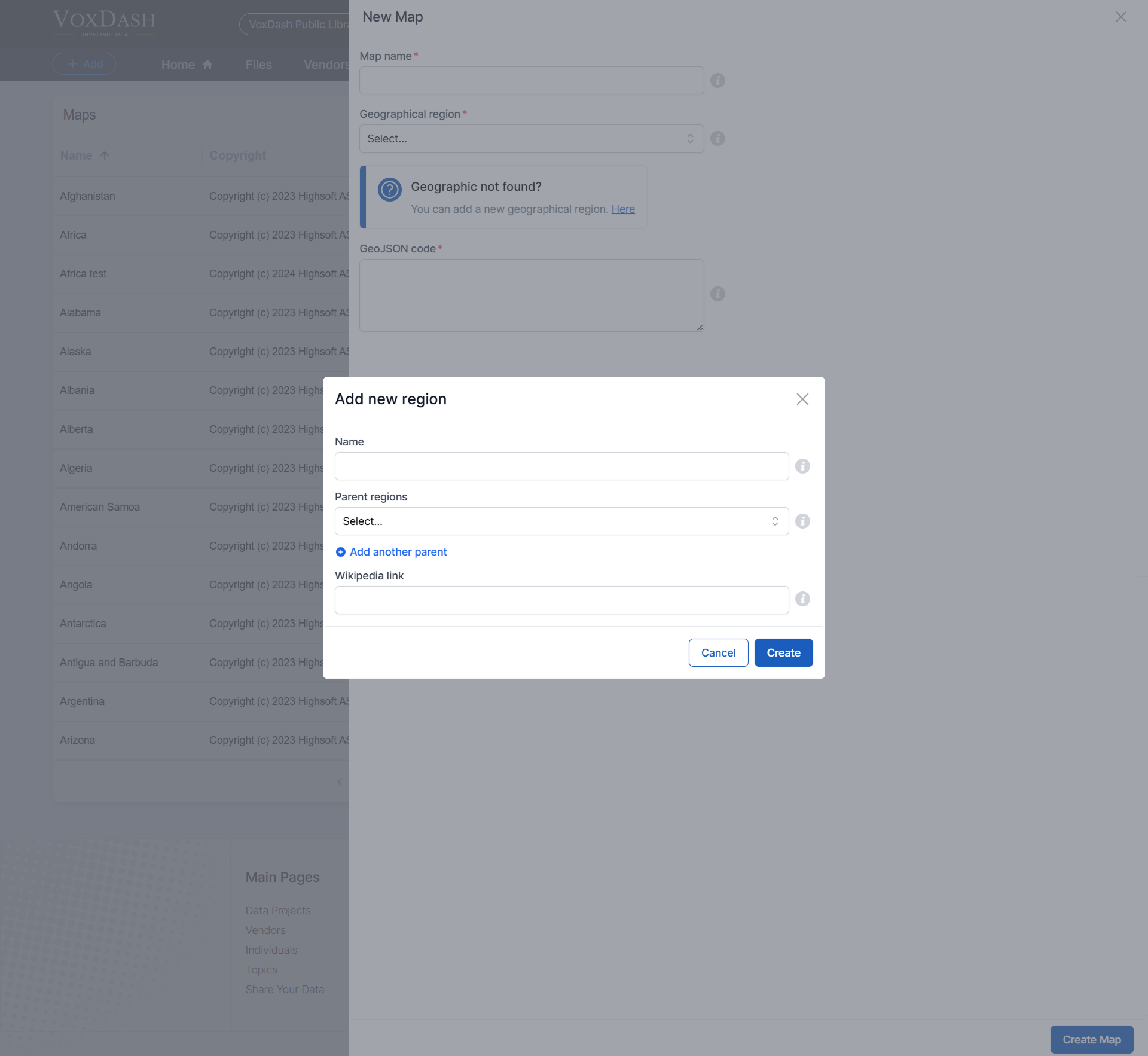
7. Click the Create Button
Once all required fields are filled out, click the Create button in the bottom-right corner of the page to save your map and the associated region. Learn more about adding a new map Here.Editing Existing Maps
Once a map is created, you can view, edit, or delete it directly from the Maps page. To manage a map:-
- Go to the Maps page.
-
- Click the More (⋮) menu next to the map you want to modify.
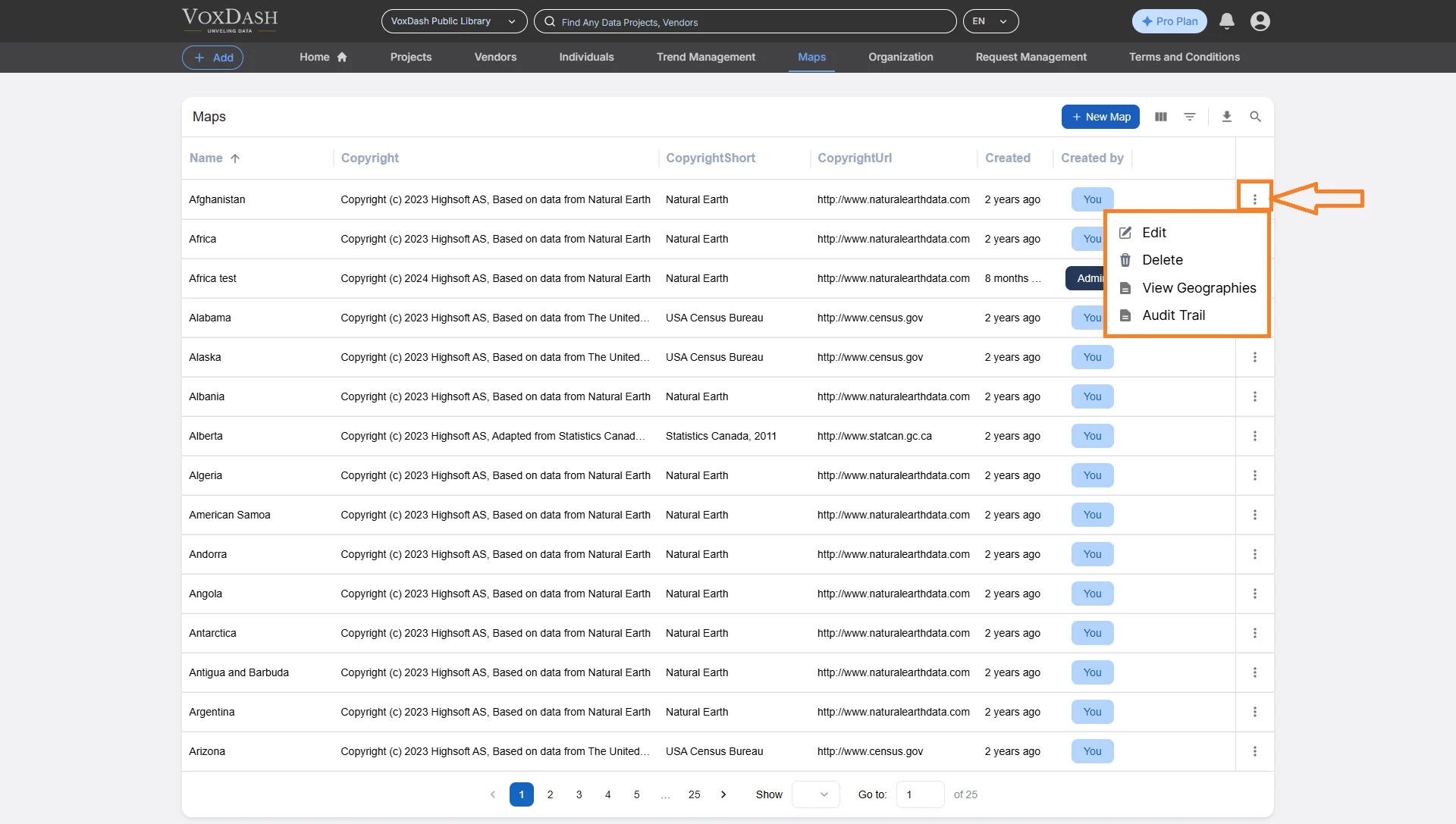
- 3.Choose one of the available options: Edit Map: Update the map’s name, parent region, or GeoJSON data.
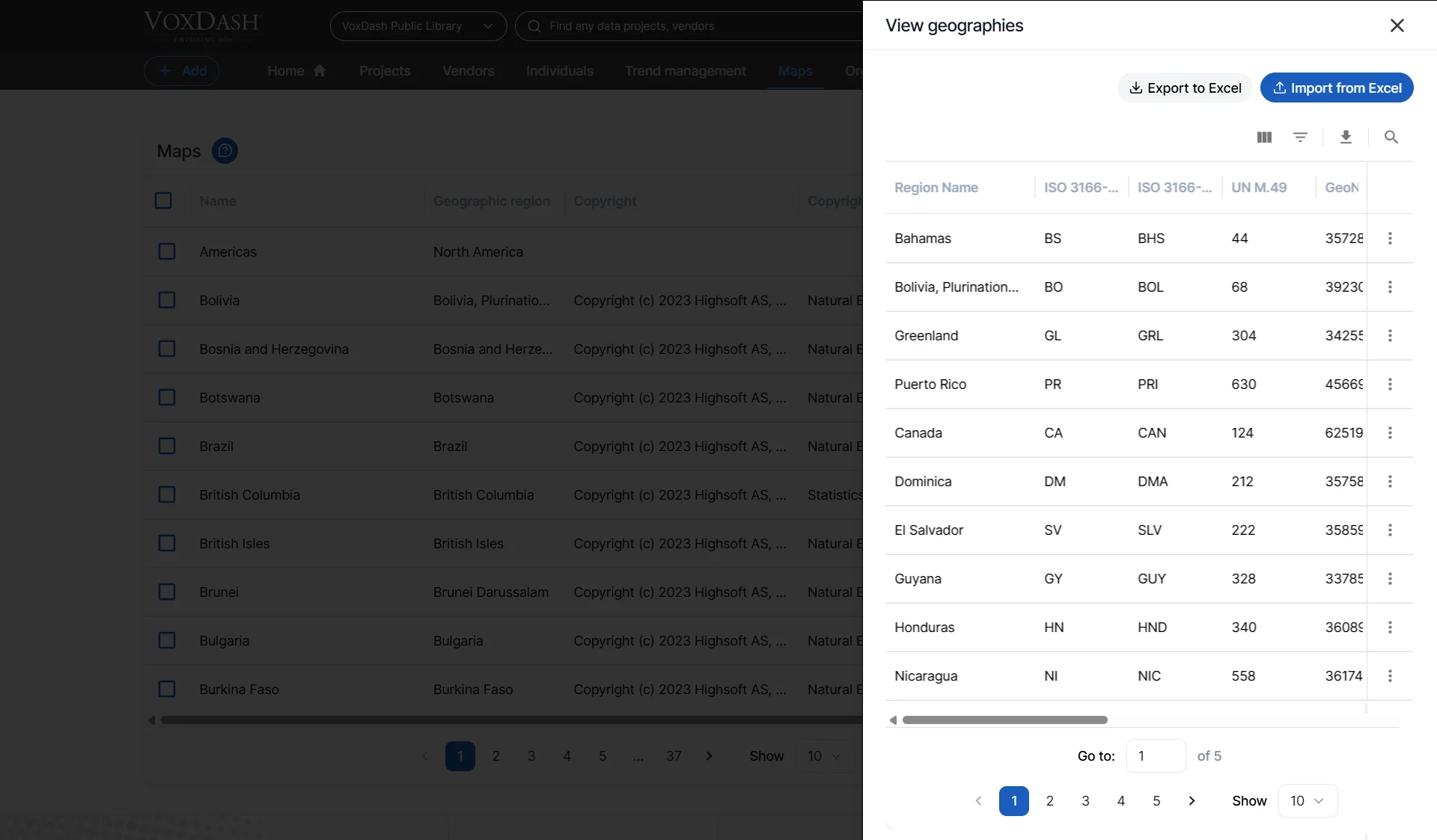
Tips for Success
- Check GeoJSON Formatting: Validate your GeoJSON file before uploading to avoid syntax or boundary errors.
- Use Consistent Names: Stick to a standard naming format for maps and regions (e.g., Country → State → City).
- Verify Parent Relationships: Ensure each region is correctly nested under its parent for accurate mapping.
- Add External Links: Linking to Wikipedia or official data sources improves credibility and context.
Integrating Maps with Survey
After creating or downloading your map: 1. Open SPSS and import your dataset. 2. In the Data Mapping Wizard (Step 3), select your Map Variable. 3. Choose the corresponding VoxDash Map from the dropdown. 4. Match region names or ISO codes with VoxDash’s entries.- If your dataset uses abbreviations, manually align them.