

Viewing Geography Regions
- Open the Data Provider Panel
- Navigate to the Maps Page
- Find Your Map
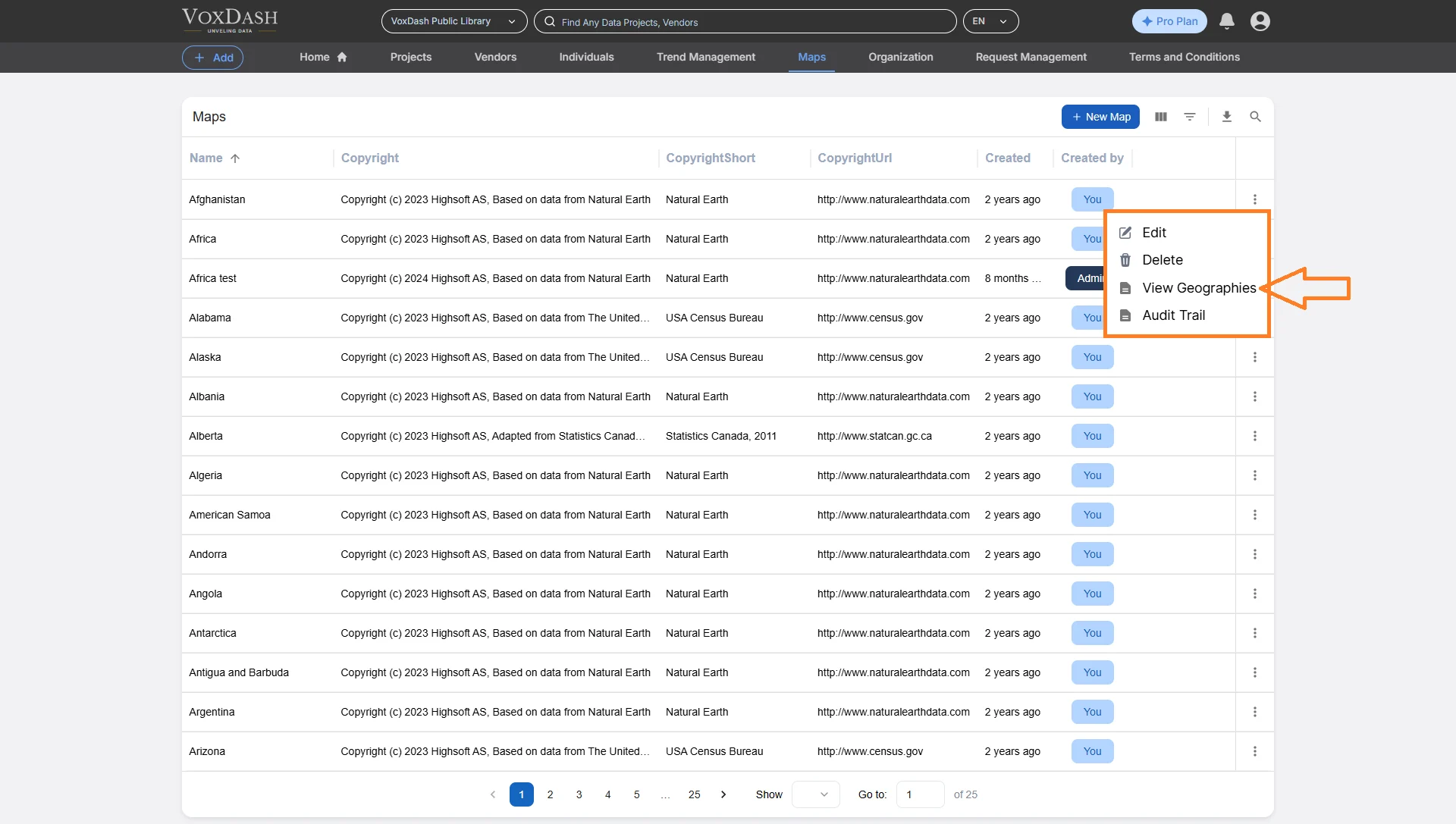
- On the Maps page, locate your desired map and click the menu icon (⋮) on the right side of its row.
- From the dropdown list, choose View Geography Regions.
Exporting Regions
The Export feature allows you to download a complete Excel (.xlsx) file of all the map’s regions. This is especially valuable for:- Backing up your region configurations
- Reviewing region data offline
- Sharing configuration with other team members or systems
To Export Regions:
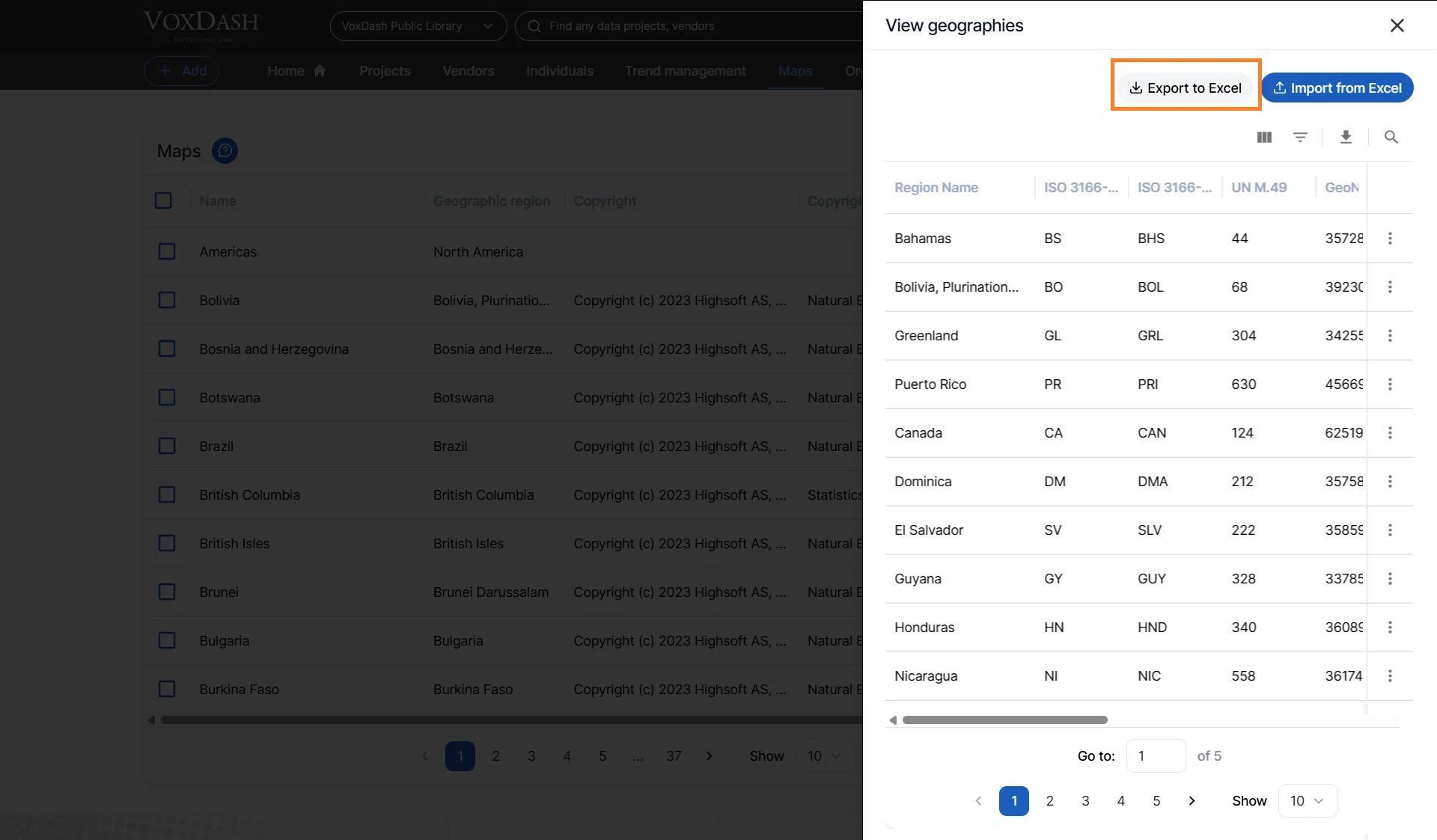
- In the View Geography Regions modal, click Export.
- VoxDash generates the file and downloads it to your device.
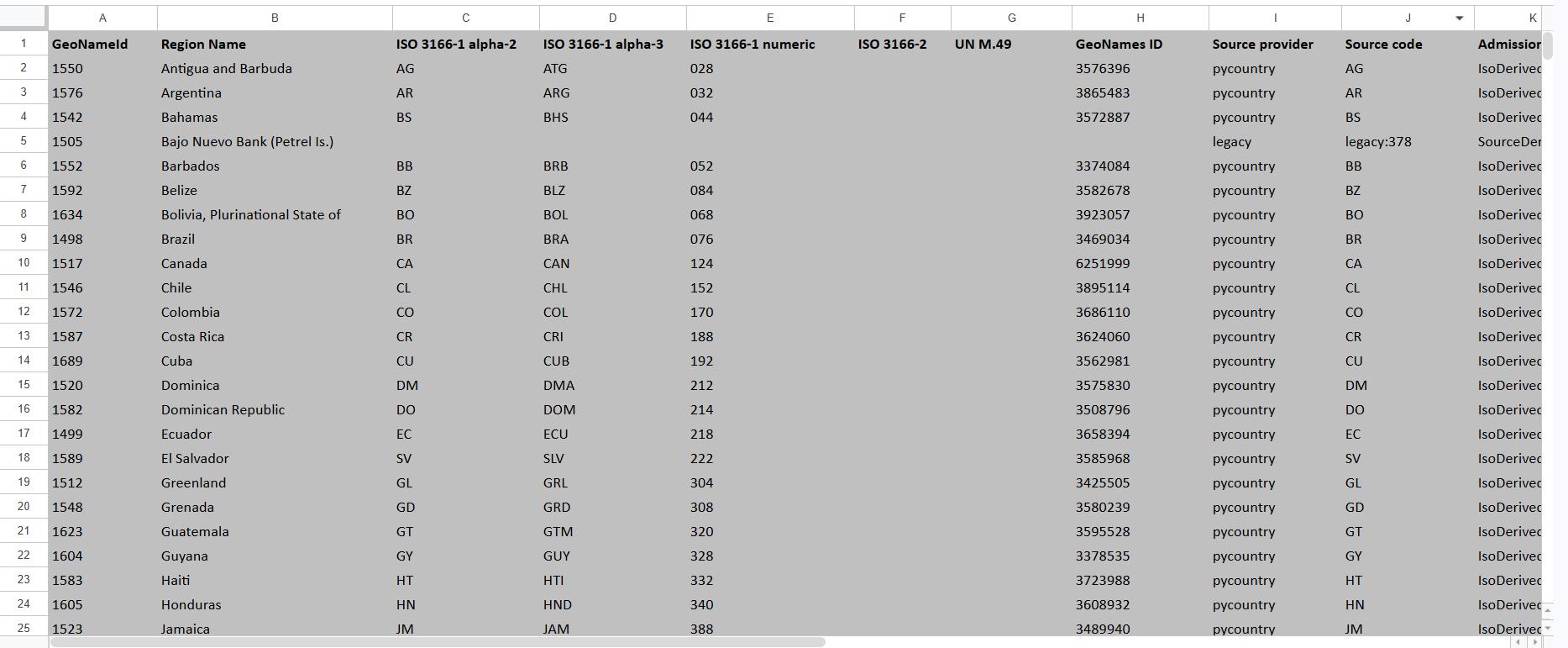
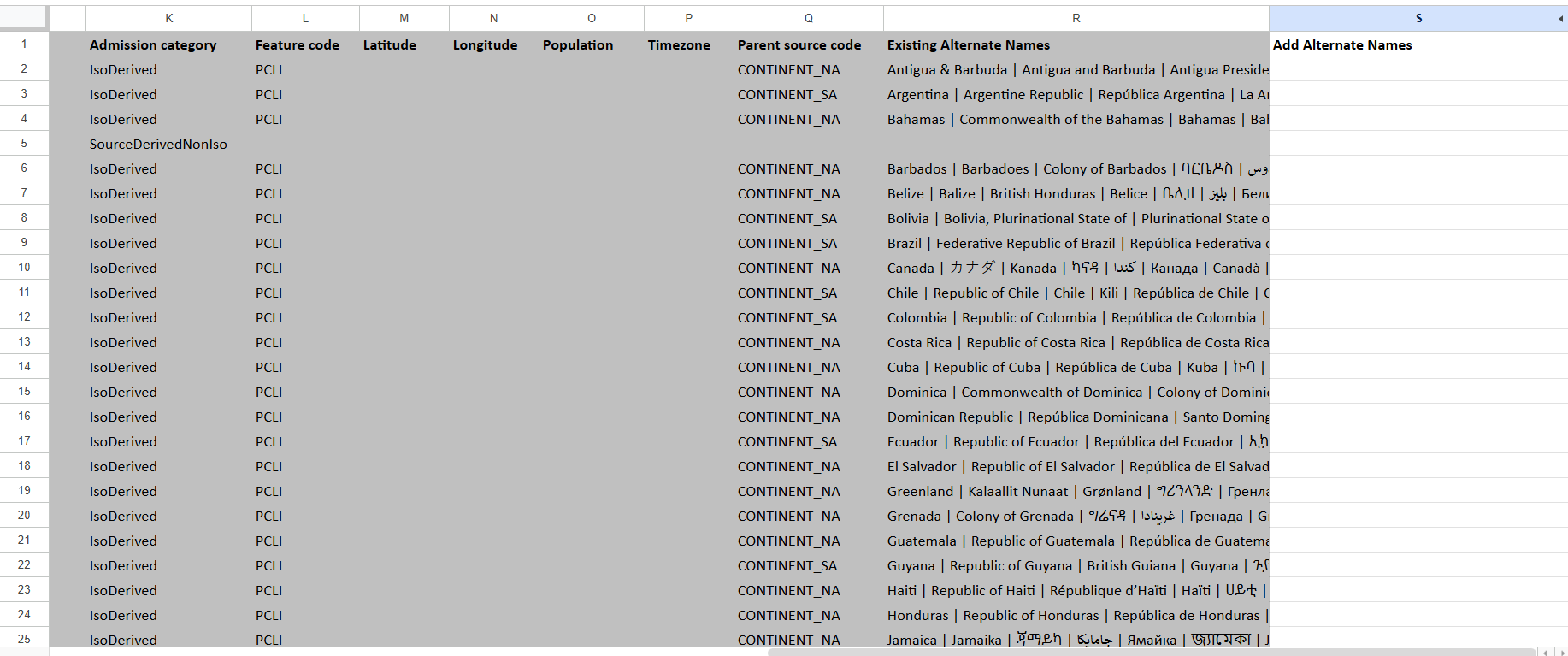
- Region Name
- Region Code or ID
- Existing Alternate Names
- Add Alternate Names
- ISO Codes
Understanding the Exported Region File
The exported Excel file contains geographic metadata used by VoxDash to identify and match regions. Below is an explanation of each column in the exported file.GeoNameId
A unique internal identifier assigned to the geographic region. This value is used internally by geographic databases and mapping systems. Example:- 6252001 = United States
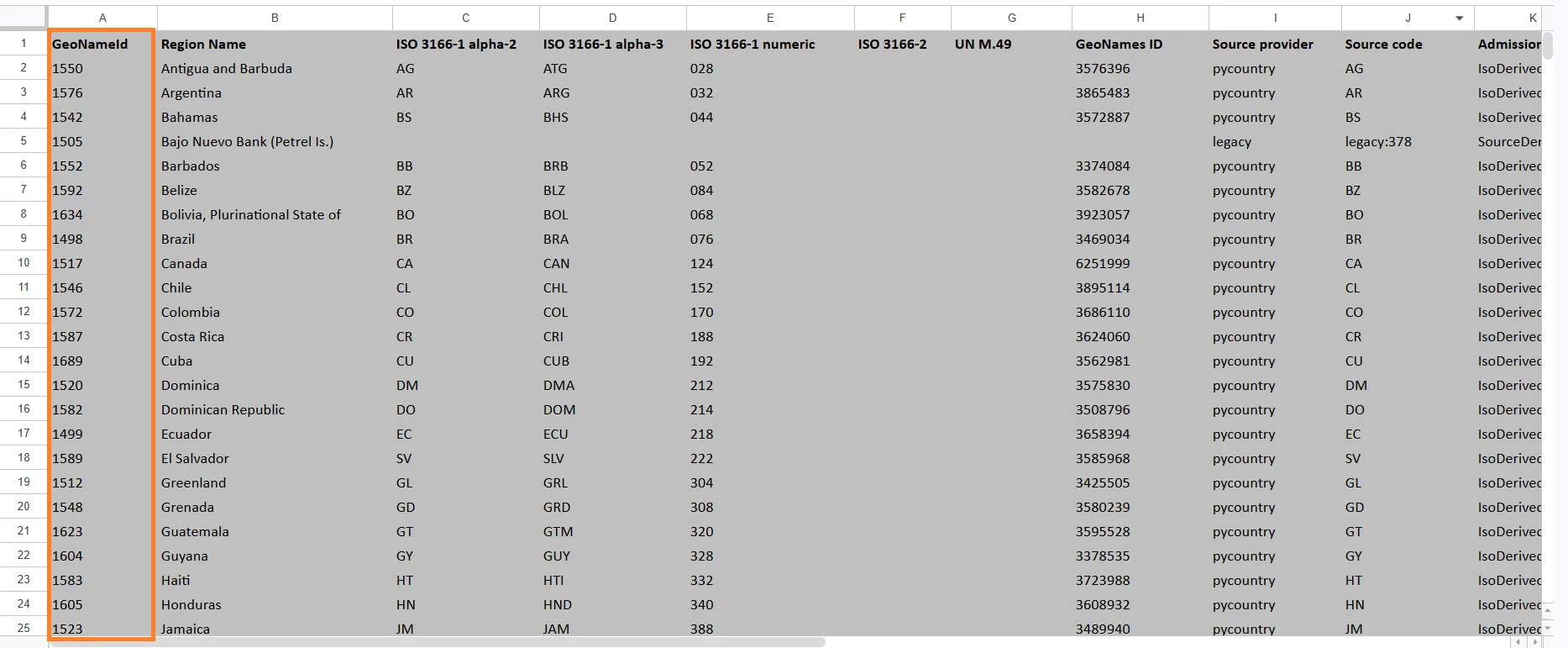
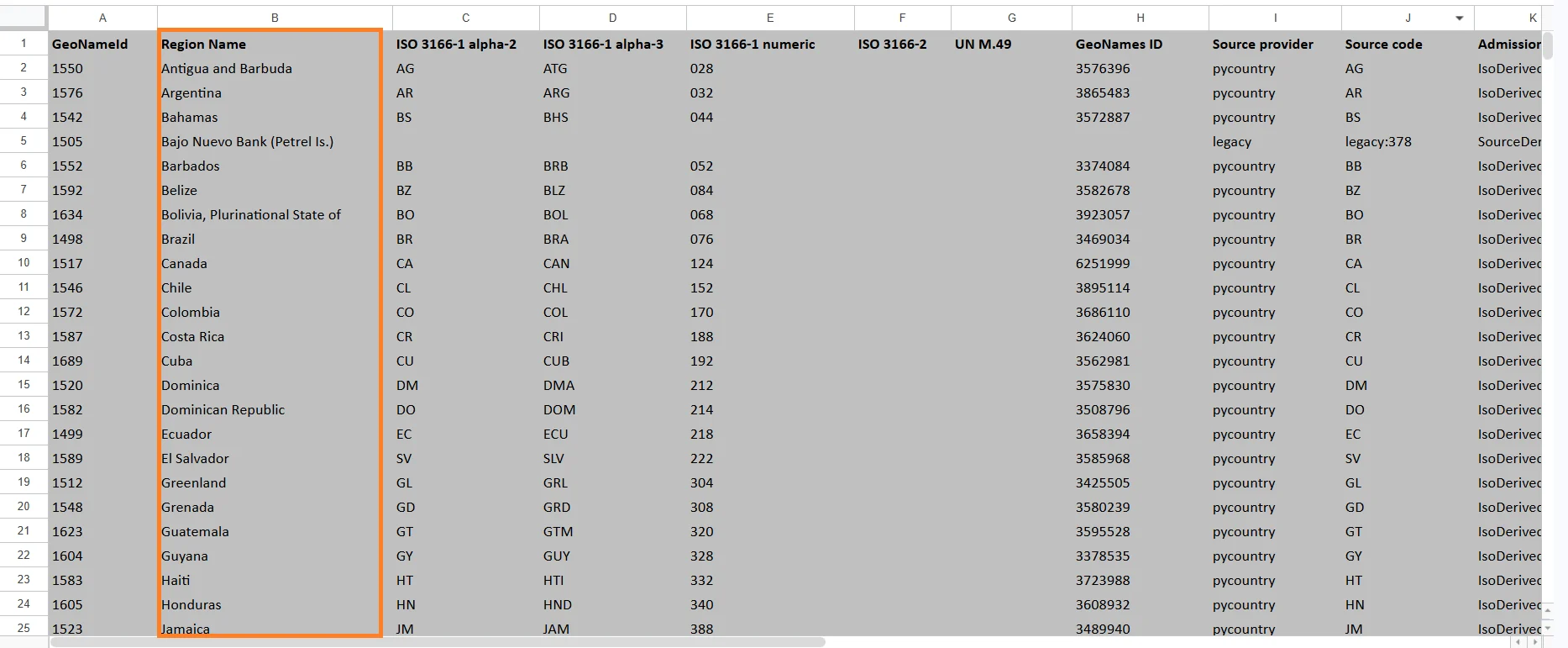
Region Name
The readable name of the geographic region. Examples:- United States
- Ontario
- California
- São Paulo
ISO 3166-1 alpha-2
A two-letter country code defined by the ISO 3166-1 standard. Examples: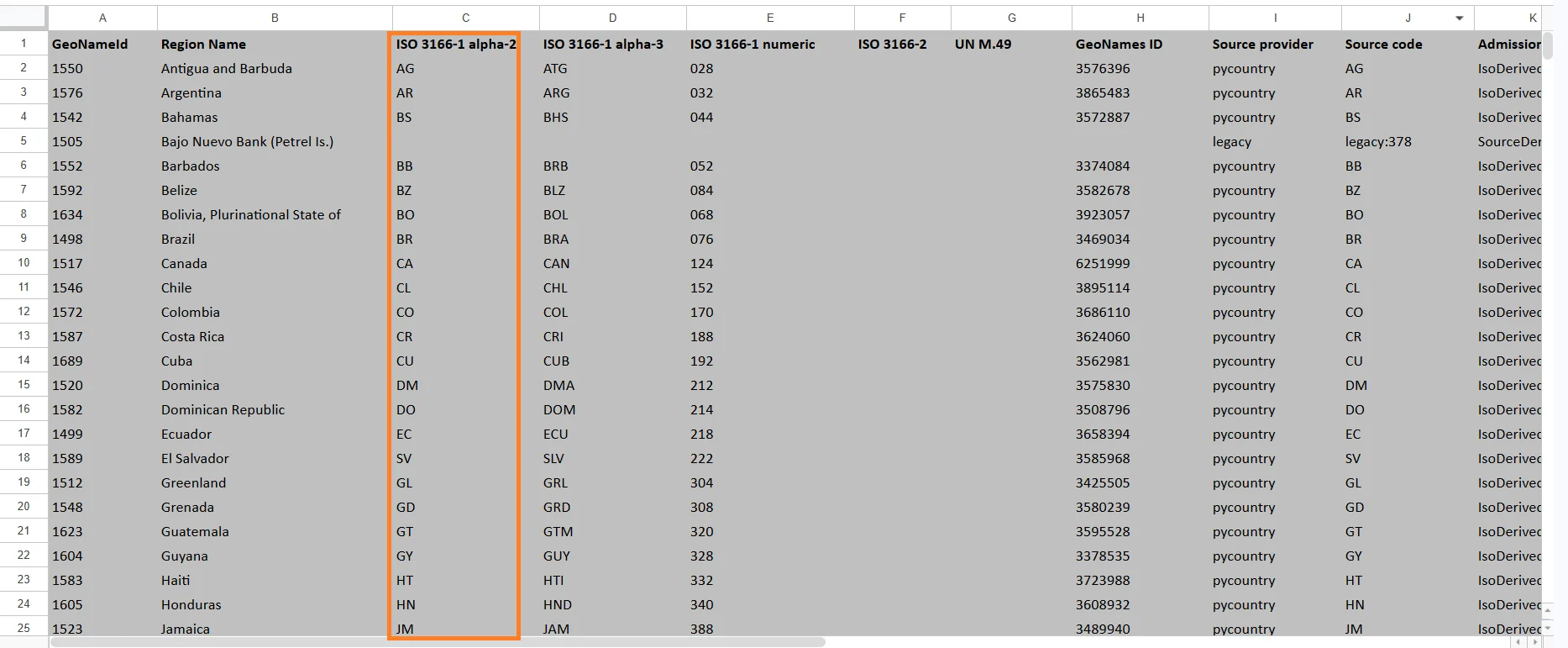
ISO 3166-1 alpha-3
A three-letter country code defined by the ISO 3166-1 standard. Examples: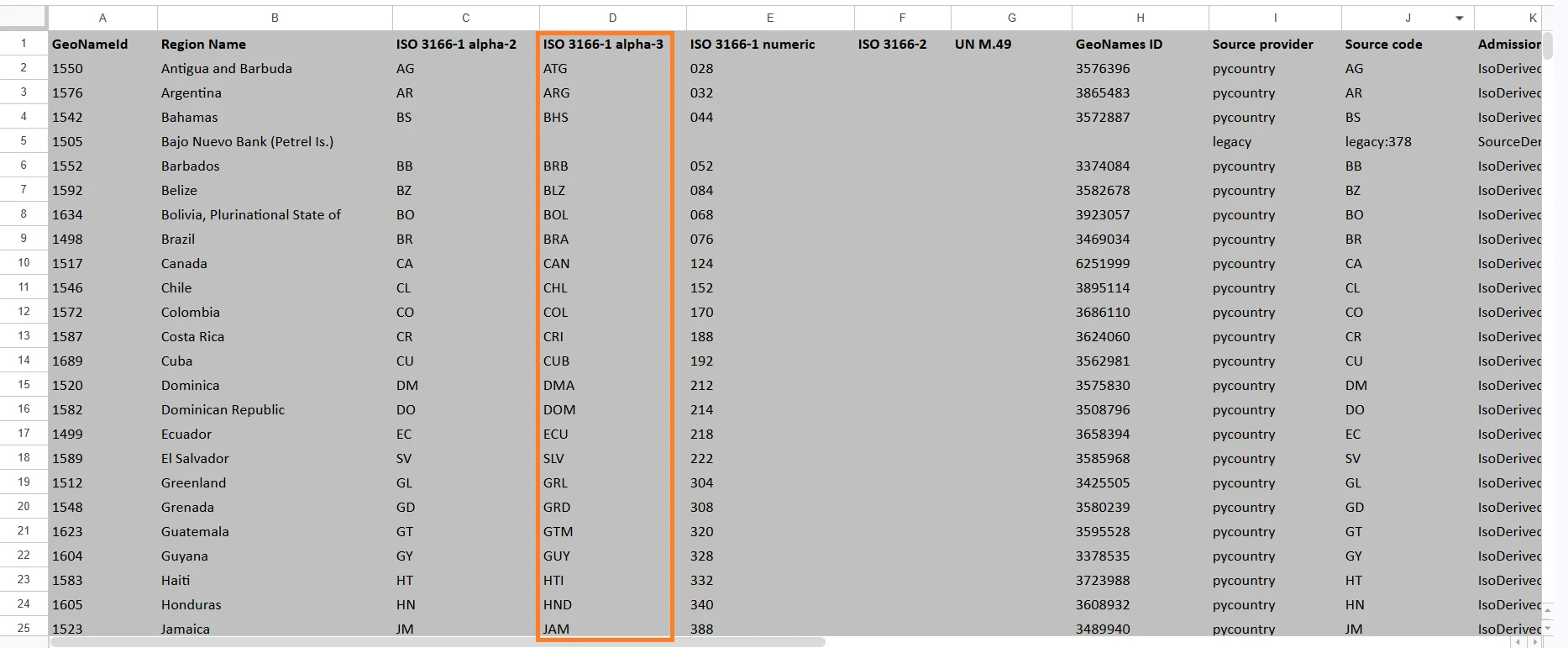
ISO 3166-1 numeric
A numeric country code assigned by ISO. Examples: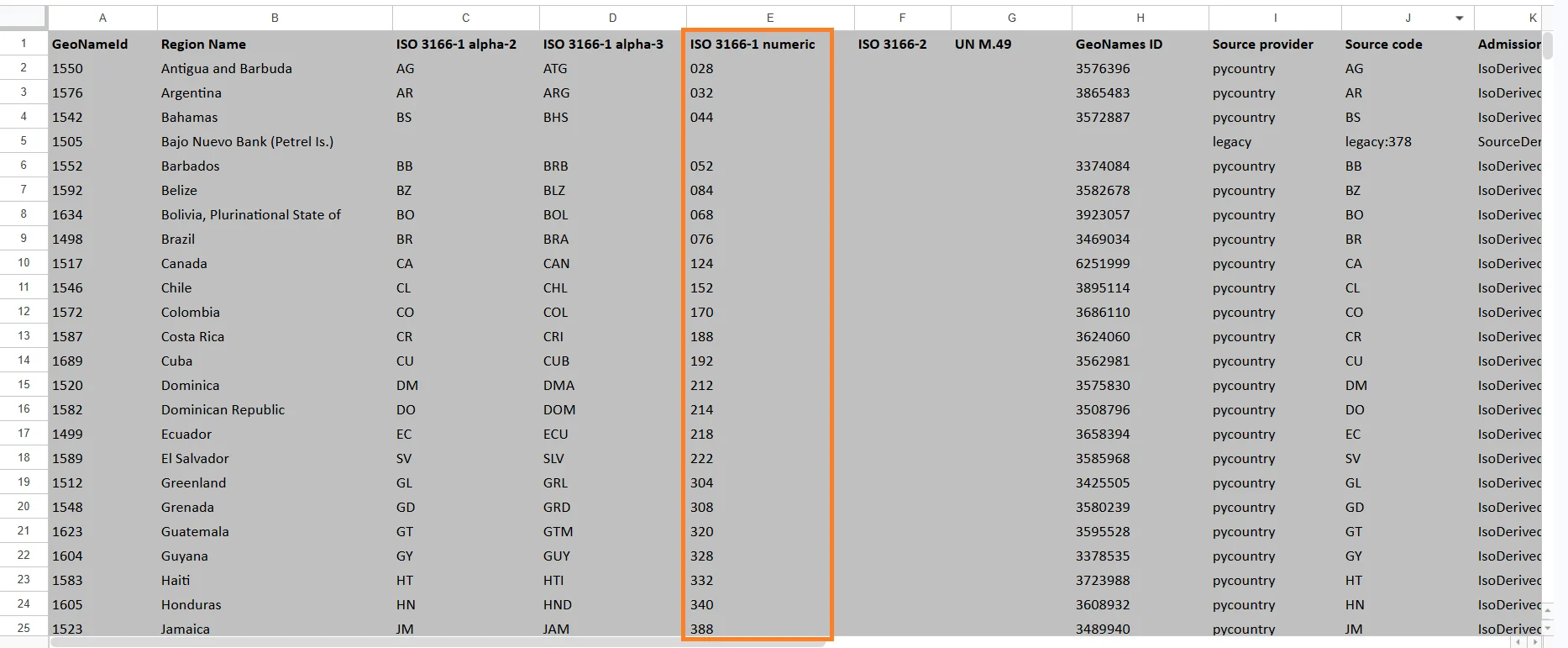
ISO 3166-2
A subdivision code used for states, provinces, districts, and territories. Examples: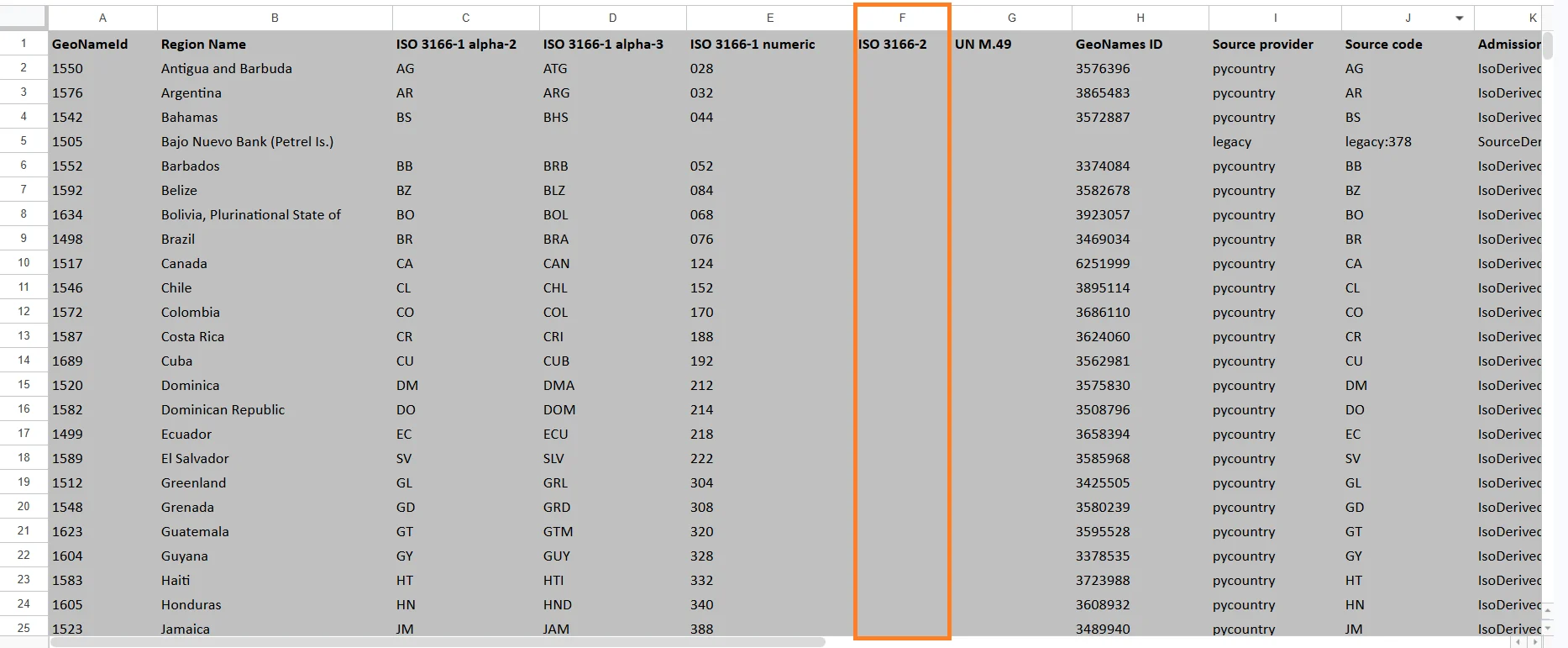
UN M.49
A geographic classification code maintained by the United Nations. These codes are used for international statistics and reporting. Examples include:- 840 = United States
- 124 = Canada
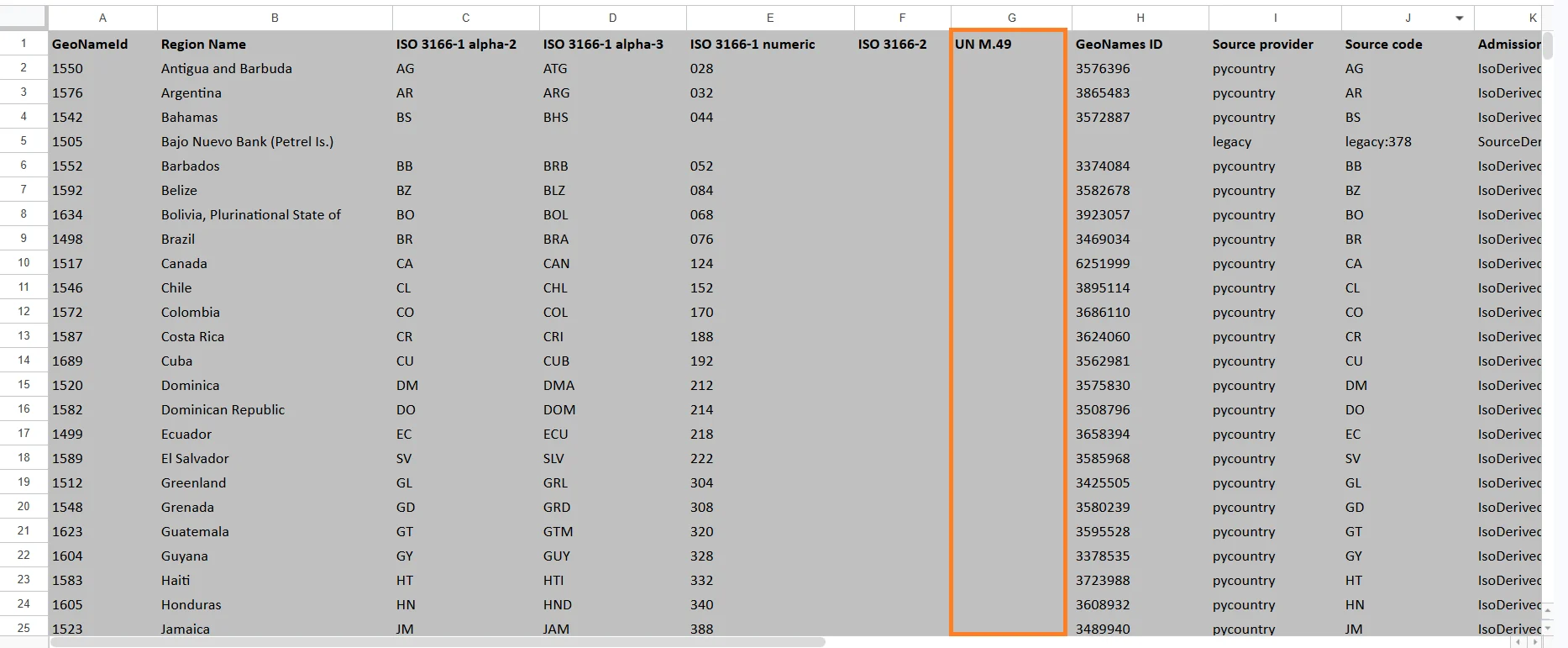
GeoNames ID
A unique identifier from the GeoNames geographic database. GeoNames IDs are commonly used in GIS systems and geographic APIs.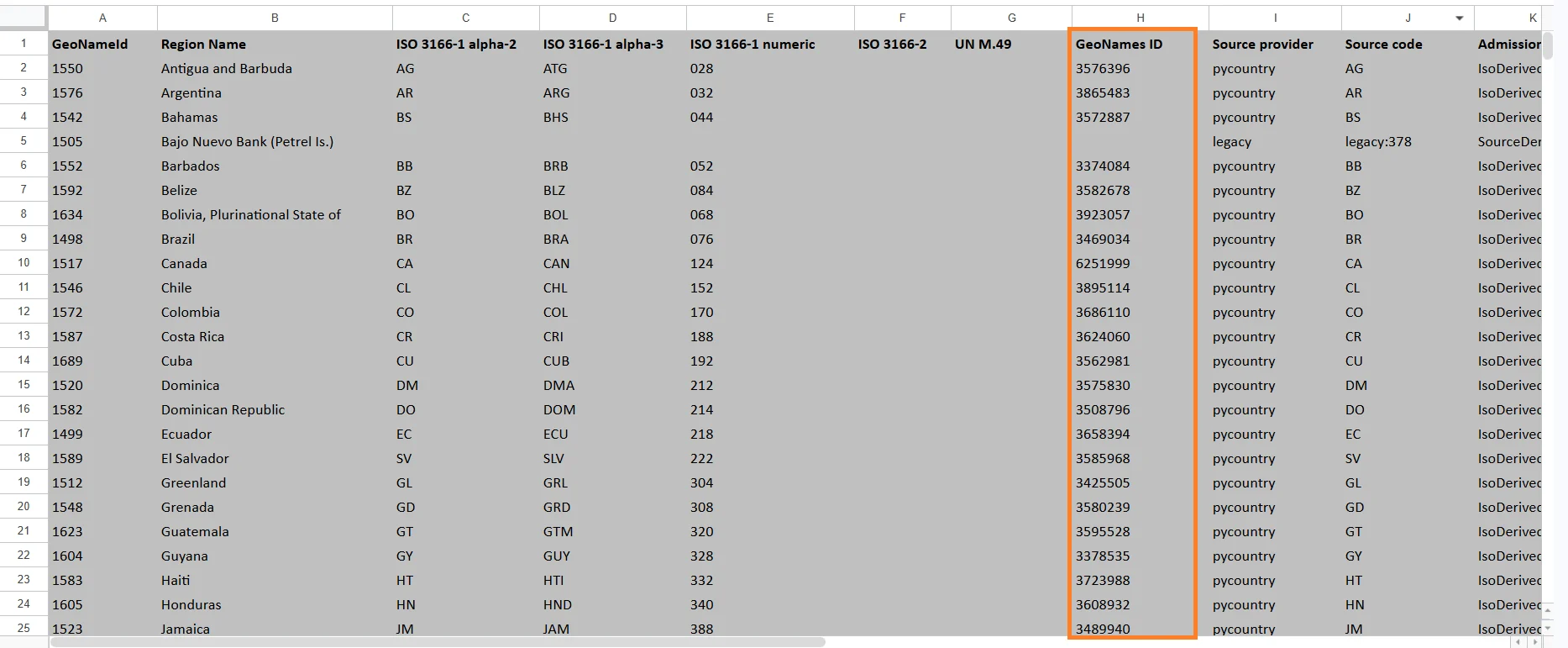
Source Provider
Indicates the provider or database source used for the geographic information.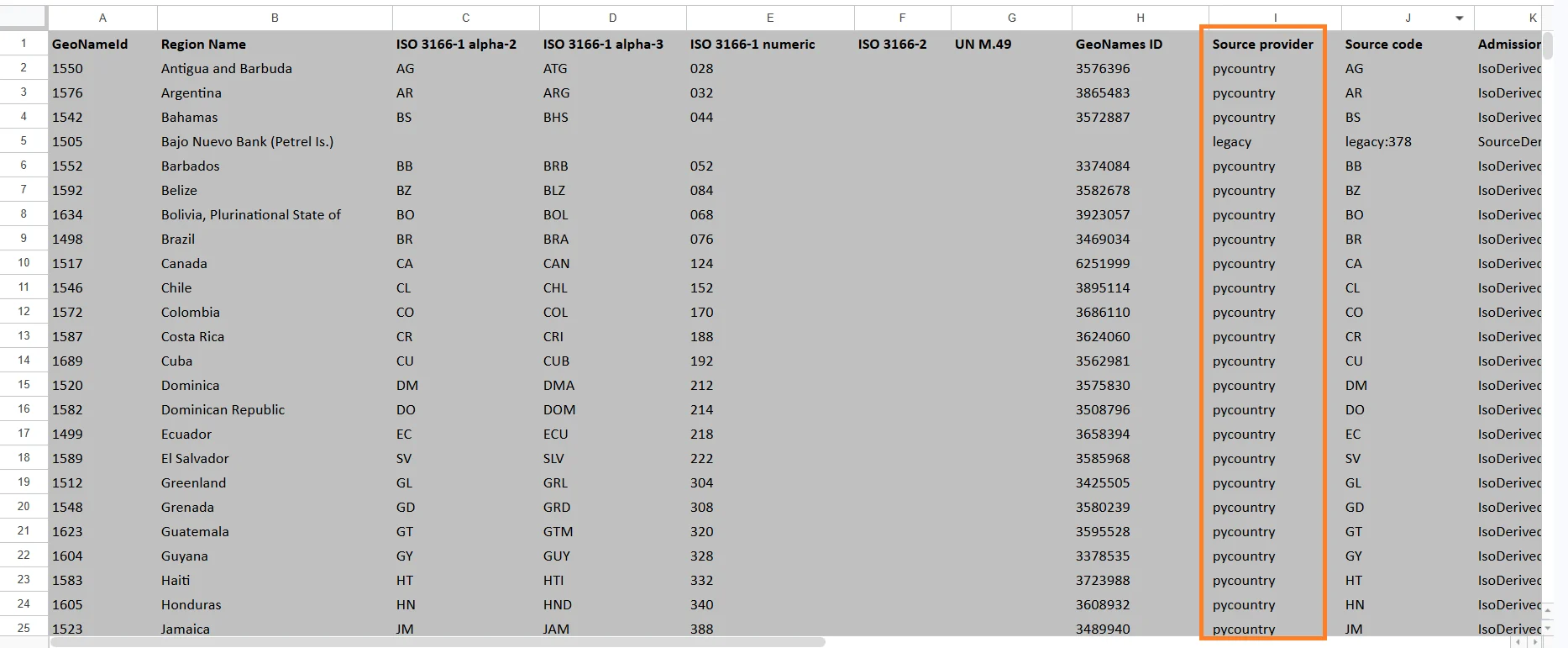
Source Code
The original region code provided by the source database.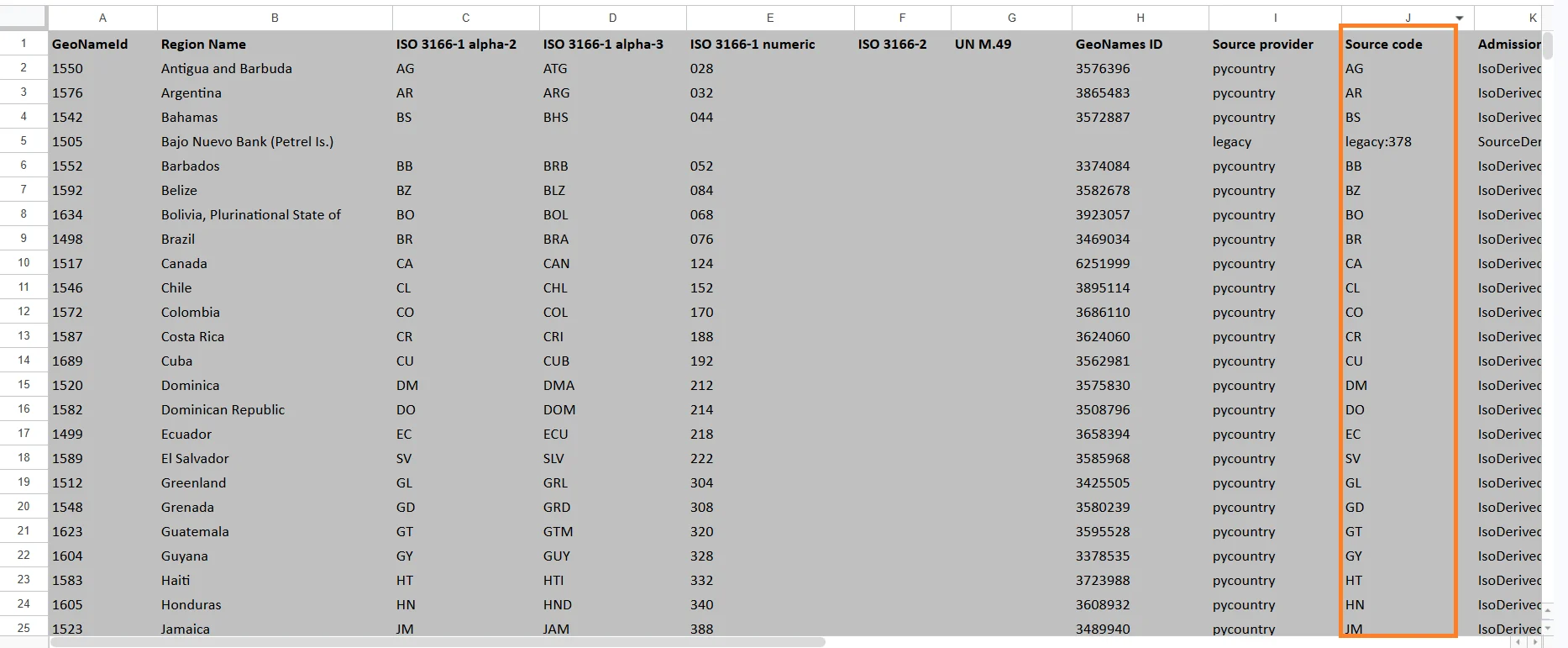
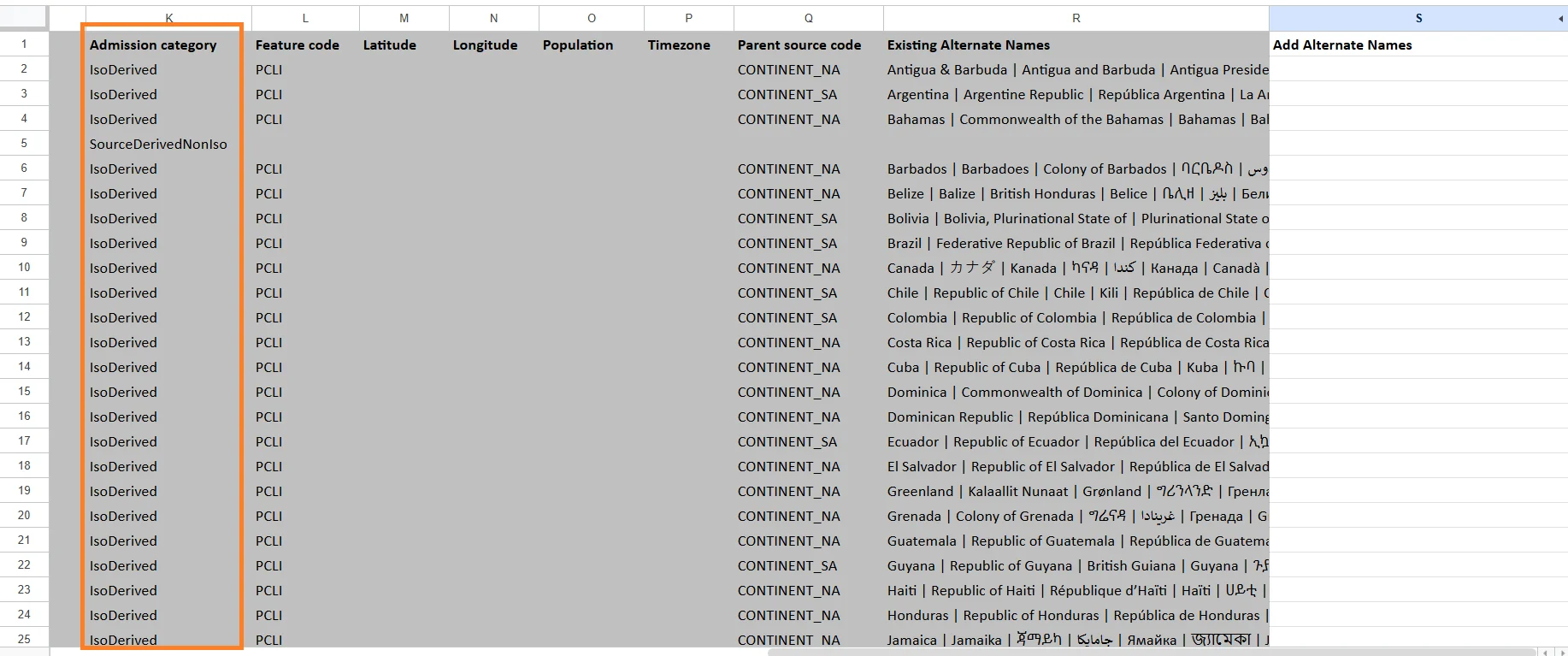
Admission Category
Defines the administrative classification of the region. Examples may include:- Country
- State
- Province
- Territory
- District
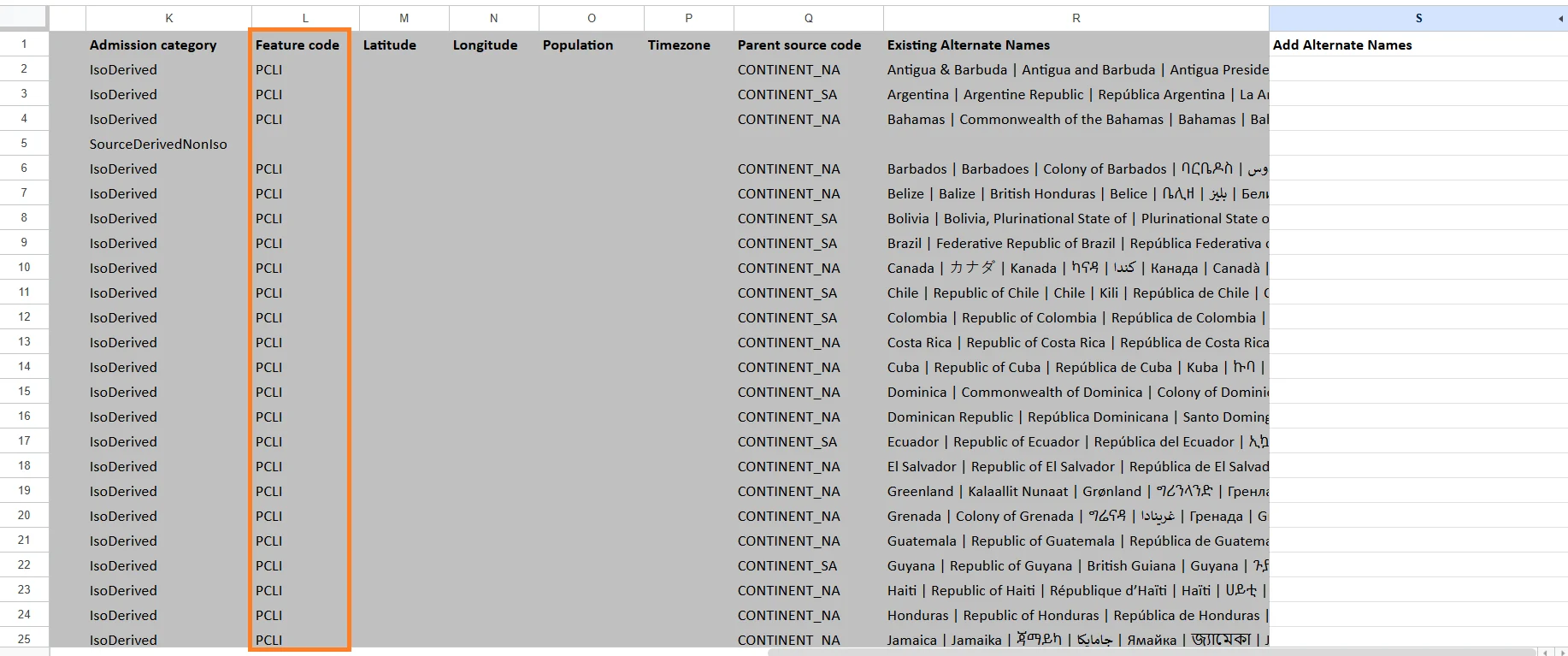
Feature Code
A classification code that identifies the type of geographic feature. Examples:- Country
- Administrative region
- City
- Island
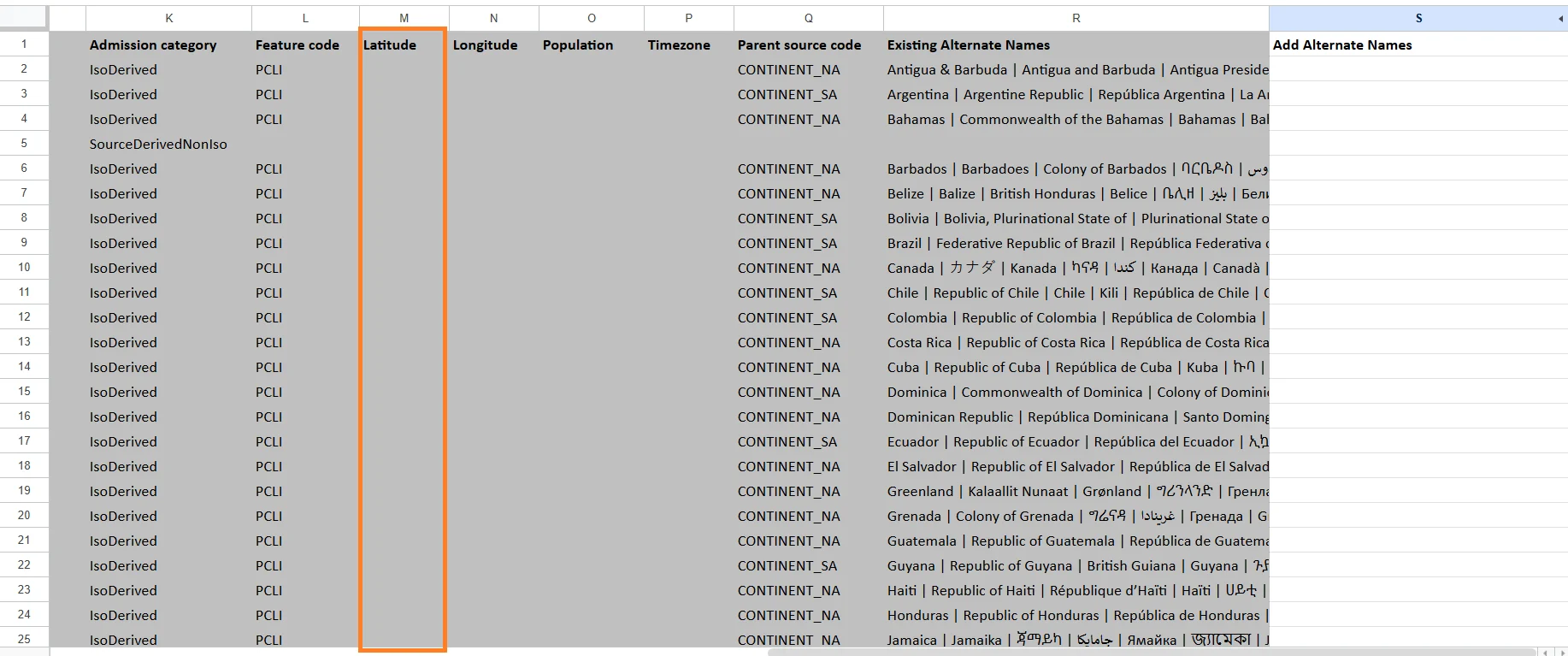
Latitude
The geographic latitude coordinate of the region. Latitude is used to position the region on maps. Example:- 40.7128
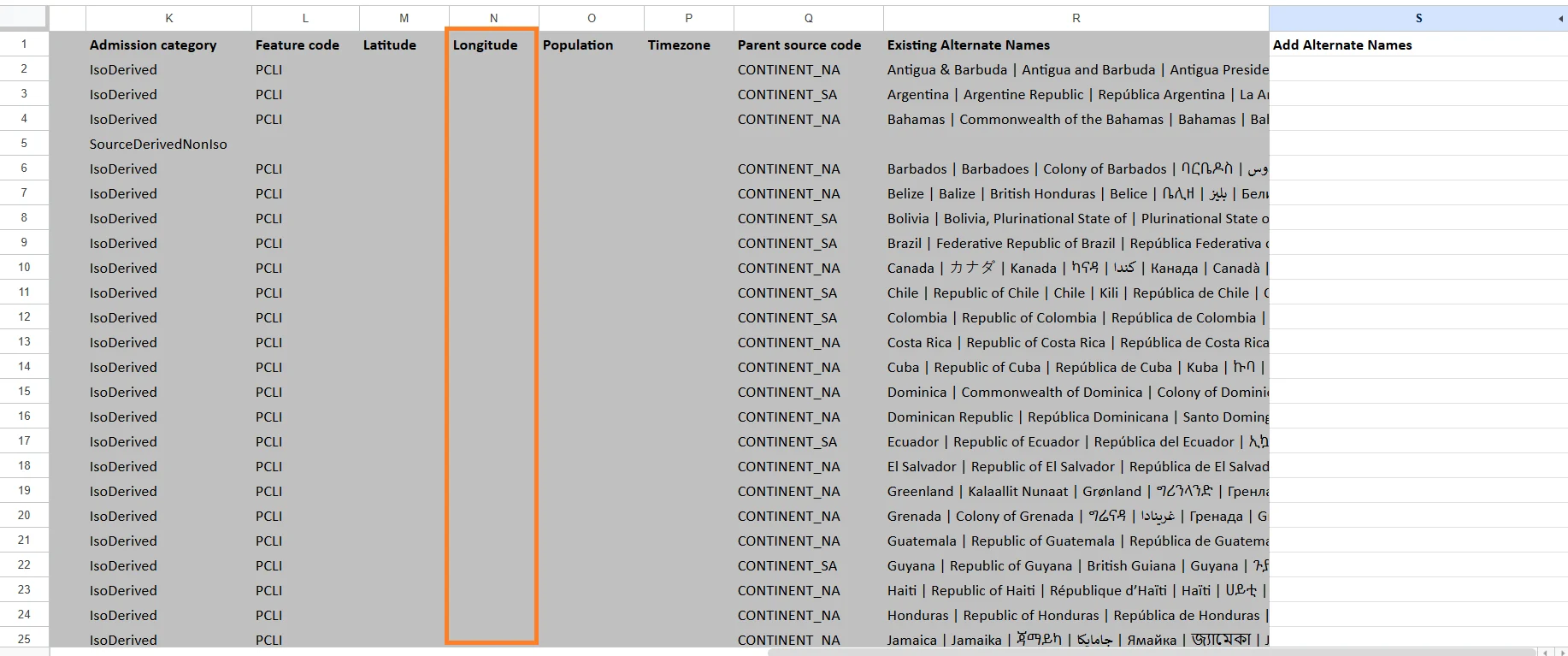
Longitude
The geographic longitude coordinate of the region. Longitude works together with latitude for map positioning. Example:- -74.0060
Population
The estimated population of the region.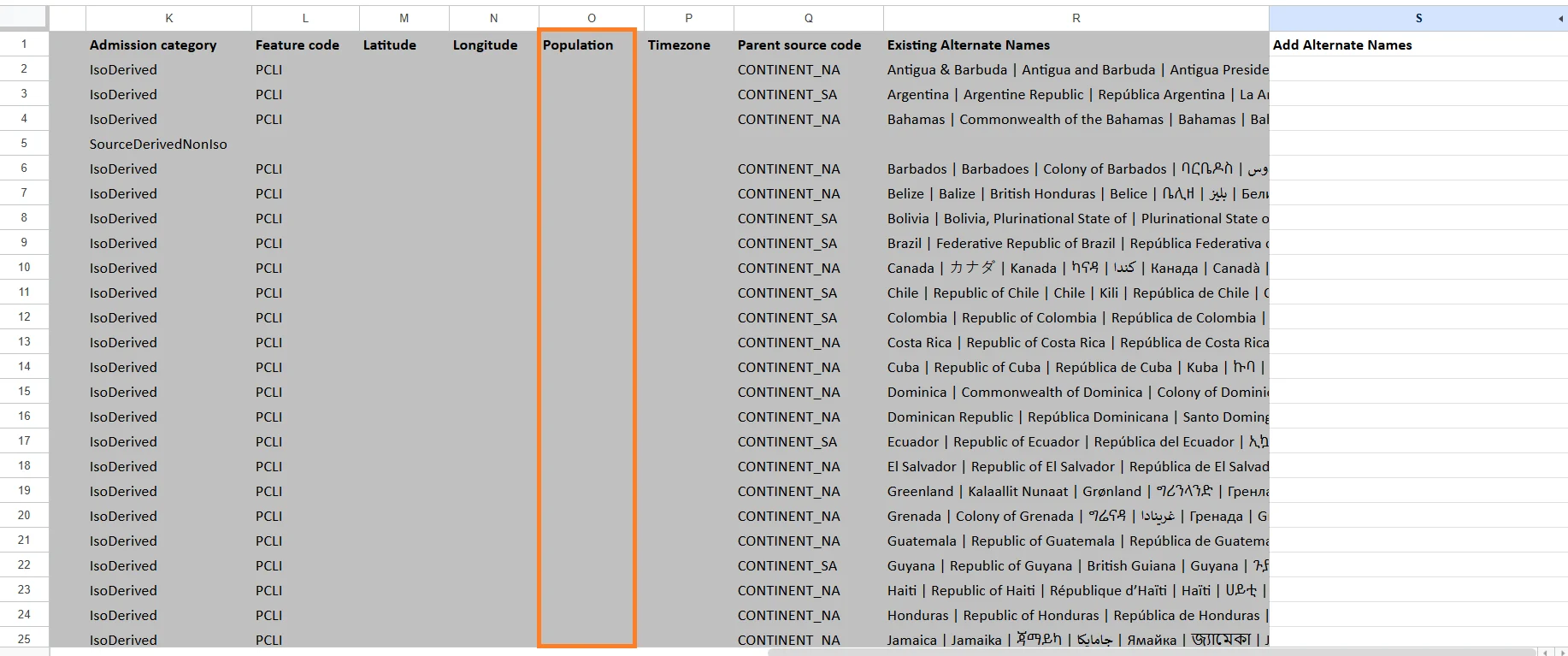
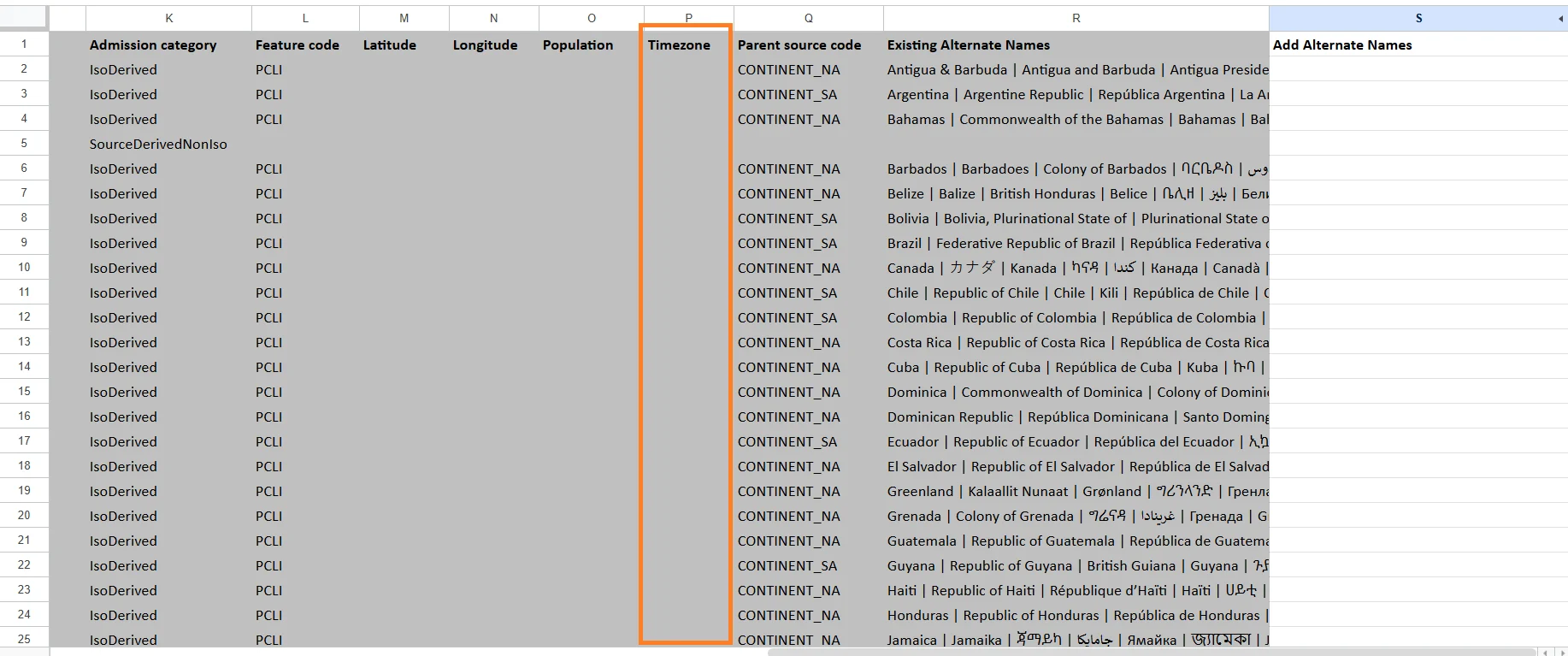
Timezone
The primary timezone associated with the region. Examples:- America/New_York
- Europe/Berlin
- Asia/Tokyo
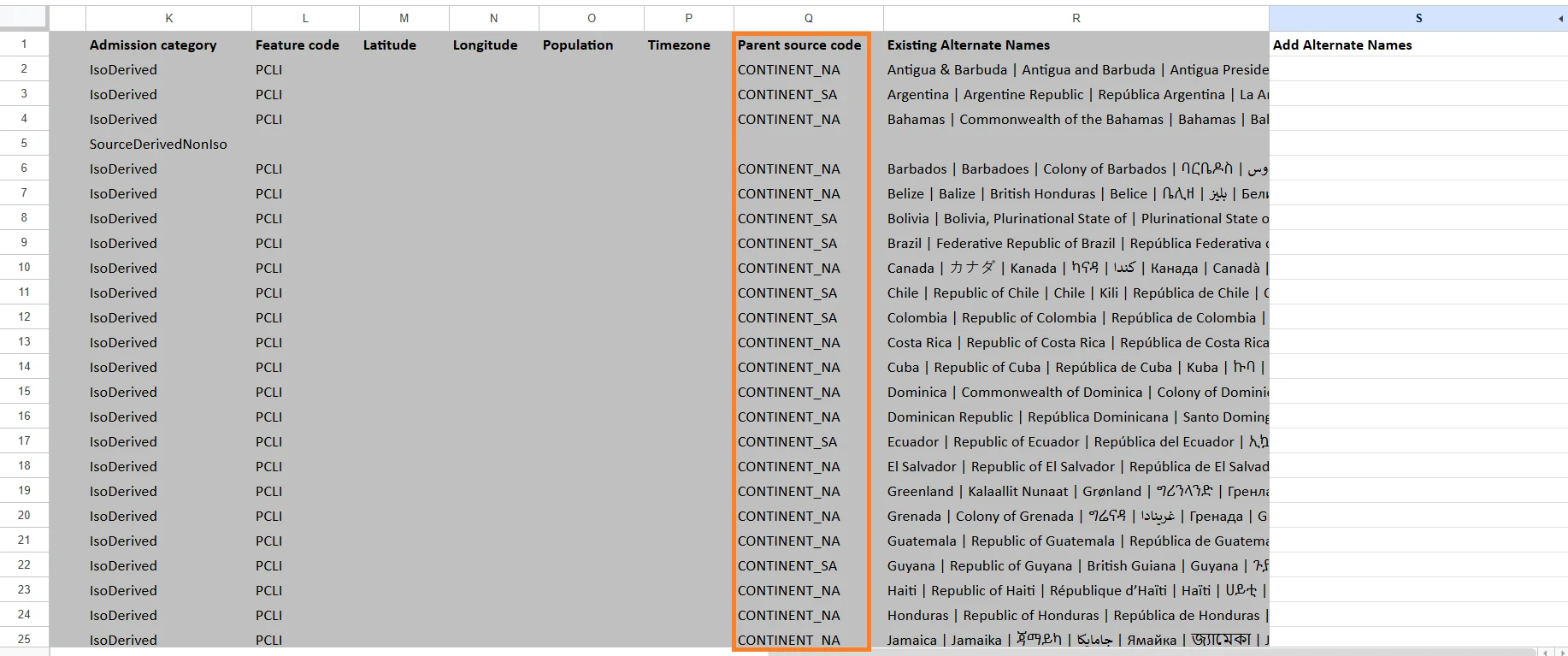
Parent Source Code
The identifier of the parent geographic region. Examples:- A state may reference its parent country.
- A district may reference its parent province.
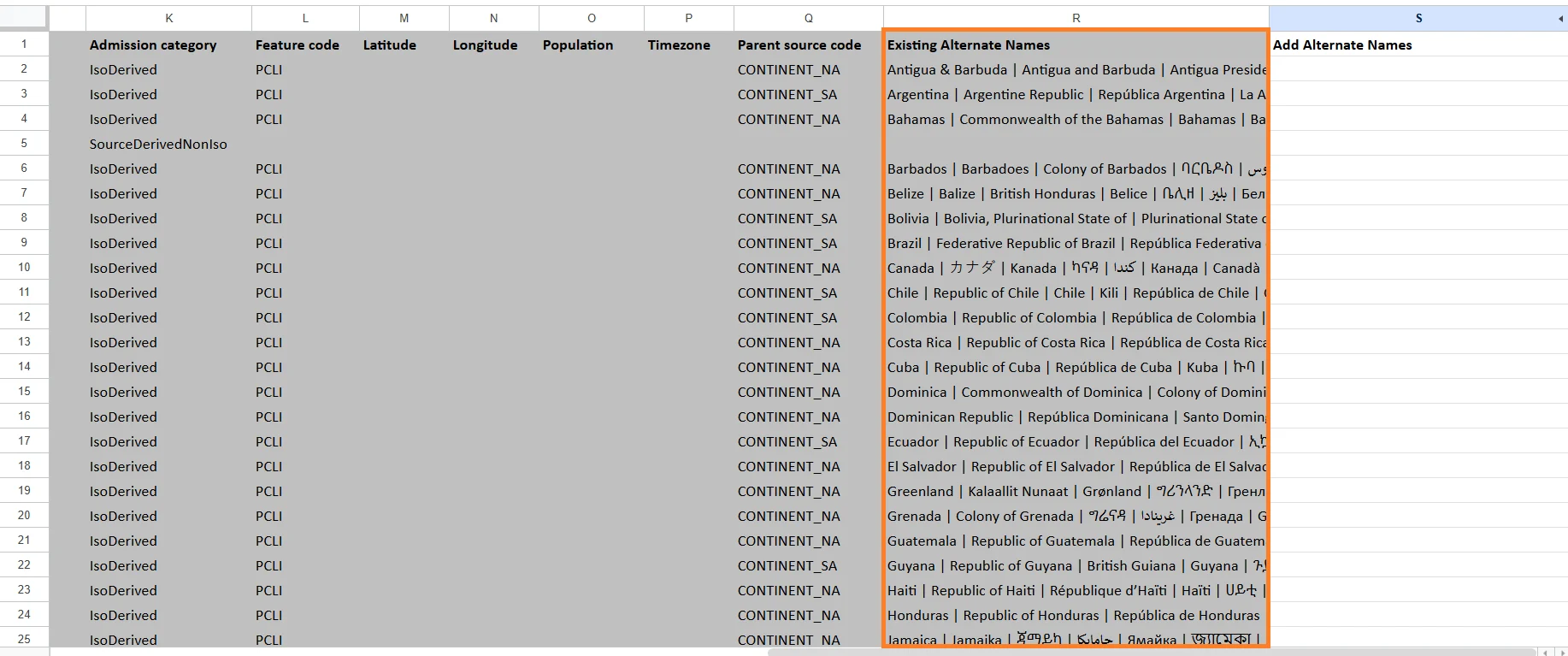
Existing Alternate Names
Contains alternative names already associated with the region. Examples:- USA
- United States of America
- US
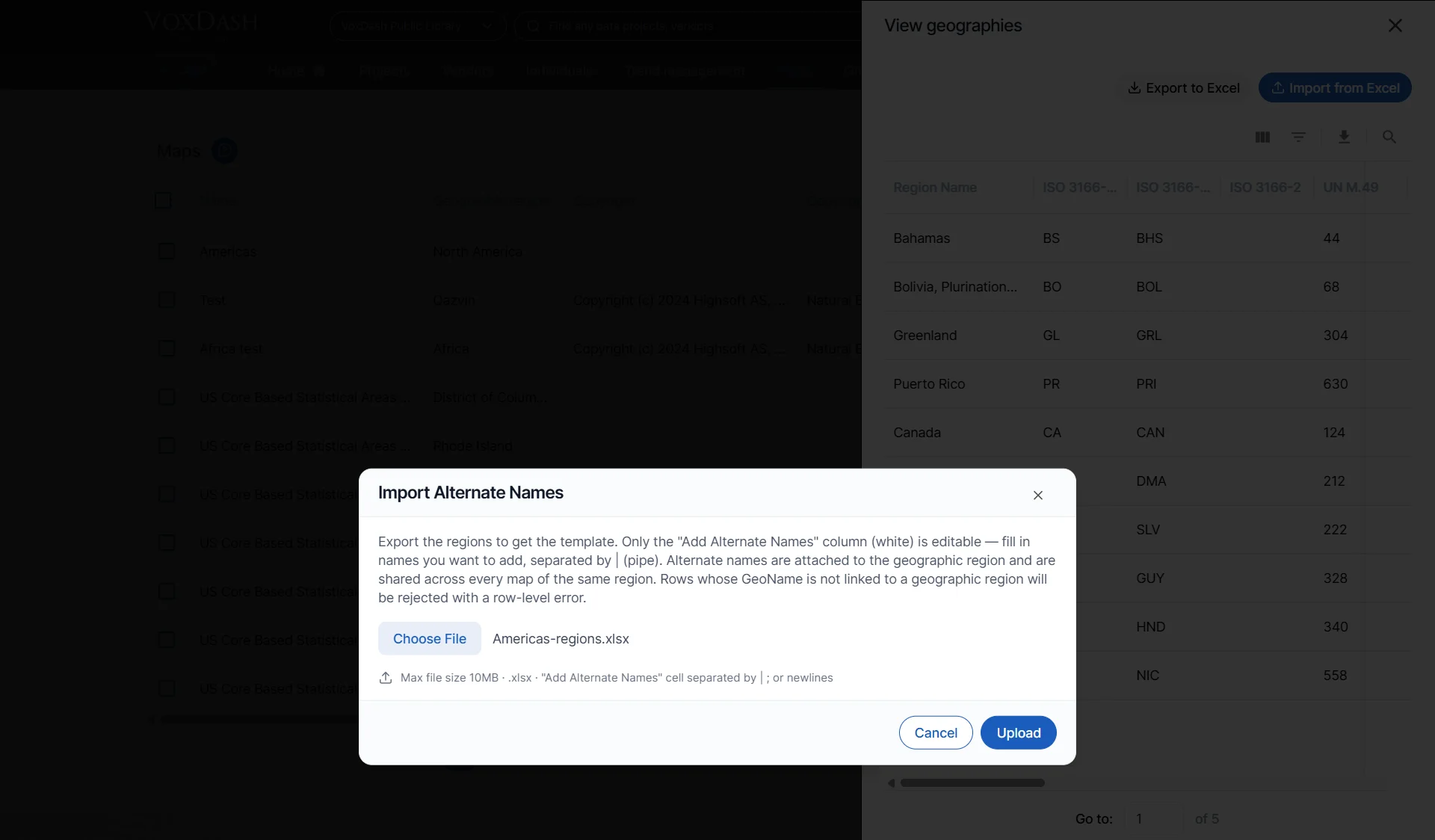
Add Alternate Names
A customizable field where users can add additional region aliases or alternate spellings. This is useful when your dataset uses non-standard region names. Examples:- NYC for New York City
- Cali for California
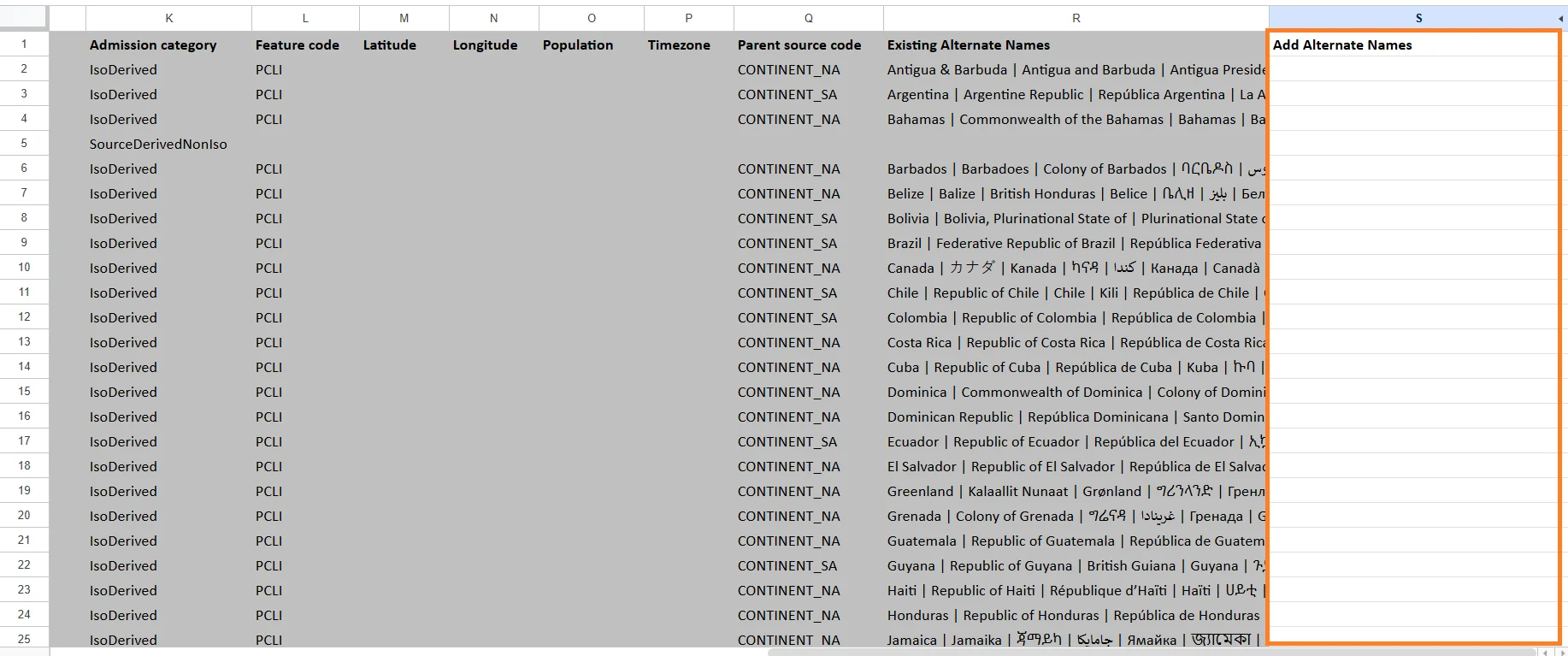
- Separate multiple values using the
|(pipe) character. - Alternate names are shared across every map that uses the same geographic region.
- Rows whose GeoName is not linked to a valid geographic region will be rejected with a row-level validation error.
updating Regions Alternative Names
Use the Import feature to upload or update region definitions in bulk.This is particularly helpful when you need to:
- Add multiple new regions at once
- Update names or access levels for existing ones
- Align boundaries with changes in external geographic data
To Import Regions:
- In the View Geography Regions modal, click Import.
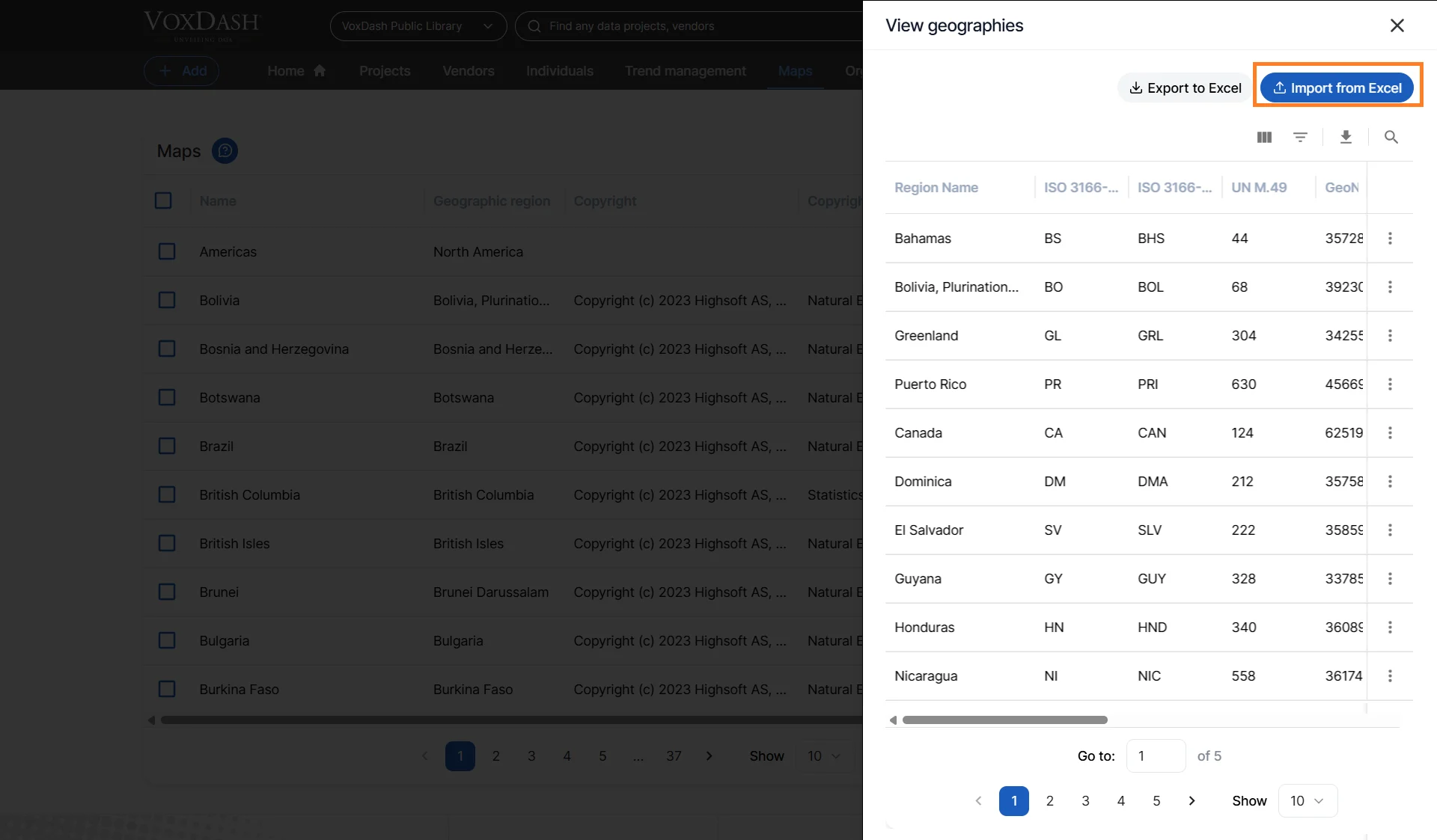
-
Upload an Excel file (
.xlsx) that follows the VoxDash region schema.- Each row should represent a single region.
- Required columns include:
- Region Name
- Region Code or ID
- Existing Alternate Names
- Click Confirm to apply updates.
Best Practices
- Always export before bulk imports to retain a backup of your current configuration.
- Use consistent naming conventions for regions to ensure data joins correctly in analytics views.