

AI Credits
When a user purchases a VoxDash subscription plan such as Starter, Pro, or Enterprise; the account receives a predefined amount of AI credits. These credits are used to run AI-powered features and analysis tasks throughout the platform.Viewing Your AI Credits
In the DataProvider interface, the current subscription type is displayed in the header section next to the user profile. To view AI credit information:- Click on the plan section from the header.
- Click on AI section
- Review the available AI credit balance.
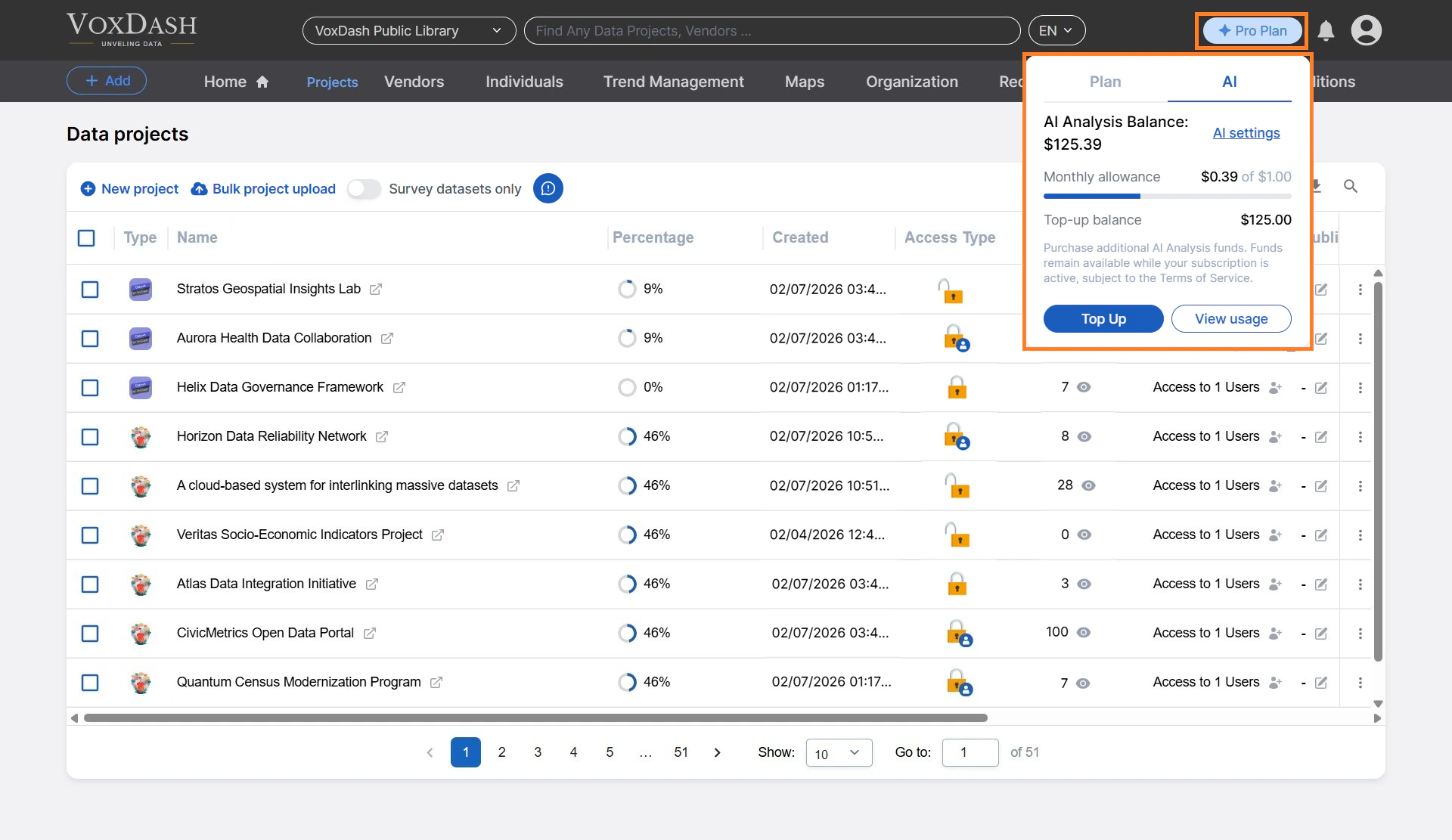
- Total available AI credits
- Credits already consumed
- Remaining balance
Purchasing Additional AI Credits
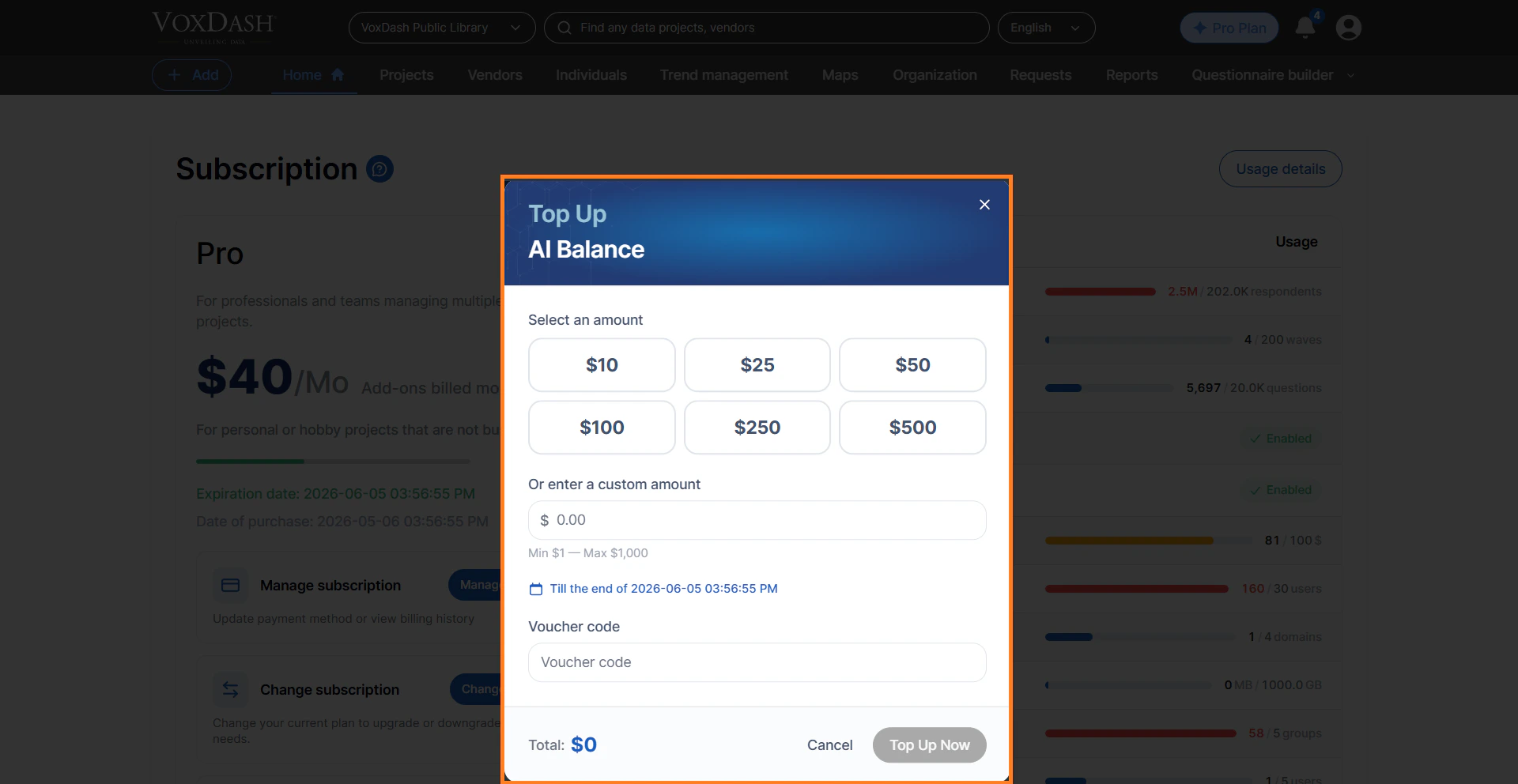
If your account requires additional AI resources, you can purchase extra credits using the Top Up feature. To purchase additional AI credits:- Click the Top Up button.
- Select one of the predefined credit amounts or enter a custom amount.
- Apply a voucher or discount code if available.
- Complete the payment process.
AI Settings
The AI Settings section allows users to customize how AI tasks are processed. Adjusting these settings can impact both AI response quality and usage costs.Configurable AI Parameters
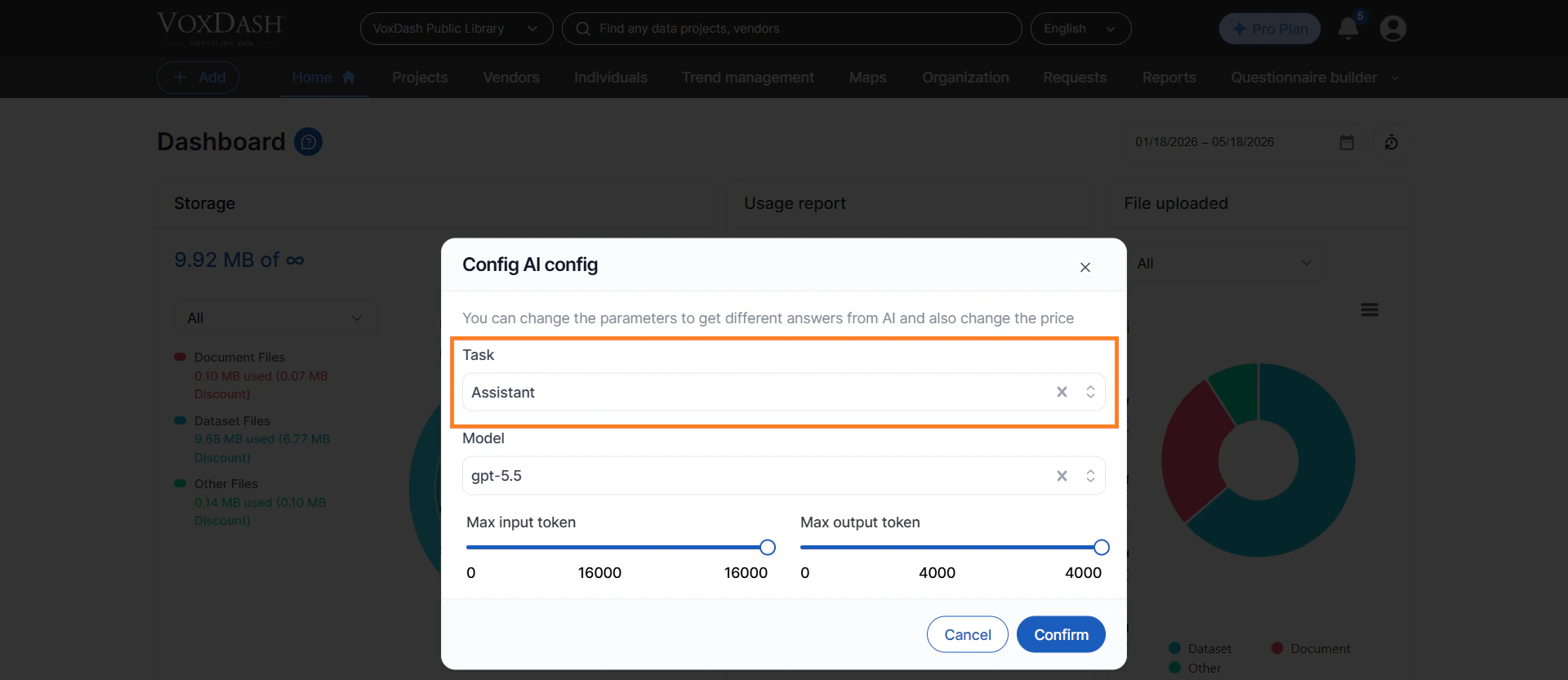
Users can configure the following settings:Available AI Tasks
Users can configure settings individually for different AI-powered tasks, including:- Basic Assistant
- Assistant Instruction
- Assistant Name
- Translation
- Categorize Discovery
- Categorize Response
- Sentiment Analysis
- Grammar Correction
AI Model
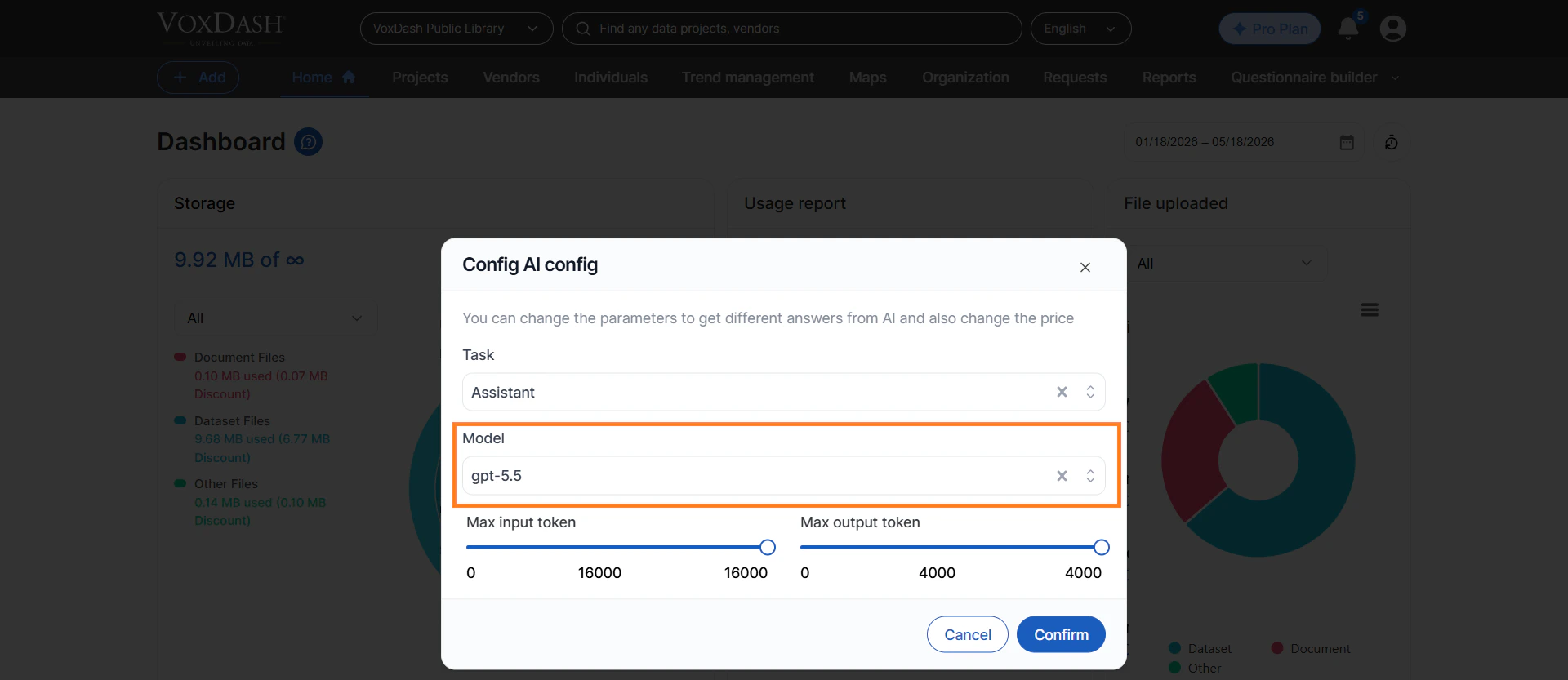
Select the AI model used for analysis and content generation tasks. Different models may provide:- Faster responses
- Higher-quality outputs
- Lower operational costs
- Better performance for complex tasks
Maximum Input Tokens
This setting defines the maximum number of input tokens allocated to AI tasks. Increasing the input token limit can help the AI process larger datasets or more detailed prompts.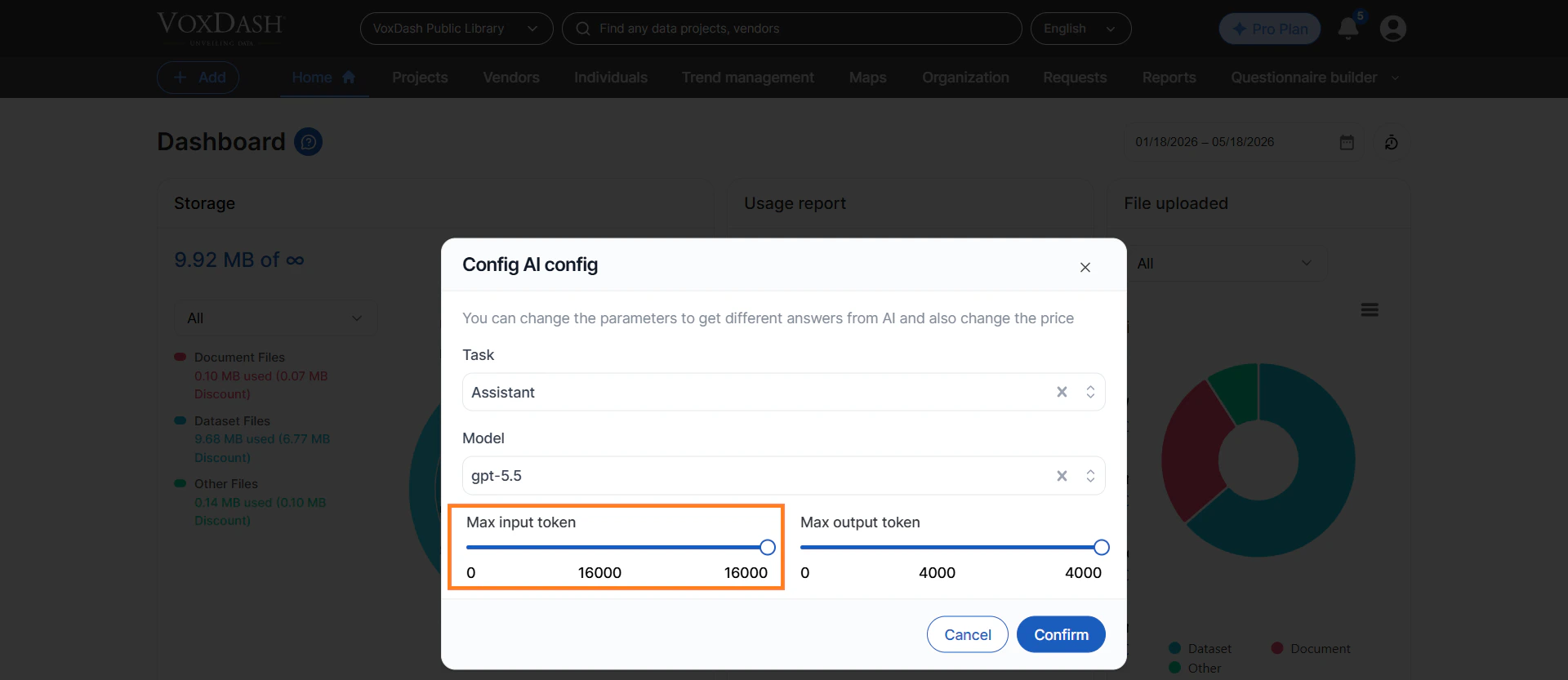
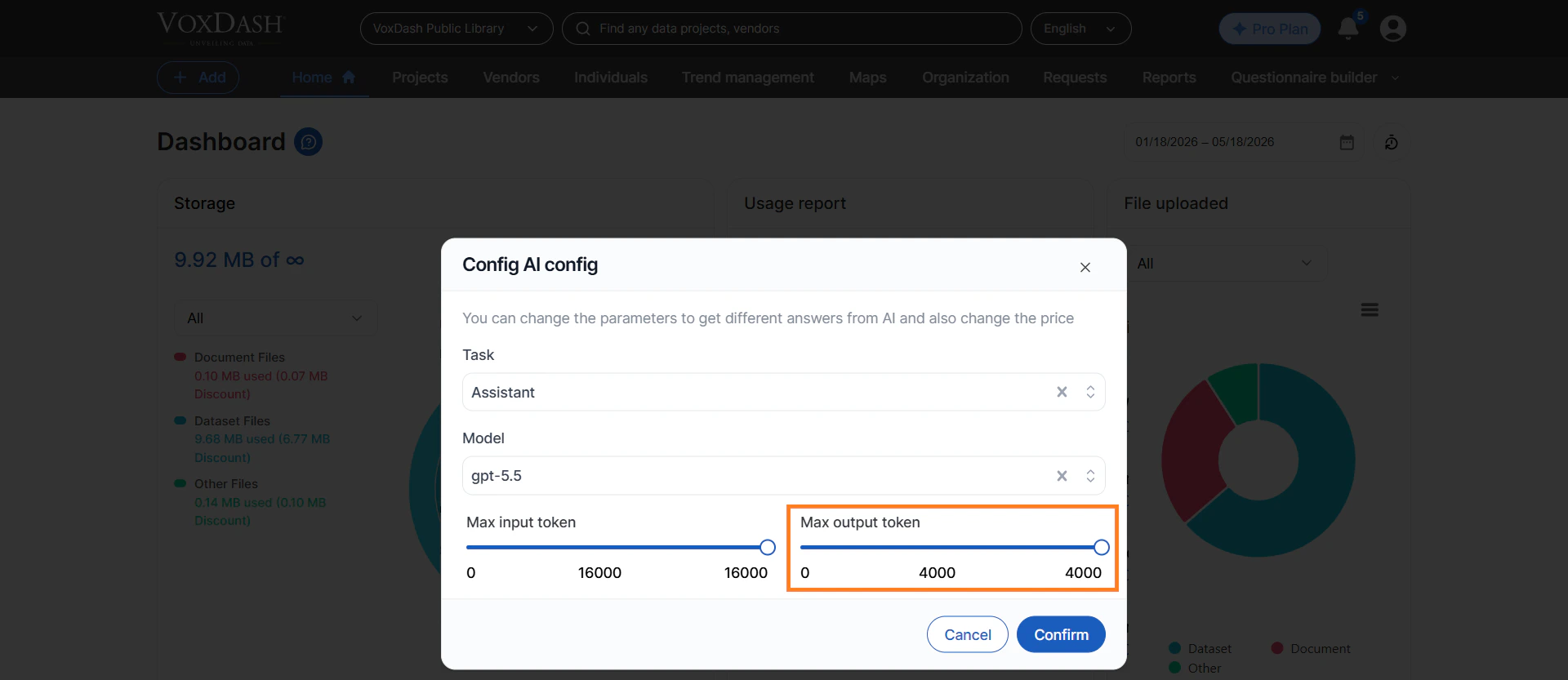
Maximum Output Tokens
This setting controls the maximum number of tokens the AI can generate in its response. Higher output token limits may produce:- More detailed explanations
- Longer summaries
- Expanded analysis results
Optimizing AI Cost and Performance
Users can balance quality and cost by adjusting token limits and selecting appropriate AI models for specific tasks. For example:- Use lightweight models for quick categorization tasks.
- Use advanced models for deep analysis and insight generation.
- Reduce token limits for shorter, lower-cost responses.
AI Usage
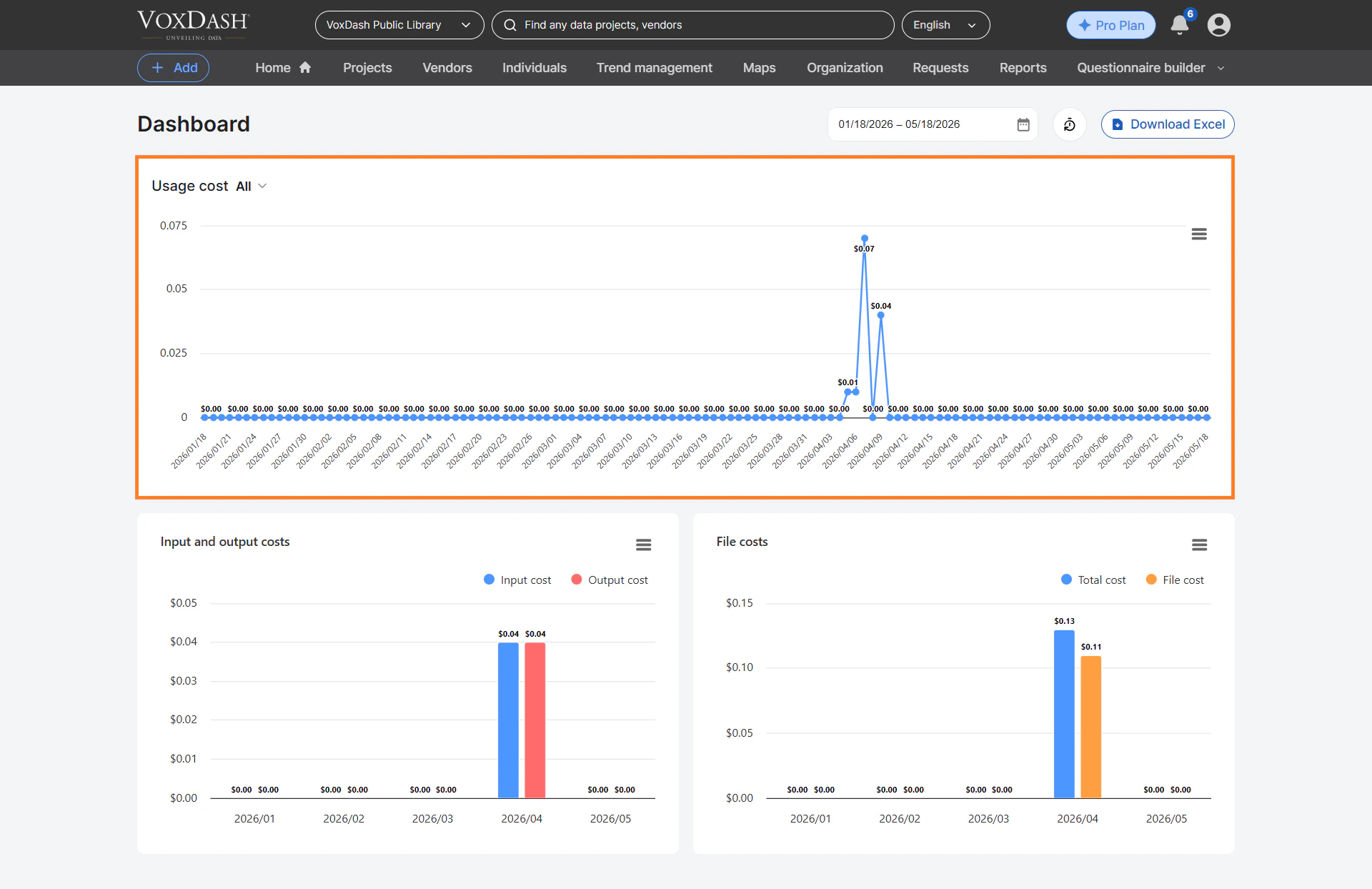
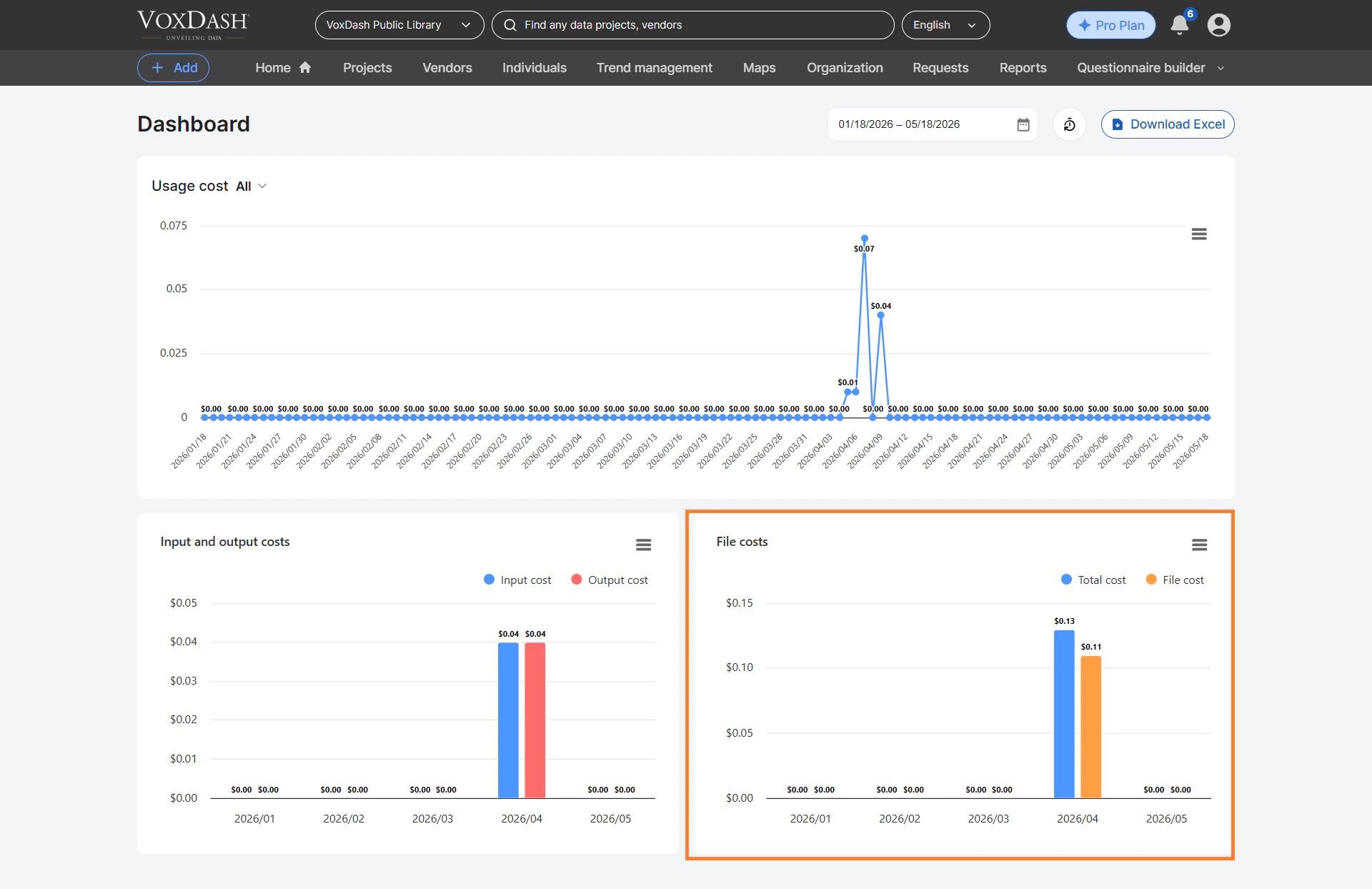
The AI Usage page provides detailed insights into how AI resources are consumed across the platform. This section helps users track spending, monitor activity, and identify high-cost AI operations. You can export a day-by-day breakdown of your AI usage costs to Excel. Read AI Daily Cost — ExportAI Usage Line Chart
The usage table line chart displays:- Total AI usage cost
- Task type
- Processing date and time
- Input token usage
- Output token usage
- Uploaded file processing costs
- View all AI tasks
- Analyze a specific AI task type
- Review usage within a selected date range
AI Usage Bar Charts
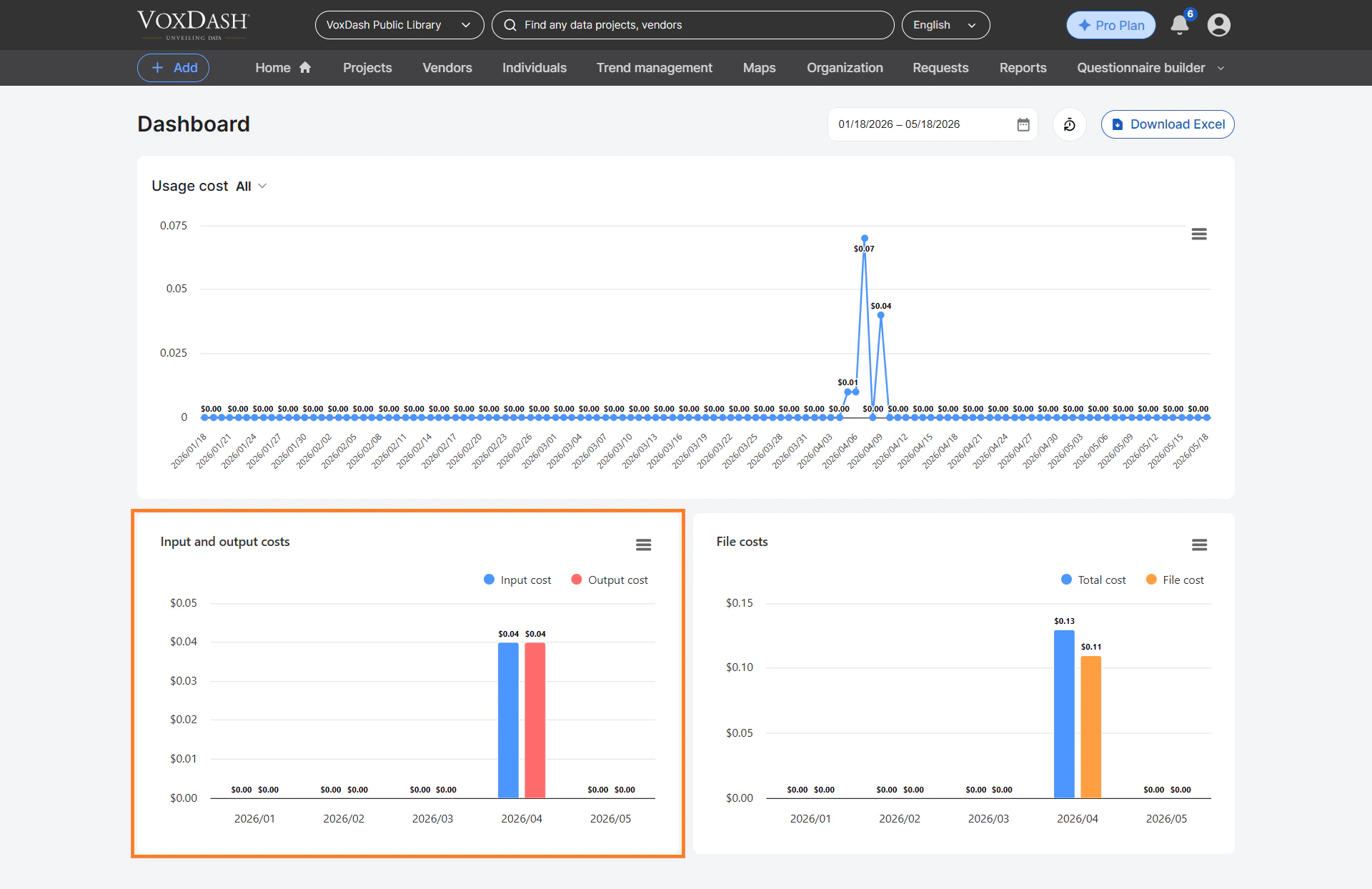
The AI Usage section also includes visual analytics to help users better understand consumption trends. Available charts include:- Input token cost
- Output token cost
- Uploaded file processing cost
- Task-specific usage distribution
Best Practices
To maximize AI efficiency and control costs:- Regularly monitor AI usage reports.
- Select AI models based on task complexity.
- Avoid unnecessarily high token limits.
- Use voucher codes during top-ups when available.
- Review usage trends to identify expensive workflows.