

- Variable names and labels
- Value labels
- Data types
- Measurement levels
- Numeric formats
- String widths
- Missing and special values
- Date and time formats
Tip: In most cases, you can keep the default metadata generated by VoxDash. Modify these settings only when your research methodology, reporting standards, statistical requirements, or organizational data dictionary requires specific formatting.
Accessing Question Metadata
To open the Question Metadata panel:- Open the questionnaire in the Editor Panel.
- Select the question you want to configure.
- Open the Question Metadata section in the right-side panel.
- Review or modify the available metadata settings.
- Save the questionnaire to apply your changes.
Question Metadata Sections
The Question Metadata panel contains the following sections:- Label Preparation
- Advanced SPSS Settings
- SPSS Format
- Missing & Special Values
- Data Type Information
- Date and Time Format
Note: The Date and Time Format section is available only for questions that use date, time, or date-and-time inputs.
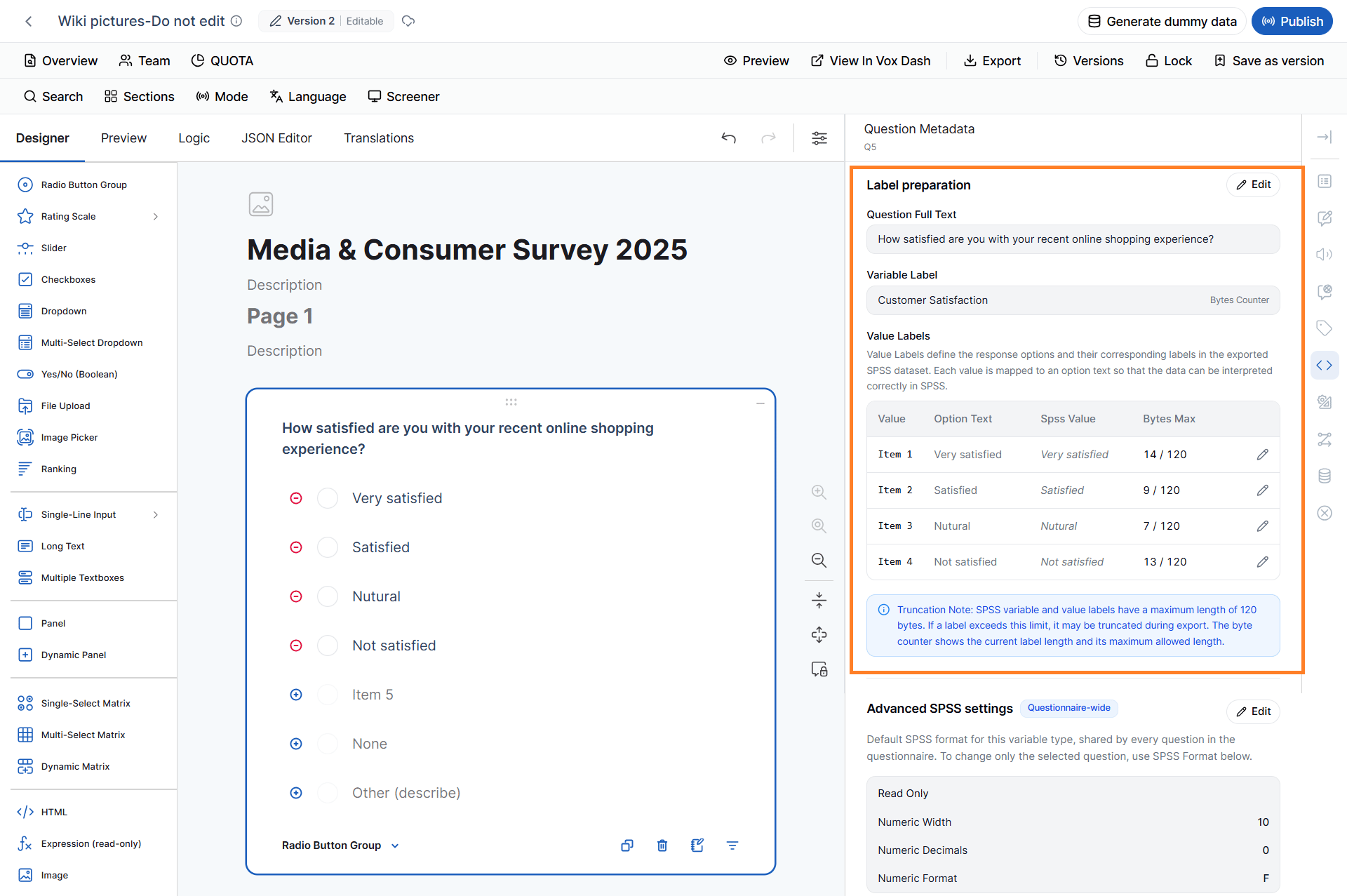
1. Label Preparation
The Label Preparation section controls how the selected question and its response options are identified in the exported dataset. Clear labels are especially important when working with large SPSS datasets containing hundreds or thousands of variables. Descriptive labels allow analysts to understand what a variable represents without having to refer back to the original questionnaire. The available settings include:- Question Full Text
- Variable Label
- Bytes Counter
- Value Label — available for applicable choice-based questions
1.1 Question Full Text
The Question Full Text field displays the complete text of the selected survey question. This information provides a reference when preparing variable labels, reviewing the questionnaire structure, or generating documentation. Example: Question shown to respondents:How satisfied are you with your recent online shopping experience?The Question Full Text field contains the complete question text. The full text can be particularly useful when a questionnaire contains several questions with similar wording.
1.2 Variable Label
The Variable Label is the descriptive label assigned to the question in the exported dataset. A variable name is generally short and system-oriented, while a variable label should provide enough information for an analyst to understand what the variable represents. Example:
In SPSS, the variable may appear as:
Best Practices for Variable Labels
Use labels that are:- Clear and descriptive
- Consistent across questionnaires
- Easy for analysts to understand
- Consistent with your organization’s data dictionary
- Short enough to comply with the limitations of the export format
Tip: Use a consistent naming and labeling convention across questionnaires. This makes it easier to combine datasets and perform analysis across multiple projects.
1.2.1 Bytes Counter
The Bytes Counter displays the number of bytes currently used by the Variable Label. This counter helps you monitor the label length and avoid exceeding the supported limit of the export format. Example: Variable Label:Note: The byte count may differ from the number of visible characters when the label contains characters that require more than one byte to encode.
1.3 Value Label
The Value Label section is available for applicable choice-based questions. It allows you to define how individual response options are represented in the exported SPSS dataset. The section may include the following fields:
By default, the SPSS Value label is based on the Option Text. You can edit it when you need a different label for statistical analysis or reporting.
Example:
You can modify the SPSS value label if your organization’s data dictionary requires a different naming convention.
Tip: Keep value labels descriptive and consistent. Avoid unnecessary abbreviations unless your organization has an established standard for them.
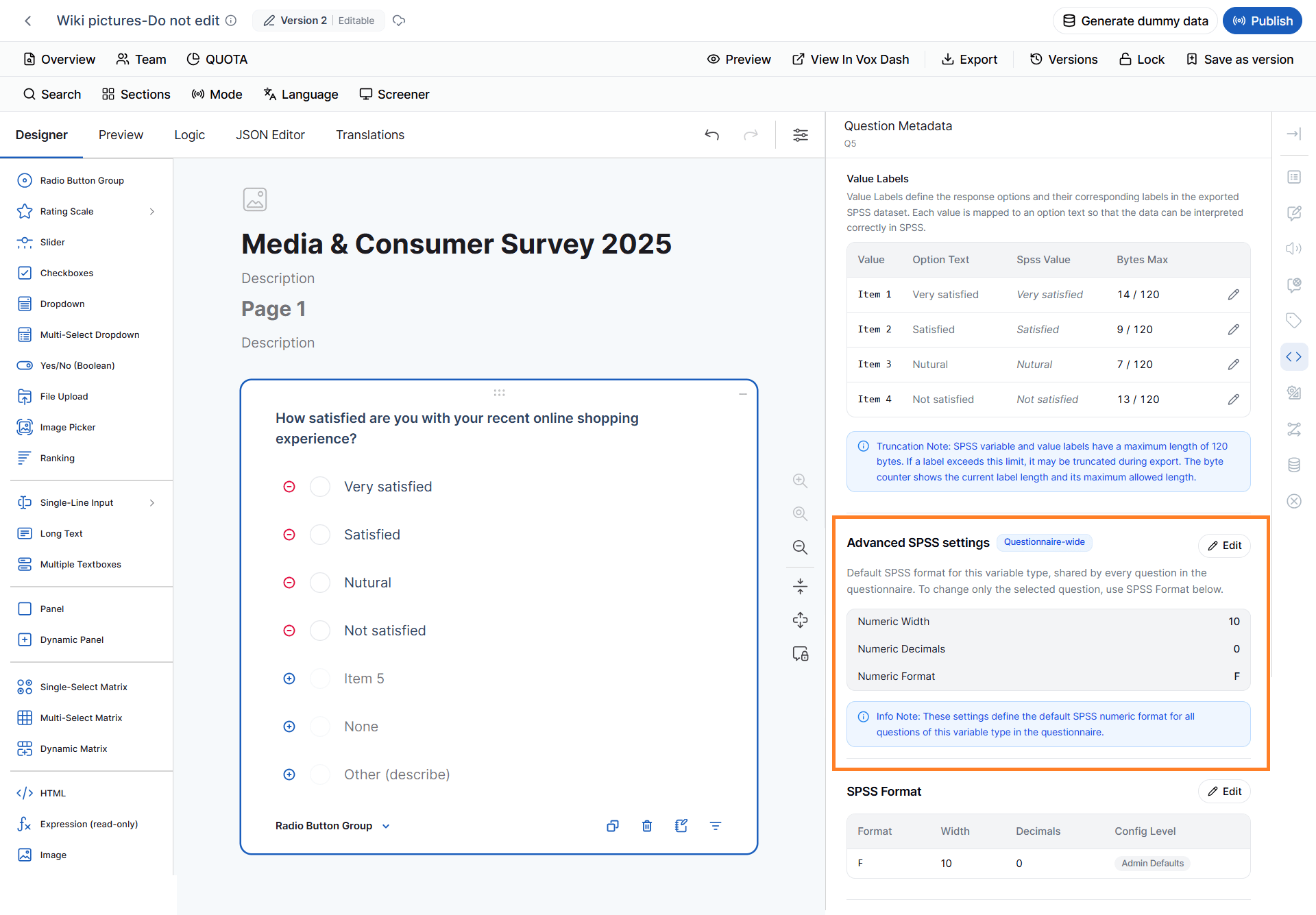
2. Advanced SPSS Settings
The Advanced SPSS Settings section controls how the selected question is represented and formatted in SPSS. These settings are primarily intended for users who need more control over statistical data formatting. Most users can keep the default values unless their organization has specific SPSS or data-processing requirements. Available settings may include:- Numeric Width
- Numeric Decimals
- Numeric Format
- String Width
2.1 Numeric Width
Numeric Width specifies the maximum number of characters allocated to a numeric value in the exported SPSS format. Default:10
Example:
Question:
How many products did you purchase?Possible response:
Note: Numeric width controls the SPSS storage/display format. It does not define the acceptable response range for respondents. Use the question’s validation settings to control which values respondents are allowed to enter.
2.2 Numeric Decimals
Numeric Decimals specifies the number of decimal places used when formatting numeric values. Default:0
For example:
If Numeric Decimals is set to
2, the SPSS format is configured to display numeric values with two decimal places.
This setting is particularly useful for questions involving:
- Measurements
- Currency
- Percentages
- Average scores
- Calculated values
- Other values that require decimal precision
2.3 Numeric Format
Numeric Format determines how numeric values are formatted in SPSS. Default:F (Fixed Numeric)
The format works together with Numeric Width and Numeric Decimals.
Examples:
For example:
- F = Fixed numeric format
- 10 = Field width
- 2 = Number of decimal places
Tip: In most cases, the default numeric format is sufficient. Change it only when your statistical analysis or organization’s export standards require a specific format.
2.4 String Width
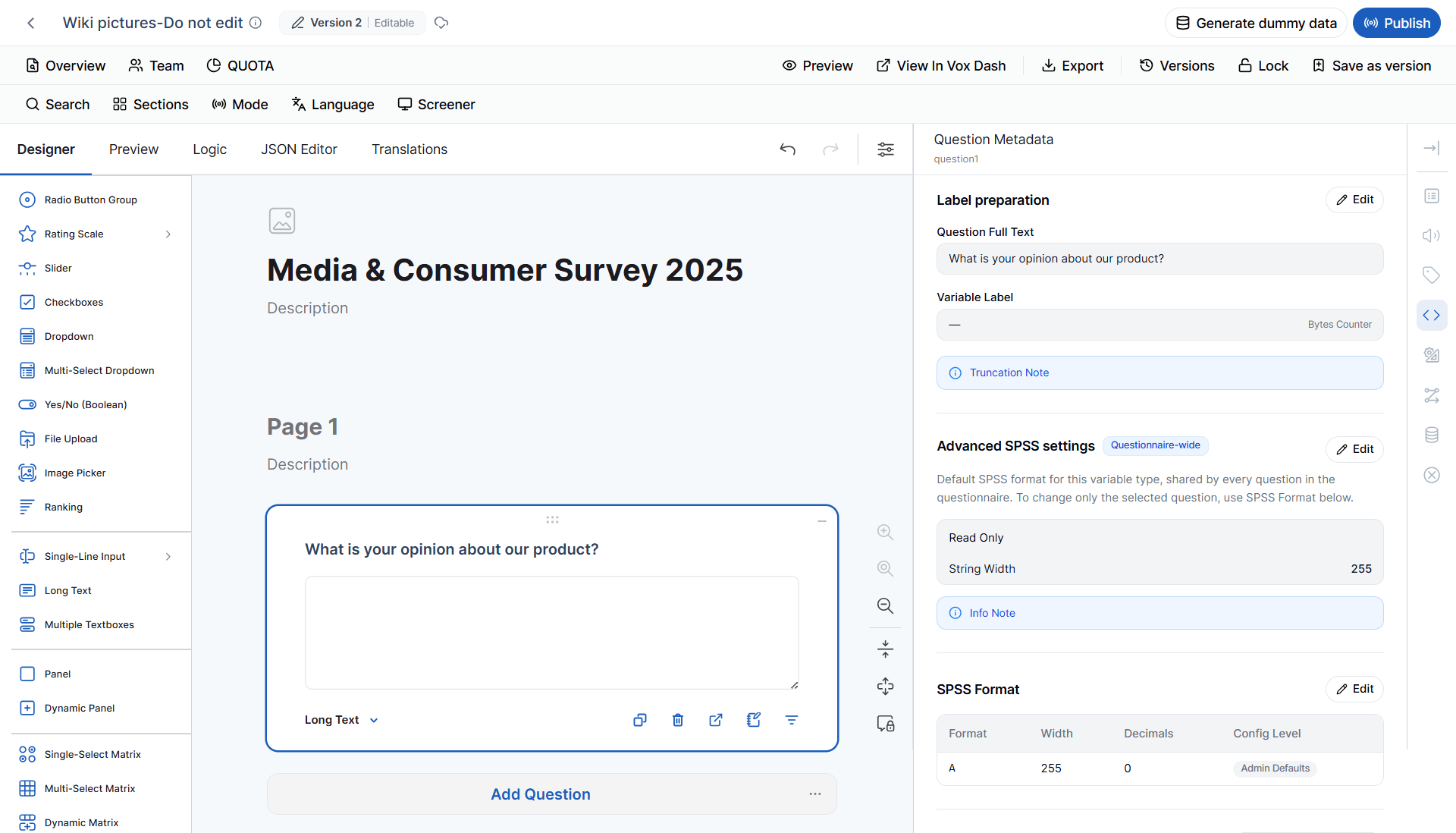
String Width defines the maximum number of characters allocated to a string/text variable in the exported dataset. Default:255
Example:
Question:
Please describe your shopping experience.If String Width is set to
255, the exported field is configured to accommodate up to 255 characters.
String width is particularly relevant for questions such as:
- Long Text
- Text
- URL
- Barcode
- Other text-based question types
Tip: Choose a width that accommodates the expected response while avoiding unnecessarily large fields when your organization’s data standards require more restrictive definitions.
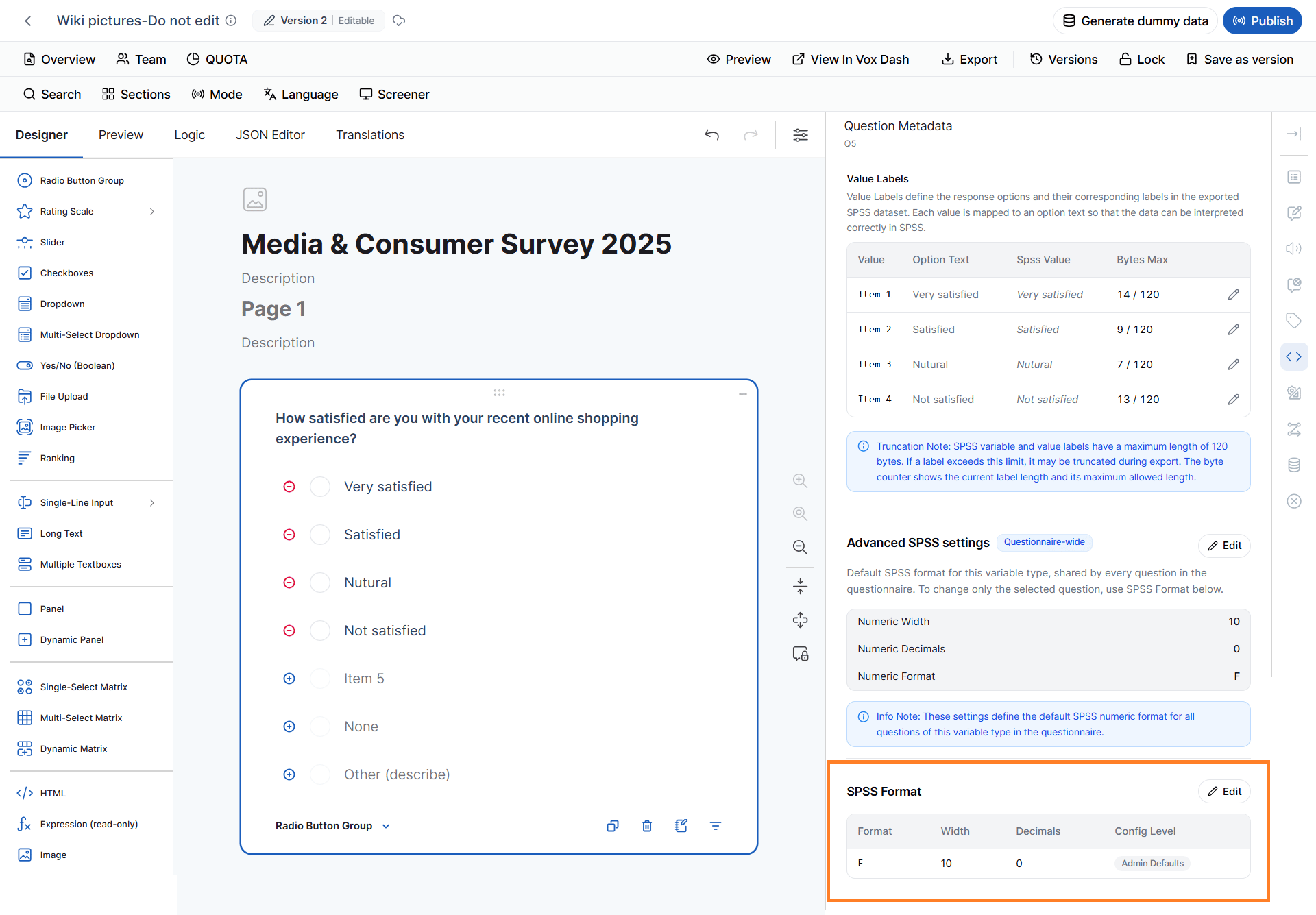
3. SPSS Format
The SPSS Format section summarizes the formatting configuration applied to the selected question. Depending on the question’s data type, the available information may include:- Format
- Width
- Decimals
- Configuration Level
- Admin Defaults
This section provides a quick overview of how the question will be represented when exported to SPSS.
3.1 Configuration Level
The Configuration Level indicates where the current metadata configuration originates. VoxDash can use administrator-defined defaults to maintain consistent SPSS metadata across questionnaires. These defaults can be automatically applied to questions unless they are overridden by a question-specific configuration. This approach allows organizations to:- Standardize SPSS exports
- Reduce repetitive configuration
- Maintain consistent metadata across projects
- Apply exceptions when a specific question requires different settings
Tip: If your organization has centralized metadata standards, configure the administrator defaults first and use question-level overrides only when necessary.
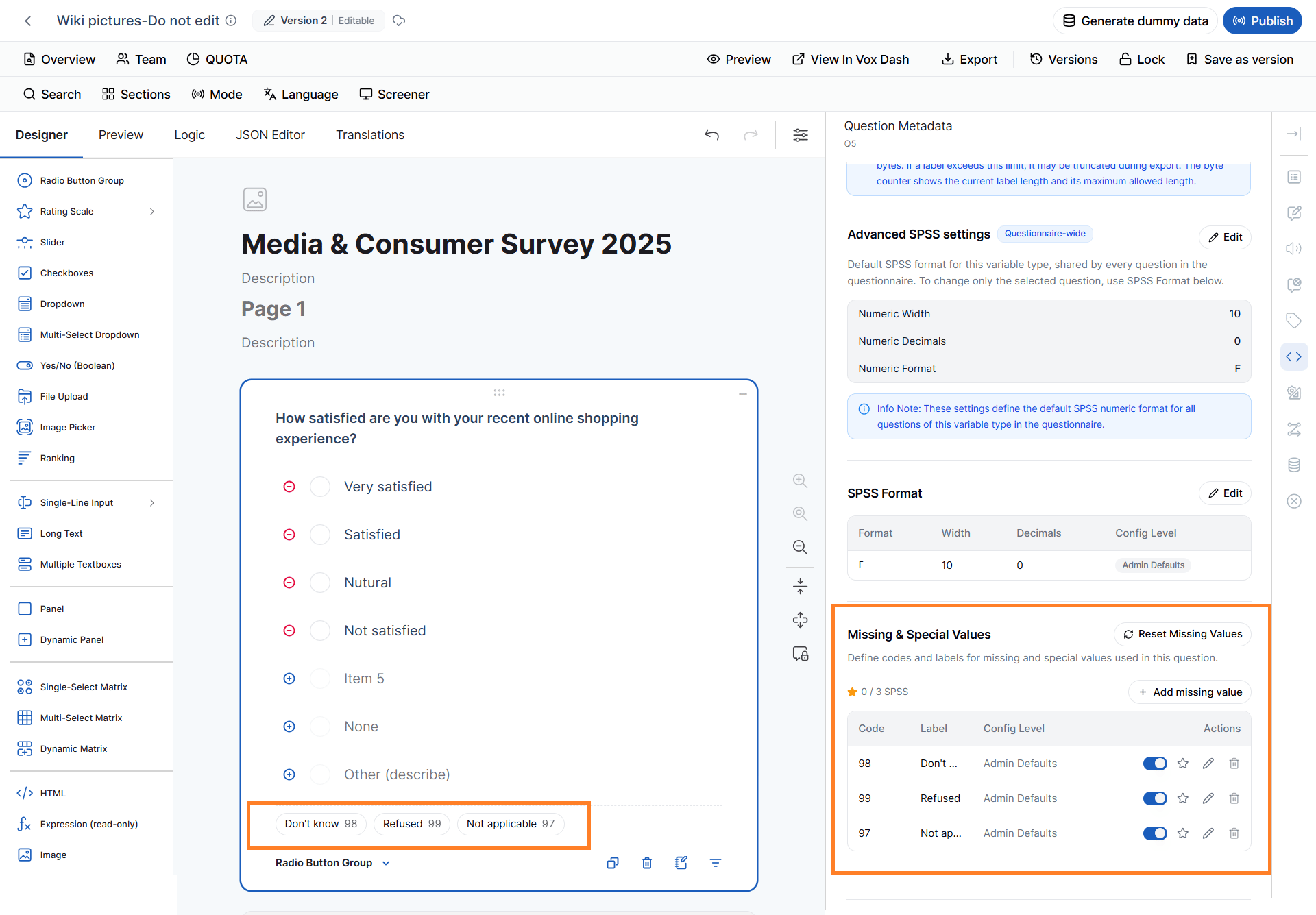
4. Missing & Special Values
Respondents cannot always provide a valid answer to every question. For example, a respondent may:- Not know the answer
- Refuse to answer
- Not be eligible to answer the question
- Consider the question not applicable
- Be unable to provide the requested information
- Don’t Know
- Refused to Answer
- Not Applicable
Important: Missing values are metadata definitions. You do not need to add them as response options in the questionnaire. Use the Missing & Special Values section to define them for the selected question.
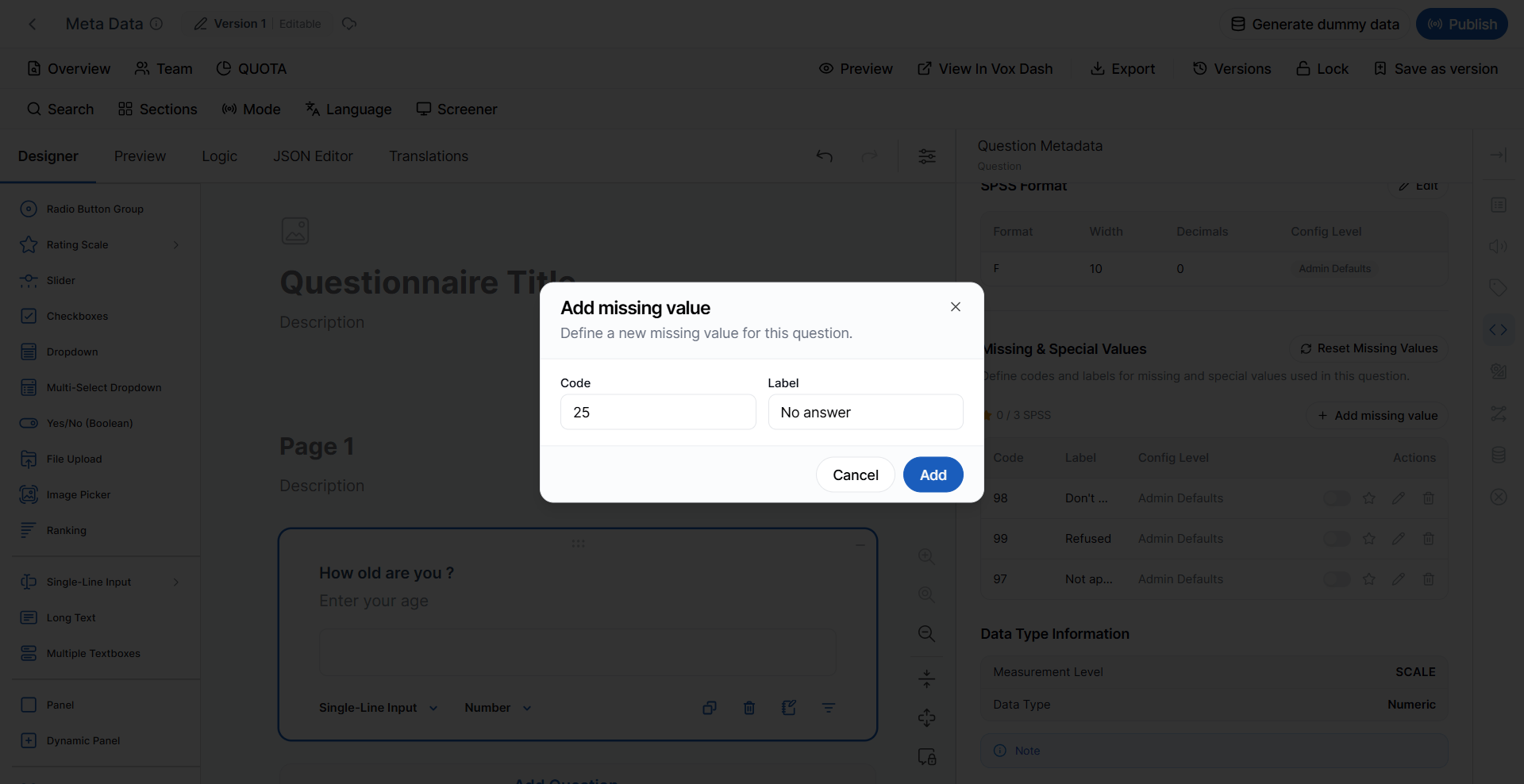
4.1 Add a Missing Value
To add a missing value:- Click + Add Missing Value.
- Enter the Code.
- Enter the Label.
- Select the appropriate Configuration Level.
- Save the configuration.
What is your annual household income?You could configure the following missing values:
The resulting dataset could contain:
In this example:
65000is a valid income value.98represents Don’t Know.99represents Refused to Answer.
Important: Choose missing-value codes that cannot be confused with legitimate responses. For example, if 99 could be a valid answer to a particular question, use a different code.
4.2 Reset Missing Values
Click Reset Missing Values to restore the administrator’s default missing-value definitions. Use this option when you want to:- Remove question-specific missing-value changes
- Discard customized definitions
- Return to your organization’s standard missing-value configuration
97, 98, and 99 consistently for special responses, resetting the configuration restores those administrator-defined values.
5. Data Type Information
The Data Type Information section displays how the selected question is represented in the exported dataset. The two key properties are:- Measurement Level
- Data Type
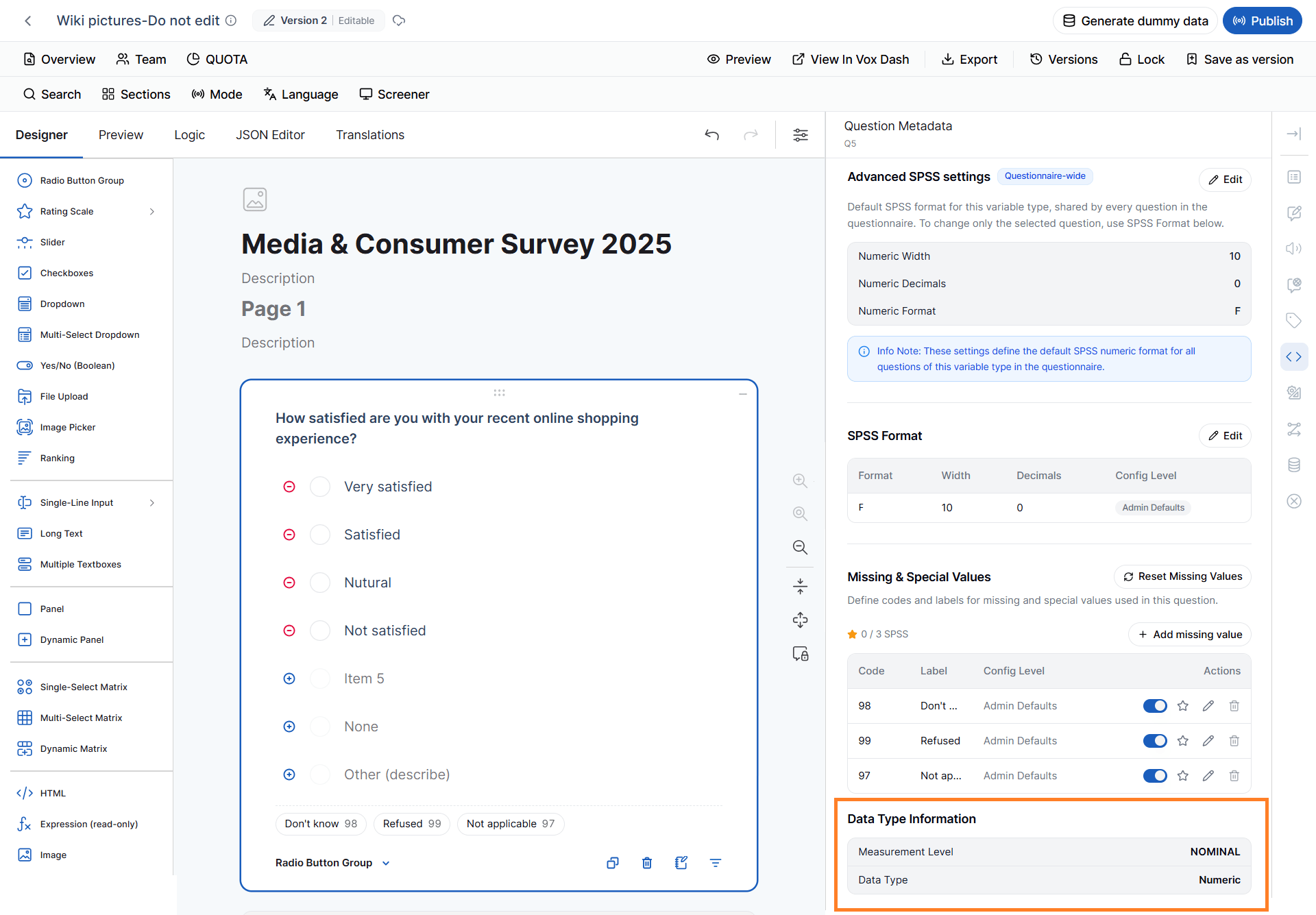
5.1 Measurement Level
Measurement Level defines the statistical level of the variable. The commonly used measurement levels are:- Nominal
- Ordinal
- Scale
- Country
- Customer type
- Product category
- Gender
- Payment method
Which payment method did you use?The responses Credit Card, PayPal, and Bank Transfer are categories without an inherent statistical order. Therefore, the variable is nominal. 5.1.2 Ordinal Ordinal variables represent categories with a meaningful order, but the difference between categories is not necessarily equal. Examples include:
- Satisfaction scales
- Agreement scales
- Ranking questions
- Star ratings
How satisfied are you with your purchase?with responses ranging from Very Dissatisfied to Very Satisfied is an ordinal variable because the responses have a meaningful order. 5.1.3 Scale Scale variables represent numeric measurements for which mathematical operations are meaningful. Examples include:
- Age
- Revenue
- Number of purchases
- Numeric scores
- Slider values
- Measurements
Note: The measurement level describes how the variable should be interpreted statistically. It is separate from the underlying data type.
6. Data Type
Data Type defines the underlying type of value stored for the question. Common data types include:- Numeric
- String
- Date
- DateTime
- Time
The data type determines how the value is represented in the exported dataset and affects how statistical software can process it.
For example, a numeric value can be used in mathematical calculations, while a string value is treated as text.
7. Date and Time Format
The Date and Time Format section is available for questions that collect date, time, or date-and-time responses. This setting determines how the value is formatted in the exported dataset. Depending on the question configuration, formats may include:- Date
- Time
- DateTime
Note: Date and time formatting affects how the value is represented in the exported dataset. It does not change the date or time entered by the respondent.
SPSS Metadata Based on Question Type
VoxDash automatically determines much of the SPSS metadata based on the selected question type and, where applicable, its specific input type. This means that two questions that look similar in the questionnaire can have different SPSS representations depending on their underlying configuration. For example:- A Number input is exported as a numeric scale variable.
- A Text input is exported as a string variable.
- A Date input is exported using an SPSS date format.
- A Rating Scale is generally exported as a numeric ordinal variable.
Important: The question type determines the default metadata. Question-specific settings, administrator defaults, and export rules can further affect the final configuration.The following sections summarize the default SPSS metadata for supported question types.
1. Choice and Rating Questions
Choice-based and rating questions are generally exported as numeric variables in SPSS. The numeric values represent the selected options, while the measurement level determines how those values should be interpreted statistically.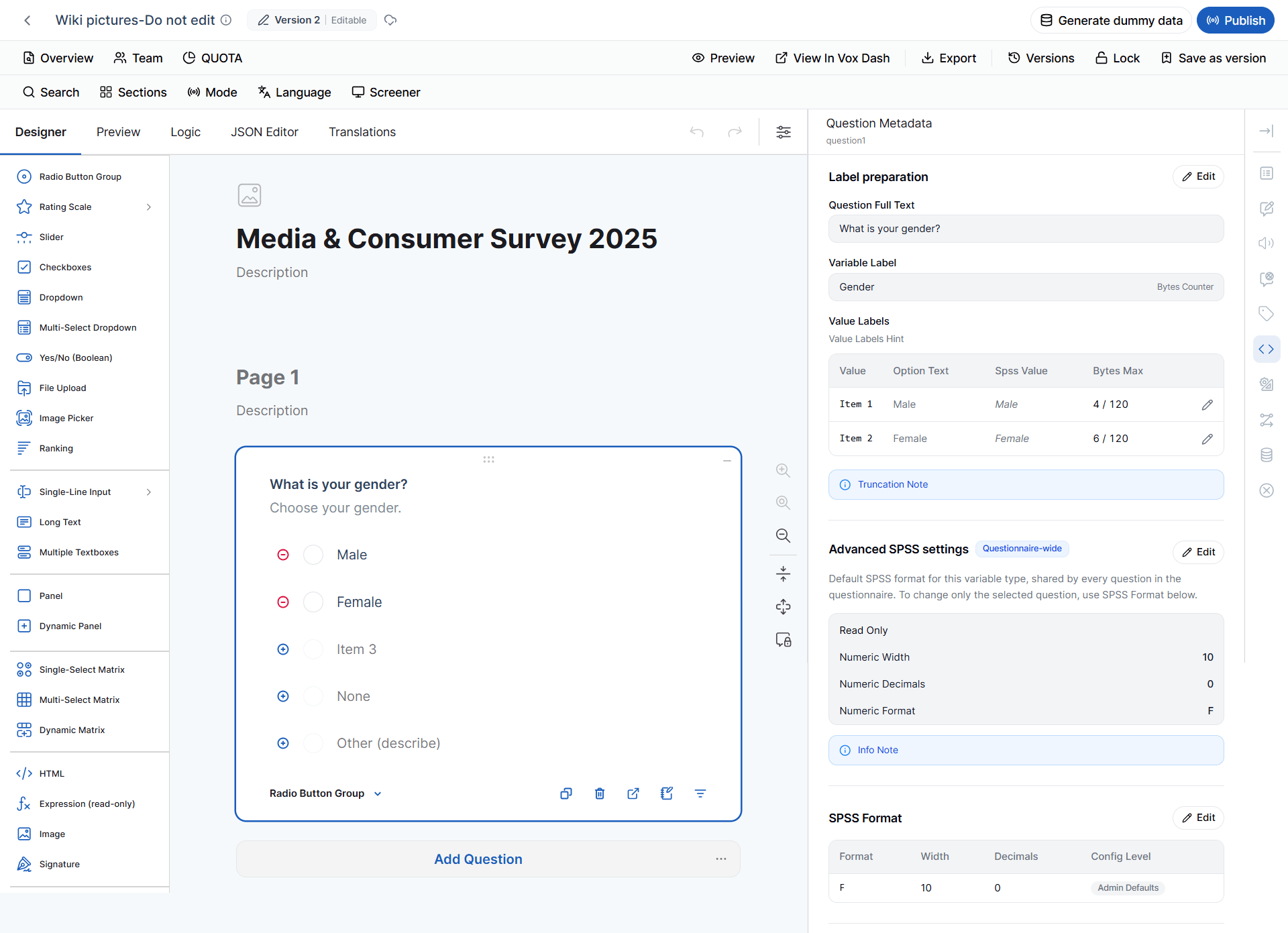
How to Interpret These Settings
Most choice-based questions are stored as numeric variables in SPSS. For example:- A Radio Button Group is generally Nominal because its categories do not inherently have an order.
- A Rating Scale is Ordinal because the response categories have an ordered relationship.
- A Ranking question is Ordinal because the rank positions have a meaningful order.
Note: A numeric representation does not automatically mean that the variable is a Scale variable. The Measurement Level determines how the variable should be interpreted statistically.
2. Single-Line Input Questions
Single-Line Input questions support multiple input types. Their SPSS metadata depends on the selected input type.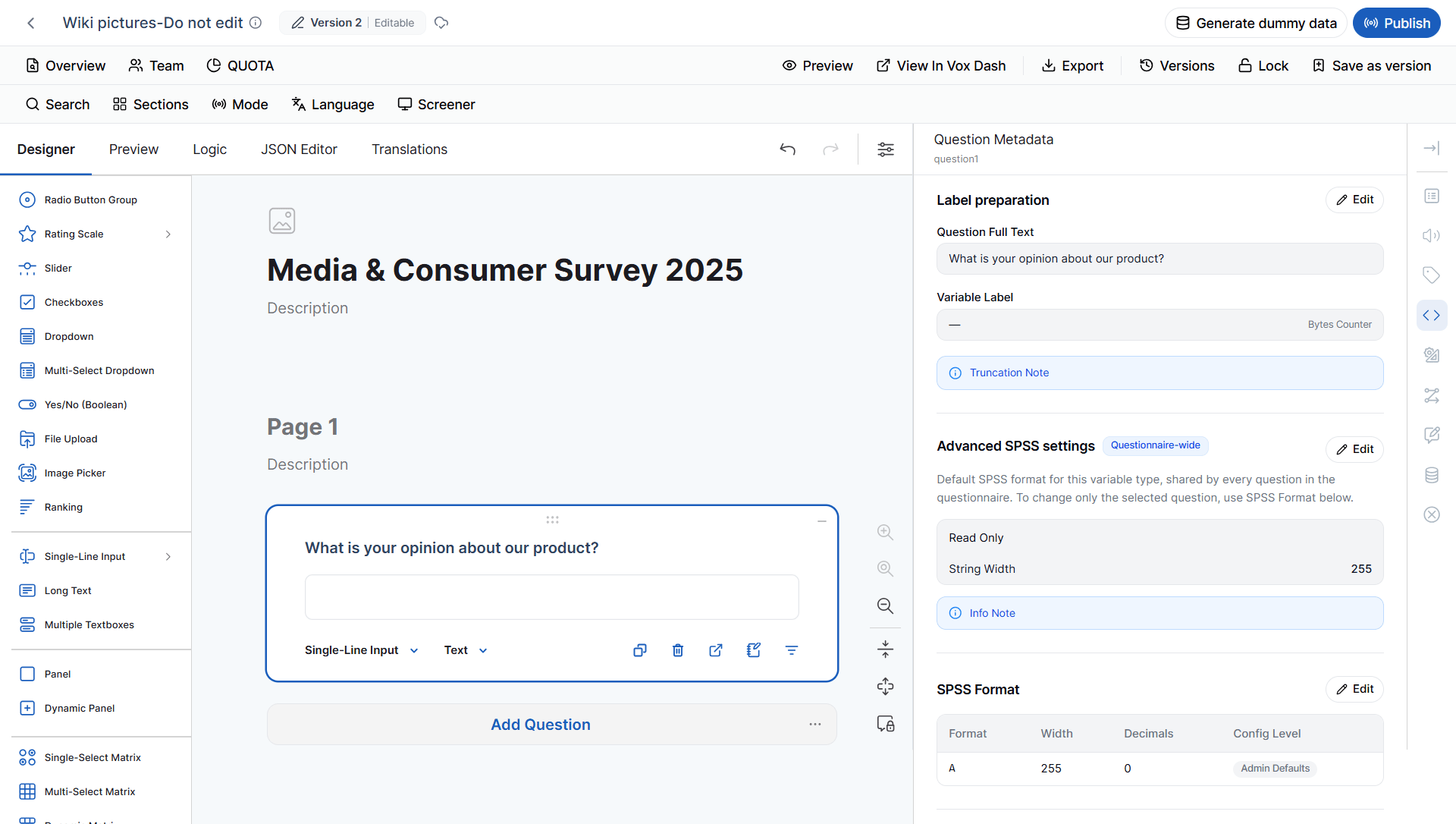
2.1 Why the Input Type Matters
A Single-Line Input is not a single SPSS data type. Its underlying input type determines how the response is stored. For example:Note: Some input types, such as Month and Week, are currently represented as strings while retaining a Scale measurement level according to the current metadata rules.
3. Text and Capture Questions
Text and capture questions generally store respondent-provided content as string variables.3.1 Long Text
Long Text responses are stored as strings because respondents can enter free-form text rather than predefined numeric values.3.2 File Upload
For File Upload questions, the exported value is represented as a string. The value can be used to identify or reference the uploaded file according to the application’s export behavior.3.3 Signature
Signature is also represented as a string variable in the metadata model.Note: String-based metadata describes how the exported value is represented. It does not necessarily mean that the original uploaded content itself is embedded directly inside the SPSS dataset.
4. Container and Non-Exported Question Types
Some questionnaire elements are designed to organize or structure other questions rather than collect an independent response. These elements do not necessarily create a standalone SPSS variable.4.1 Panel and Dynamic Panel
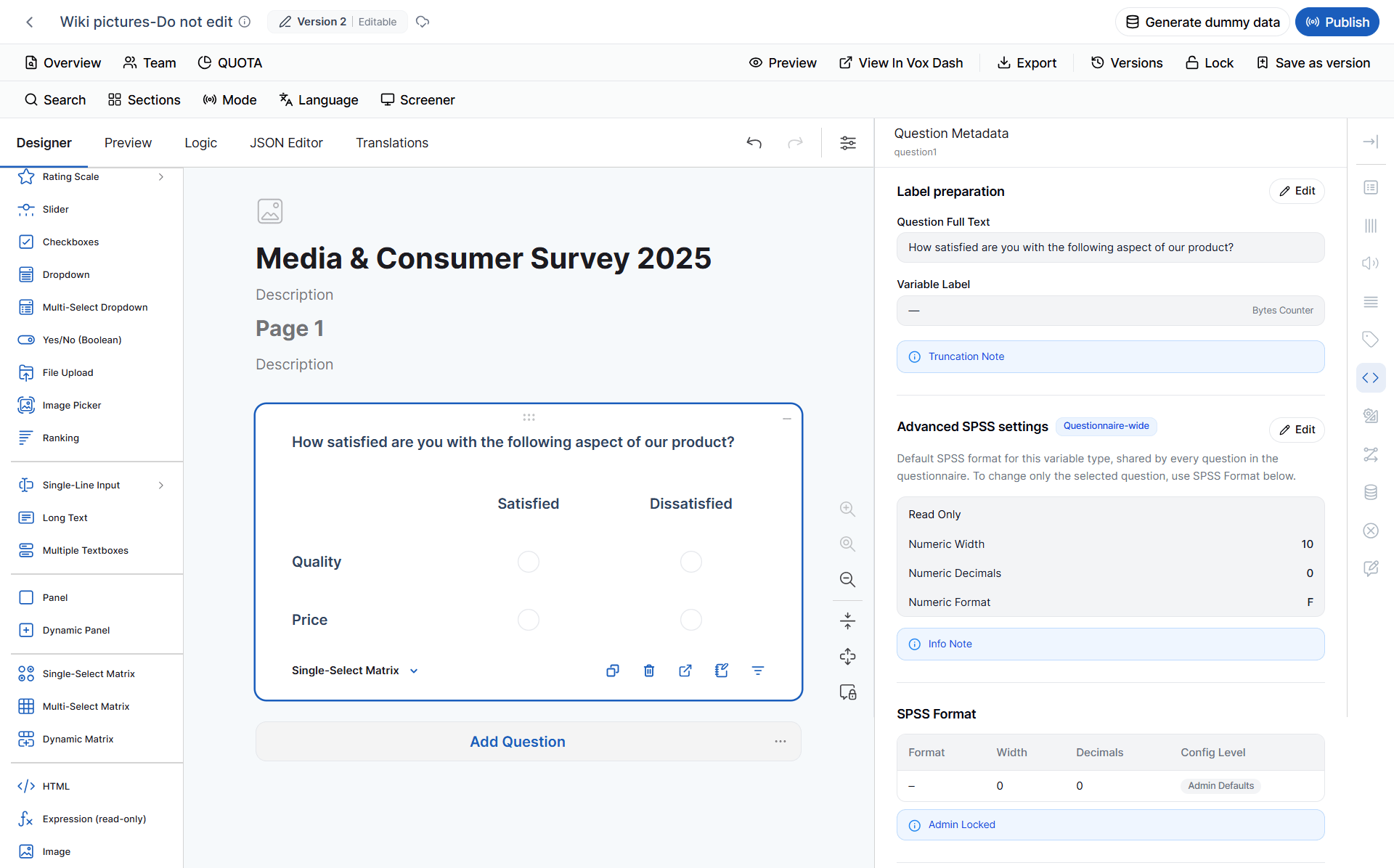
A Panel or Dynamic Panel acts as a container for other questionnaire elements. Because the container itself does not represent an independent respondent variable, it does not create a standalone SPSS variable.4.2 Matrix Questions
Matrix questions require special handling because the matrix itself contains multiple response items. Depending on the matrix type, metadata can be applied to its individual components:- Single-Select Matrix → metadata is applied per cell.
- Multi-Select Matrix → metadata is applied per column.
- Dynamic Matrix → metadata is applied per column.
4.3 Multiple Textboxes
A Multiple Textboxes question contains several individual input fields. Metadata is therefore handled per sub-item, with each sub-item potentially producing its own exported variable. For example, a question containing separate fields for:- First Name
- Last Name
4.4 HTML, Image, and Expression
HTML, Image, and Expression elements do not create standalone exported variables according to the current export rules. They are primarily used to:- Present content
- Structure the questionnaire
- Display information
- Perform calculations or expressions within the questionnaire
5. Custom Question Types
VoxDash also supports custom question types that are registered separately from the standard Questionnaire Builder toolbox. Their SPSS metadata follows the application’s registered question-type rules.Custom Type Examples
- Multi Image Picker behaves similarly to other image-selection questions and is exported as a numeric nominal variable.
- Emotions Rating is exported as a numeric ordinal variable because the response represents an ordered rating.
- Currency is stored as a numeric scale variable, allowing the resulting values to be used in numerical analysis.
- Autocomplete and Barcode are represented as strings because their responses are text-based identifiers rather than measurements.
- Date Picker and DateTime Picker use dedicated SPSS date/time formats rather than generic string formats.
Understanding SPSS Format Notation
The SPSS format displayed in the metadata provides information about how a value is represented in the exported dataset. For example:- F → Fixed numeric format
- 10 → Field width
- 0 → Number of decimal places
Complete Example
Suppose you create the following questionnaire question:How satisfied are you with your recent online shopping experience?Respondents answer using a 1–5 rating scale. You configure the metadata as follows:
Because this is a rating-scale question, VoxDash represents it as a numeric ordinal variable.
When exported to SPSS, the variable may appear similar to:
An analyst can therefore immediately determine:
- What the variable represents
- That the responses are numeric
- That the variable is ordinal
- Which values represent special or missing responses
- How the numeric values are formatted
Metadata and Question Type: Important Considerations
When reviewing Question Metadata, keep the following principles in mind.1.Question Type Affects Default Metadata
VoxDash uses the selected question type to determine the default SPSS representation. For example:2.Input Type Can Change the Underlying Data Type
This is particularly important for Single-Line Input questions. A Single-Line Input configured as Text is fundamentally different from one configured as:- Number
- Date
- Date and Time
- Time
- Range
3.Containers Do Not Necessarily Create Variables
Elements such as Panels, Matrices, and Multiple Textboxes can contain multiple response items. Their metadata is therefore handled according to their internal structure rather than always producing one standalone variable.4.Export Metadata Is Different from Respondent-Facing Configuration
Metadata determines how collected data is represented in the exported dataset. It does not necessarily change:- The appearance of the question
- The question text
- The respondent experience
- The way the question behaves during questionnaire completion
5.Missing Values Should Be Standardized
If your organization uses standard codes such as97, 98, and 99, apply them consistently across questionnaires where appropriate.
This makes datasets easier to combine, analyze, and maintain.
Best Practices
Follow these recommendations when configuring Question Metadata:- Use clear and descriptive Variable Labels.
- Keep variable labels consistent with your organization’s data dictionary.
- Avoid changing default SPSS formatting unless there is a specific requirement.
- Use the appropriate Measurement Level for statistical analysis.
- Verify the Data Type before exporting the questionnaire.
- Use consistent Missing & Special Values across questionnaires.
- Make sure missing-value codes cannot be confused with valid responses.
- Review numeric Width and Decimals for numeric questions.
- Use an appropriate String Width for text-based variables.
- Remember that the Input Type matters for Single-Line Input questions.
- Review matrix and container questions separately because they may generate multiple variables rather than one.
- Check metadata before exporting to SPSS, especially when the exported dataset will be analyzed by another team.
Tip: If your organization has centralized SPSS metadata standards, configure the administrator defaults first and use question-level overrides only when necessary.
Summary
The Question Metadata panel controls how questionnaire responses are represented in exported statistical datasets. It provides control over:- Variable labels
- Value labels
- SPSS formats
- Numeric width and decimals
- String width
- Measurement levels
- Data types
- Missing and special values
- Date and time formats
- Produce cleaner SPSS datasets
- Maintain consistent variable definitions
- Reduce manual data preparation
- Correctly distinguish valid and missing responses
- Improve statistical analysis
- Make exported datasets easier for other analysts to understand
- Maintain standardized data structures across projects and questionnaires
In most cases, the default metadata is sufficient. Review and customize Question Metadata when you need to comply with specific research, statistical, reporting, or organizational data standards.