

• Uploading existing files
• Creating one manually using the Questionnaire Builder
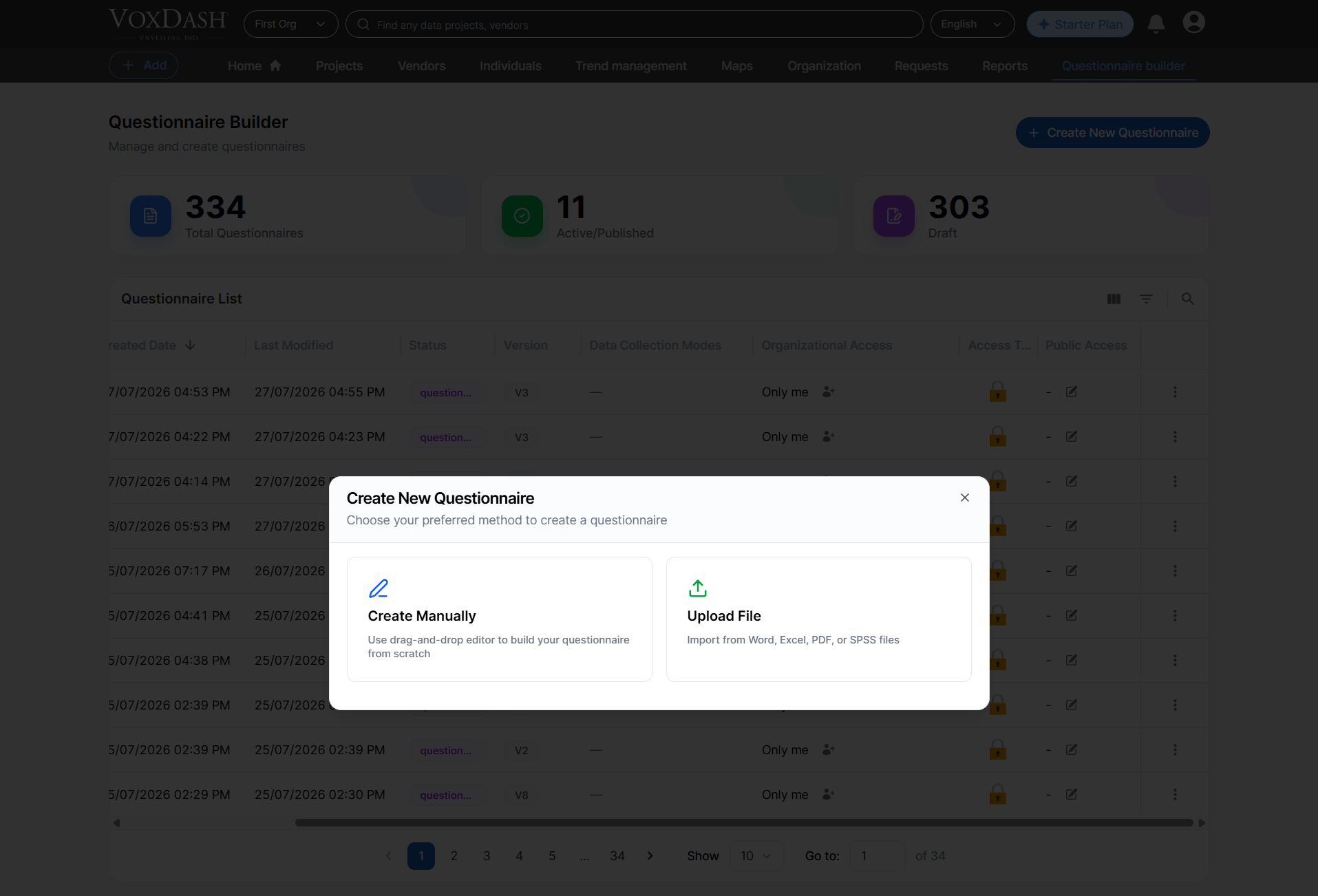
Creation Method
The creation process starts with selecting how you want to build your questionnaire. You may either upload files (from your device or from the VoxDash Library) or create everything manually. Available Methods1. Upload File
Upload files from your device or select existing files stored in your VoxDash Library. Multiple files can be uploaded or selected at once.1.1 Upload From Device
You may upload files directly from your computer. Supported formats:• Word (.doc, .docx)
• Excel (.xls, .xlsx)
• SPSS (.sav)
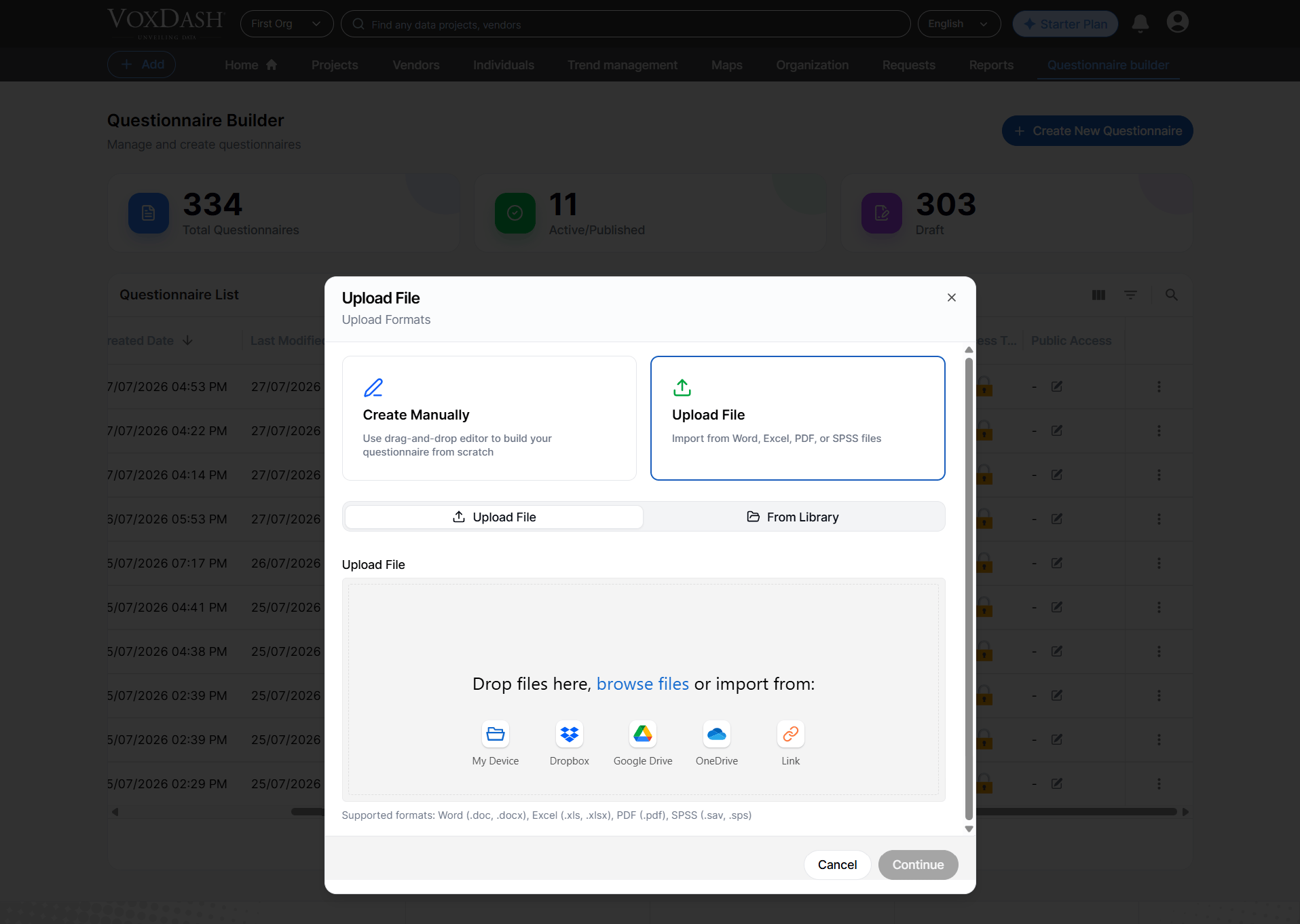
1.2 Upload From VoxDash Library
If you previously uploaded files to your VoxDash file manager, you can select them again from the library. Supported formats: • Word• Excel
• SPSS
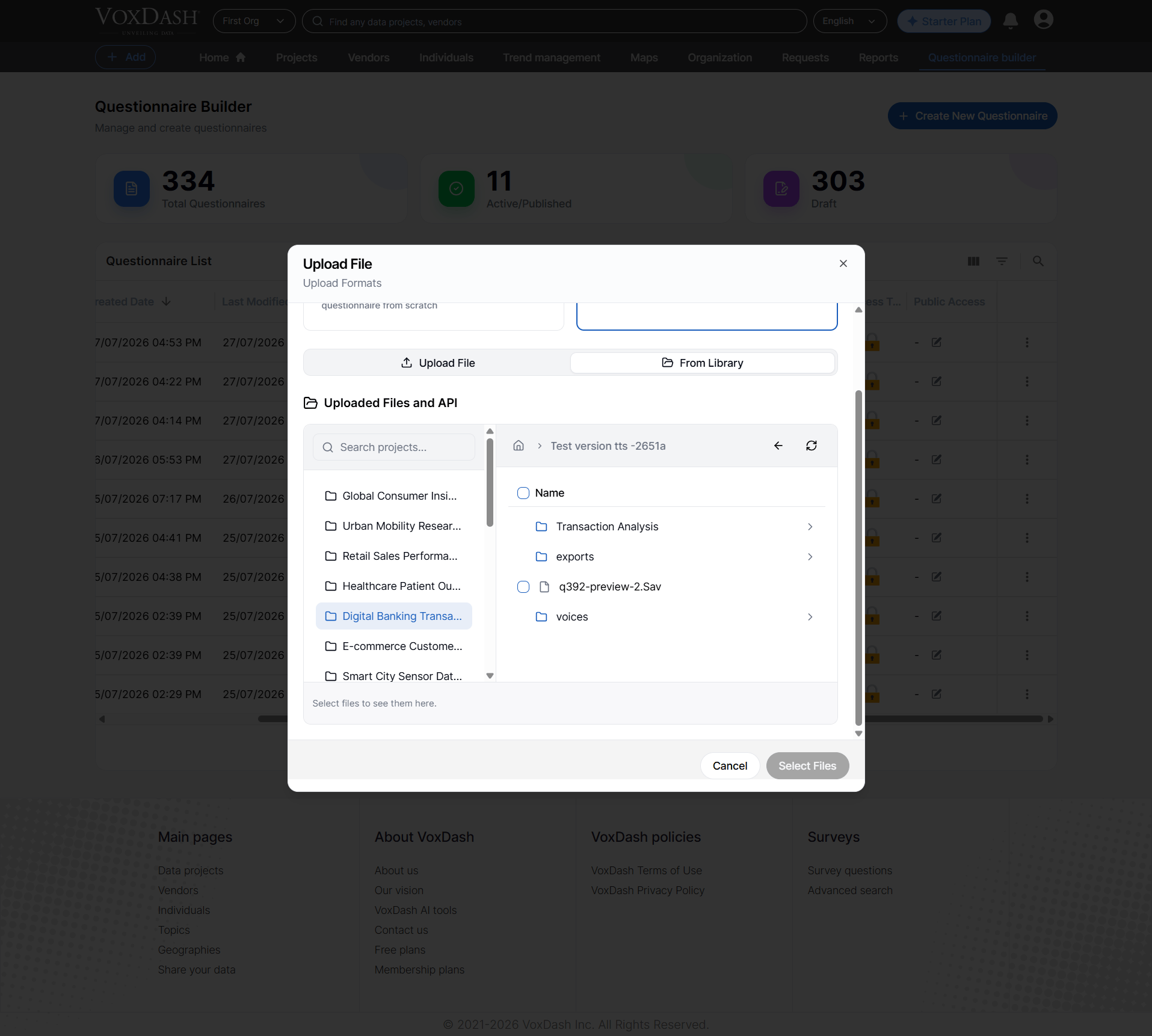
1.3 Choosing the Processing Method
After selecting your files, choose how the system should process the content.1.3.1 AI Processing (Recommended)
This method uses AI and consumes system tokens. The AI scans your files and automatically structures your questionnaire with higher accuracy. AI advantages: • More accurate detection of questions and response options• Automatic identification of question tags (e.g., screener, single‑select, open‑ended)
• Understanding of logic and relationships across questions
• Automatic classification of question types
• Ability to interpret varied phrasing and formatting During import, AI processes and reports: • Total questions detected
• Questions identified as screeners
• Questions containing logic
• Questions associated with quotas This method is ideal for complex or large datasets.
1.3.2 Standard Processing
This method requires no tokens. It quickly processes the file and takes you directly to the editor panel. Standard Processing features:• Basic question and response detection
• Fast, predictable workflow
• Ideal for simple or well‑formatted questionnaires
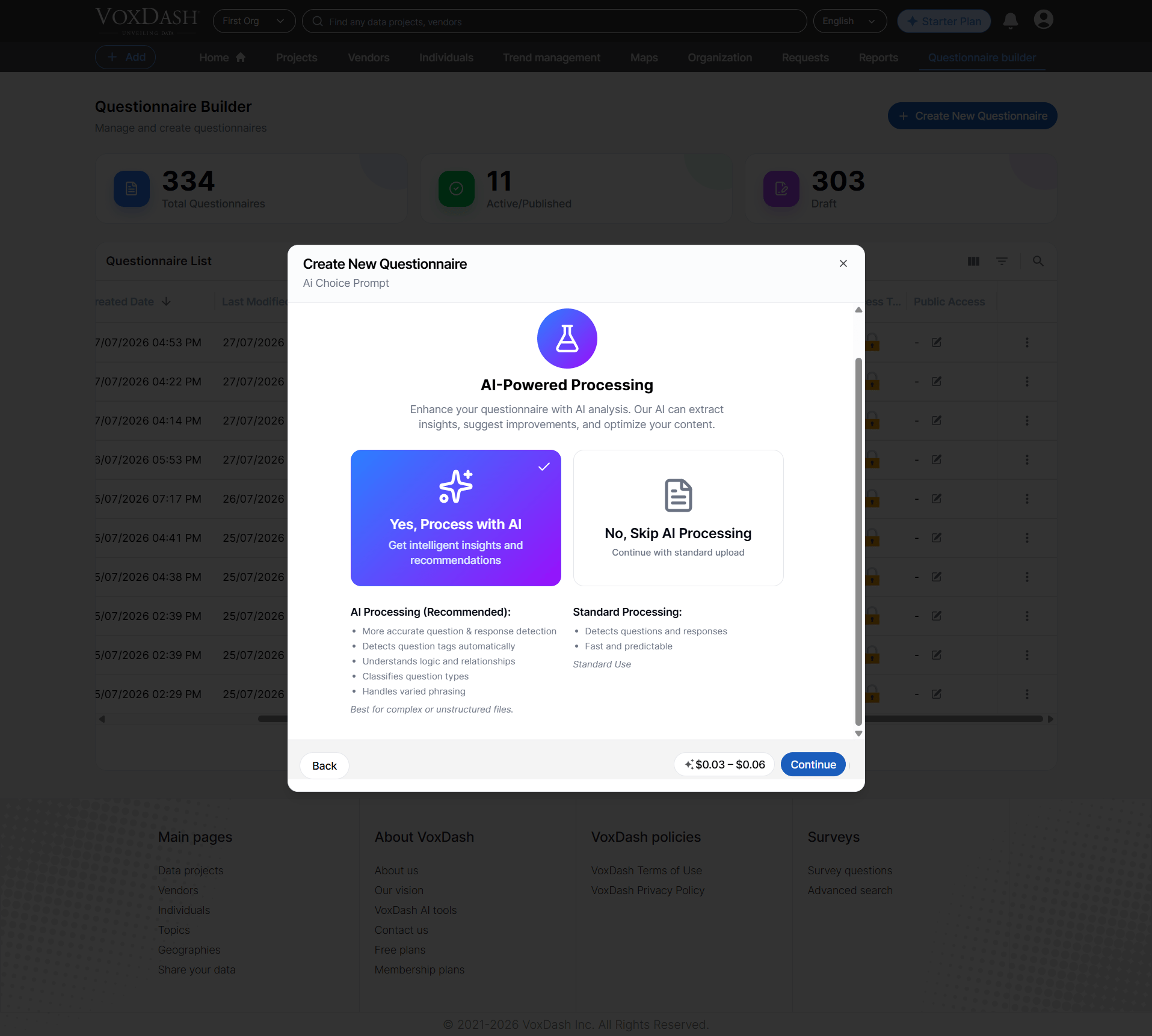
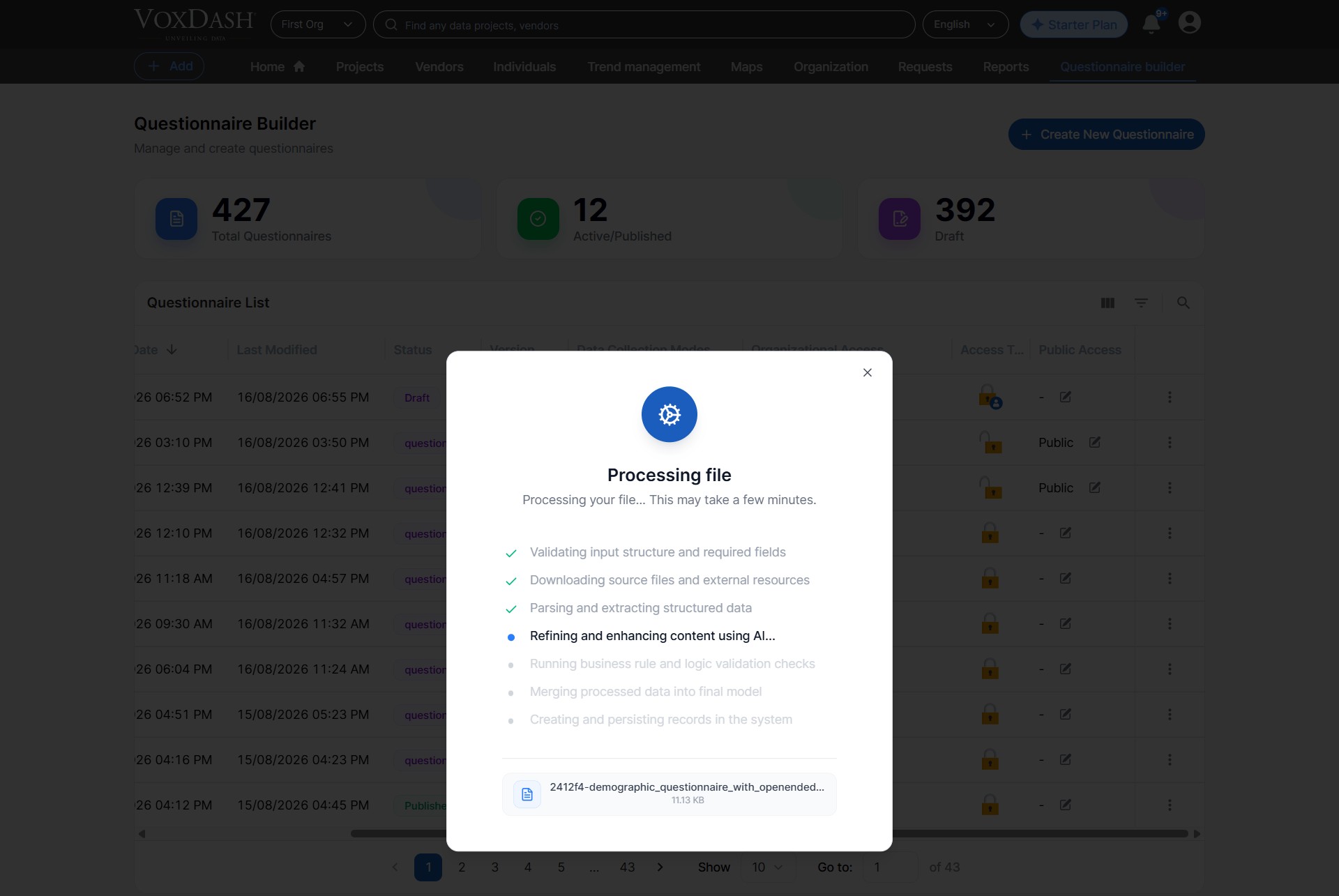
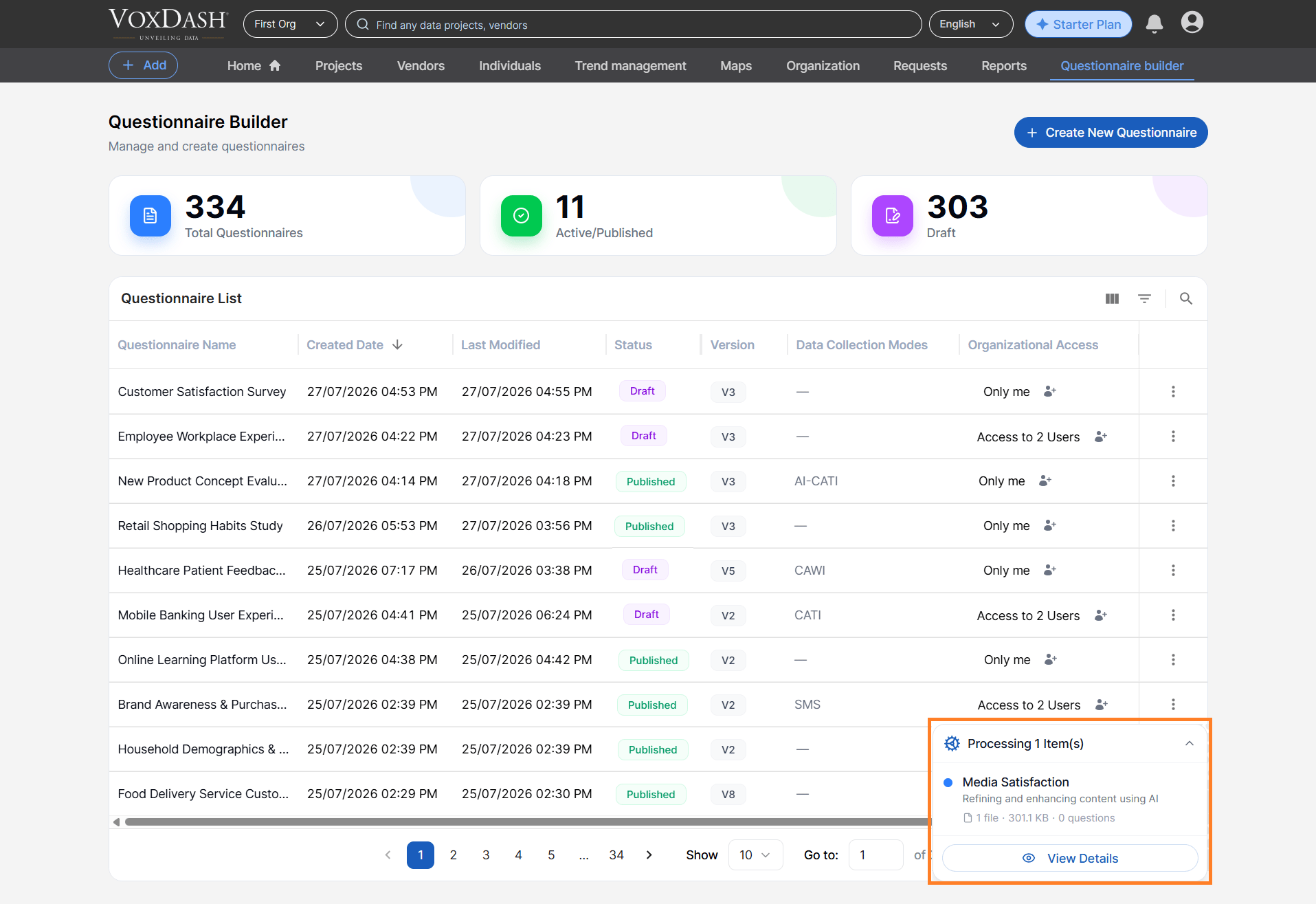
Note: AI Processing may take longer than standard processing because it performs a more detailed analysis of the uploaded file to provide greater accuracy.
2. Create Manually
You can create a questionnaire from scratch using the built‑in SurveyJS editor. Before entering the editor, you must provide key information such as:• Questionnaire title (Required) • Default Language (Required) • Target group • Category or project details Once this information is submitted, the system creates an empty questionnaire and opens the editor, where you can add questions, logic, branching, and other settings.
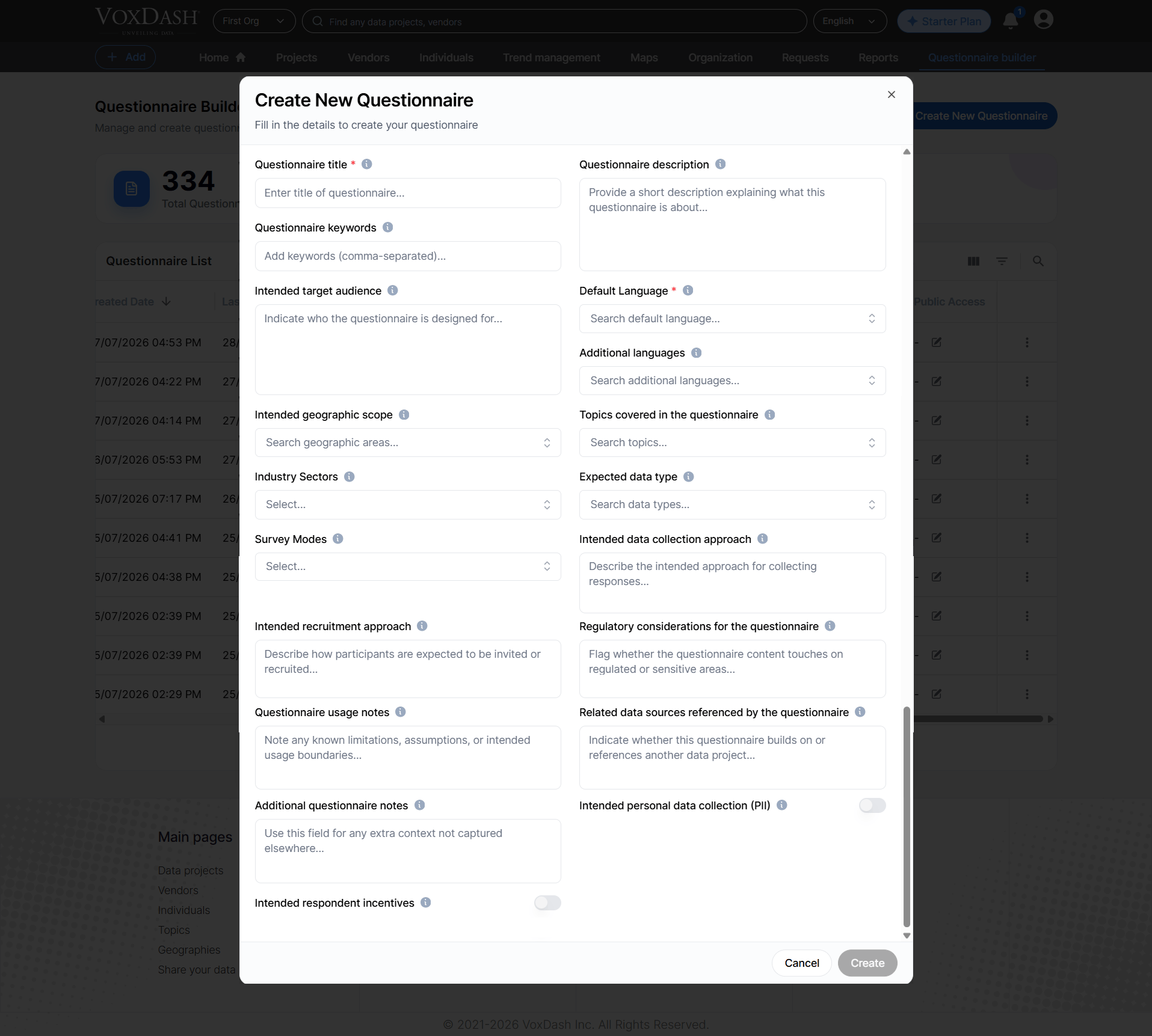
Questionnaire Information Fields
The Create New Questionnaire form contains the following fields.Questionnaire Title
Questionnaire Title is the name of the questionnaire. This field is required and is used to identify the questionnaire throughout VoxDash. Enter a clear and descriptive title that helps users understand the purpose of the questionnaire. Example:Customer Satisfaction Survey – Q3 2026Because the questionnaire title is used to identify the questionnaire in the system, avoid using vague names such as Survey 1 or New Questionnaire.
Questionnaire Description
The Questionnaire Description provides a short explanation of the questionnaire. Use this field to describe the purpose, subject, or context of the questionnaire. A useful description can help other users understand what the questionnaire is designed to measure without opening the questionnaire itself. Example:This questionnaire measures customer satisfaction with the online purchasing experience and identifies areas for improvement.This field is primarily descriptive metadata and does not directly change the questions displayed to respondents.
Questionnaire Keywords
Questionnaire Keywords allow you to add keywords that describe the questionnaire. Enter keywords separated by commas. Example:customer satisfaction, ecommerce, online shopping, CX, purchase experienceKeywords can make questionnaires easier to identify, organize, and search within the system. This field is metadata and does not directly change the questionnaire content.
Intended Target Audience
The Intended Target Audience describes the group of respondents the questionnaire is designed for. Use this field to specify who should ideally answer the questionnaire. Example:Customers who have made an online purchase within the last six months.This information helps document the intended audience and provides context for anyone reviewing or reusing the questionnaire. This field is descriptive metadata and does not itself determine who can access or answer the questionnaire.
Note: If respondent eligibility needs to be enforced, use the appropriate screening, access, or questionnaire logic settings in the Questionnaire Builder.
Default Language
Default Language specifies the primary language of the questionnaire. This field is required and is one of the fields that directly affects the questionnaire. The selected language is used as the questionnaire’s default language and determines the primary language context for the questionnaire. Example:EnglishIf the questionnaire is intended to be created primarily in Persian, select Persian as the Default Language.
Important: The Default Language is a functional questionnaire setting. Make sure you select the correct language before creating the questionnaire.
Additional Languages
Additional Languages allows you to specify other languages supported by the questionnaire. This field is also a functional questionnaire setting. The selected languages can be used to support multilingual questionnaire content and respondent experiences. Example:- Default Language: English
- Additional Languages: Persian, German
Important: Adding a language here establishes it as an available questionnaire language. You may still need to provide or configure the translated questionnaire content within the appropriate questionnaire settings.
Default Language vs. Additional Languages
These fields should be configured carefully because they are not simply descriptive information; they are part of the questionnaire’s functional configuration.
Intended Geographic Scope
Intended Geographic Scope describes the geographic area where the questionnaire is intended to be used or where respondents are expected to come from. Examples:- United States
- Germany
- European Union
- Middle East
- Global
Topics Covered in the Questionnaire
Topics Covered in the Questionnaire identifies the main subjects addressed by the questionnaire. Examples:- Customer Satisfaction
- Product Experience
- Brand Awareness
- Online Shopping
- Customer Service
Industry Sectors
Industry Sectors identifies the industry or industries associated with the questionnaire. Examples:- Retail
- Ecommerce
- Healthcare
- Financial Services
- Technology
Expected Data Type
Expected Data Type describes the type of data the questionnaire is expected to collect. Depending on the available options, this may include data categories such as:- Quantitative data
- Qualitative data
- Behavioral data
- Customer feedback
- Demographic data
Survey Modes
Survey Modes specifies the mode or modes through which the questionnaire is intended to be administered. This is one of the fields that directly affects the questionnaire. The selected survey mode can determine how the questionnaire is intended to operate or be administered. For example, depending on the configuration available in VoxDash, survey modes may distinguish between different methods of conducting a survey.Important: Because Survey Modes is a functional questionnaire setting, select the appropriate mode when creating the questionnaire. The selected mode should match the intended data-collection workflow.
Intended Data Collection Approach
Intended Data Collection Approach describes how responses are expected to be collected. Use this field to document the planned approach for collecting respondent data. Example:Responses will be collected through an online self-administered questionnaire.Another example:
Interviewers will administer the questionnaire to participants during scheduled interviews.This field provides context about the research methodology and is primarily metadata.
Intended Recruitment Approach
Intended Recruitment Approach describes how participants are expected to be invited or recruited to participate in the questionnaire. Examples:Participants will be recruited through an existing customer database.or:
Respondents will be invited through an online research panel.This field documents the planned recruitment methodology and is primarily metadata. It does not automatically recruit respondents or determine questionnaire eligibility.
Regulatory Considerations for the Questionnaire
Regulatory Considerations for the Questionnaire allows you to document whether the questionnaire involves regulated or sensitive areas. Use this field to record relevant considerations that may affect how the questionnaire should be reviewed, managed, or used. Example:The questionnaire collects information related to a regulated industry and requires additional review before deployment.This field is primarily documentation and metadata. Selecting or describing a consideration here does not automatically apply regulatory controls to the questionnaire.
Questionnaire Usage Notes
Questionnaire Usage Notes provides space for documenting known limitations, assumptions, restrictions, or intended usage boundaries. Use this field to provide important information for other users who may work with the questionnaire. Example:This questionnaire is intended for customers who have completed at least one purchase and should not be used for respondents who have never interacted with the product.This field is metadata and does not automatically enforce the stated restrictions.
Related Data Sources Referenced by the Questionnaire
Related Data Sources Referenced by the Questionnaire allows you to document whether the questionnaire builds on or references another data project or data source. Use this field to maintain a connection between the questionnaire and related data resources. Example:Customer transaction data from the 2026 Ecommerce Customer Dataset.This information provides context and helps users understand the relationship between the questionnaire and other data sources. It is primarily metadata and does not automatically import or modify data from the referenced source.
Additional Questionnaire Notes
Additional Questionnaire Notes provides a general-purpose field for recording additional context that is not captured by the other fields. Use this field for information that may be useful to questionnaire owners, researchers, analysts, or other team members. Examples:- Special instructions
- Project-specific context
- Known limitations
- Internal notes
- Additional assumptions
- Information about the questionnaire’s intended use
Intended Personal Data Collection (PII)
The Intended Personal Data Collection (PII) setting indicates whether the questionnaire is intended to collect Personally Identifiable Information (PII). PII may include information that can identify or potentially identify an individual, depending on the applicable definition and configuration. Use this setting carefully and select it according to the actual data the questionnaire is designed to collect. This field documents an important characteristic of the questionnaire and may be relevant to privacy, governance, or compliance workflows.Important: Marking a questionnaire as intended to collect PII does not by itself mean that every question collects PII. Review the individual questions and your organization’s privacy requirements separately.
Intended Respondent Incentives
The Intended Respondent Incentives setting indicates whether respondents are expected to receive an incentive for participating in the questionnaire. Examples of incentives may include:- Monetary compensation
- Discounts
- Rewards
- Points
- Other participation incentives
Functional vs. Metadata Fields
Not all fields in the Create New Questionnaire form have the same purpose. Understanding this distinction is important when creating a questionnaire.Fields That Directly Affect the Questionnaire
The following fields are functional questionnaire settings:- Default Language
- Additional Languages
- Survey Modes
Fields Used Primarily as Metadata
The following fields primarily provide information, classification, documentation, or context:- Questionnaire Description
- Questionnaire Keywords
- Intended Target Audience
- Intended Geographic Scope
- Topics Covered in the Questionnaire
- Industry Sectors
- Expected Data Type
- Intended Data Collection Approach
- Intended Recruitment Approach
- Regulatory Considerations
- Questionnaire Usage Notes
- Related Data Sources
- Additional Questionnaire Notes
- Intended Personal Data Collection (PII)
- Intended Respondent Incentives
Important: Metadata fields should still be completed accurately. Although they may not directly change the questionnaire, they provide valuable context for questionnaire management, governance, search, reuse, and analysis.
Step-by-Step Guide
A. Selecet Creation Method
Before creating a questionnaire, determine which creation method best suits your project.- Choose Upload File if you already have questionnaire content in a supported Word, Excel, PDF, or SPSS file.
- Choose Upload From Library if the required source file has already been uploaded to the VoxDash Library.
- Choose Create Manually if you want to build a new questionnaire from an empty questionnaire.
Tip: If you already have a structured questionnaire document, importing it is usually faster than recreating every question manually.
B. Uploading From Your Device
- Click Create New Questionnaire and choose Upload File.
- Select one or multiple files (Word, Excel, PDF, SPSS).
- Wait while the system processes questions, responses, logic, and metadata.
- Once processing is complete, you are automatically redirected to the Editor Panel to review and edit the structure.
- Your questionnaire project is now created and appears in:
• The Questionnaire List
• The Data Projects List
C. Uploading From the VoxDash Library
- Click Create New Questionnaire and choose Upload From Library.
- Select one or more files from your previously uploaded library files.
- The system processes your selected files following the same steps as device uploads.
- You are redirected to the Editor Panel to finalize your questionnaire.
D. Creating Manually
- Click Create Manually.
- Provide the required information (e.g., questionnaire name, target group, language).
- After submitting, the system creates a blank questionnaire.
- You are redirected to the Editor Panel, where you can:
• Add questions
• Define logic and branching
• Organize pages and sections
• Adjust display settings