

Tip: To configure a question, open the Designer tab and select the desired question. The Question Settings panel appears on the right side of the screen.
Understanding Question Configuration
Each question in VoxDash has two main levels of configuration:- General settings — settings shared by most or all question types.
- Question-specific settings — settings that depend on the selected question type.
Important: When configuring a question, consider the question type + input type + configuration, rather than the question type alone.
General Question Settings
Most question types share a set of common settings that control their basic properties, appearance, behavior, and data handling.Basic Information
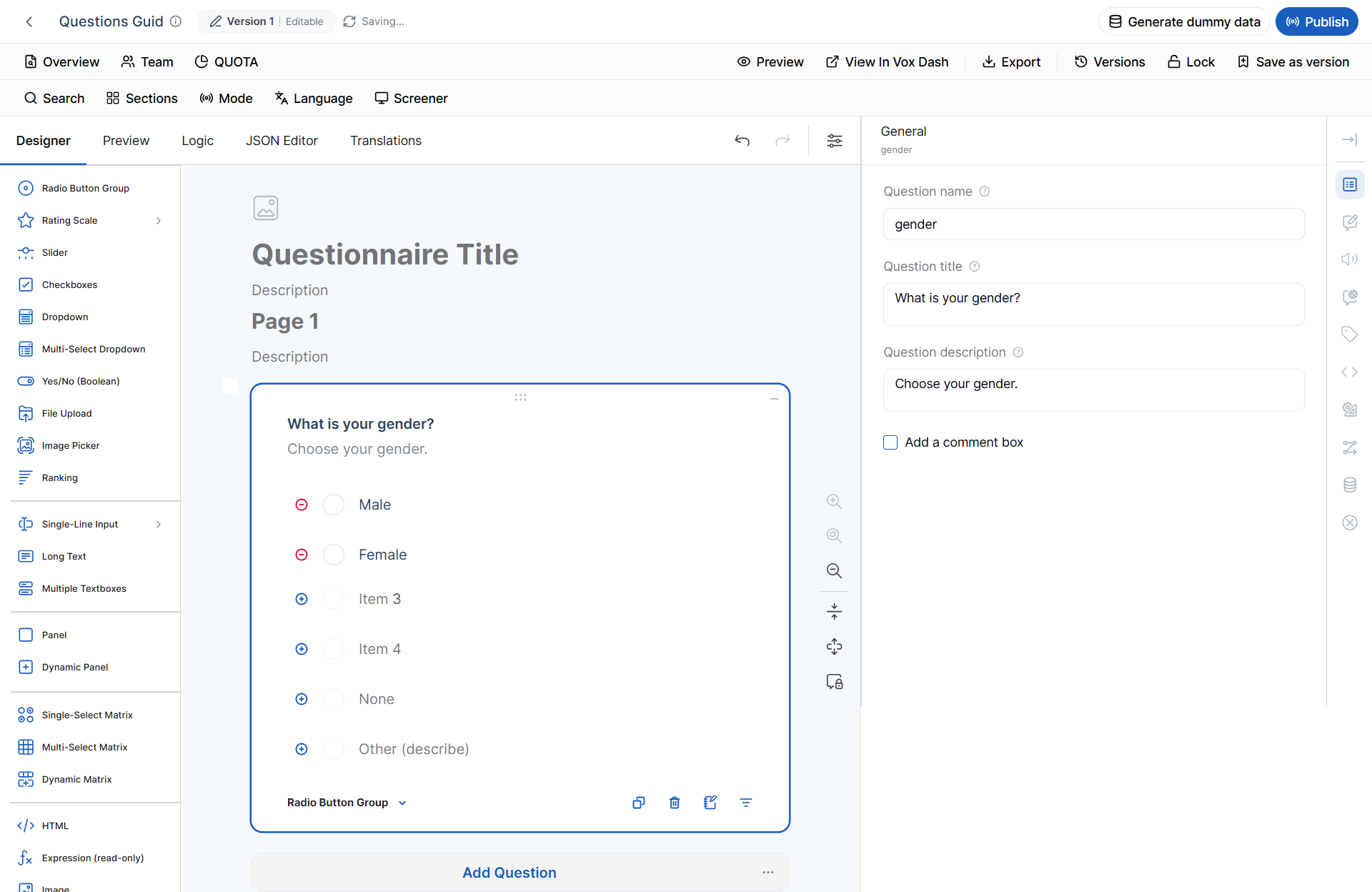
Use the Basic Information section to define the question’s identity and respondent-facing content. Question Name The Question Name is the internal identifier used throughout the questionnaire. It can be referenced in:- Logic expressions
- Conditions
- Validation rules
- Dynamic text
- JSON
- Data exports
- Other questionnaire configurations
What is your preferred payment method?The title should clearly describe what the respondent needs to answer. Question Description The Question Description provides additional instructions or context below the question title. Use it when respondents need more information about how to answer the question. Example:
Please select the payment method you use most often.
Text-to-Speech (TTS)
The Text-to-Speech (TTS) feature allows respondents to listen to question content instead of reading it. TTS can help:- Improve accessibility.
- Support audio-assisted interviews.
- Make questionnaires easier to use for respondents with reading difficulties.
- Support interviewer-assisted research.
Layout Settings
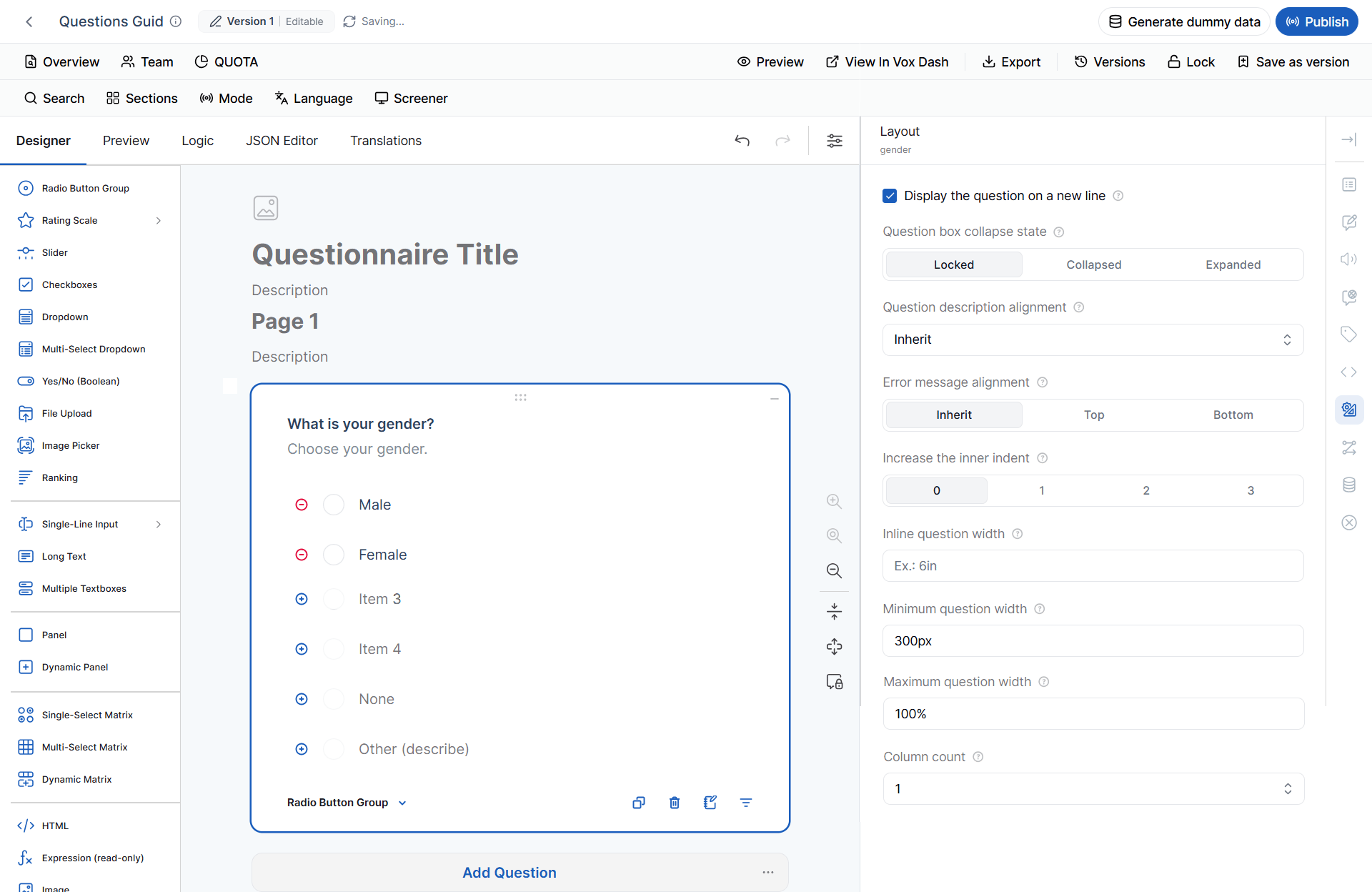
Layout settings control how the question appears in the questionnaire and in the Designer. Display the Question on a New Line Displays the question on its own row instead of placing it alongside other questions. Use this option when:- The question contains long text.
- The question requires more horizontal space.
- You want to visually separate the question from surrounding content.
- Locked — Prevents accidental editing.
- Collapsed — Shows only the question title.
- Expanded — Displays the complete question configuration.
- Inherit questionnaire setting — Uses the alignment configured at the questionnaire level.
- Inherit — Uses the questionnaire-level setting.
- Top — Displays the error message above the question.
- Bottom — Displays the error message below the question.
Conditional Logic
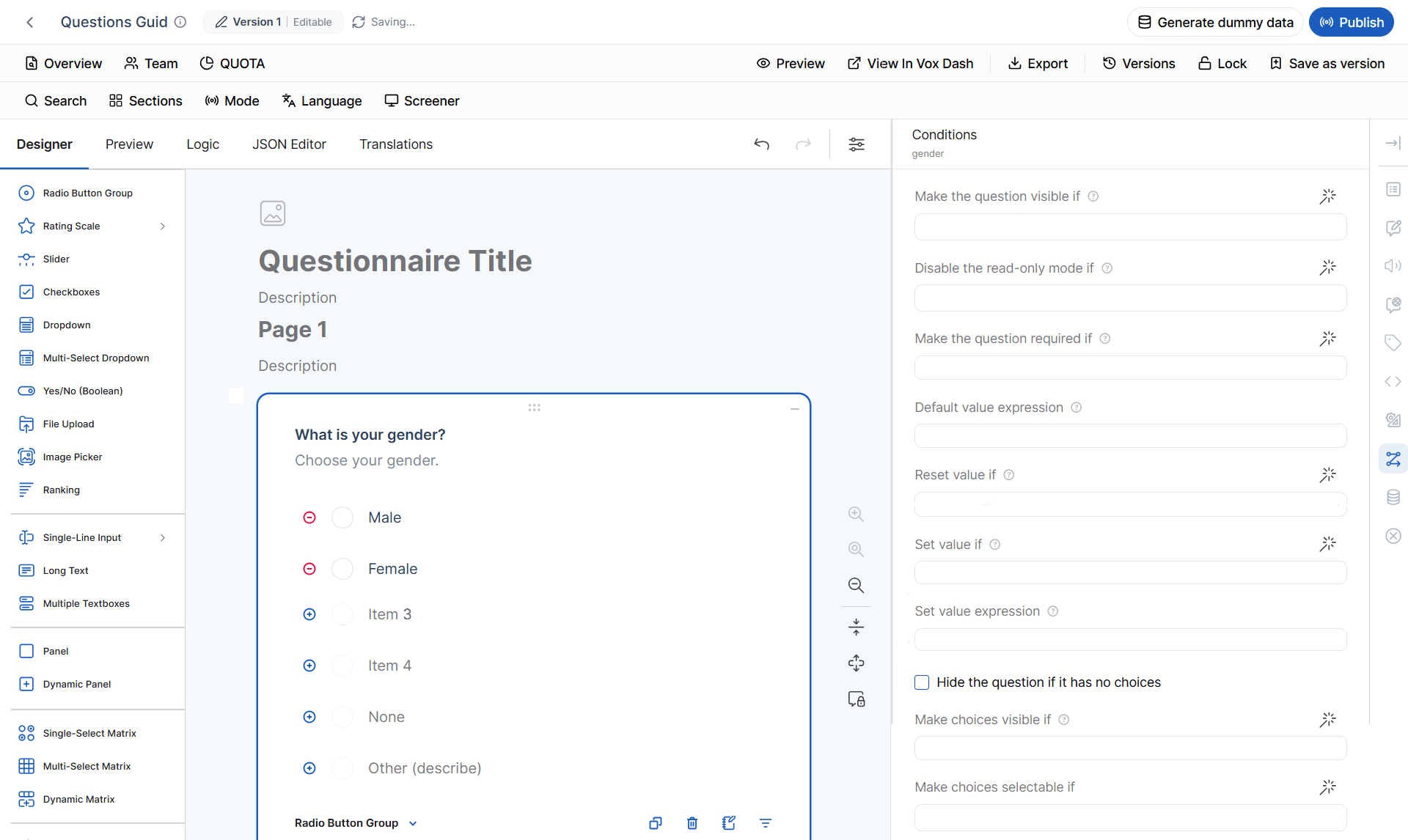
Conditional logic allows you to dynamically control questions and answer choices based on previous responses. You can use conditions to:- Show or hide questions.
- Make questions required.
- Enable editing.
- Automatically calculate values.
- Reset values.
- Display or disable answer choices.
Make the Question Visible If
Displays the question only when the specified condition evaluates to True. Example: Question 1:Do you own a vehicle?Question 2:
What is your vehicle model?Configure Question 2 to be visible if:
Disable Read-only Mode If
Controls when a read-only question becomes editable. The question remains read-only until the specified condition becomes True. This is useful when a value is normally calculated automatically but should become editable in specific situations.Make the Question Required If
Makes a question mandatory only when a condition is true. Example:Employment Status = EmployedIf the respondent is employed, the Employer Name question becomes required.
Default Value Expression
Automatically assigns an initial value using an expression. Expressions can include:- Mathematical calculations
- Boolean comparisons
- References to other questions
- Built-in functions
Reset Value If
Automatically resets a question’s value when the specified condition becomes true. The question returns to its configured Default Answer or Default Value Expression. This is particularly useful when a previous response changes and makes an existing answer invalid.Set Value If
Defines when VoxDash should automatically assign a value to the question.Set Value Expression
Defines the value assigned when the Set Value If condition evaluates to True. The expression can contain calculations, functions, and references to other questions.Hide the Question If It Has No Choices
Automatically hides a question when no answer choices are available. This is useful for questions whose choices are generated dynamically.Make Choices Visible If
Controls whether individual choices are displayed. Example: Display Electric Vehicle only if the respondent selected Owns a Car.Make Choices Selectable If
Controls whether an answer choice can be selected. Unlike Make Choices Visible If, the choice remains visible but is disabled until the condition becomes true.Important: Visible controls whether an option is displayed. Selectable controls whether a displayed option can be selected.
Data Settings
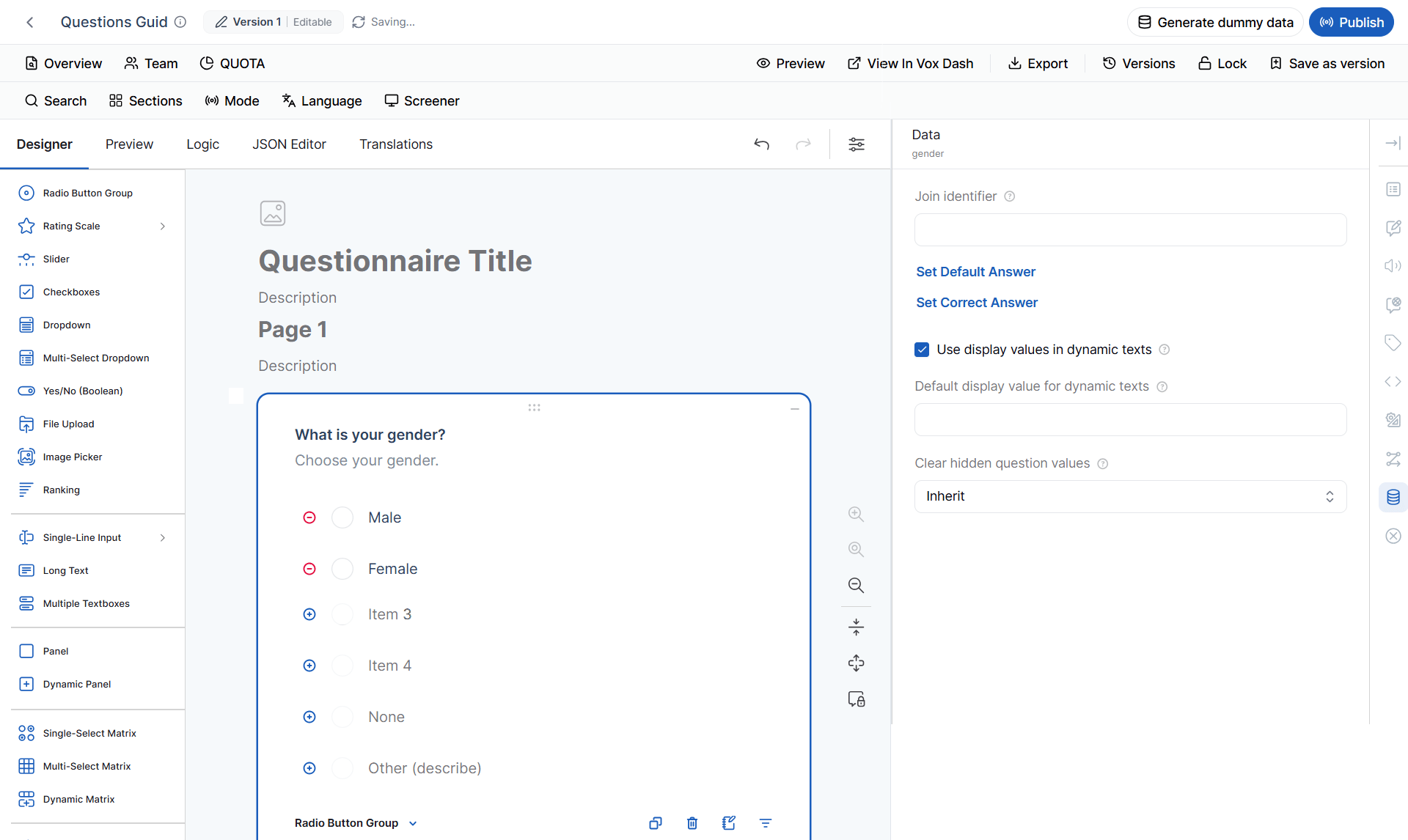
Data settings control how responses are initialized, stored, displayed, and exported. Join Identifier A Join Identifier groups related questions under a shared identifier. For example, the following questions can belong to the sameaddress object:
- Street
- City
- Postal Code
01.
Default Display Value for Dynamic Texts
Defines the placeholder text shown when a question has not yet been answered.
Clear Hidden Question Values
Controls what happens to a question’s existing response when conditional logic hides the question.
Available options:
- Inherit questionnaire setting
- Never
- Upon questionnaire completion
- When the question becomes hidden
Question-Specific Settings
Each question type has additional settings based on its purpose and behavior.1 Radio Button
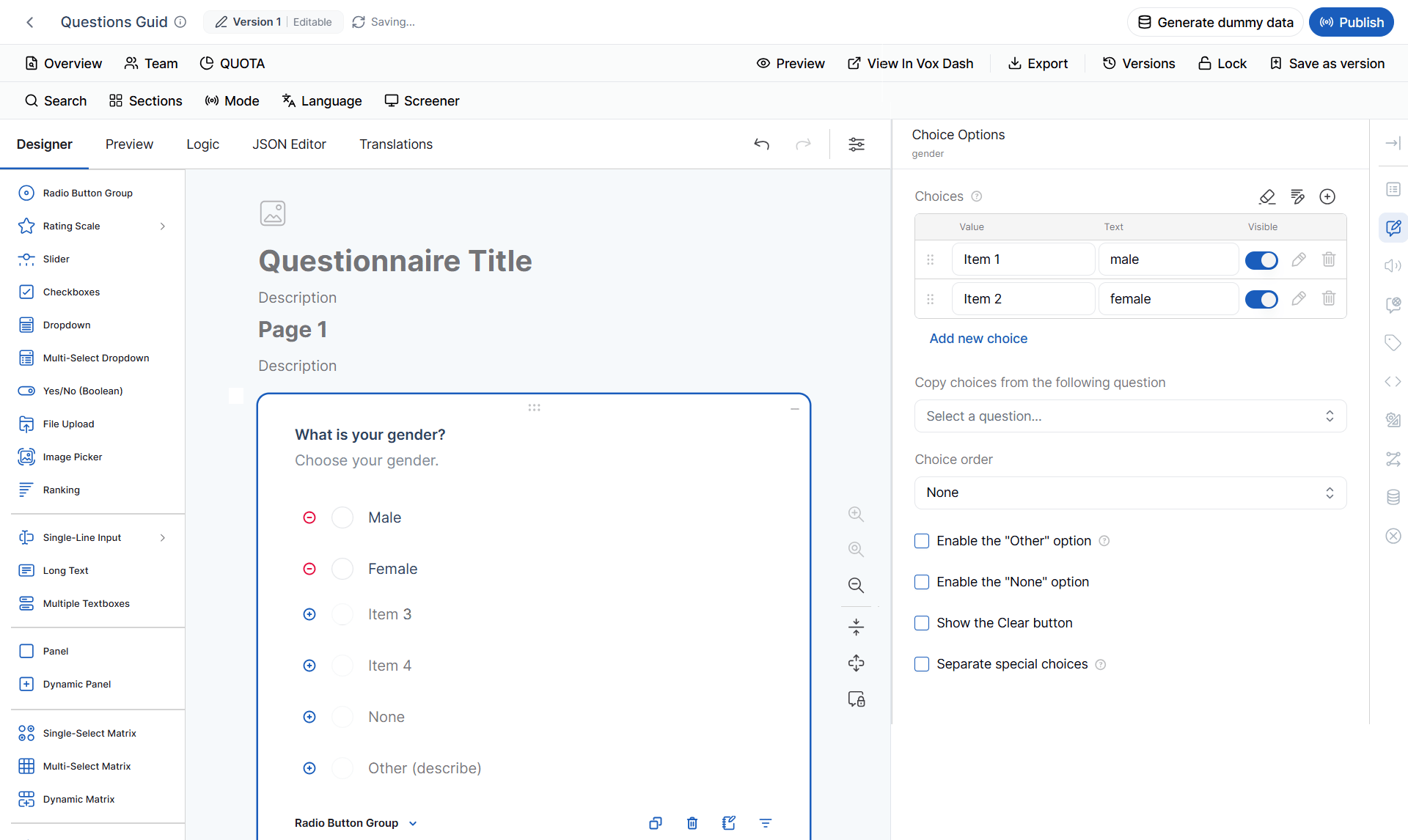
A Radio Button question allows respondents to select one option from a list.Available Settings
You can:- Add, edit, and delete choices.
- Copy choices from another question.
- Change choice order.
- Enable the Clear button.
- Enable Other.
- Enable None.
- Separate special choices.
- Apply conditions to individual choices.
What is your preferred payment method?
- Credit Card
- PayPal
- Bank Transfer
- Other
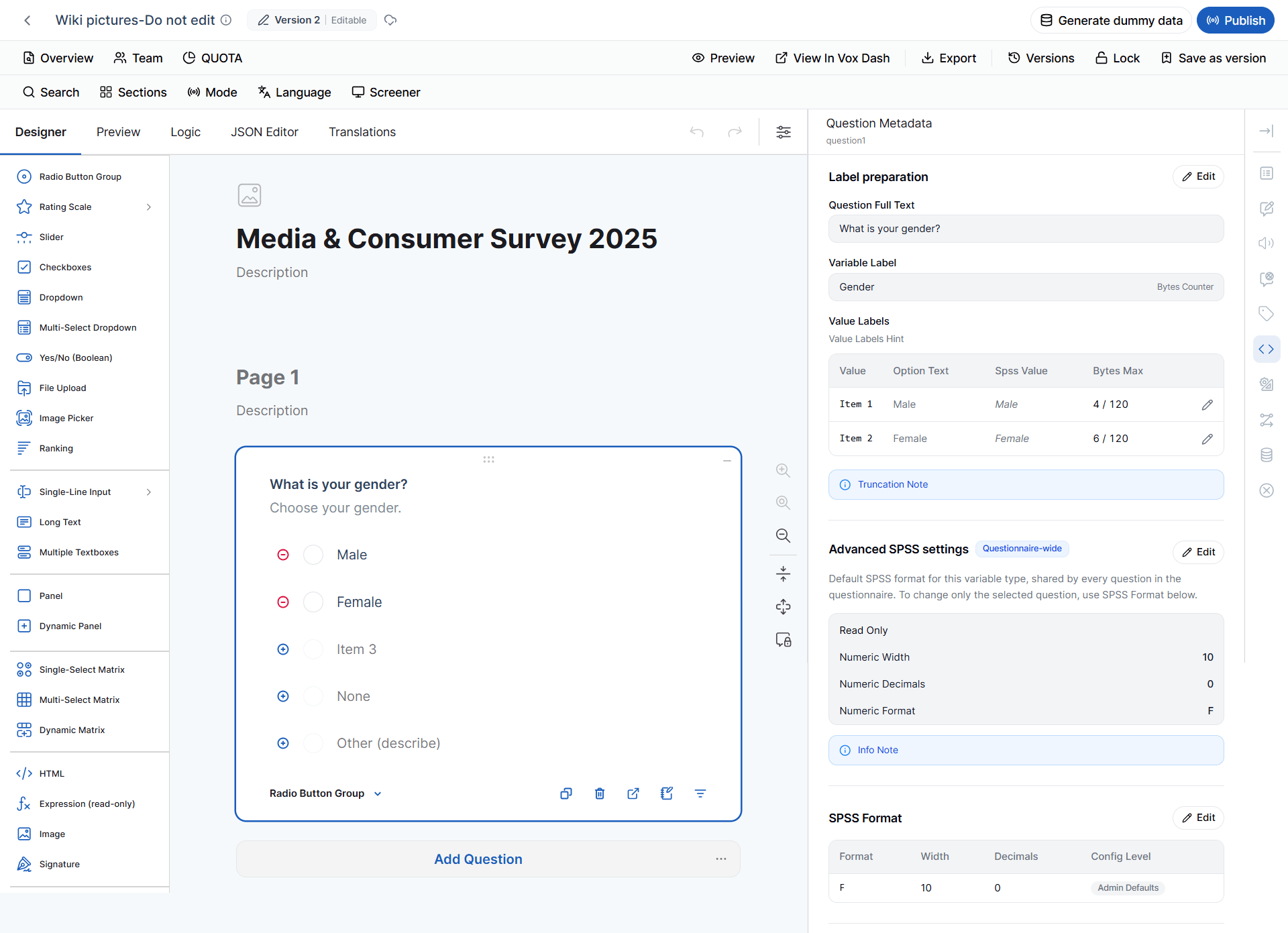
SPSS Metadata
Radio Button questions are represented as numeric variables in SPSS.
The numeric value represents the selected choice. The Nominal measurement level indicates that the response categories do not inherently have an order.
Example: A response such asThe SPSS metadata source defines Radio Button Group as Numeric / NOMINAL / F10.0.1 = Credit Cardand2 = PayPaldoes not mean that PayPal is greater than Credit Card. The numbers identify categories.
2 Rating Scale
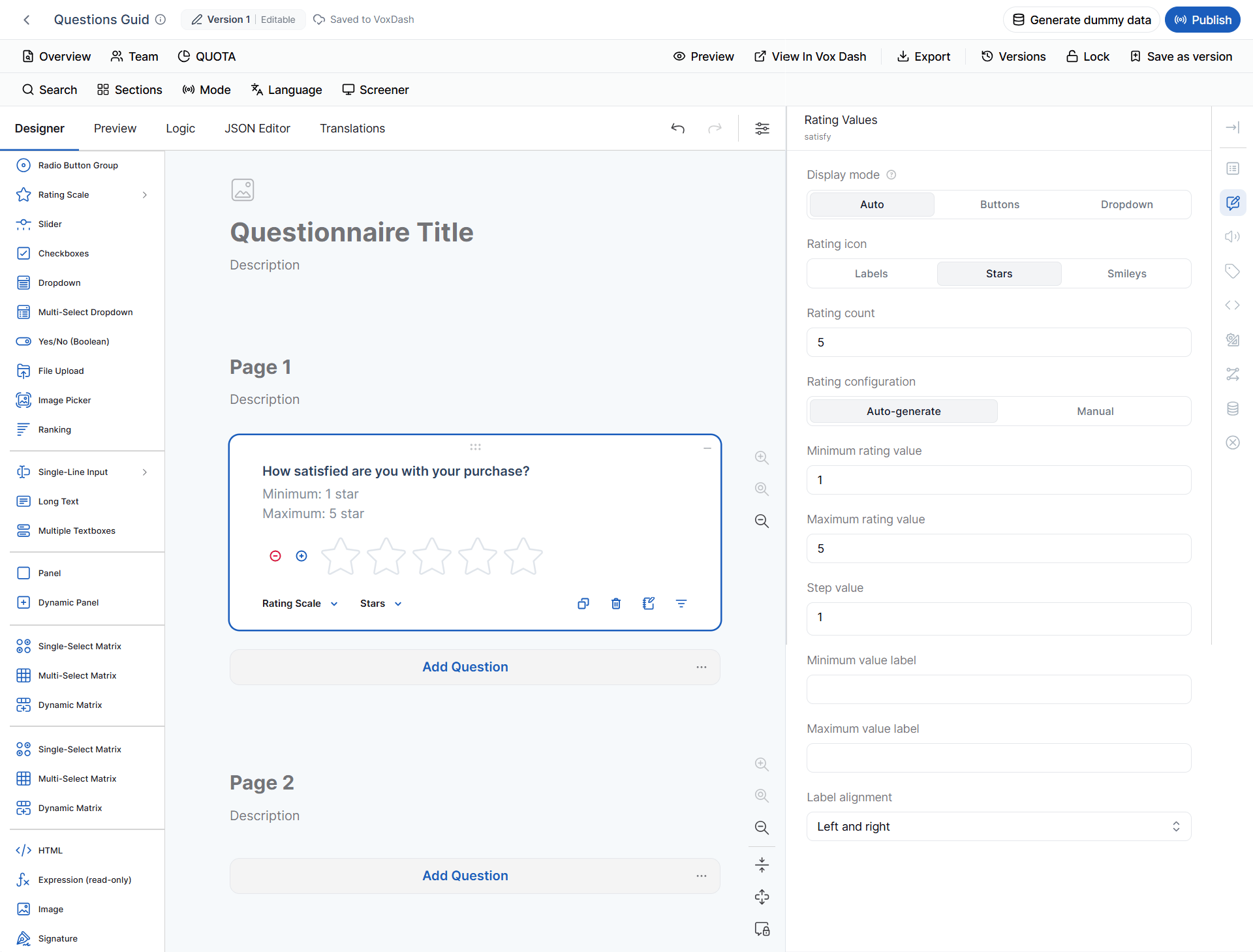
Use a Rating Scale to measure satisfaction, agreement, quality, or opinion.Display Mode
Available options:- Auto
- Buttons
- Dropdown
Rating Icons
Available styles:- Labels
- Stars
- Smileys
Rating Configuration
You can:- Automatically generate rating values.
- Create values manually.
- Define the minimum value.
- Define the maximum value.
- Define the step value.
How satisfied are you with your purchase?
- Display: Stars
- Minimum: 1
- Maximum: 5
SPSS Metadata
Rating Scale questions are represented as numeric ordinal variables.
The same default SPSS representation applies to Rating Scale questions displayed as Labels, Stars, or Smileys.
The Ordinal measurement level is used because the response values have an ordered relationship.

3 Slider
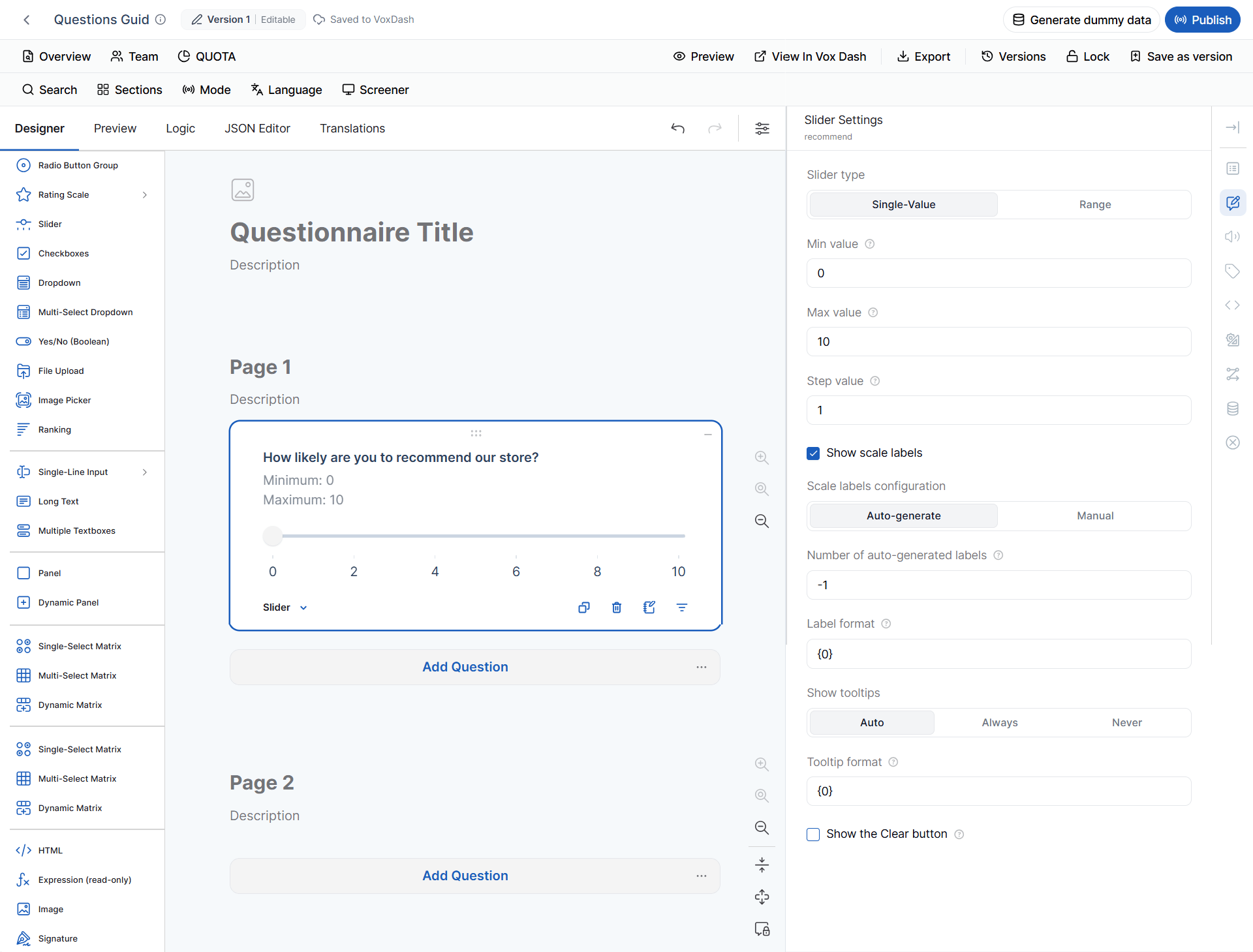
The Slider question allows respondents to select a value from a defined range.Slider Type
- Single Value — One value is selected.
- Range — A minimum and maximum value are selected.
Available Settings
You can configure:- Minimum value
- Maximum value
- Step value
- Scale labels
- Label generation
- Label format
- Tooltip behavior
- Tooltip format
- Clear button
- Auto
- Always
- Never
How likely are you to recommend our store?
- Minimum: 0
- Maximum: 10
- Step: 1
SPSS Metadata
Slider questions are represented as numeric Scale variables.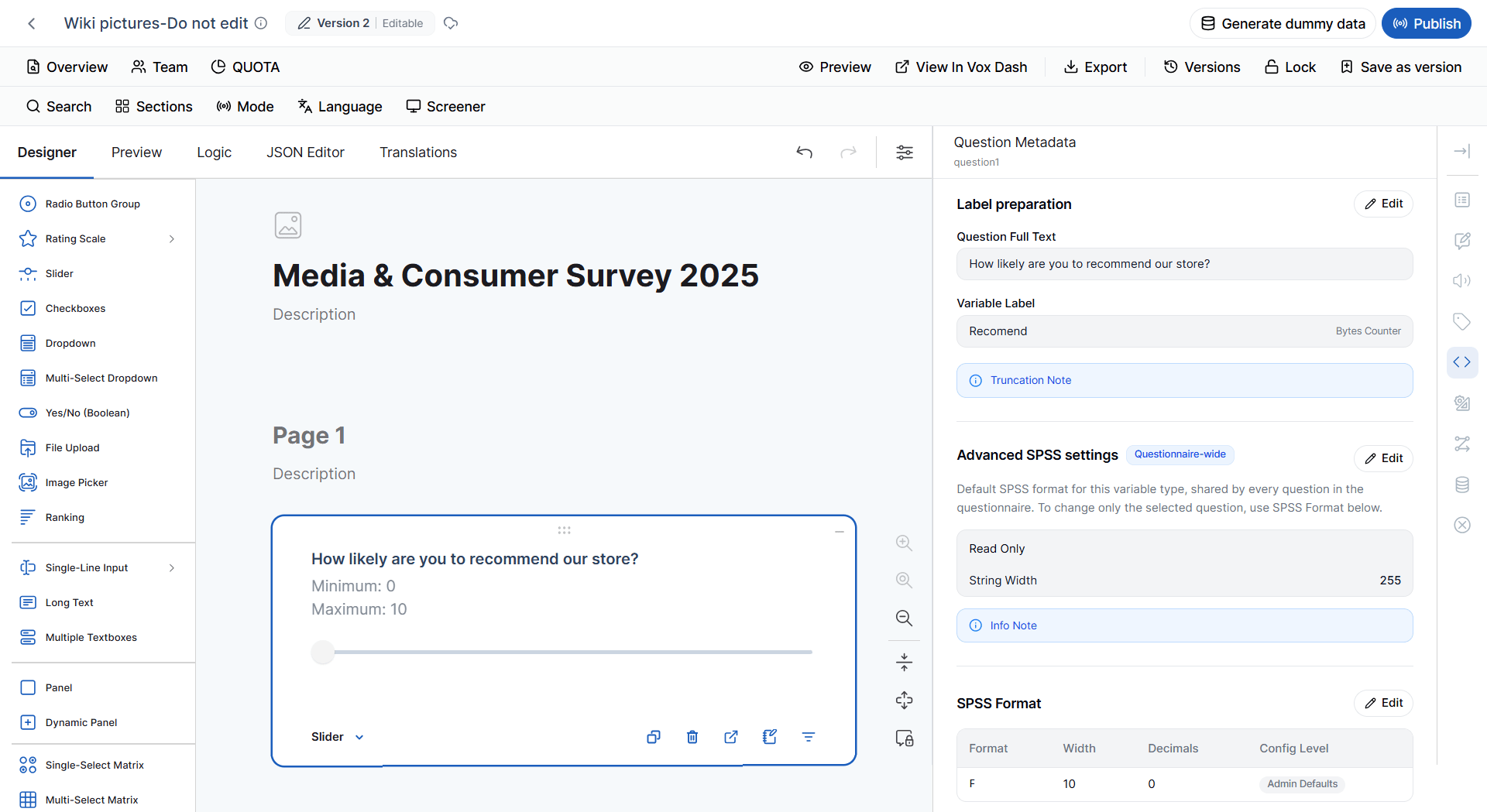
4 Checkbox
A Checkbox question allows respondents to select multiple answers. It supports standard choice settings plus:- Select All
- Minimum selections
- Maximum selections
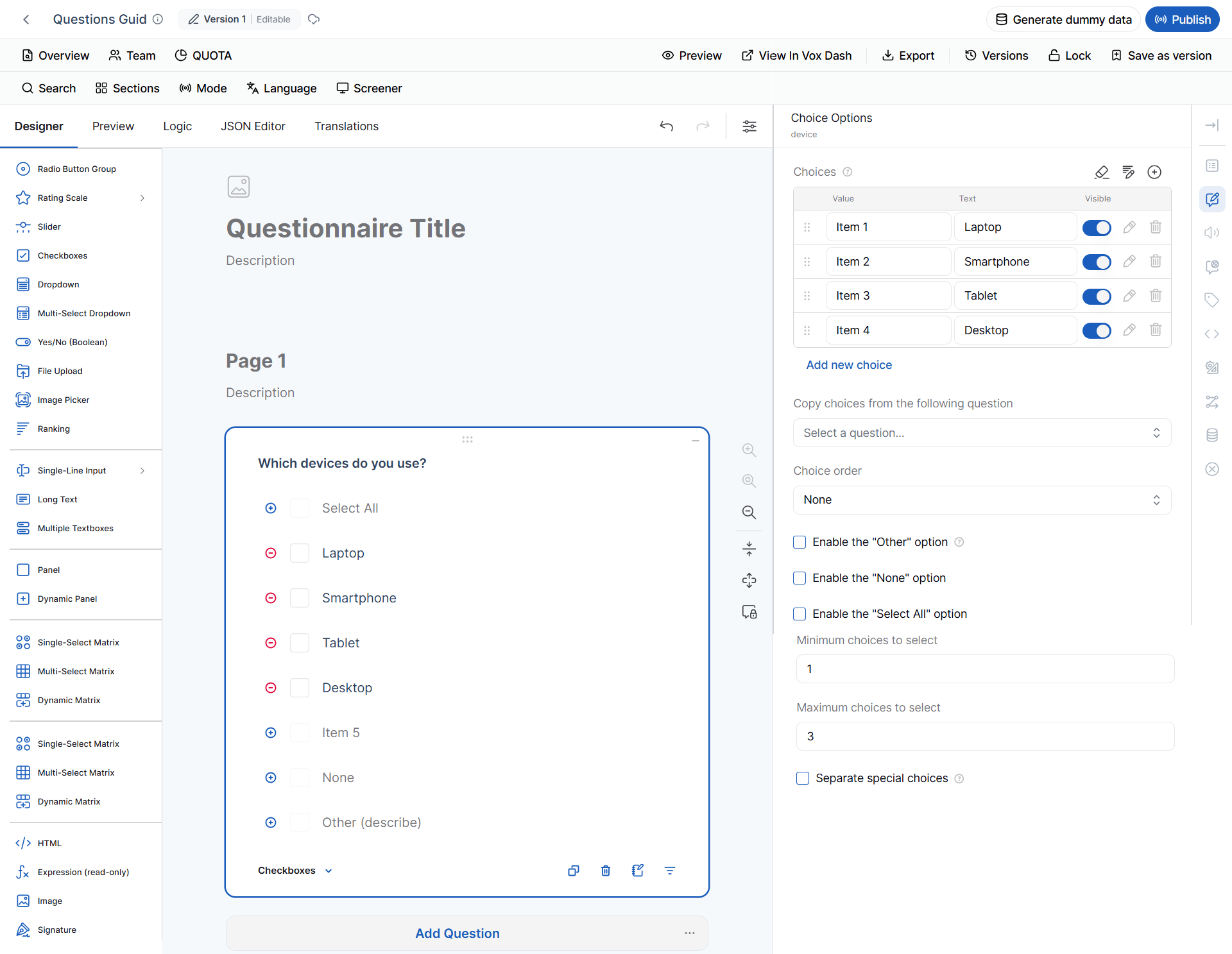
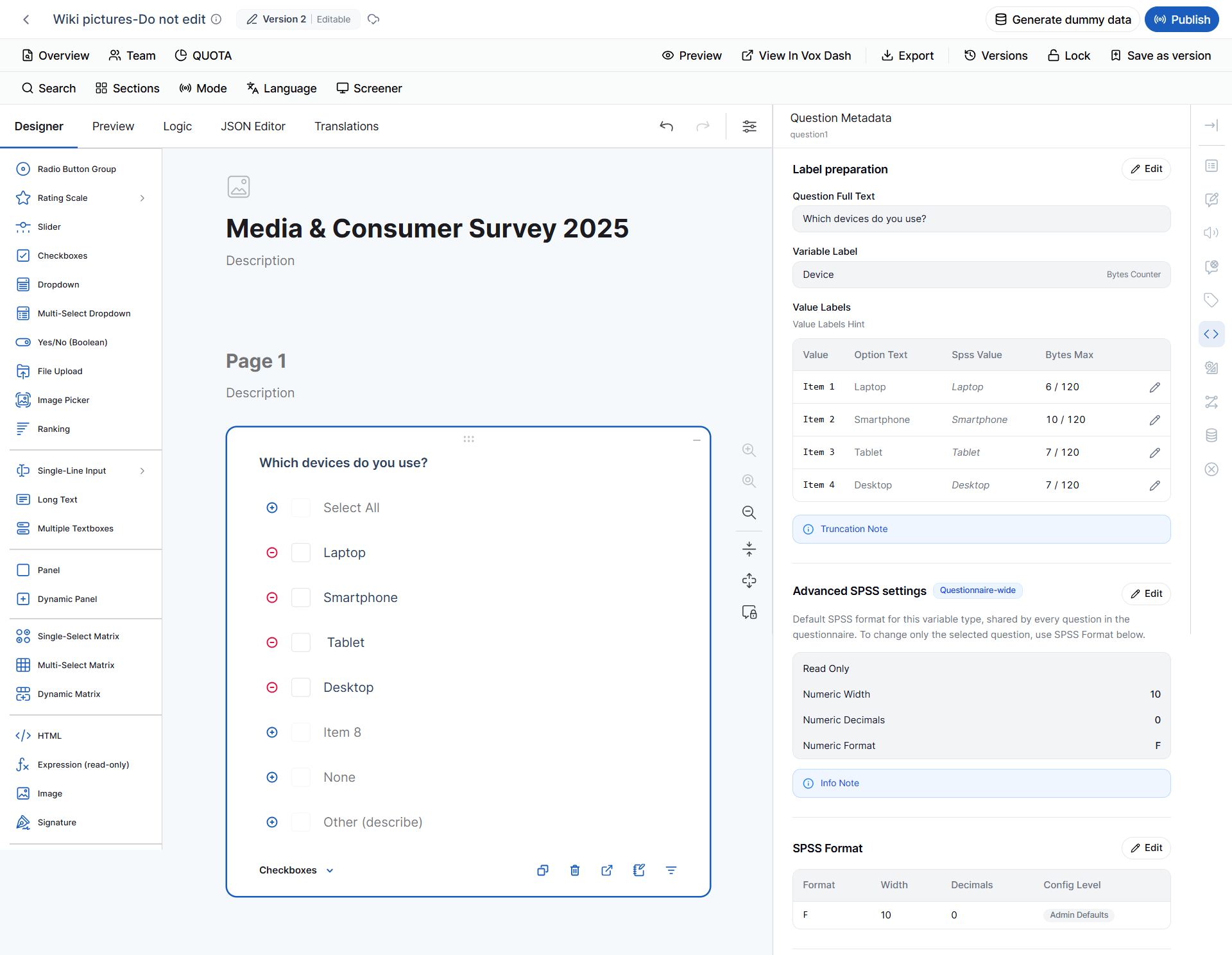
Which devices do you use?
- Laptop
- Smartphone
- Tablet
- Desktop
- Minimum selections: 1
- Maximum selections: 3
SPSS Metadata
Checkbox questions are represented as numeric variables with a Nominal measurement level.
The provided SPSS metadata source identifies Checkboxes as
F10.0 / Numeric / NOMINAL.
Note: Because Checkbox questions allow multiple selections, review the exported variable structure when preparing the dataset for statistical analysis.
5 Dropdown and Multi-select Dropdown
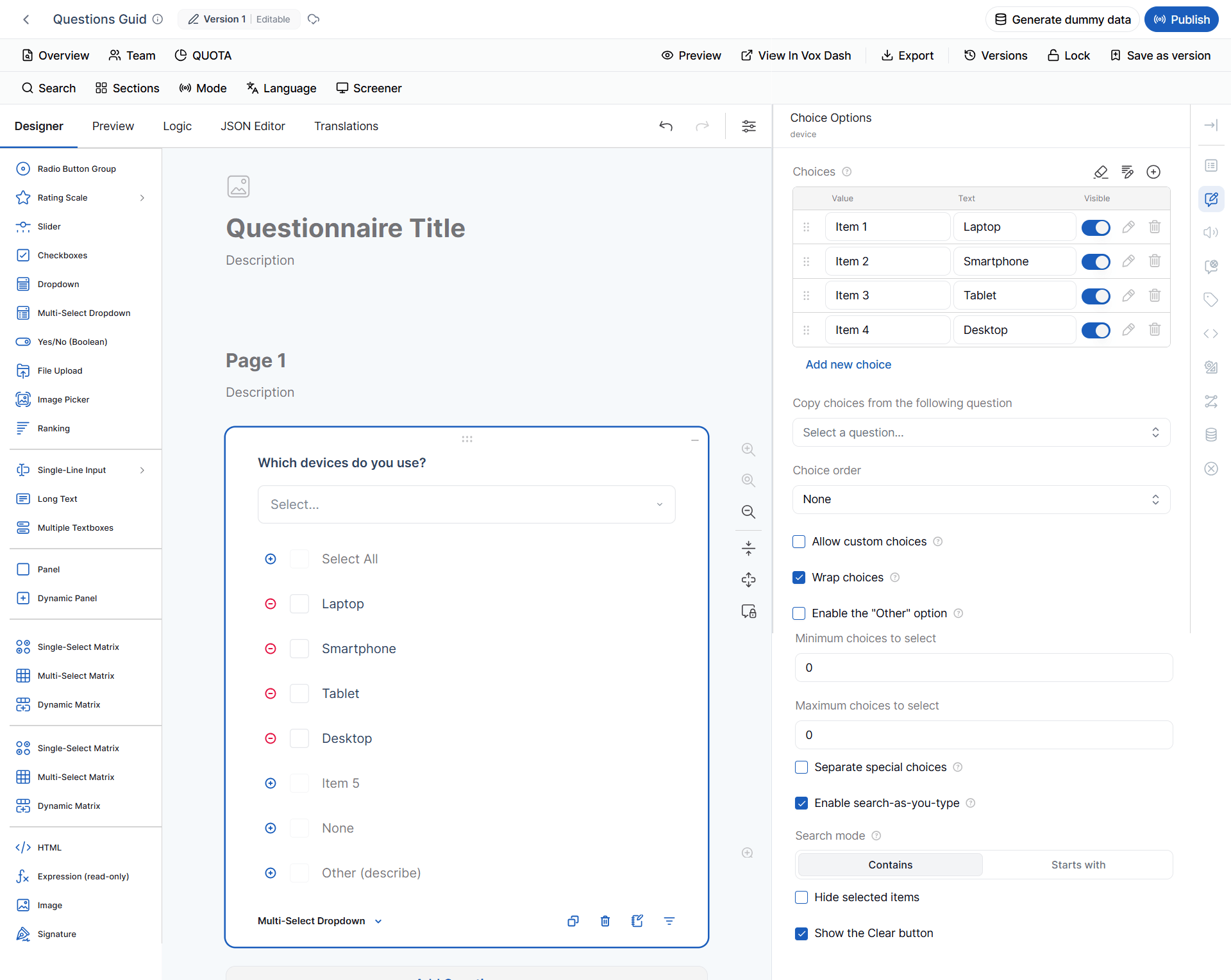
A Dropdown displays choices in a compact list. A Multi-select Dropdown allows respondents to select multiple choices.Additional Settings
Depending on the question configuration, you can:- Allow custom choices.
- Wrap long choice text.
- Automatically generate numeric choices.
- Define minimum and maximum values.
- Define the step value.
- Configure search behavior.
SPSS Metadata — Dropdown
A standard Dropdown is represented as a numeric nominal variable.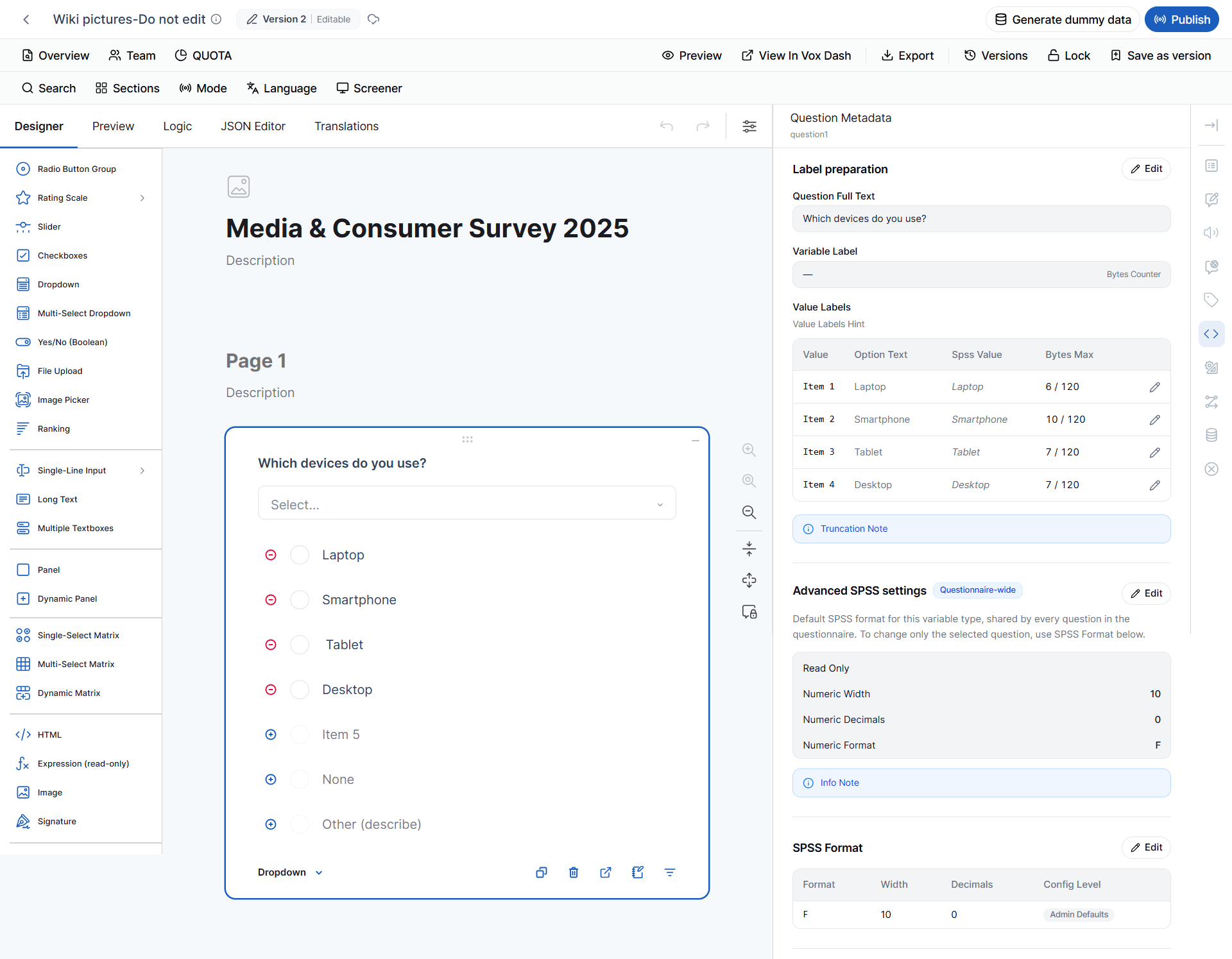
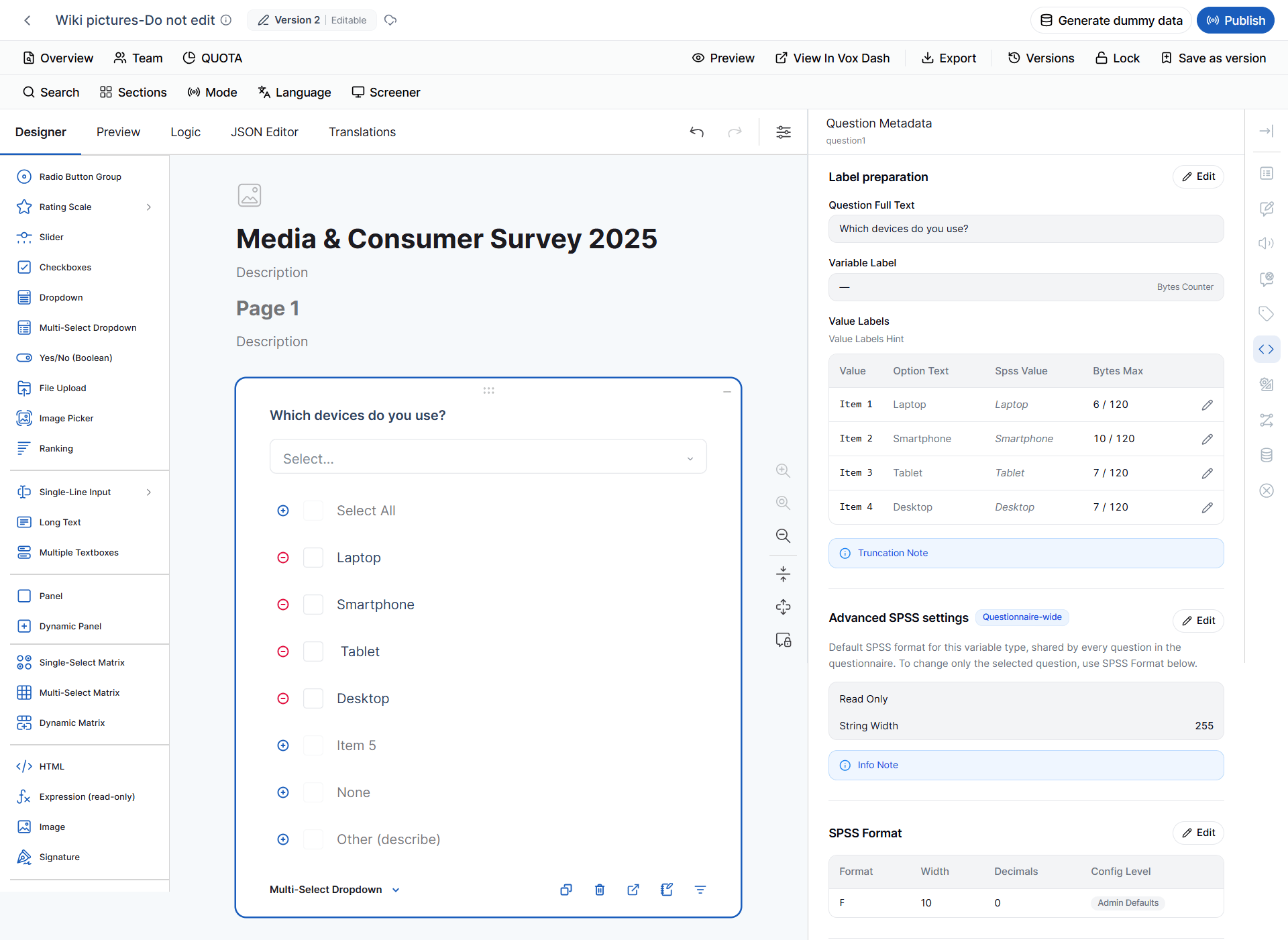
SPSS Metadata — Multi-select Dropdown
A Multi-select Dropdown is also defined as:
The metadata source classifies both Dropdown and Multi-Select Dropdown as Numeric / NOMINAL / F10.0.
6 Image Picker
The Image Picker allows respondents to answer a question by selecting an image.Available Settings
You can:- Add or remove images.
- Edit image labels.
- Copy image choices from another question.
- Change image order.
Important: The Value is used internally for logic, conditions, quotas, and data processing. The Text is displayed to respondents.
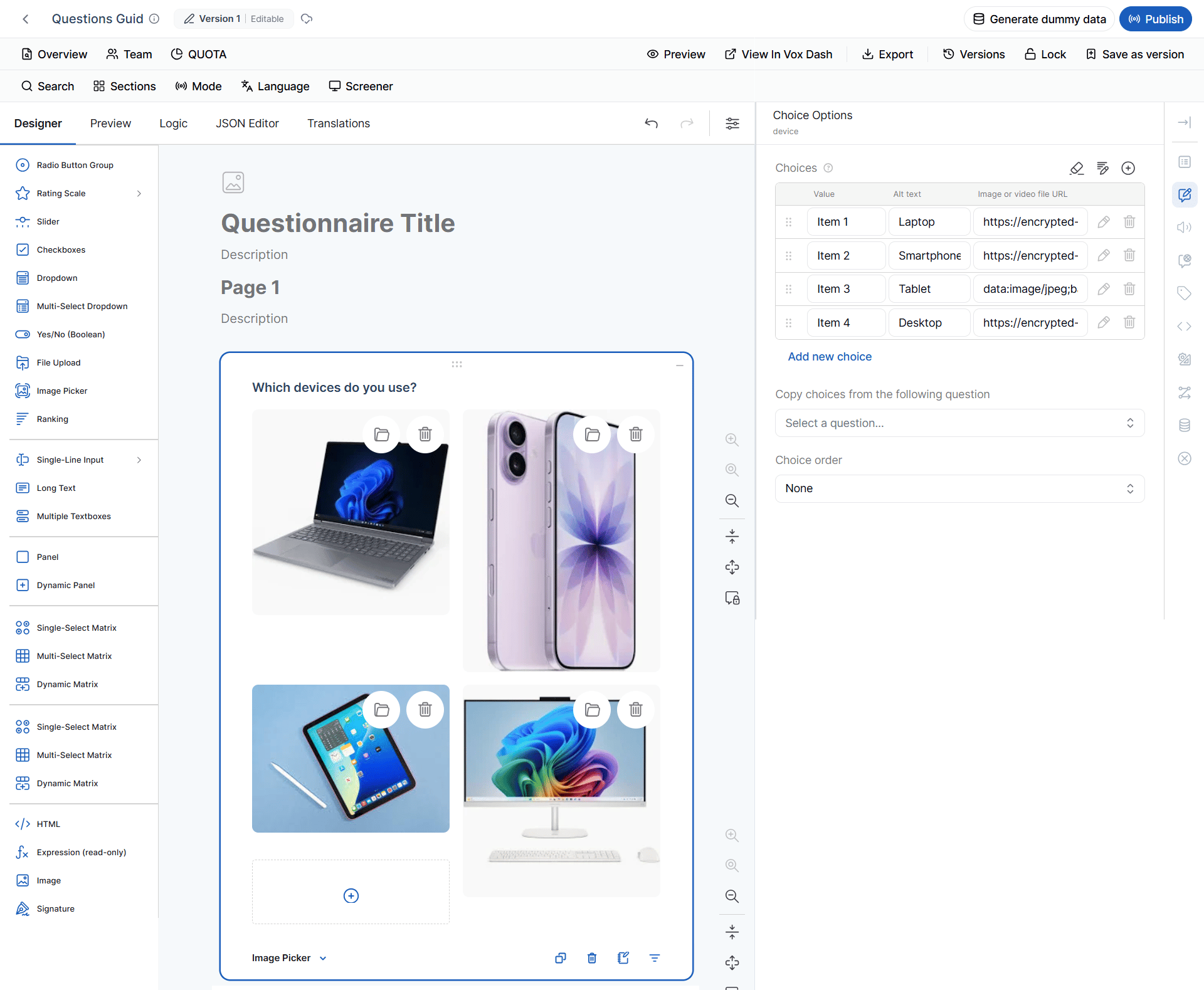
Image Picker and Quotas
Image Picker questions can be used with the Quota tag. Uploaded images appear as selectable quota options, allowing a quota to be configured for each image. For example:Which product design do you prefer?
- Product A
- Product B
- Product C
- Image Picker (Single)
- Image Picker (Multi)
SPSS Metadata
Image Picker responses are represented as numeric nominal variables.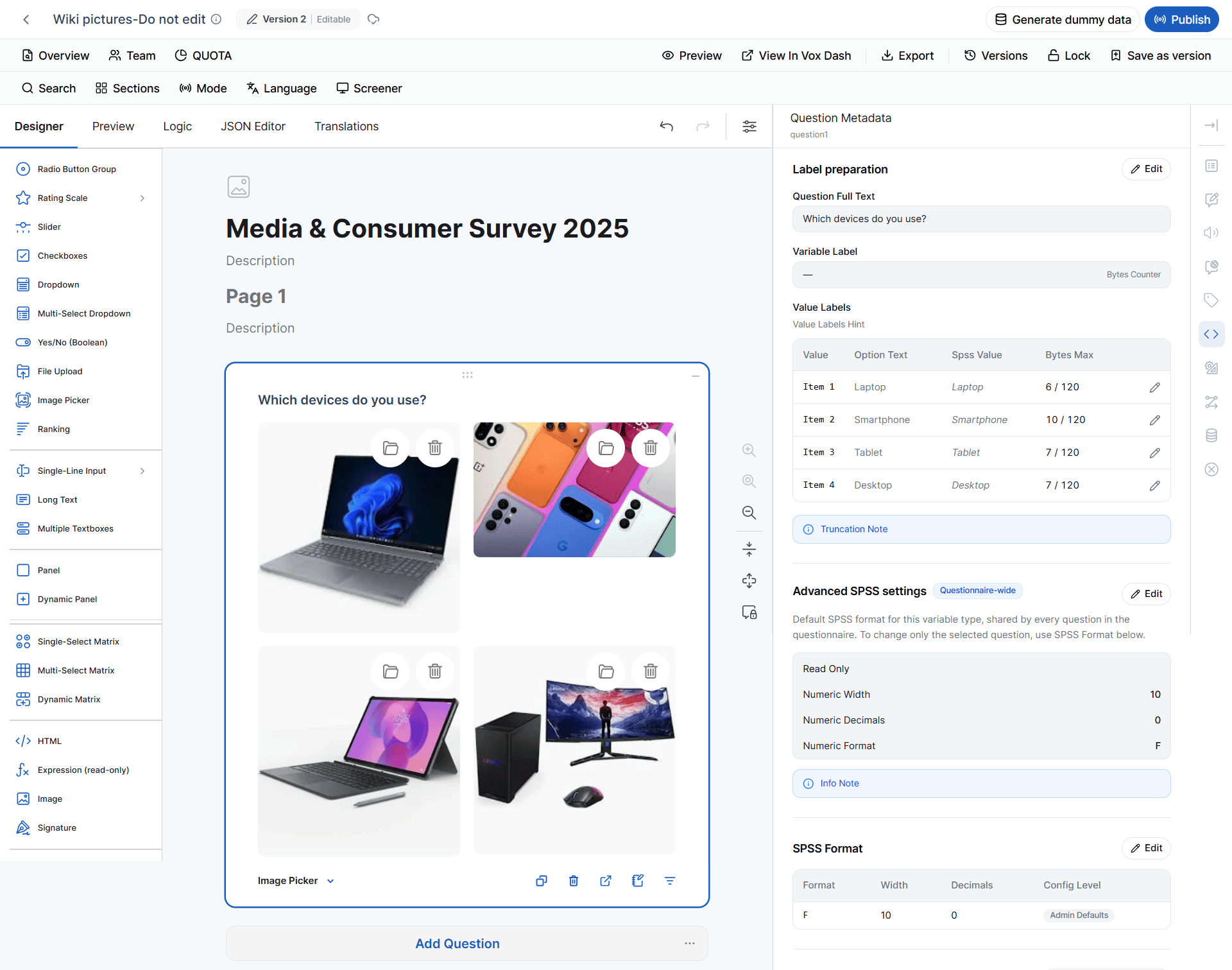
7 Ranking
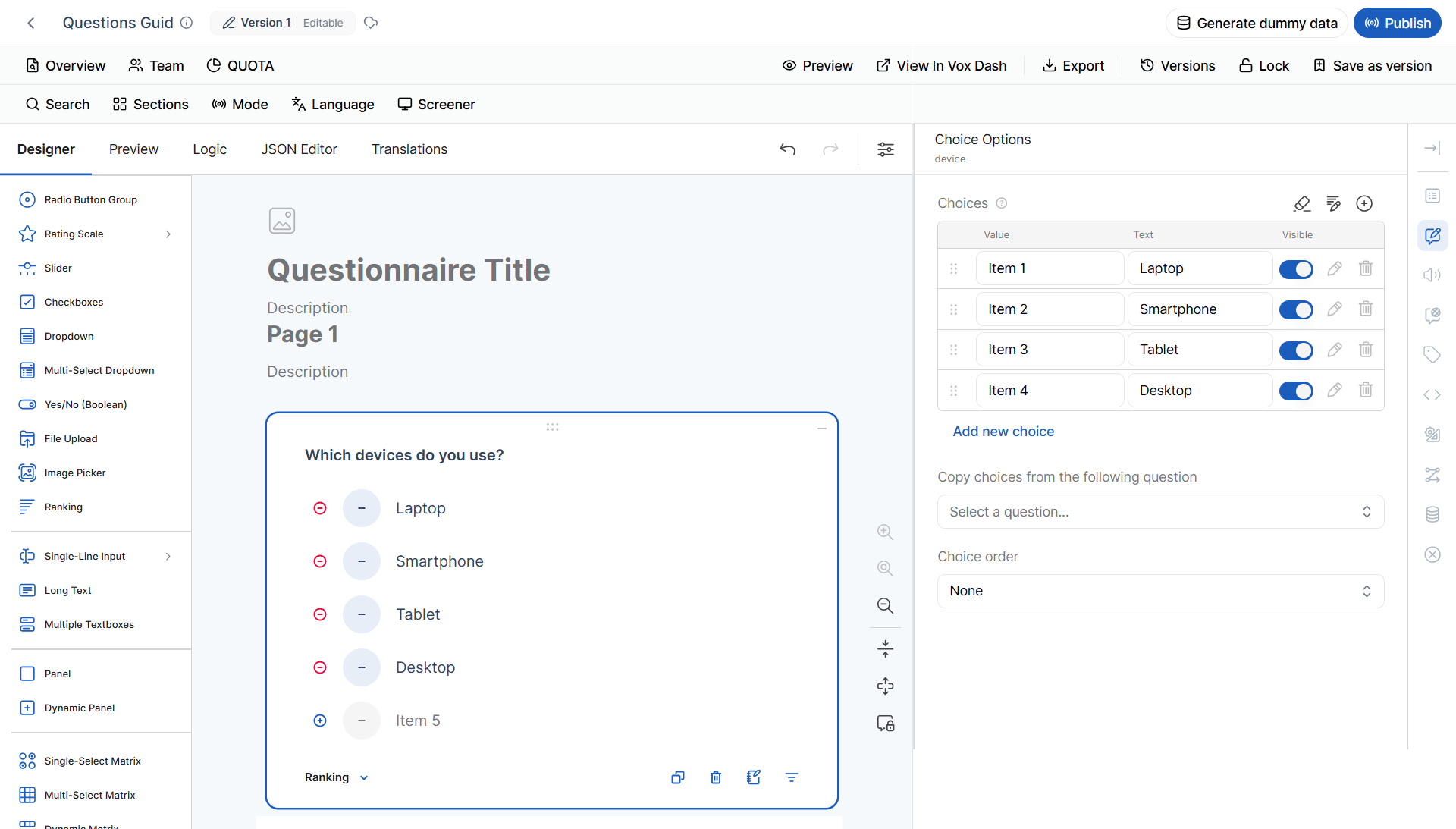
The Ranking question allows respondents to arrange items according to preference or priority. Example:Rank the following payment methods from most preferred to least preferred.Ranking questions support standard choice settings, including:
- Choice order
- Other
- None
- Choice conditions
SPSS Metadata
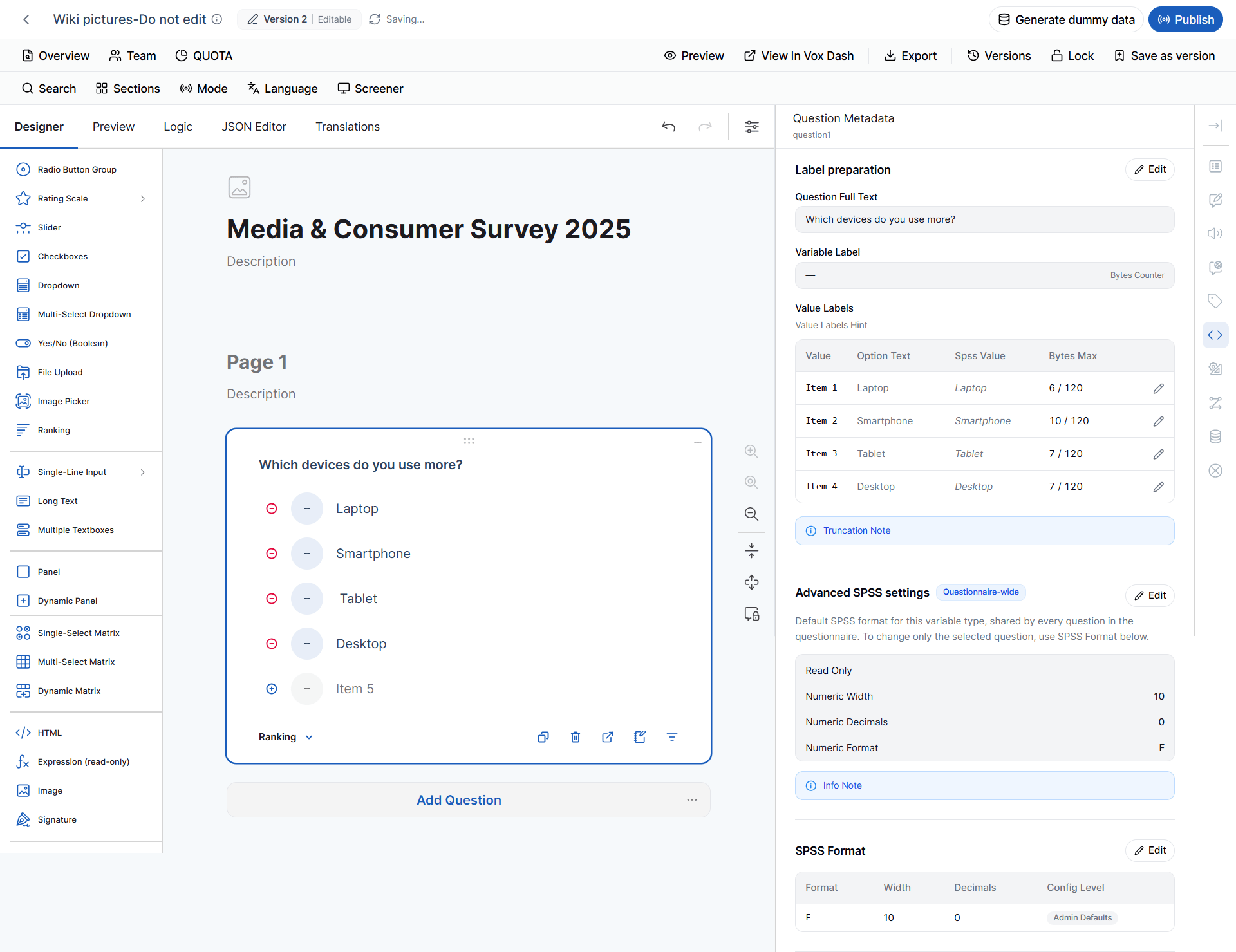
Ranking is represented as a numeric ordinal variable.
The Ordinal measurement level reflects the meaningful order represented by ranking positions.
8 Single-line Input
The Single-line Input question collects short text or structured input.Supported Input Types
Supported input types may include:- Text
- Number
- Phone Number
- URL
- Password
- Date
- Date & Time
- Time
- Week
- Month
- Color
- Range
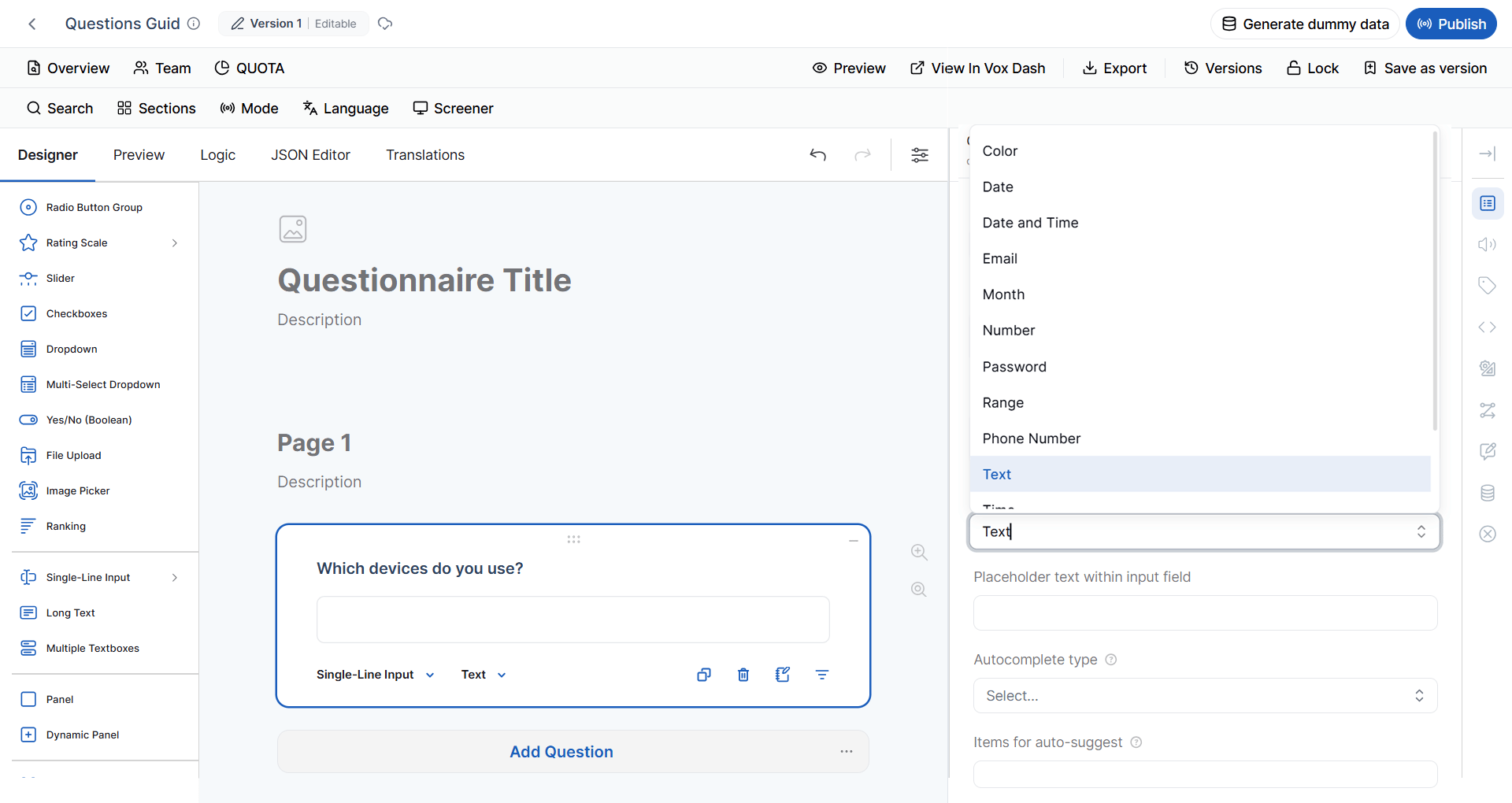
Important: A Single-line Input question can behave differently depending on its selected inputType. Tag availability and validation behavior may therefore vary between input types.
SPSS Metadata by Input Type
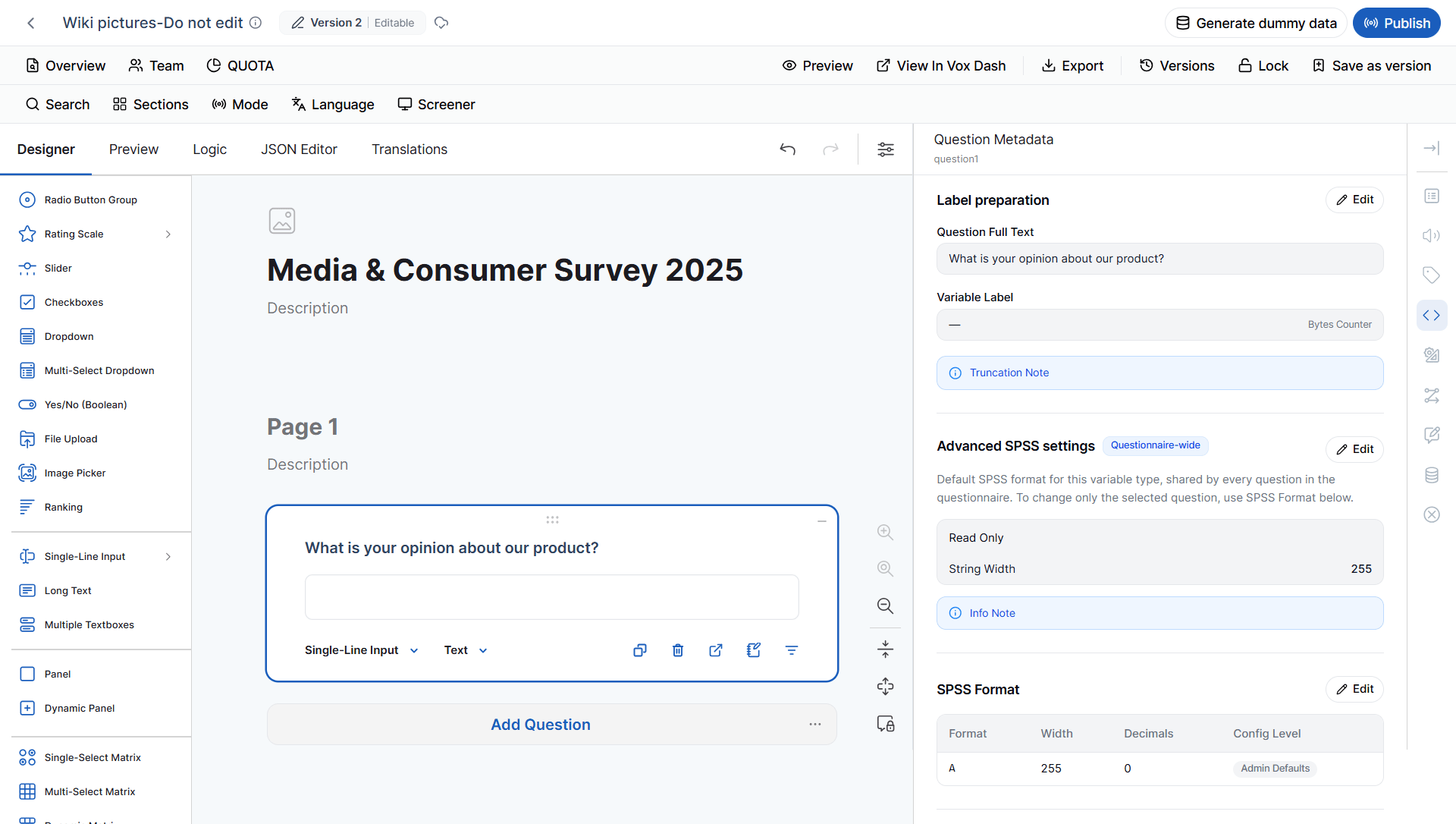
The SPSS representation of a Single-line Input is determined by its selected input type.
These mappings are defined by the current SPSS metadata rules.
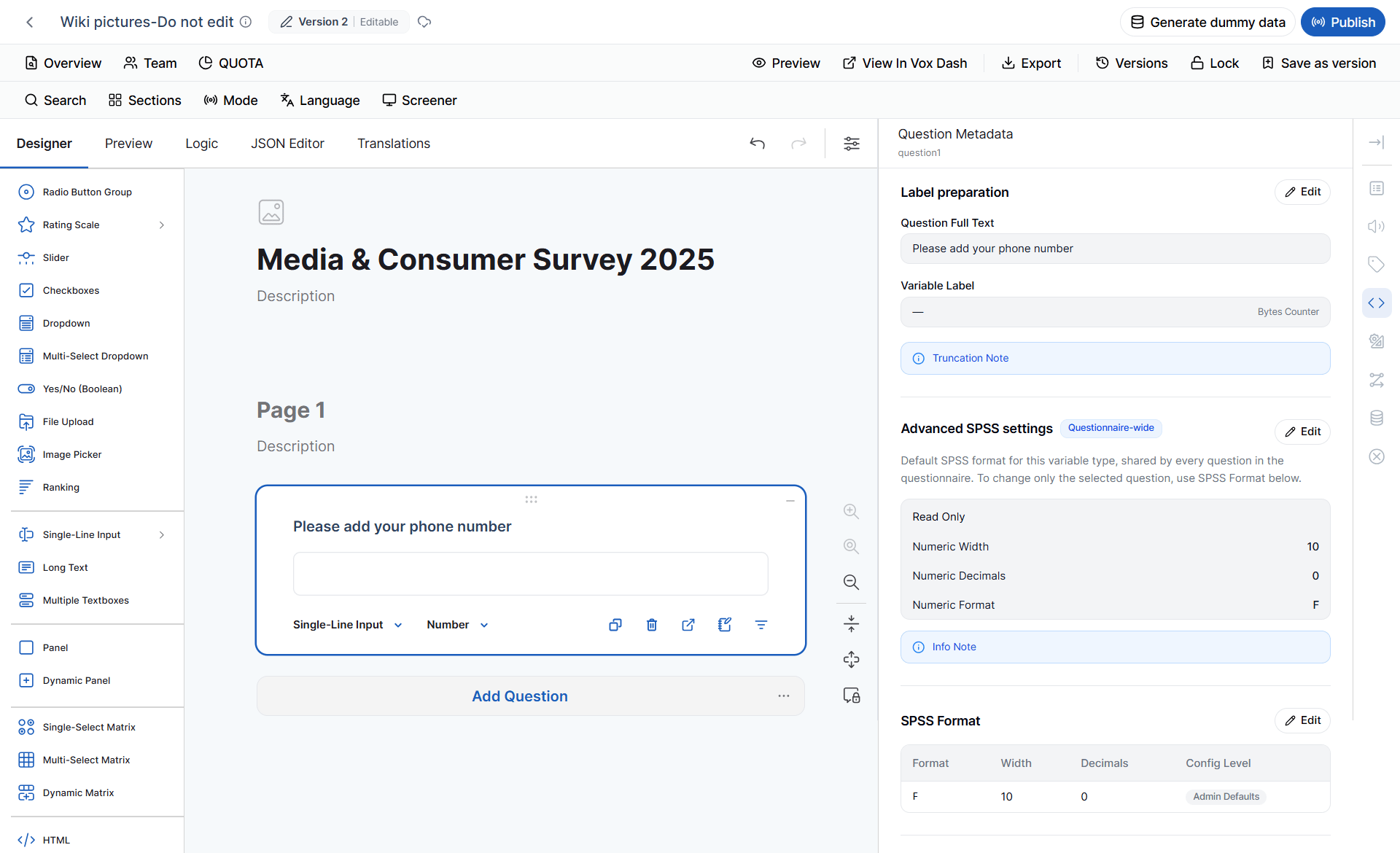
Why Input Type Matters
A Single-line Input is not a single SPSS data type. For example:Note: The current metadata rules represent Month and Week as strings while retaining a Scale measurement level.
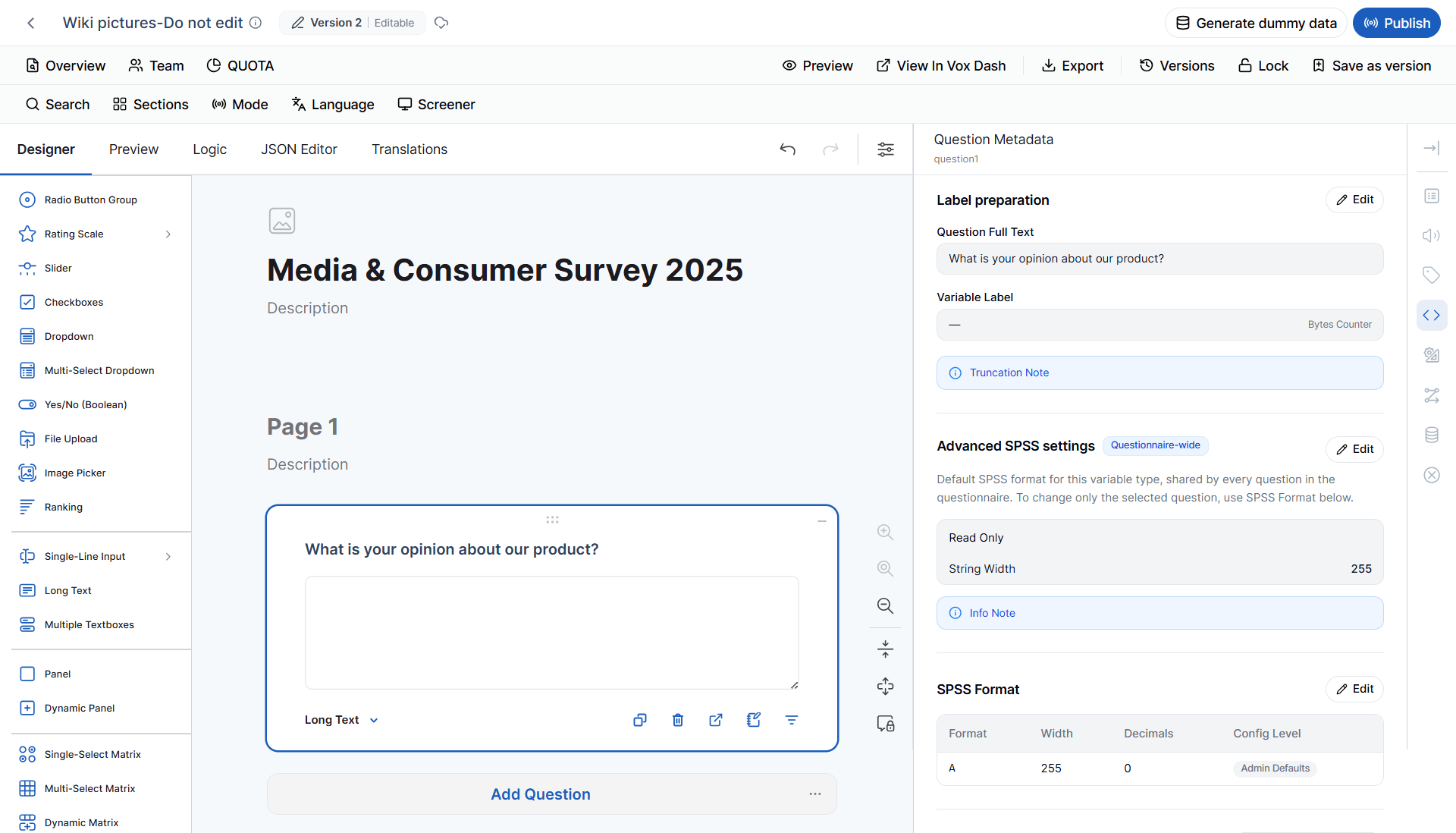
9 Long Text
The Long Text question collects open-ended responses. Example:Please describe your experience with our product.Use Long Text when respondents need to provide detailed or unrestricted answers. Because Long Text collects free-form content, it does not normally provide predefined response categories for quota management. Therefore:
Quota is not available for Long Text.
SPSS Metadata
Long Text responses are represented as string variables.
This representation reflects the free-form nature of Long Text responses.
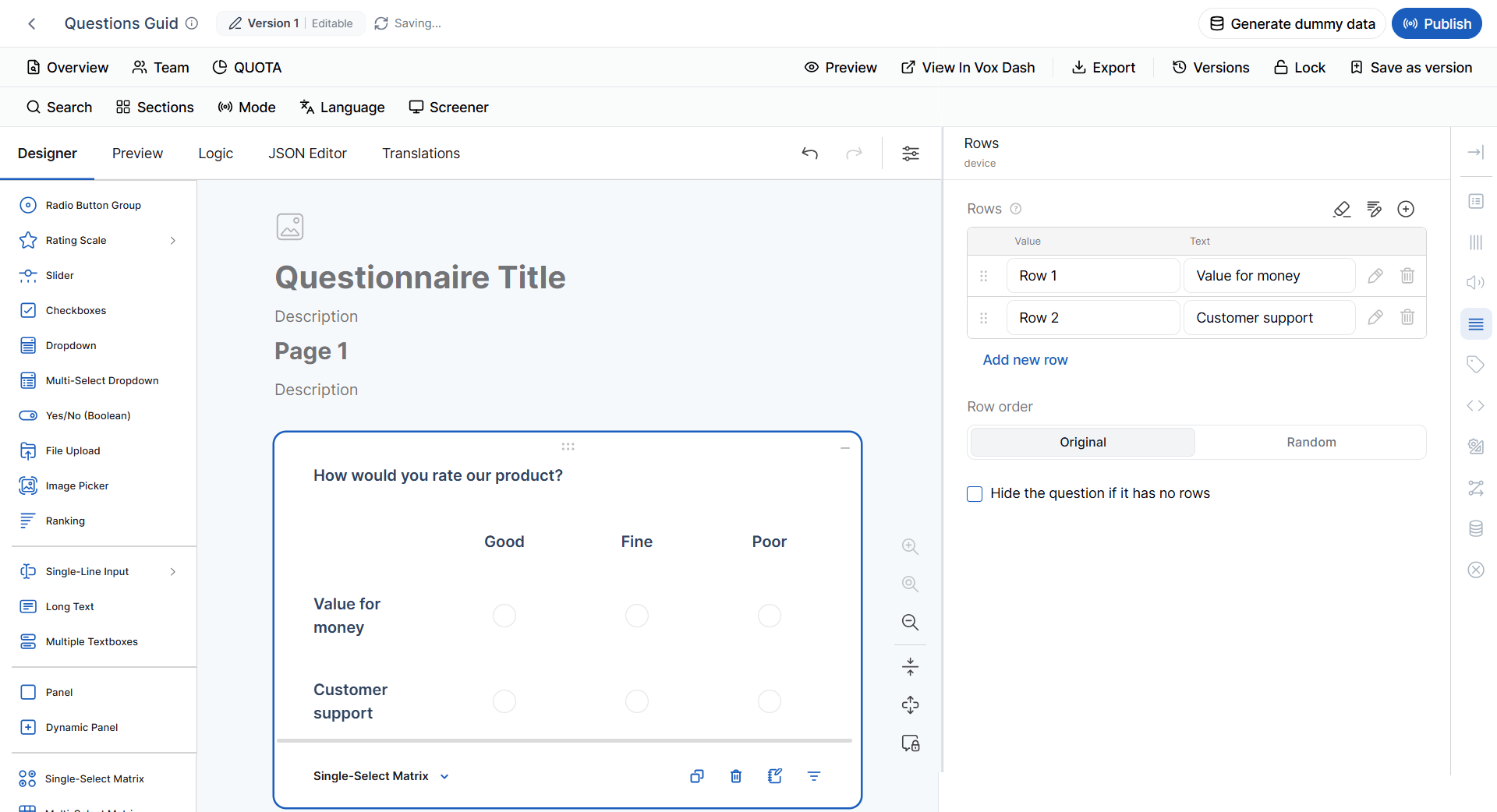
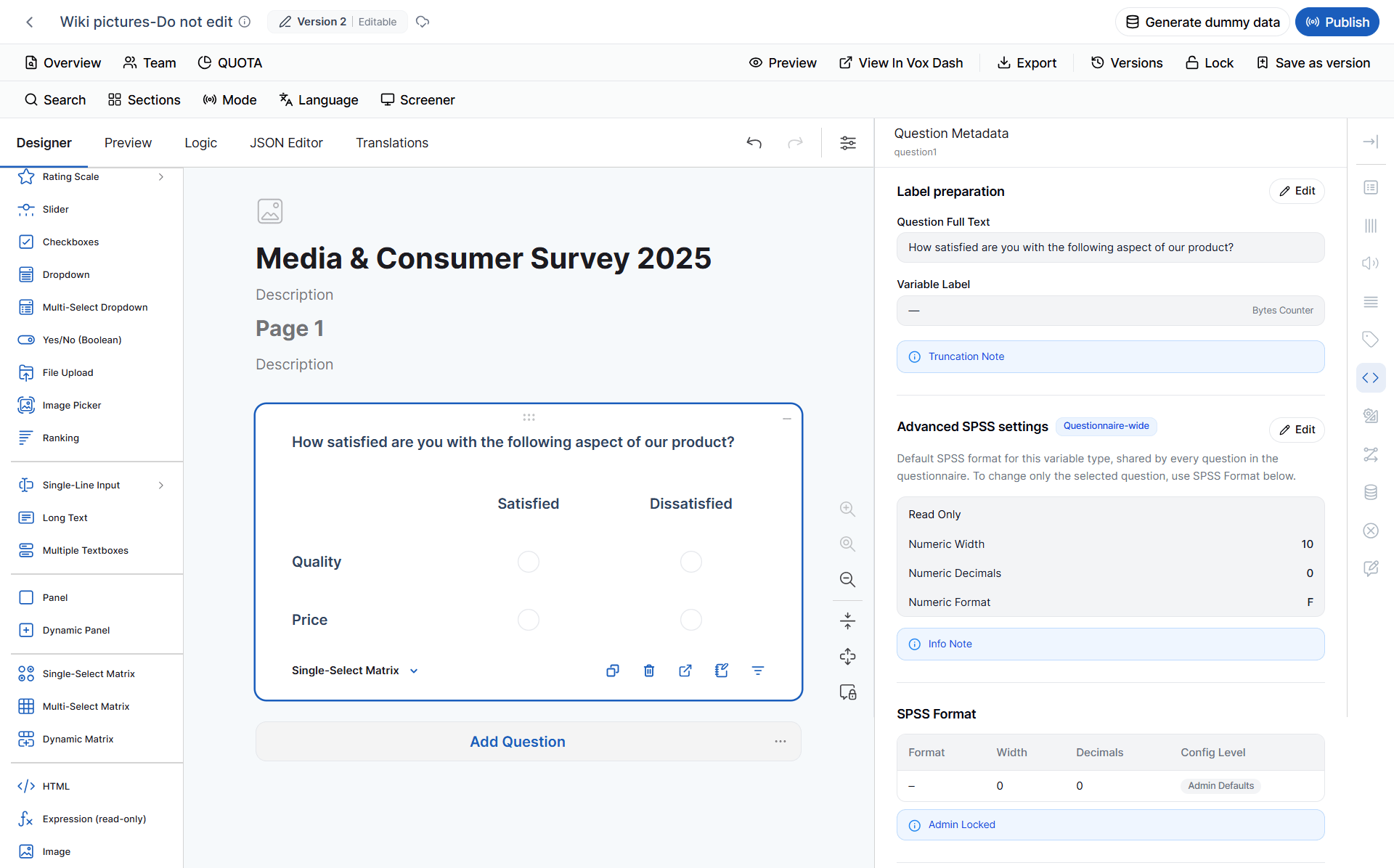
10 Single-select Matrix
A Single-select Matrix displays multiple rows in a table and allows respondents to select one answer per row. It supports Radio Button settings.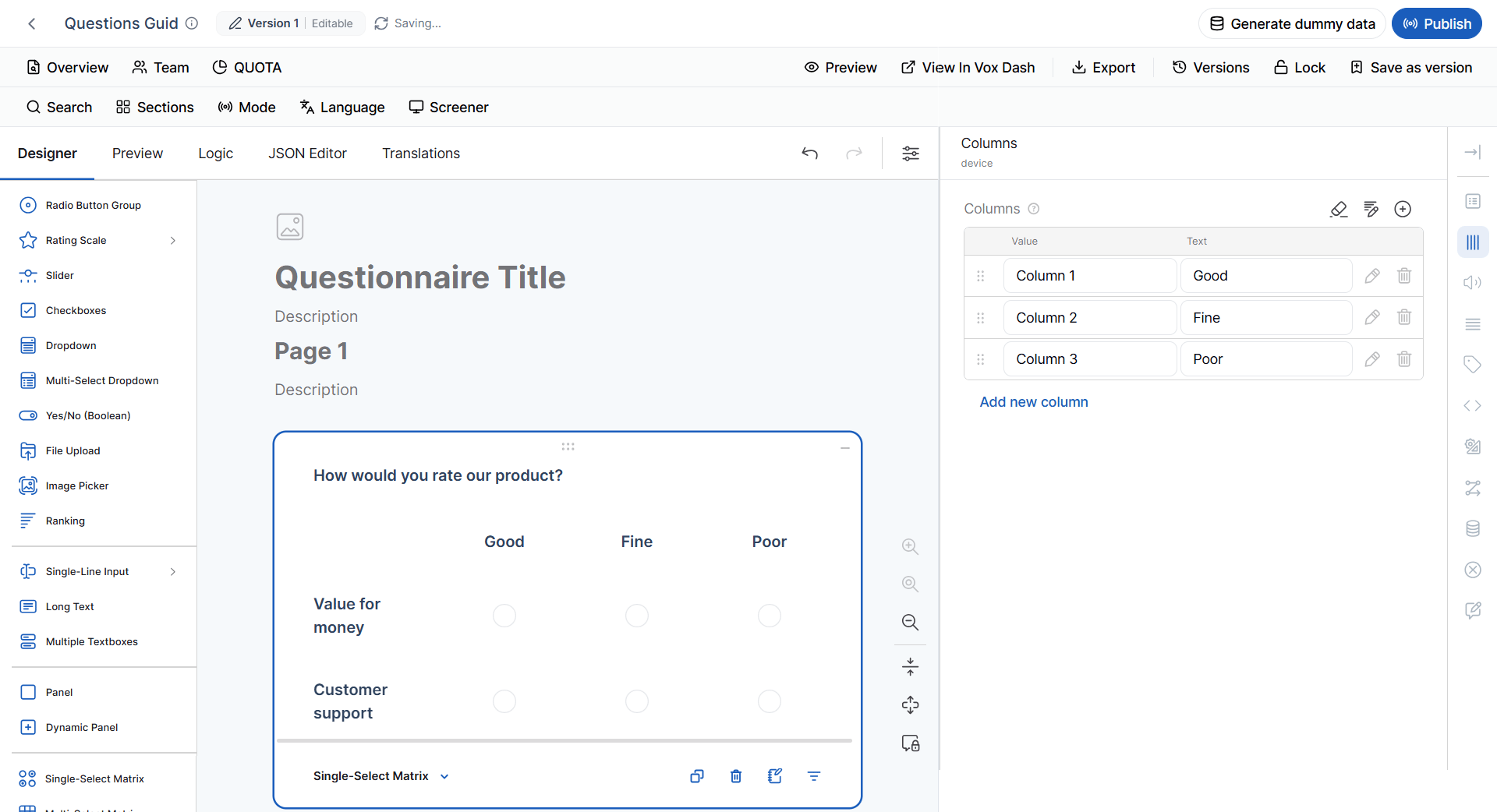
Additional Settings
You can configure:- Row labels
- Column labels
- Horizontal layout
- Vertical layout
SPSS Metadata
The Single-select Matrix does not create one standalone SPSS variable for the entire matrix. Instead, metadata is handled per cell.Important: When reviewing the SPSS export of a Single-select Matrix, consider each response cell separately rather than treating the matrix as one variable.The provided metadata source specifies per-cell metadata but does not provide a single
F10.0/Numeric/measurement-level mapping for the entire matrix.
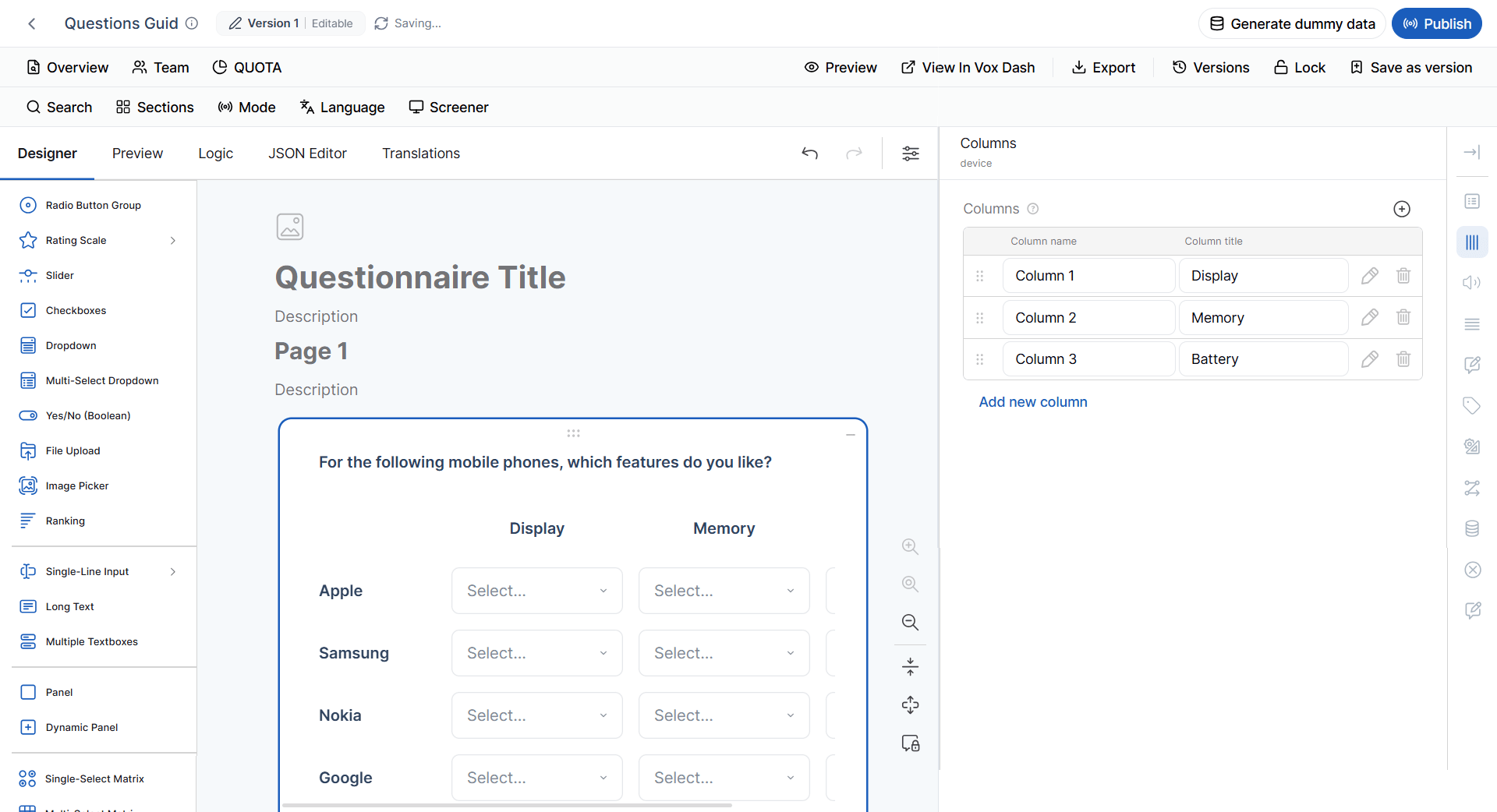
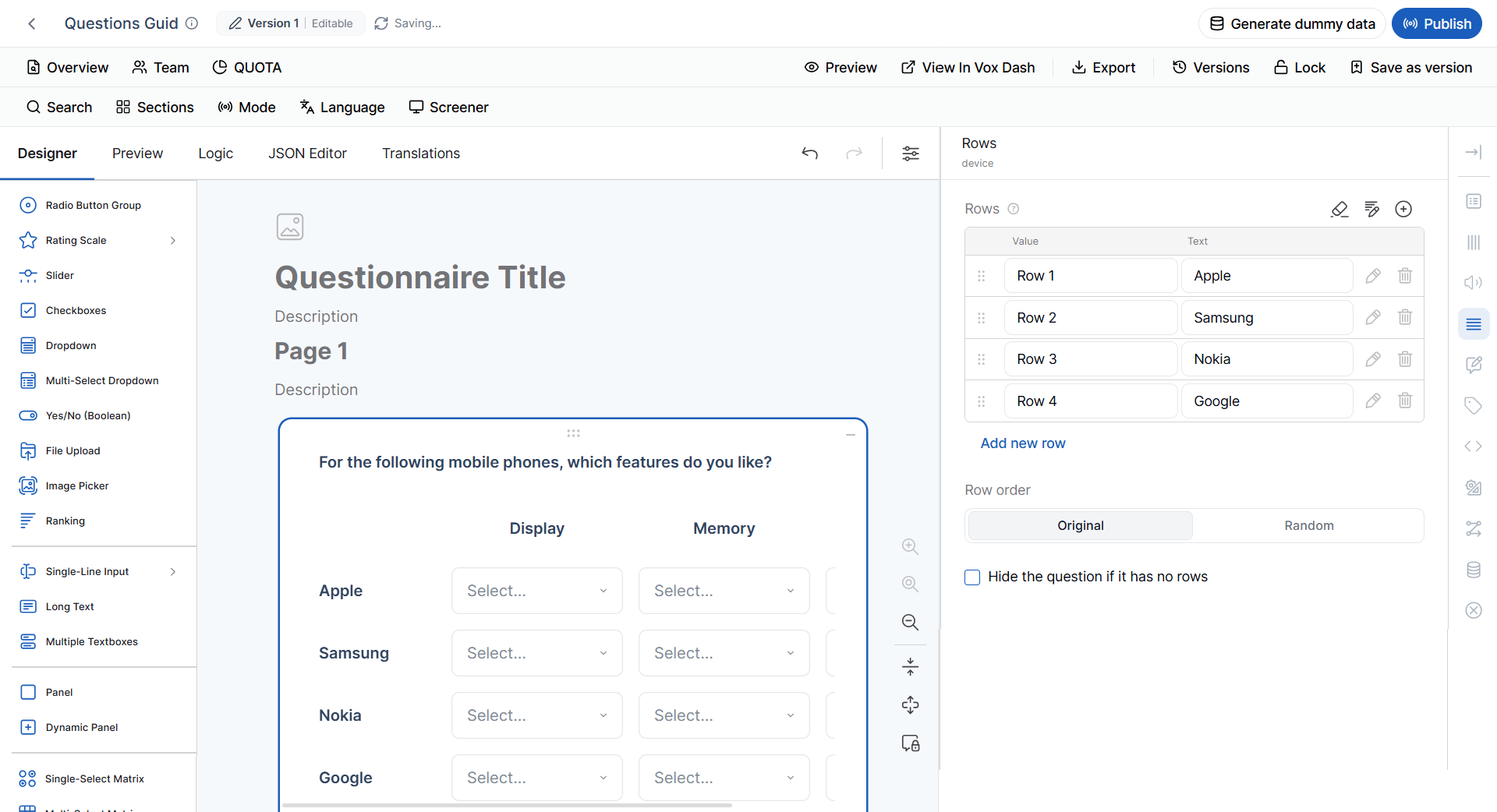
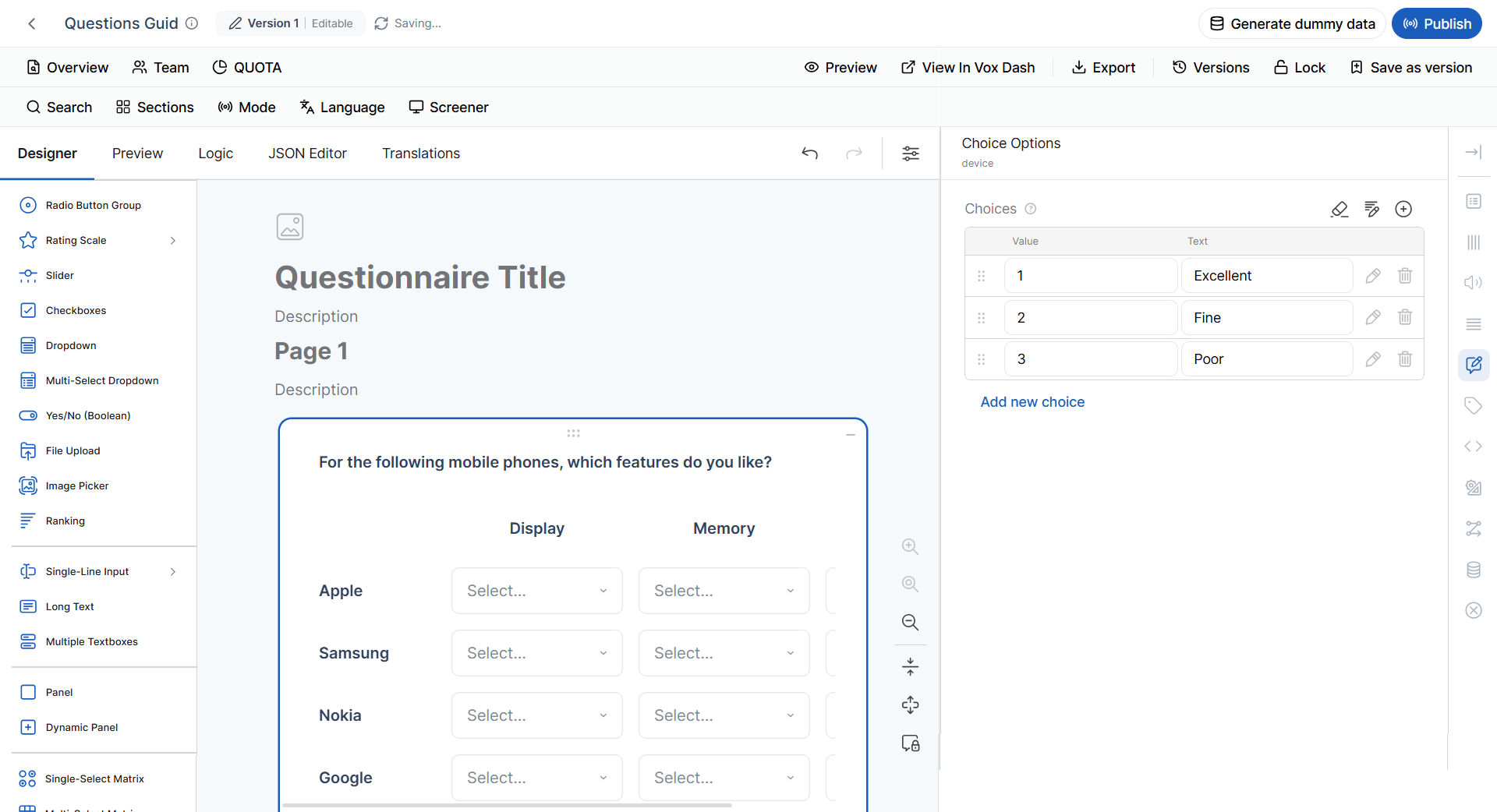
11 Multi-select Matrix
A Multi-select Matrix allows respondents to select multiple answers per row. It supports Checkbox settings. You can configure:- Rows
- Columns
- Choice items
- Layout
SPSS Metadata
The Multi-select Matrix is handled at the column level. It does not create one standalone SPSS variable for the entire matrix.Important: Review metadata for each matrix column when preparing or validating the SPSS export.The current metadata rules specify per-column metadata for Multi-select Matrix questions but do not provide one standalone metadata mapping for the matrix itself.
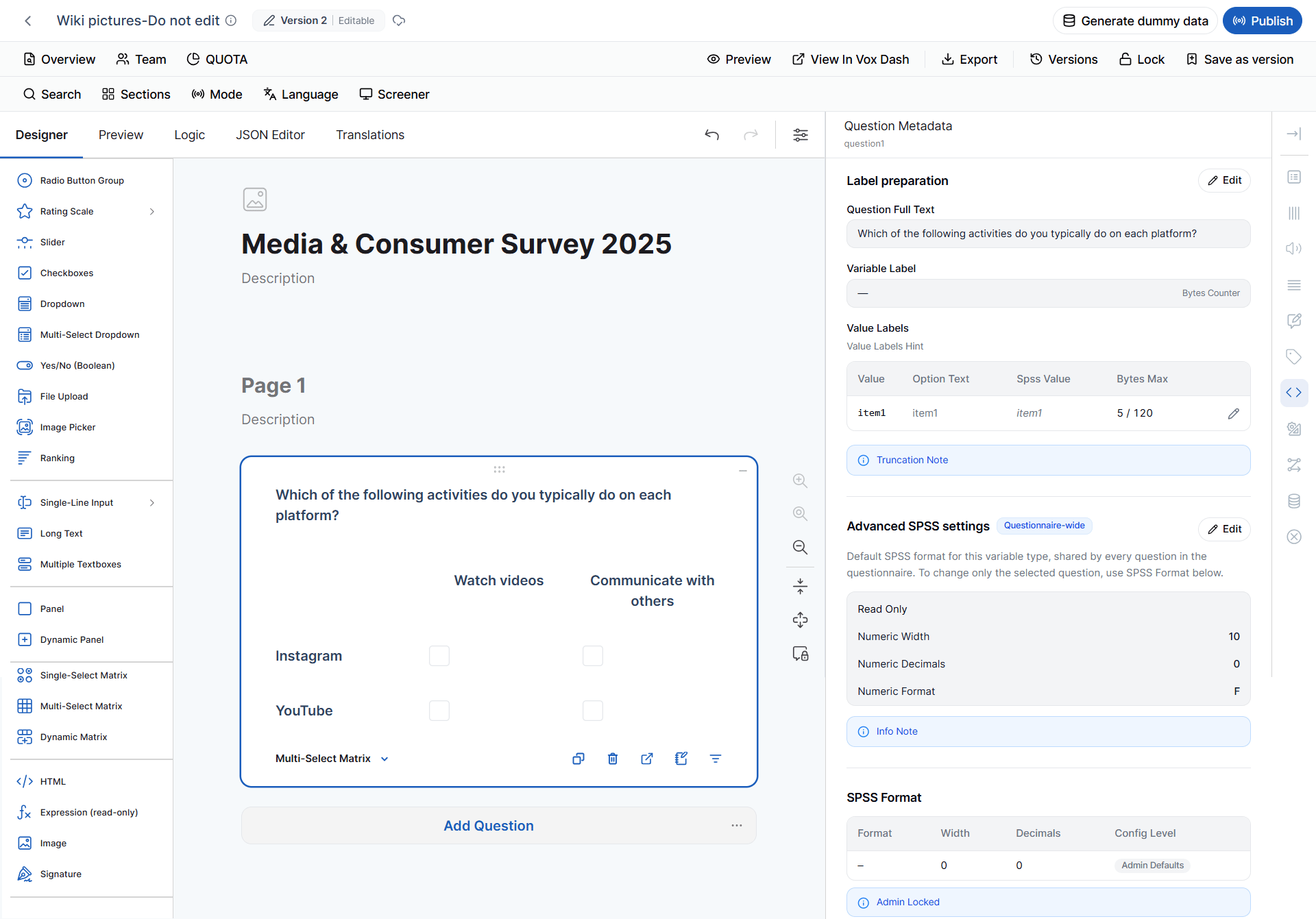
12 Dynamic Matrix
A Dynamic Matrix creates a table where each column can have its own input type, validation, visibility, and conditional logic. For example:
Each column can behave differently.
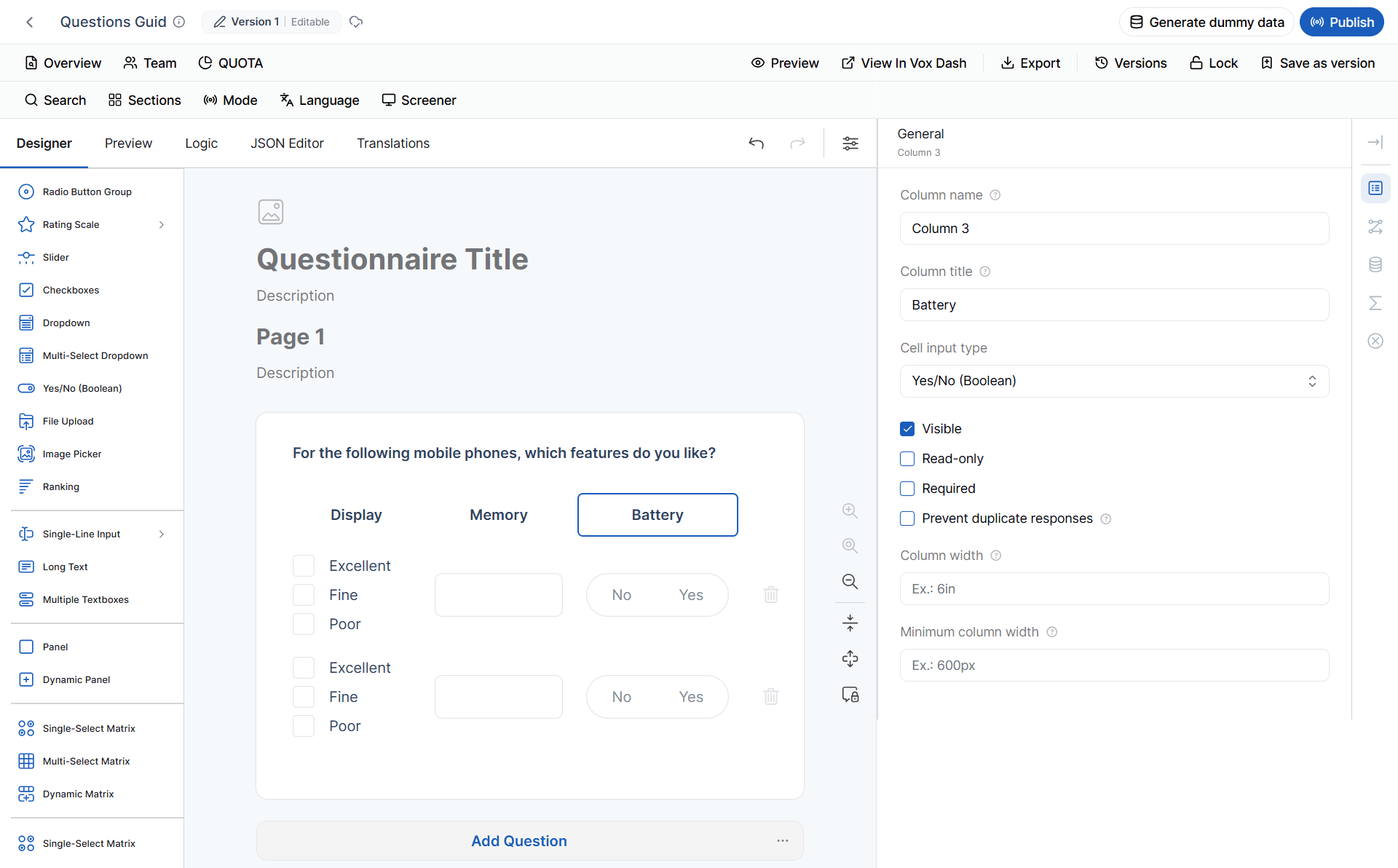
To configure a column:
- Select the Dynamic Matrix.
- Select the column.
- The Column Settings panel appears.
- Configure the column settings.
SPSS Metadata
A Dynamic Matrix does not create one standalone SPSS variable for the entire matrix. SPSS metadata is handled per column. This is important because each column may use a different Cell Input Type, which can affect its data representation.Important: Review each Dynamic Matrix column individually when validating SPSS metadata.The provided metadata source specifies per-column metadata for Dynamic Matrix questions but does not define one default SPSS format for the matrix as a whole.
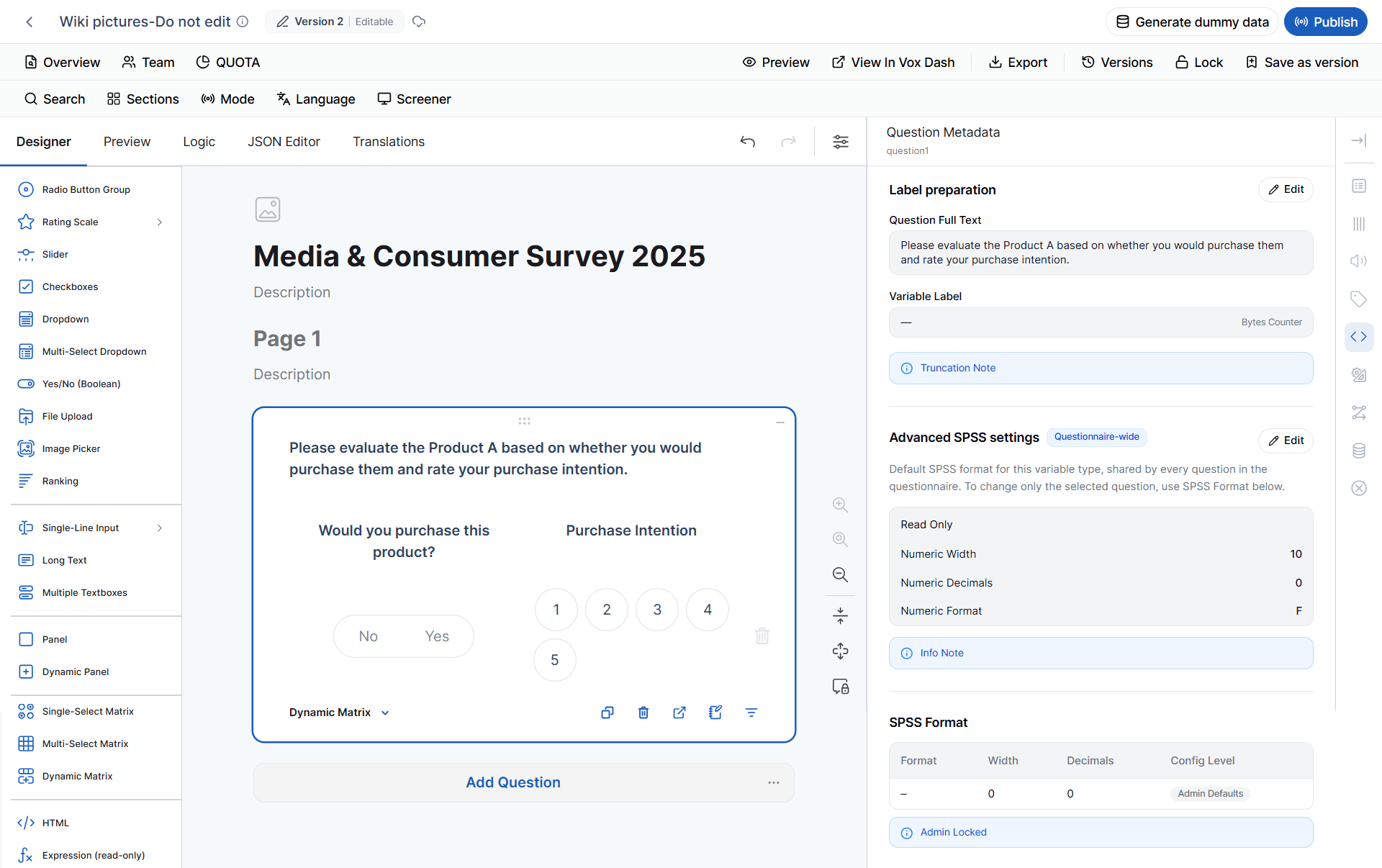
12.1 General Column Settings
Column Name The internal identifier for the column. Used in:- Logic
- Conditions
- JSON
- Data exports
- Text
- Number
- Dropdown
- Checkbox
- Date
- Rating
- Phone Number
- URL
- Other supported input types
12.2 Column Conditions
Dynamic Matrix columns support conditional logic. Click the Magic Wand icon to configure expressions. Make the Column Visible If Displays the column only when the specified condition is true. Disable Read-only Mode If Makes a read-only column editable when the condition becomes true. Make the Column Required If Makes the column required only when the condition is satisfied. Default Value Expression Automatically assigns an initial value. Examples: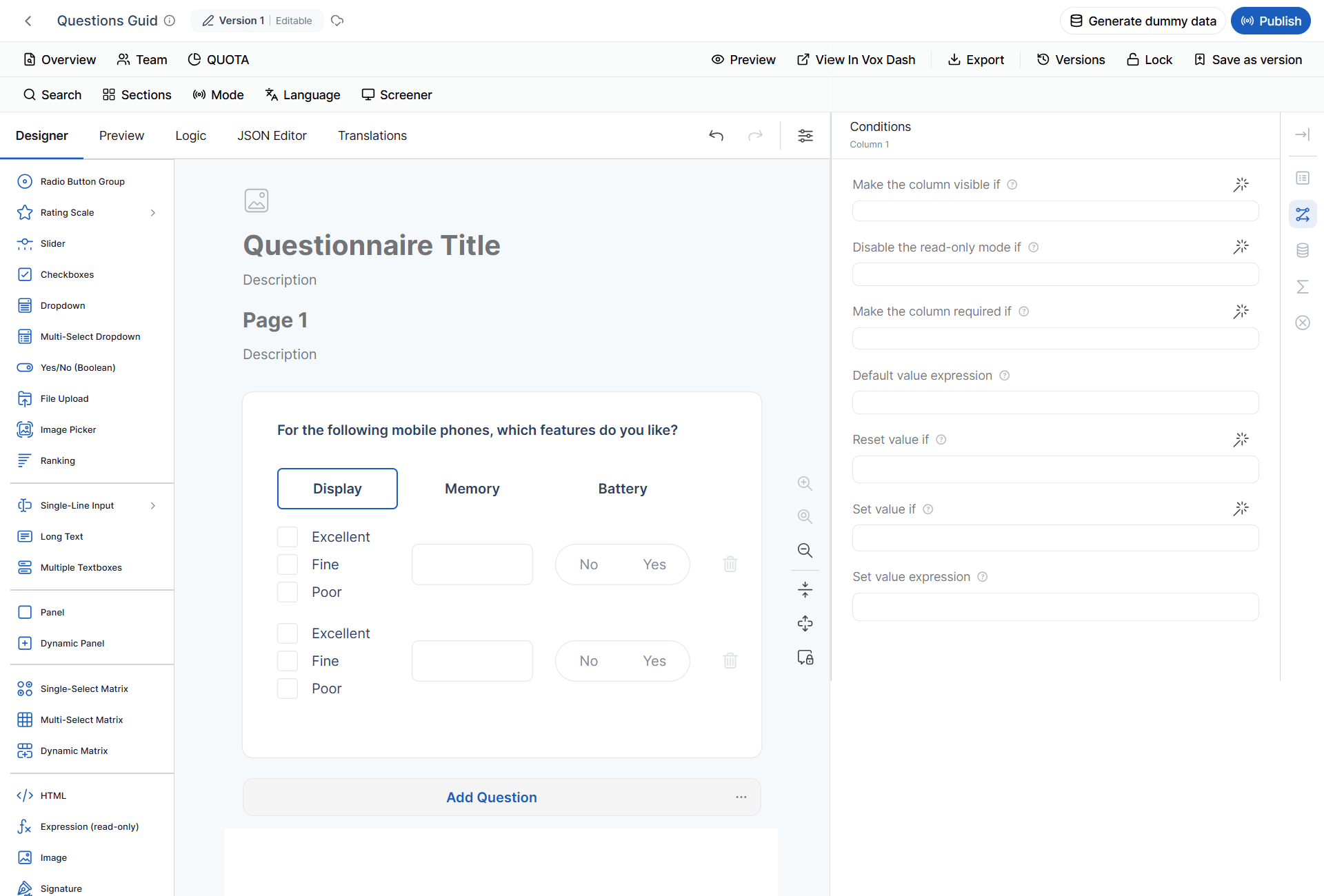
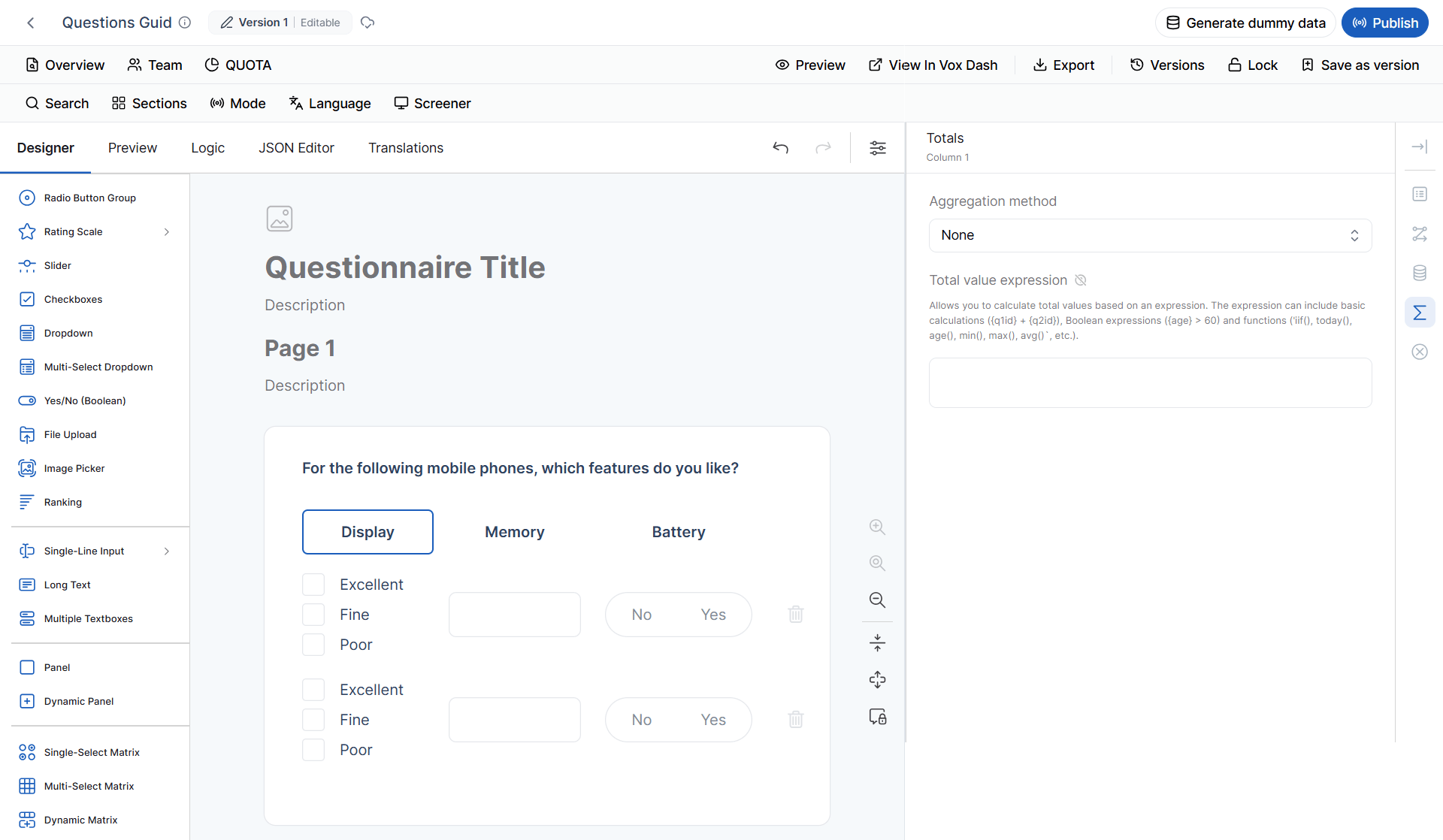
12.3 Column Totals
The Totals section allows you to summarize values in numeric columns. Aggregation Method Available options may include:- None
- Sum
- Average
- Minimum
- Maximum
- Count
- Total cost
- Weighted scores
- Custom metrics
- Calculated performance values
12.4 Column Validation
Validation rules ensure that respondents enter valid and consistent data. Depending on the selected Cell Input Type, you may be able to configure:- Required values
- Minimum and maximum values
- Minimum and maximum text length
- Email validation
- URL validation
- Regular expression validation
- Custom validation rules
- Custom validation messages
- Purchased products
- Household members
- Previous employers
- Expenses
- Project items
Question Tags
Question tags classify questions and can enable or control specific questionnaire functionality. Tag availability depends on:- Question type
- Input type
- Data structure
- Supported functionality
- System limitations
Important: A tag being unavailable does not necessarily mean that the question is incorrectly configured. It may simply mean that the selected question type or input type does not support the tag.
Administrative Tag
The Administrative tag is available for all question types. Use it for internal or operational information rather than standard respondent-facing survey content. Examples include:- Interview information
- Project information
- Internal identifiers
- Processing information
- Fieldwork information
Screener Tag
The Screener tag can be applied to any question type. A screener question determines whether a respondent is eligible for a survey or a specific part of it. Example:Which of the following best describes your employment status?The answer could determine whether the respondent proceeds to the next section. Screener Without Logic Adding the Screener tag does not automatically create screening logic. For example:
Have you purchased a laptop in the last 12 months?The question can be tagged as Screener, but if no skip, termination, or other logic has been configured, it does not actually screen respondents. In this situation, VoxDash does not block:
- Export
- Dummy-data generation
Best Practice: Whenever you use the Screener tag, verify that the question has the appropriate skip, termination, or conditional logic.
Demographic Tag
The Demographic tag identifies questions related to demographic information. Examples include:- Age
- Gender
- Education
- Occupation
- Income
- Household size
- Location
- Number
- Dropdown
- Radio Button
- Text
Quota Tag
The Quota tag is more restricted because the question must provide response data that can be meaningfully used for quota management. A quota defines a target or limit for specific response categories. Example:What is your age group?
- 18–24
- 25–34
- 35–44
- 45+
- Image Picker (Single)
- Image Picker (Multi)
- Text
- Number
- Date
- URL
- Color
- Other supported input types
Color input does not support Quota in the current MVP.The reason is that a color picker does not provide the same predefined categorical response structure as a standard choice question. Therefore:
For Text questions, question type alone is not enough to determine tag compatibility. The specific inputType must also be considered.
Auto Code Tag
The Auto Code tag identifies questions whose values are populated automatically by VoxDash or an interviewer rather than directly by the respondent. Auto Code is not available for every question type. Currently, Auto Code is disabled for:- HTML
- Image
- File Upload
- Dynamic Panel
- Response IDs
- Interview outcomes
- Timestamps
- Internal processing values
- Interviewer-entered metadata
Geo Map Tag
The Geo Map tag identifies questions associated with geographic information. A specific map does not need to be selected before applying the tag. This means a question can be tagged as Geo Map while the actual map configuration is added later. Open-ended Questions and Geo Map Open-ended questions can also use the Geo Map tag. Example:Which city do you currently live in?The respondent can enter the city as text while the question is still classified as geographic data.
Important: The Geo Map tag indicates that a question is associated with geographic data. It does not necessarily mean that a specific map has already been configured.
In-House Randomization Tag
The In-House Randomization tag identifies questions that participate in VoxDash’s internal randomization functionality. Depending on the question type and configuration, randomization can be used to:- Randomize answer choices
- Rotate questions
- Reduce order bias
- Reduce position effects
- Support experimental designs
Multi-Language Tag
The Multi-Language tag identifies questions associated with a specific questionnaire language. It is useful when one questionnaire contains multiple language versions. For example:- English
- Persian
- German
- Questions tagged with the selected language.
- Questions with no Multi-Language tag.
This allows multiple language versions to be maintained in one questionnaire.
Important: The Multi-Language tag is not only a classification label. It actively affects which questions are included in language-specific exports.
Tags on Panels and Dynamic Panels
Panel and Dynamic Panel elements can contain other questions. For example: Customer Information Panel- Name
- Age
- Gender
- Survey JSON
- Data Map exports
- Question card UI
- Tag filters
Tag Availability by Question Type
Not every tag is available for every question. The general rule is:A tag is available when the selected question type and its configuration support the functionality provided by that tag.For example:
These rules may also depend on the selected input type.
Why Are Some Tags Unavailable?
There are two main reasons: Functional limitations The question type does not provide the data or behavior required by the tag. Technical limitations The feature may theoretically make sense for a question, but the underlying system does not currently support it. VoxDash disables unsupported tags to prevent users from creating configurations that appear valid but would not work correctly during questionnaire execution, export, or data processing.Troubleshooting Tag Availability
A tag is not available
Check the following:- The selected question type.
- The selected input type.
- Whether the question has the required choice structure.
- Whether the feature is supported by that question type.
- Whether the question is inside a Panel or Dynamic Panel.
- Whether another configuration is required.
Quota is unavailable
If Quota is unavailable:- Check the question type.
- If it is a Text question, check the inputType.
- Check whether the response structure can provide meaningful quota categories.
Screener warning appears
If VoxDash warns that a Screener question has no logic:- Locate the question.
- Open its conditional logic.
- Check whether skip, termination, visibility, or other screening logic has been configured.
- Test the questionnaire with both qualifying and non-qualifying responses.
A question is missing from a language export
Check the question’s Multi-Language tag. A question is included when:- It has the selected language tag, or
- It has no language tag.
Best Practices
Follow these practices when configuring questions:- Use clear question names
- Keep question titles respondent-friendly
- Use descriptions when necessary
- Test conditional logic
- Check the input type
- Use Panel-level tags
- Validate Dynamic Matrix data
- Test language exports
- Test quota behavior
- Preview before publishing
- Question visibility
- Required behavior
- Read-only behavior
- Choice availability
- Validation messages
- Calculated values
- Hidden values
- Tags
- Language-specific exports
- Quota configuration
Summary
VoxDash provides a flexible question configuration system that combines question types, input types, general settings, conditional logic, validation, data settings, and tags. These features allow you to control both:- How respondents interact with the questionnaire
- How the resulting data is structured and processed
The question type determines the basic behavior, but the selected input type and configuration determine which additional features and tags are available.When a feature or tag is unavailable, first check the question type, input type, and current configuration before changing the question itself. Finally, always preview and test the questionnaire before publishing to ensure that the respondent experience, logic, validation, data collection, tags, quotas, and exports work as expected.