On This Page, You Will Find:
-
Total Created Questionnaires
Shows the complete number of questionnaires you have built. This includes both drafts and published versions. -
Total Drafted Questionnaires
Indicates how many questionnaires are still in progress. Drafts can be revisited and edited at any time before activation. -
Total Active Questionnaires
Displays the number of questionnaires currently published and available for respondents. Active questionnaires can continue collecting data until you disable or archive them.
Questionnaires Table
The Questionnaires Table provides a detailed, structured view of all questionnaires along with their key properties. This table is designed to help you efficiently track progress, audit changes, and locate relevant items. Each row includes:-
Questionnaire Name
The title you assigned to the questionnaire. This helps you easily identify its purpose or target audience. -
Created Date
The exact date the questionnaire was originally created. -
Last Modified Date
Shows when the most recent update was made—useful for tracking revisions or collaborative edits. -
Status
Indicates whether the questionnaire is in Draft, Active, or Archived state.- Draft: The questionnaire is still under development. It has not been published for respondents and can continue to be configured and edited.
- Published: The questionnaire has been published and is available according to its configured access and publishing settings. Published questionnaires can be used to collect respondent data.
- Published for AI-CATI: The questionnaire has been published specifically for use with the AI-CATI workflow. This status indicates that the questionnaire has been made available for the AI-CATI environment.
Note: Publishing a questionnaire is different from simply saving it as a draft. Before publishing, make sure that the questionnaire structure, questions, logic, validation rules, settings, and other required configurations have been reviewed.
- Version
The Version column displays the current version of the questionnaire.
Questionnaires Table Features
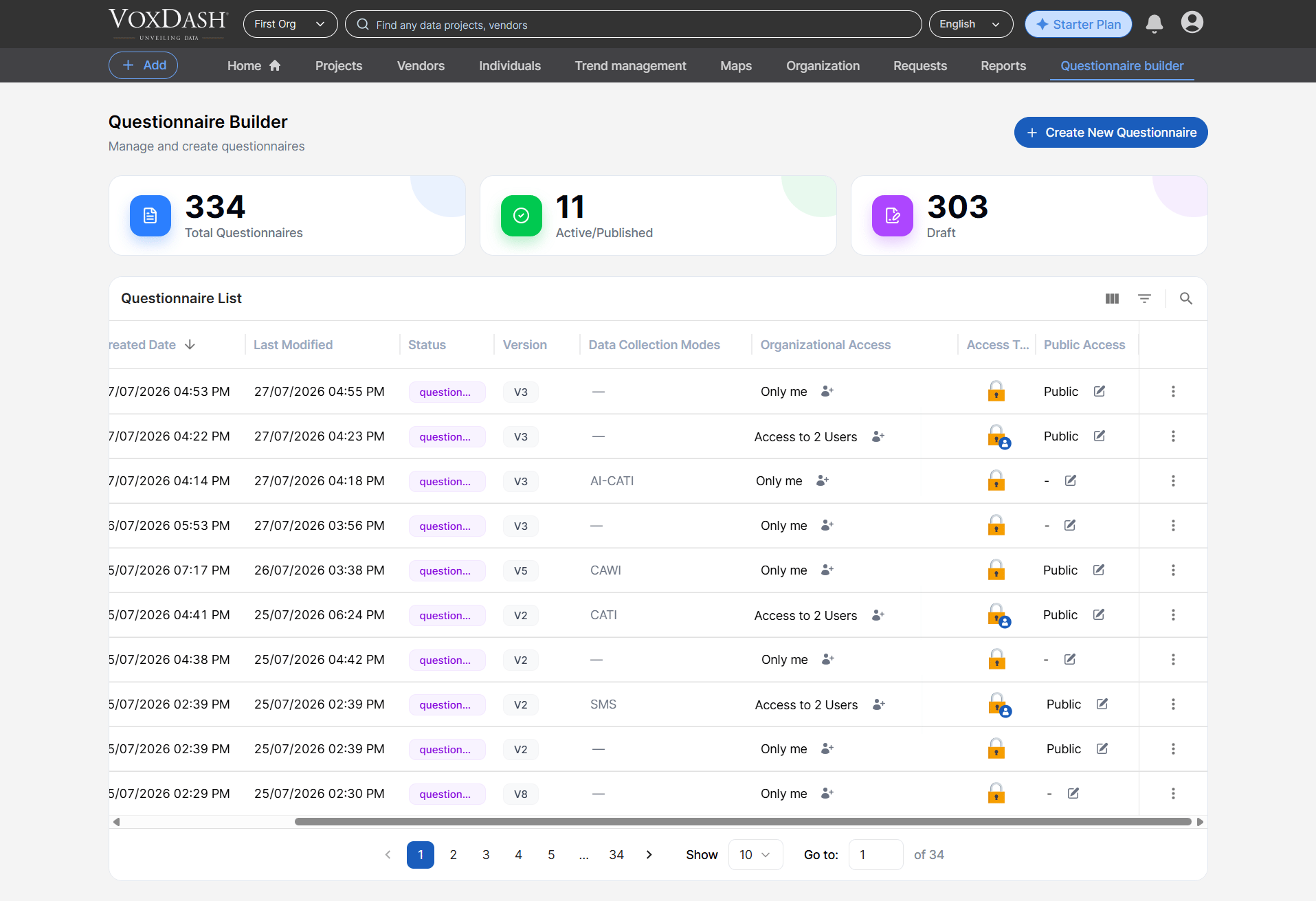
Column Order Customization
Drag and drop columns to adjust their position. This helps you build a layout tailored to your review style—whether you prefer seeing status, dates, or version numbers first.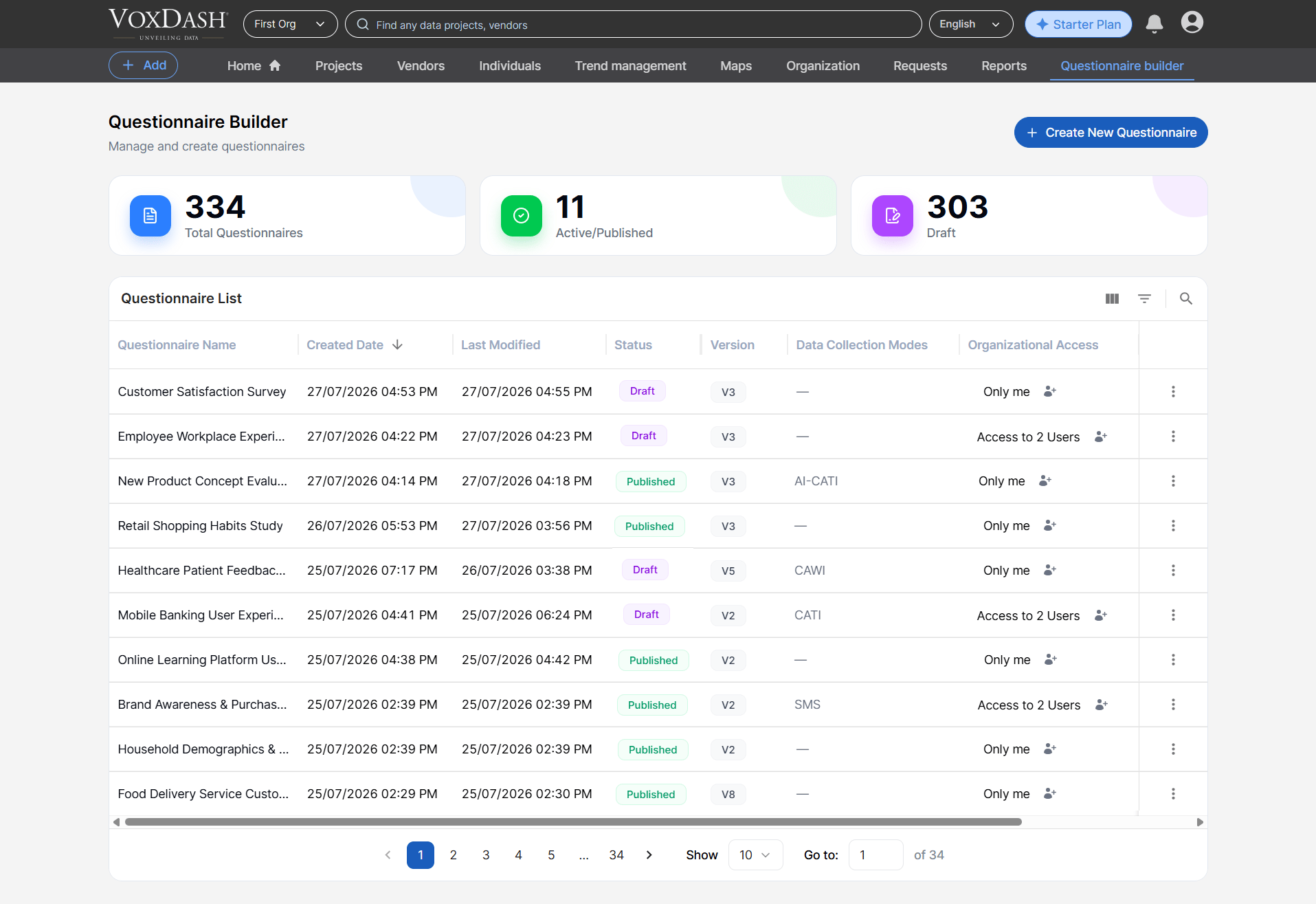
Search and Filter
Quickly narrow down large lists by applying filters such as:- Name
- Status
- Creation Date
- Last Modified Date
- Version
Burger Menu Features (Row Actions)
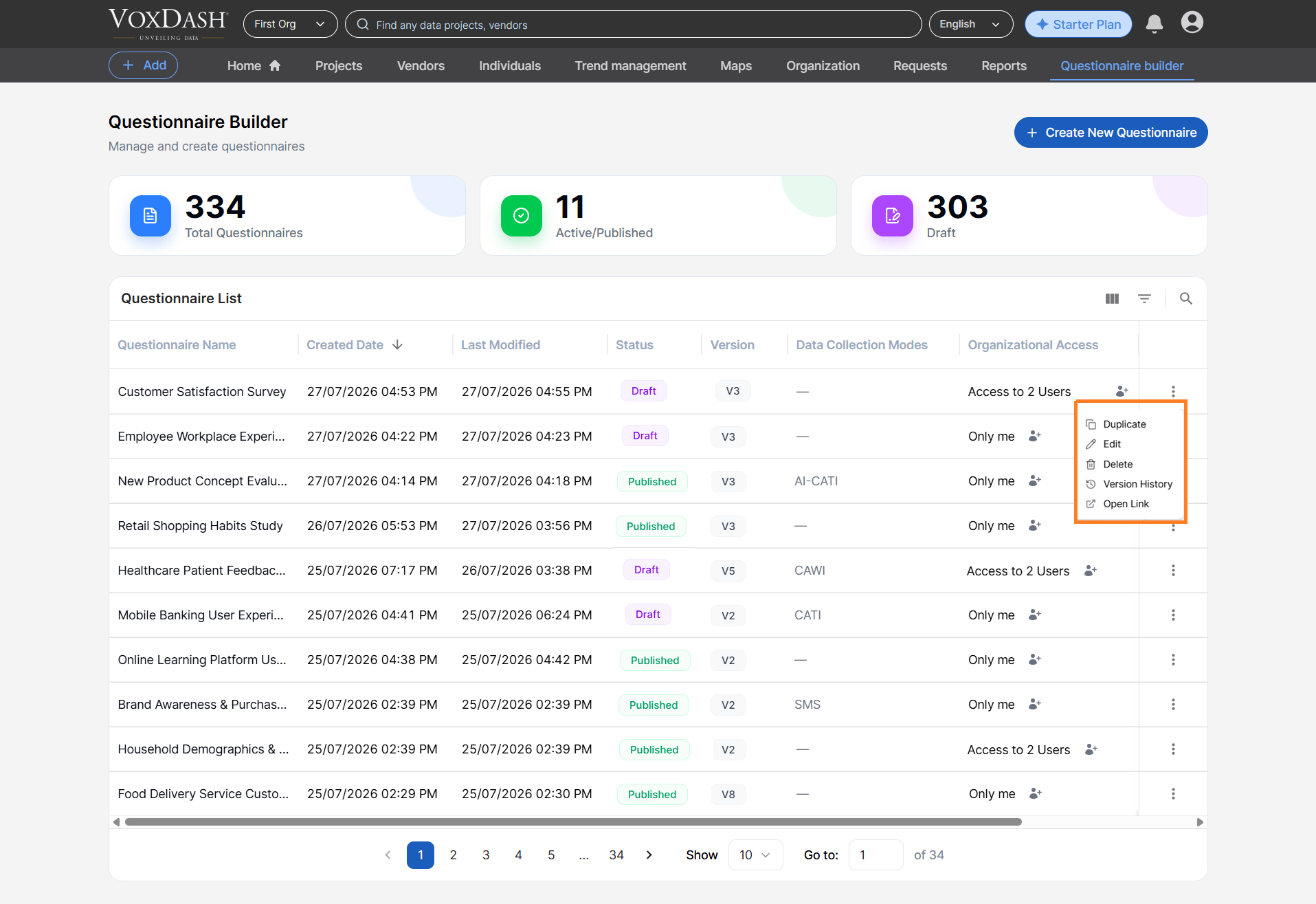
Each questionnaire row includes an Action Menu (⋮) with a selection of shortcuts that streamline your workflow:-
Duplicate
Instantly create an exact replica of the selected questionnaire. This is ideal for building similar forms without starting from scratch. -
Edit
Open the questionnaire in edit mode to adjust questions, logic, settings, or appearance. -
Open Link
Open the questionnaire in VoxDash, allowing you to share or access the questionnaire directly within the platform. - Version History The Version History option displays previous versions of the questionnaire.
-
Delete
Permanently remove the questionnaire from your list. Deleted questionnaires cannot be recovered, so use this action cautiously.
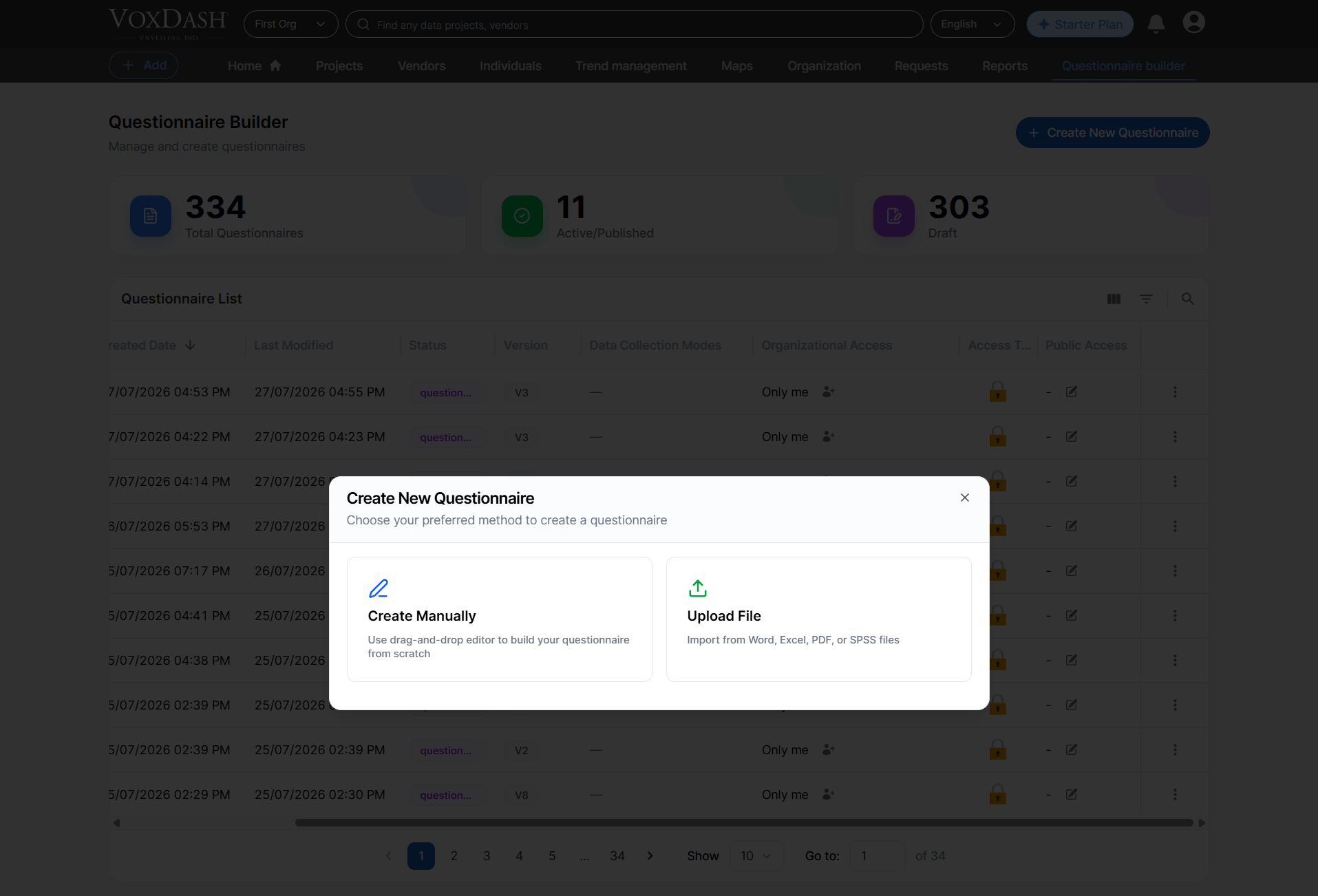
Create a Questionnaire
Select the Create Questionnaire button to begin building a new questionnaire. You can choose between:-
Create Manually (Create from Scratch)
Start with a blank canvas and design every question exactly as needed. -
Import a File
You can eaither import a file from your device or VoxDash library.