

View Questionnaire Version
The current questionnaire version is displayed at the top of the Questionnaire Editor page, next to the questionnaire status. This information allows you to quickly identify which version you are currently viewing or editing. For example:Version: 2.0 | Status: DraftThe version number and status help you determine whether the questionnaire is still being edited or has already been published.
Save as Version
Use Save as Version to create a new version of the questionnaire while keeping the current version unchanged.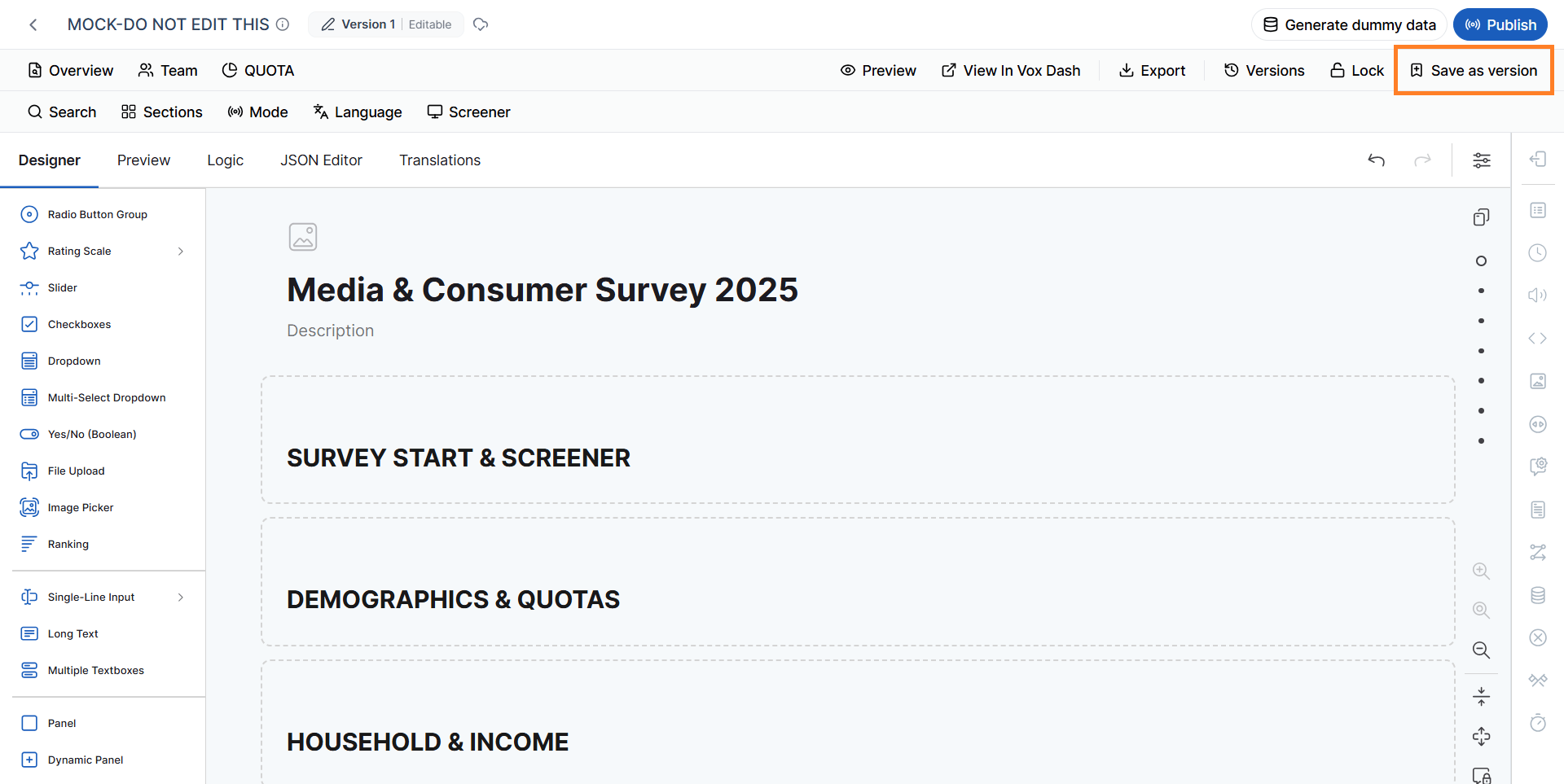
- A new version of the questionnaire is created.
- The new version contains the settings and questions from the current version.
- The previous version remains unchanged.
- You can edit the new version without affecting the previous version.
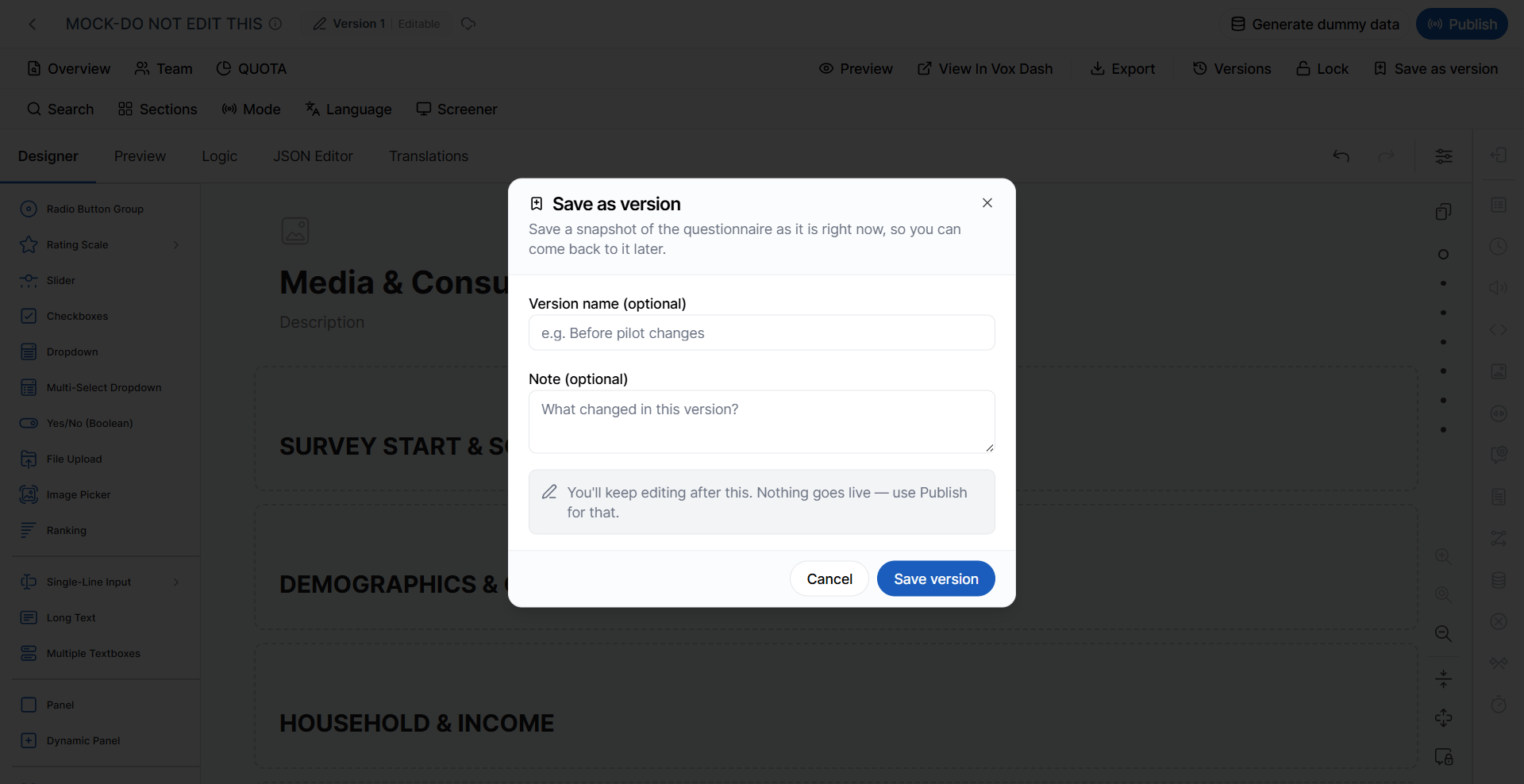
Example: If you are working on Version 1.0 and select Save as Version, a new version, such as Version 2.0, is created. You can then modify Version 2.0 while Version 1.0 remains available in its original state.
Version History
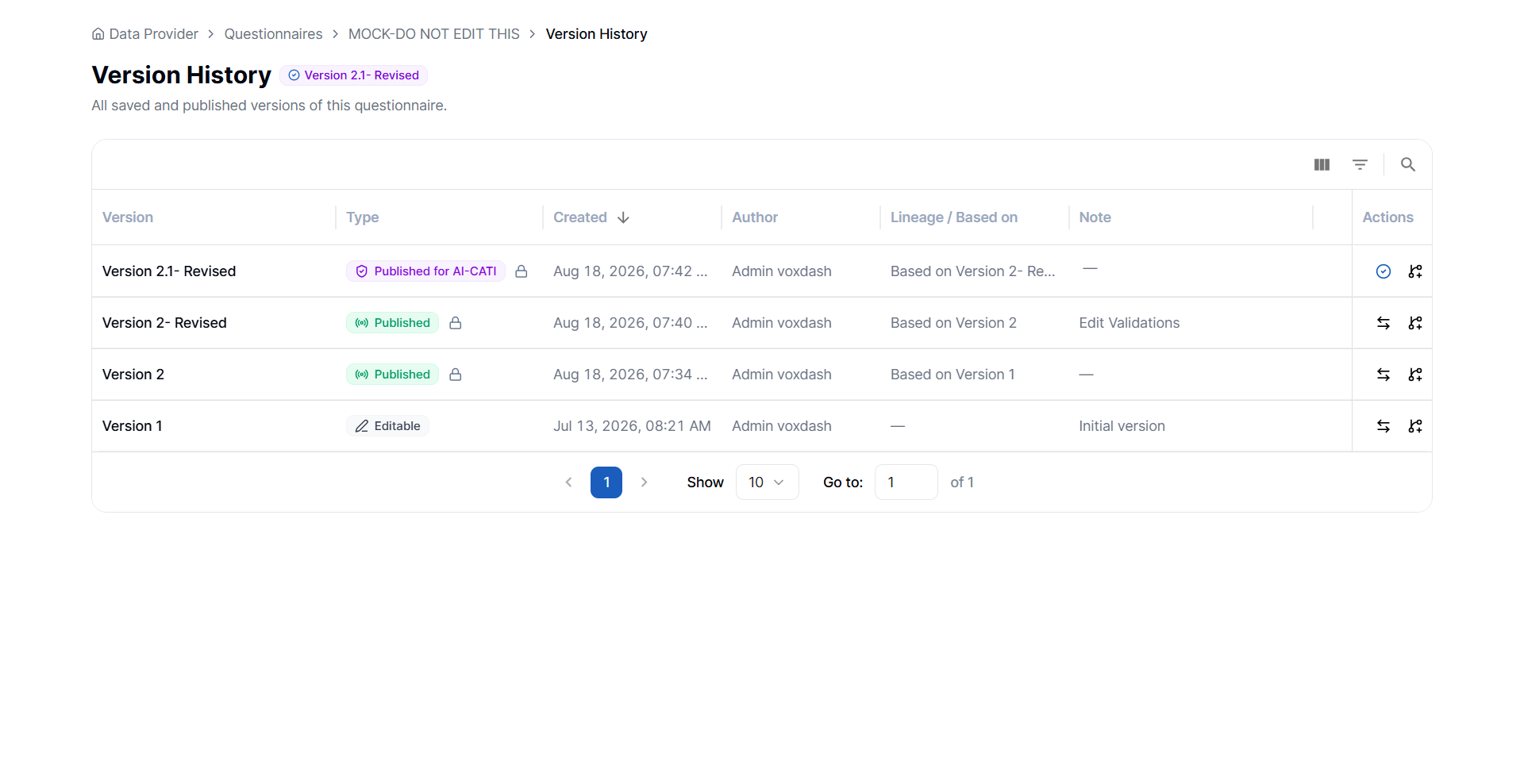
The Version History section allows you to view and manage the different versions created for a questionnaire. Each version is listed separately, allowing you to review the questionnaire’s version history and identify how the questionnaire has evolved over time. Click a version to open it in the Questionnaire Editor.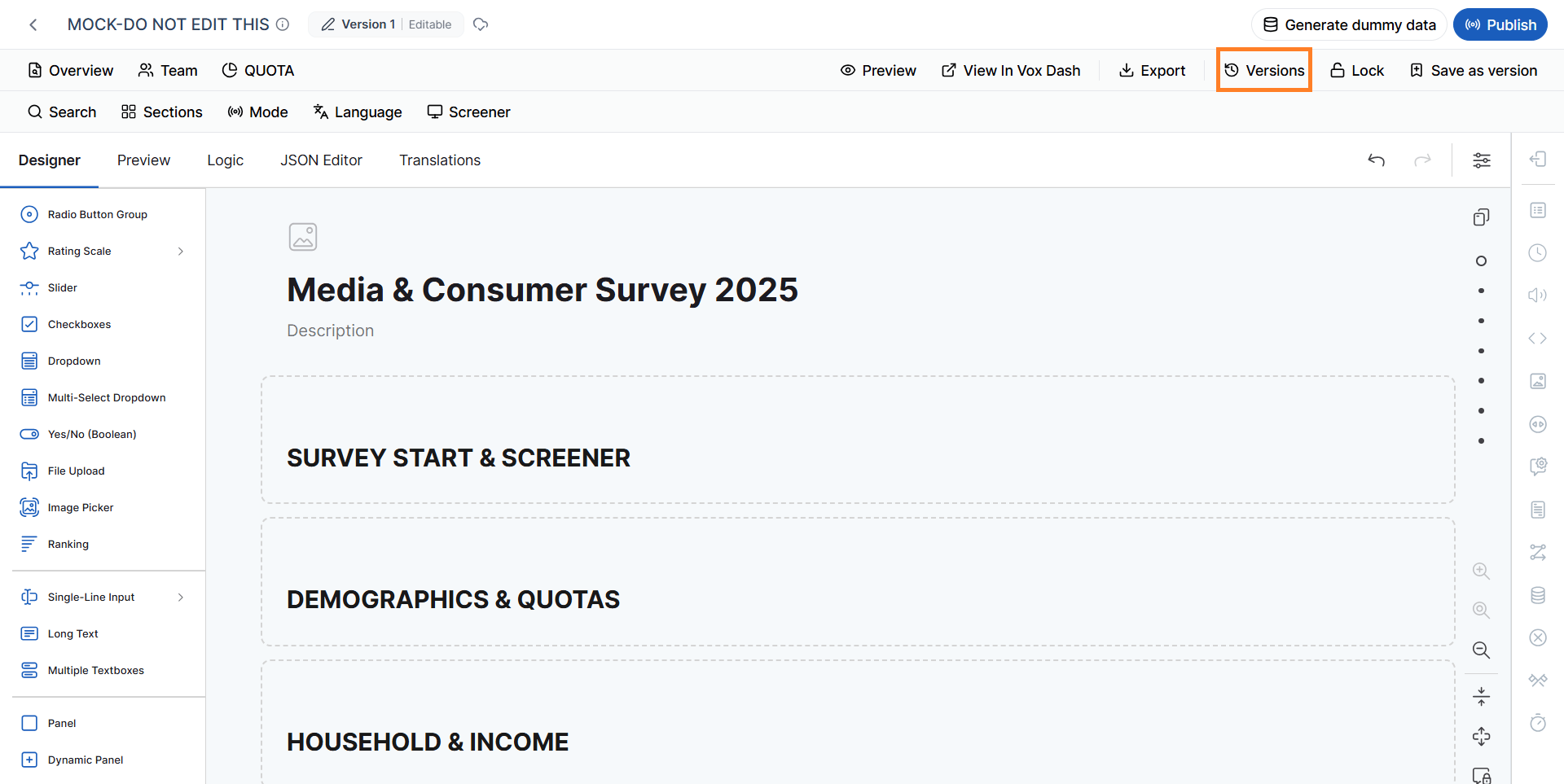
Editing Versioned Questionnaires
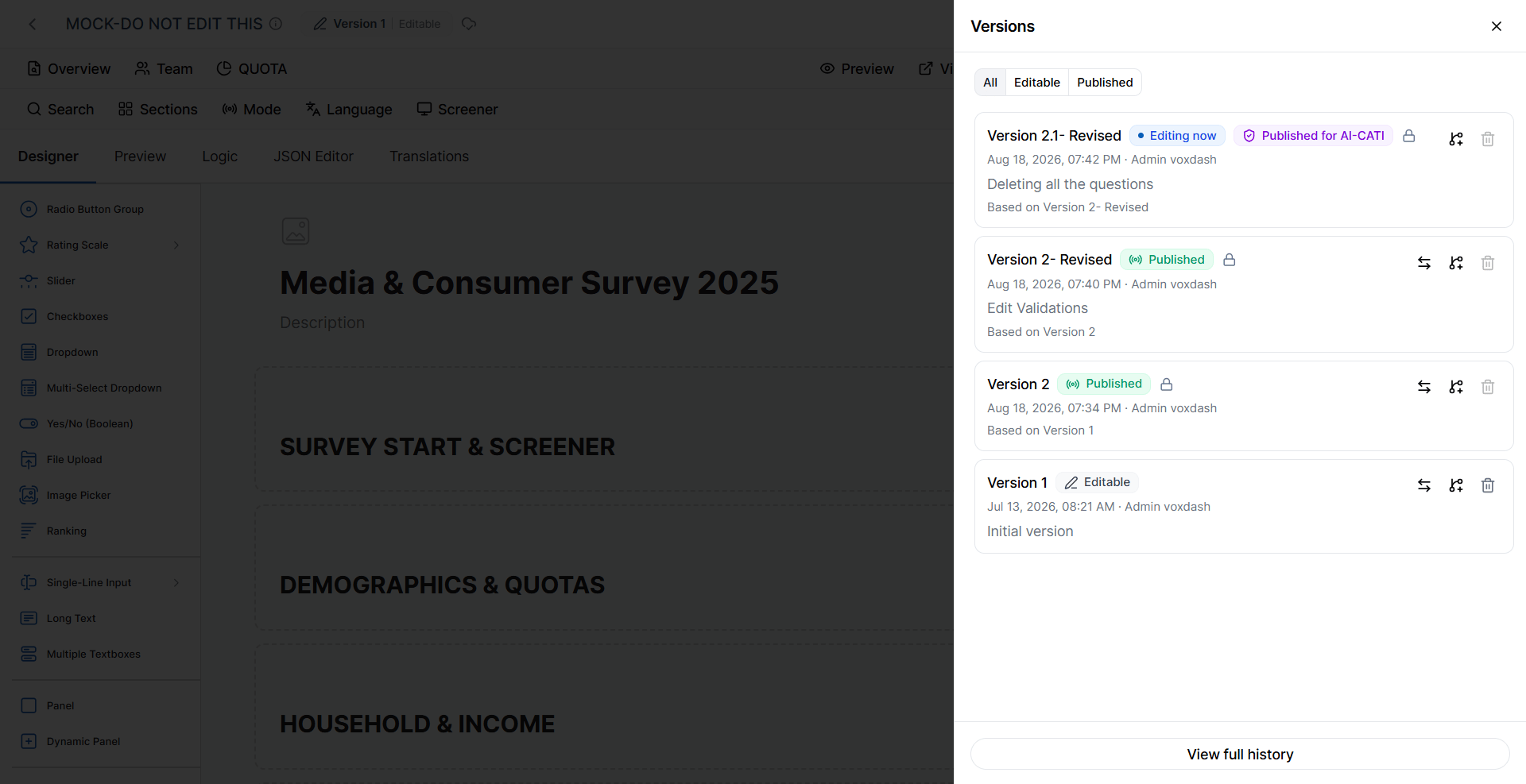
The ability to edit a version depends on its status.- Draft versions can be edited directly.
- Published versions cannot be edited.
- Versions that have been published for AI CATI cannot be edited.
Important: Creating a branch does not modify the source version. The source version remains available as a read-only version in the questionnaire’s history.
Version Branches
A version branch is a new editable version created from an existing questionnaire version. For example: Version 1.0 → Version 2.0 → Version 3.0 If Version 2.0 is already published and you need to make changes to it, you can create a new branch based on Version 2.0: Version 2.0 → Version 2.1 Version 2.1 can be edited independently, while Version 2.0 remains unchanged. When a version is created as a branch of another version, the source version is displayed in the Based on Version field. This allows you to identify the version from which the branch was created.Create a New Version Branch
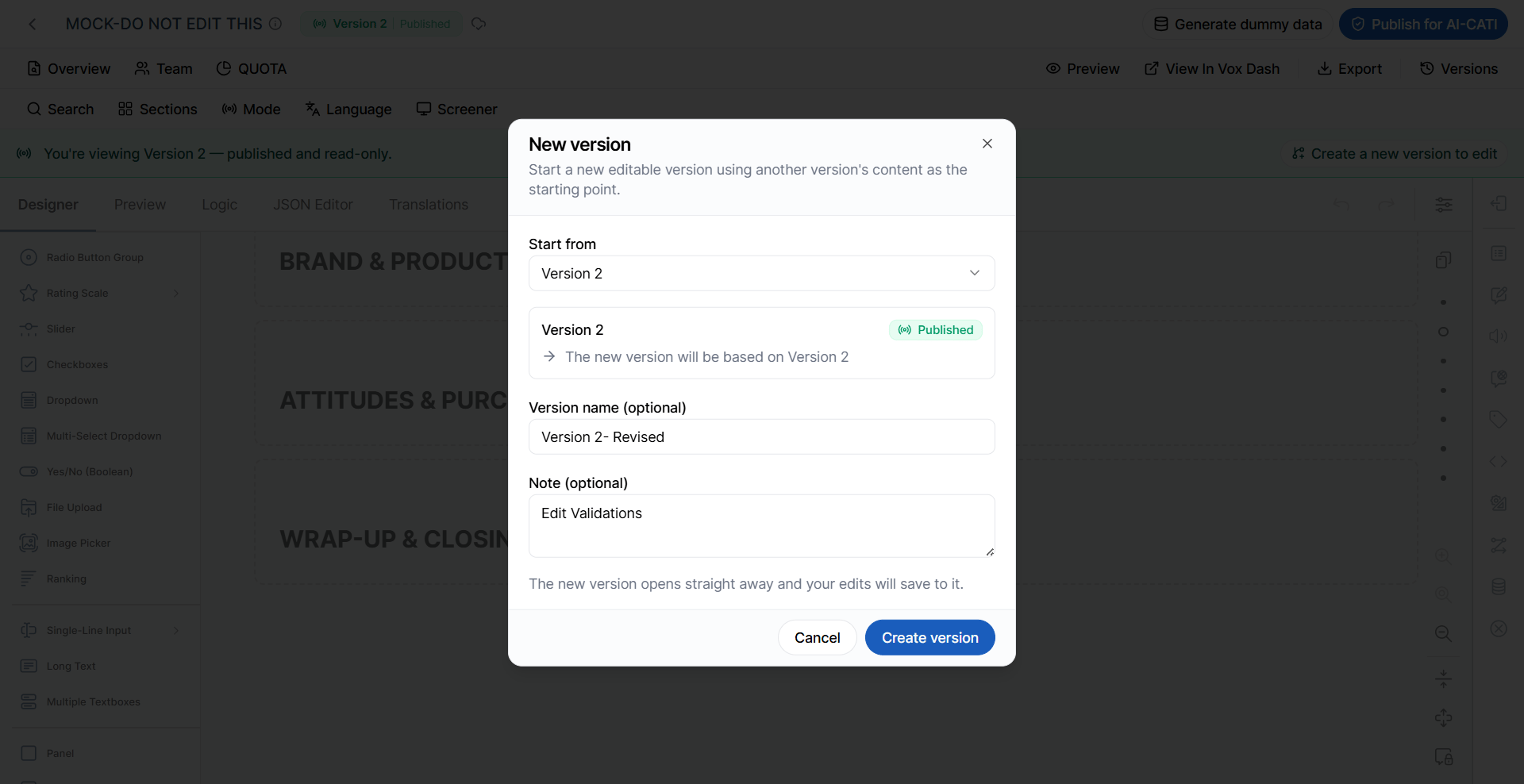
Use Create a New Version Branch when you need to create an editable version based on an existing questionnaire version, particularly when the source version is already published or locked. When creating a branch, provide the following information: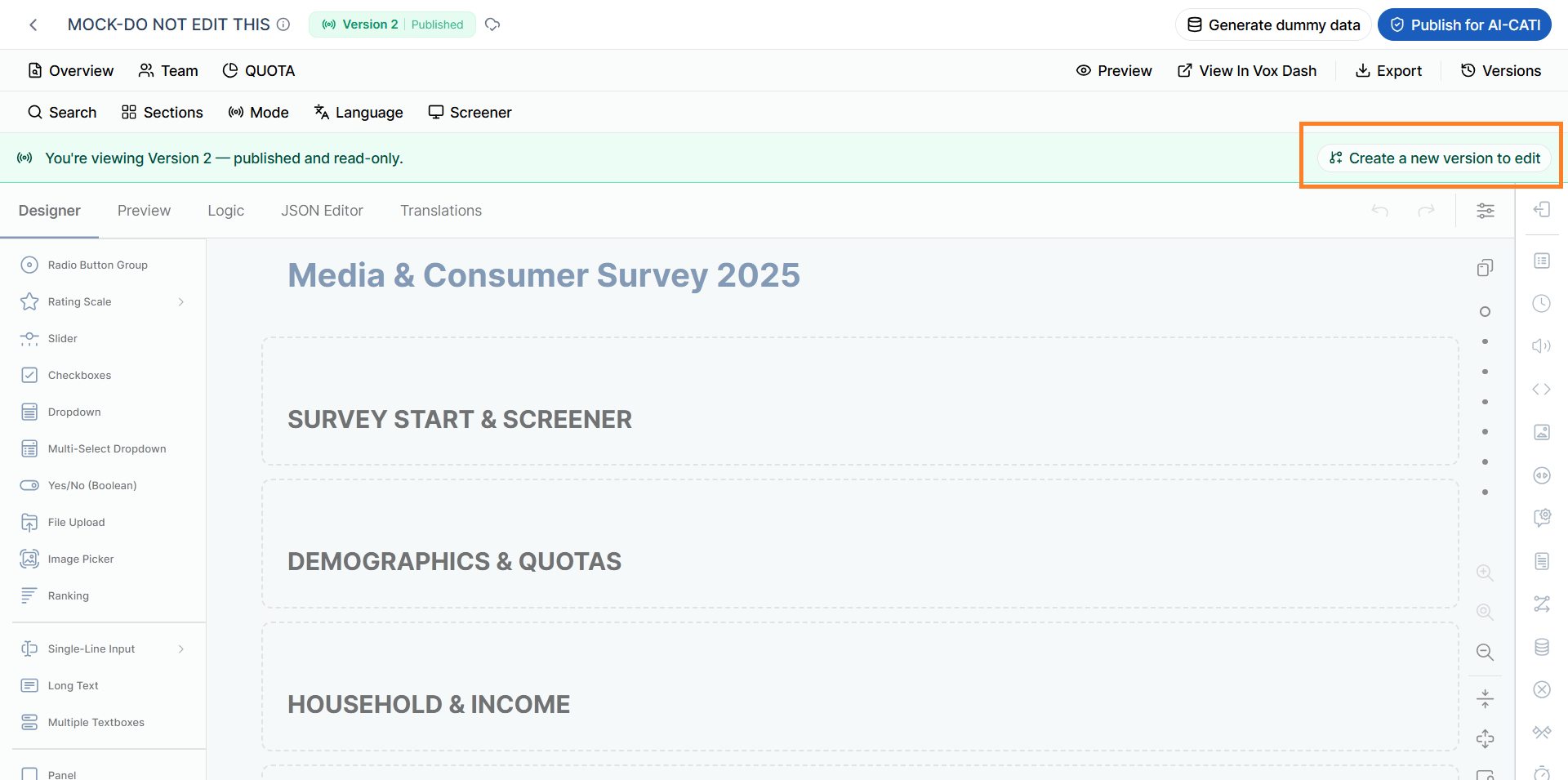
Source Version
Select the questionnaire version that you want to use as the starting point for the new branch. The new version inherits the questionnaire configuration from the selected source version. The source version itself is not modified.Version Name
Enter a name for the new version. Choose a clear and meaningful name that helps users identify the purpose or stage of the version. For example:Version 2.0Post-launch updatesQ4 questionnaireCATI revision
Additional Note
Add an optional note describing the purpose of the new version or the changes you plan to make. This note can help other users understand why the version was created and provide context when reviewing the questionnaire’s version history. For example:Updated demographic questions and added new response options for the Q4 survey.Once you create the branch, the new version becomes an independent version that can be edited without changing the source version.
Summary
Questionnaire Versioning allows you to create, manage, and track multiple versions of a questionnaire while keeping previous versions unchanged. With versioning, you can:- View the current version at the top of the Questionnaire Editor.
- Save a questionnaire as a new version to make changes without affecting the previous version.
- View Version History to review all versions of a questionnaire.
- Create a new version branch when you need to edit a published or AI CATI version.
- Track version relationships through the Based on Version information.
- Add a Version Name and Additional Note to make versions easier to identify and understand.
Important: Published questionnaires and questionnaires published for AI CATI cannot be edited directly. To make changes, create a new version branch based on the published version.