

1. What are Weighted Variables?
Weighted variables allow you to assign a specific importance or weight to the responses of certain individuals or groups within your survey data. This is commonly used in data analytics and e-commerce research to:- Adjust for Sampling Bias: If your survey sample doesn’t perfectly mirror the demographics of your target population (e.g., you have more responses from one age group than another, but that group isn’t as large in reality), weights can correct this imbalance.
- Reflect Population Proportions: Ensure that the contribution of each response to the overall analysis is proportional to its representation in the actual target market or population.
- Prioritize Specific Data Points: In some cases, you might want to give more importance to responses from specific customer segments or user types.
2. Adding Weighted Variables During Survey Data Entry
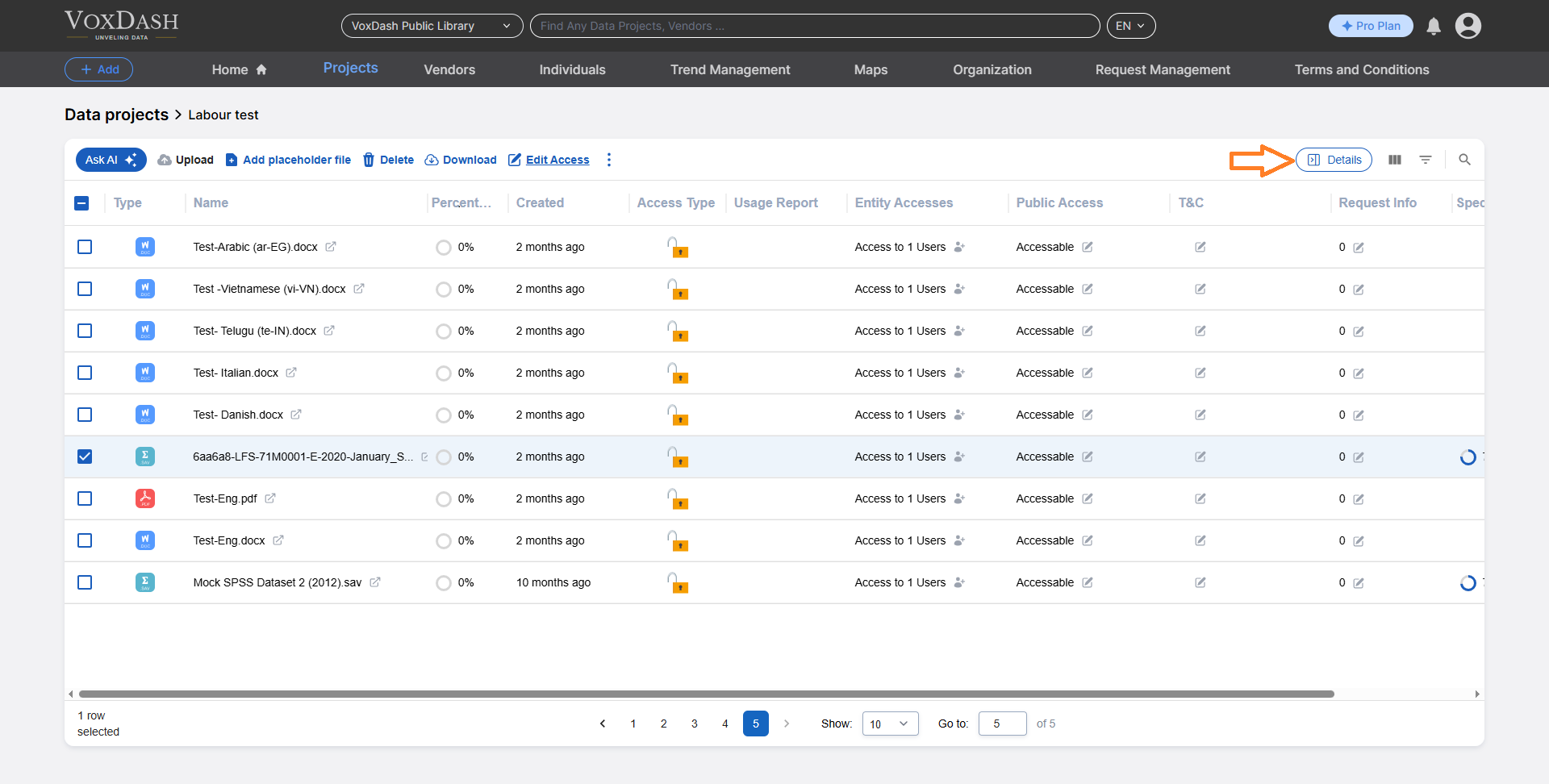
You can incorporate weighted variables directly into your survey design within VoxDash.- Step 1: Access Survey Data Entry: Navigate to the File Management Table in Data Provider Panel find your desired dataset to edit its survey data entry.
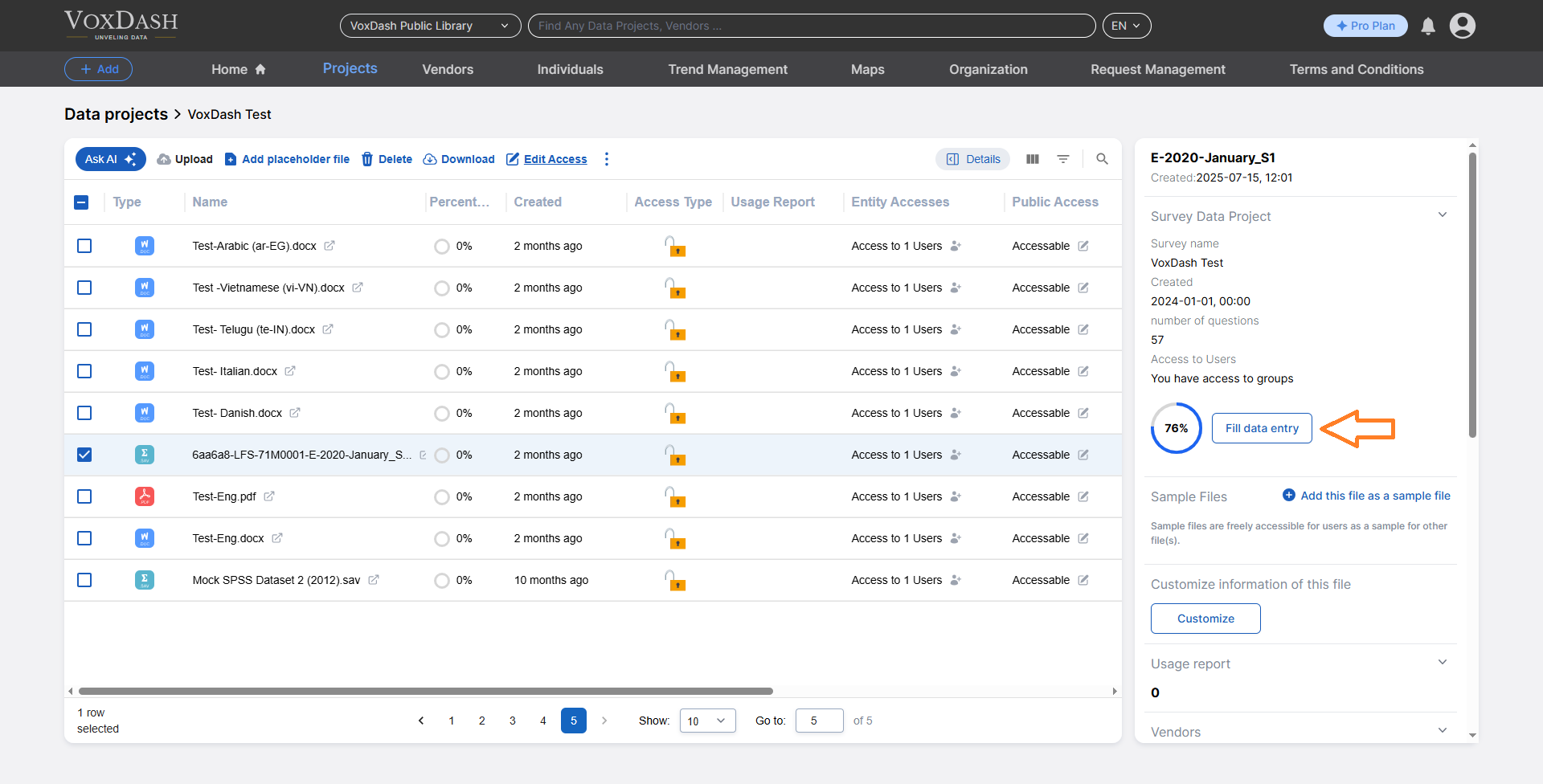
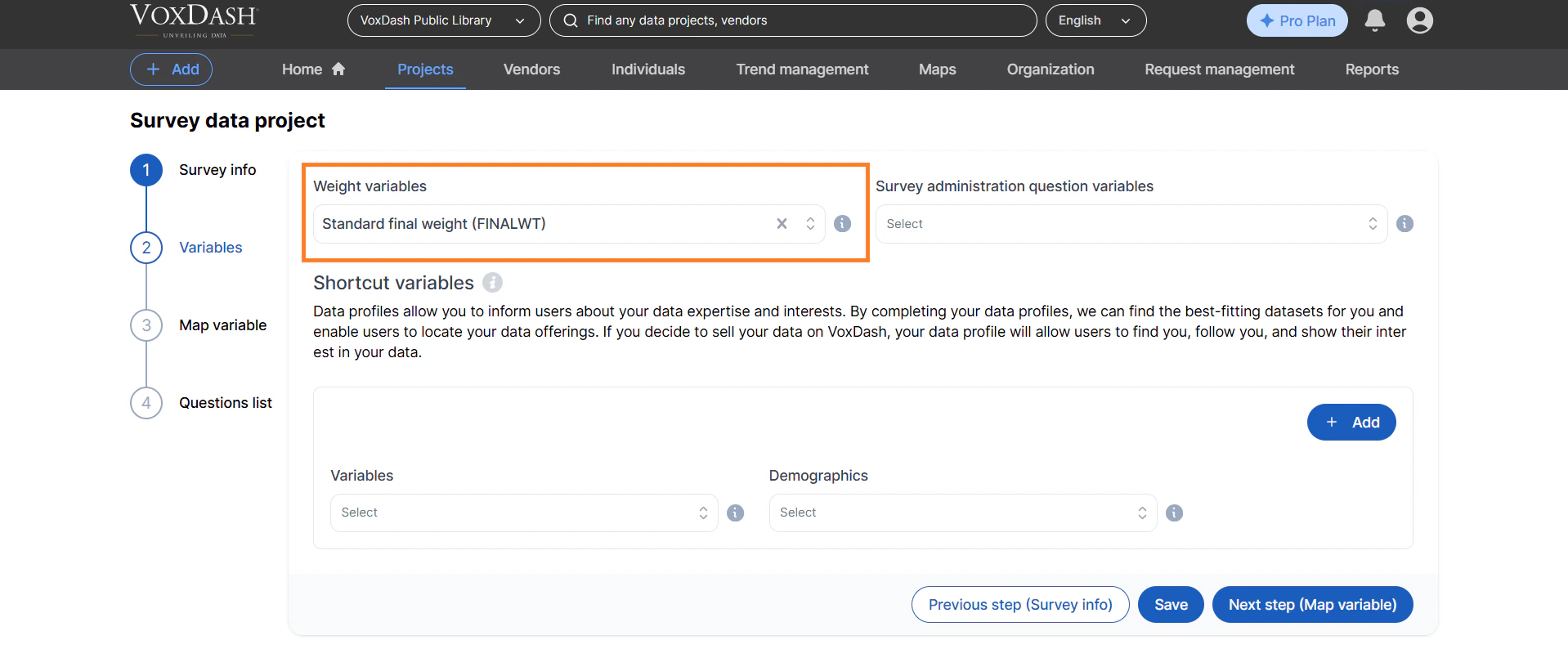
- Step 2: Locate the Variable Addition Step: Proceed to Step 2 of the survey data entry process, which is typically where you define your survey’s variabless.
- Step 3: Add the “Weighted” Variable: Look for an option named weighted to add a new variable. You may need to look for these variable (e.g., “Response Weight,” “Demographic Weight,” etc.).
3. Utilizing Weighted Variables in Analysis
Once you have added and populated a “Weighted” variable in your survey data, you can leverage it for more accurate and insightful analysis.- How to Use: When you are performing analysis within VoxDash.
- Selecting the Variable: Choose the “Weighted” variable you previously added. VoxDash will then apply these weights automatically to your calculations.
- Benefits for E-commerce & Data Analytics:
- More Accurate Customer Insights: Understand the true sentiment and behavior of your broader customer base, not just those who responded most frequently.
- Reliable Segmentation: When segmenting customers based on survey data, weights ensure your segments are representative of your actual market.
- Improved Decision-Making: Base your e-commerce strategies, product development, and marketing campaigns on data that more accurately reflects reality.