

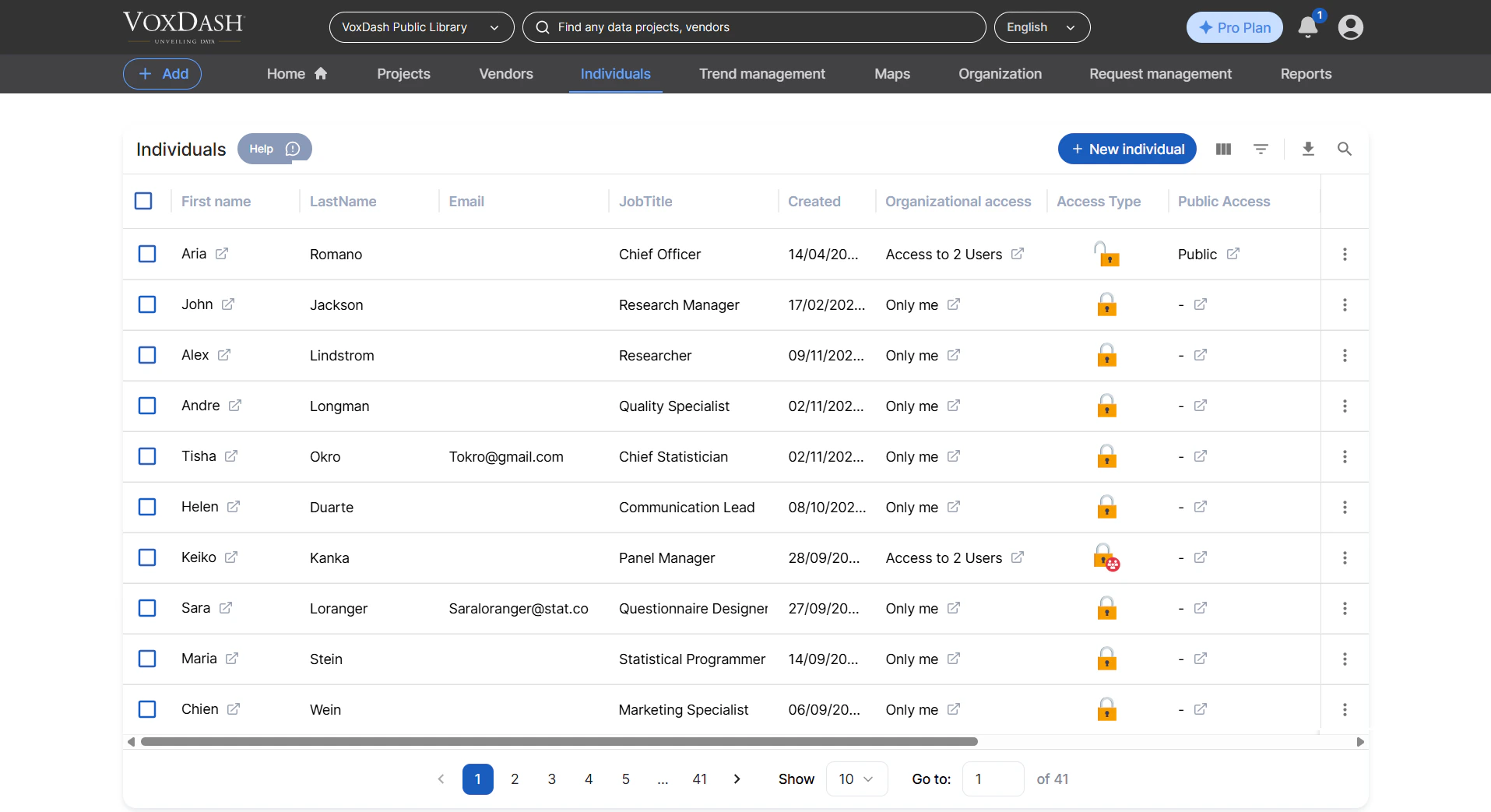
1. Adding New Individuals
You can add new individuals to VoxDash through two convenient methods:- Via the Data Entry Process: When you are inputting new data, select “Individual” as the data type. This will guide you through a form to capture all necessary details.
- Using the “Add New” Button: Navigate to the Individuals List page. You will find an “Add New” button, typically located at the top of the page. Clicking this button initiates a streamlined process for creating a new individual profile.
2. Understanding the Information Displayed
The Individuals List provides a clear overview of your contacts. Each row details an individual, with the following columns presenting key information:- First Name: The individual’s given name.
- Last Name: The individual’s surname.
- Email: The primary email address for the individual. This is often used for communication and login purposes.
- Job Title: The professional role or position held by the individual.
- Created Date: The date when this individual’s profile was initially added to VoxDash.
- Organization Access: Indicates whether this individual’s data and associated activities are visible and accessible within your organization’s VoxDash account.
- Access Type: Specifies the level of permission or visibility granted to this individual’s data (e.g., Public, Private, specific team access).
- Public Access: A quick indicator showing if this individual’s profile information is set to be publicly visible.
3. Controlling Data Access
You have the flexibility to manage the privacy and visibility of each individual’s data at any time.- To Change Access Level: Simply click on the current “Access Type” or “Public Access” status for the specific individual you wish to update. A menu or set of options will appear, allowing you to select and apply the desired changes instantly. This ensures your data management practices align with your organization’s privacy policies.
4. Individual Management Menu
Each individual entry in the list has an associated menu (often indicated by three dots... or a gear icon) that unlocks powerful management capabilities:
- Edit: Modify any existing detail of the individual’s profile, such as their name, email, job title, or access settings.
- Delete: Remove the individual from your VoxDash account. Please exercise caution, as this action is often irreversible and may affect associated records.
- View Report: Access reports specifically linked to this individual. This could include their activity logs, engagement metrics, or data they have accessed/contributed.
- Audit Trail: Review a comprehensive history of all actions performed on this individual’s record. This log details who made changes, what those changes were, and when they occurred, which is crucial for compliance and security.
5. Efficiently Finding and Organizing Individuals
To help you manage potentially large lists of individuals, VoxDash offers robust search and filtering tools:- Search Bar: Utilize the search bar (usually located at the top of the list) to quickly locate an individual by entering their first name, last name, or email address.
- Filters: Apply filters to refine your list based on specific criteria. You can filter by job title, access type, creation date, or public access status to quickly isolate the contacts you need.
- Column Reordering: Personalize your view by dragging and dropping column headers. This allows you to arrange the displayed information in an order that best suits your workflow and analytical needs.