

How AI-CATI Works
An AI-CATI study connects four things:
The typical workflow is:
1
Publish the questionnaire for AI-CATI
In the Questionnaire Builder, publish a version and then publish it for AI-CATI. Only these versions can be used in a study. See Publishing a Questionnaire for AI CATI.
2
Set up the study
Create a study and complete the seven setup steps: basics, questionnaire, AI interview, sample, screening and targets, calling rules, and cost and review.
3
Test (optional)
Place a self-test call to hear the interview yourself, or run a pre-test on a small part of the sample.
4
Launch
Launch the full sample, or field it in parts with sub-samples. The cost is held from your organization’s AI credits at launch.
5
Monitor and analyze
Follow progress live, then review results, transcripts and recordings, and export the data.
The Questionnaire Builder Connection
A study does not contain its own questions. It binds a questionnaire version from the Questionnaire Builder and takes a snapshot of it.- Only versions with the status Published for AI-CATI are offered. A version that is only Published cannot be bound until it is also published for AI-CATI.
- Publishing for AI-CATI runs extra checks — for example, screener and quota questions must come first, and every answerable question needs a missing value. See AI CATI Validation Rules.
- Published versions are sealed. To change the questions, create a new version in the Questionnaire Builder, publish it for AI-CATI, and bind the new version in the study.
Where to Start a Study
You can open AI-CATI from several places:- AI-CATI in the main navigation opens the studies list.
- New study on the studies list.
- The Add menu in the header.
- Create AI-CATI in the Questionnaire Builder editor, for a version published for AI-CATI.
- The dashboard, where a questionnaire published for AI-CATI offers a Run with AI-CATI action, and where studies that need attention (out of credit, stopped, or ready to launch) are listed.
The Seven Setup Steps
Setup is a guided wizard. Your work is saved as you go, and Save and exit lets you stop at any step and come back later.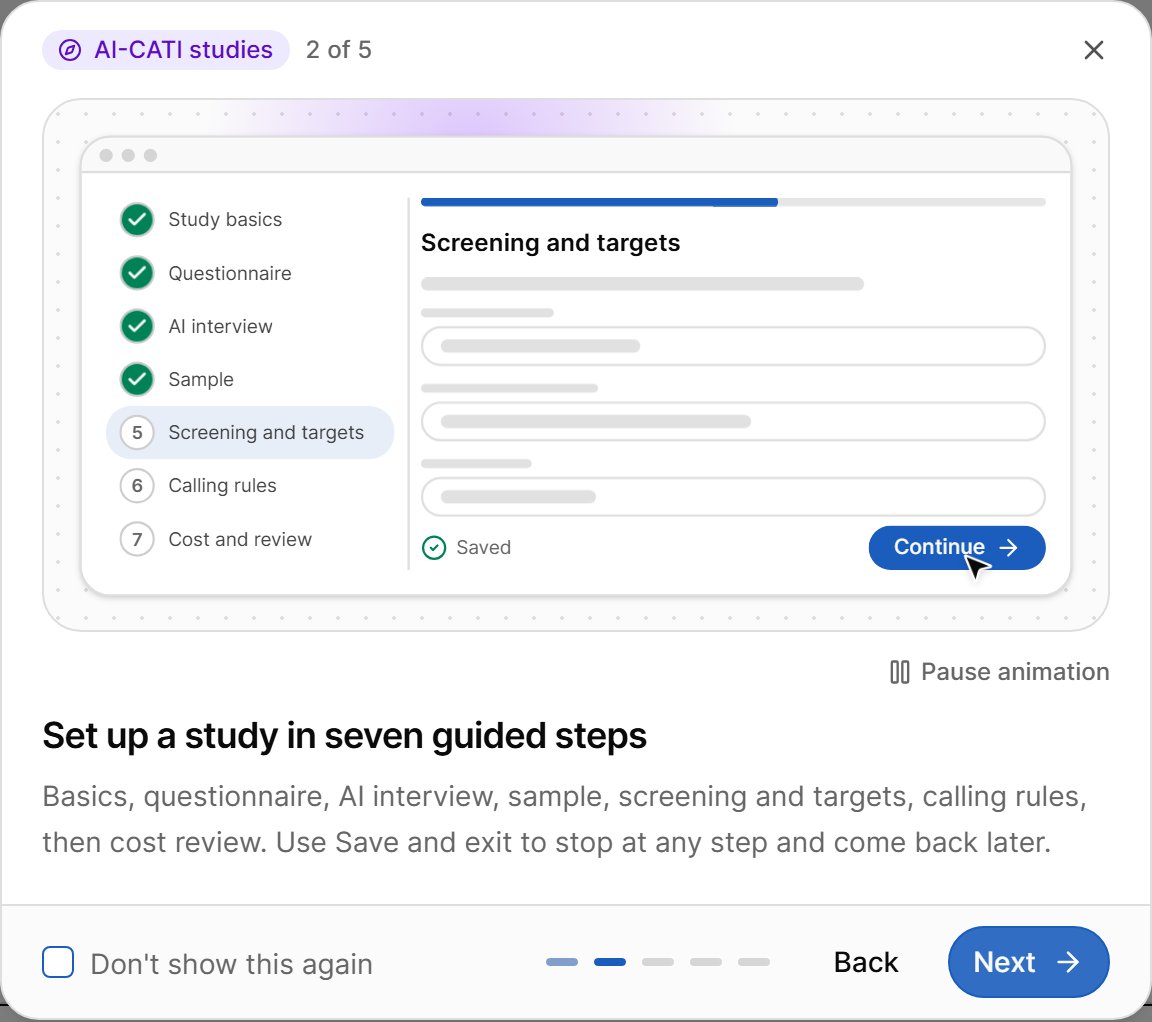
A step opens only when the earlier steps are complete, because each step reads data the earlier ones produce. Step 5 never blocks you.
Study Statuses
The status badge on the studies list and on the study page tells you where a study is in its life cycle. Hover over a badge to see a short explanation.Setup can be edited only in Draft and Ready to launch. From the first dial on, the setup is read-only. When a study is stopped, only the settings that are safe to change while stopped can be edited — see Study Page and Actions.
Quick Tour
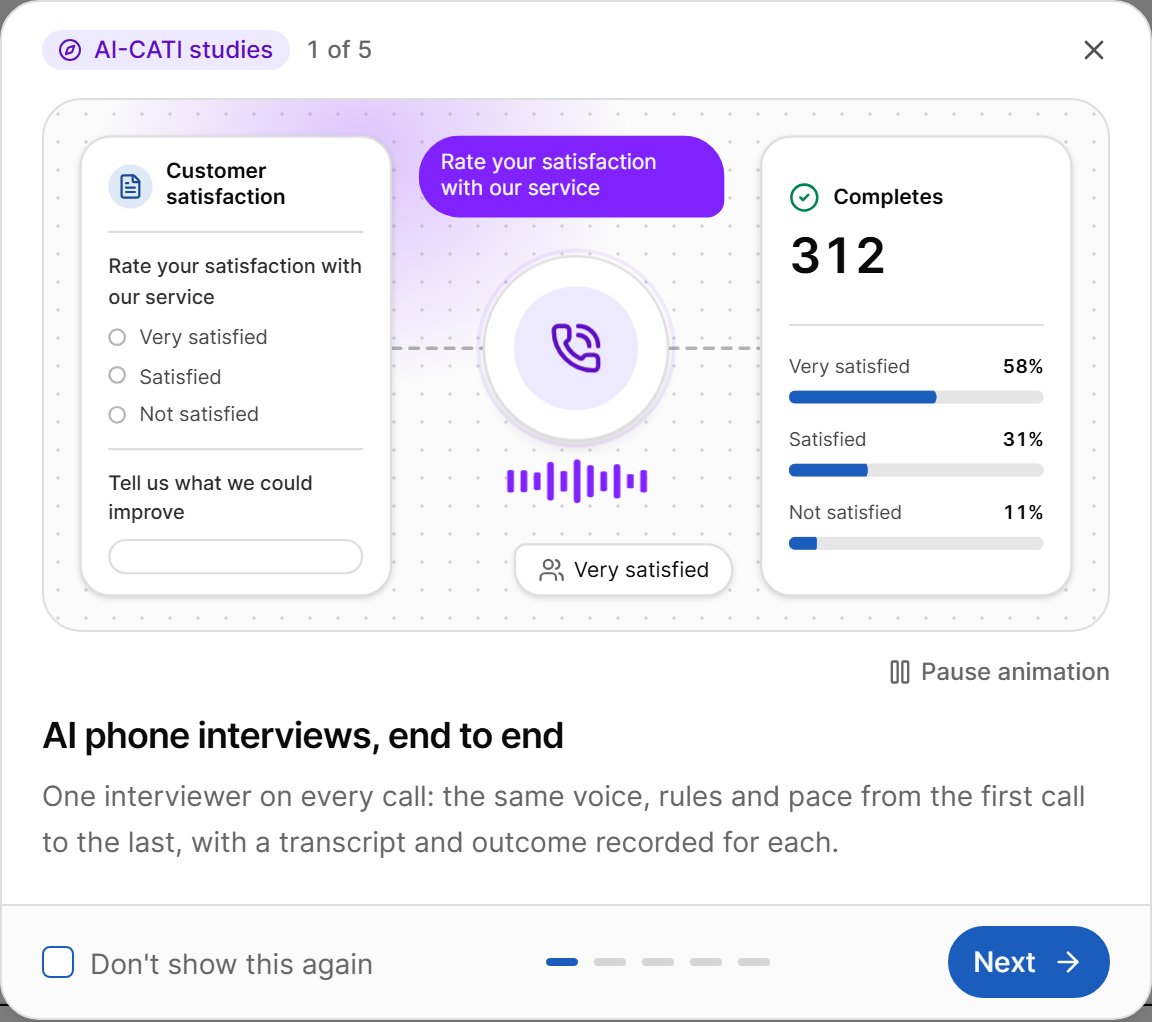
The Quick tour button next to the page title on the studies list opens a five-slide introduction:- AI phone interviews, end to end – what AI-CATI does.
- Set up a study in seven guided steps – the setup wizard.
- Reach the right people at the right time – sample, targets and calling hours.
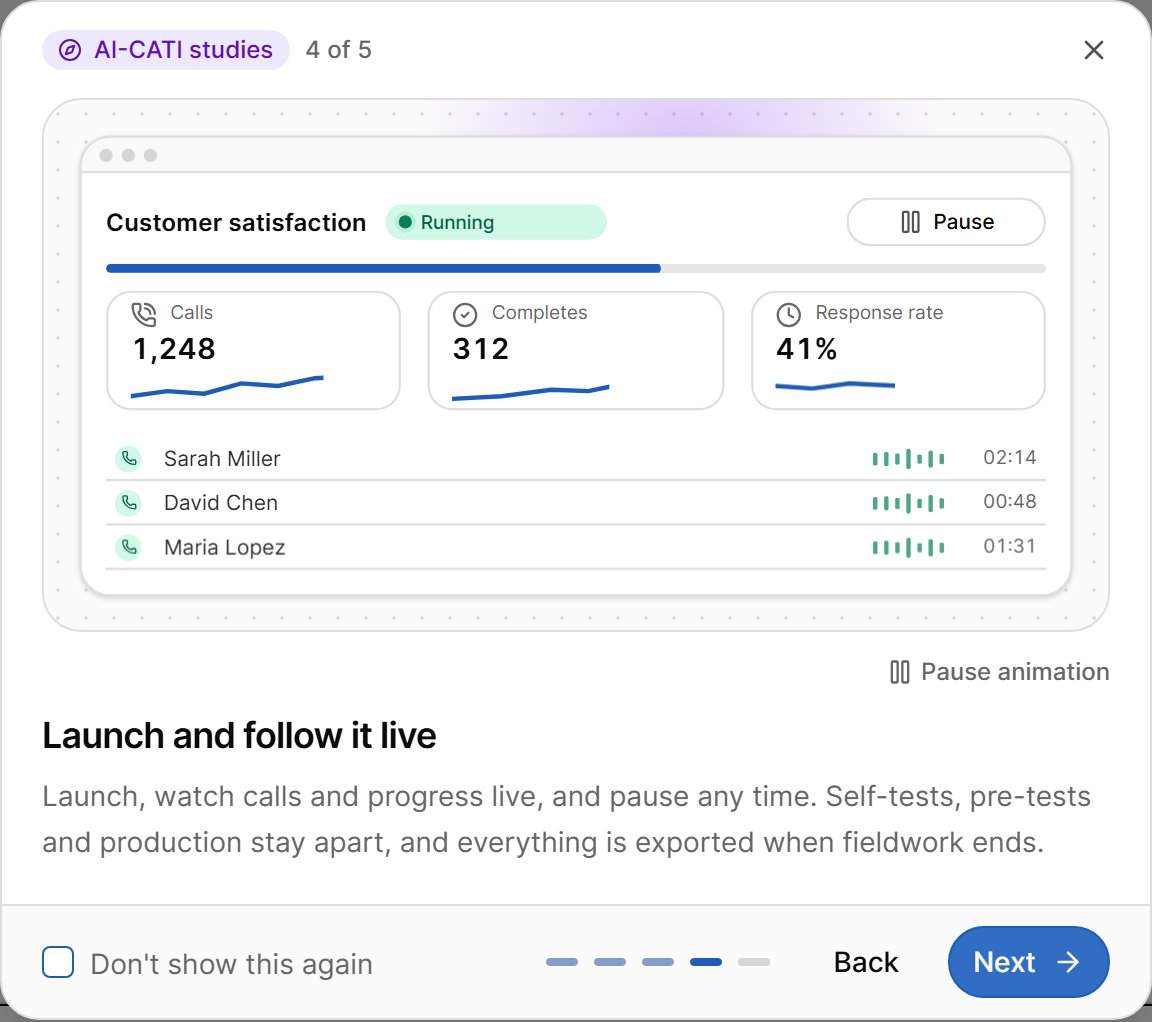
- Launch and follow it live – launch, live monitoring, tests and exports.
- Learn more about AI-CATI studies – links to this help center.
AI-CATI Help Pages
Studies list
Find, filter and manage your studies.
Setup steps 1–7
Walk through every setup step.
Launch and readiness
Readiness checks and the launch dialog.
Study page and actions
Stop, resume, close and duplicate a study.
Tests
Self-test calls and pre-tests.
Sub-samples
Field the sample in parts.
Live monitoring
Follow calls, completes and spend live.
Results and export
AAPOR outcomes, rates and data exports.
Sample records
Call history, answers, transcripts and recordings.
Costs, credits and limits
Estimates, holds, spend caps and limits.