AI requests use your organization’s AI credits. The estimated cost is shown before you send a request. See AI Credits.
Open the AI Assistant
You can open it in two ways:- Select the AI icon (sparkles) at the bottom of the property panel rail on the right of the editor.
- Select Ask AI about this question on a question in the canvas.
Choose What the AI Works On
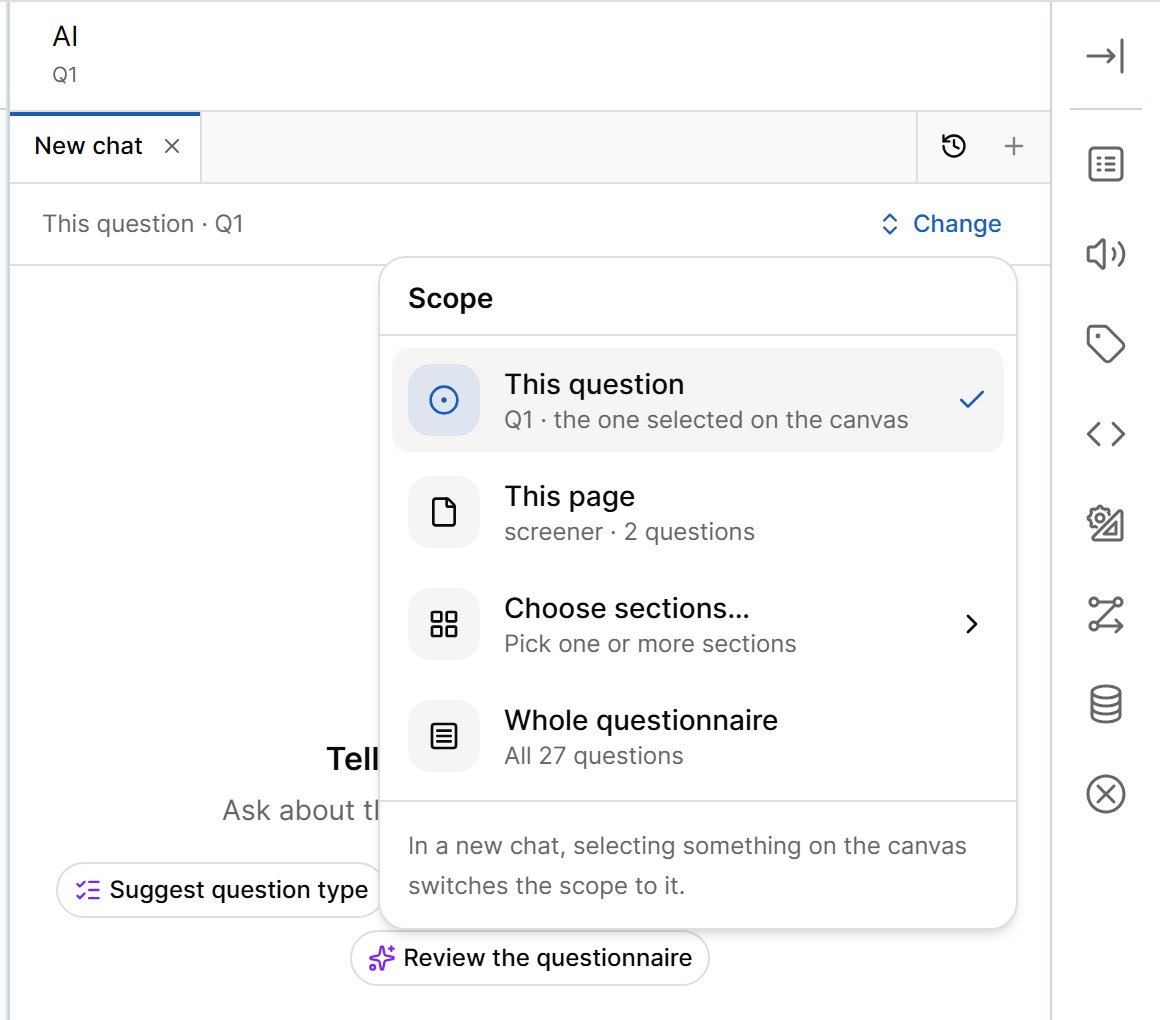
The line under the chat tabs shows the current scope, for example This question · Q1. Select Change to pick another scope:
When you have applied filters in the editor, you can also work on the filtered questions only.
Ask the AI
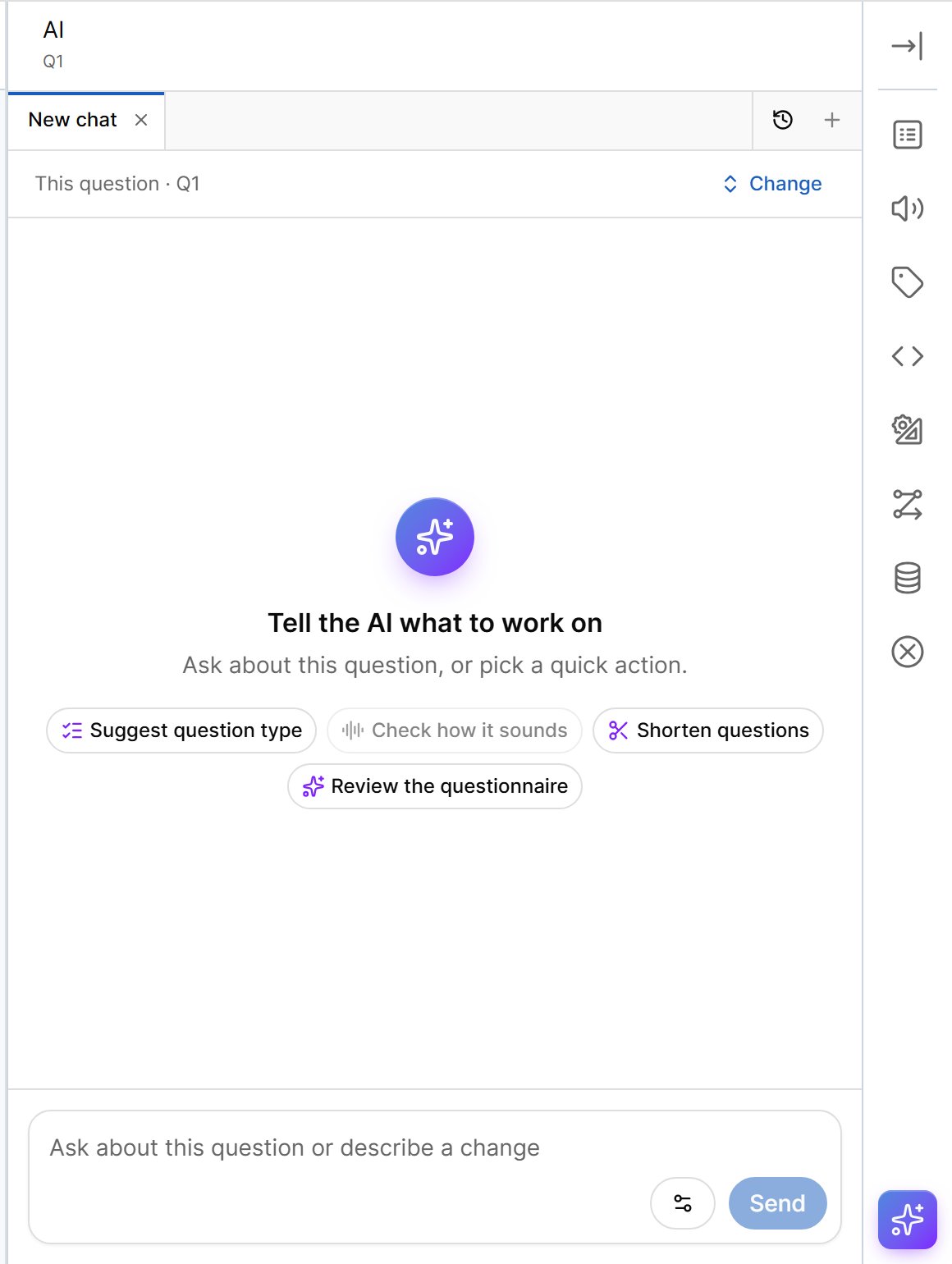
Type your request in the box at the bottom — for example “Make this question easier to read aloud” — or pick a quick action:
Other actions may be available depending on your plan, such as suggesting SPSS labels or explaining logic in plain language.
Before you send, the cost button next to Send shows the estimated cost of the request.
Review Suggestions
The AI answers with suggestion cards. Each card describes one proposed change or finding, for example rewrite, change type, merge, remove, add, flag, or a tip, and is marked Critical, Improvement, or Info. For each suggestion you can:- Accept — apply the change to the questionnaire. An Undo notice appears right after.
- Reject — discard the suggestion.
- Dismiss — hide a finding without changing anything.
- Don’t flag again — stop the AI raising the same finding on this question.
- Show on canvas — highlight the affected question.
- Preview — see how the canvas would look with the change, and open the preview in a tab.
If the questionnaire changed after the AI made a suggestion, the card may be marked outdated, or say that the question is missing or the list changed. You can still choose Apply anyway where that is safe. Suggestions that save interview time show the estimated seconds saved.
Pronunciation Check
Check how it sounds returns a card that lists words the voice may mispronounce. For each word you can:- Say as… — enter how the word should be spoken,
- Say in another language — have the word pronounced in another language,
- Save — store the correction as a custom pronunciation for text-to-speech.
Runs, Progress, and Cost
Large requests run in steps. While a request runs, the chat shows its progress, and you can Stop it. When a request ends early or only partly succeeds, the chat says so and offers Try again or Redo. You are charged only for what was processed. The final cost appears in the chat when the run finishes.Chats and History
- Each request lives in a chat tab. Select + to start a new chat, or × to close one. There is a maximum number of open chats; close one to start another.
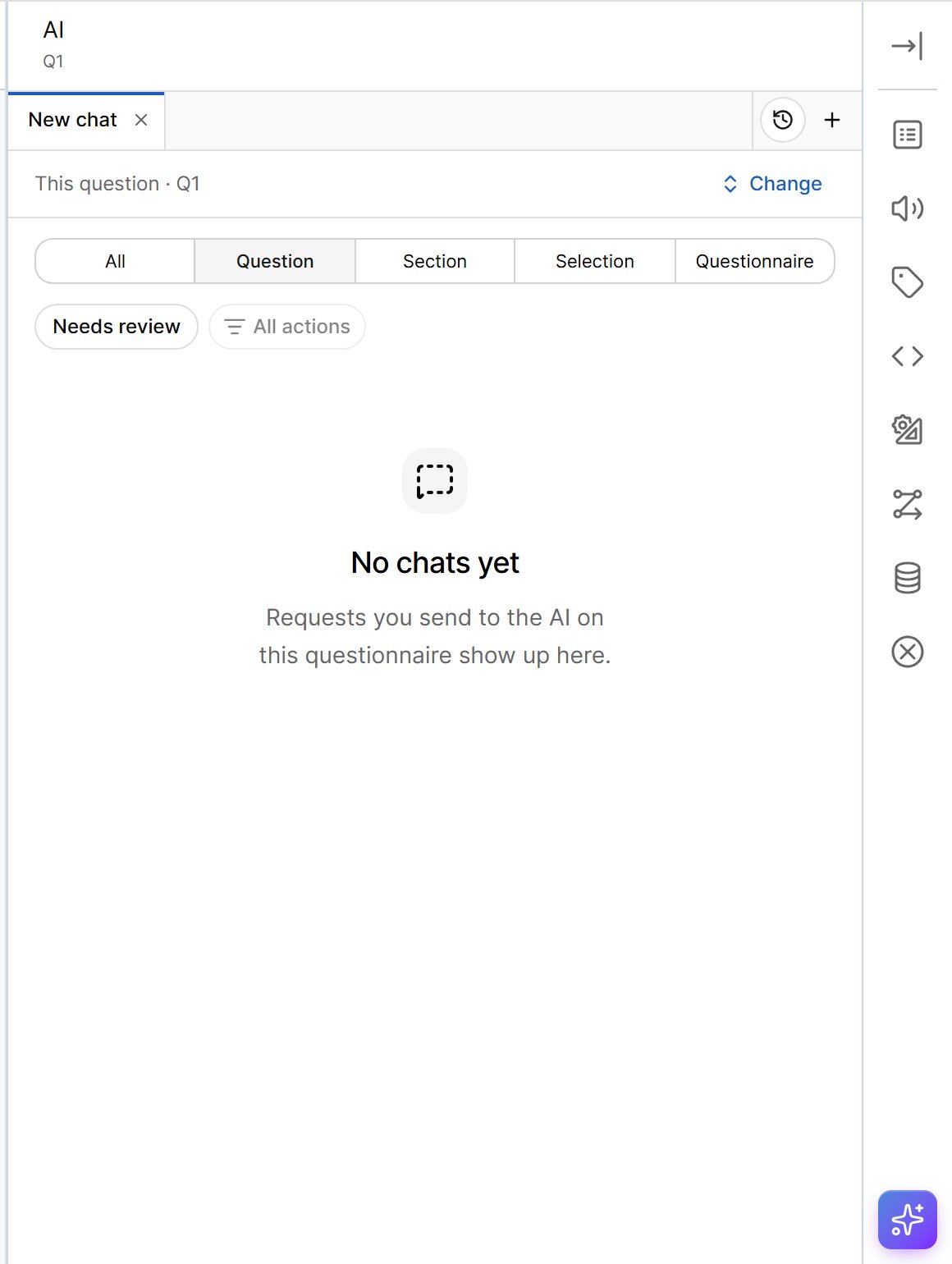
- Select the history icon to see earlier chats on this questionnaire. Filter by scope (All, Question, Section, Selection, Questionnaire), by action, or show only chats that Need review.