


How sub-samples work
- Choose the people: say who may be called, how many, and which mix to keep.
- Reserve them: the records are held for this run. Nobody is called and nothing is charged yet.
- Launch and call: from the Sub-samples tab. When you close the run, anyone it never reached goes back to the pool.
- Only one run dials at a time.
- Each study has a limited number of sub-sample run slots (shown as, for example, “3 of 20 runs used”). A discarded run keeps its run number.
- The study’s spend cap is shared by the main launch and every sub-sample.
- Sub-samples inherit the study’s dial-order randomization setting from step 4.
The Sub-samples board
The board appears on the study’s Sub-samples tab and, while the study is still a Draft, at the bottom of step 4 (Sample). Pool figures
Runs table: each run shows its name, status, calls out of records, completes, created date and actions.
Plans (while the study is a Draft)
Before setup is finished, you create plans instead of runs. A plan reserves nobody and costs nothing. When you select Finish setup in step 7, each plan is frozen into a prepared run over the final calling rules, in the order listed.
A plan can have an optional label (up to 200 characters). You can edit or delete a plan at any time before it is frozen; deleting frees its run slot.
Create a sub-sample
Select New sub-sample (or Plan a sub-sample on a Draft study). The dialog has two steps: Build, then Review and reserve.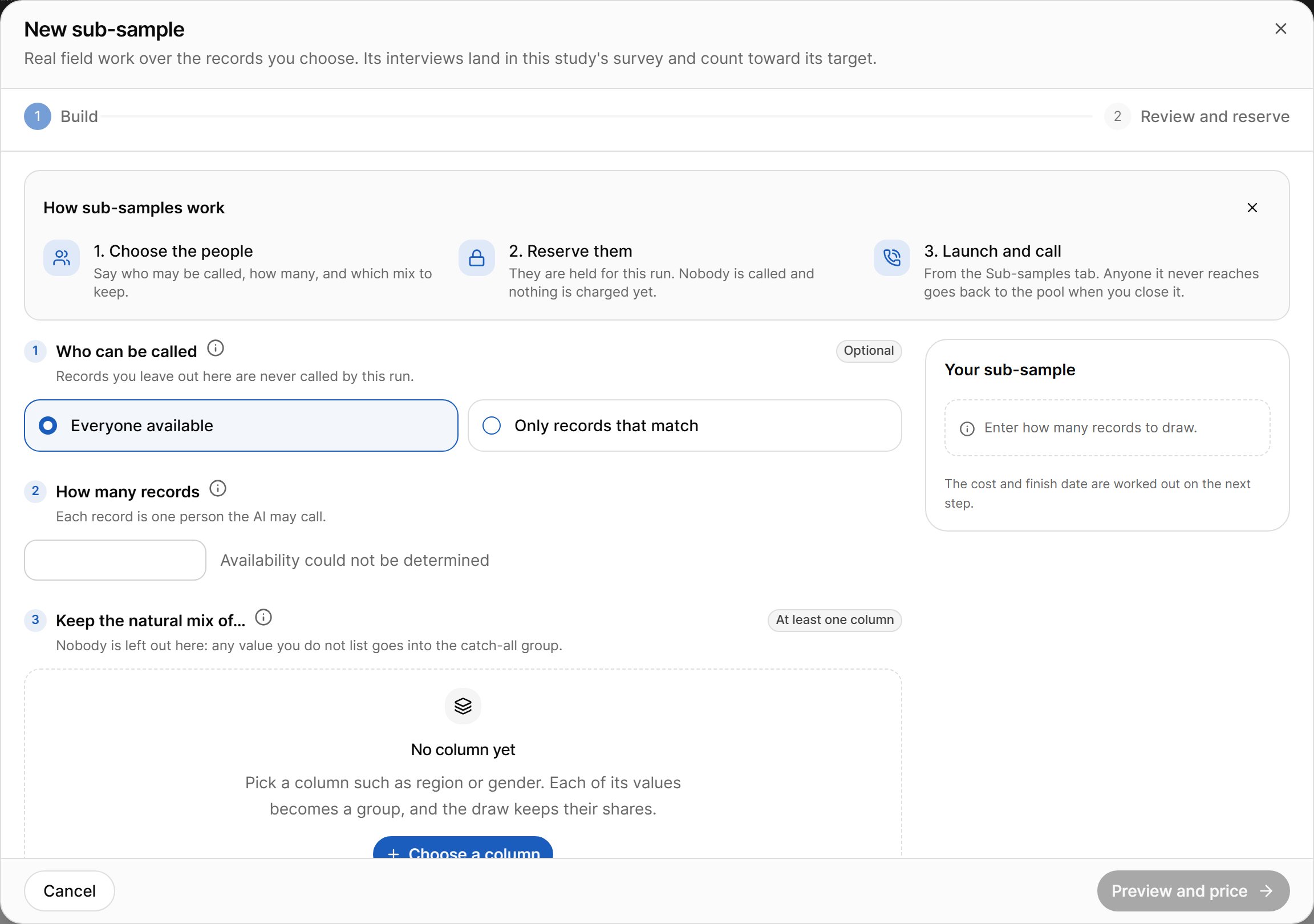
1. Who can be called (optional)
- Everyone available: the run draws from every free record.
- Only records that match: add conditions on the sample’s columns, such as region, city, country, postal-code prefix, language, time zone, sample type, contact frame, or your own client columns. Values inside one column are combined with OR; different columns are combined with AND.
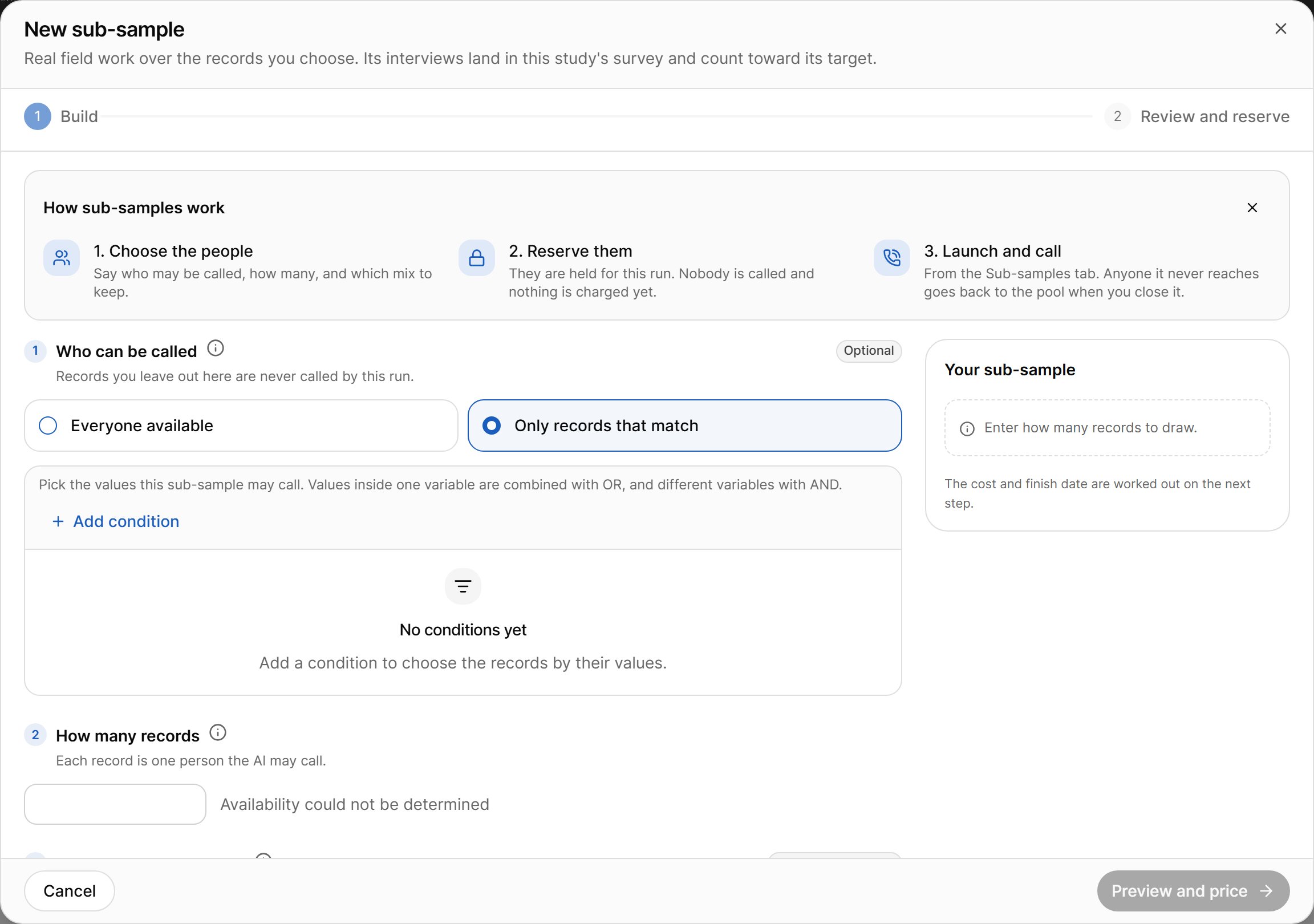
2. How many records
Enter how many records to draw. Each record is one person the AI may call. Records the run never reaches go back to the pool when it is closed, so leave some free if you plan a pre-test or a later run. A warning appears if the draw takes most of the available records.3. Keep the natural mix of…
Pick at least one column, such as region or gender. The draw keeps each group’s share of the records it draws from (a distributed, or proportional, draw).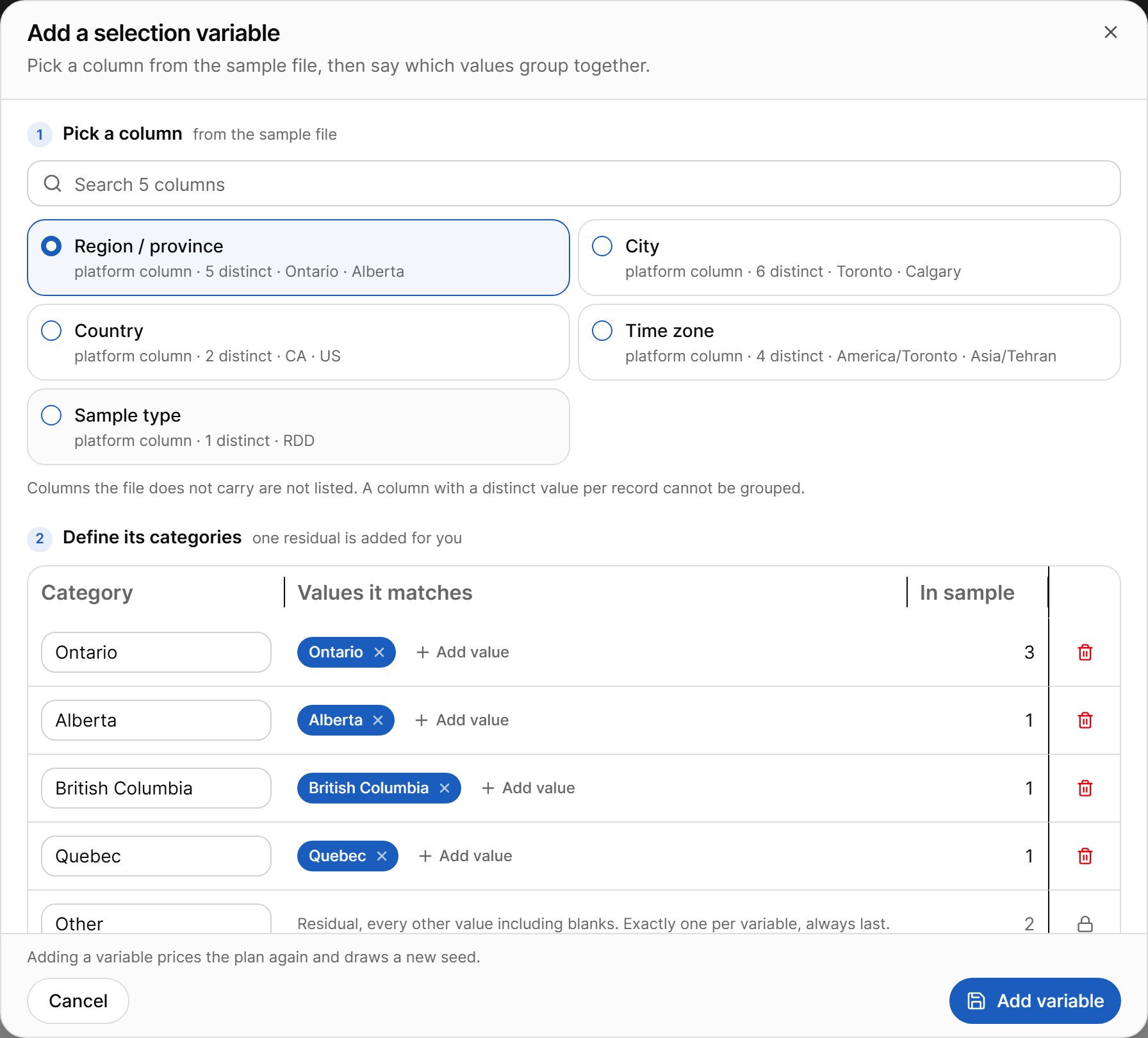
- Pick a column from the sample file. Columns with a distinct value for every record cannot be grouped.
- Define its categories: each category has a name and the values it matches, with the number of records in the sample. One residual catch-all category (“Other”) is added for you and always comes last: every value you do not list, including blanks, goes into it.
Proportional (distributed) drawing is the method available today. Other draw methods (random, filter, pick records, from file) are shown as Coming soon.
If a group does not have enough people
Most draws never need this. If the preview finds a short group, choose the shortfall policy:- Fill from other groups (recommended): the missing records are drawn from the other groups.
- Keep the exact mix: the run keeps the proportions and draws fewer records.
Review and reserve
Select Preview and price to see:- matched and callable counts and the number of records to reserve;
- the plan table per cell: target, records in the file, available, reserved, share, and whether each cell is Full, Short or Empty;
- cost and estimated finish per capacity tier, and the credit that will be held at start;
- Checks (Pass / Warn / Fail). Some failing checks block Prepare;
- What happens next: Reserve now → Launch from the Sub-samples tab → Close.
Run statuses
Run actions
A run cannot start or launch again when another sub-sample is dialling, setup is pending, the study’s target has been reached, the end date has passed, the spend cap cannot pay for another call (raise it in step 7), or the wallet does not cover the credit the run needs.
Sub-sample run page
Open a run to see its own page with these tabs:- Overview: status banner, facts (draw mode, records taken, questionnaire, released records), the Lifecycle timeline (created, reserved, stopped, resumed, ended) and the Records in this sub-sample table (case, respondent, phone, place, cell, state, last outcome, calls), filterable by cell.
- Live monitoring: the monitoring dashboard for this run only.
- Results: the results for this run only.
- Activity: the run’s audit timeline.
- Exports: export bundles of this run’s interviews, Data only or With call audio. Each bundle is also emailed to you when it is ready. Export bundles are available to analysts only.