


Header
The header shows:- the study name, its status badge and its interview language(s);
- the Study ID (for example
AICATI-2026-023), which never changes; - the scheduled start, when there is one;
- chips for live sub-samples (for example “Sub-sample 2 calling”), or “Main launch not started”;
- Refresh, View in VoxDash (once the first interview is saved) and the actions available in the current status. The first action is the main button; the rest are under More actions (⋮).
Tabs
When sub-samples exist, Live monitoring and Results for the main fieldwork open once the main launch has started dialing.
Statuses
Hover over a status badge to see a short explanation. A banner under the header explains the current state, such as Live, Stopping, Scheduled or Target reached.
Actions by Status
The actions offered depend on the study’s status: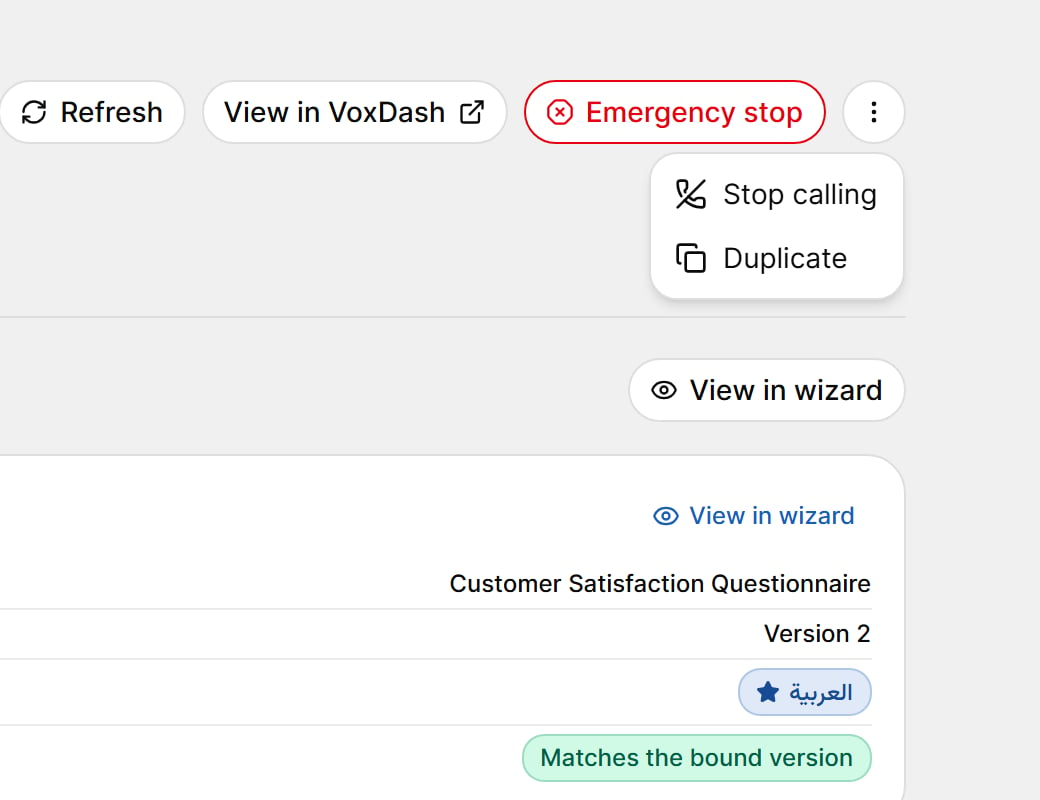
Launch
Opens the Launch dialog. See Launch and Readiness.Change Start
For a Scheduled study: pick a new start date and time (in the study’s time zone), or choose Start now.Stop Calling
Stop calling ends the main fieldwork in an orderly way. No further calls are placed for the main fieldwork, interviews in progress finish, and the study stays open so you can review the results.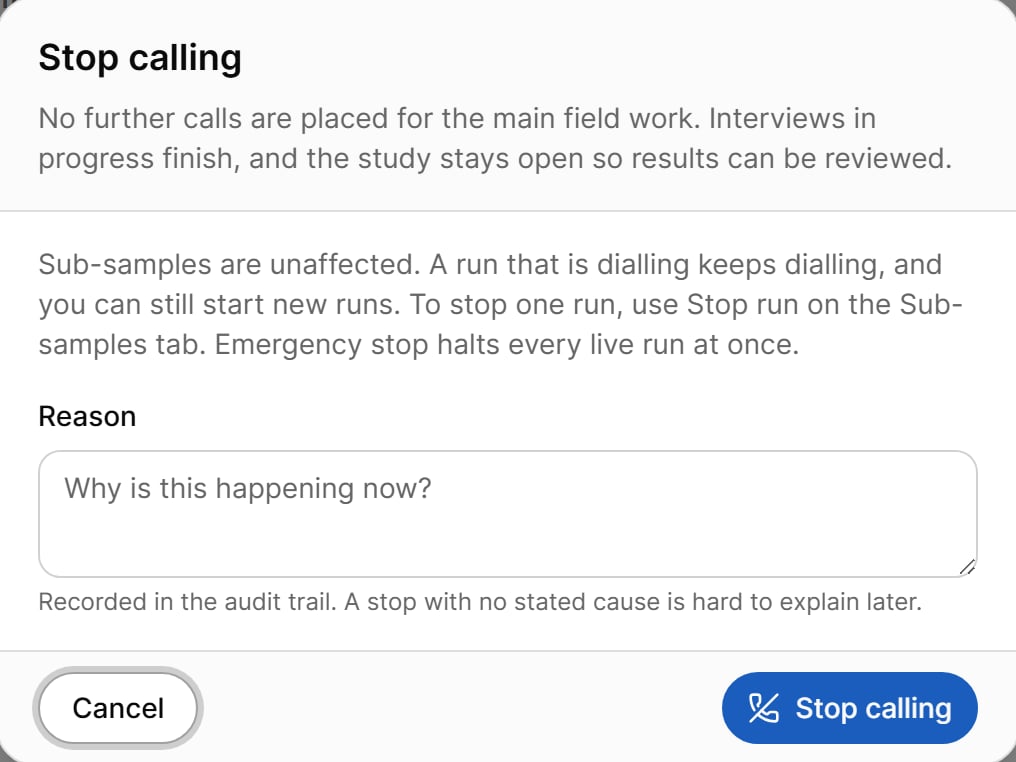
- Sub-samples are not affected. To stop a sub-sample, use Stop run on the Sub-samples tab.
- Enter an optional reason. It is recorded in the audit trail.
Emergency Stop
Emergency stop halts every live run at once — the main fieldwork, sub-samples and pre-tests.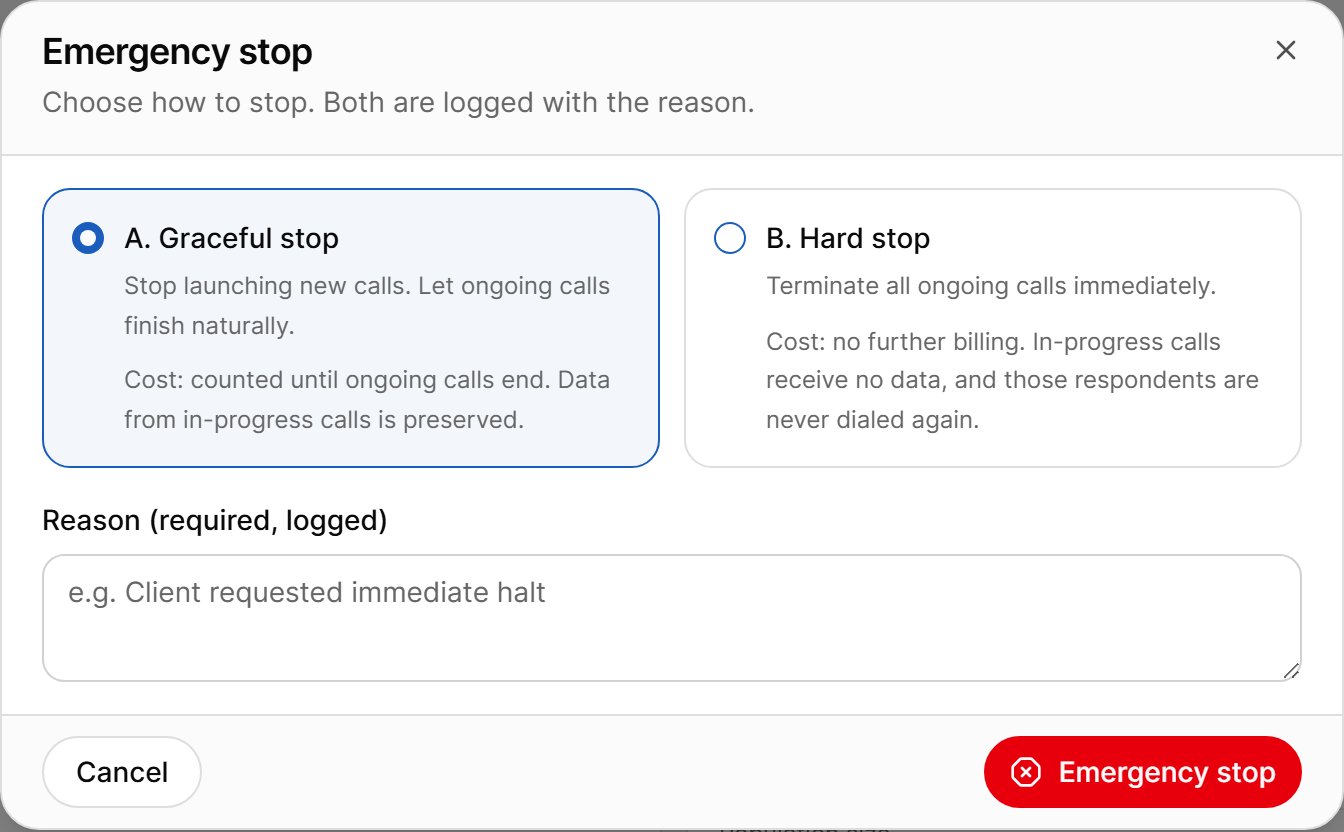
The option chosen under When the study stops in Step 6 is pre-selected. A reason is required and is logged.
Resume
Resume restarts calling on a stopped study, under the same calling rules. Before you confirm, the dialog shows the money involved:- a fresh credit hold at today’s rates, and any shortfall (or “no charge”);
- if rates changed since the budget was reserved (rate card, markup or tier multiplier, shown as was → now), you must tick I accept the current rates for this resume;
- if you changed settings while stopped, a list of the changes and their effect on the sample (records re-timed, reopened or closed), which you must approve.
Close
Closes the study for good. The status changes to Closed (Target reached, Stopped short or Closed). You can enter an optional reason, recorded in the audit trail.Duplicate
Creates a new Draft copy of the study and opens it. The setup is copied, including the questionnaire binding and Step 5 targets.Restore from Archive and Delete Permanently
Studies can no longer be archived, but studies archived earlier can be restored (Restore from archive) or removed for good (Delete permanently — this cannot be undone). Both actions are in the row menu of the Studies list.Setup Tab
The Setup tab shows everything the study runs with, exactly as the server recorded it.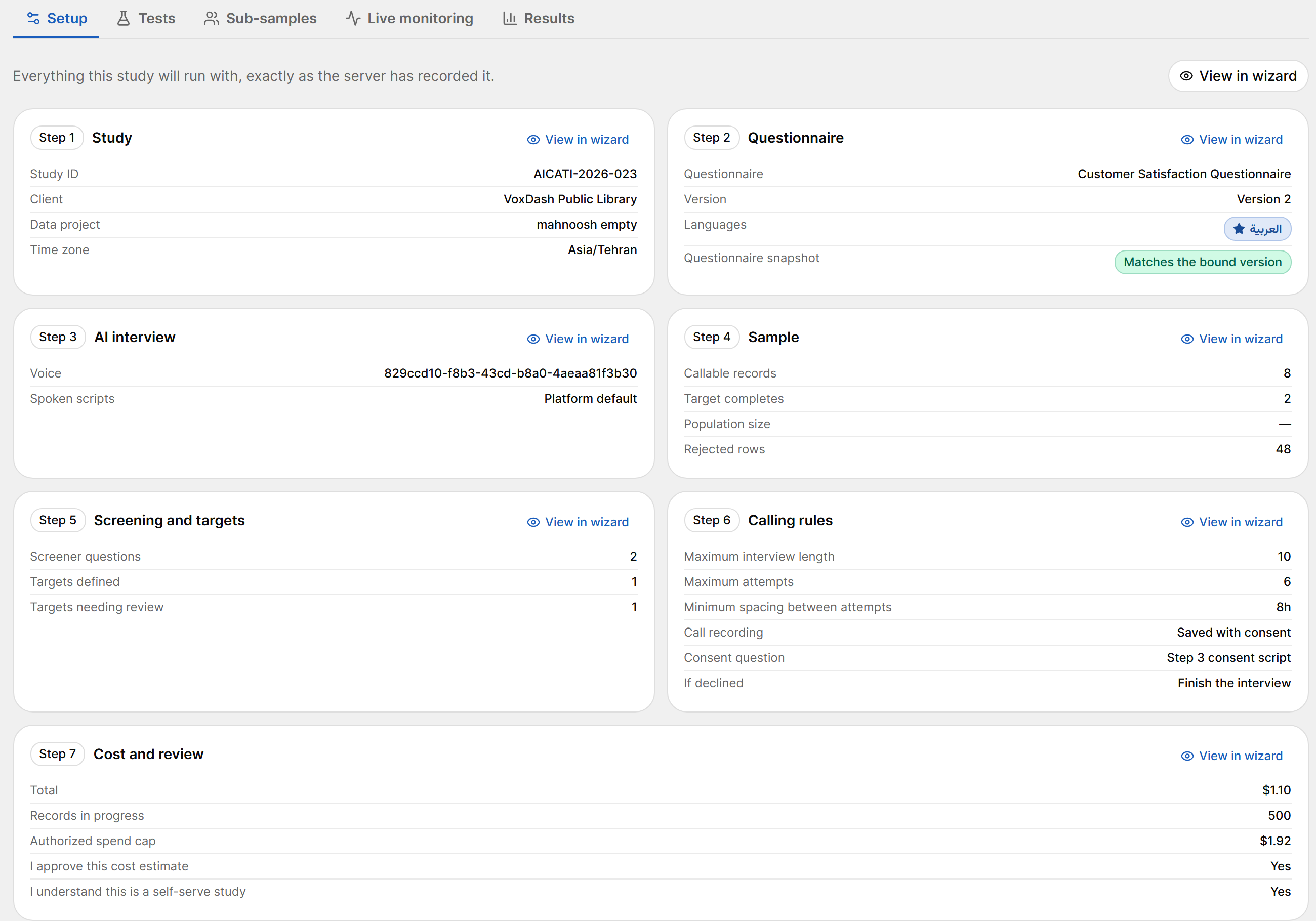
- One tile per step (Study, Questionnaire, AI interview, Sample, Screening and targets, Calling rules, Cost and review), each with Edit in wizard or View in wizard.
- Disposition coding standard — the AAPOR edition and year, the unknown-eligibility model, and the AI-CATI technical subcodes used for every call outcome in the study.
- Settings history — every set of settings the study has called under. Each launch, and each resume after an edit, adopts a new version. For each version you see when it was adopted and by whom, whether a new cost basis was accepted, its effect on the sample, and which version is in force.
- Questionnaire snapshot — view or download the exact questionnaire that was fielded, as JSON.
Editing a Stopped Study
After the first dial, the setup wizard is read-only. When the study is stopped, a notice in the wizard says which settings can still be changed; only those fields are unlocked. They include:- start date and end date, stop rules and stop behavior;
- AI voice and maximum interview length;
- calling windows, retry policy, maximum attempts and spacing, callback switches;
- ring timeout, dropped-line re-dials and wait, auto-pause;
- maximum records in progress, capacity tier and spend cap;
- the six expected response rates and the population size.