

A. Sample Source and Upload
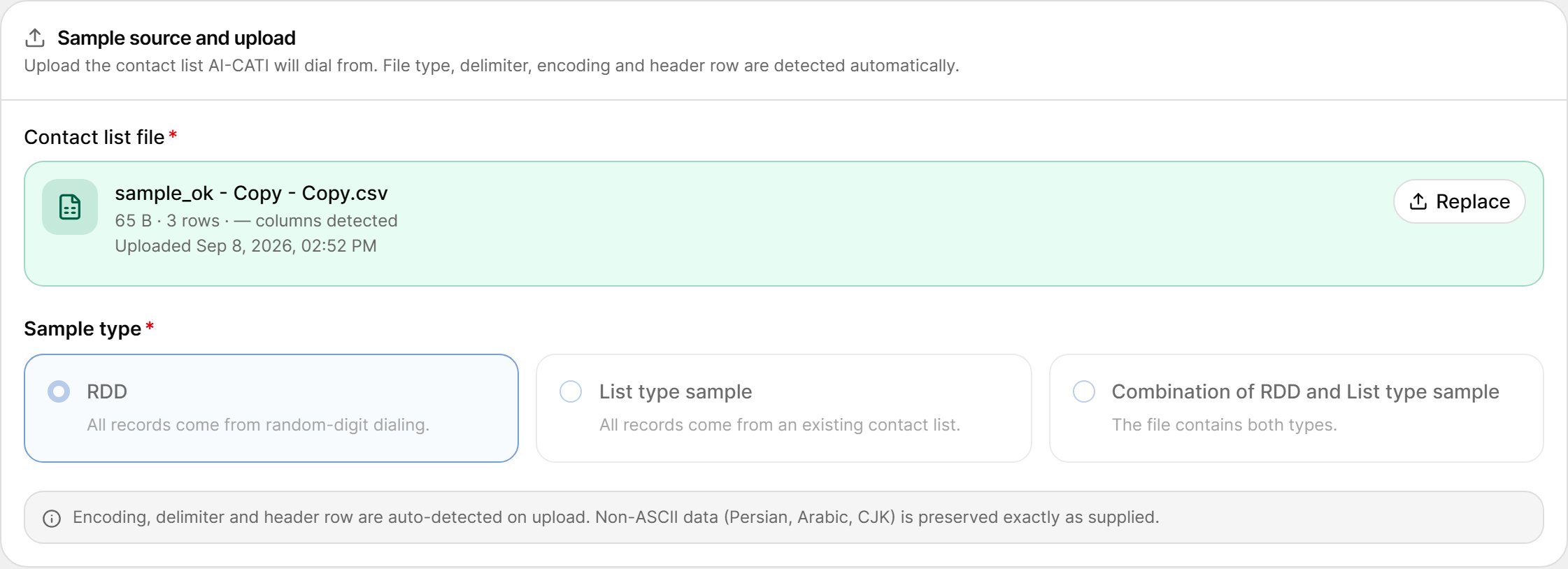
Contact List File
Upload your contact list as CSV, XLSX or TXT, UTF-8 encoded. VoxDash detects the encoding, delimiter, header row and (for Excel) the sheet automatically. Non-ASCII data such as Persian, Arabic or CJK text is preserved exactly as supplied. After the upload, the file card shows the file name, its size, the number of rows and columns detected, the delimiter, the header row and when it was uploaded.If a file has more rows than AI-CATI accepts, the upload is refused with a hint. Split the file, or remove rows you don’t need, and upload again.
Sample Type
Choose the type of sample (required):Replacing the File
Select Replace to upload a new file. VoxDash asks you to confirm, because replacing the file:- Discards prepared sub-sample runs and plans.
- Warns you when records have already been dialed or when extra files were appended.
B. Column Mapping
Right after an upload, the Column mapping grid shows every column in your file:
The roles you can map a column to are:
Rules:
- One column must be mapped to Primary phone.
- Single-use roles can be claimed by only one column. If two columns claim the same role, you see A role is claimed by more than one column — change one of them.
- You must confirm the mapping before you can continue. Applying a mapping re-runs cleaning over the whole file.
The column mapping is shown only right after an upload. To change how columns are read later, upload the file again.
C. Cleaned Sample
After mapping, VoxDash cleans the sample and shows the result.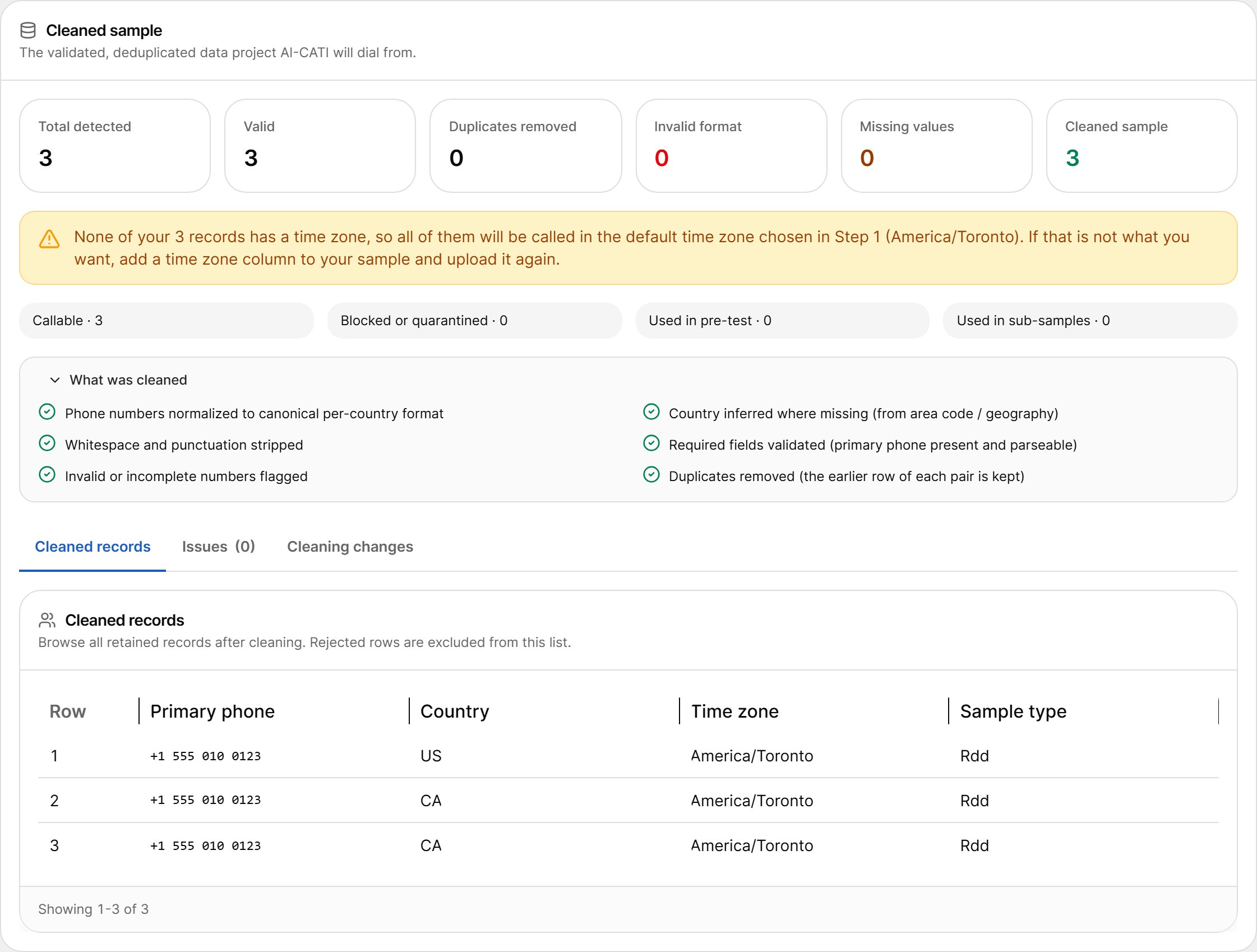
Summary Tiles
Below the tiles, the sample is split into Callable, Blocked or quarantined, Used in pre-test and Used in sub-samples.
What Was Cleaned
Expand What was cleaned to see the cleaning rules applied:- Phone numbers normalized to the canonical per-country format.
- Country inferred where missing (from area code or geography).
- Whitespace and punctuation stripped.
- Required fields validated (primary phone present and parseable).
- Invalid or incomplete numbers flagged.
- Duplicates removed — the earlier row of each pair is kept.
Reviewing the Records
Three tabs let you look at the result in detail: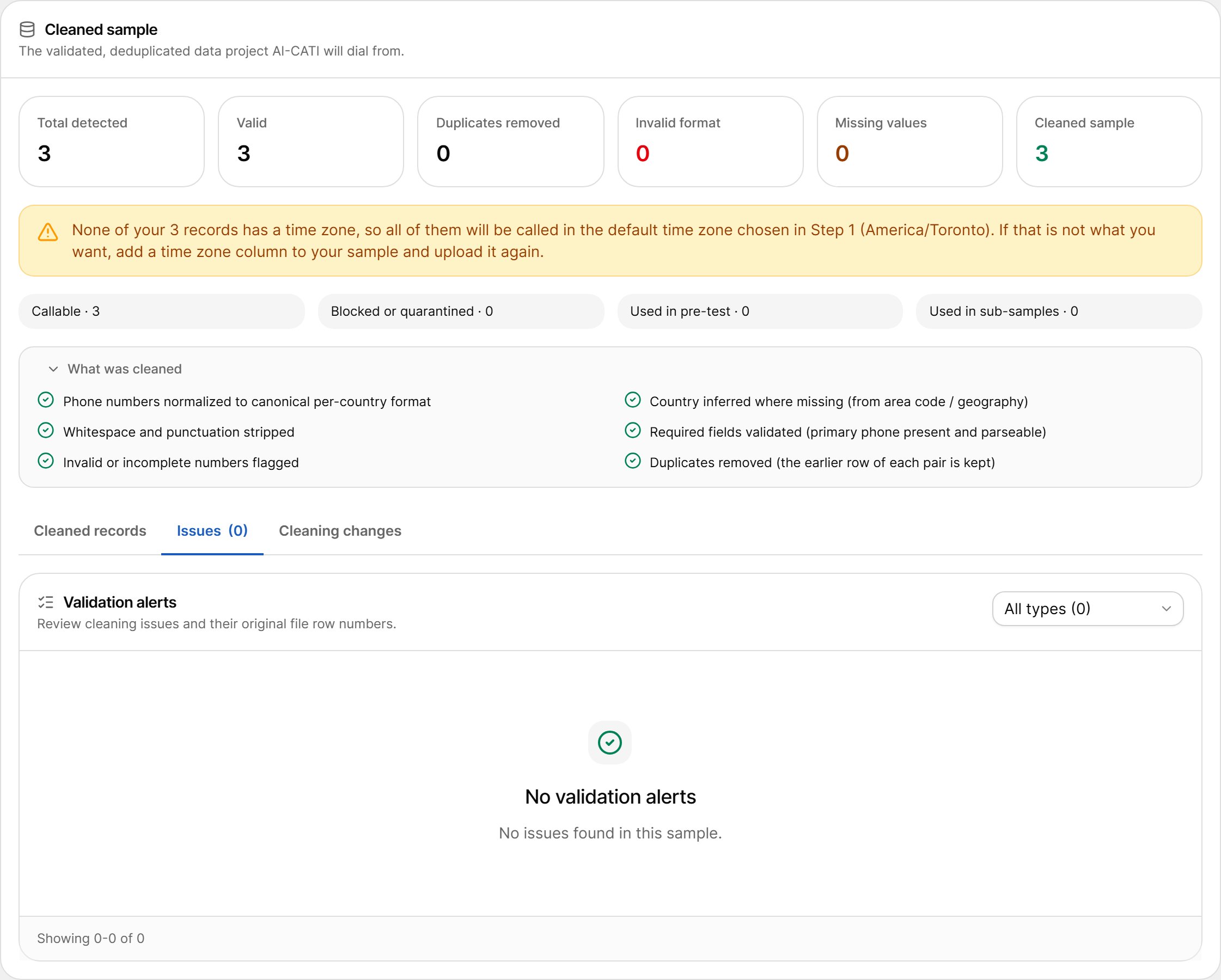
D. Sample Composition
Sample composition shows how the cleaned sample is distributed across the columns you mapped, such as time zone, region, language or sample type. Each card lists the values with their counts and shares; values beyond the top ones are grouped as Other. Columns with no values in the sample are listed as not shown.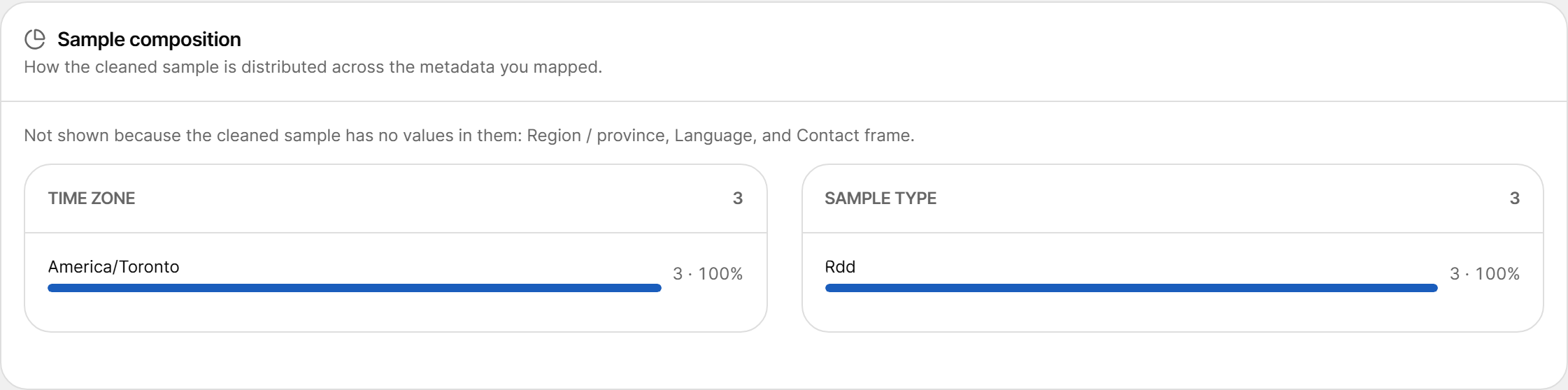
E. Target Completes and Feasibility
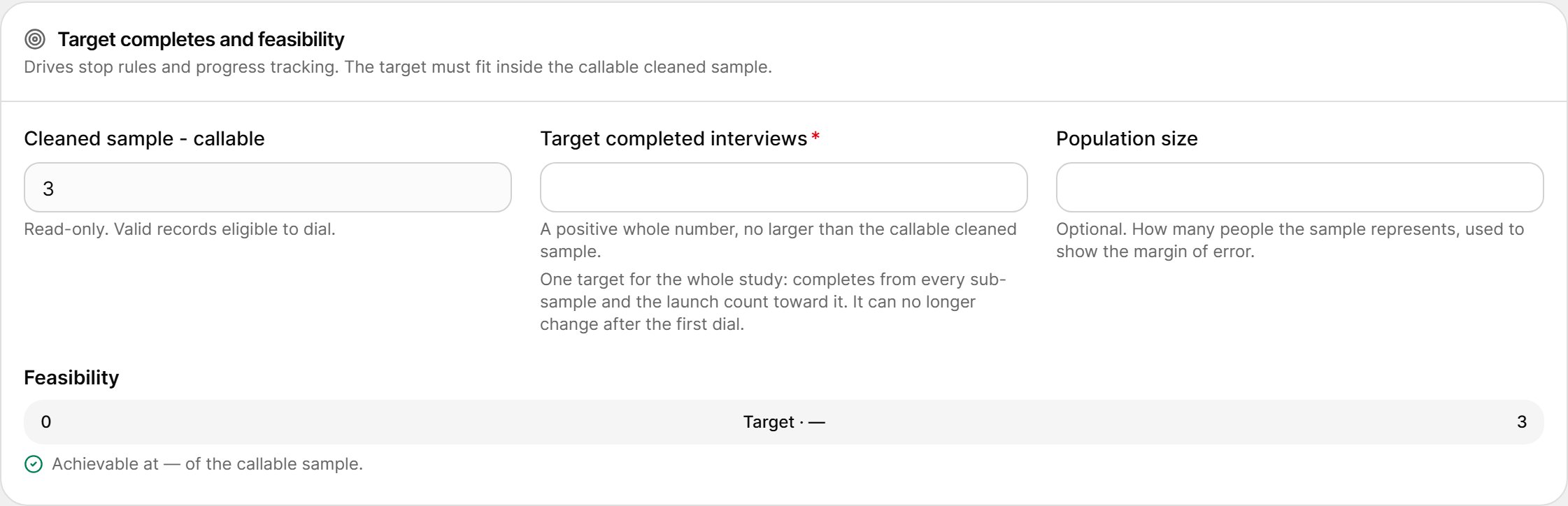
The Feasibility bar compares the target with the callable sample and shows the share of the callable sample you need to complete (“Achievable at X% of the callable sample”). If the target is larger than the callable sample, you see Target exceeds the callable sample.
Rules:
- There is one target for the whole study: completes from every sub-sample and from the launch count toward it.
- The target drives the stop rules and progress tracking. It can no longer change after the first dial.
- Population size must be at least 2 and not lower than the target or the completes so far. Once set, it cannot be cleared.
F. Randomize Dial Order
Turn on Randomize dial order to draw records from the cleaned sample in random order instead of upload order. It is off by default.
Dial-order randomization is separate from question and battery randomization, which is managed in the Questionnaire Builder. Sub-samples inherit this setting.
G. Sub-samples
The Sub-samples board lets you field the sample in parts — each part runs with the same questionnaire, calling rules, voice and billing as the main launch. Up to 20 runs are allowed per study. While the study is a draft, you create plans. Plans reserve nobody and cost nothing; Finish setup in step 7 freezes each plan into a prepared run, which you start from the study page. See Sub-samples.Completing the Step
Step 4 is complete when the sample is cleaned and the target is greater than 0.
Next: Step 5 · Screening and Targets.