

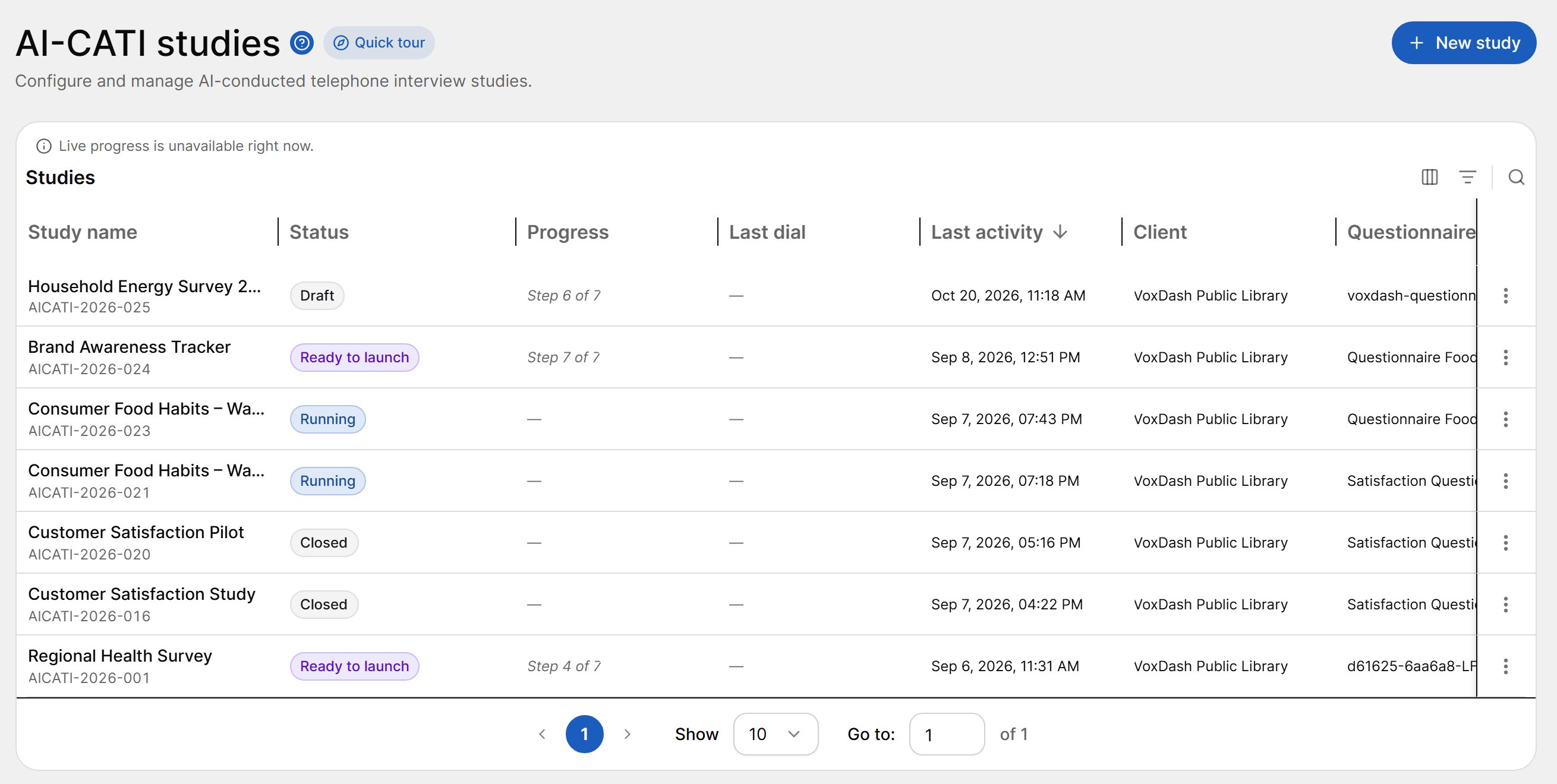
- The help icon, with links to these help pages.
- Quick tour, a short introduction to AI-CATI. See Quick Tour.
- New study, which starts the setup wizard at Step 1 · Study basics.
If live progress cannot be loaded, a notice appears above the table (“Live progress is unavailable right now”). The list still works; only the live progress figures are missing.
Studies Table
Each row is one study. Use the Columns button in the table toolbar to show or hide columns.Search, Filter and Sort
- Search (magnifier icon) finds studies by name.
- Filters let you filter by status and by access type, among other columns.
- Select a column header to sort.
- Choose how many rows to show per page (10, 25 or 50) and move between pages at the bottom of the table.
Row Actions
Select the ⋮ menu at the end of a row to see the actions available for that study. The actions depend on the study’s status.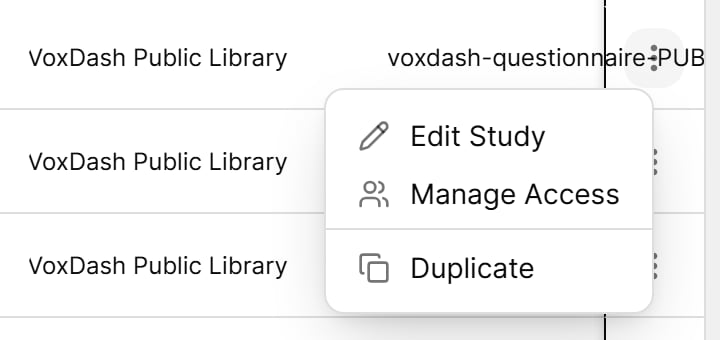
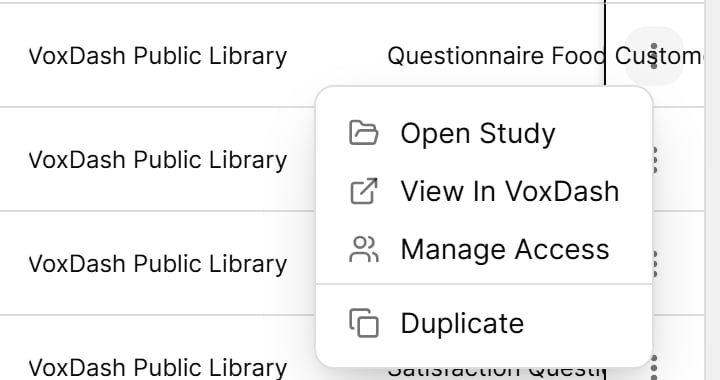
Duplicating a Study
Duplicate creates a new draft with the same setup, questionnaire and targets. The sample, sub-sample plans, approvals and collected interviews are not copied.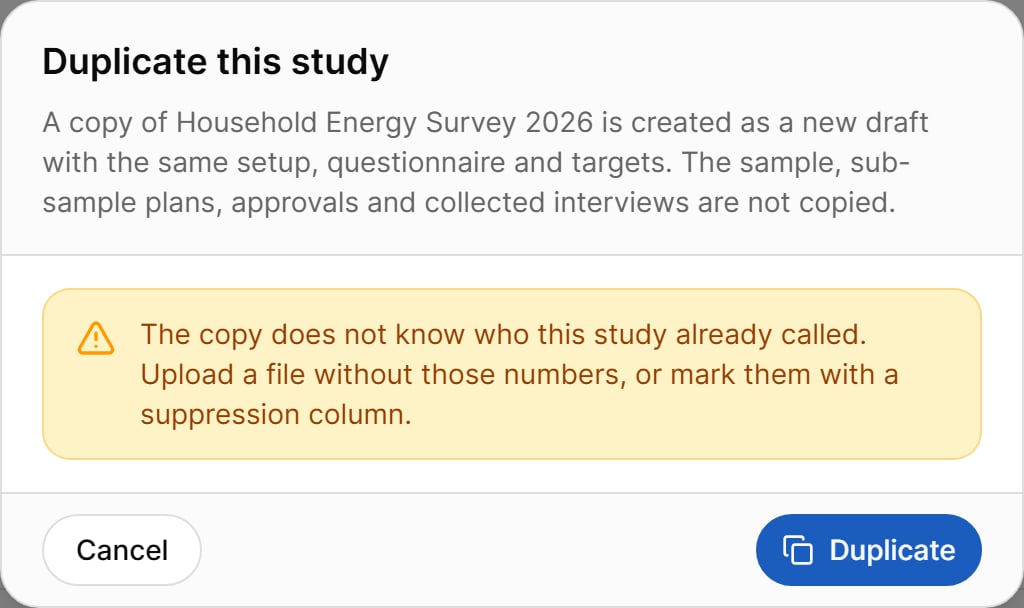
Studies can no longer be archived. Studies archived earlier can still be restored or deleted from this menu.