

- Screening and eligibility — a read-only view of the screener questions and screen-out rules taken from your questionnaire.
- Distribution targets — optional targets per answer, used to compare planned and achieved completes during and after fieldwork.
This step never blocks you. Once a questionnaire is bound in Step 2, Step 5 counts as complete even if you add no targets.
Screening and Eligibility
This section shows what the AI interviewer applies at the start of every call, exactly as it was written in the Questionnaire Builder. It is read-only.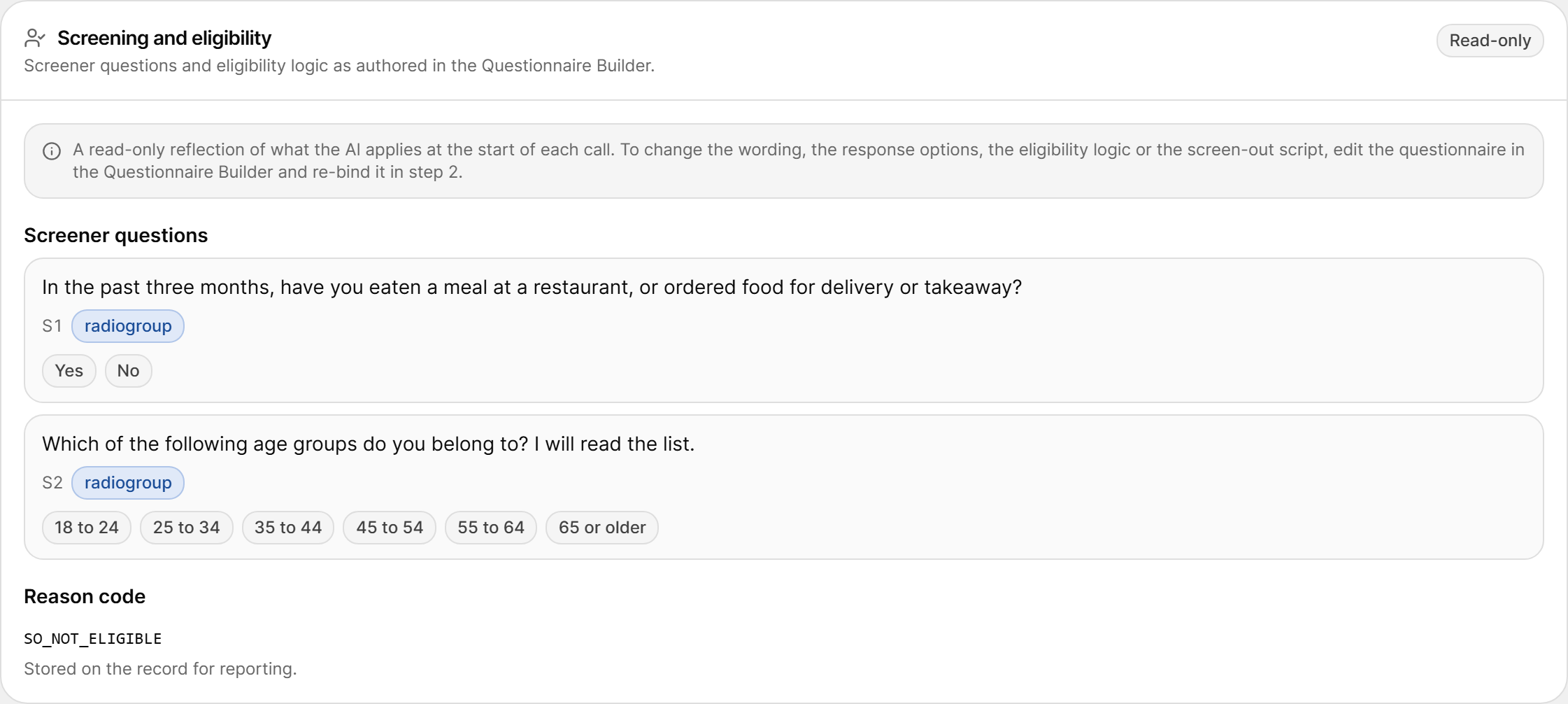
To change the wording, the answer options, the eligibility logic or the screen-out script, edit the questionnaire in the Questionnaire Builder, publish a new version for AI-CATI, and re-bind it in Step 2.
If the questionnaire has no screener, the card shows No screener found with a link back to Step 2. To learn how to mark a question as a screener, see Tags.
Distribution Targets
Distribution targets say how many completed interviews you want for each answer of a question — for example, 50% women and 50% men, or a set number of completes per region.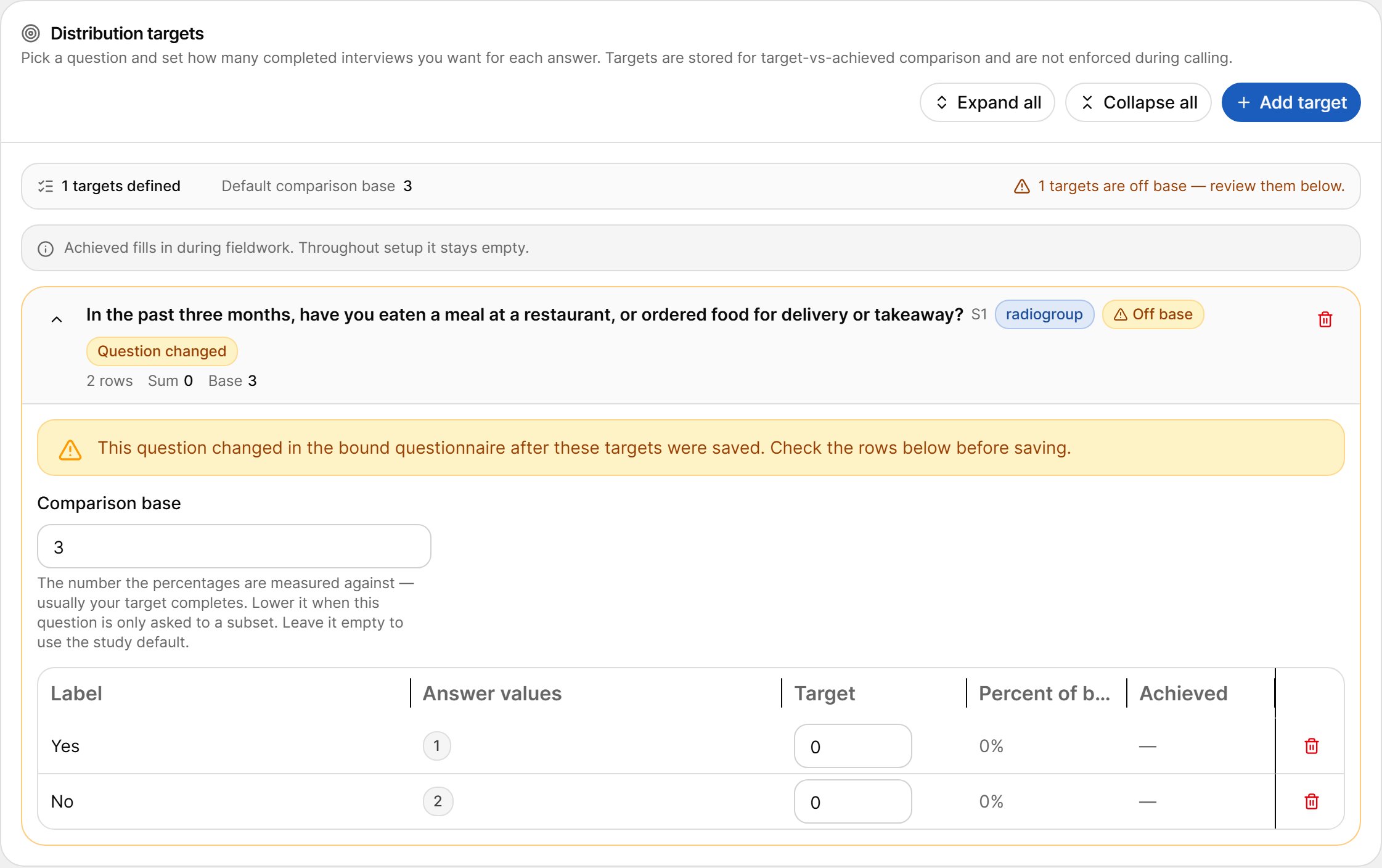
Add a Target
1
Select Add target
A picker lists the questions in the bound questionnaire. Each question can have only one target.
2
Choose a question
The question’s answer options become the rows of the target.
3
Set the comparison base (optional)
The number the percentages are measured against. It defaults to the study’s target completes (set in Step 4). Lower it when the question is only asked to a subset of respondents. Leave it empty to use the study default.
4
Enter a target for each row
Type the number of completes you want per answer. The Percent of base column updates as you type.
Target Rows
For questions that accept numbers, use Add range to create a row from a minimum and maximum value (for example, ages 18–24). You can remove rows, remove a whole target, and use Expand all / Collapse all to manage long lists.