

Open the Share Dialog
1
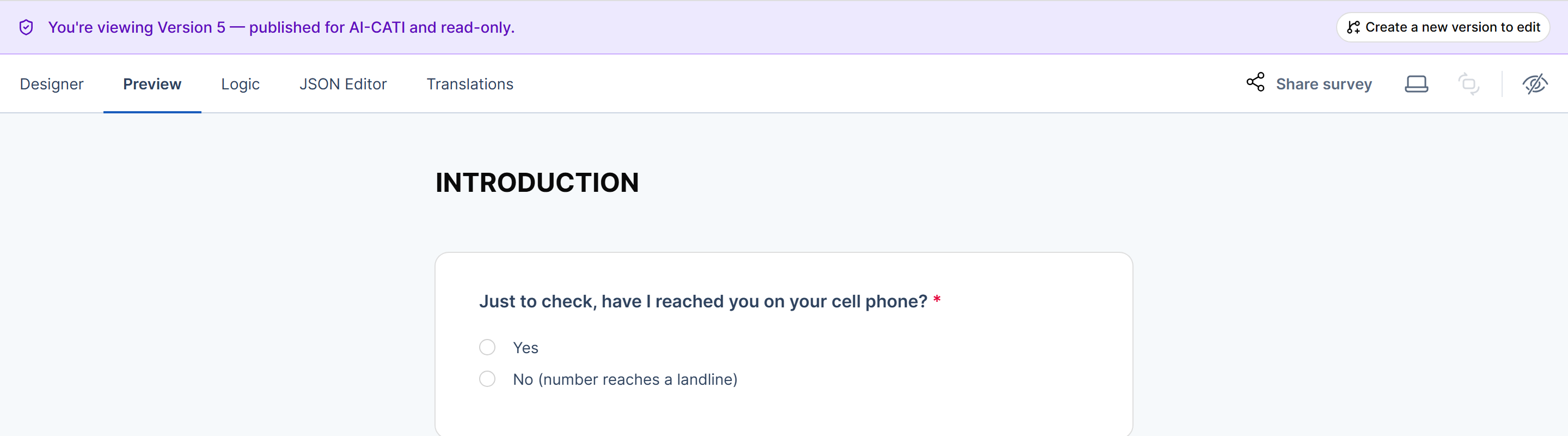
Go to the Preview tab
In the editor, select the Preview tab above the canvas.
2
Select Share survey
Select Share survey in the Preview toolbar.
Who Can Open the Link
The top of the dialog controls access to the link.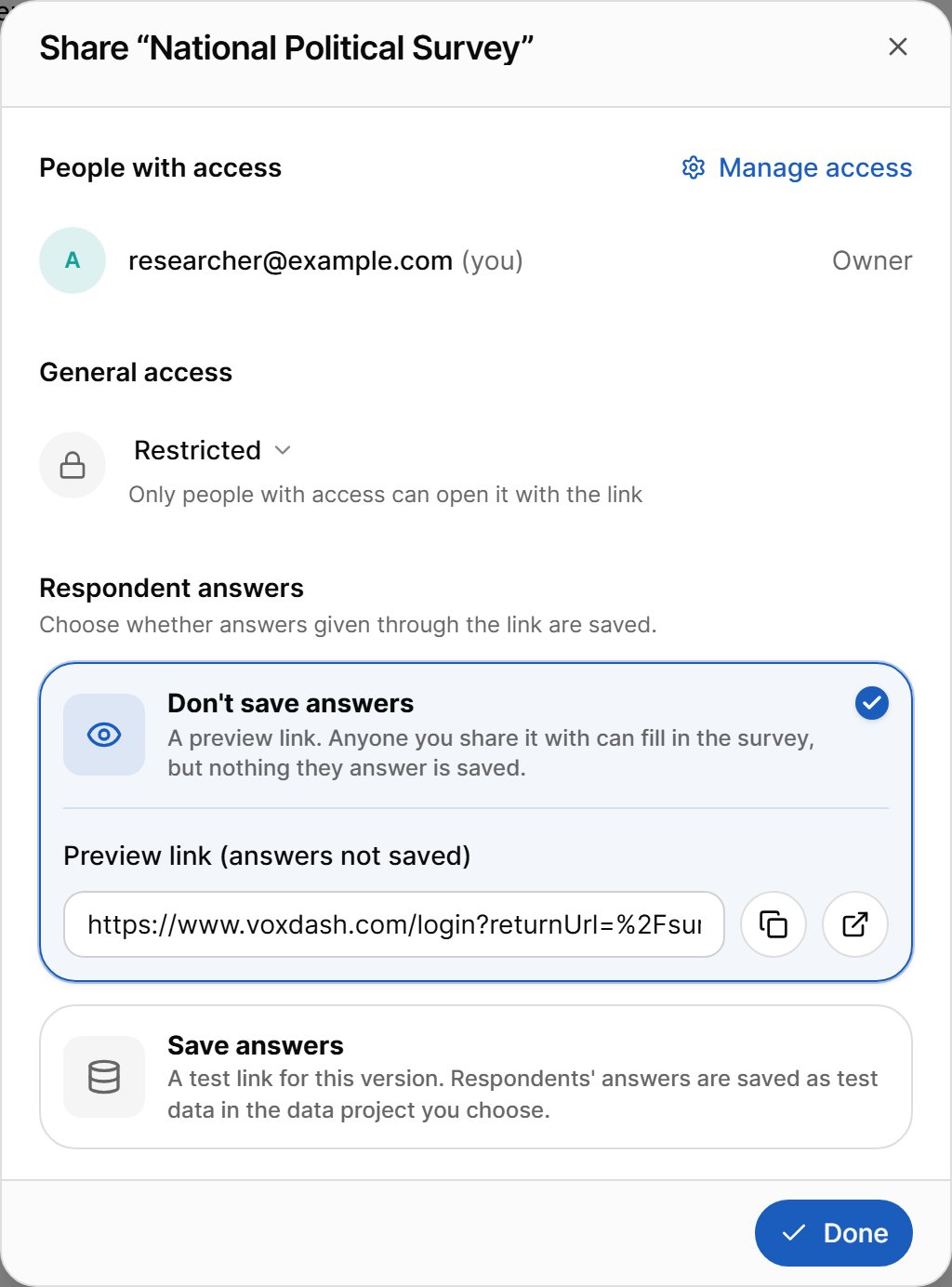
- People with access lists the people who already have access, with their role. Select Manage access to add or remove people and groups.
- General access sets who can open the link:
- Restricted — only people with access can open it.
- Anyone with the link — anyone on the internet with the link can view it.
Share a Preview Link
Under Respondent answers, select Don’t save answers. The Preview link (answers not saved) appears below.- Select the copy icon to copy the link.
- Select the open icon to open it in a new tab.
Start a Test Link
A test link saves the answers given through it as test data in a data project you choose. It always uses the version shown in the dialog (for example, Version: Version 5).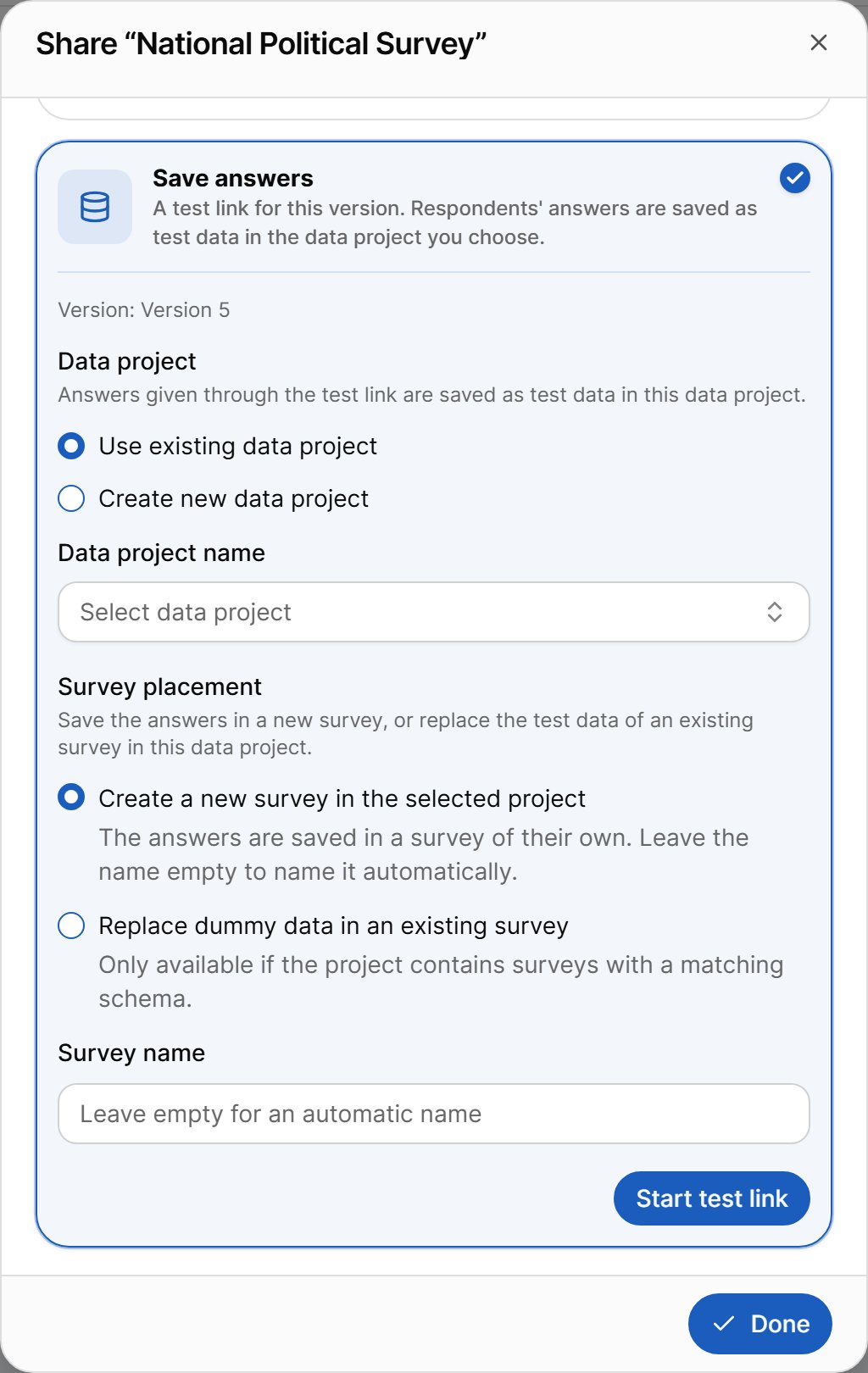
1
Choose Save answers
Under Respondent answers, select Save answers.
2
Choose the data project
Under Data project, select Use existing data project and pick one, or select Create new data project and enter a name.
3
Choose where the answers go
Under Survey placement, choose:
- Create a new survey in the selected project — the answers are saved in a survey of their own. Enter a Survey name, or leave it empty to name it automatically.
- Replace dummy data in an existing survey — reuse an existing survey. Only available if the data project contains surveys with a matching structure.
4
Start the test link
Select Start test link. VoxDash prepares the data project and survey; this can take a moment. When it is ready, the test link appears with a shortcut to open the data project.
- If the version is still a draft, the dialog warns you. Answers collected now are tied to that draft; later edits can make them differ from the questionnaire you finally publish. Consider saving or publishing a version first.
- Starting a new test link for the same version asks you to confirm, because it replaces the existing test link.
- Test links count toward your plan. If your plan doesn’t allow it, you will see a message with an upgrade link.
Use Test Responses
Once people have answered through the test link, you can:- open the data project to see the test data,
- export the answers from the editor with the SPSS test responses or PDF test responses formats. These formats are available only after the version’s test link has been started and answered. See Export.
Related Pages
- Preview Tab — test the questionnaire yourself.
- Dummy Data Generation — create simulated responses instead of real test answers.
- Team & Permissions — manage who can access the questionnaire.